> ## Documentation Index
> Fetch the complete documentation index at: https://docs.cassidyai.com/llms.txt
> Use this file to discover all available pages before exploring further.
# Call a Workflow
> Let Agents trigger and run Workflows during conversations to automate complex tasks.
Call Workflow lets your [Agent](/agents/overview) run [Workflows](/workflows/overview) during a conversation. When a user's request is relevant to a connected Workflow, the Agent automatically decides to trigger it, collects the required inputs, and runs the Workflow — sending emails, updating records, generating documents, or any other multi-step automation.
## Add Workflows to an Agent
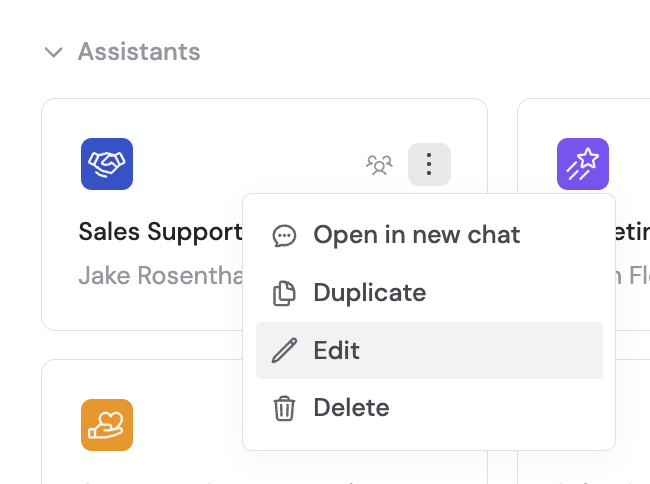
Go to **Agents**, find the Agent you want to configure, and click **Edit**.
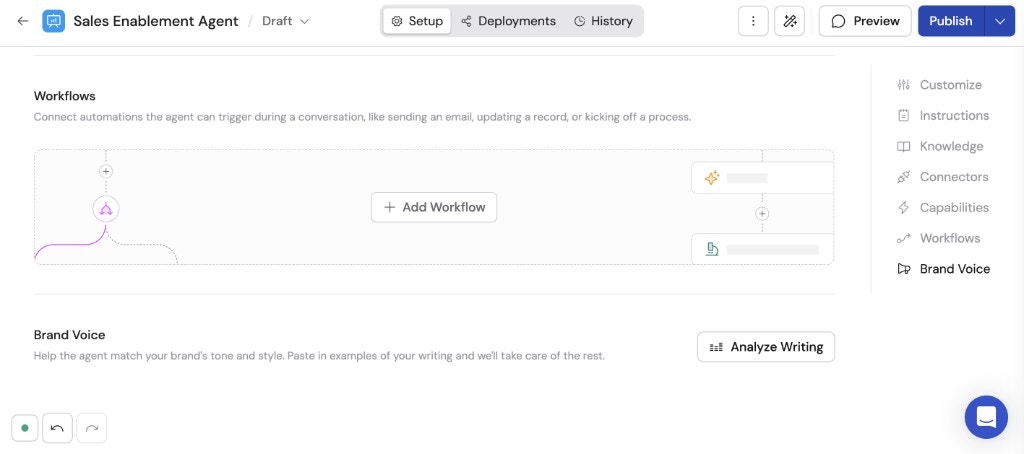
 In the **Setup** tab, scroll to the **Workflows** section and click **+ Add Workflow**. Browse and select the published Workflows you want the Agent to be able to trigger. You can add multiple Workflows to a single Agent.
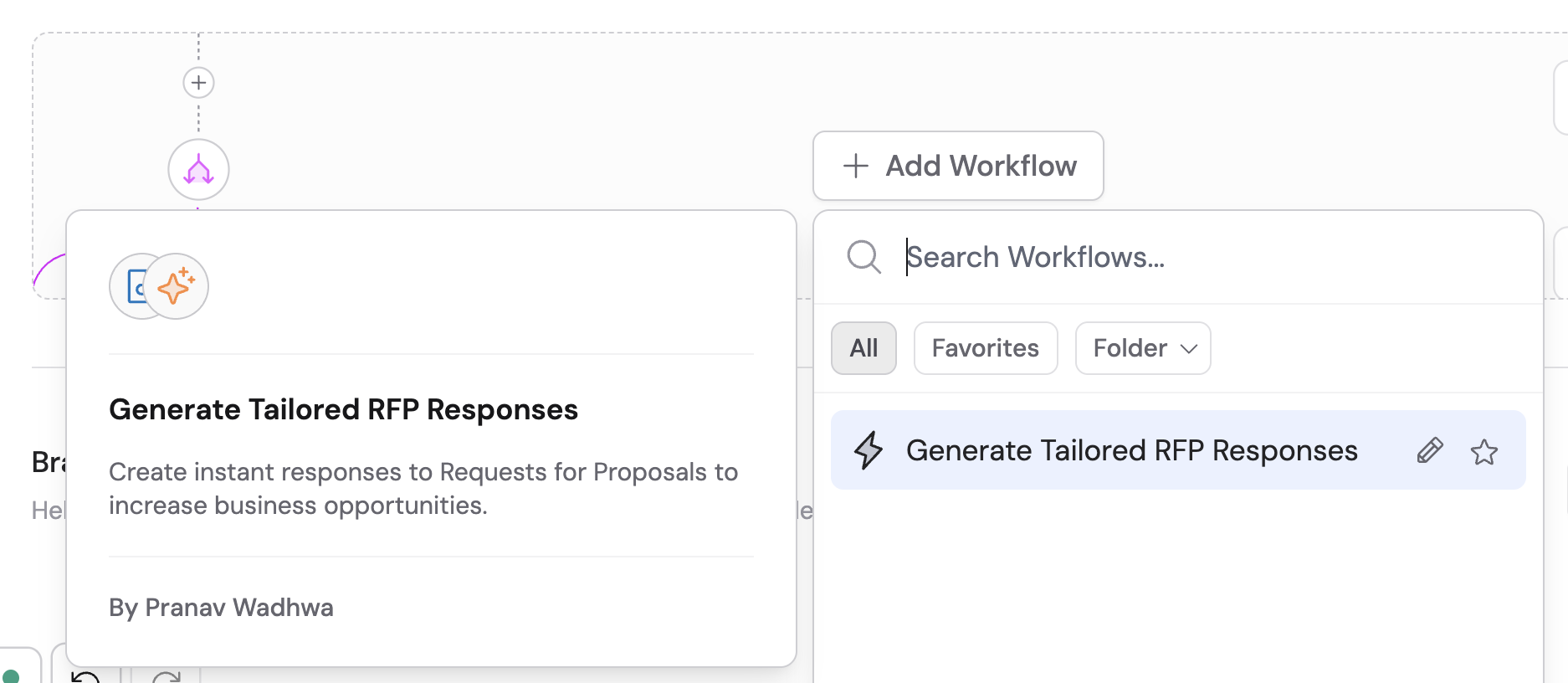
 Choose from your published Workflows. The Agent uses each Workflow's name and description to understand what it does and when to use it.
 Click **Publish** to make the Workflows available in conversations.
## How it works
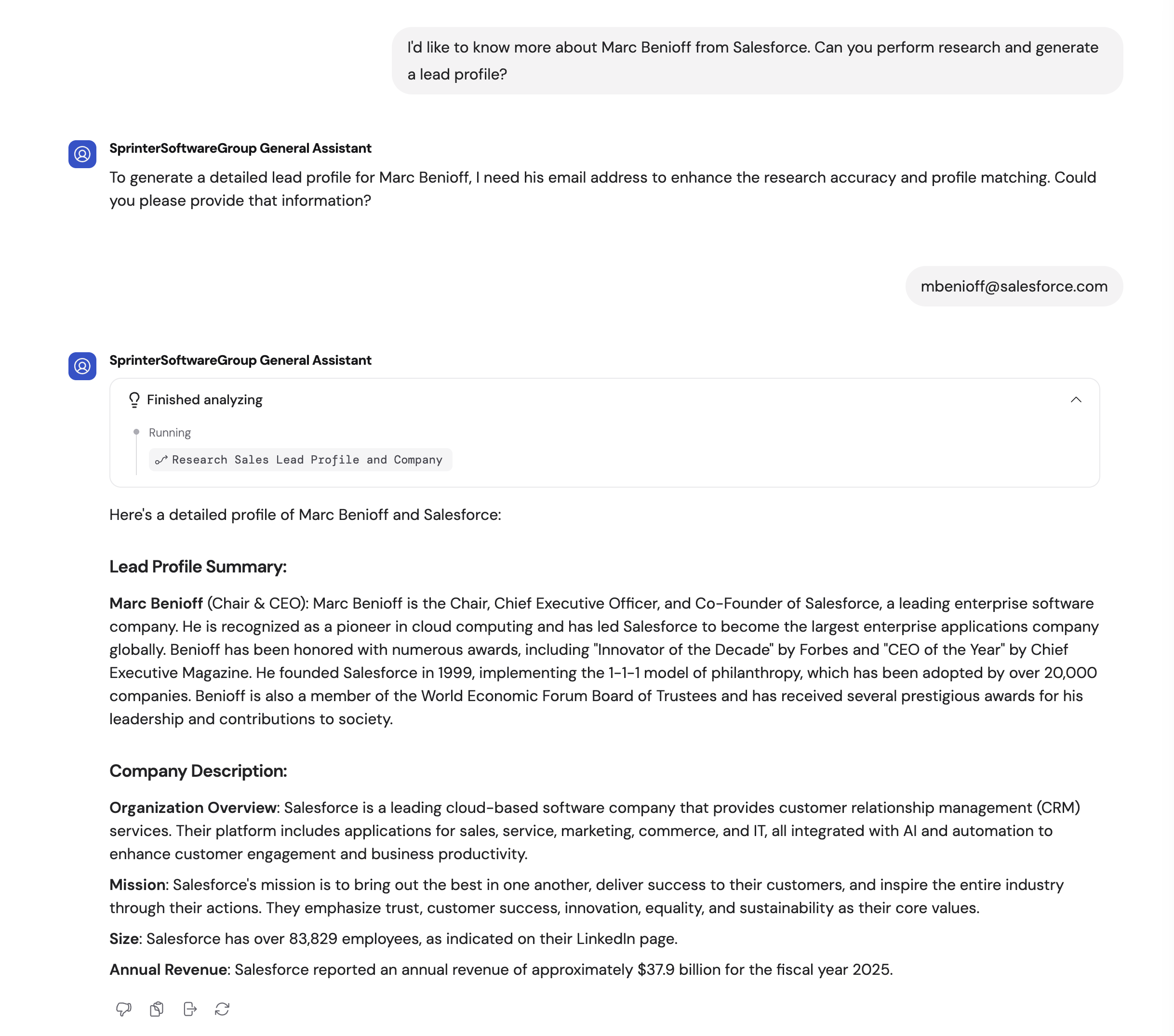
Once Workflows are connected, the Agent autonomously decides when to trigger them based on the conversation context. This isn't a keyword match — the Agent reads the user's intent, evaluates which connected Workflow is relevant (if any), and decides whether to call it.
1. The user makes a request that's relevant to a connected Workflow (e.g., "Send a follow-up email to the prospect").
2. The Agent determines which Workflow fits the request, then asks the user for any required inputs.
3. The Agent runs the Workflow and reports the results back in the conversation.
Click **Publish** to make the Workflows available in conversations.
## How it works
Once Workflows are connected, the Agent autonomously decides when to trigger them based on the conversation context. This isn't a keyword match — the Agent reads the user's intent, evaluates which connected Workflow is relevant (if any), and decides whether to call it.
1. The user makes a request that's relevant to a connected Workflow (e.g., "Send a follow-up email to the prospect").
2. The Agent determines which Workflow fits the request, then asks the user for any required inputs.
3. The Agent runs the Workflow and reports the results back in the conversation.
 Add clear, descriptive names and descriptions to your Workflows — the Agent relies on these to understand when each Workflow should be used. The more context you provide in the Workflow's name and description, the better the Agent is at deciding when to trigger it.
## Next steps
Create the Workflows your Agent will trigger.
Learn about all the settings you can configure on an Agent.
Add clear, descriptive names and descriptions to your Workflows — the Agent relies on these to understand when each Workflow should be used. The more context you provide in the Workflow's name and description, the better the Agent is at deciding when to trigger it.
## Next steps
Create the Workflows your Agent will trigger.
Learn about all the settings you can configure on an Agent.