> ## Documentation Index
> Fetch the complete documentation index at: https://docs.cassidyai.com/llms.txt
> Use this file to discover all available pages before exploring further.
# Browser use
> Enable Agents to browse websites and interact with web pages to complete tasks.
The Browser Use capability lets your [Agent](/agents/overview) automate interactive web tasks in a live browser — navigating pages, clicking buttons, filling out forms, and extracting data. Use it for tasks that require interacting with websites that don't have APIs, like government portals, vendor platforms, or dynamic search interfaces.
Browser Use works within Agents and can also be called by [Workflows](/workflows/overview) for more complex multi-step automations.
## Enable Browser Use
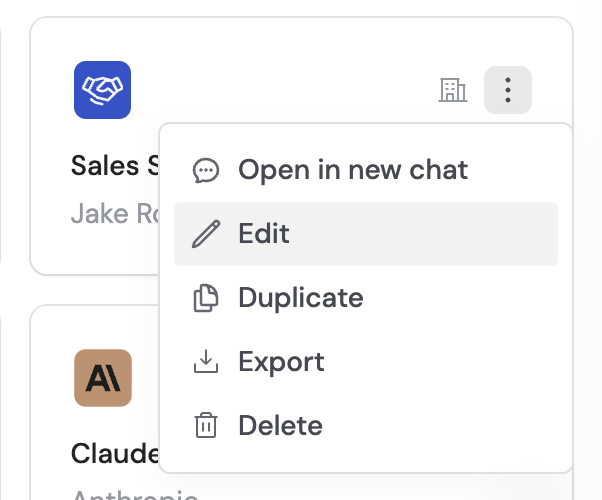
Go to **Agents**, find the Agent you want to configure, click the **⋯** menu, and select **Edit**.
 In the **Setup** tab, scroll to **Capabilities**, click **+ Add**, and select **Browser Use**.
 Click **Publish** to make the capability available.
## How to use it
Open a chat and select an Agent that has Browser Use enabled.
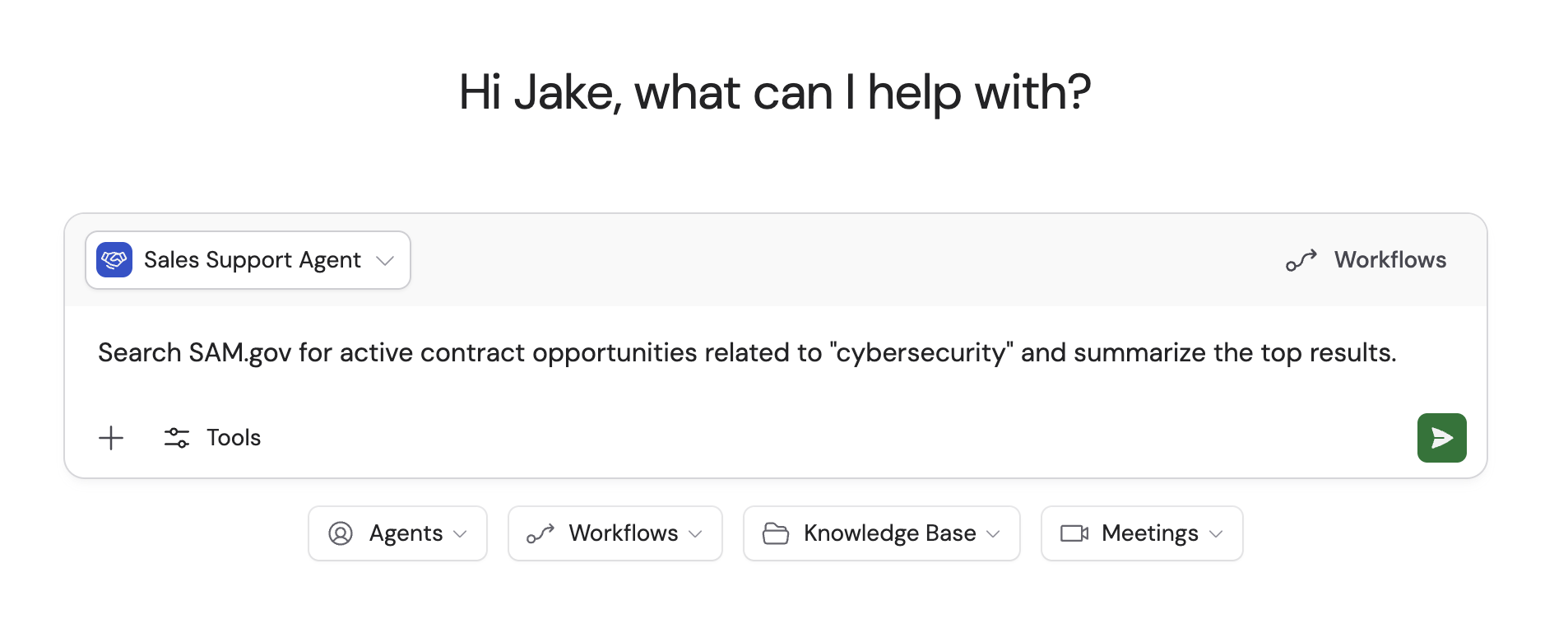
Type a message that requires interactive web browsing — for example, "Search SAM.gov for active contract opportunities related to cybersecurity."
Click **Publish** to make the capability available.
## How to use it
Open a chat and select an Agent that has Browser Use enabled.
Type a message that requires interactive web browsing — for example, "Search SAM.gov for active contract opportunities related to cybersecurity."
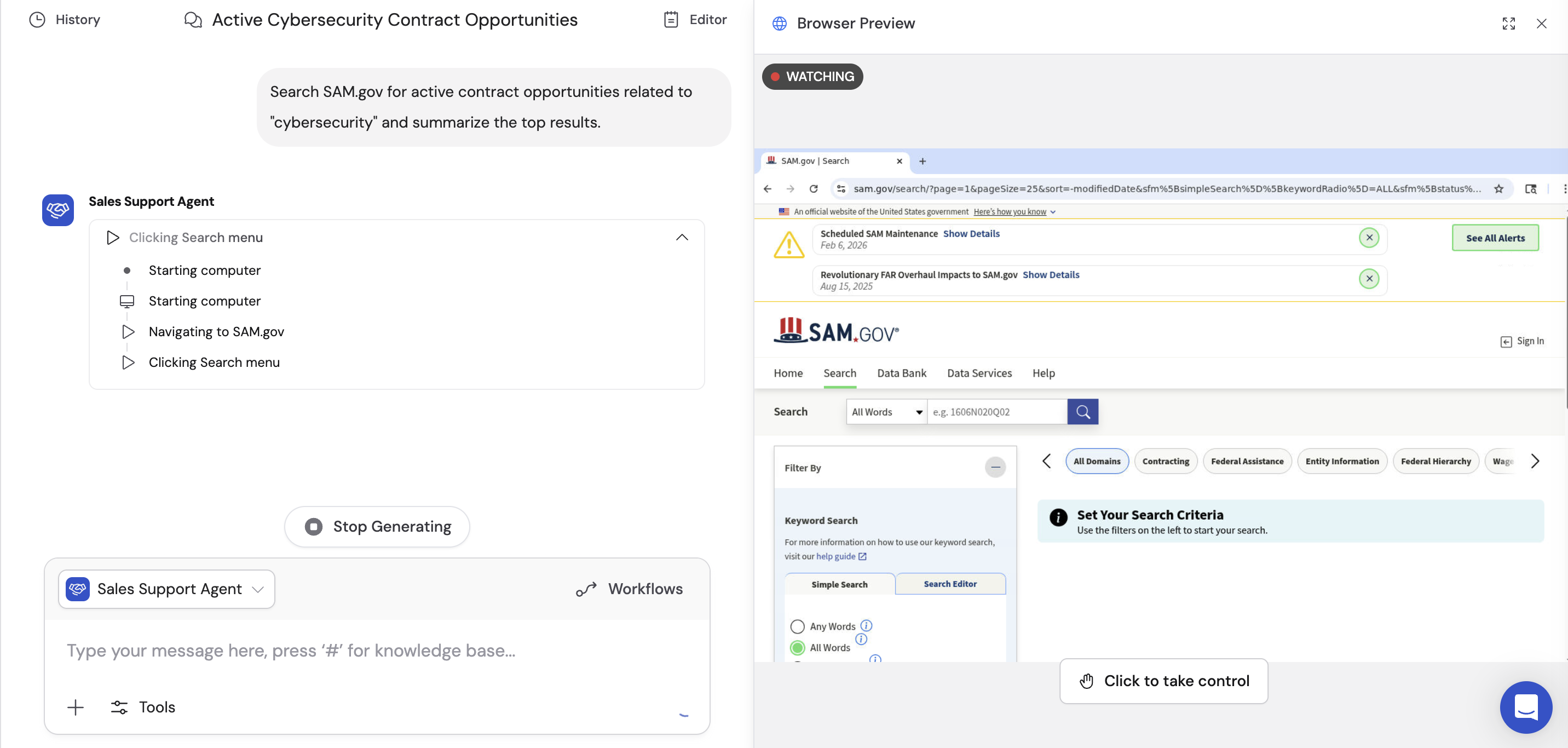
 The Agent opens a live browser session and shows real-time status updates as it navigates, clicks, and extracts data. Click the status dropdown to expand the list of steps, then click the latest step to open a side-by-side browser preview.
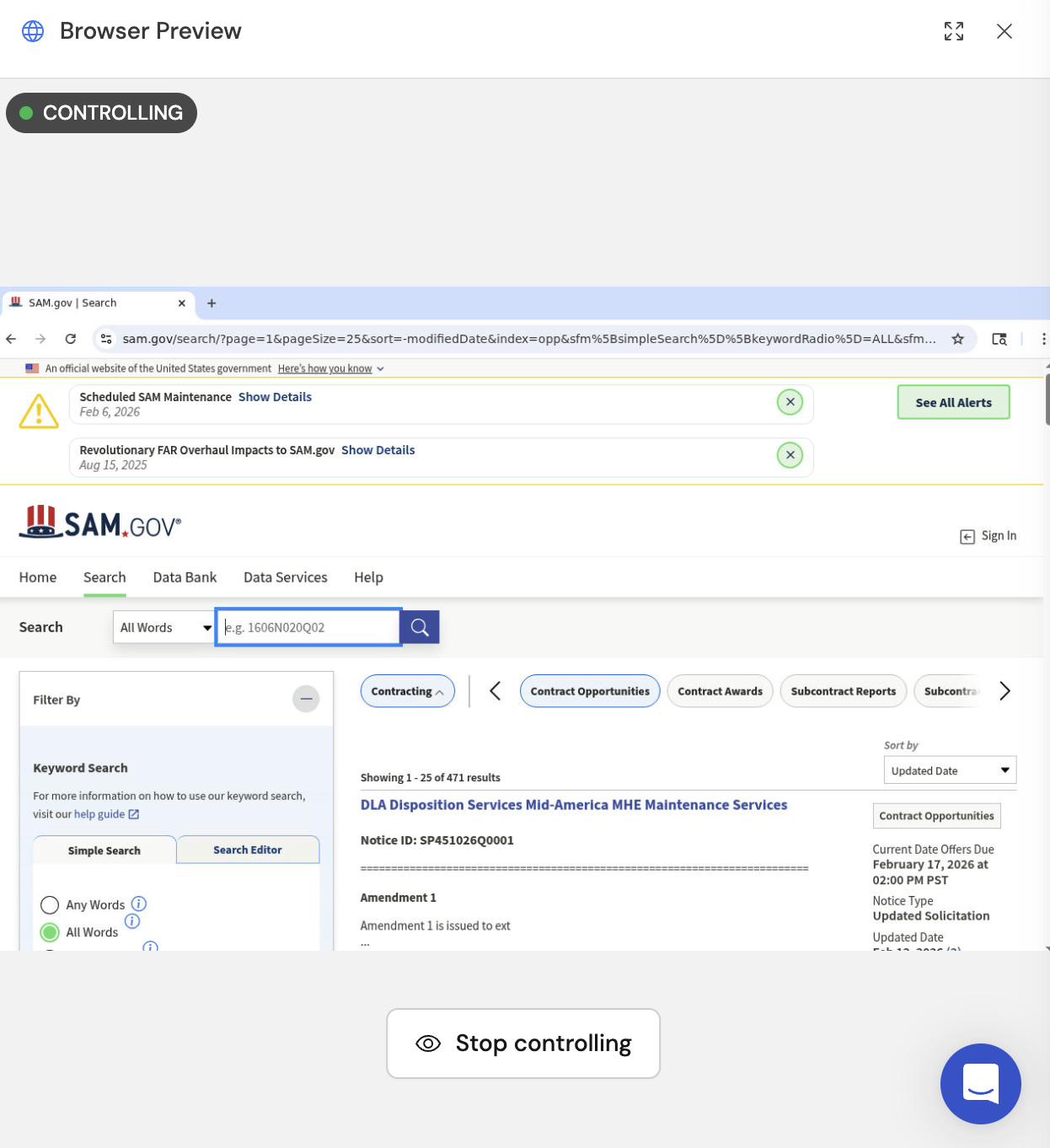
 If you need to manually guide the session — for example, to solve a CAPTCHA — click **Click to take control** to interact with the browser directly.
 When the Agent finishes, click the **Finished analyzing** dropdown to see the full sequence of actions it performed.
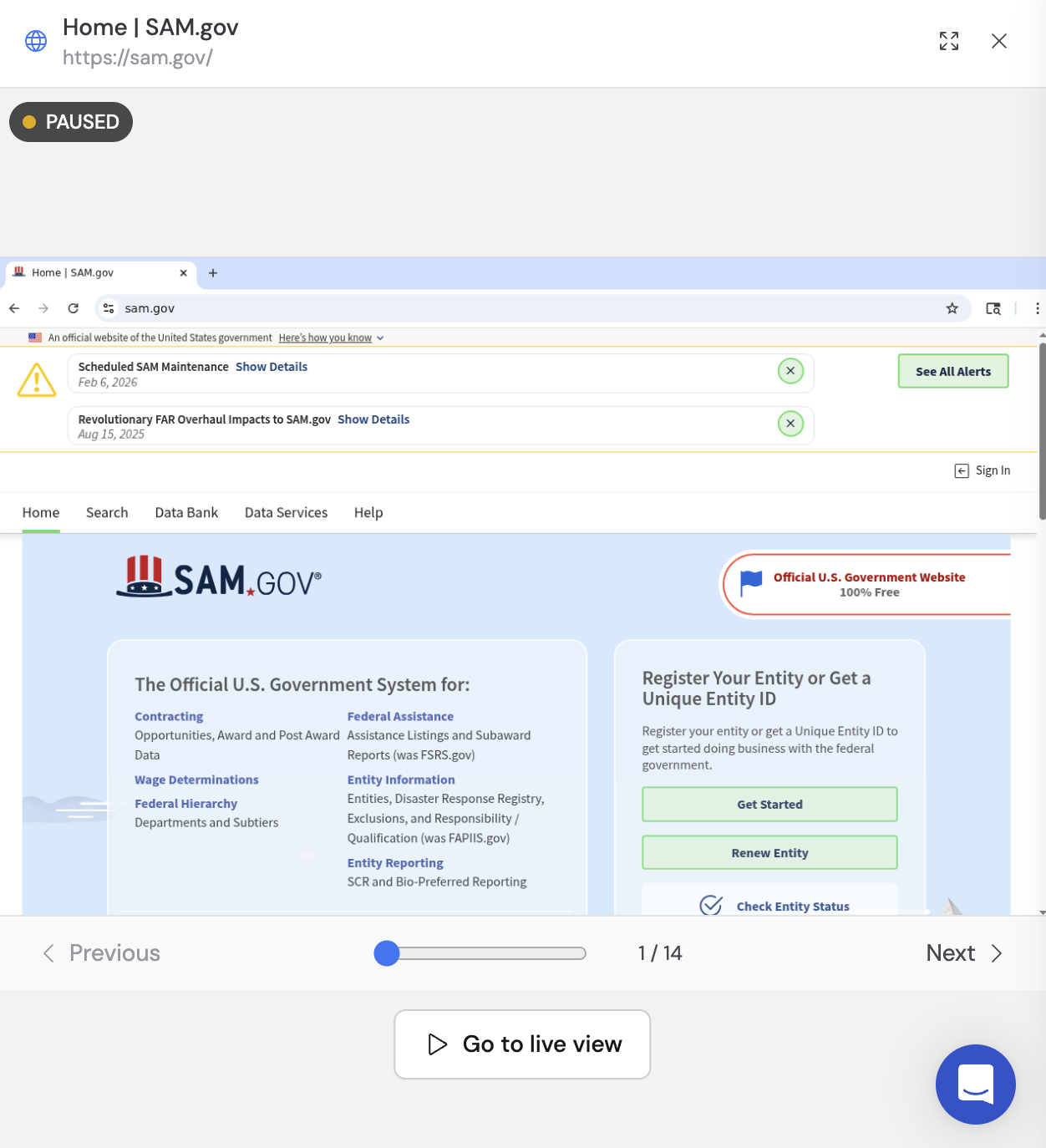
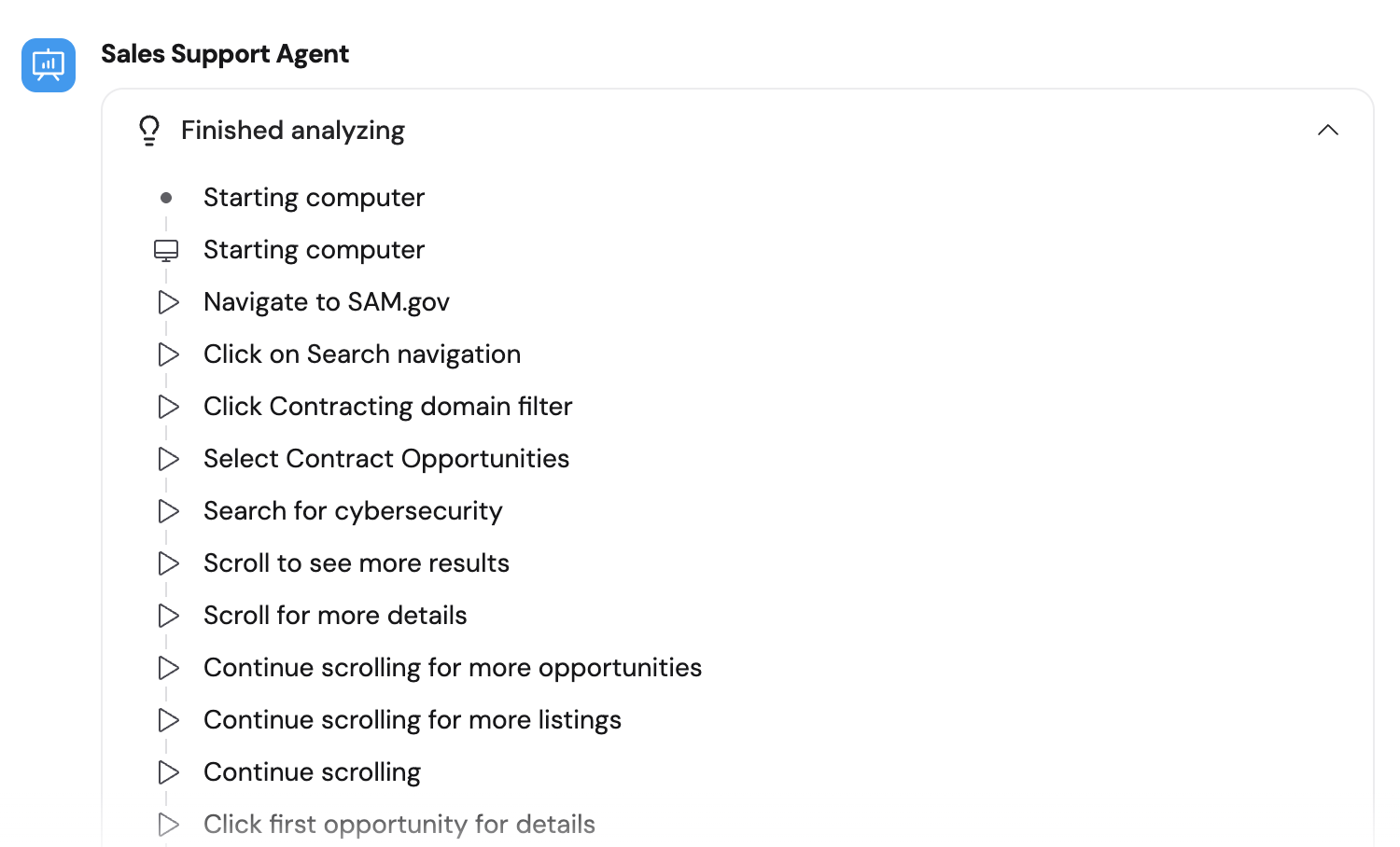 Click any individual step to see a screenshot of what the browser looked like at that point. Use the **Previous** and **Next** buttons to navigate between steps, with a step counter (e.g. "1 / 14") showing your position.
 ## Use cases
* **Government portals** — Search SAM.gov, SEC filings, or other public databases.
* **Vendor and supplier platforms** — Look up pricing, availability, or order status on supplier websites.
* **Dynamic search interfaces** — Navigate search UIs that require filling in forms and clicking through results.
* **Form submission** — Fill out and submit web forms on behalf of your team.
* **Competitive intelligence** — Browse competitor websites to gather pricing, feature, or positioning data.
## Browser Use vs. Web Search
| Feature | [Web Search](/agents/capabilities/web-search) | Browser Use |
| ---------------- | -------------------------------------------------- | --------------------------------------------------------- |
| **Best for** | Quick lookups and reading publicly available pages | Interactive tasks requiring clicks, forms, and navigation |
| **How it works** | Searches and reads web pages | Opens a live browser and interacts with pages |
| **Speed** | Fast | Slower (requires browser rendering and interaction) |
| **When to use** | Simple page reading and information lookup | Dynamic websites that require interaction to access data |
Use [Web Search](/agents/capabilities/web-search) for simple page reading and Browser Use for interactive tasks. If you just need to read content from a URL, Web Search is faster.
## Next steps
Search the internet for real-time information without a full browser.
Run multi-step research combining web search and Knowledge Base.
## Use cases
* **Government portals** — Search SAM.gov, SEC filings, or other public databases.
* **Vendor and supplier platforms** — Look up pricing, availability, or order status on supplier websites.
* **Dynamic search interfaces** — Navigate search UIs that require filling in forms and clicking through results.
* **Form submission** — Fill out and submit web forms on behalf of your team.
* **Competitive intelligence** — Browse competitor websites to gather pricing, feature, or positioning data.
## Browser Use vs. Web Search
| Feature | [Web Search](/agents/capabilities/web-search) | Browser Use |
| ---------------- | -------------------------------------------------- | --------------------------------------------------------- |
| **Best for** | Quick lookups and reading publicly available pages | Interactive tasks requiring clicks, forms, and navigation |
| **How it works** | Searches and reads web pages | Opens a live browser and interacts with pages |
| **Speed** | Fast | Slower (requires browser rendering and interaction) |
| **When to use** | Simple page reading and information lookup | Dynamic websites that require interaction to access data |
Use [Web Search](/agents/capabilities/web-search) for simple page reading and Browser Use for interactive tasks. If you just need to read content from a URL, Web Search is faster.
## Next steps
Search the internet for real-time information without a full browser.
Run multi-step research combining web search and Knowledge Base.