> ## Documentation Index
> Fetch the complete documentation index at: https://docs.cassidyai.com/llms.txt
> Use this file to discover all available pages before exploring further.
# Image generation
> Enable Agents to generate images from text descriptions during conversations.
The Image Generation capability lets your [Agent](/agents/overview) create and edit images from text descriptions directly in a conversation. Use it for marketing visuals, social media graphics, concept mockups, presentations, and more.
## Enable Image Generation
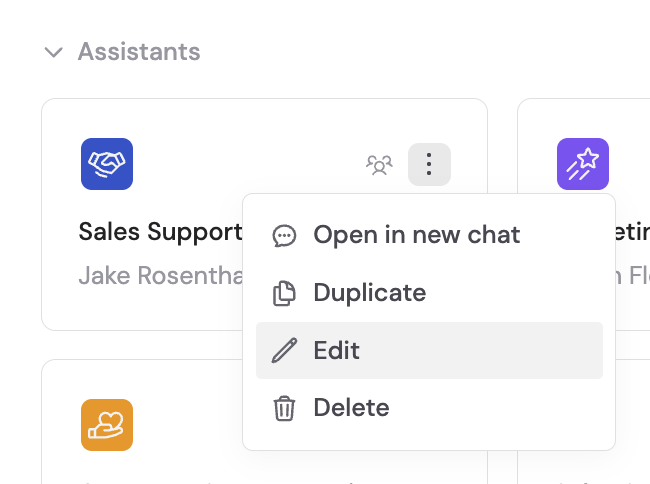
Go to **Agents**, find the Agent you want to configure, click the **⋯** menu, and select **Edit**.
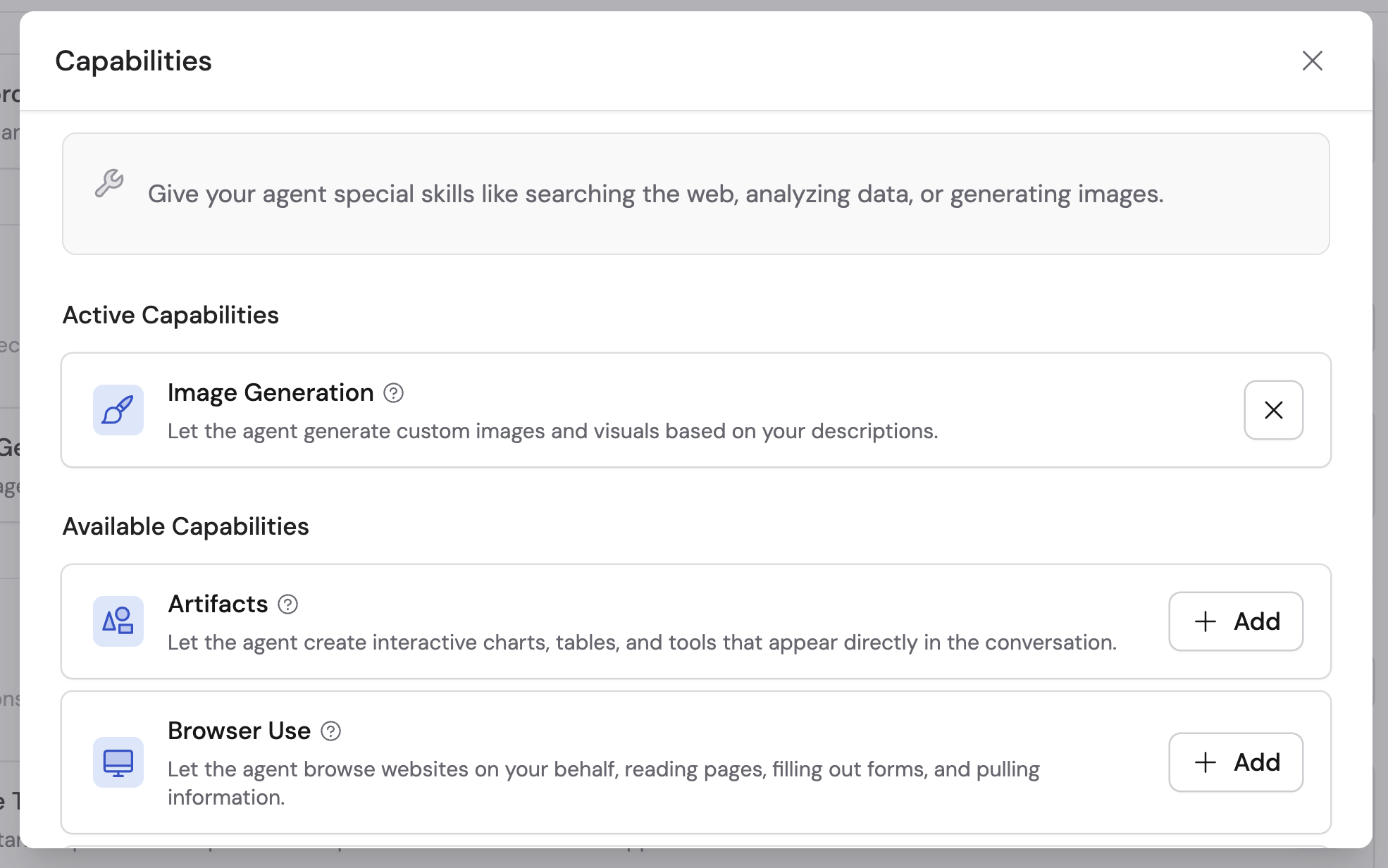
 In the **Setup** tab, scroll to **Capabilities**, click **+ Add Capabilities**, and select **Image Generation**.
 Click **Publish** to make the capability available in conversations.
## How to use it
Once enabled, start a conversation with your Agent and describe the image you want. The Agent creates custom images, modifies existing ones, and works with uploaded images to meet your creative needs.
* **Generate from a description** — Describe what you want and the Agent creates it. Be specific about style, colors, composition, and content for best results.
* **Edit a generated image** — After the Agent generates an image, follow up with changes like adjusting colors, adding elements, or changing the style.
* **Upload a starting image** — Attach an image in the chat (see [Upload files and media](/guides/chatting-with-an-agent#upload-files-and-media)) and ask the Agent to modify or build on it.
Click **Publish** to make the capability available in conversations.
## How to use it
Once enabled, start a conversation with your Agent and describe the image you want. The Agent creates custom images, modifies existing ones, and works with uploaded images to meet your creative needs.
* **Generate from a description** — Describe what you want and the Agent creates it. Be specific about style, colors, composition, and content for best results.
* **Edit a generated image** — After the Agent generates an image, follow up with changes like adjusting colors, adding elements, or changing the style.
* **Upload a starting image** — Attach an image in the chat (see [Upload files and media](/guides/chatting-with-an-agent#upload-files-and-media)) and ask the Agent to modify or build on it.
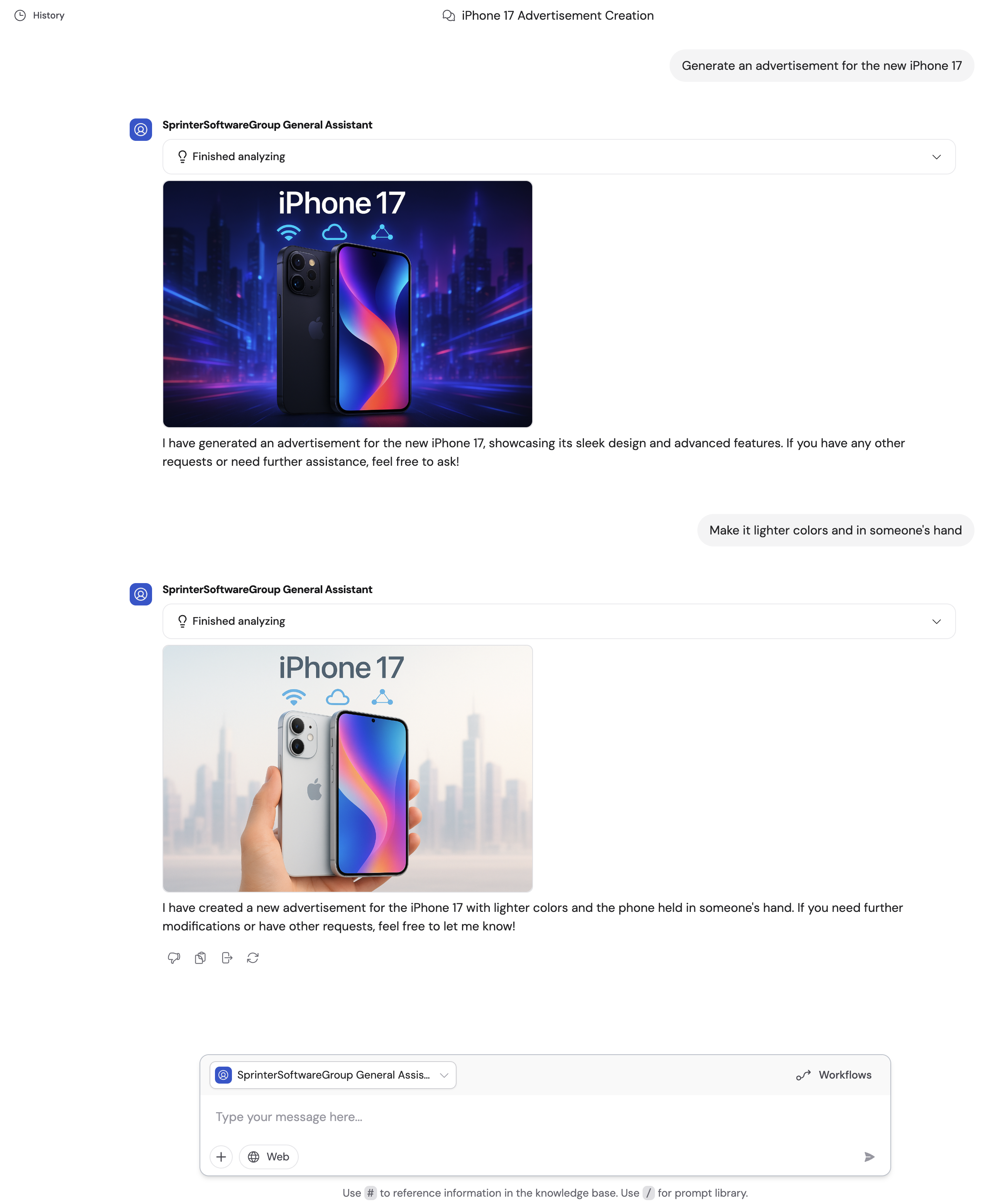 The more specific your description, the better the result. Include details about style (photorealistic, illustration, flat design), mood (professional, playful, minimalist), colors, and composition.
## Next steps
Build interactive dashboards, reports, and prototypes.
Learn all the ways to create and export files from Cassidy.
The more specific your description, the better the result. Include details about style (photorealistic, illustration, flat design), mood (professional, playful, minimalist), colors, and composition.
## Next steps
Build interactive dashboards, reports, and prototypes.
Learn all the ways to create and export files from Cassidy.