> ## Documentation Index
> Fetch the complete documentation index at: https://docs.cassidyai.com/llms.txt
> Use this file to discover all available pages before exploring further.
# Overview of Connectors
> Learn what Agent Connectors are and how they let Agents read and write data in external tools.
Connectors let your [Agents](/agents/overview) interact with external business tools in real time. Unlike [Knowledge Base](/knowledge-base/overview) integrations that sync content into Cassidy for semantic search, Connectors query live data directly — nothing is copied or stored. Your Agent can look up a contact in HubSpot, run a Snowflake query, or update a Salesforce record, all within a conversation.
## How Connectors differ from other integrations
Cassidy has three types of [integrations](/integrations/overview), each serving a different purpose:
| Type | Purpose | Data handling |
| ----------------------------------------------------------- | ------------------------------------------------------------------------- | ----------------------------------------------------------- |
| **Connectors** | Agents read and write live data in external tools during conversations | Data is queried in real time — nothing is stored in Cassidy |
| **[Knowledge Base](/knowledge-base/overview) integrations** | Sync documents and content into Cassidy for AI-powered search | Content is imported and indexed for semantic search |
| **[Workflow](/workflows/overview) integrations** | Trigger repeatable automations and perform actions as steps in a Workflow | Data flows through the Workflow at execution time |
**Connectors vs. Knowledge Base integrations** — Knowledge Base integrations import and index content so your Agents can search it semantically. Connectors skip the import entirely and query the external system live, which means results are always up to date but limited to what the external API exposes.
**Connectors vs. Workflow integrations** — [Workflow](/workflows/overview) integrations connect apps for repeatable, multi-step automations that run on a schedule or in response to a trigger. Connectors are for ad-hoc, real-time queries that happen naturally during a conversation with an Agent.
## Available Connectors
Connect custom MCP servers to give Agents access to any external system through standardized tool interfaces.
Search meeting transcripts, read AI summaries, and reference discussions with timestamped citations.
Search and retrieve contacts, deals, companies, and tickets from your HubSpot CRM.
Read and write records, opportunities, accounts, and cases in Salesforce.
Read and write records across your Airtable bases and tables.
Query your Snowflake data warehouse directly from a conversation.
Look up and manage tasks, projects, and subtasks in Asana.
Query your BigQuery data warehouse directly from a conversation.
View, create, and update calendar events from a conversation.
Read and write data in Google Sheets spreadsheets.
Read and manage items, boards, and updates in Monday.com.
Search, create, and manage ServiceNow records and incidents.
## MCP (Model Context Protocol)
For systems that don't have a native Connector, you can connect any external tool using MCP. Admins register MCP servers, scope access per user or group, and control permissions on every tool the server exposes. All actions are logged and data is accessed in real time, never stored.
Register MCP servers and add them to your Agents.
## Connection methods
When you add a Connector, you choose how users authenticate with the external tool.
* **Per-user connection** (recommended) — Each user connects their own account when they first interact with the Connector. The Connector respects that user's individual permissions in the external tool, so everyone only sees data they're authorized to access.
* **Shared connection** — An admin connects a single account that all users go through. This gives the team centralized access to the same data without requiring individual sign-ins, but everyone shares the same permission level.
Per-user connections are the best choice for most teams. They ensure data access is scoped to each person's role and permissions in the external tool.
## Permission controls
For Connectors that support both reading and writing data, you can control what the Agent is allowed to do. Configure each available action with one of three permission levels:
* **Always Allow** — The Agent can perform the action without asking. Best for low-risk read operations.
* **Needs Approval** — The Agent asks the user for approval before performing the action. Best for write operations where you want a human in the loop.
* **Disabled** — The Agent cannot perform the action at all.
Review permission settings carefully for write-enabled Connectors like Salesforce and Airtable. Setting write actions to **Needs Approval** ensures a human reviews changes before they're made in your external tool.
## Add a Connector to an Agent
Go to **Agents**, find the Agent you want to configure, and click **Edit**.
In the **Setup** tab, scroll to the **Connectors** section and click **+ Add**.
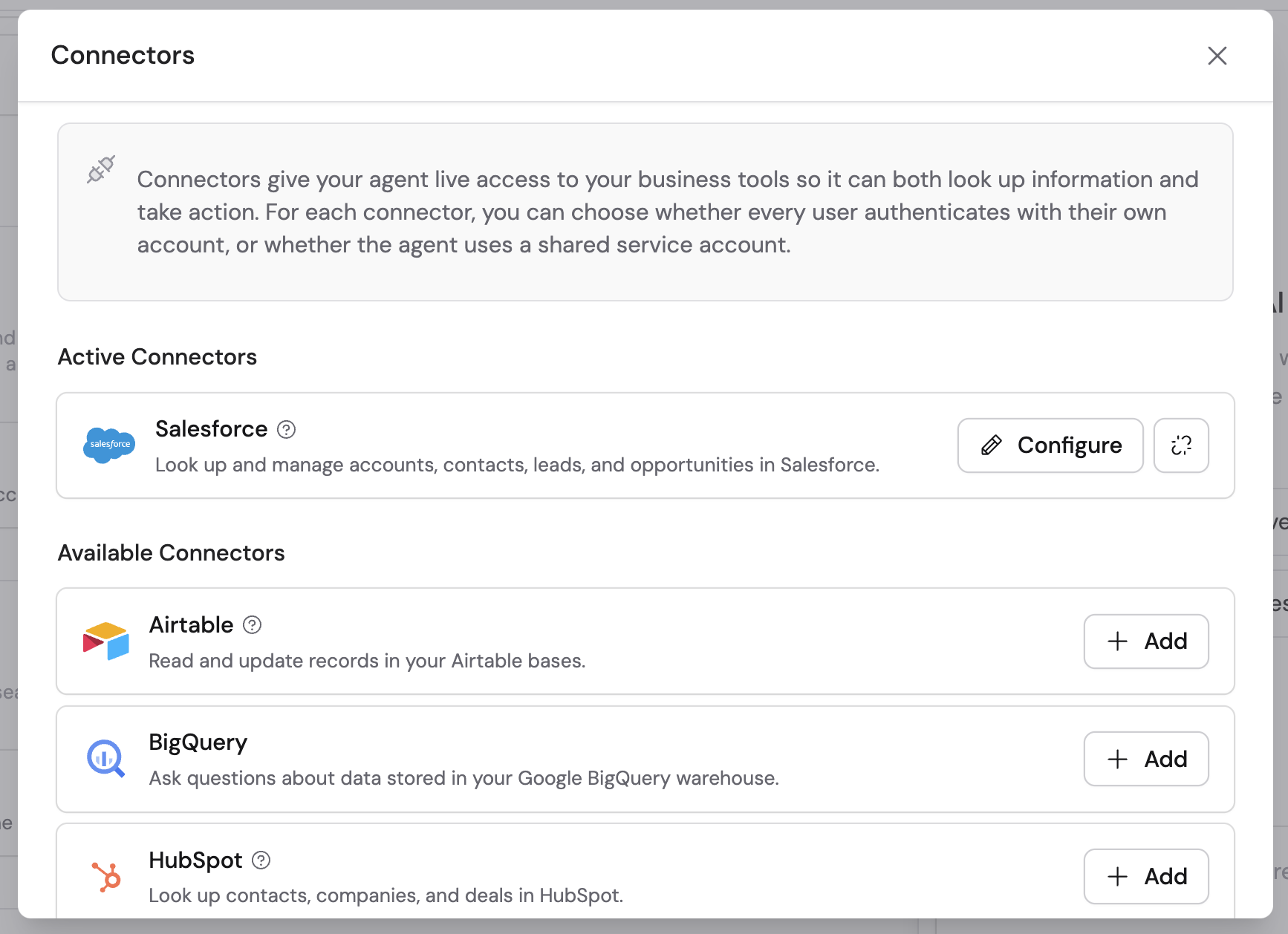 Choose the Connector you want to enable from the dropdown.
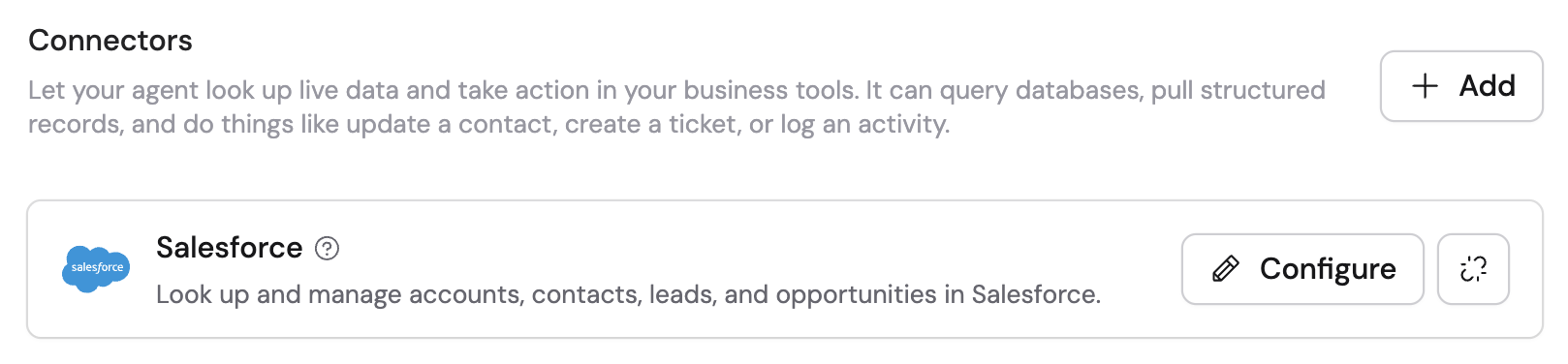 Choose a connection method:
* **Per-user connection** — Each user connects their own account.
* **Shared connection** — An admin connects a shared account for the team.
For each available action, choose one of:
* **Always Allow** — The Agent can perform this action without asking.
* **Needs Approval** — The Agent requests approval before performing the action.
* **Disabled** — The Agent cannot perform this action.
Click **Save** or **Publish** to make the Connector available to users.
## Monitor Connector usage
When an Agent uses a Connector during a conversation, you can review what happened by expanding the **Analyzed Sources** section in the chat response. This shows the specific queries and actions the Agent performed, including any data it retrieved or modified.
If an action is set to **Needs Approval**, you'll see an approval prompt in the chat where you can accept or reject the action before it executes.
## Connectors in Workflows
Connectors aren't limited to Agents — you can also add them directly to a [Generate Text](/reference/actions/generate-text) action in a [Workflow](/workflows/overview). This lets the AI query live data from your business tools as part of an automated process, without needing a full Agent.
Choose a connection method:
* **Per-user connection** — Each user connects their own account.
* **Shared connection** — An admin connects a shared account for the team.
For each available action, choose one of:
* **Always Allow** — The Agent can perform this action without asking.
* **Needs Approval** — The Agent requests approval before performing the action.
* **Disabled** — The Agent cannot perform this action.
Click **Save** or **Publish** to make the Connector available to users.
## Monitor Connector usage
When an Agent uses a Connector during a conversation, you can review what happened by expanding the **Analyzed Sources** section in the chat response. This shows the specific queries and actions the Agent performed, including any data it retrieved or modified.
If an action is set to **Needs Approval**, you'll see an approval prompt in the chat where you can accept or reject the action before it executes.
## Connectors in Workflows
Connectors aren't limited to Agents — you can also add them directly to a [Generate Text](/reference/actions/generate-text) action in a [Workflow](/workflows/overview). This lets the AI query live data from your business tools as part of an automated process, without needing a full Agent.
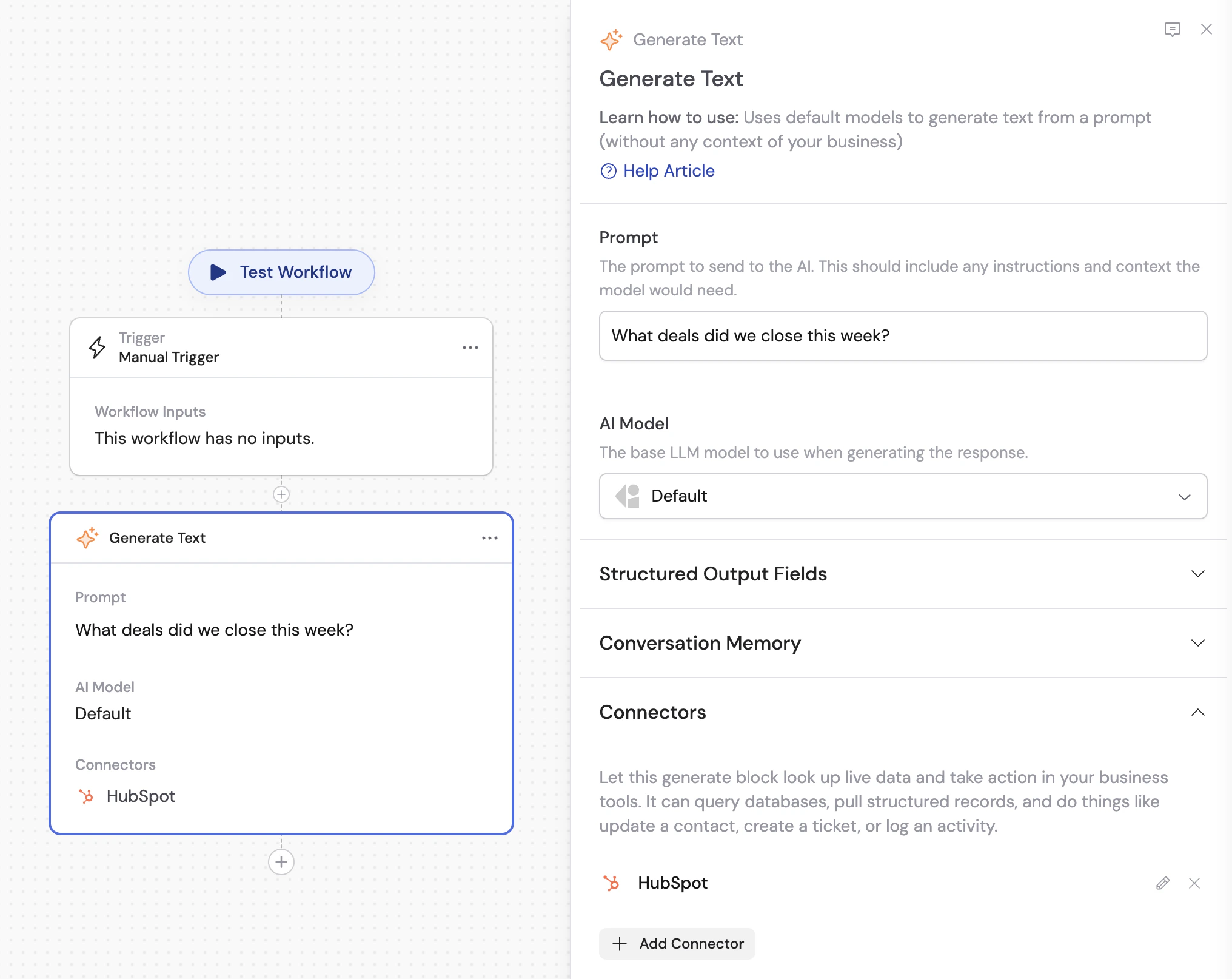 To add a Connector, open the Generate Text action's settings, expand the **Connectors** section, and click **+ Add Connector**.
## Next steps
Understand how Agents use Connectors, Knowledge Base, and Capabilities together.
Add built-in skills like web search, image generation, artifacts, and browser use.
See every app Cassidy connects to and the integration types available.
Create multi-step automations for repeatable processes.
To add a Connector, open the Generate Text action's settings, expand the **Connectors** section, and click **+ Add Connector**.
## Next steps
Understand how Agents use Connectors, Knowledge Base, and Capabilities together.
Add built-in skills like web search, image generation, artifacts, and browser use.
See every app Cassidy connects to and the integration types available.
Create multi-step automations for repeatable processes.