> ## Documentation Index
> Fetch the complete documentation index at: https://docs.cassidyai.com/llms.txt
> Use this file to discover all available pages before exploring further.
# Deploy via email
> Deploy your Agent via email so users can send a message and receive responses directly in their inbox.
Deploy your [Agent](/agents/overview) via email so users can interact with it by sending messages to a dedicated email address and receiving responses directly in their inbox.
Email deployment is useful when:
* Your team already uses a shared email address for questions or requests
* You want to provide answers grounded in your [Knowledge Base](/knowledge-base/overview) without requiring users to log in
* Your users prefer email over chat-based tools
**Prerequisites:** - An [Agent created and published in
Cassidy](/agents/build-and-configure)
## Set up email deployment
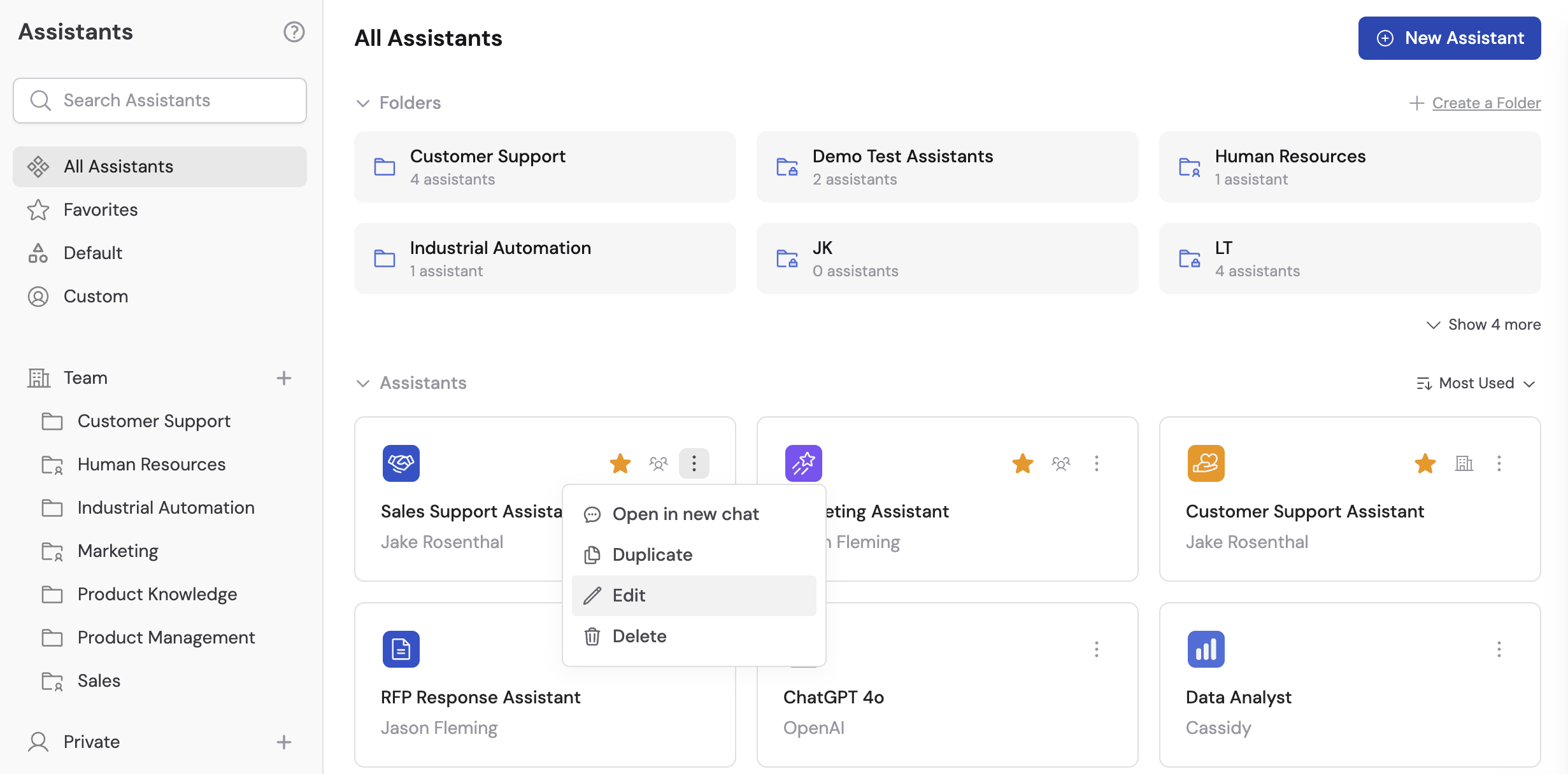
Go to **Agents** and select the Agent you want to deploy via email. Click **Edit** to open the Agent settings.
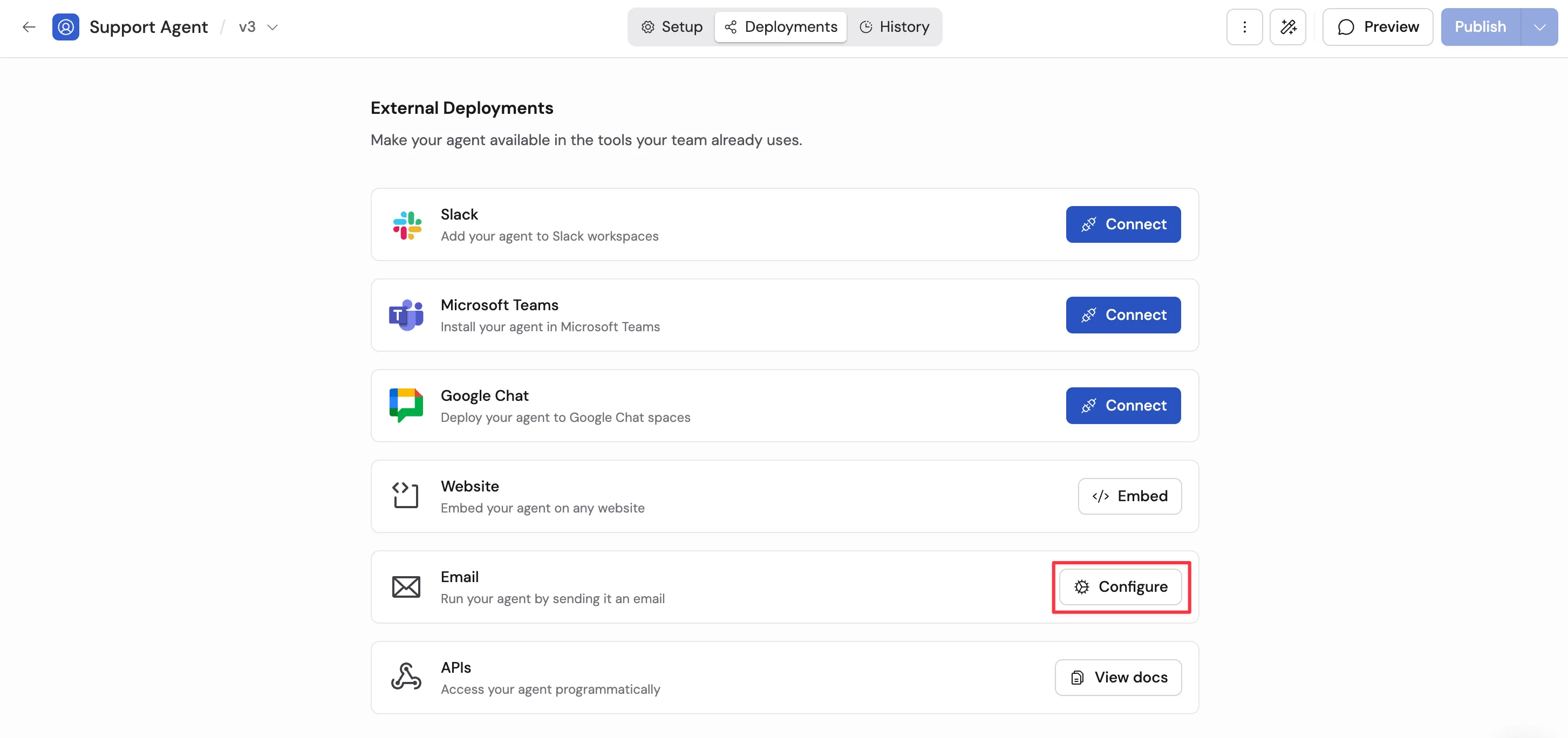
 Navigate to the **Deployments** tab and select **Email**.
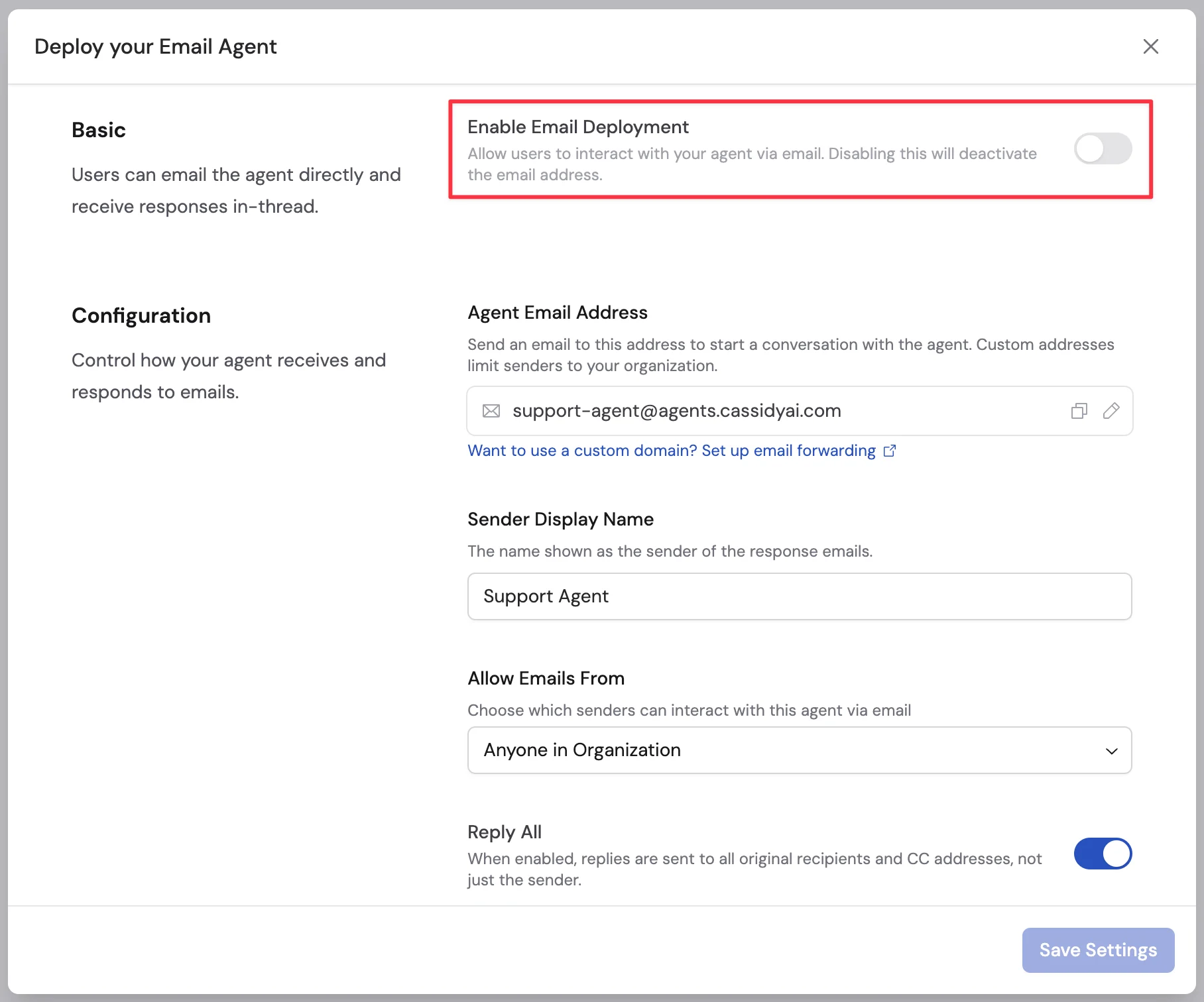
 Toggle on **Enable Email Deployment**. This activates the Agent's email address so it can receive and respond to messages.
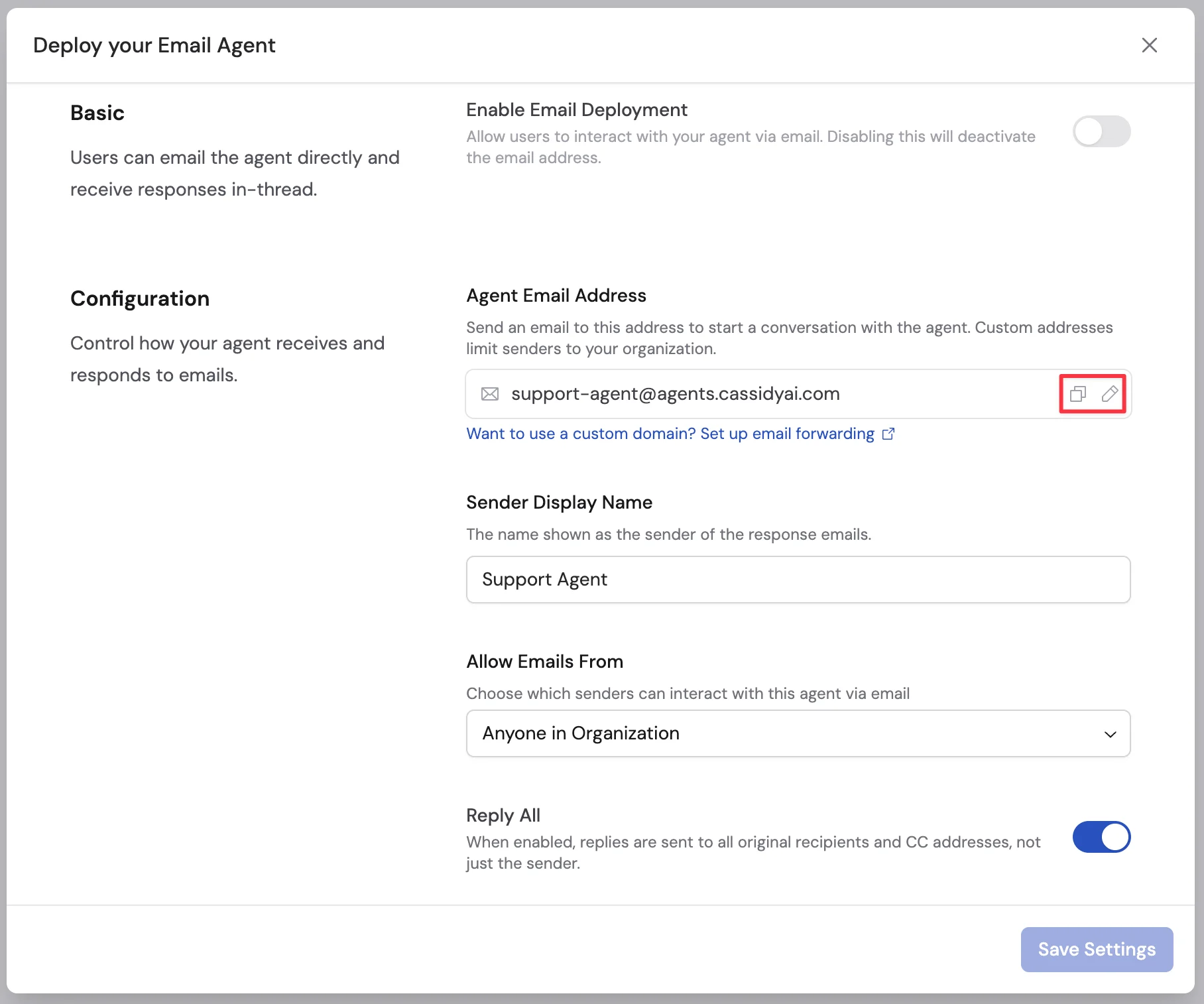
 Your Agent gets a dedicated email address like `your-name@agents.cassidyai.com`. The part before the `@` defaults to your Agent's name (e.g. `sales-enablement@agents.cassidyai.com`) and can be customized.
Using a custom email address (any value other than the Agent's ID) restricts senders to members of your organization. The **Anyone** sender filter is not available when using a custom address, and with **Specific Senders**, only senders who are also members of your organization will be accepted. See [Custom address and organization restrictions](#custom-address-and-organization-restrictions) for details.
Your Agent gets a dedicated email address like `your-name@agents.cassidyai.com`. The part before the `@` defaults to your Agent's name (e.g. `sales-enablement@agents.cassidyai.com`) and can be customized.
Using a custom email address (any value other than the Agent's ID) restricts senders to members of your organization. The **Anyone** sender filter is not available when using a custom address, and with **Specific Senders**, only senders who are also members of your organization will be accepted. See [Custom address and organization restrictions](#custom-address-and-organization-restrictions) for details.
 Enter a **Sender Display Name** — this is the name that appears in the "From"
field when the Agent replies. By default it uses the Agent's name.
Under **Allow Emails From**, select a sender filter:
| Filter | Description |
| -------------------------- | ---------------------------------------------------------------------------------------------- |
| **Anyone** | Accept emails from any sender. Only available when using the Agent's default ID-based address. |
| **Anyone in Organization** | Only accept emails from users who are members of your Cassidy organization |
| **Users with Access** | Only accept emails from Cassidy users who have access to this specific Agent |
| **Specific Senders** | Only accept emails from addresses or domains you specify |
Enter a **Sender Display Name** — this is the name that appears in the "From"
field when the Agent replies. By default it uses the Agent's name.
Under **Allow Emails From**, select a sender filter:
| Filter | Description |
| -------------------------- | ---------------------------------------------------------------------------------------------- |
| **Anyone** | Accept emails from any sender. Only available when using the Agent's default ID-based address. |
| **Anyone in Organization** | Only accept emails from users who are members of your Cassidy organization |
| **Users with Access** | Only accept emails from Cassidy users who have access to this specific Agent |
| **Specific Senders** | Only accept emails from addresses or domains you specify |
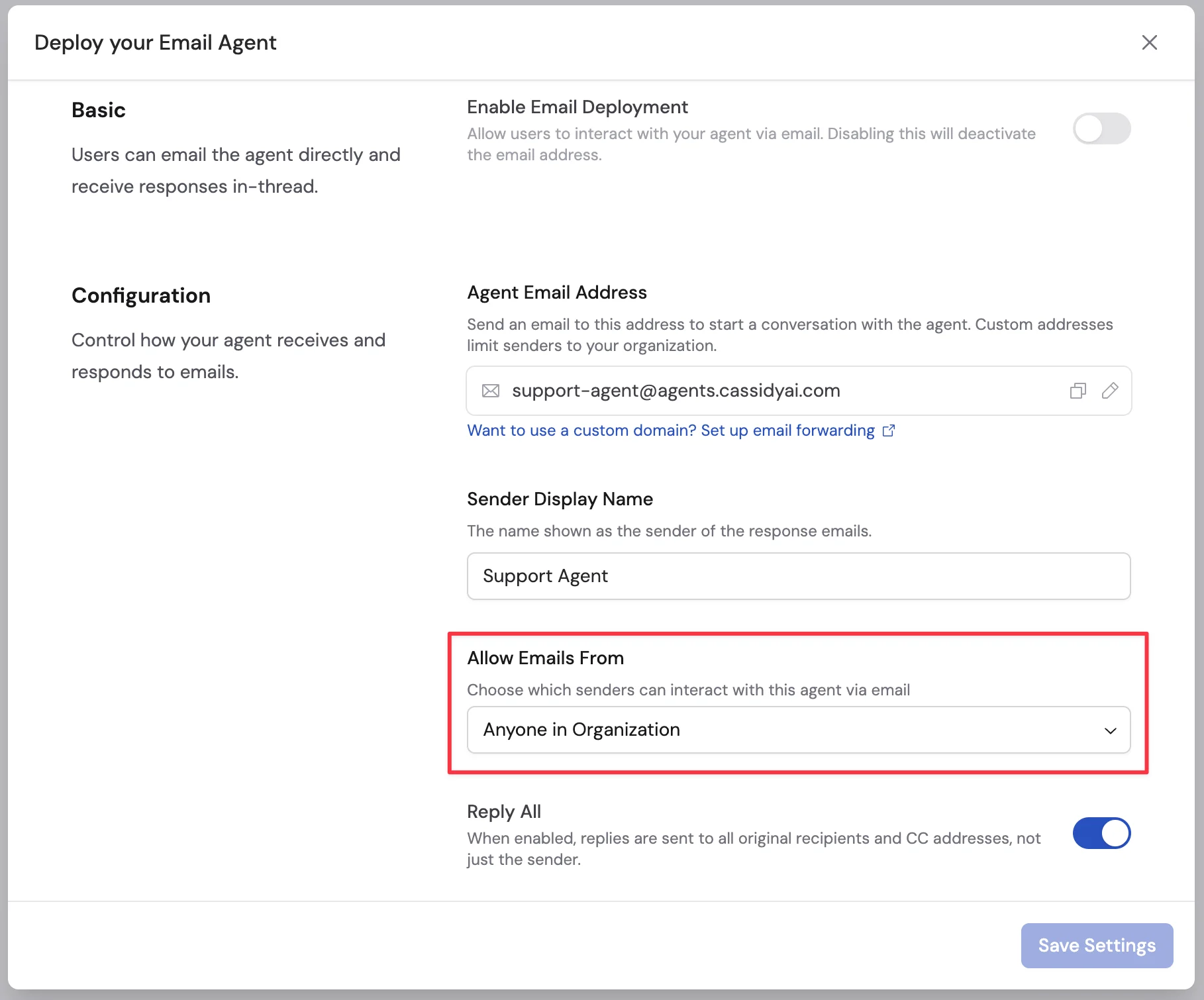 If you selected **Specific Senders**, add the email addresses or domains that should be allowed. You can mix individual addresses (e.g. `user@example.com`) and entire domains (e.g. `example.com`).
Use a domain filter like `example.com` to accept emails from any address at that domain — no need to list every individual sender.
Toggle **Reply All** on or off:
* **On** (default) — replies are sent to all original recipients and CC addresses
* **Off** — replies are sent only to the sender
Click **Save Settings** to activate the email deployment.
## How it works
When someone sends an email to your Agent's address:
1. Cassidy checks whether the sender is allowed based on your sender filter
2. The Agent processes the email using its instructions, [Knowledge Base](/knowledge-base/overview), [connectors](/agents/connectors/overview), and [capabilities](/agents/capabilities/overview)
3. The Agent sends a reply to the email thread with its response
4. Subsequent replies in the same email thread continue the same conversation with the Agent
The Agent has access to the email subject, body, and supported file attachments.
## Custom address and organization restrictions
When you set a custom email address (any name other than the Agent's ID), Cassidy automatically restricts senders to members of your organization. This means:
* The **Anyone** sender filter is disabled — you must use **Anyone in Organization**, **Users with Access**, or **Specific Senders**
* With **Specific Senders**, only senders who are also members of your organization can email the Agent
If you need to accept emails from anyone (including people outside your organization), use the Agent's default ID-based address.
## Use a custom domain with email forwarding
By default, email deployments use an `@agents.cassidyai.com` address. If you want emails sent to your own domain (e.g. `ai-assistant@yourcompany.com`) to reach the Agent, set up email forwarding from your mail provider.
This is useful when you want:
* A branded, professional email address your team already recognizes
* To route existing email aliases or distribution lists to the Agent
* To keep your internal email addresses visible to senders instead of a Cassidy address
### How it works
Your mail provider receives the email at your custom domain address, then automatically forwards it to the Agent's `@agents.cassidyai.com` address. Cassidy processes the forwarded email the same way as a direct one — the original sender, subject, body, and attachments are all preserved.
### Set up forwarding
In the email deployment settings, copy the Agent's `@agents.cassidyai.com` address.
Set up a forwarding rule that sends incoming messages to the Cassidy address you copied. The exact steps depend on your provider:
* **Google Workspace** — Use [routing rules](https://support.google.com/a/answer/4524505) in the Admin Console under **Apps > Google Workspace > Gmail > Routing**
* **Microsoft 365 / Exchange** — Use [mail flow rules (transport rules)](https://learn.microsoft.com/en-us/exchange/security-and-compliance/mail-flow-rules/mail-flow-rules) in the Exchange Admin Center
* **Other providers** — Look for "email forwarding", "mail routing", or "alias" settings in your provider's admin panel
Send a test email to your custom domain address and verify the Agent responds in the email thread.
## Next steps
Create or customize the Agent behind your email deployment.
Make your Agent available in Slack channels and DMs.
Add your Agent to Microsoft Teams.
Connect your Agent to your Knowledge Base for accurate, cited answers.
If you selected **Specific Senders**, add the email addresses or domains that should be allowed. You can mix individual addresses (e.g. `user@example.com`) and entire domains (e.g. `example.com`).
Use a domain filter like `example.com` to accept emails from any address at that domain — no need to list every individual sender.
Toggle **Reply All** on or off:
* **On** (default) — replies are sent to all original recipients and CC addresses
* **Off** — replies are sent only to the sender
Click **Save Settings** to activate the email deployment.
## How it works
When someone sends an email to your Agent's address:
1. Cassidy checks whether the sender is allowed based on your sender filter
2. The Agent processes the email using its instructions, [Knowledge Base](/knowledge-base/overview), [connectors](/agents/connectors/overview), and [capabilities](/agents/capabilities/overview)
3. The Agent sends a reply to the email thread with its response
4. Subsequent replies in the same email thread continue the same conversation with the Agent
The Agent has access to the email subject, body, and supported file attachments.
## Custom address and organization restrictions
When you set a custom email address (any name other than the Agent's ID), Cassidy automatically restricts senders to members of your organization. This means:
* The **Anyone** sender filter is disabled — you must use **Anyone in Organization**, **Users with Access**, or **Specific Senders**
* With **Specific Senders**, only senders who are also members of your organization can email the Agent
If you need to accept emails from anyone (including people outside your organization), use the Agent's default ID-based address.
## Use a custom domain with email forwarding
By default, email deployments use an `@agents.cassidyai.com` address. If you want emails sent to your own domain (e.g. `ai-assistant@yourcompany.com`) to reach the Agent, set up email forwarding from your mail provider.
This is useful when you want:
* A branded, professional email address your team already recognizes
* To route existing email aliases or distribution lists to the Agent
* To keep your internal email addresses visible to senders instead of a Cassidy address
### How it works
Your mail provider receives the email at your custom domain address, then automatically forwards it to the Agent's `@agents.cassidyai.com` address. Cassidy processes the forwarded email the same way as a direct one — the original sender, subject, body, and attachments are all preserved.
### Set up forwarding
In the email deployment settings, copy the Agent's `@agents.cassidyai.com` address.
Set up a forwarding rule that sends incoming messages to the Cassidy address you copied. The exact steps depend on your provider:
* **Google Workspace** — Use [routing rules](https://support.google.com/a/answer/4524505) in the Admin Console under **Apps > Google Workspace > Gmail > Routing**
* **Microsoft 365 / Exchange** — Use [mail flow rules (transport rules)](https://learn.microsoft.com/en-us/exchange/security-and-compliance/mail-flow-rules/mail-flow-rules) in the Exchange Admin Center
* **Other providers** — Look for "email forwarding", "mail routing", or "alias" settings in your provider's admin panel
Send a test email to your custom domain address and verify the Agent responds in the email thread.
## Next steps
Create or customize the Agent behind your email deployment.
Make your Agent available in Slack channels and DMs.
Add your Agent to Microsoft Teams.
Connect your Agent to your Knowledge Base for accurate, cited answers.