> ## Documentation Index
> Fetch the complete documentation index at: https://docs.cassidyai.com/llms.txt
> Use this file to discover all available pages before exploring further.
# Deploy to Microsoft Teams
> Deploy your Agent to Microsoft Teams so your team can chat with it in channels and direct messages.
Deploy your [Agent](/agents/overview) to Microsoft Teams so team members can chat with it in channels, group chats, and direct messages.
**May 2026 update:** Microsoft Teams changed its app and bot creation policies. Cassidy can no longer create the Microsoft Teams bot for you automatically, so this guide walks you through creating the bot in Microsoft Teams and using Cassidy to generate the app package.
**Prerequisites**
* An [Agent created in Cassidy](/agents/build-and-configure)
* Access to the Teams Developer Portal
* The ability to create a Microsoft Teams bot
* Permission to submit custom apps for approval in Microsoft Teams, or a Teams admin who can upload the app package for you
* Your Microsoft 365 Tenant ID
* A Teams admin who can approve the app after you submit it
## How Microsoft Teams deployment works
Cassidy generates the Microsoft Teams app package for you. You create the bot in the Teams Developer Portal, paste Cassidy's callback URL into the bot, download the app package from Cassidy, import the package into Teams, and submit the app for approval.
Publishing the app in the Teams Developer Portal submits the app to your organization. A Teams admin must approve the app in the Teams admin center, then install it for users or make it available for users to install.
## Deploy your Agent
In Cassidy, open the [Agent](/agents/overview) you want to deploy. Go to the **Deployments** tab and click **Connect** on the Microsoft Teams card.
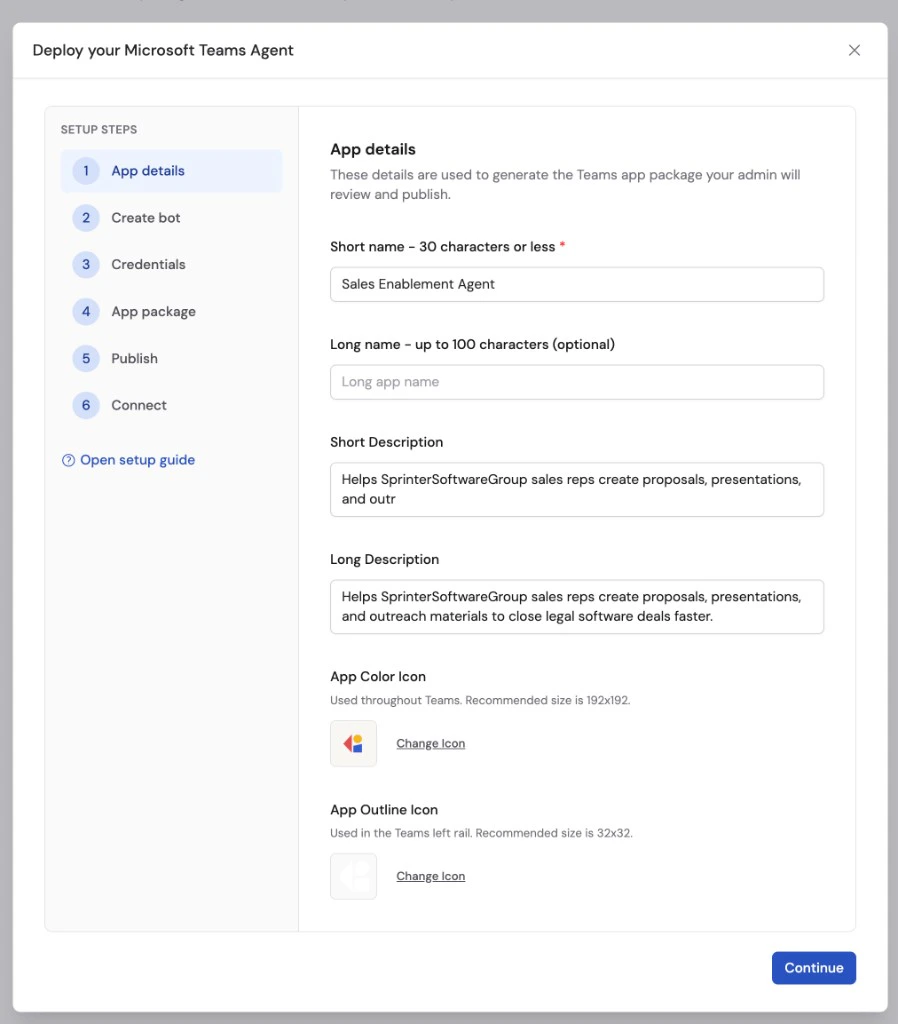
Fill in the details Cassidy will use to generate the Microsoft Teams app package:
* **Short name** — The app name shown in Teams. Microsoft requires 30 characters or fewer.
* **Long name** — Optional. Use this if your full app name is longer than the short name.
* **Short description** — A brief description of the app.
* **Long description** — A fuller description for app review.
* **App color icon** and **App outline icon** — The icons shown in Teams.
Click **Continue**.
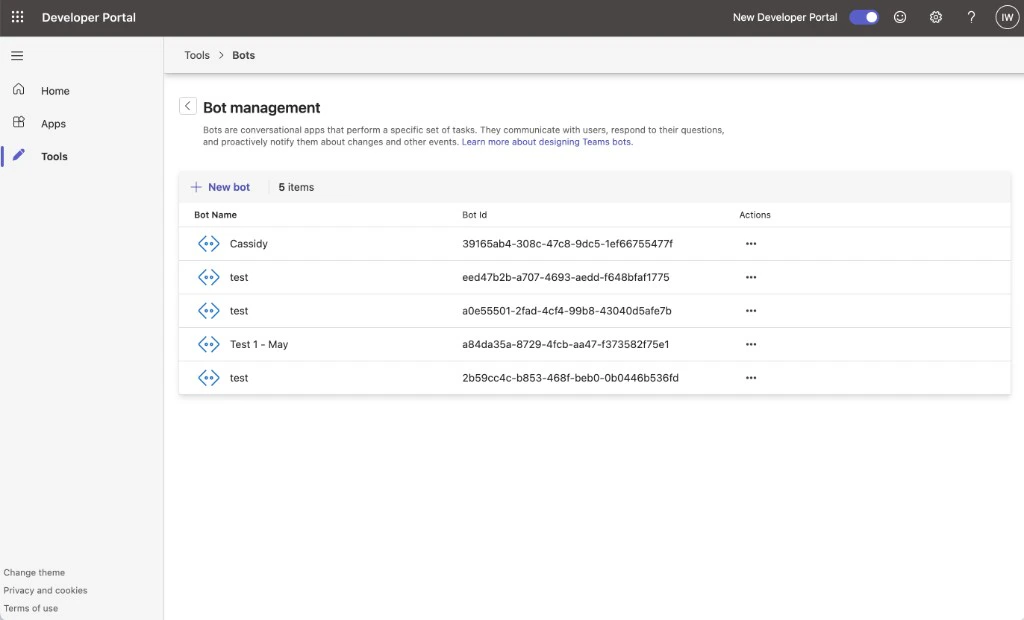
 Open the [Teams Developer Portal bot management page](https://dev.teams.microsoft.com/tools/bots). Click **New bot**, give the bot a name, and create it.
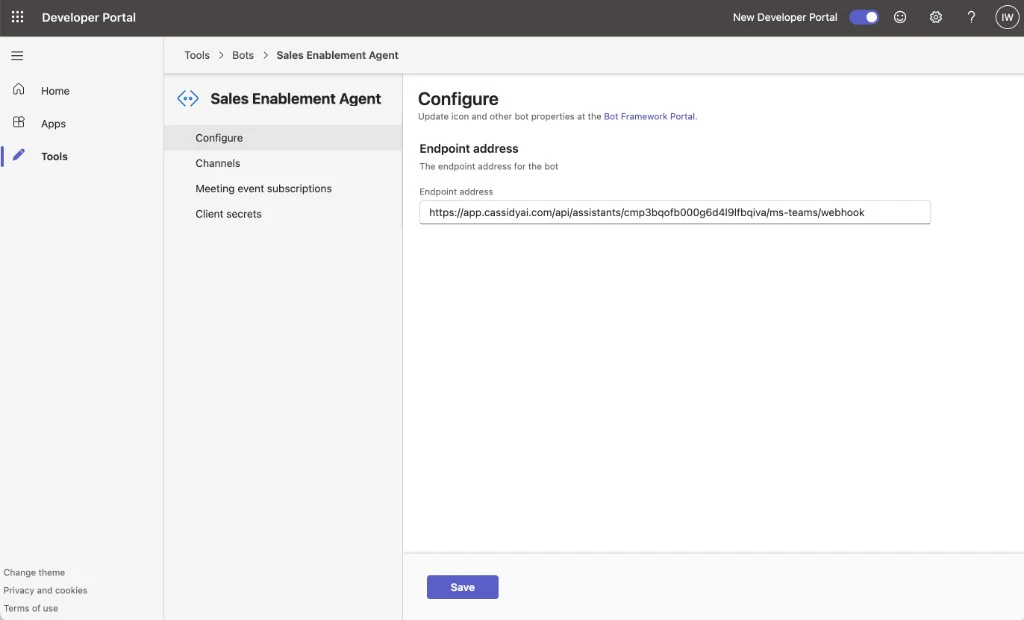
In the bot's **Configure** tab, paste the callback URL from Cassidy into **Endpoint address** and save the bot.
Open the [Teams Developer Portal bot management page](https://dev.teams.microsoft.com/tools/bots). Click **New bot**, give the bot a name, and create it.
In the bot's **Configure** tab, paste the callback URL from Cassidy into **Endpoint address** and save the bot.
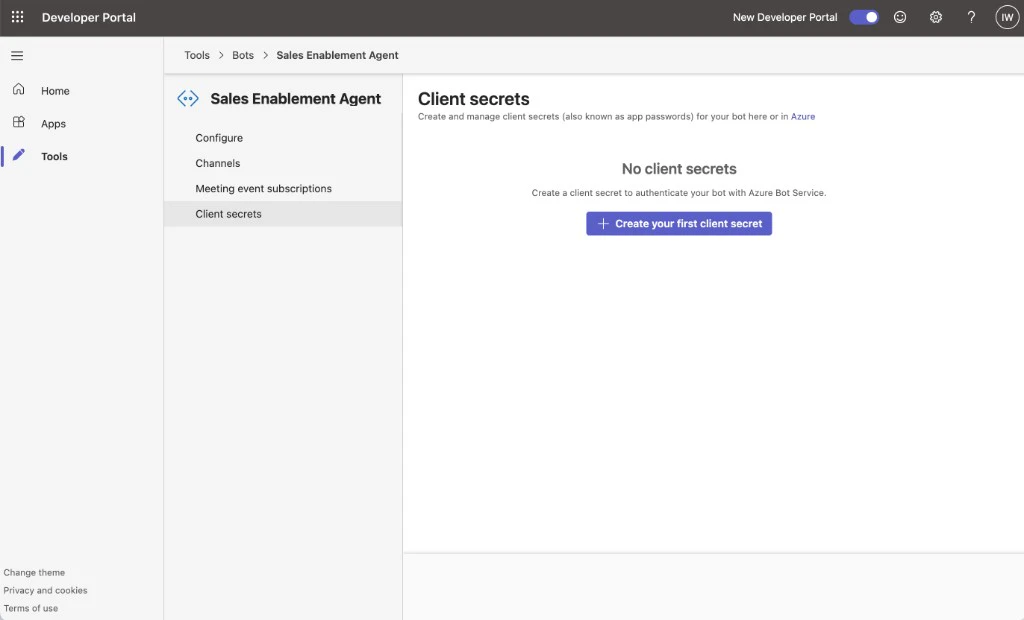
 In the bot's **Client secrets** tab, click **Create your first client secret** or **New client secret**.
Copy the client secret value shown after creation. Microsoft only shows this value once. Do not copy the secret hint.
In the bot's **Client secrets** tab, click **Create your first client secret** or **New client secret**.
Copy the client secret value shown after creation. Microsoft only shows this value once. Do not copy the secret hint.
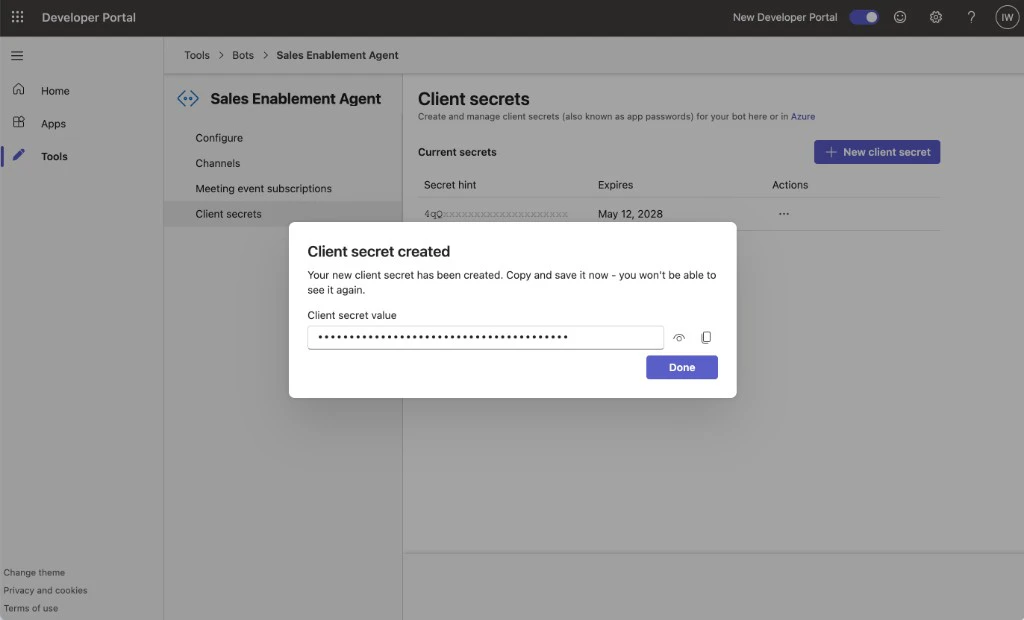 Return to Cassidy and paste:
* **Bot ID** — On the Teams Developer Portal Bot management page, copy the value from the **Bot Id** column for the bot you created. You can also paste the full bot page URL and Cassidy will extract the Bot ID for you.
* **Client secret** — Paste the one-time secret value from the previous step.
* **Tenant ID** — Paste your Microsoft 365 Tenant ID.
You can find your Tenant ID in the Microsoft Entra admin center. Microsoft documents the official steps in [Find your Microsoft 365 tenant ID](https://learn.microsoft.com/en-us/sharepoint/find-your-office-365-tenant-id).
Return to Cassidy and paste:
* **Bot ID** — On the Teams Developer Portal Bot management page, copy the value from the **Bot Id** column for the bot you created. You can also paste the full bot page URL and Cassidy will extract the Bot ID for you.
* **Client secret** — Paste the one-time secret value from the previous step.
* **Tenant ID** — Paste your Microsoft 365 Tenant ID.
You can find your Tenant ID in the Microsoft Entra admin center. Microsoft documents the official steps in [Find your Microsoft 365 tenant ID](https://learn.microsoft.com/en-us/sharepoint/find-your-office-365-tenant-id).
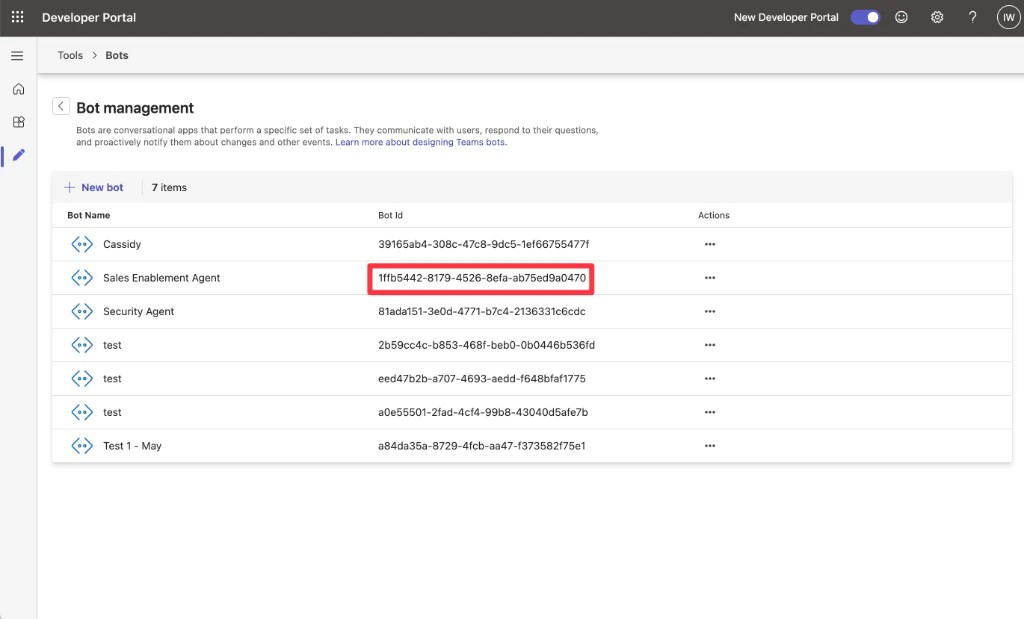 Click **Save and continue** before downloading the app package. The bot will not work until Cassidy has saved these credentials.
In Cassidy, click **Download Teams app package**.
Cassidy downloads a `.zip` file that contains the Teams app manifest and icons. The app package includes your bot ID, personal chat support, group chat support, channel support, and file support.
Click **Save and continue** before downloading the app package. The bot will not work until Cassidy has saved these credentials.
In Cassidy, click **Download Teams app package**.
Cassidy downloads a `.zip` file that contains the Teams app manifest and icons. The app package includes your bot ID, personal chat support, group chat support, channel support, and file support.
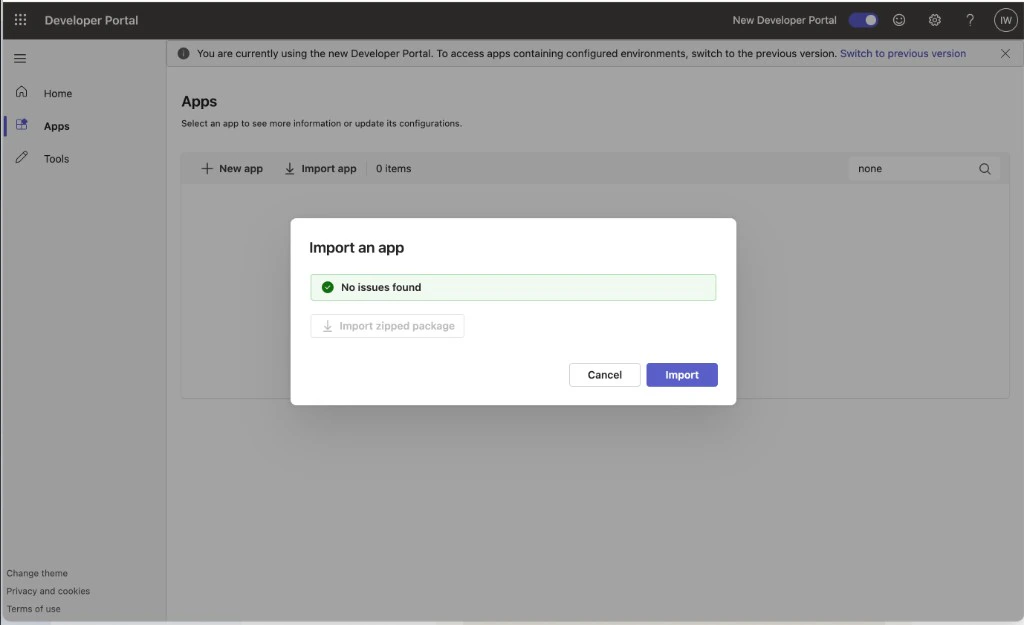
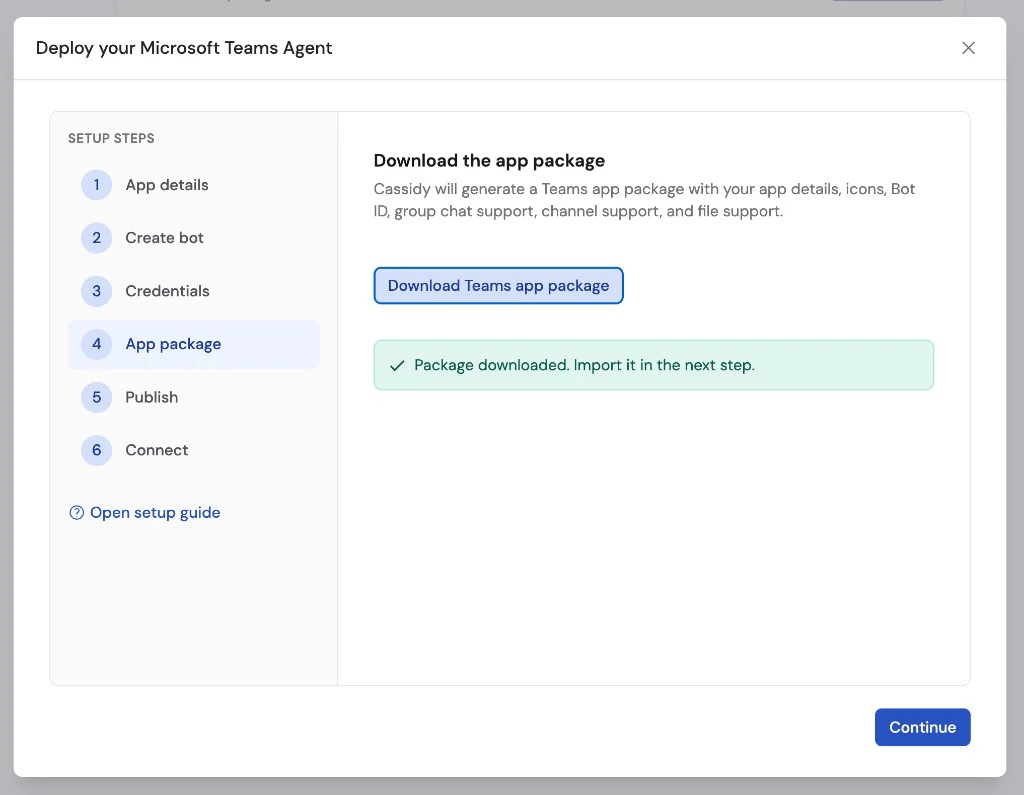 In the Teams Developer Portal, go to **Apps** and click **Import app**. Use the import button to select the `.zip` file you downloaded from Cassidy.
Cassidy already generated the app package with your bot configuration, so you do not need to manually add the bot after importing.
In the Teams Developer Portal, go to **Apps** and click **Import app**. Use the import button to select the `.zip` file you downloaded from Cassidy.
Cassidy already generated the app package with your bot configuration, so you do not need to manually add the bot after importing.
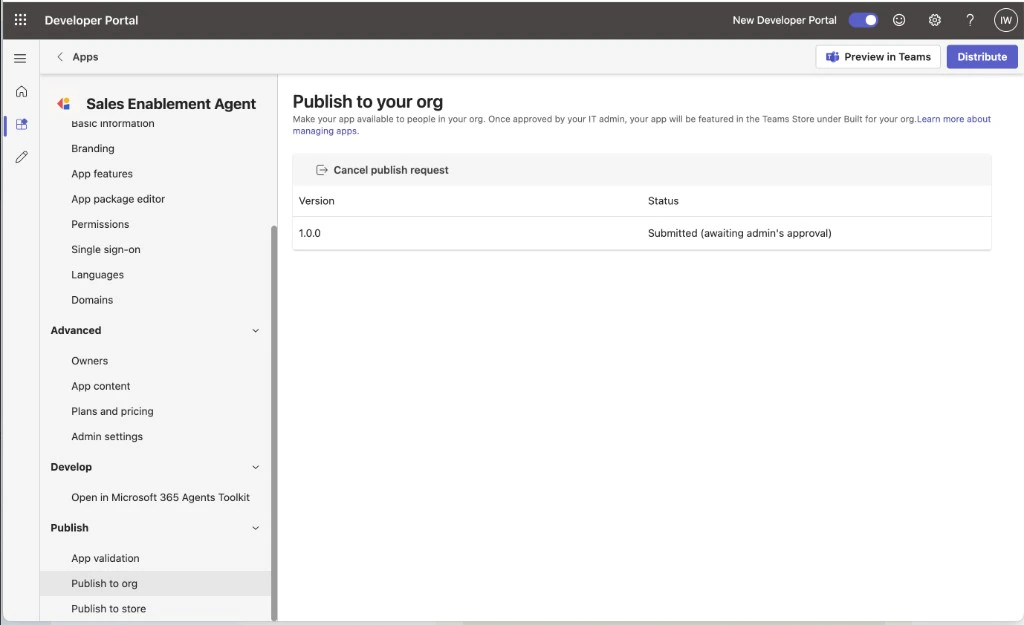
 In the Teams Developer Portal, open **Publish > Publish to your org** and submit the app.
This does not immediately make the app available. It creates an approval request for your Teams admin.
Publishing can fail if your Microsoft Teams account does not have permission to submit custom apps for your organization. If you see a publish request error, send the generated `.zip` package to your Teams admin. Your Teams admin can upload and approve the app from the [Teams admin center Manage apps page](https://admin.teams.microsoft.com/policies/manage-apps).
In the Teams Developer Portal, open **Publish > Publish to your org** and submit the app.
This does not immediately make the app available. It creates an approval request for your Teams admin.
Publishing can fail if your Microsoft Teams account does not have permission to submit custom apps for your organization. If you see a publish request error, send the generated `.zip` package to your Teams admin. Your Teams admin can upload and approve the app from the [Teams admin center Manage apps page](https://admin.teams.microsoft.com/policies/manage-apps).
 After you submit the app for organization approval, return to Cassidy.
Cassidy already saved the bot credentials before package generation. You can configure whether the Agent shows Knowledge Base references and collects feedback from Teams users. If you need to repeat setup or rotate bot credentials, disconnect the deployment and connect Microsoft Teams again.
## Admin approval and installation in Teams admin center
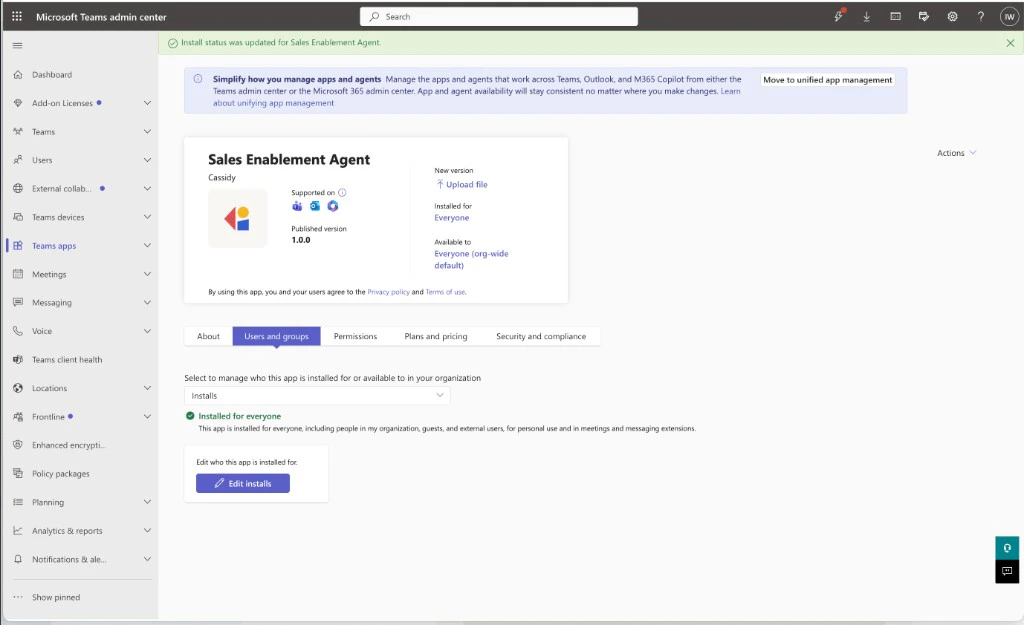
After the app is submitted to your organization, a Teams admin must approve and publish it in the Teams admin center. Publishing makes the app eligible for your organization, but the admin still needs to decide who gets it.
Microsoft Teams can take a while to reflect approval, availability, and
install changes after an admin updates the app. If the app still appears as
pending or unavailable immediately after approval, wait and refresh Teams
before troubleshooting further.
Share this section with your Teams admin.
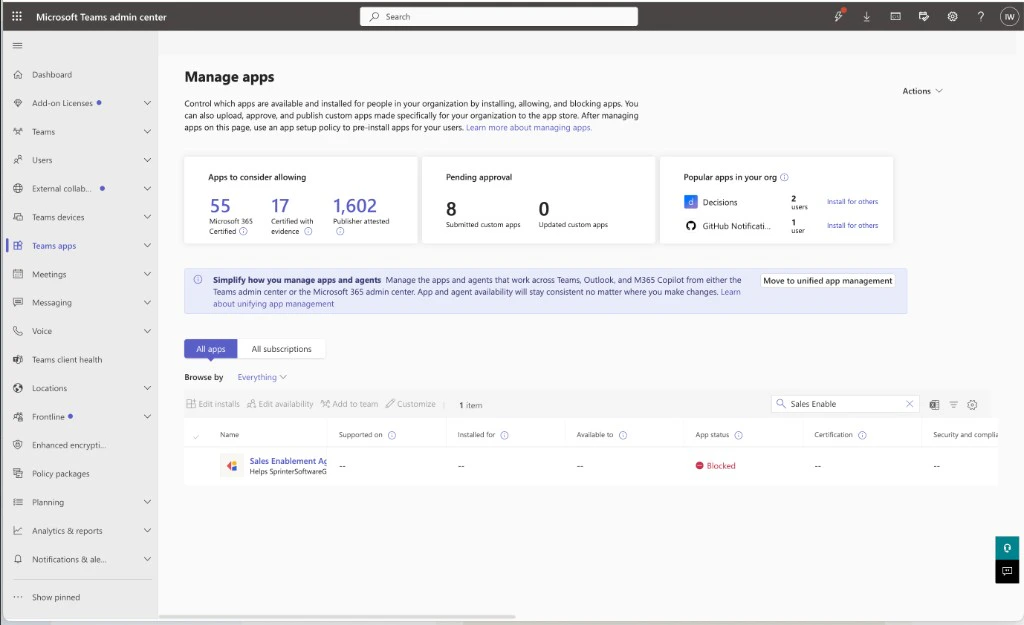
In the Teams admin center, go to [**Teams apps > Manage apps**](https://admin.teams.microsoft.com/policies/manage-apps).
Search for the app by name and open it.
After you submit the app for organization approval, return to Cassidy.
Cassidy already saved the bot credentials before package generation. You can configure whether the Agent shows Knowledge Base references and collects feedback from Teams users. If you need to repeat setup or rotate bot credentials, disconnect the deployment and connect Microsoft Teams again.
## Admin approval and installation in Teams admin center
After the app is submitted to your organization, a Teams admin must approve and publish it in the Teams admin center. Publishing makes the app eligible for your organization, but the admin still needs to decide who gets it.
Microsoft Teams can take a while to reflect approval, availability, and
install changes after an admin updates the app. If the app still appears as
pending or unavailable immediately after approval, wait and refresh Teams
before troubleshooting further.
Share this section with your Teams admin.
In the Teams admin center, go to [**Teams apps > Manage apps**](https://admin.teams.microsoft.com/policies/manage-apps).
Search for the app by name and open it.
 Review the app details, permissions, publisher information, icons, and scope.
The app should show the same name and descriptions you entered in Cassidy.
Review the app details, permissions, publisher information, icons, and scope.
The app should show the same name and descriptions you entered in Cassidy.
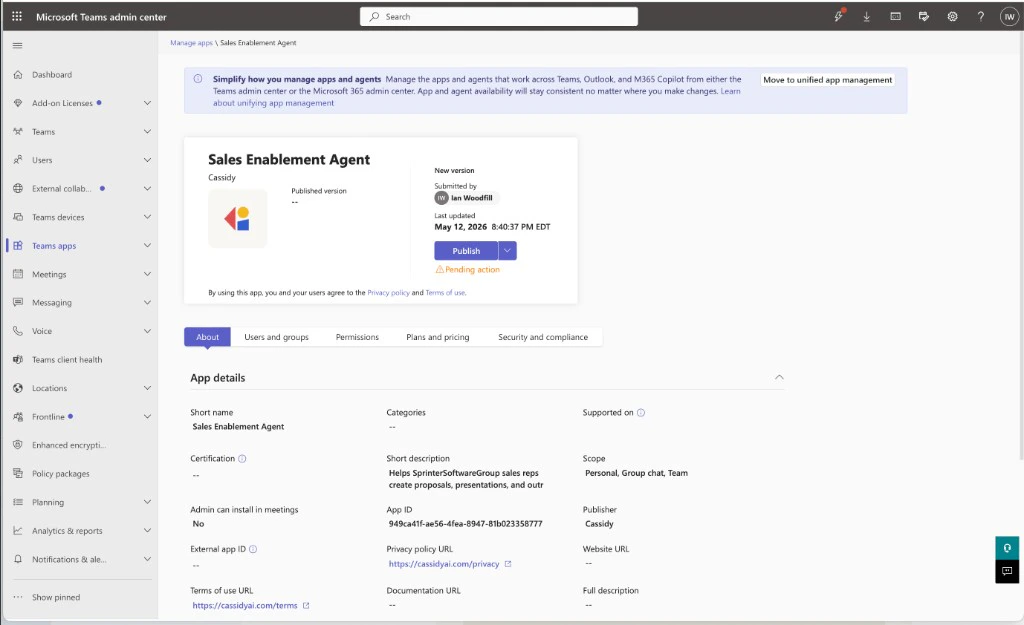 Click **Publish** to make the app available to users in your organization.
Depending on your organization's Teams app policies, users may still need permission to install the app.
Open the **Users and groups** tab for the app.
Choose who should get the app:
* **Everyone** — Install or make the app available for all users in the organization.
* **Specific users or groups** — Install or make the app available only for selected people or groups.
* **No one** — Keep the app unavailable until the admin is ready.
Click **Publish** to make the app available to users in your organization.
Depending on your organization's Teams app policies, users may still need permission to install the app.
Open the **Users and groups** tab for the app.
Choose who should get the app:
* **Everyone** — Install or make the app available for all users in the organization.
* **Specific users or groups** — Install or make the app available only for selected people or groups.
* **No one** — Keep the app unavailable until the admin is ready.
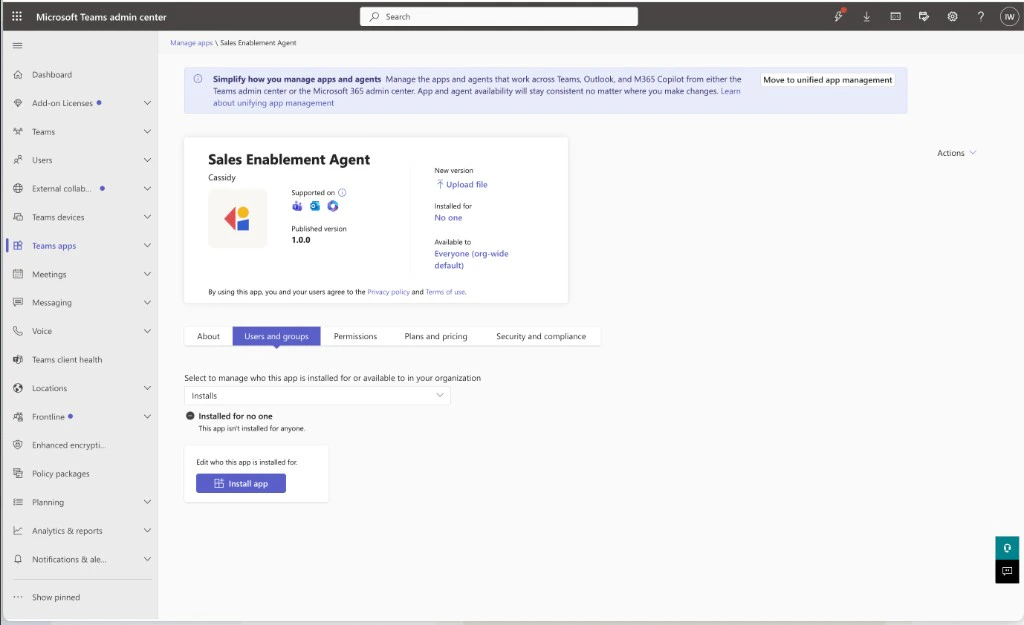 Changes to app availability and installation can take time to propagate to users in Teams.
## Chat with your Agent in Teams
### In a channel
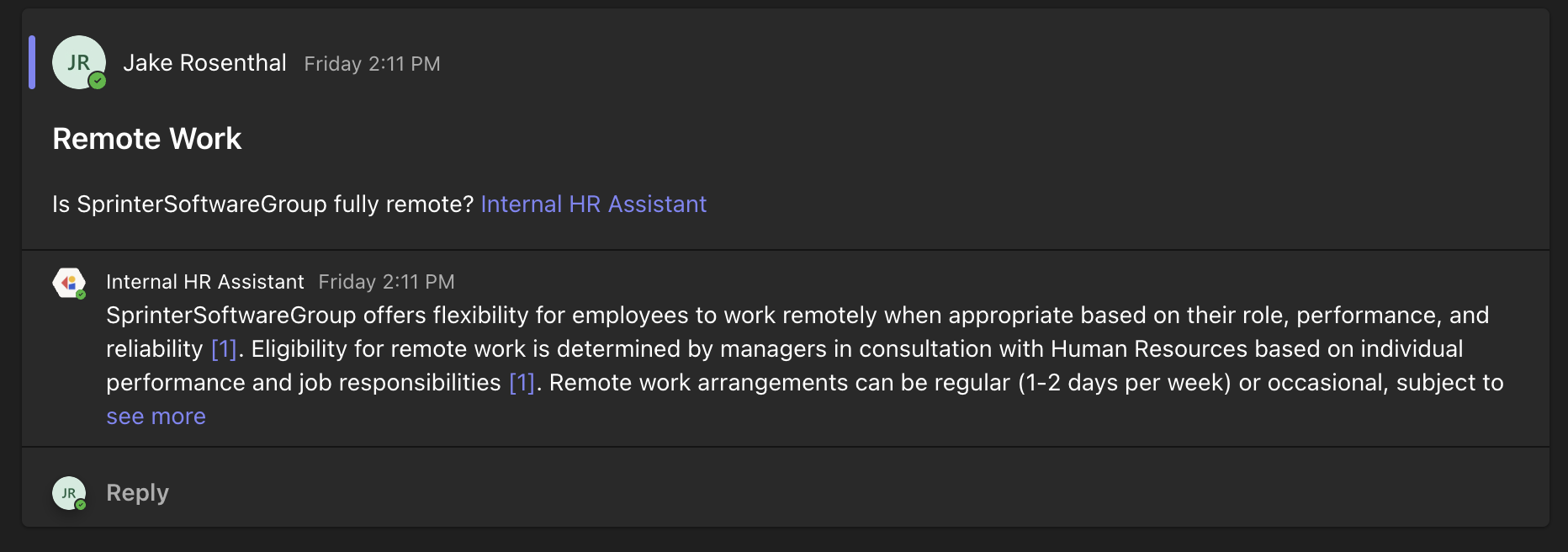
To use the Agent in a Microsoft Teams channel, mention the app using **@** followed by its short name. Start a new post and @mention the Agent — it will respond in that post's thread. The Agent only has access to that specific post's conversation history.
Changes to app availability and installation can take time to propagate to users in Teams.
## Chat with your Agent in Teams
### In a channel
To use the Agent in a Microsoft Teams channel, mention the app using **@** followed by its short name. Start a new post and @mention the Agent — it will respond in that post's thread. The Agent only has access to that specific post's conversation history.
 ### In a direct message
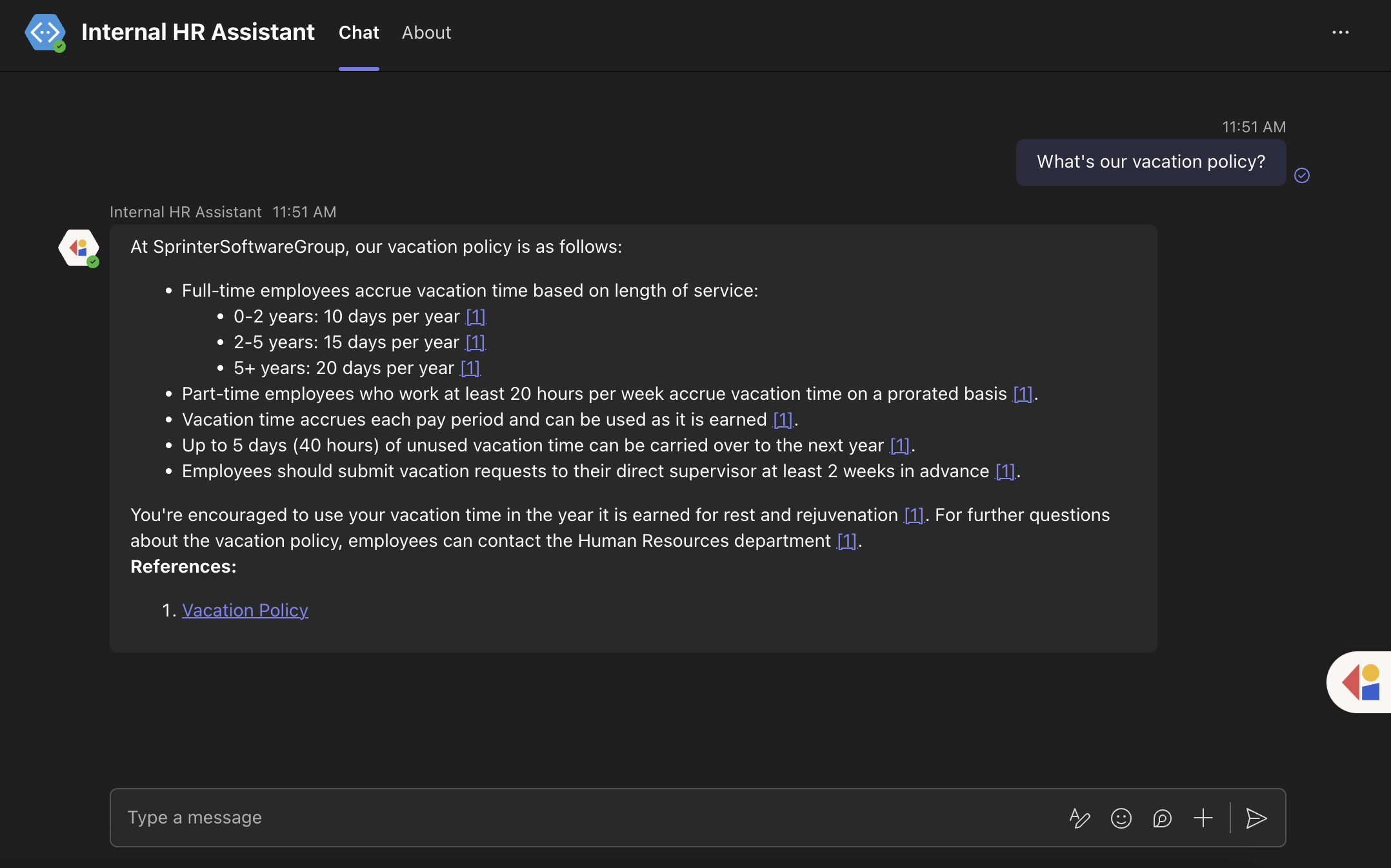
Start a new direct message to the Agent for a private, ongoing conversation. The Agent has access to the full chat history in DMs, giving it more context for follow-up questions.
### In a direct message
Start a new direct message to the Agent for a private, ongoing conversation. The Agent has access to the full chat history in DMs, giving it more context for follow-up questions.
 For any user to DM the Agent, they need to manually add the app first. Otherwise they may see "You cannot send messages to this bot." To add the app:
1. Click **Apps** in the left sidebar
2. Search for the app by name and click on it
3. Click **Add**
4. Start a new chat addressed to the app
**Known limitations:**
* After adding or removing the Agent, the Teams app list may take a moment to update
* Bots in private channels are not supported
* Bots cannot see the subject line of messages
## Next steps
Make your Agent available in Slack channels and DMs.
Add your Agent to Google Chat spaces.
Deploy your Agent to a dedicated email address.
For any user to DM the Agent, they need to manually add the app first. Otherwise they may see "You cannot send messages to this bot." To add the app:
1. Click **Apps** in the left sidebar
2. Search for the app by name and click on it
3. Click **Add**
4. Start a new chat addressed to the app
**Known limitations:**
* After adding or removing the Agent, the Teams app list may take a moment to update
* Bots in private channels are not supported
* Bots cannot see the subject line of messages
## Next steps
Make your Agent available in Slack channels and DMs.
Add your Agent to Google Chat spaces.
Deploy your Agent to a dedicated email address.