> ## Documentation Index
> Fetch the complete documentation index at: https://docs.cassidyai.com/llms.txt
> Use this file to discover all available pages before exploring further.
# Agent knowledge
> Set up what your Agent knows by adding Knowledge Base search, referencing specific files, and connecting sources.
Give your Agent access to your company's documents so it can answer questions with accurate, cited responses. You can connect entire [Knowledge Base](/knowledge-base/overview) collections, reference specific files in your instructions, and control when the Agent searches.
Before configuring Agent knowledge, make sure your [Knowledge Base is set up](/knowledge-base/setup) with the documents and sources your Agent needs.
## Add Knowledge Base search
Go to **Agents**, find the Agent you want to configure, click **...** and select **Edit**.
In the **Setup** tab, scroll to the **Knowledge** section and click **+ Add**.
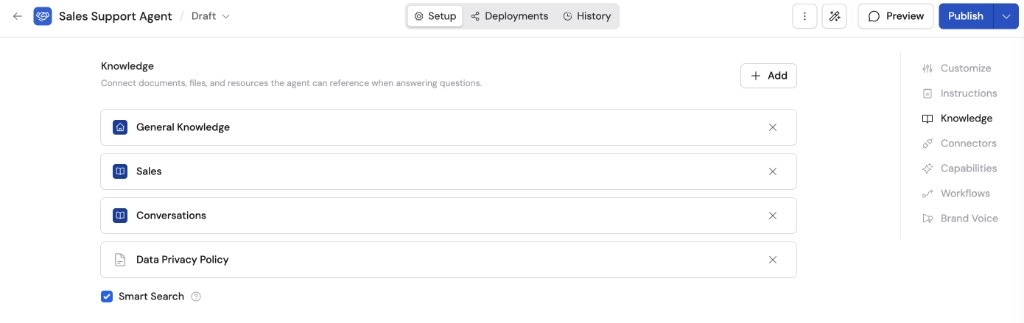 Browse your Knowledge Base and select the collections, folders, or individual documents you want your Agent to search. Click **Save** to confirm.
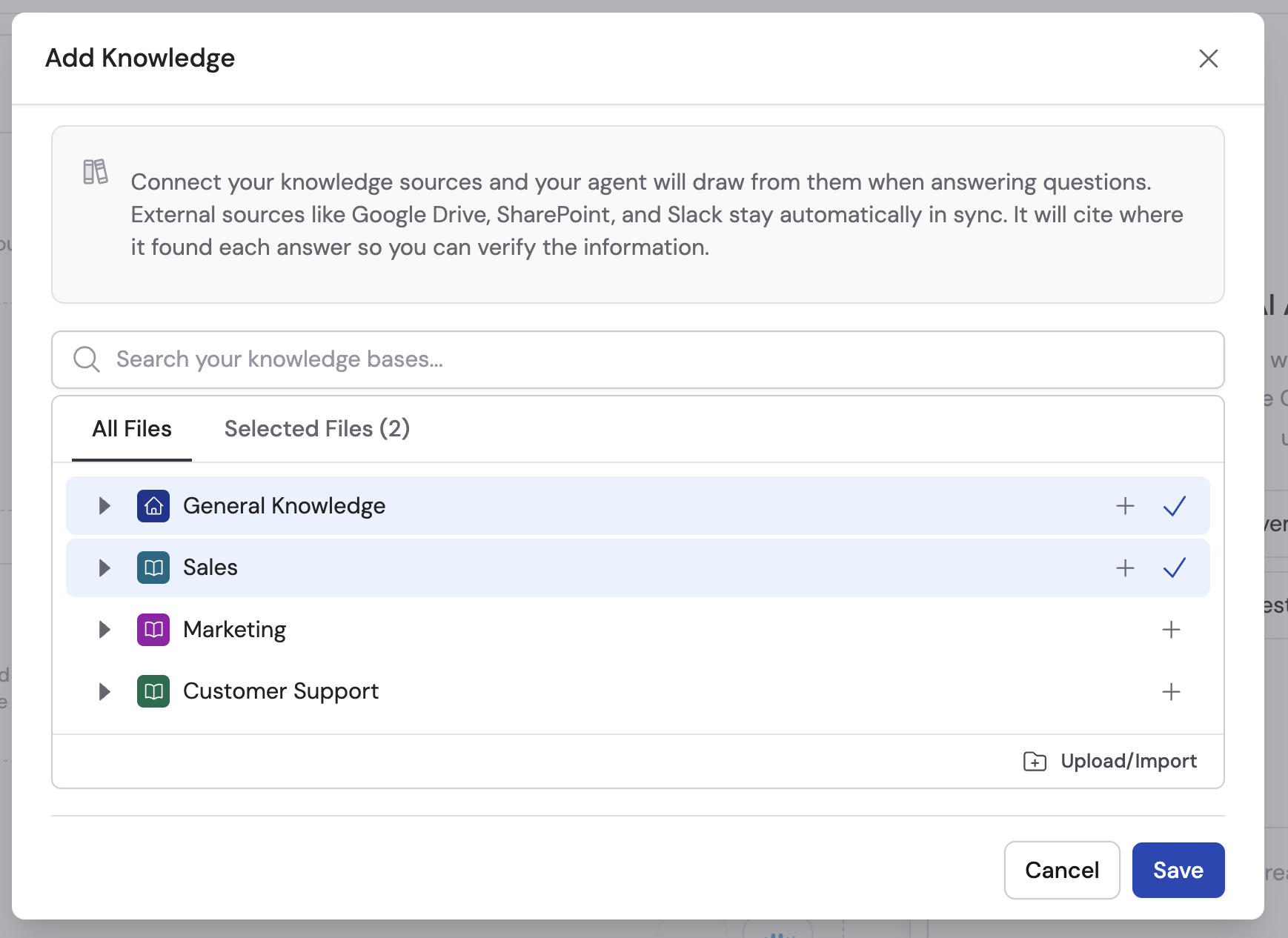 Once you add knowledge, the Agent searches it when answering questions and cites the sources it used.
## Smart Search
When knowledge is added, you can enable **Smart Search** to let the Agent decide when to search the Knowledge Base.
* **Smart Search on** -- The Agent only searches when it determines the Knowledge Base is likely to help answer the request. This reduces unnecessary searches and improves response speed.
* **Smart Search off** -- The Agent searches the Knowledge Base on every request, regardless of whether it seems relevant.
Once you add knowledge, the Agent searches it when answering questions and cites the sources it used.
## Smart Search
When knowledge is added, you can enable **Smart Search** to let the Agent decide when to search the Knowledge Base.
* **Smart Search on** -- The Agent only searches when it determines the Knowledge Base is likely to help answer the request. This reduces unnecessary searches and improves response speed.
* **Smart Search off** -- The Agent searches the Knowledge Base on every request, regardless of whether it seems relevant.
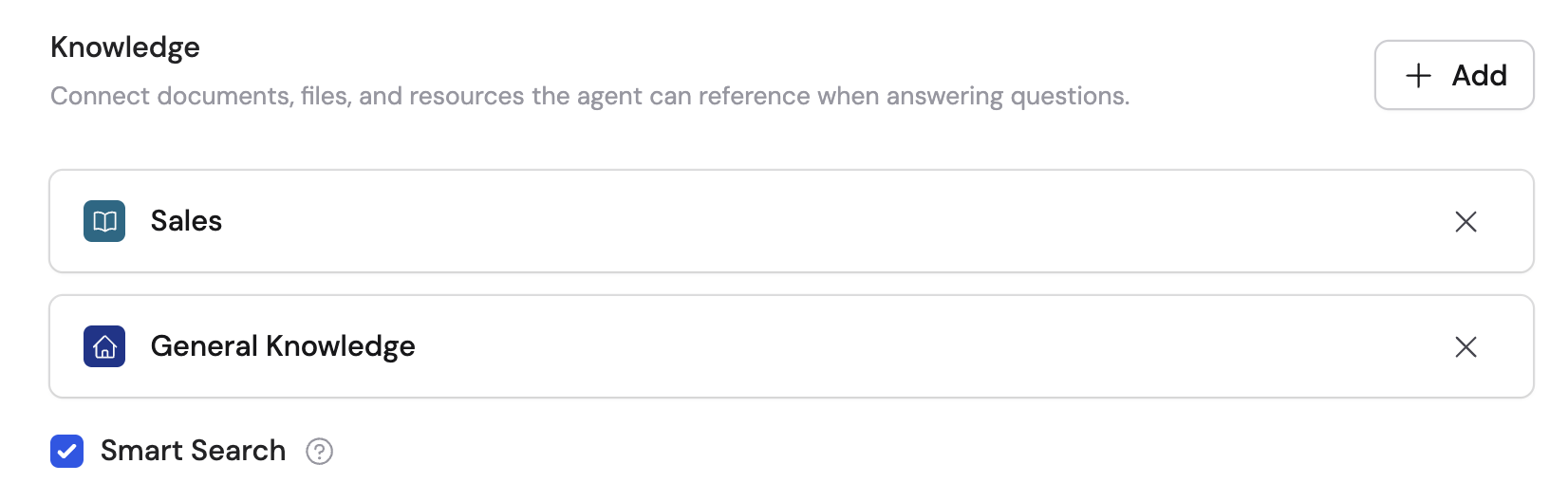 Enable Smart Search for Agents that handle a mix of general questions and company-specific inquiries. Disable it for Agents that should always ground their answers in your documents.
## Reference files in instructions
You can reference specific Knowledge Base items directly in your Agent's [instructions](/agents/build-and-configure#instructions) by typing **#** in the instructions field. This opens a search dialog where you can find and select documents.
Enable Smart Search for Agents that handle a mix of general questions and company-specific inquiries. Disable it for Agents that should always ground their answers in your documents.
## Reference files in instructions
You can reference specific Knowledge Base items directly in your Agent's [instructions](/agents/build-and-configure#instructions) by typing **#** in the instructions field. This opens a search dialog where you can find and select documents.
 When you reference an item this way:
* The Agent autonomously searches over that content when it's relevant to a user's question.
* The referenced item is automatically added to the Agent's Knowledge section.
### Pin content inline
Hover over a referenced item in the instructions field and click the **pin icon** to include the content directly in the prompt. Pinned content counts toward the model's token limit but guarantees the Agent always sees it in full — useful for critical guidelines, style guides, or reference tables.
When you reference an item this way:
* The Agent autonomously searches over that content when it's relevant to a user's question.
* The referenced item is automatically added to the Agent's Knowledge section.
### Pin content inline
Hover over a referenced item in the instructions field and click the **pin icon** to include the content directly in the prompt. Pinned content counts toward the model's token limit but guarantees the Agent always sees it in full — useful for critical guidelines, style guides, or reference tables.
 Pinning only works when the content is small enough to fit inline. Larger documents should be added to the Knowledge section instead.
## When to use each approach
| Approach | Best for | How it works |
| ------------------------------- | --------------------------------------------------- | ------------------------------------------------------- |
| **Knowledge section** | Large document sets the Agent searches on demand | Agent performs semantic search across all added sources |
| **# reference in instructions** | Specific documents the Agent should be aware of | Agent searches referenced content when relevant |
| **Pinned content** | Small, critical documents the Agent must always see | Content included directly in every prompt |
## Next steps
Upload documents, connect integrations, and import websites.
Learn about all the other settings you can configure on an Agent.
Pinning only works when the content is small enough to fit inline. Larger documents should be added to the Knowledge section instead.
## When to use each approach
| Approach | Best for | How it works |
| ------------------------------- | --------------------------------------------------- | ------------------------------------------------------- |
| **Knowledge section** | Large document sets the Agent searches on demand | Agent performs semantic search across all added sources |
| **# reference in instructions** | Specific documents the Agent should be aware of | Agent searches referenced content when relevant |
| **Pinned content** | Small, critical documents the Agent must always see | Content included directly in every prompt |
## Next steps
Upload documents, connect integrations, and import websites.
Learn about all the other settings you can configure on an Agent.