> ## Documentation Index
> Fetch the complete documentation index at: https://docs.cassidyai.com/llms.txt
> Use this file to discover all available pages before exploring further.
# Deploy extensions for your organization from Microsoft 365
> Install Cassidy's Office and Outlook extensions for your entire team from the Microsoft 365 admin center.
If you're a Microsoft 365 admin, you can deploy the Cassidy extensions to everyone in your organization — or to specific users and groups — so team members don't need to install them individually. This uses Microsoft's built-in **Integrated Apps** portal.
**Prerequisites**: You need **Global Admin** or **Exchange Admin** access in
your Microsoft 365 tenant.
## Deploy a Cassidy extension
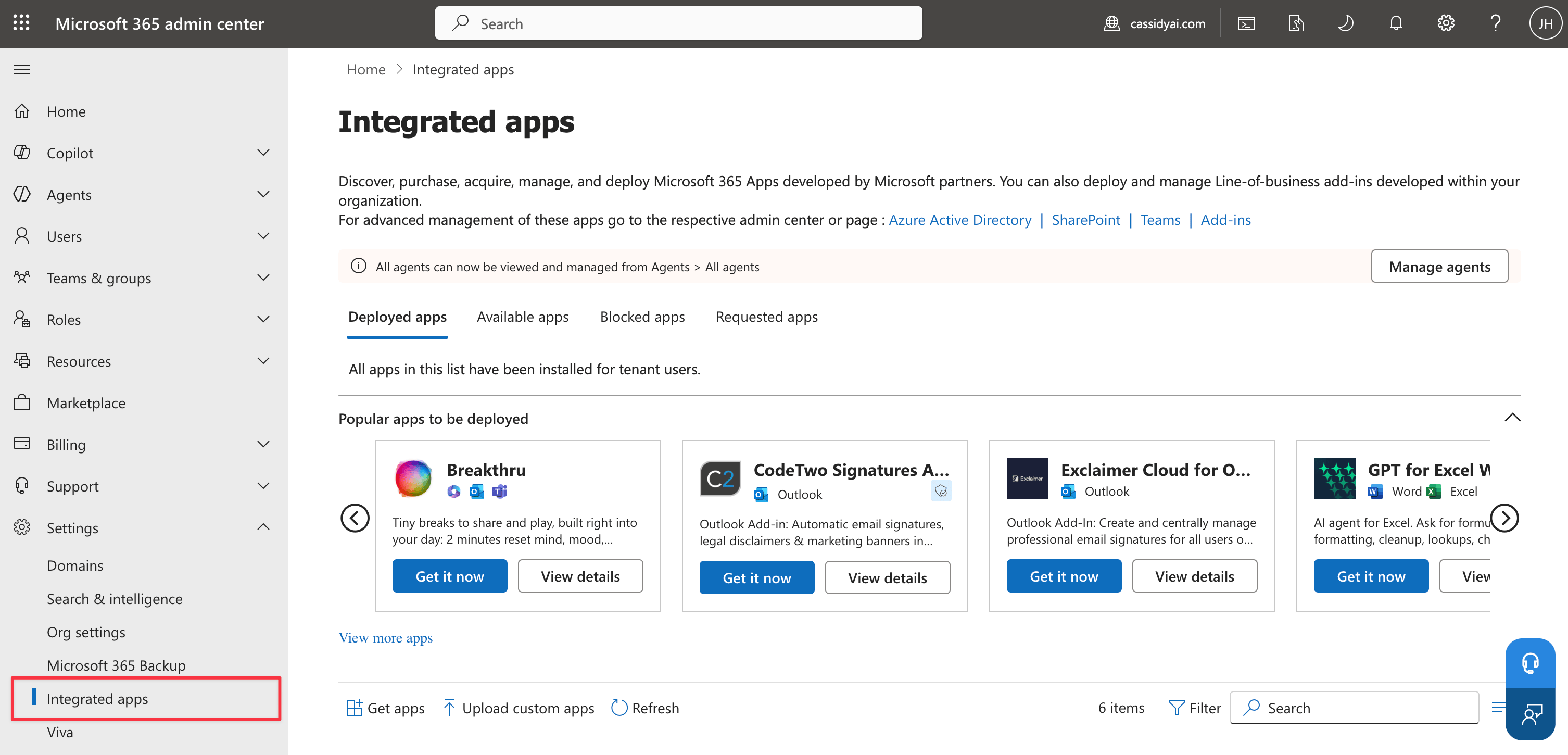
Sign in to the [Microsoft 365 admin center](https://admin.microsoft.com) and go to **Settings** → **Integrated apps** (you may need to click "Show all" for Settings to appear).
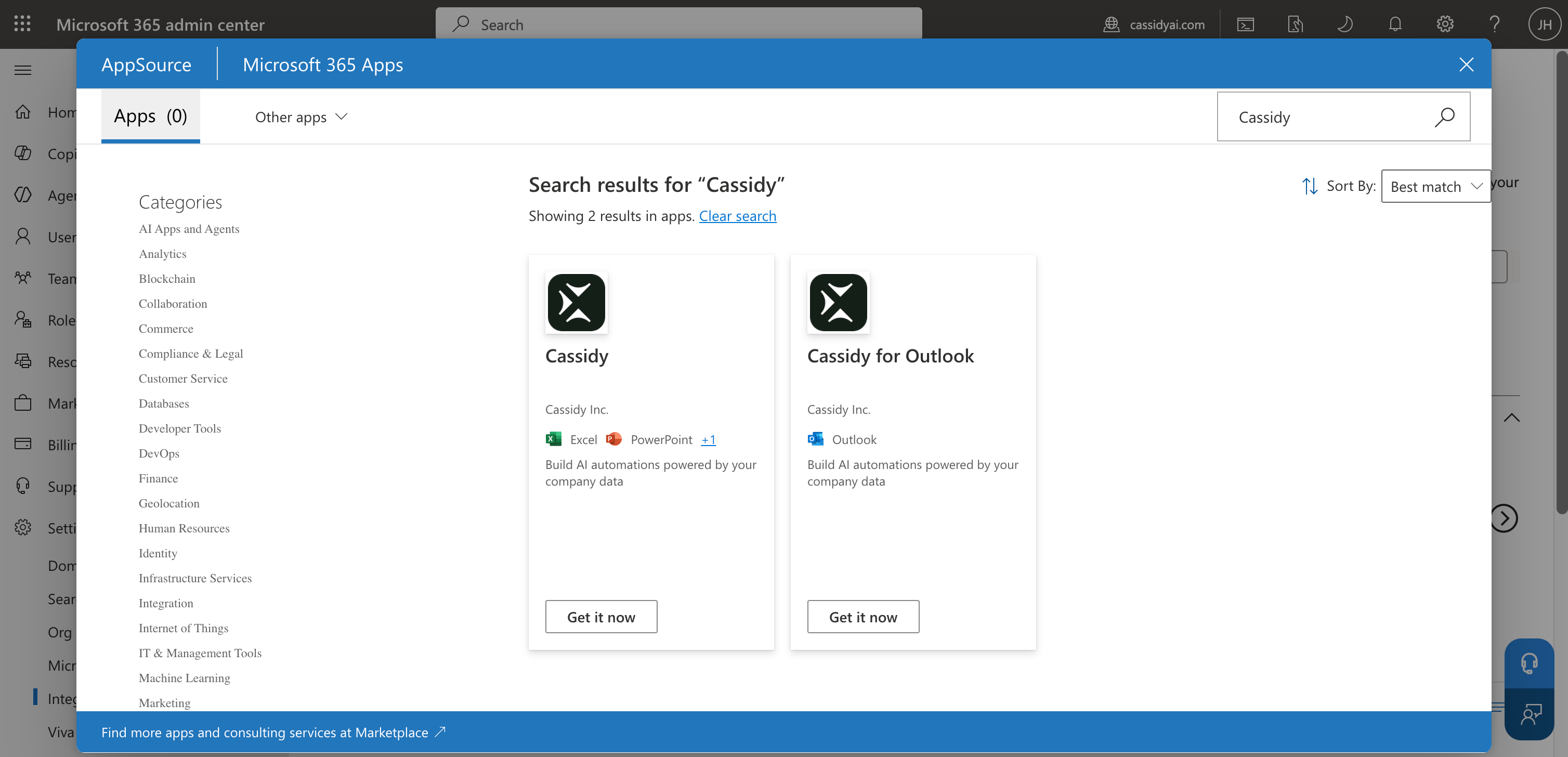
 Click **Get apps** to open the Microsoft Marketplace. Search for **Cassidy** and select the extension you want to deploy:
* **Cassidy for Outlook** — brings Agents into the Outlook inbox
* **Cassidy** — brings Agents into Word, Excel, and PowerPoint
Click **Get apps** to open the Microsoft Marketplace. Search for **Cassidy** and select the extension you want to deploy:
* **Cassidy for Outlook** — brings Agents into the Outlook inbox
* **Cassidy** — brings Agents into Word, Excel, and PowerPoint
 Click **Deploy** (or **Get it now** followed by **Deploy**) on the extension listing. This opens the deployment configuration wizard.
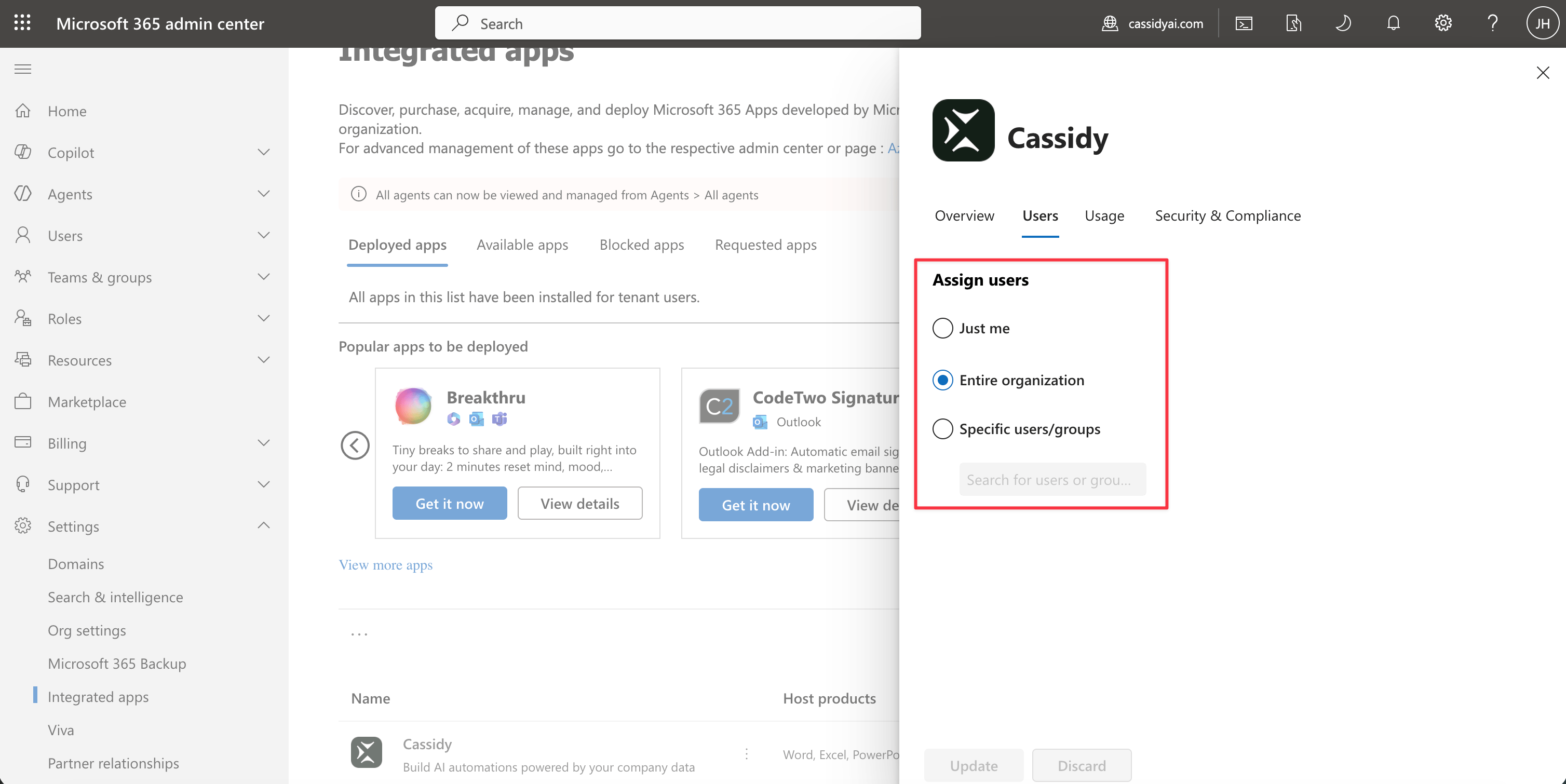
Select who the extension should be deployed to:
* **Entire organization** — every user in your tenant
* **Specific users/groups** — only the people or Microsoft 365 groups you select
Click **Deploy** (or **Get it now** followed by **Deploy**) on the extension listing. This opens the deployment configuration wizard.
Select who the extension should be deployed to:
* **Entire organization** — every user in your tenant
* **Specific users/groups** — only the people or Microsoft 365 groups you select
 ## Manage the deployment
After deploying, you can update who has access at any time:
1. Go to **Settings** → **Integrated apps** in the [Microsoft 365 admin center](https://admin.microsoft.com).
2. Find the Cassidy extension in the **Deployed apps** list and click on it.
3. Under the **Users** tab, update the assignment to add or remove users and groups.
4. Click **Update** to save your changes.
## Next steps
Individual installation instructions for end users.
Individual installation instructions for Word, Excel, and PowerPoint.
## Manage the deployment
After deploying, you can update who has access at any time:
1. Go to **Settings** → **Integrated apps** in the [Microsoft 365 admin center](https://admin.microsoft.com).
2. Find the Cassidy extension in the **Deployed apps** list and click on it.
3. Under the **Users** tab, update the assignment to add or remove users and groups.
4. Click **Update** to save your changes.
## Next steps
Individual installation instructions for end users.
Individual installation instructions for Word, Excel, and PowerPoint.