> ## Documentation Index
> Fetch the complete documentation index at: https://docs.cassidyai.com/llms.txt
> Use this file to discover all available pages before exploring further.
# Install the Microsoft Office extension
> Access your Cassidy Agents in Microsoft Word, Excel, and PowerPoint to generate content, edit files, and answer questions without leaving the app.
The Cassidy Microsoft Office extension brings your [Agents](/agents/overview) into Word, Excel, and PowerPoint. Draft and rewrite documents, analyze and edit workbooks, generate and refine slides, and tap into your company's [Knowledge Base](/knowledge-base/overview) — all from a side panel inside each app.
A single installation enables Cassidy in all three apps.
## Install the extension
Go to the [Cassidy Microsoft Office extension](https://appsource.microsoft.com/en-us/product/office/WA200008195) in the Microsoft Office Store.
 Click **Get it now** to begin the installation process.
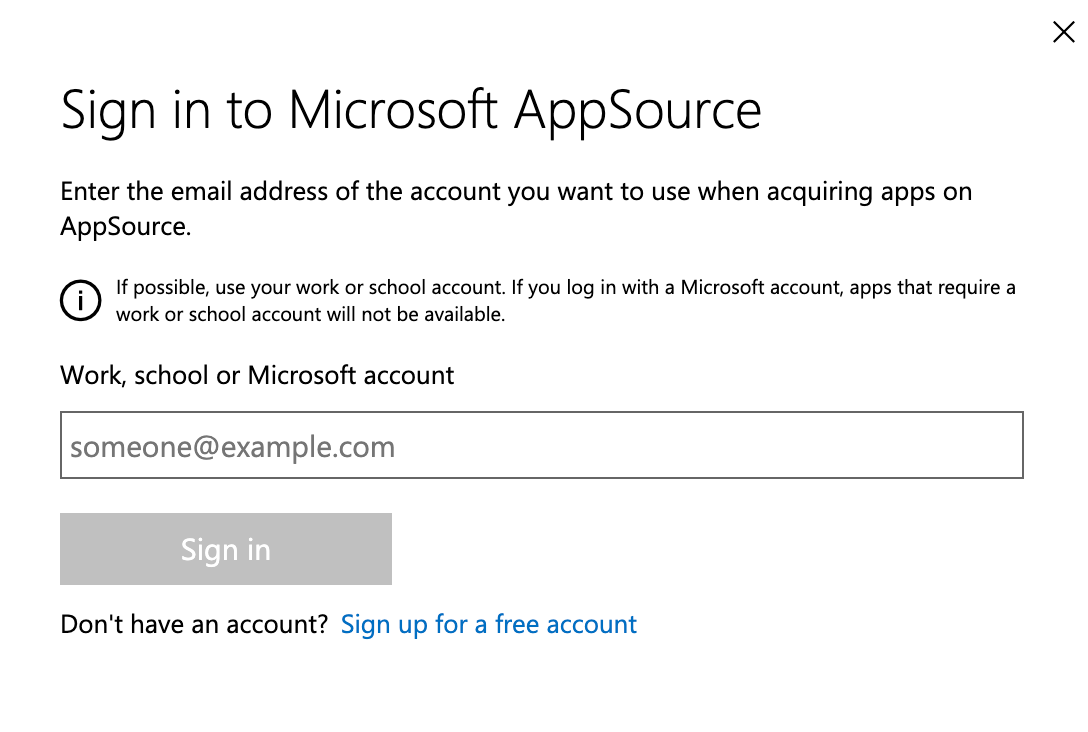
If you're not already signed in, you'll be prompted to log in to your Microsoft account before continuing.
Click **Get it now** to begin the installation process.
If you're not already signed in, you'll be prompted to log in to your Microsoft account before continuing.
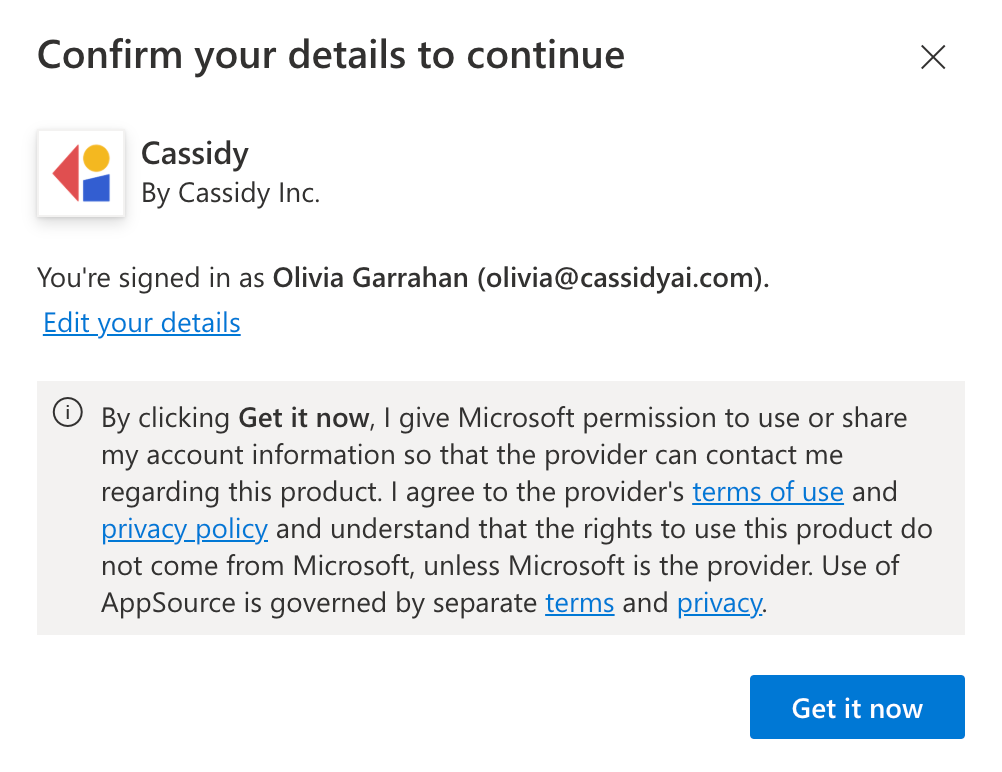
 A confirmation dialog shows your account information. Verify you're signed in with the correct account and click **Get it now**. Click **Edit your details** if you need to make changes.
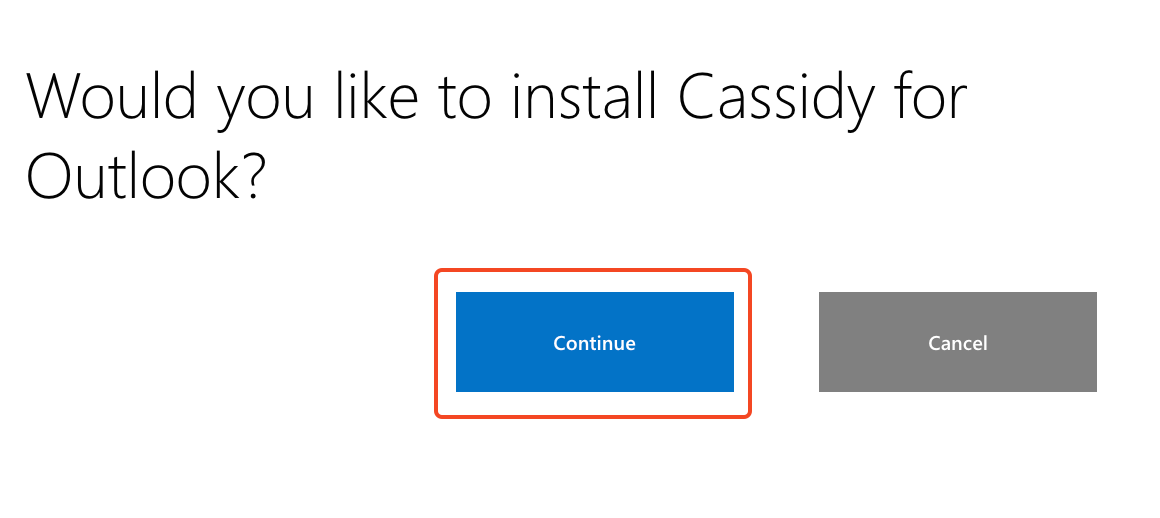
 A dialog asks if you'd like to install Cassidy for Word, Excel, and PowerPoint. Click **Continue** to proceed.
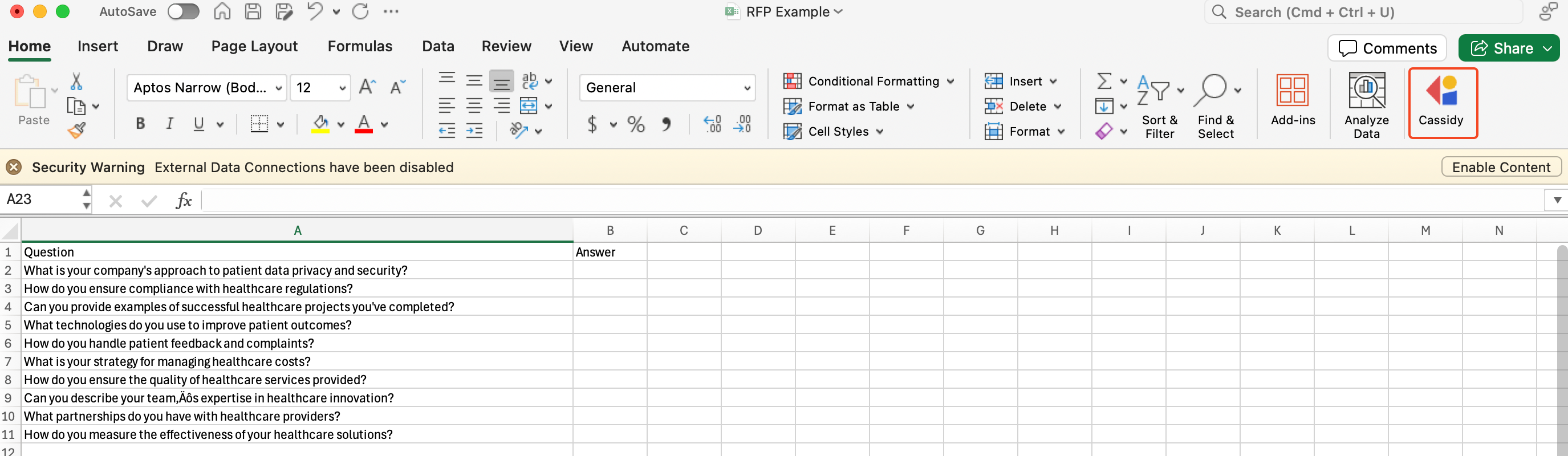
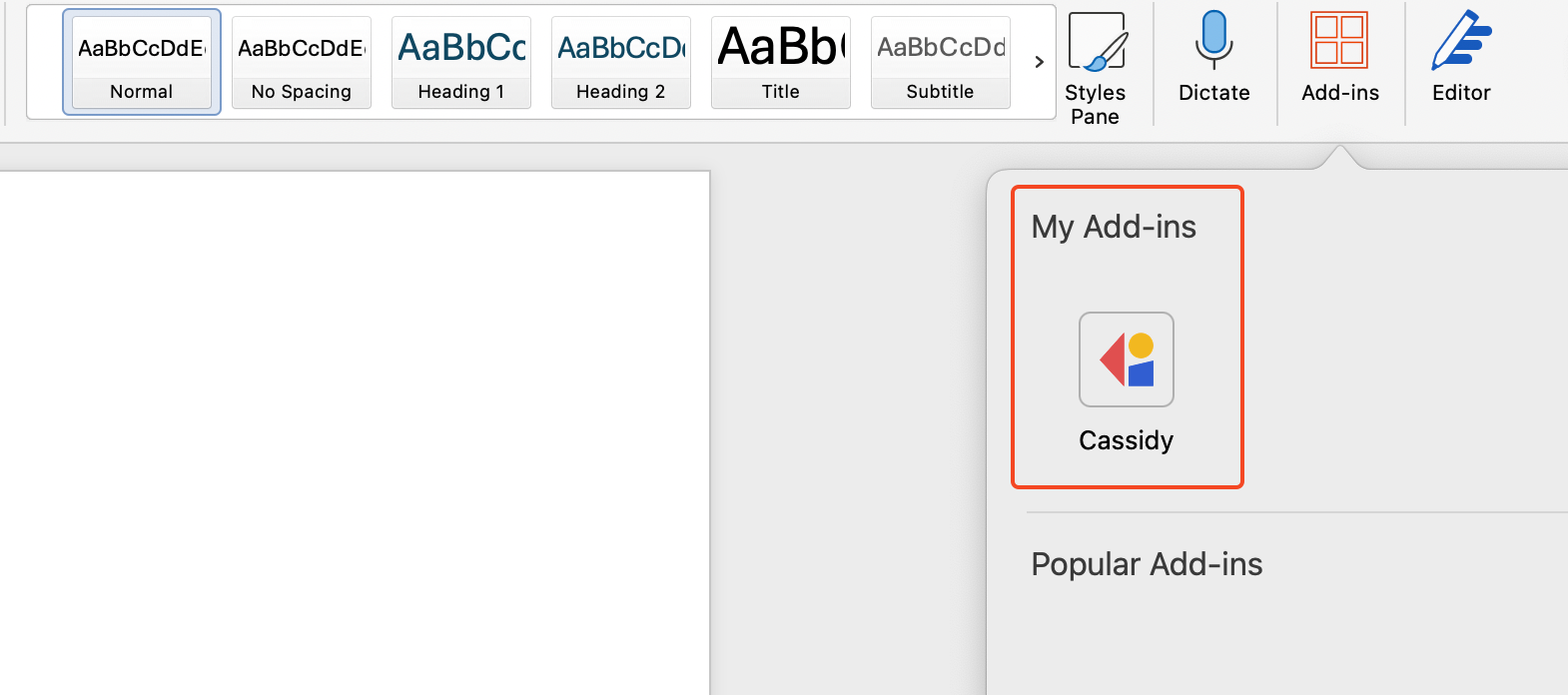
 Once installed, you'll see the Cassidy icon in the toolbar of Word, Excel, and PowerPoint. You can also find it through each app's **Add-ins** menu.
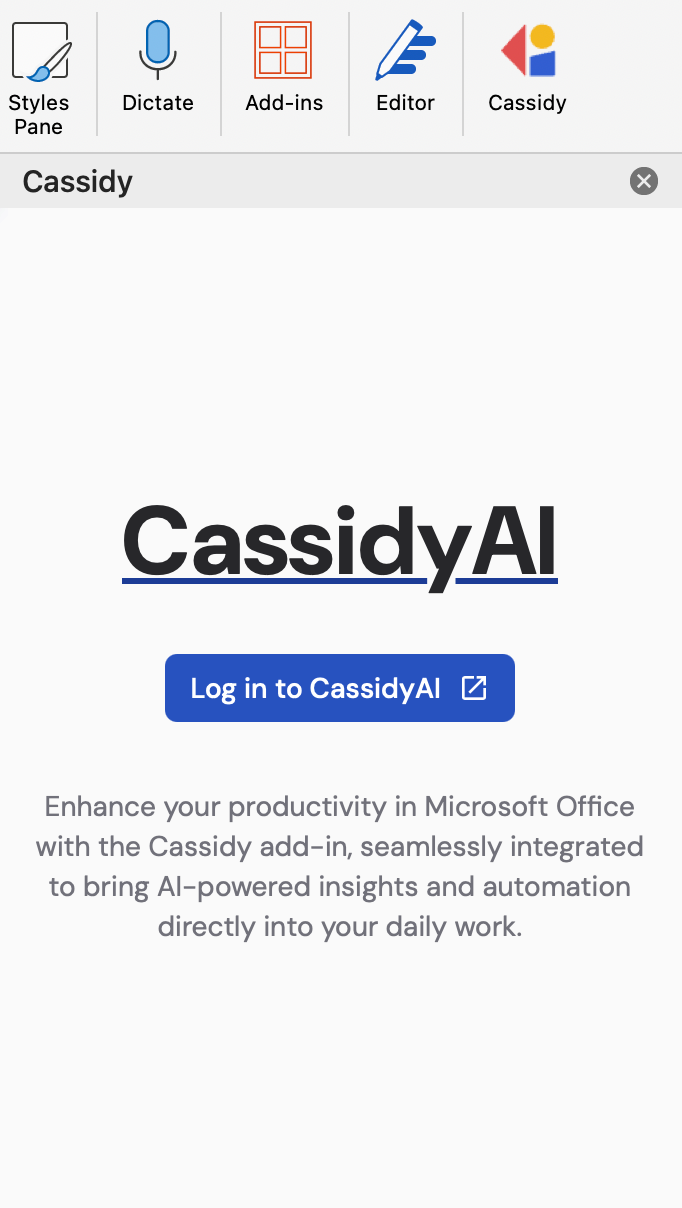
 The first time you open the extension in any of the three apps, you'll be prompted to sign in to your Cassidy account. Signing in once covers Word, Excel, and PowerPoint.
 ## Use Cassidy in Word
Open the Word document you want to work with.
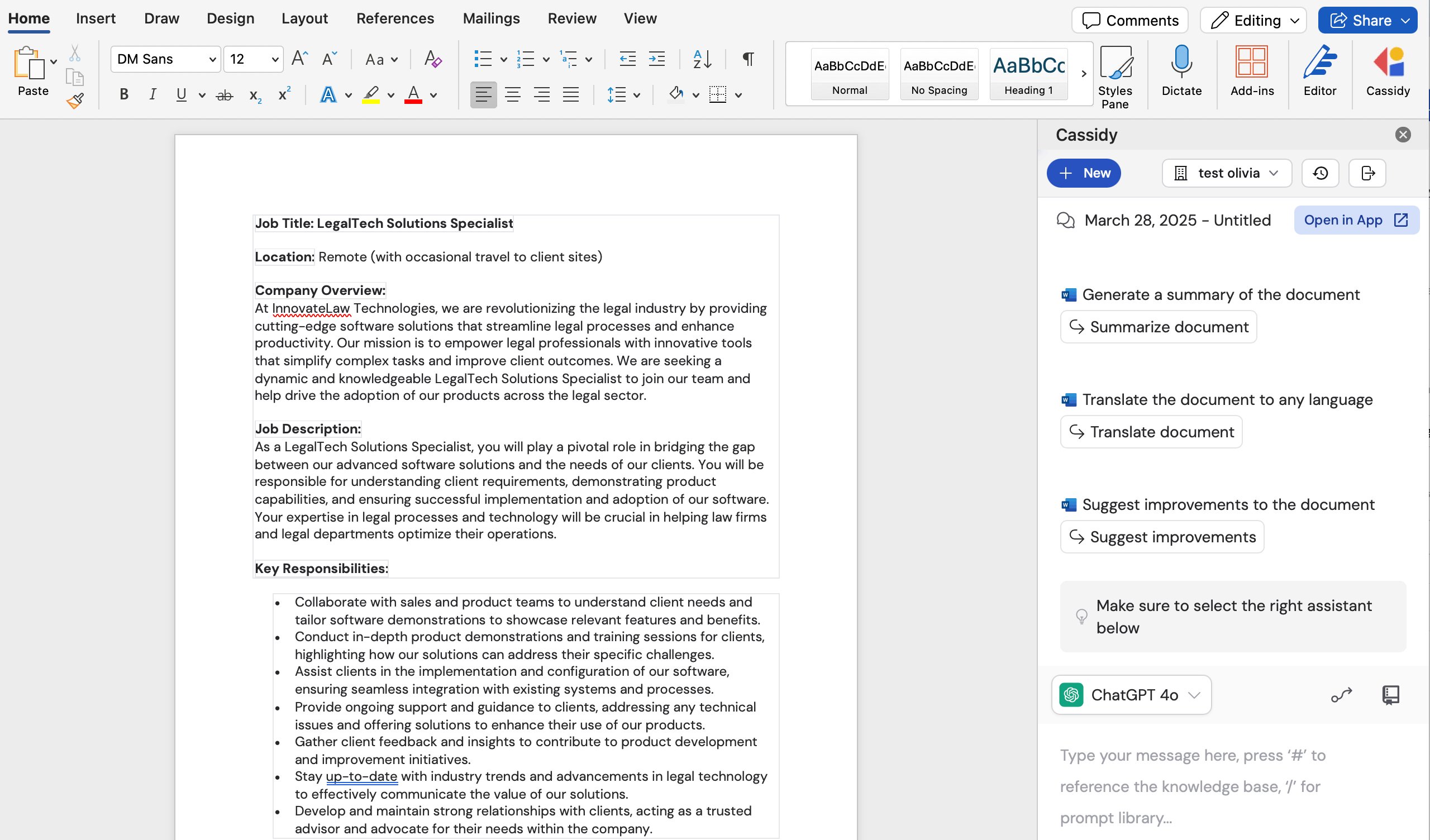
Click the **Cassidy** icon from your toolbar or the Add-ins menu. The Agent opens in a side panel.
A prompt is automatically populated in the chat box based on your document, giving you a starting point. You can ask the Agent to draft new content, rewrite a section, summarize the document, or answer questions using your [Knowledge Base](/knowledge-base/overview).
## Use Cassidy in Word
Open the Word document you want to work with.
Click the **Cassidy** icon from your toolbar or the Add-ins menu. The Agent opens in a side panel.
A prompt is automatically populated in the chat box based on your document, giving you a starting point. You can ask the Agent to draft new content, rewrite a section, summarize the document, or answer questions using your [Knowledge Base](/knowledge-base/overview).
 Once you're happy with the generated content, click **Add to Document** to insert it directly into your Word document.
## Use Cassidy in Excel
Use Cassidy in Excel when you want an Agent to help with the workbook you have open. Ask questions about your data, fill in spreadsheet answers, build charts, and more.
Once you're happy with the generated content, click **Add to Document** to insert it directly into your Word document.
## Use Cassidy in Excel
Use Cassidy in Excel when you want an Agent to help with the workbook you have open. Ask questions about your data, fill in spreadsheet answers, build charts, and more.
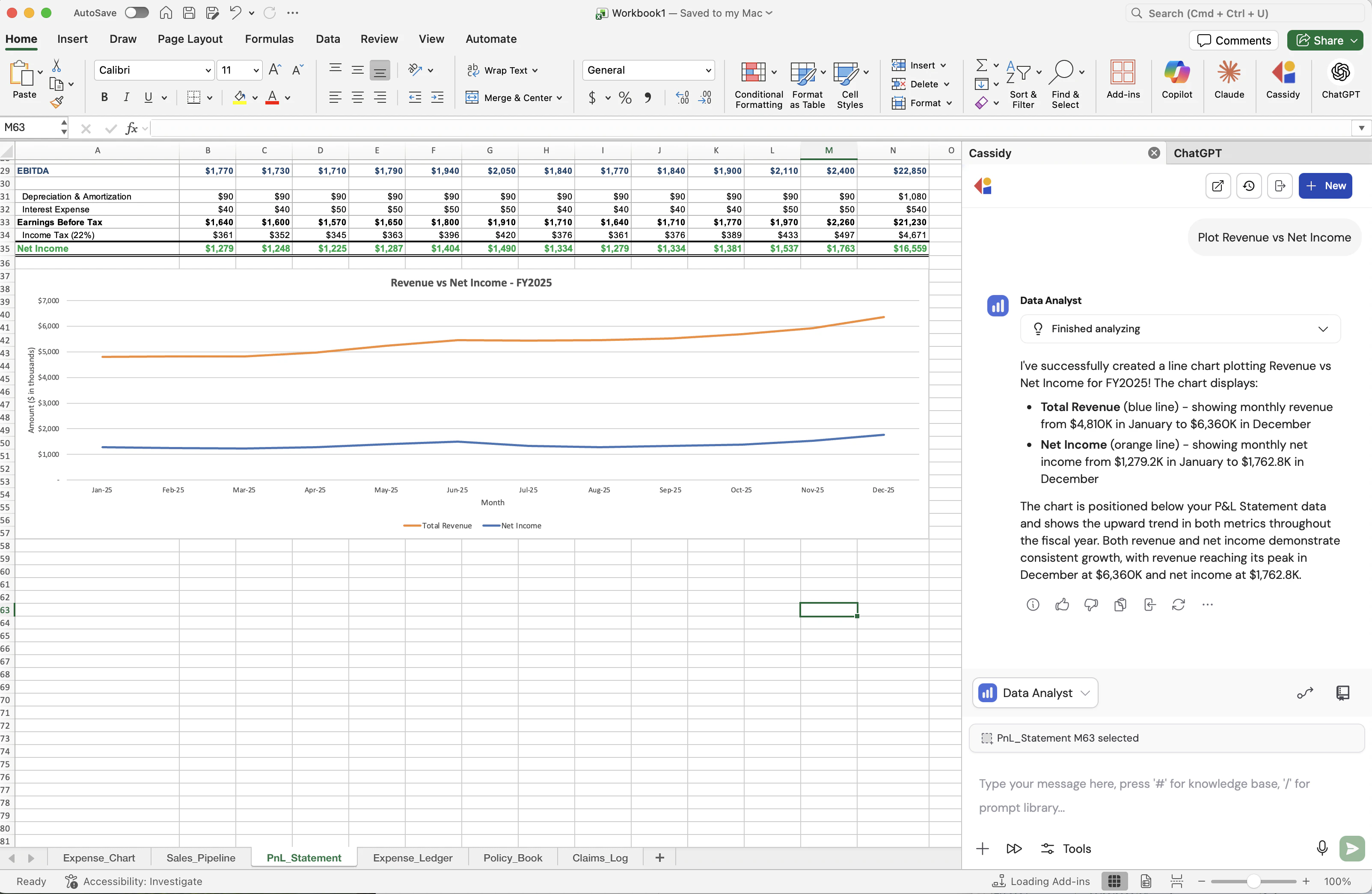 Select the cell or range you want the Agent to work with. Cassidy shows your current Excel selection above the chat box so you can confirm the Agent has the right context.
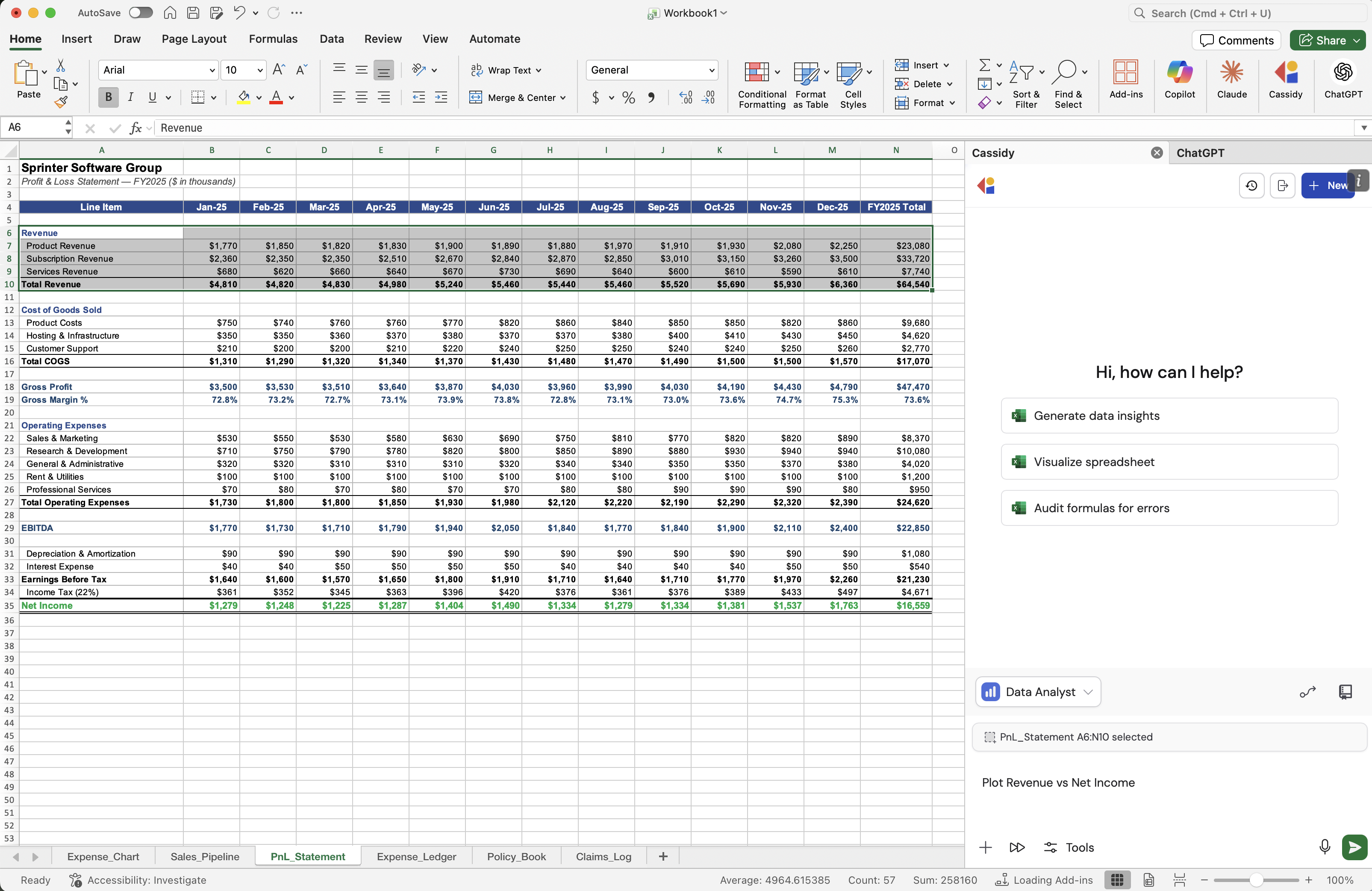
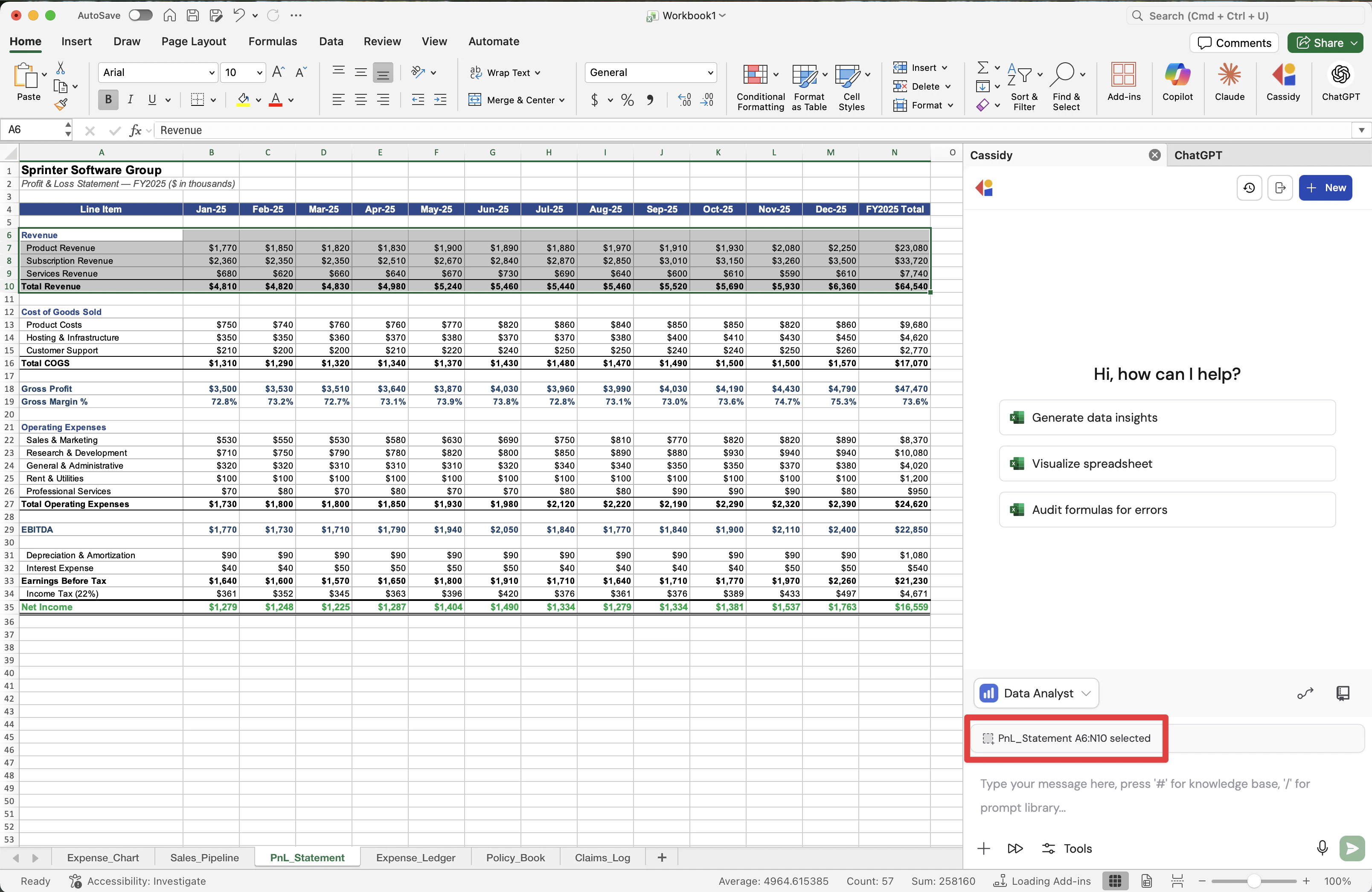 Click the **Cassidy** icon from your toolbar and ask for the outcome you want. For example, ask the Agent to answer RFP questions, generate data insights, or create a chart.
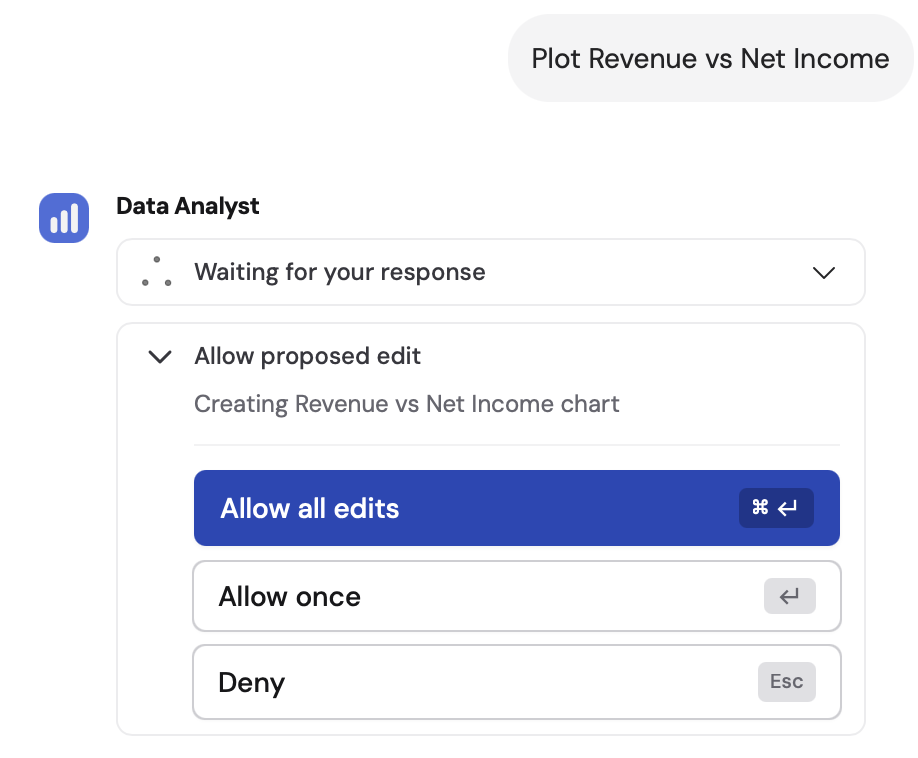
 If the Agent needs to change your workbook, Cassidy shows an approval card before applying the edit. Review the pending edits, then choose **Allow once**, **Allow all edits**, or **Deny**.
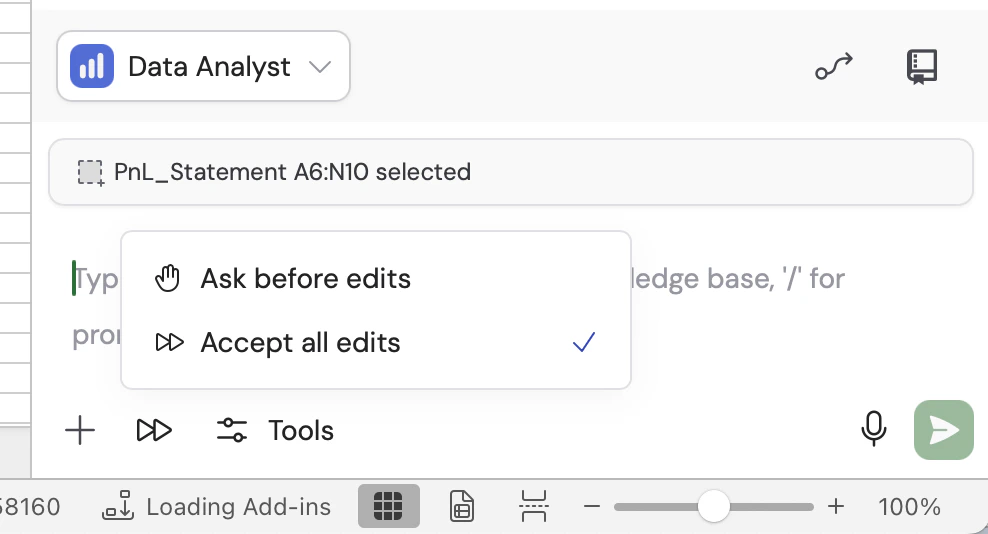
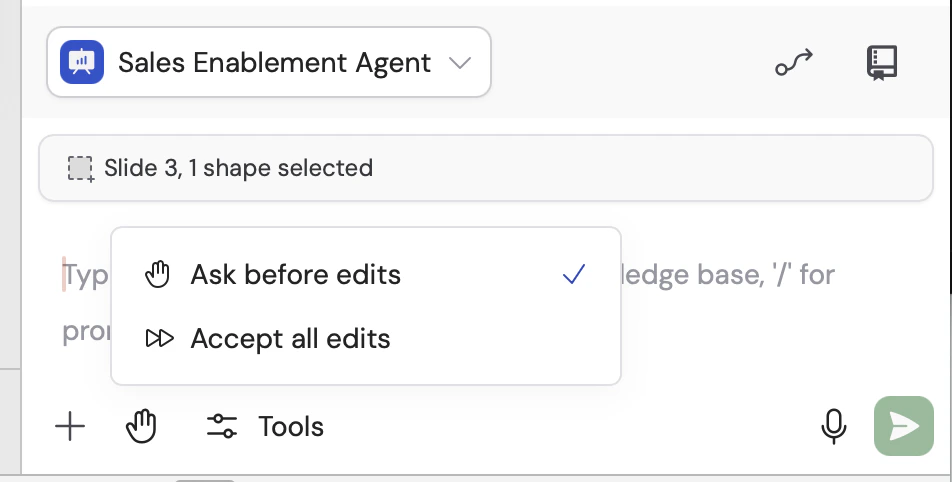
 Use the edit permission button in the chat toolbar to choose how Cassidy handles future workbook edits. Select **Ask before edits** when you want to review each change, or **Accept all edits** when you want the Agent to apply edits without asking again in that chat.
 ## Use Cassidy in PowerPoint
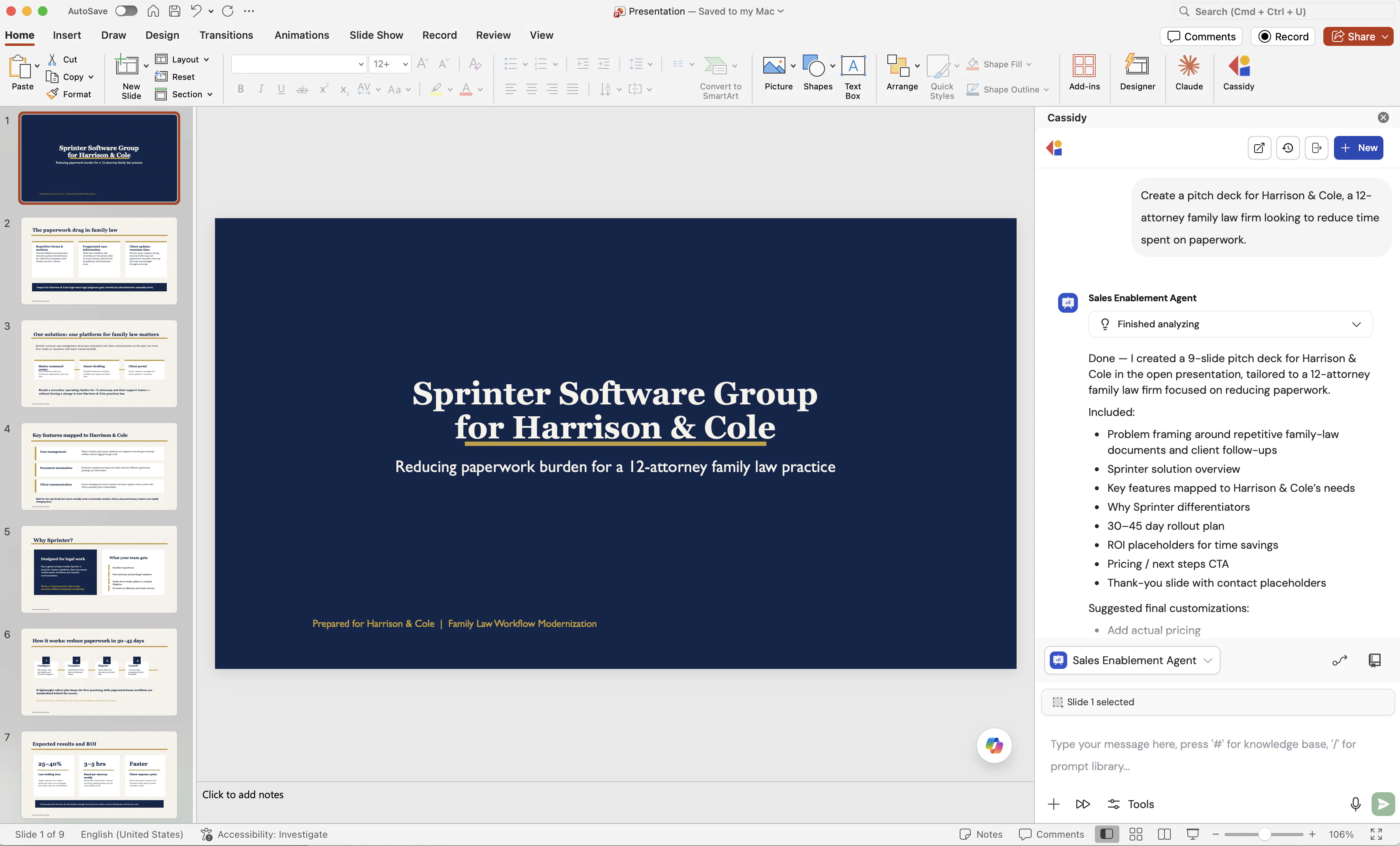
Use Cassidy in PowerPoint when you want an Agent to help with the deck you have open. Generate new slides, rewrite copy, restructure bullets, draft speaker notes, and ask questions about your presentation — all without leaving PowerPoint.
## Use Cassidy in PowerPoint
Use Cassidy in PowerPoint when you want an Agent to help with the deck you have open. Generate new slides, rewrite copy, restructure bullets, draft speaker notes, and ask questions about your presentation — all without leaving PowerPoint.
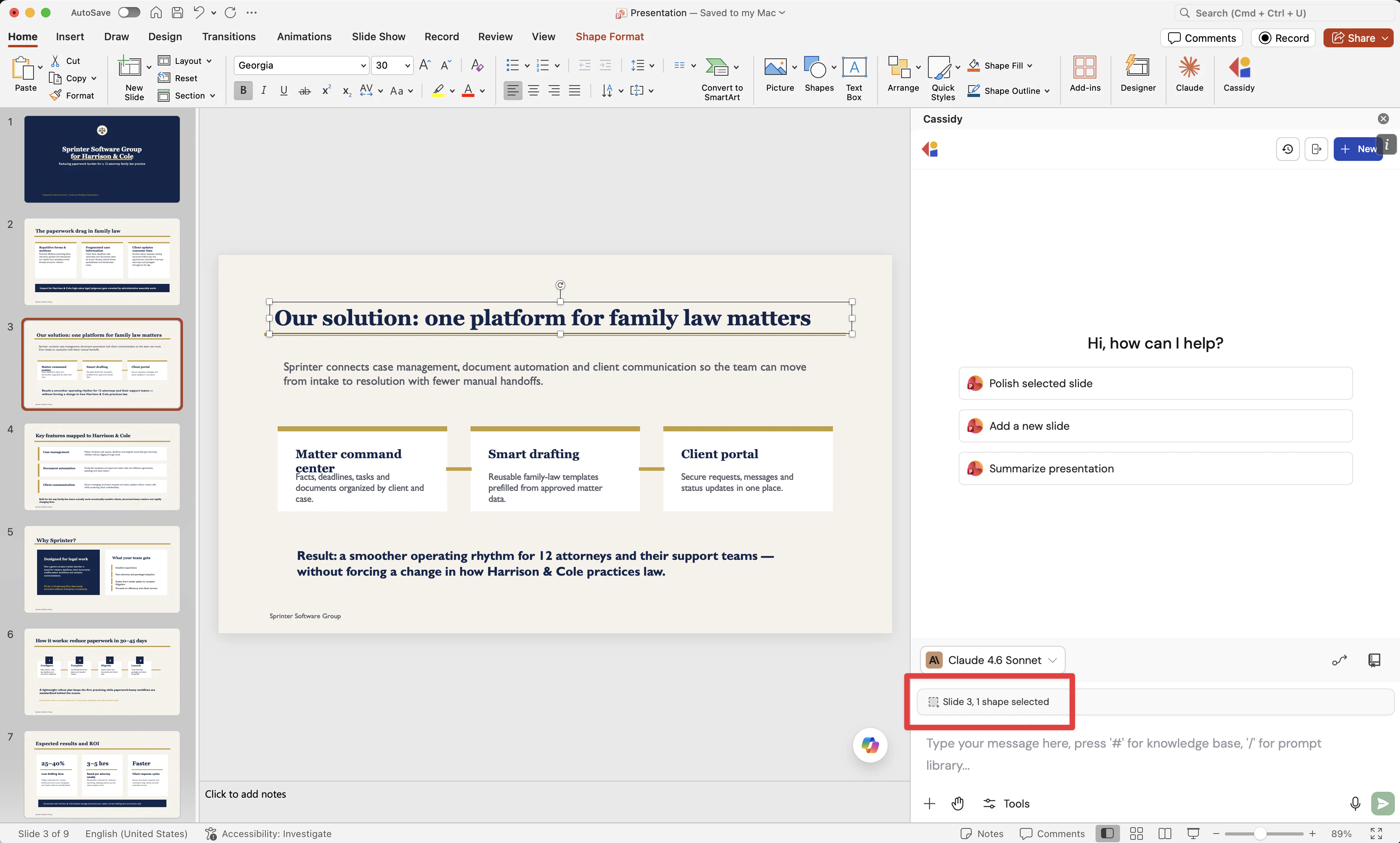
 Select one or more slides in the thumbnail panel, or click a shape on a slide, when you want the Agent to focus on a specific part of the deck. Cassidy shows your selection above the chat box, and the Agent always has visibility into your full deck so it can place new slides in the right spot.
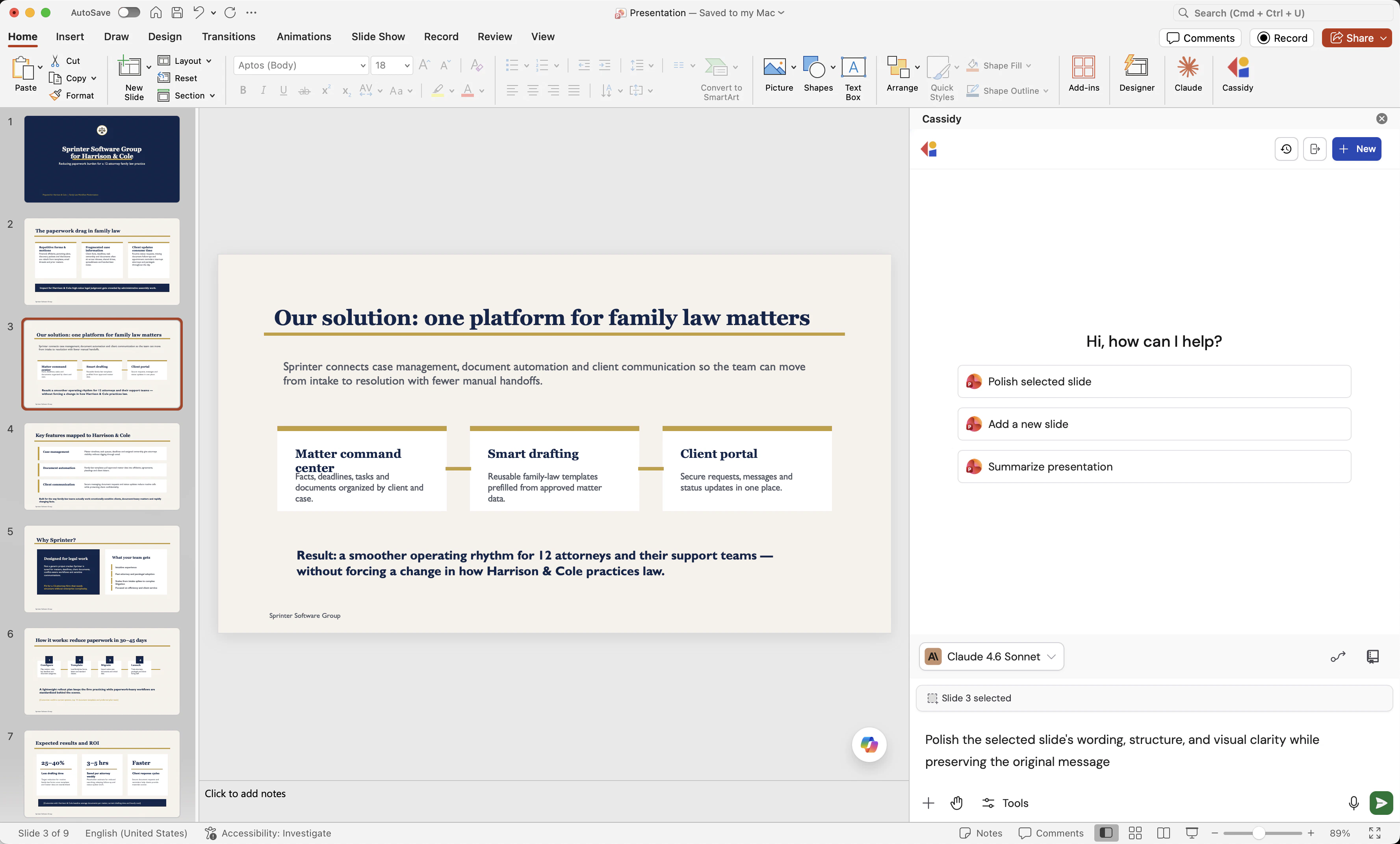
 Click the **Cassidy** icon from your toolbar and ask for the outcome you want. Common prompts:
* Polish the selected slide's wording, structure, and visual clarity
* Add a new slide to this presentation about a given topic
* Summarize this presentation
Click the **Cassidy** icon from your toolbar and ask for the outcome you want. Common prompts:
* Polish the selected slide's wording, structure, and visual clarity
* Add a new slide to this presentation about a given topic
* Summarize this presentation
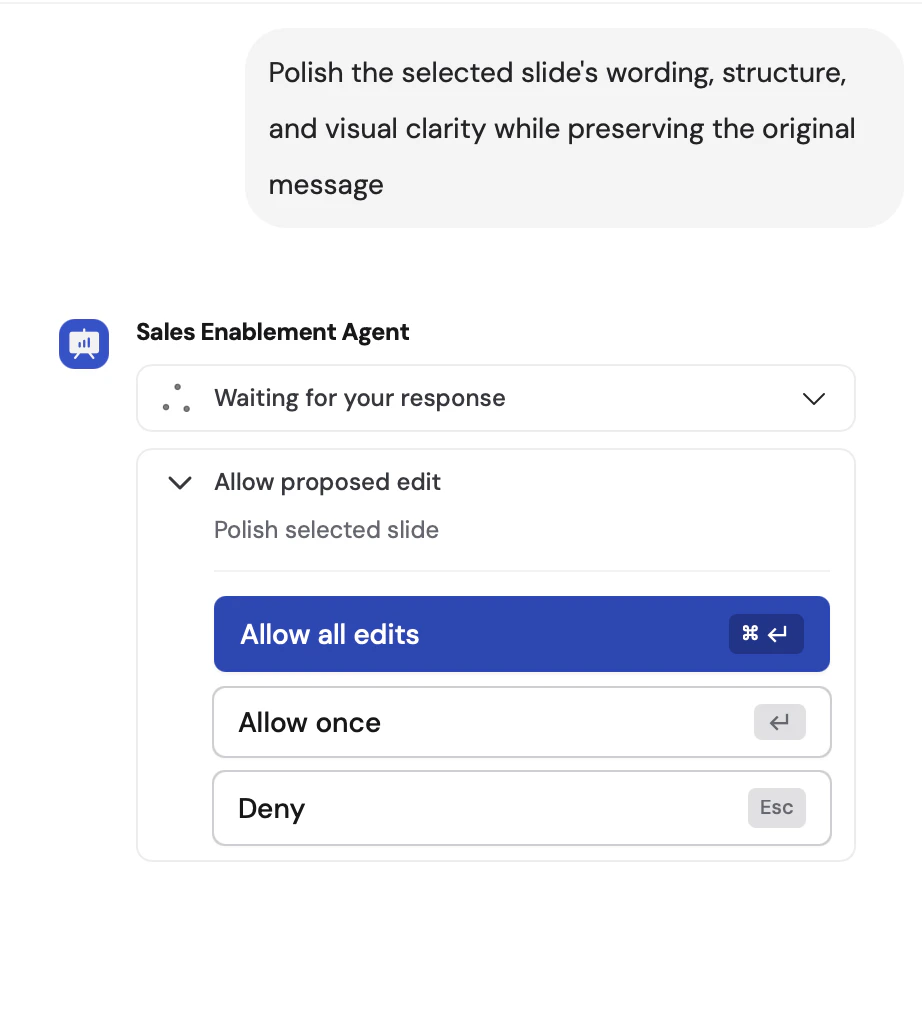
 Before changing your deck, Cassidy shows an approval card describing what the Agent wants to do. Choose **Allow once**, **Allow all edits**, or **Deny**.
 Use the edit permission button in the chat toolbar to choose how Cassidy handles future deck edits. Select **Ask before edits** when you want to review each change, or **Accept all edits** when you want the Agent to apply edits without asking again in that chat.
 ## Next steps
Customize the Agent your extension uses with instructions, knowledge, and
capabilities.
Add company documents so your Agent gives accurate, context-aware answers
in Word, Excel, and PowerPoint.
Install Cassidy extensions for your entire team from the Microsoft 365 admin center.
## Next steps
Customize the Agent your extension uses with instructions, knowledge, and
capabilities.
Add company documents so your Agent gives accurate, context-aware answers
in Word, Excel, and PowerPoint.
Install Cassidy extensions for your entire team from the Microsoft 365 admin center.