> ## Documentation Index
> Fetch the complete documentation index at: https://docs.cassidyai.com/llms.txt
> Use this file to discover all available pages before exploring further.

# Install the Outlook extension

> Access your Cassidy Agents directly in Outlook to draft replies, summarize threads, and automate email tasks.

The Cassidy Outlook extension brings your [Agents](/agents/overview) into your inbox. Draft email replies, summarize long threads, and work with email content — all from a side panel within Outlook.

## Install the extension

<Steps>
  <Step title="Open the Microsoft Office Store">
    Go to the [Cassidy Outlook extension](https://appsource.microsoft.com/en-us/product/office/WA200008206) in the Microsoft Office Store.

    <Frame>
      <img src="https://mintcdn.com/cassidy/OAVjubuipH_KgkqL/images/extensions/outlook-store-page.png?fit=max&auto=format&n=OAVjubuipH_KgkqL&q=85&s=efa481ad0e2dfaf8aec7c094b88ca8e6" alt="Cassidy for Outlook listing in the Microsoft Office Store" width="1218" height="392" data-path="images/extensions/outlook-store-page.png" />
    </Frame>
  </Step>

  <Step title="Start the installation">
    Click **Get it now** to begin the installation process.
  </Step>

  <Step title="Sign in to Microsoft">
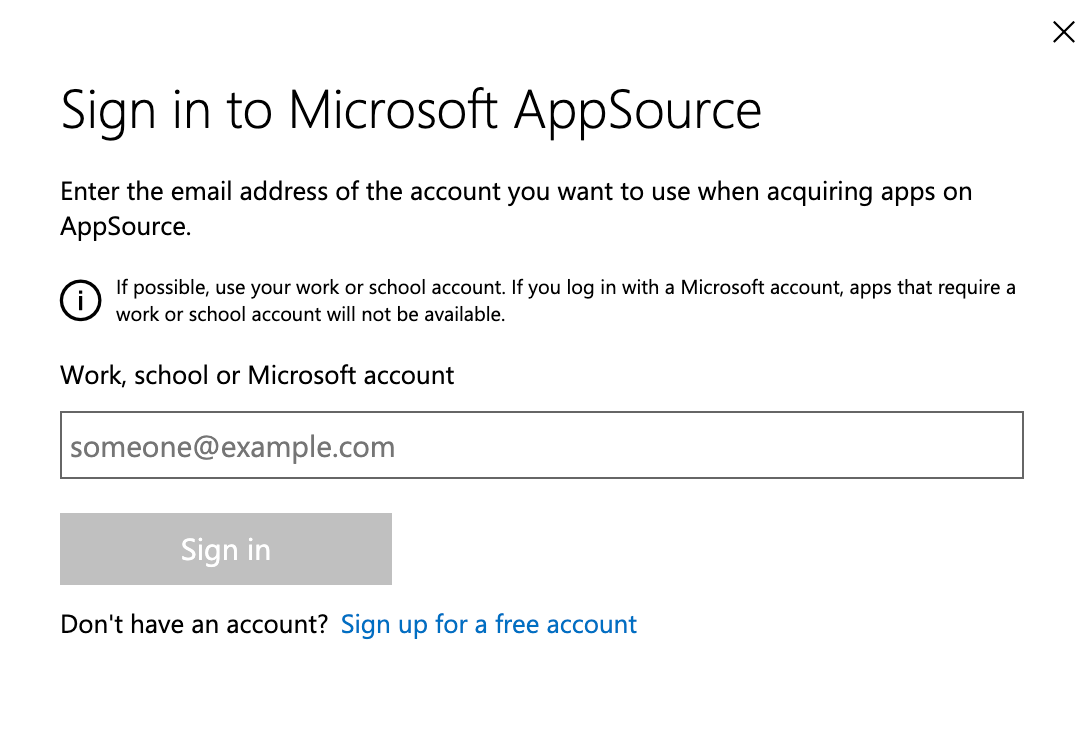
    If you're not already signed in, you'll be prompted to log in to your Microsoft account before continuing.
    <Frame>
      <img src="https://mintcdn.com/cassidy/OAVjubuipH_KgkqL/images/extensions/outlook-sign-in.png?fit=max&auto=format&n=OAVjubuipH_KgkqL&q=85&s=8d36b85b836dd8c77d9fc48b27574fff" alt="Microsoft sign-in prompt during the Cassidy extension installation" width="1088" height="732" data-path="images/extensions/outlook-sign-in.png" />
    </Frame>
  </Step>

  <Step title="Confirm your account">
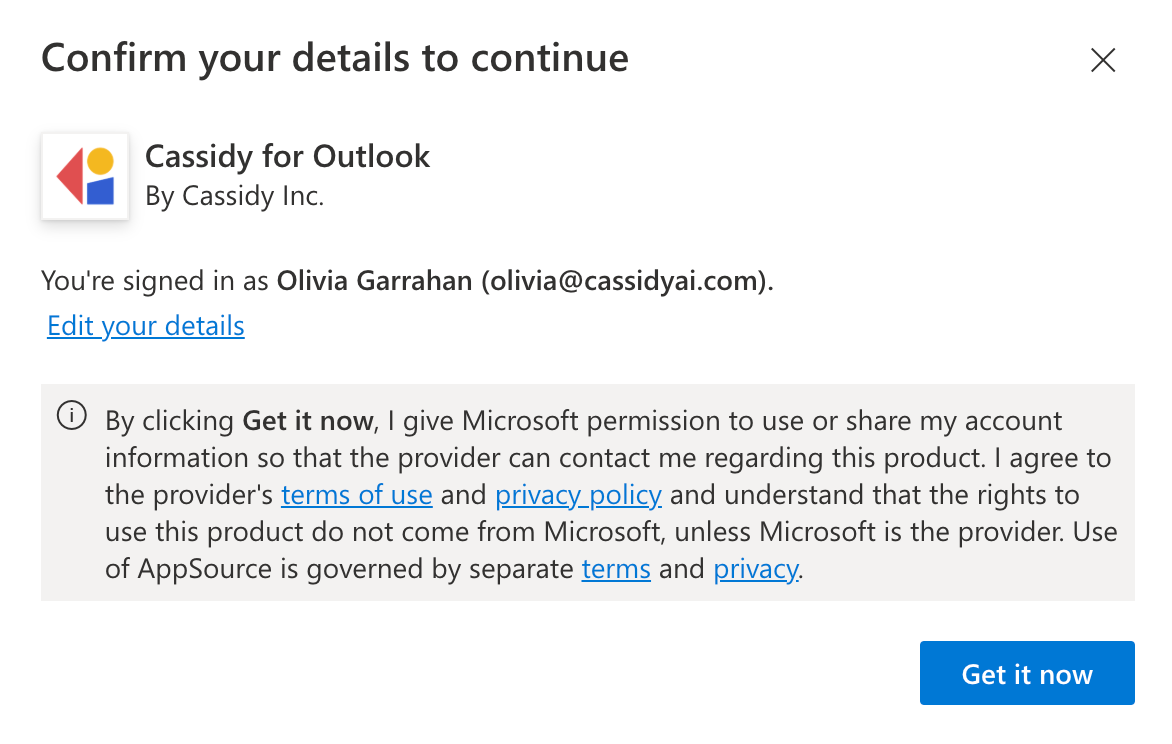
    A confirmation dialog shows your account information. Verify you're signed in with the correct account and click **Get it now**. Click **Edit your details** if you need to make changes.
    <Frame>
      <img src="https://mintcdn.com/cassidy/k1fD1PPJz98taSFv/images/extensions/outlook-confirm-account.png?fit=max&auto=format&n=k1fD1PPJz98taSFv&q=85&s=5044fd2bb16e1a61e7d4948627be419e" alt="Microsoft account confirmation dialog showing user details with a Get it now button" width="1172" height="744" data-path="images/extensions/outlook-confirm-account.png" />
    </Frame>
  </Step>

  <Step title="Accept the installation">
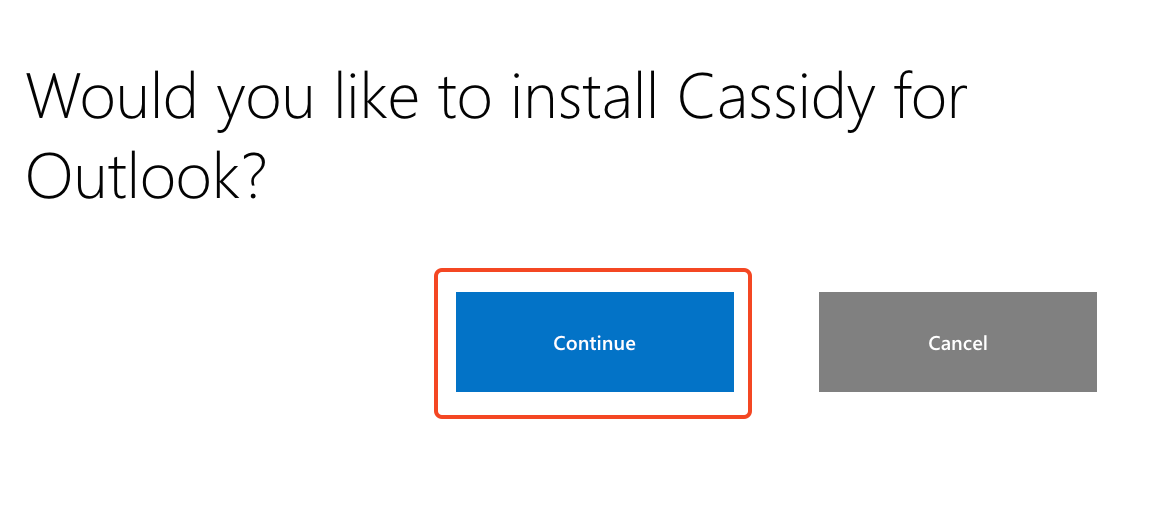
    A dialog asks if you'd like to install Cassidy for Outlook. Click **Continue** to proceed.
    <Frame>
      <img src="https://mintcdn.com/cassidy/k1fD1PPJz98taSFv/images/extensions/outlook-continue-install.png?fit=max&auto=format&n=k1fD1PPJz98taSFv&q=85&s=49fbdb099f7aba413bb7c38619a9eb6b" alt="Installation confirmation dialog with a Continue button" width="1160" height="518" data-path="images/extensions/outlook-continue-install.png" />
    </Frame>
  </Step>

  <Step title="Access the extension">
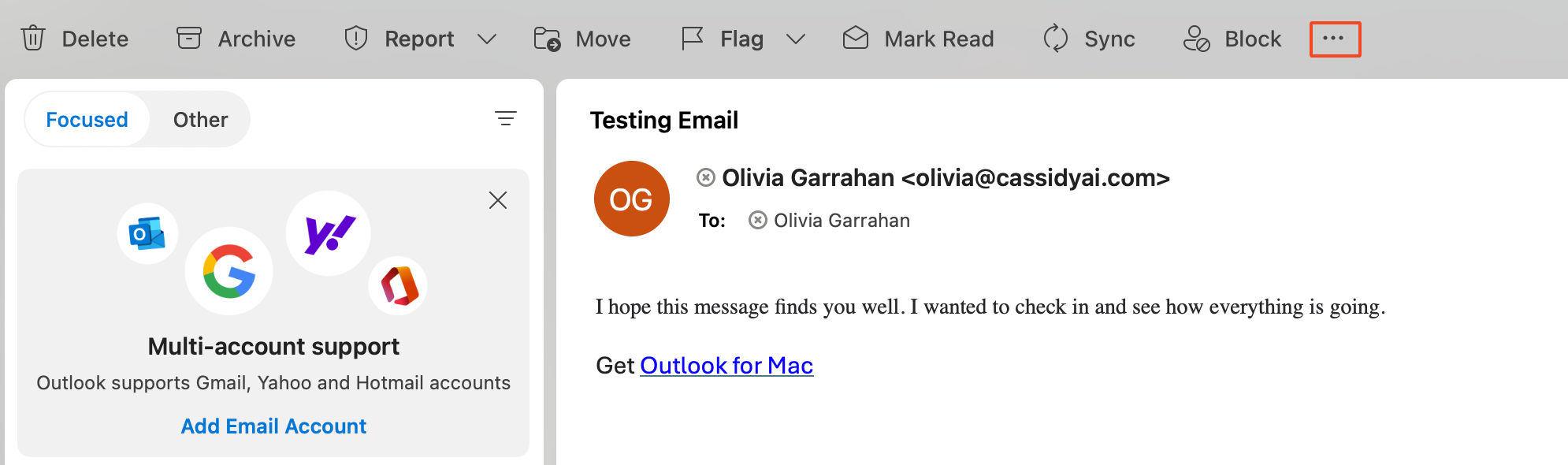
    Once installed, find the Cassidy icon by clicking the **three dots** (more actions) at the right of the Outlook toolbar.
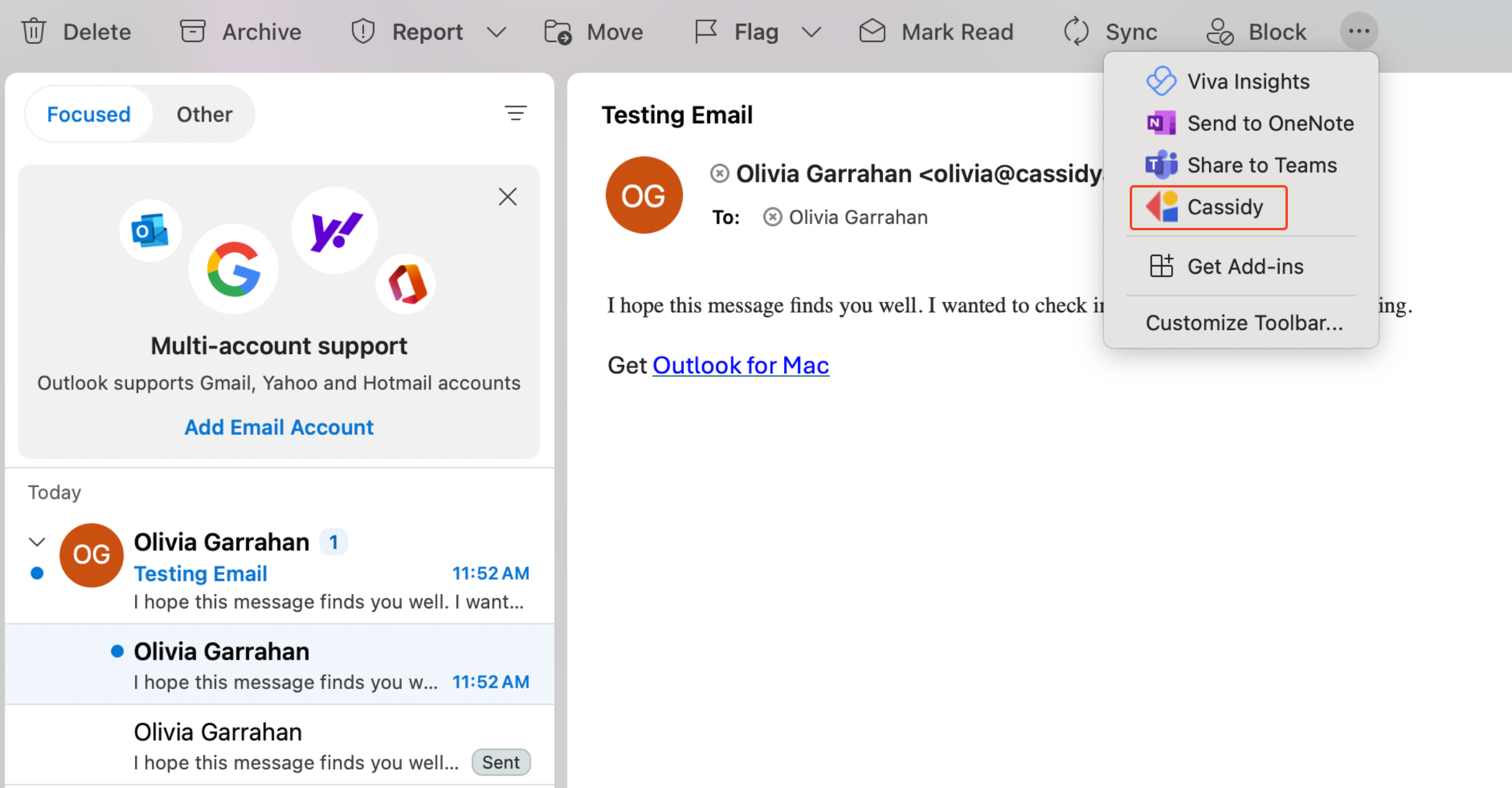
    <Frame>
      <img src="https://mintcdn.com/cassidy/OAVjubuipH_KgkqL/images/extensions/outlook-toolbar-overflow.png?fit=max&auto=format&n=OAVjubuipH_KgkqL&q=85&s=504acb19a8d930b5c5449f3c10524181" alt="Outlook toolbar with the more actions menu showing the Cassidy extension" width="1990" height="590" data-path="images/extensions/outlook-toolbar-overflow.png" />
    </Frame>

    <Frame>
      <img src="https://mintcdn.com/cassidy/k1fD1PPJz98taSFv/images/extensions/outlook-cassidy-in-menu.png?fit=max&auto=format&n=k1fD1PPJz98taSFv&q=85&s=35d74a252dd3dc8b9c89892fe187ab88" alt="Cassidy listed in the Outlook overflow menu" width="2476" height="1290" data-path="images/extensions/outlook-cassidy-in-menu.png" />
    </Frame>
  </Step>

  <Step title="Add to the toolbar (optional)">
    For quicker access, click **Customize toolbar** from the overflow menu and add Cassidy to your main toolbar.
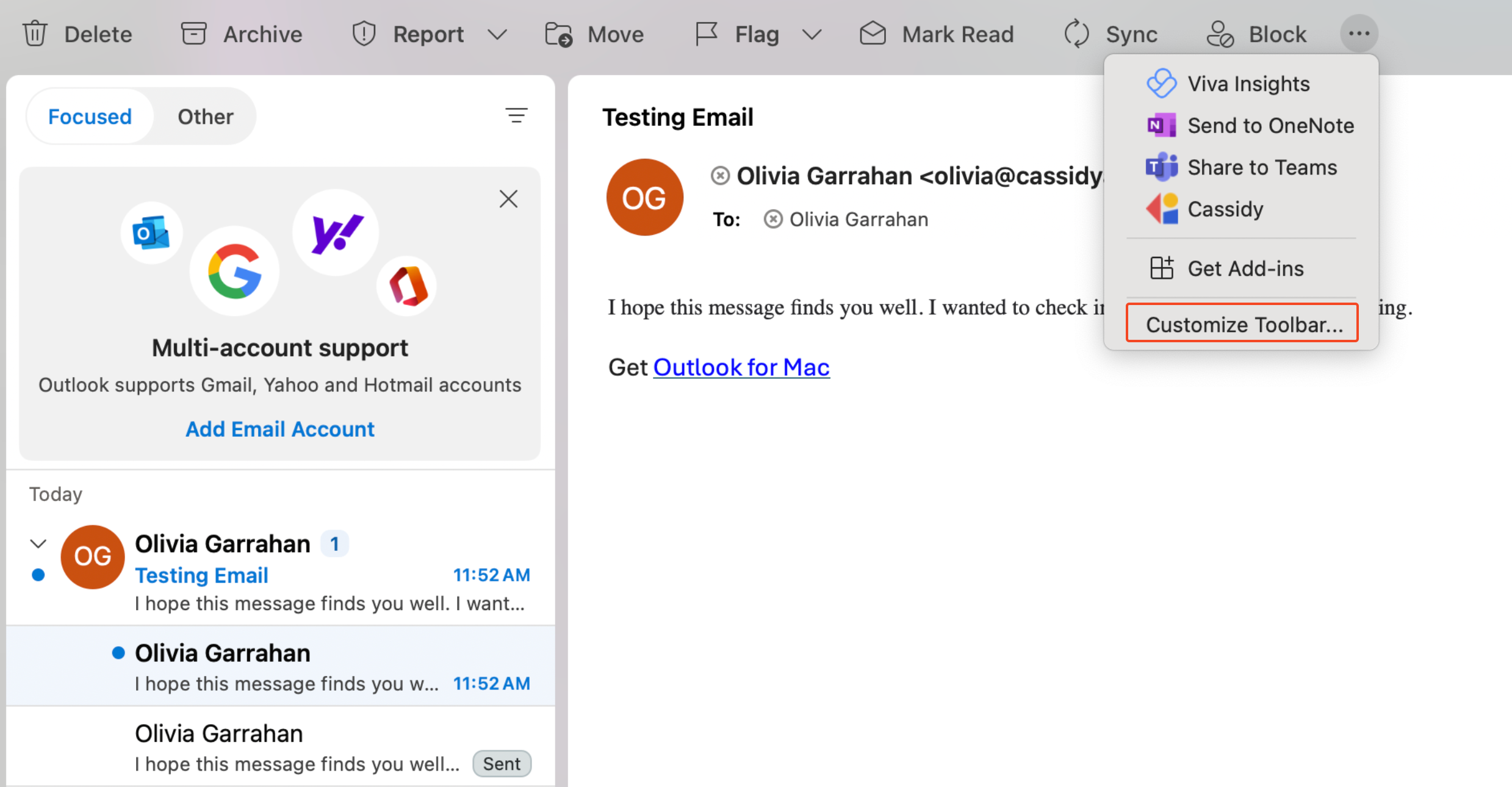
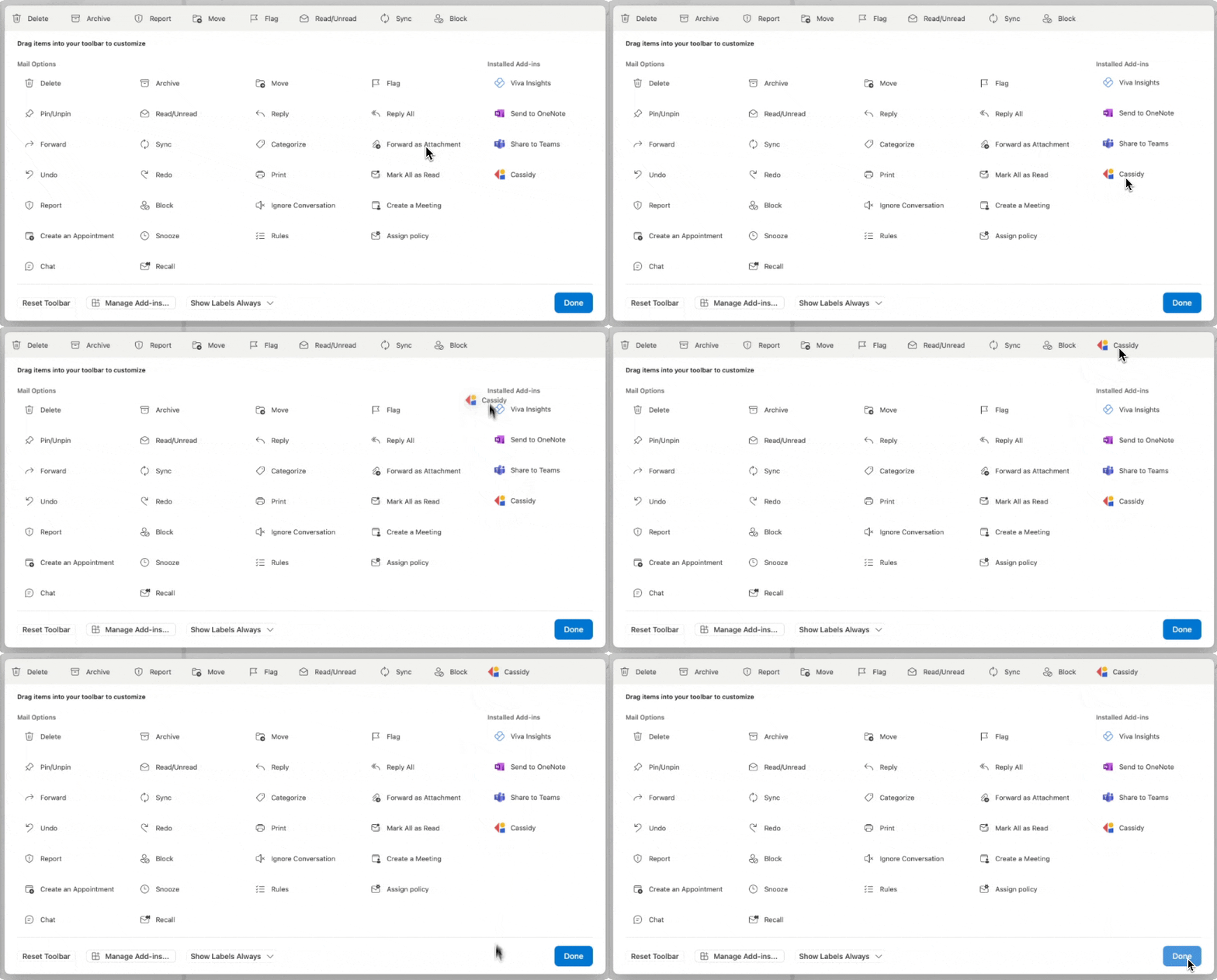
    <Frame>
      <img src="https://mintcdn.com/cassidy/k1fD1PPJz98taSFv/images/extensions/outlook-customize-toolbar.png?fit=max&auto=format&n=k1fD1PPJz98taSFv&q=85&s=adaedcec473c2c6171fc6cad1d6778ea" alt="Customize toolbar option in the Outlook overflow menu" width="2478" height="1290" data-path="images/extensions/outlook-customize-toolbar.png" />
    </Frame>

    <Frame>
      <img src="https://mintcdn.com/cassidy/k1fD1PPJz98taSFv/images/extensions/outlook-add-to-toolbar.gif?s=4c8d165a84f6ce0c0d86943ee8142ab9" alt="Animation showing how to pin Cassidy to the Outlook toolbar" width="892" height="480" data-path="images/extensions/outlook-add-to-toolbar.gif" />
    </Frame>
  </Step>
</Steps>

## Use the extension

Once installed, open any email and click the **Cassidy** icon in your toolbar to open the Agent side panel. From there you can draft replies, summarize threads, and ask questions about email content — all without leaving Outlook.

### Draft email replies

<Steps>
  <Step title="Open an email">
    Open the email you want to respond to.
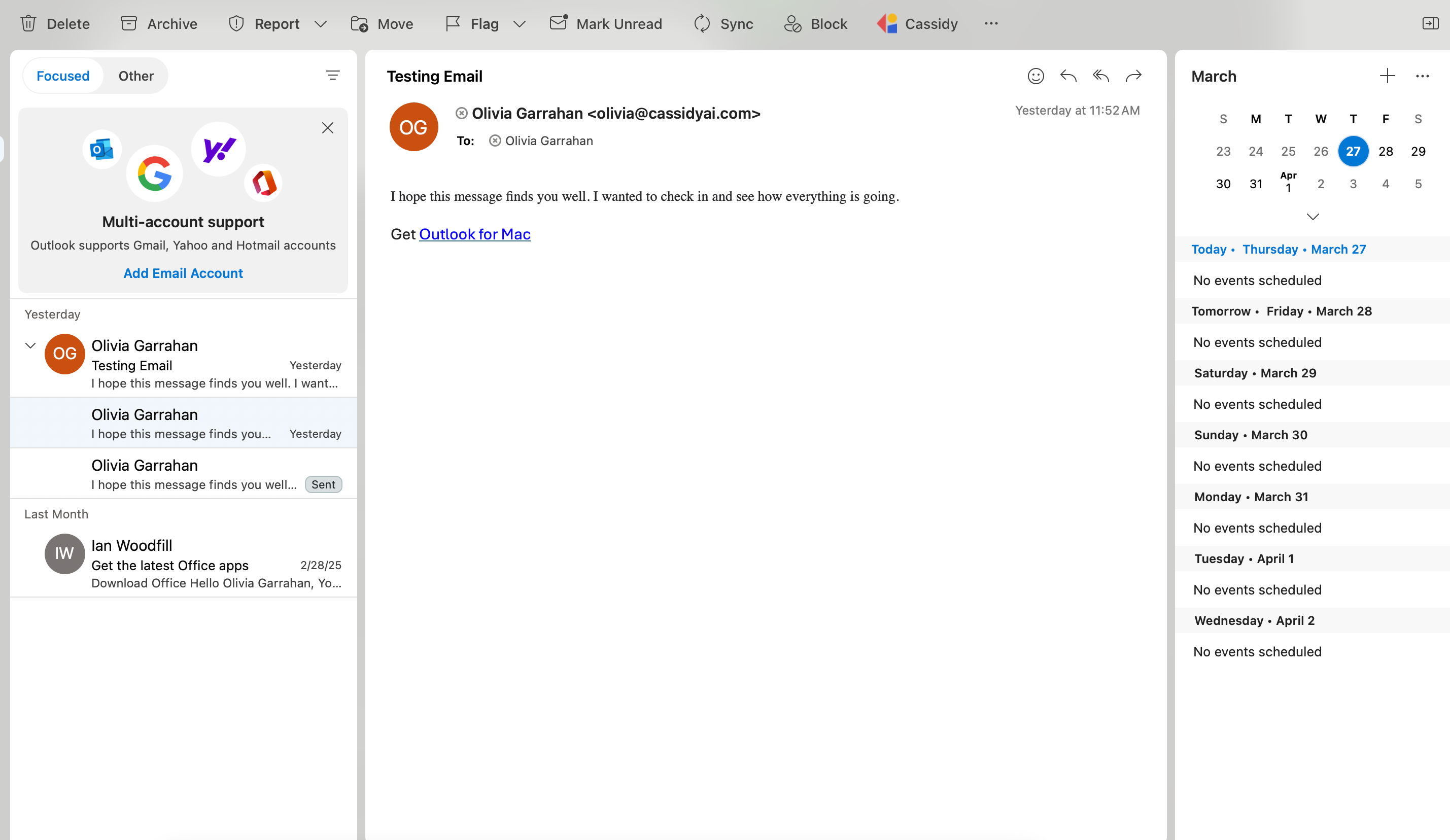
    <Frame>
      <img src="https://mintcdn.com/cassidy/OAVjubuipH_KgkqL/images/extensions/outlook-open-email.png?fit=max&auto=format&n=OAVjubuipH_KgkqL&q=85&s=db4684d5c715f613c2c65426ac73ddec" alt="An email open in the Outlook reading pane" width="2858" height="1656" data-path="images/extensions/outlook-open-email.png" />
    </Frame>
  </Step>

  <Step title="Open the Cassidy Agent">
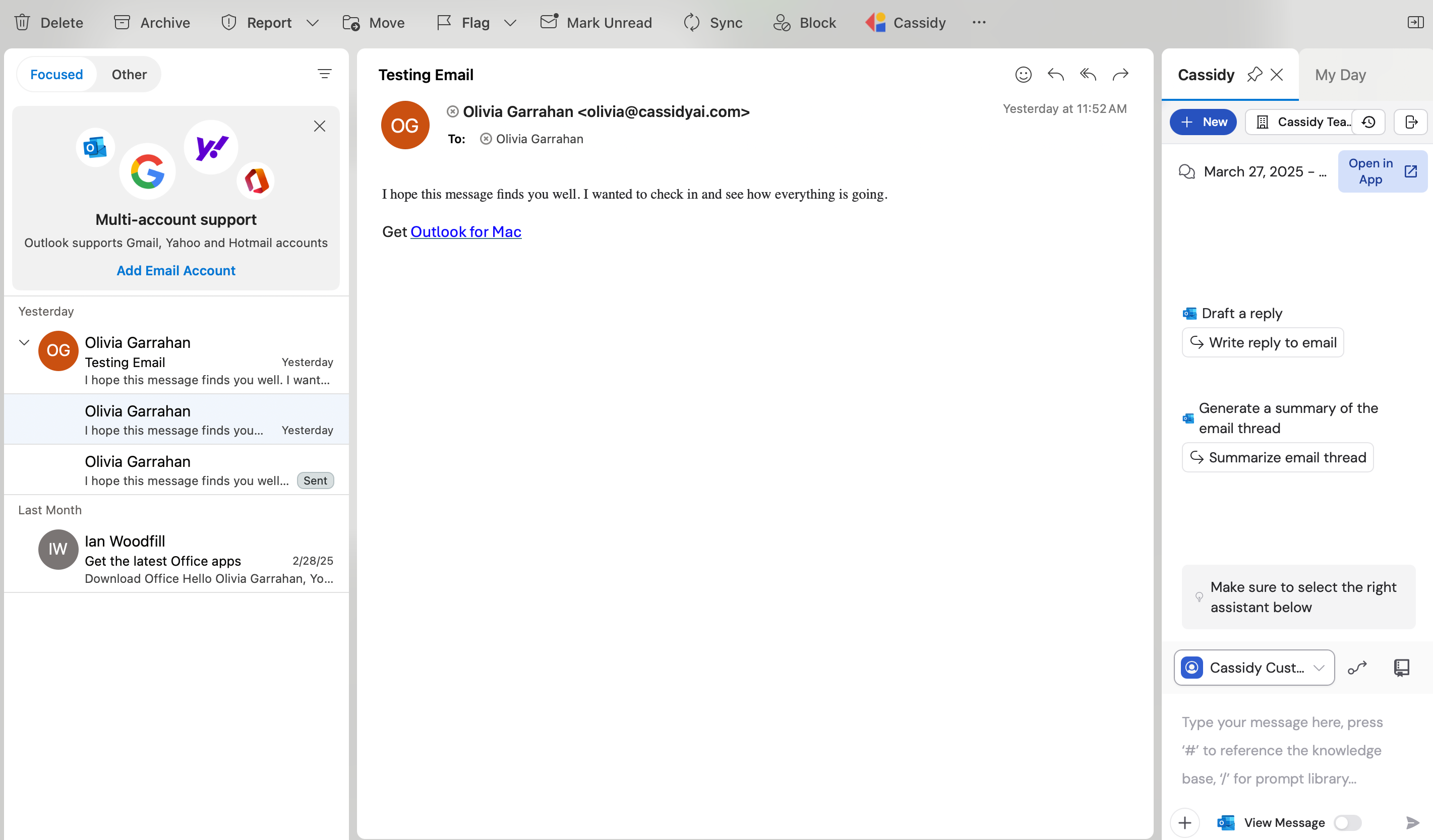
    Click the **Cassidy** icon from your toolbar. The Agent opens in a side panel next to your email.
    <Frame>
      <img src="https://mintcdn.com/cassidy/k1fD1PPJz98taSFv/images/extensions/outlook-agent-panel.png?fit=max&auto=format&n=k1fD1PPJz98taSFv&q=85&s=cc014f795d6f75f260e7949c068dd510" alt="Cassidy Agent side panel open next to an email in Outlook" width="2842" height="1666" data-path="images/extensions/outlook-agent-panel.png" />
    </Frame>
  </Step>

  <Step title="Use or edit the suggested prompt">
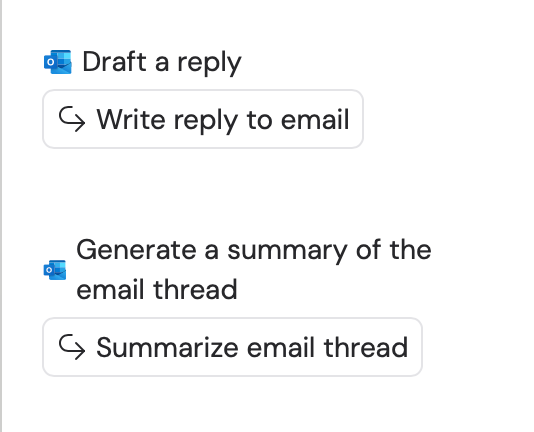
    A prompt is automatically populated in the chat box based on the email content, giving you a starting point for your reply.
    <Frame>
      <img src="https://mintcdn.com/cassidy/OAVjubuipH_KgkqL/images/extensions/outlook-suggested-prompts.png?fit=max&auto=format&n=OAVjubuipH_KgkqL&q=85&s=29beb9a18a2bf6e47b1fbe2002cc2ec9" alt="Cassidy chat panel showing a suggested reply prompt based on the email thread" width="534" height="432" data-path="images/extensions/outlook-suggested-prompts.png" />
    </Frame>
  </Step>

  <Step title="Insert the response">
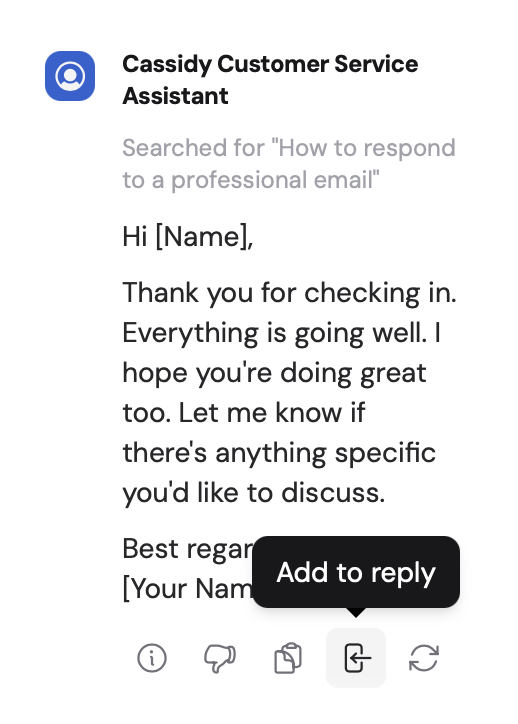
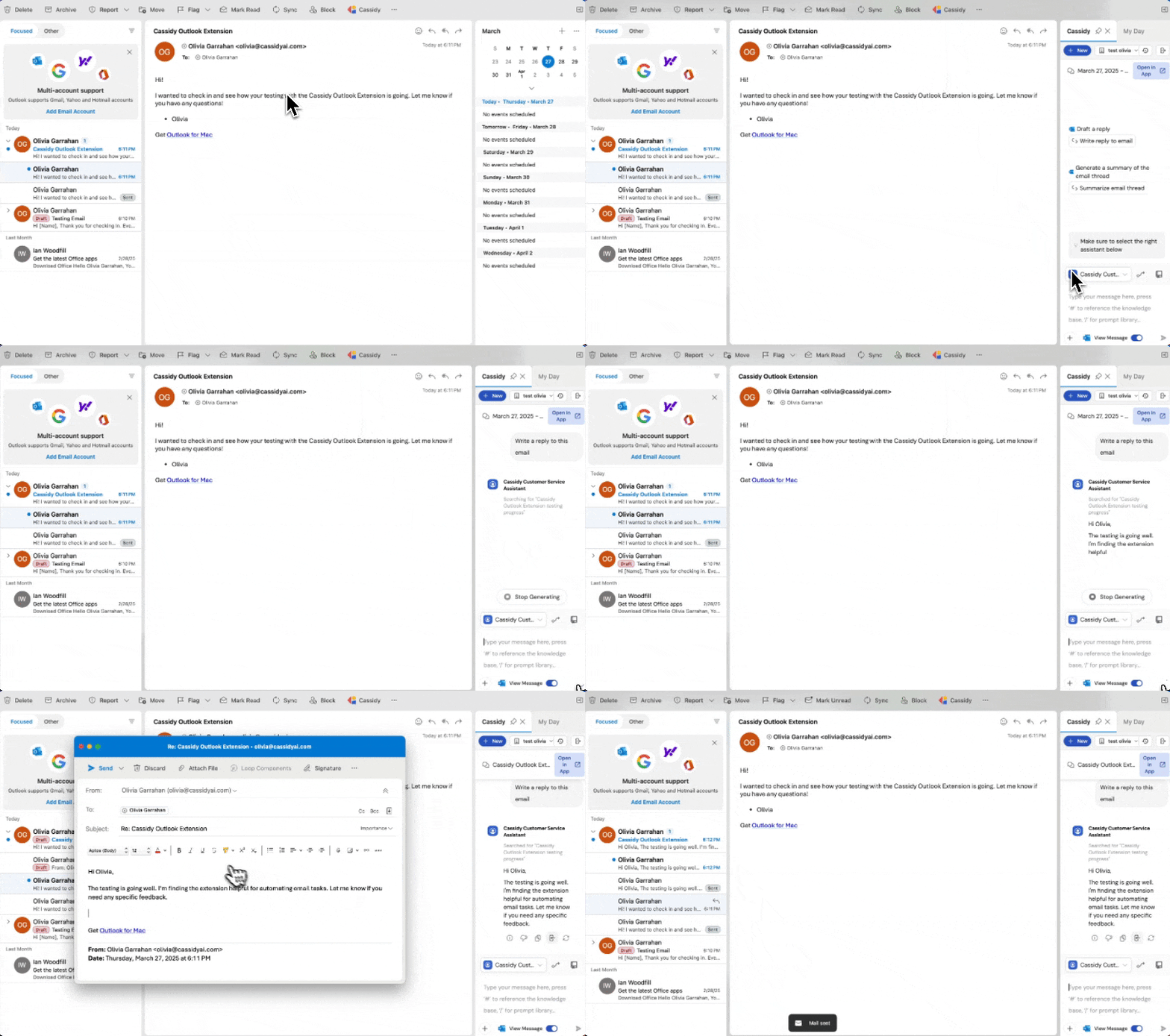
    Once you're happy with the generated reply, click **Add to Reply** to insert it directly into your email.
    <Frame>
      <img src="https://mintcdn.com/cassidy/k1fD1PPJz98taSFv/images/extensions/outlook-add-to-reply.png?fit=max&auto=format&n=k1fD1PPJz98taSFv&q=85&s=0866047d4d53b80414f499dc535586d6" alt="Add to Reply button in the Cassidy chat panel" width="518" height="724" data-path="images/extensions/outlook-add-to-reply.png" />
    </Frame>

    <Frame caption="Full email reply flow using the Cassidy Outlook extension">
      <img src="https://mintcdn.com/cassidy/OAVjubuipH_KgkqL/images/extensions/outlook-reply-demo.gif?s=3e2325cf225a427f8a6b06809a6696d8" alt="Animation showing the full flow of drafting and inserting an email reply with Cassidy" width="812" height="480" data-path="images/extensions/outlook-reply-demo.gif" />
    </Frame>
  </Step>
</Steps>

### Summarize email threads

<Steps>
  <Step title="Open a long email thread">
    Open a lengthy email conversation you need to catch up on.
  </Step>

  <Step title="Request a summary">
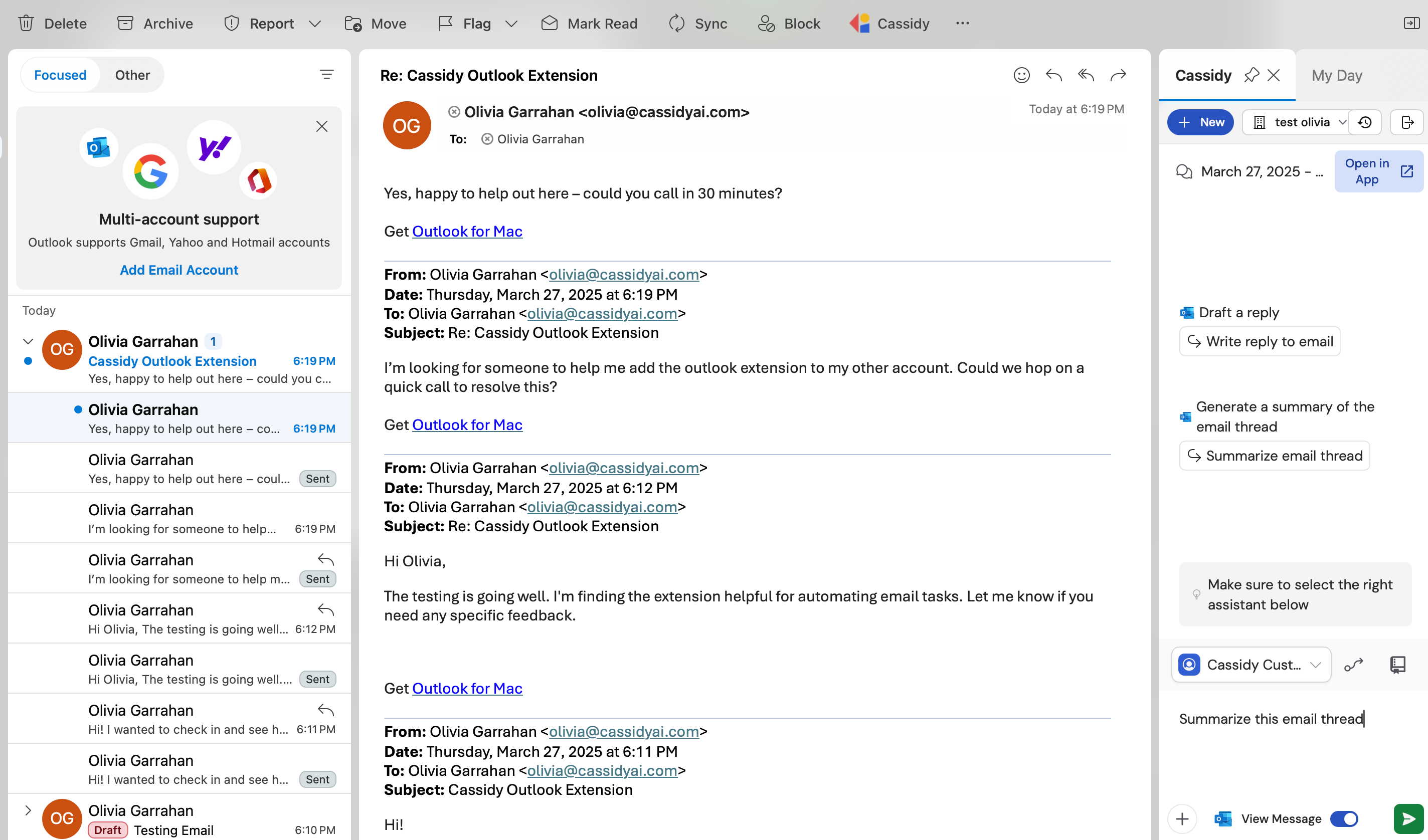
    Click the **Cassidy** icon from your toolbar and ask for a summary of the thread.
    <Frame>
      <img src="https://mintcdn.com/cassidy/OAVjubuipH_KgkqL/images/extensions/outlook-request-summary.png?fit=max&auto=format&n=OAVjubuipH_KgkqL&q=85&s=82d12f685098c58e629a97d34adccd52" alt="Cassidy chat panel with a prompt asking for a thread summary" width="2848" height="1676" data-path="images/extensions/outlook-request-summary.png" />
    </Frame>
  </Step>

  <Step title="Review key points">
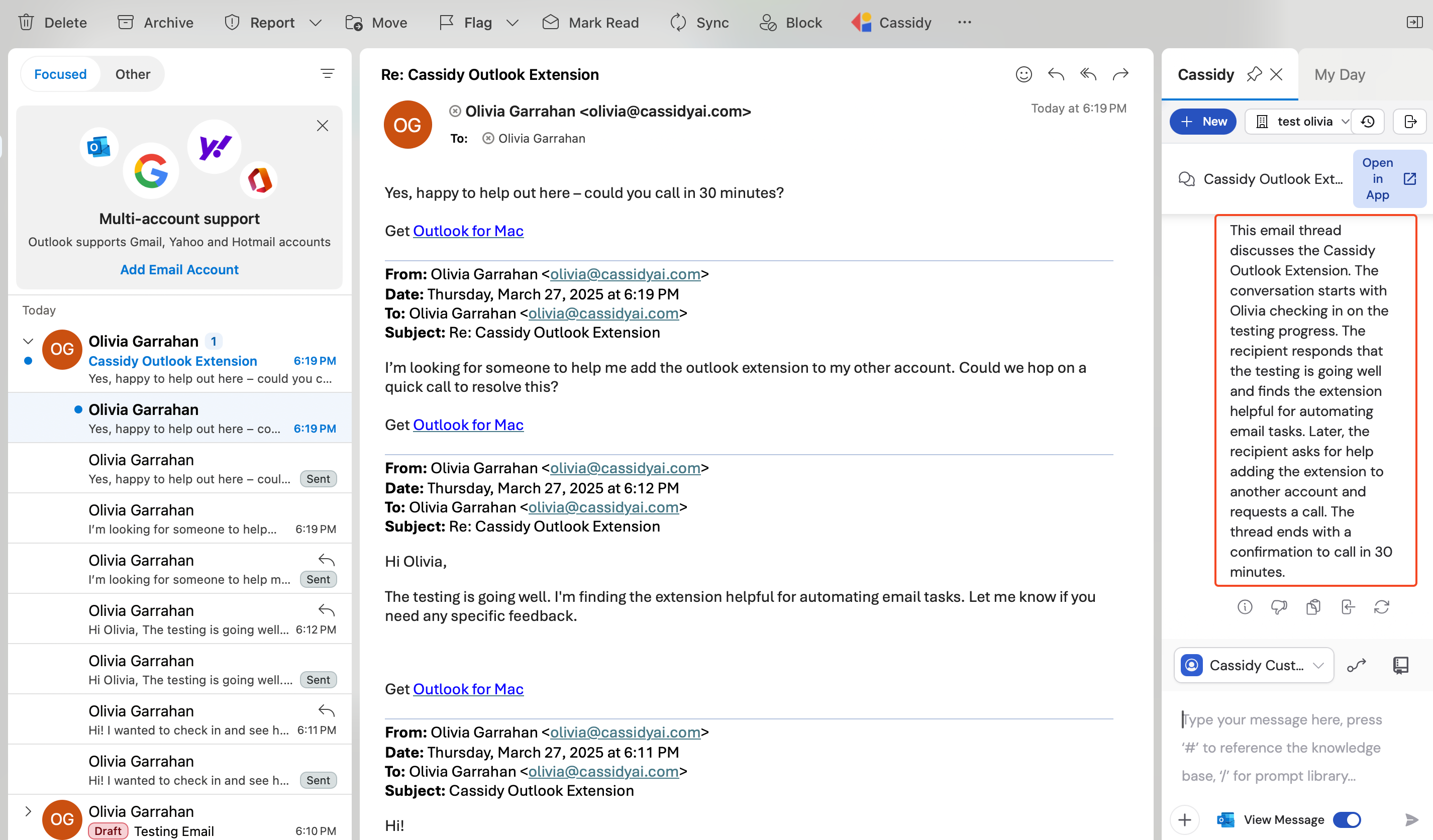
    Cassidy analyzes the conversation and provides a concise summary of important points, action items, and decisions.
    <Frame>
      <img src="https://mintcdn.com/cassidy/OAVjubuipH_KgkqL/images/extensions/outlook-summary-result.png?fit=max&auto=format&n=OAVjubuipH_KgkqL&q=85&s=f95dbae0c41e79a52df660da0dc5575b" alt="Cassidy Agent displaying a summary of an email thread with key points and action items" width="2852" height="1672" data-path="images/extensions/outlook-summary-result.png" />
    </Frame>
  </Step>
</Steps>

## Next steps

<CardGroup cols={2}>
  <Card title="Build and configure an Agent" icon="wrench" href="/agents/build-and-configure">
    Customize the Agent your extension uses with instructions, knowledge, and capabilities.
  </Card>

  <Card title="Microsoft Office extension" icon="microsoft" href="/extensions/microsoft-office">
    Bring Cassidy into your documents, spreadsheets, and presentations.
  </Card>

  <Card title="Deploy extensions for your organization" icon="building" href="/extensions/microsoft-365-admin-deploy">
    Install Cassidy extensions for your entire team from the Microsoft 365 admin center.
  </Card>
</CardGroup>
