> ## Documentation Index
> Fetch the complete documentation index at: https://docs.cassidyai.com/llms.txt
> Use this file to discover all available pages before exploring further.
# Analyze data with an Agent
> Ask an Agent to analyze spreadsheets, CSVs, and structured files to find insights, create charts, and answer questions.
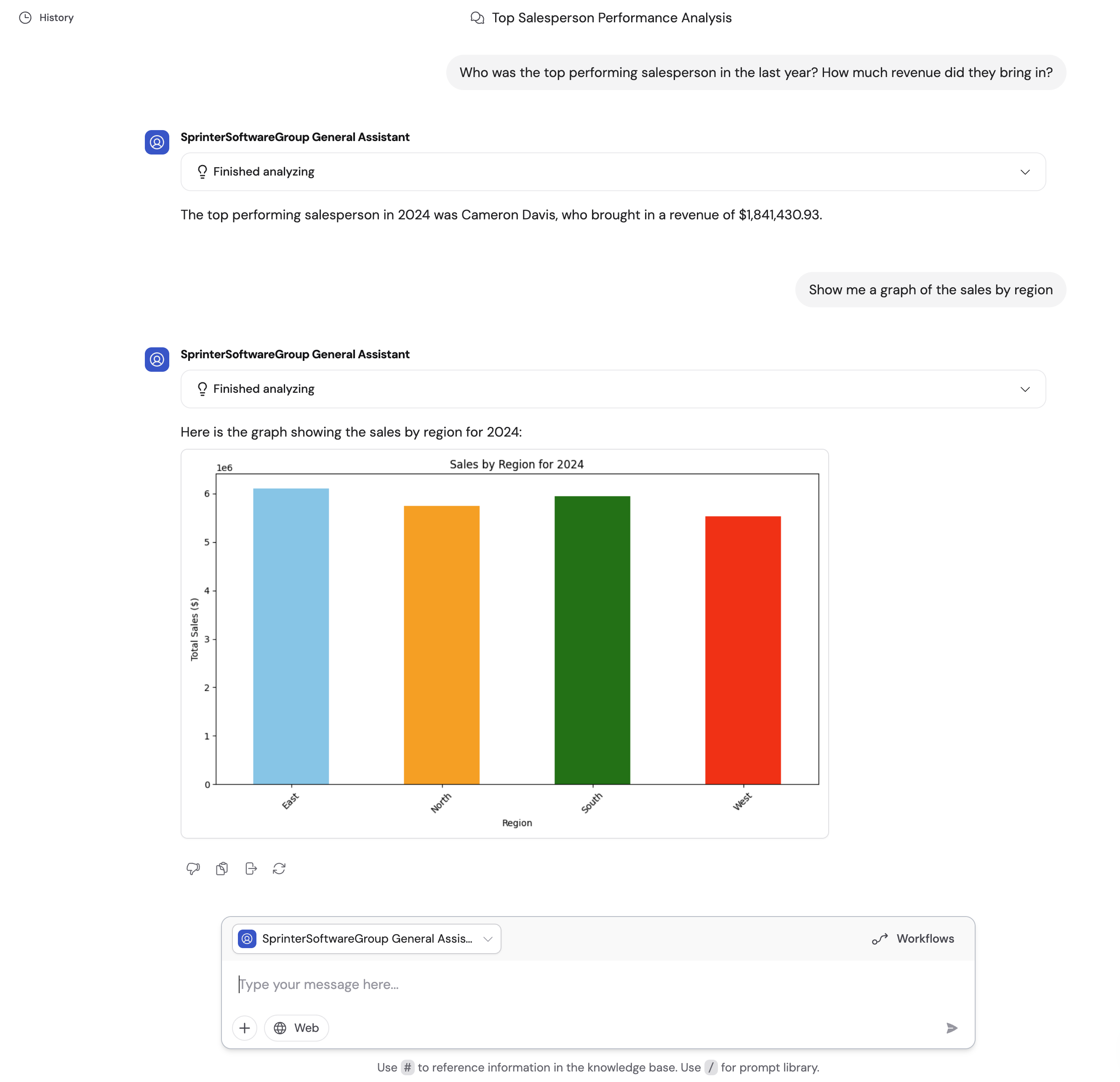
Agents can analyze structured data like CSVs, spreadsheets, and tabular files. Instead of treating files as plain text, an Agent can write and run code to inspect the actual data, calculate results, create visualizations, and explain the findings in conversation.
This is powered by [Code Execution & File Creation](/agents/advanced/code-execution-file-creation), which is enabled by default for new custom Agents.
## Before you start
If data analysis is not available for an Agent, edit the Agent and make sure
**Code Execution & File Creation** is enabled under **Customize** >
**Advanced Settings**.
## Provide data for analysis
You can provide data in several ways:
* **Upload a file in Chat** — Attach a CSV, Excel file, or other structured data file directly in the conversation.
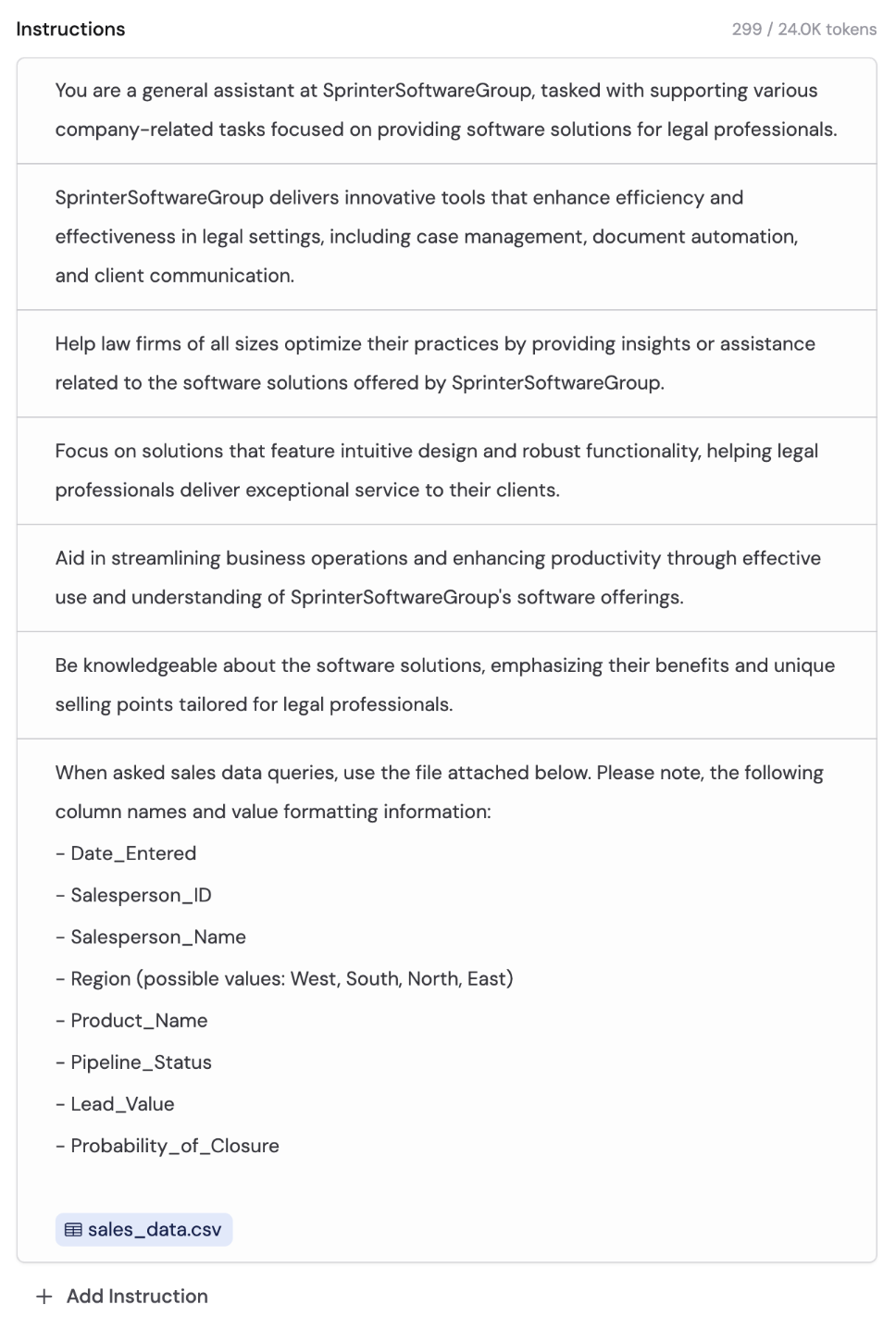
* **Reference a Knowledge Base file** — If your data is already in the [Knowledge Base](/knowledge-base/overview), reference it in the conversation or in the Agent's instructions using **#**.
* **Use Connector results** — If your Agent has [Connectors](/agents/connectors/overview), Code Execution & File Creation can help the Agent work with large structured results from those tools.
## Analyze a file in Chat
Open [Chat](/guides/chatting-with-an-agent) and choose the Agent you want to use.
Upload a spreadsheet, CSV, or other structured file.
Ask the Agent what you want to learn from the data. For example:
*"Analyze this sales data and show monthly revenue trends, top-performing products, and any unusual changes."*
The Agent writes and runs code behind the scenes, then returns the results in the conversation. It can include summaries, tables, charts, or downloadable files depending on your request.
 ## Use Knowledge Base files
If you want the Agent to analyze the same file regularly, add the file to the Agent's instructions or reference a [Knowledge Base](/knowledge-base/overview) file in the conversation.
Knowledge Base files can also come from synced integrations like Google Drive, OneDrive, SharePoint, and Box, so the Agent can analyze the latest version.
## Use Knowledge Base files
If you want the Agent to analyze the same file regularly, add the file to the Agent's instructions or reference a [Knowledge Base](/knowledge-base/overview) file in the conversation.
Knowledge Base files can also come from synced integrations like Google Drive, OneDrive, SharePoint, and Box, so the Agent can analyze the latest version.
 ## Tips for best results
The more detail you provide, the fewer assumptions the Agent needs to make.
* **Use specific column names** — Reference columns by their actual names, such as "Location" or "Revenue."
* **Explain value formats** — Describe whether states are abbreviated, dates use a specific format, or currencies are mixed.
* **Provide context about the data source** — Explain where the data came from and what each table represents.
* **Use a powerful model** — Data analysis works best with high-powered, reasoning-capable models. See [Choose the right AI model](/guides/choose-ai-model).
## Related
Learn how the Agent setting works and how to turn it on or off.
Generate documents, spreadsheets, presentations, and reports.
Analyze files and generate reports in repeatable Workflows.
## Tips for best results
The more detail you provide, the fewer assumptions the Agent needs to make.
* **Use specific column names** — Reference columns by their actual names, such as "Location" or "Revenue."
* **Explain value formats** — Describe whether states are abbreviated, dates use a specific format, or currencies are mixed.
* **Provide context about the data source** — Explain where the data came from and what each table represents.
* **Use a powerful model** — Data analysis works best with high-powered, reasoning-capable models. See [Choose the right AI model](/guides/choose-ai-model).
## Related
Learn how the Agent setting works and how to turn it on or off.
Generate documents, spreadsheets, presentations, and reports.
Analyze files and generate reports in repeatable Workflows.