> ## Documentation Index
> Fetch the complete documentation index at: https://docs.cassidyai.com/llms.txt
> Use this file to discover all available pages before exploring further.
# Airtable Agent Connector
> Connect your Agent to Airtable to read and write records from your bases and tables.
The Airtable Connector gives your [Agents](/agents/overview) both read and write access to your Airtable bases and tables. Agents can query records, create new entries, and update existing ones directly during conversations — with granular permission controls so you decide what the Agent can do. Data is accessed in real time and never copied or stored in Cassidy.
For best results with complex Connector queries, use a powerful, reasoning-capable model. Cassidy supports models from OpenAI, Anthropic, and Google — see [Choose the right AI model](/guides/choose-ai-model) for current recommendations.
## Set up the Airtable Connector
Go to **Agents** and select the Agent you want to configure.
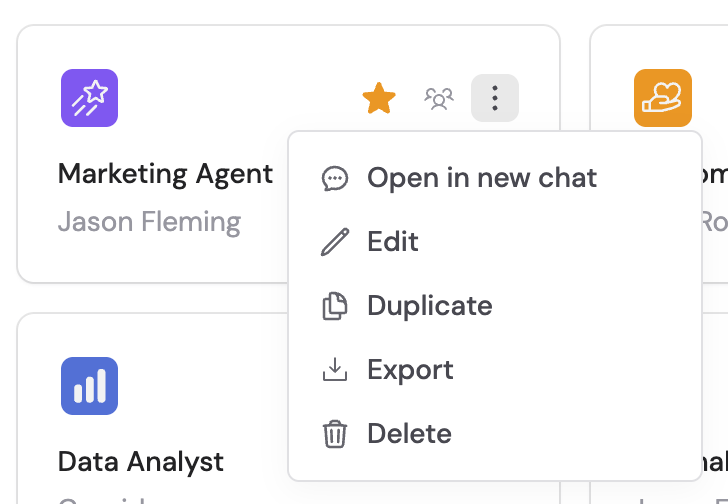 Click the **Setup** tab and scroll to the **Connectors** section.
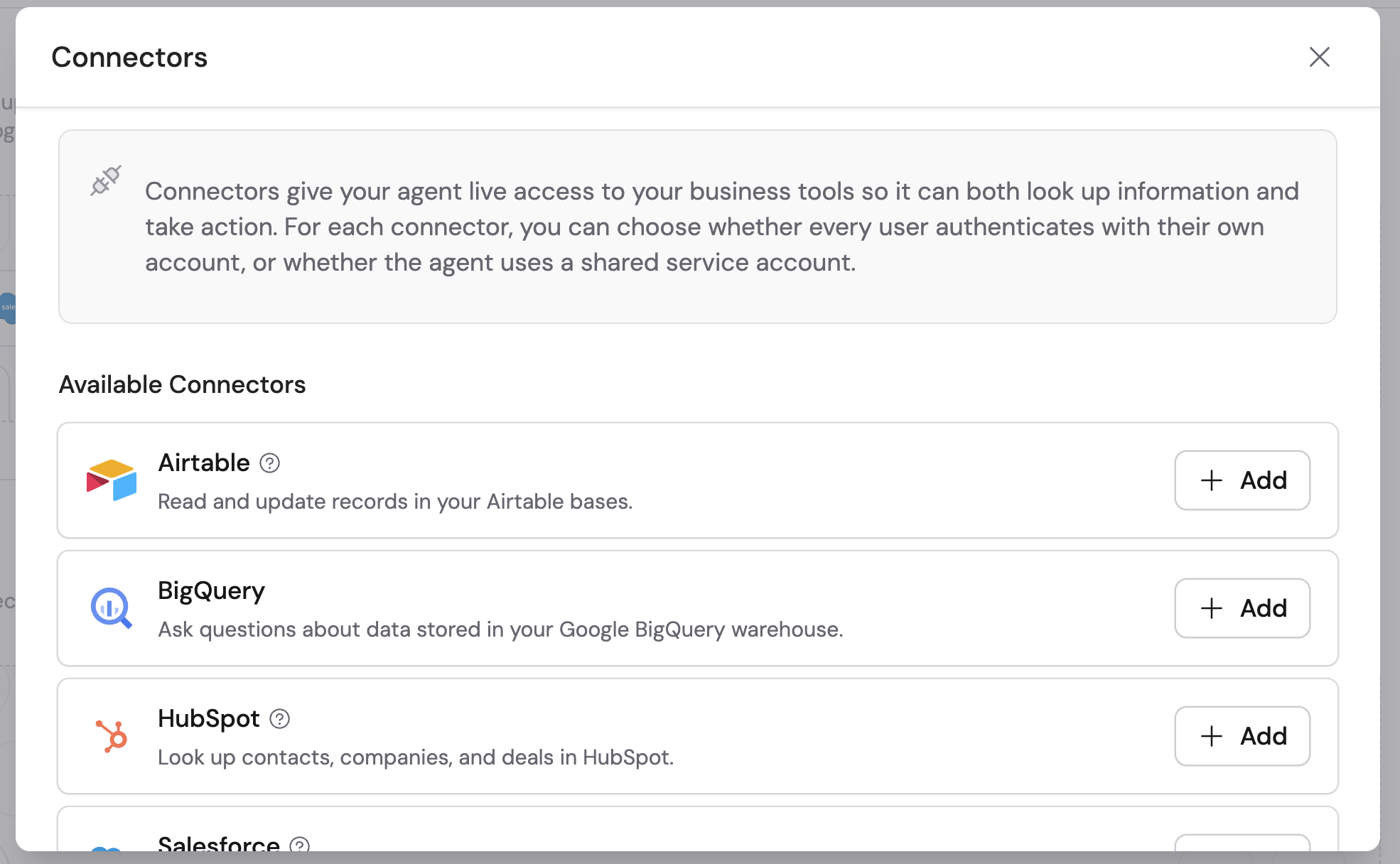
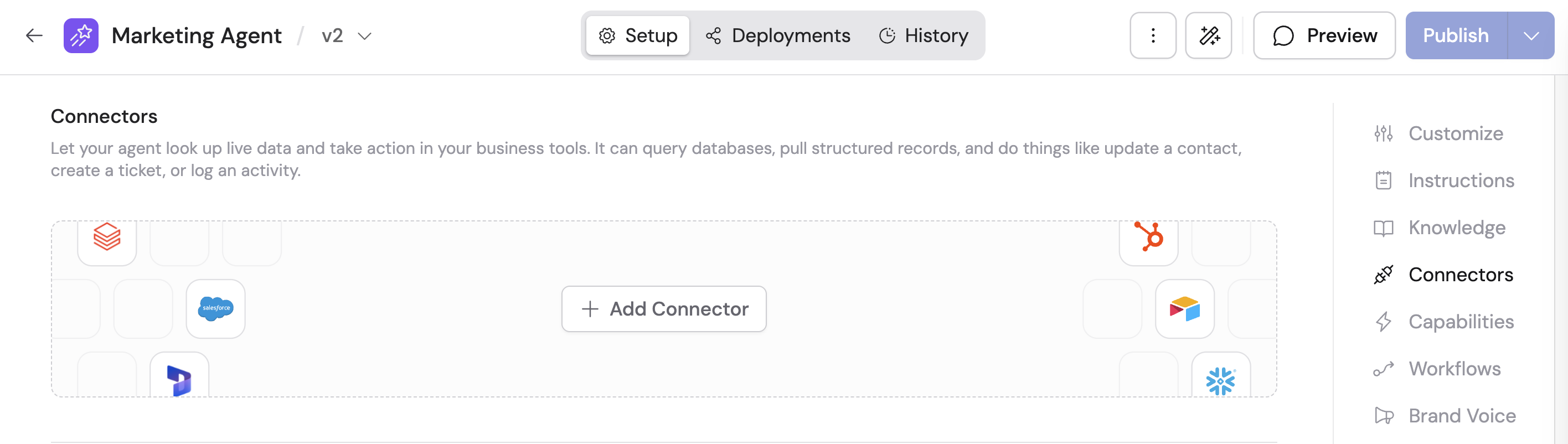 Click **+ Add Connector** and select **Airtable**.
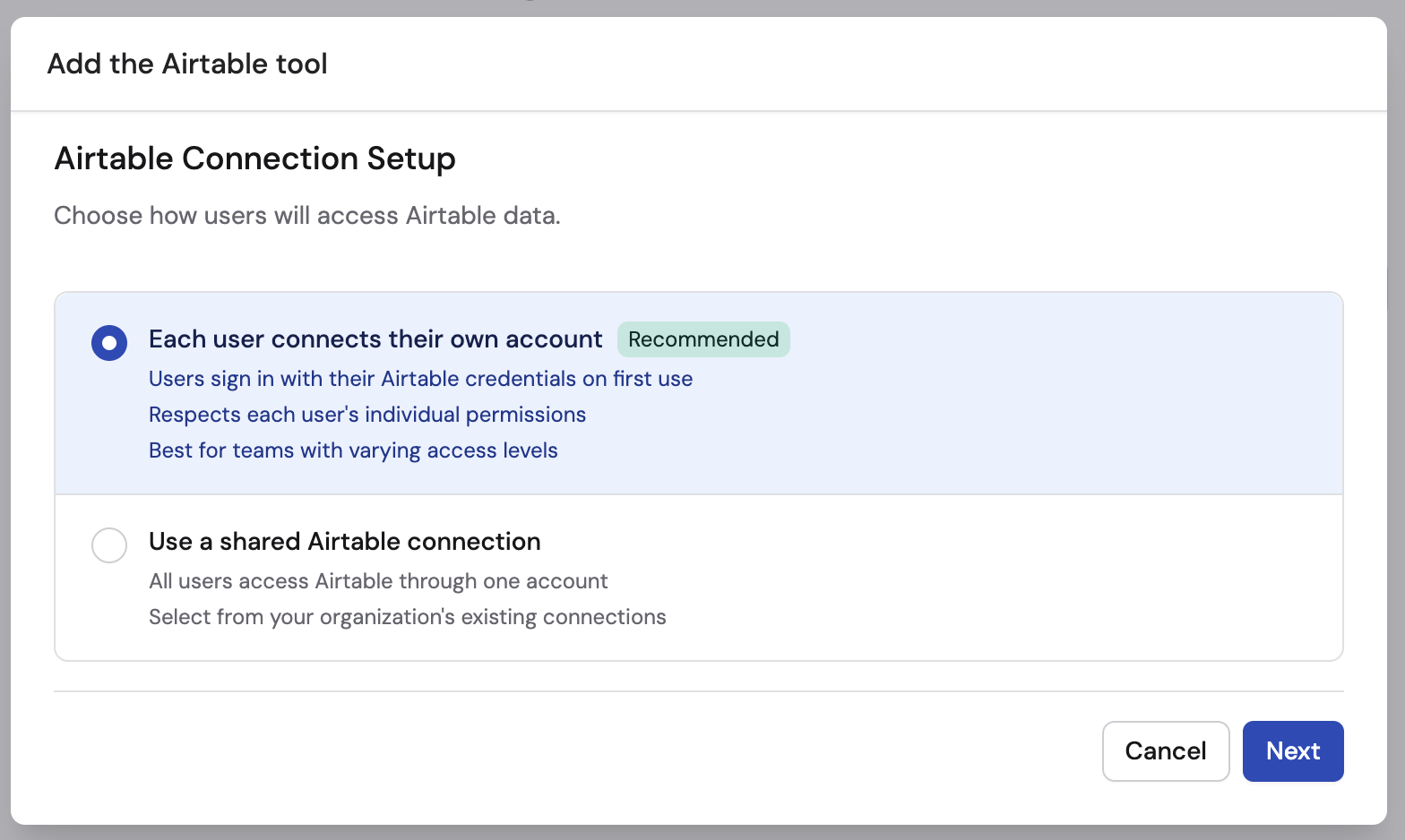
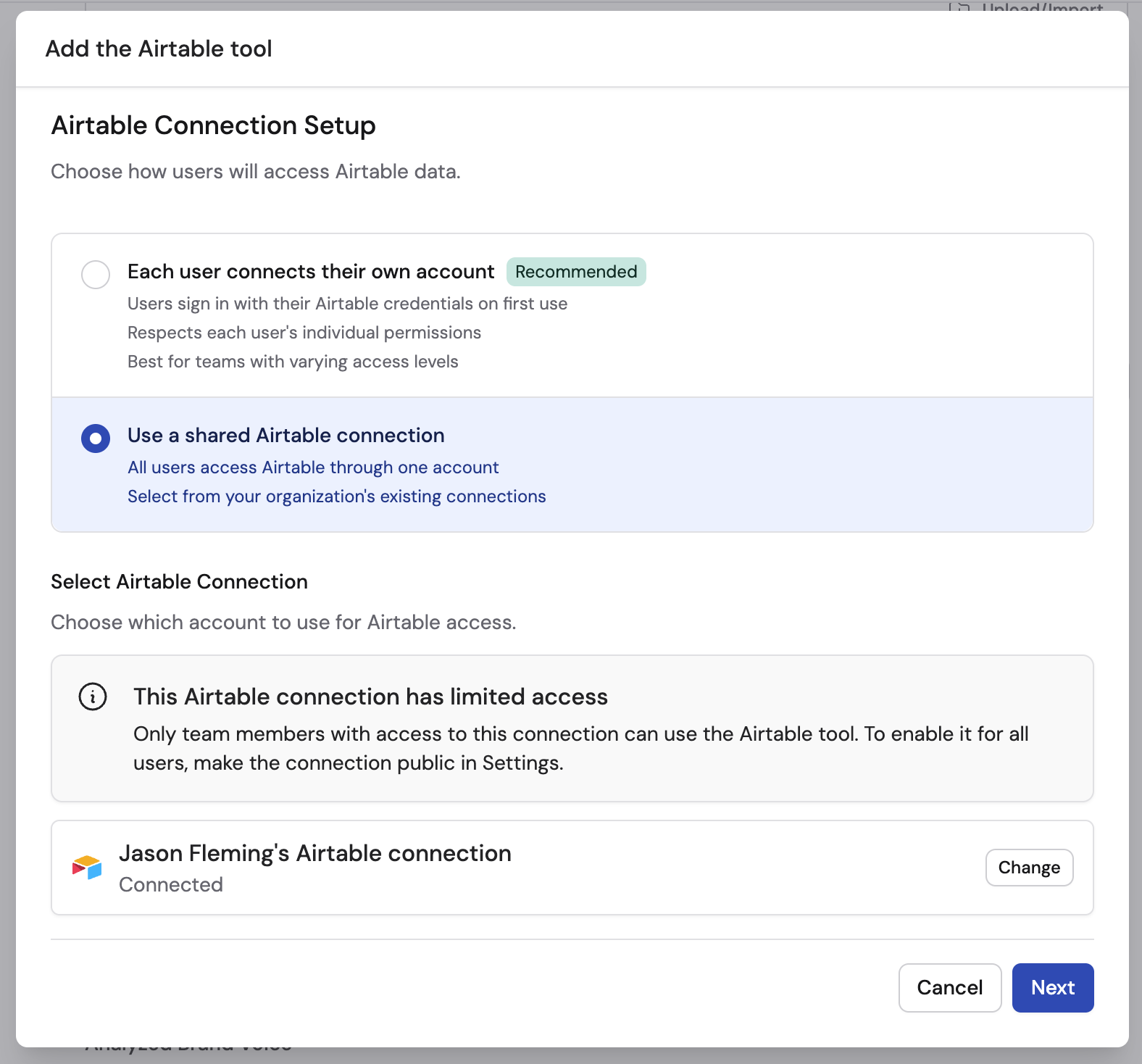
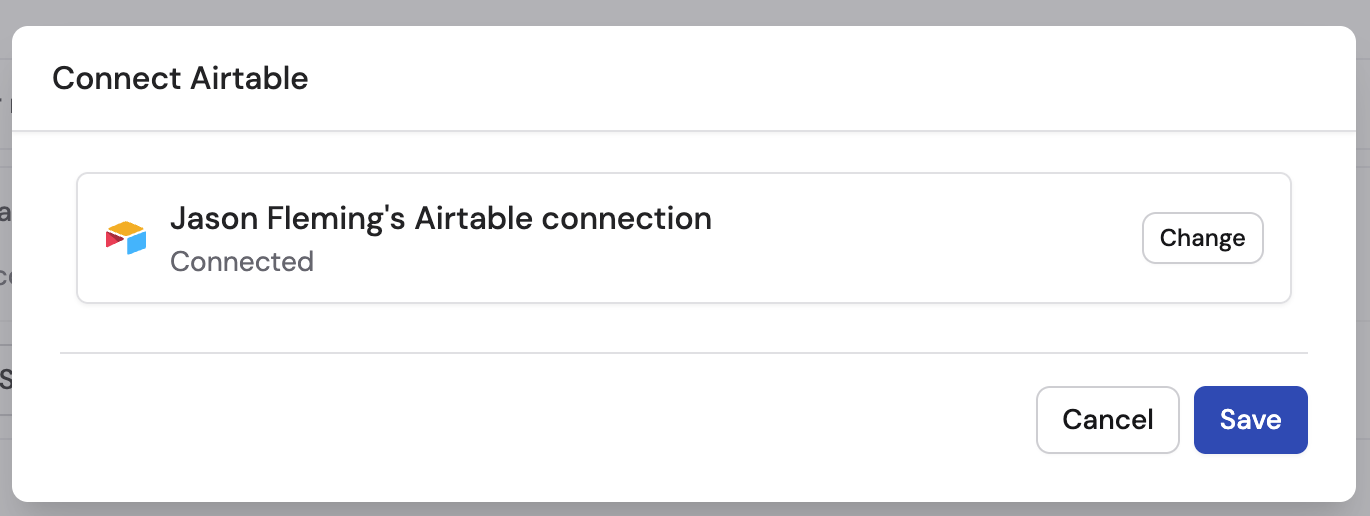
 Select how users will authenticate:
* **Each user connects their own account** (recommended) — each user signs in with their own Airtable credentials
* **Use a shared connection** — all users access Airtable through one shared account
Select how users will authenticate:
* **Each user connects their own account** (recommended) — each user signs in with their own Airtable credentials
* **Use a shared connection** — all users access Airtable through one shared account
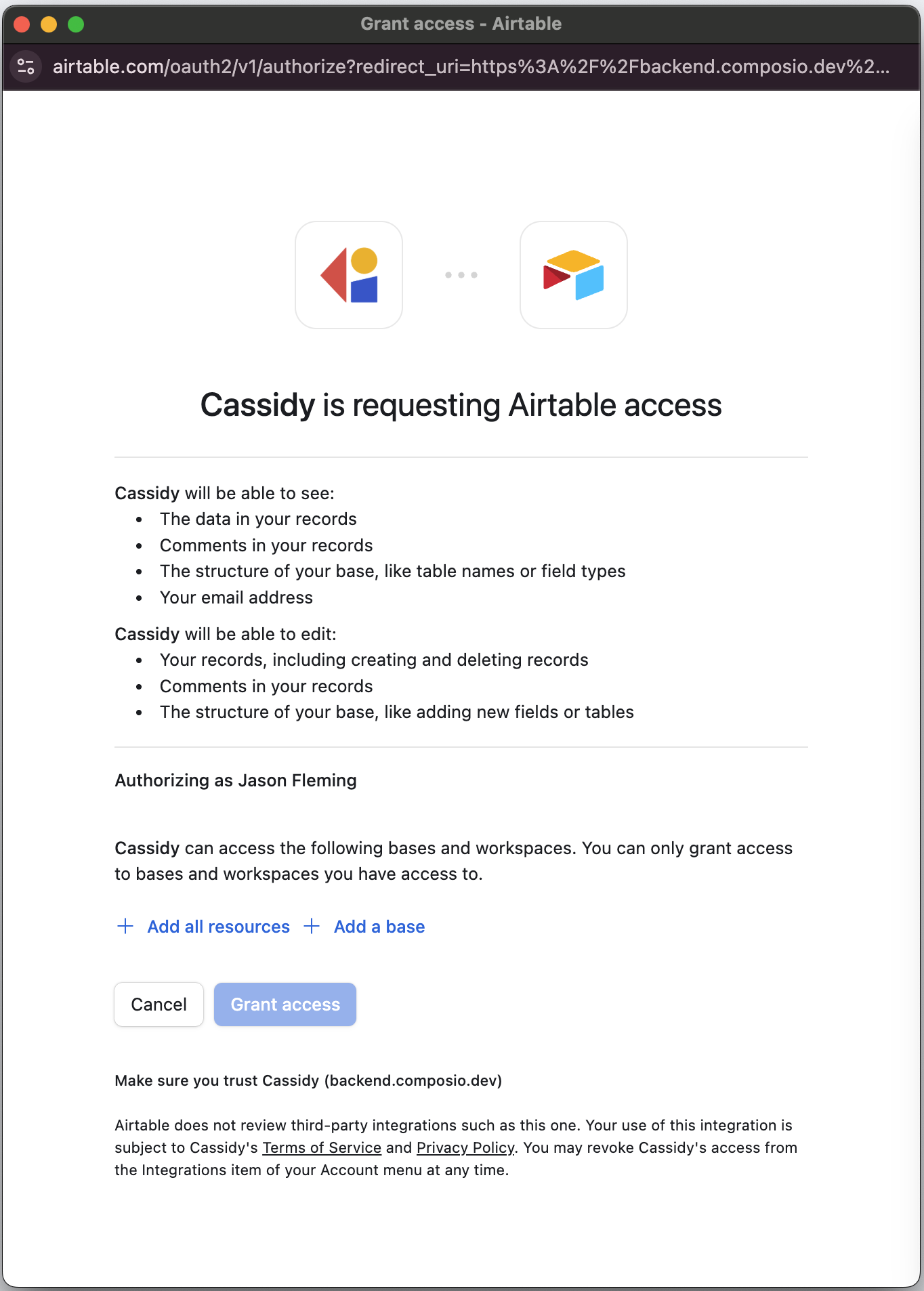
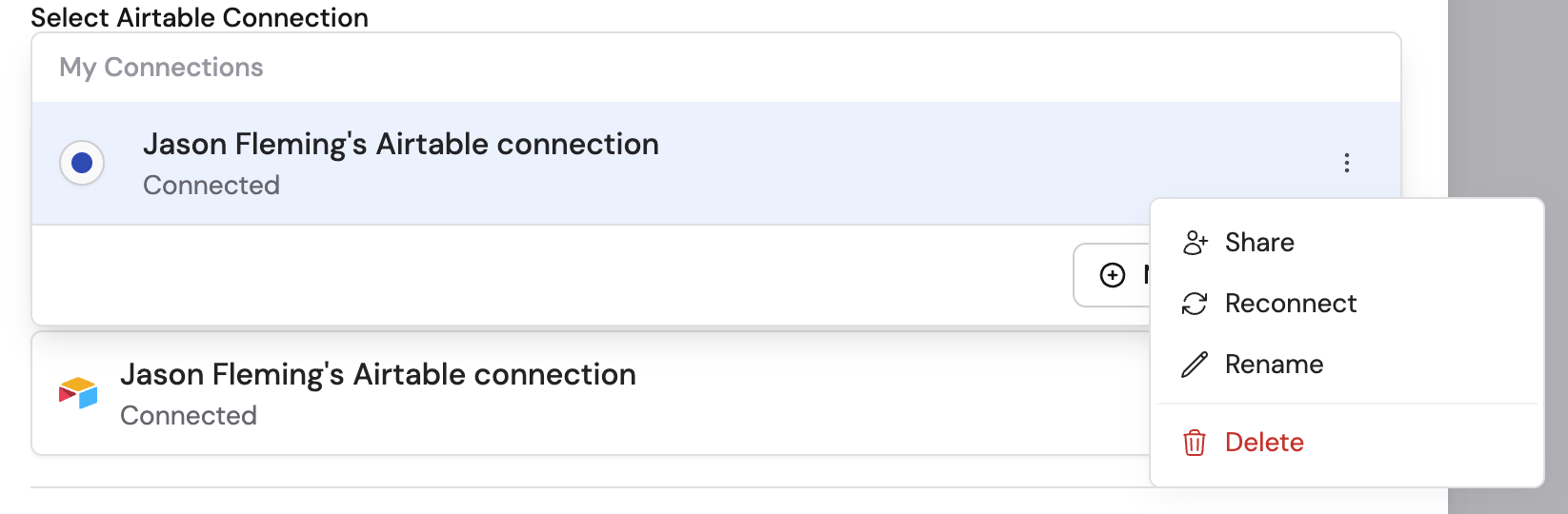
 If using a shared connection, click **Set up shared connection** and sign in to Airtable. Before granting access, you'll need to click either **Add all resources** to grant access to all your bases, or **Add a base** to select only the specific bases you want the Agent to access.

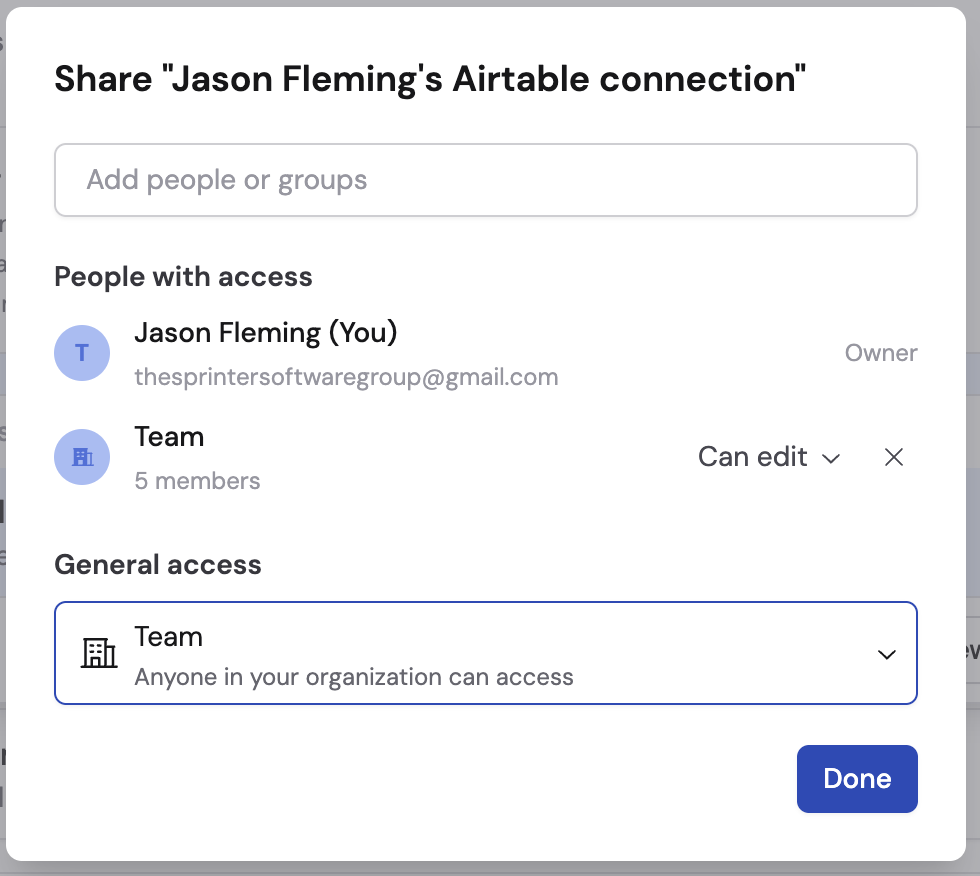
 Optionally share the connection with other team members.
 Set permissions for each action the Agent can perform:
* **Always Allow** — The Agent performs the action automatically when needed
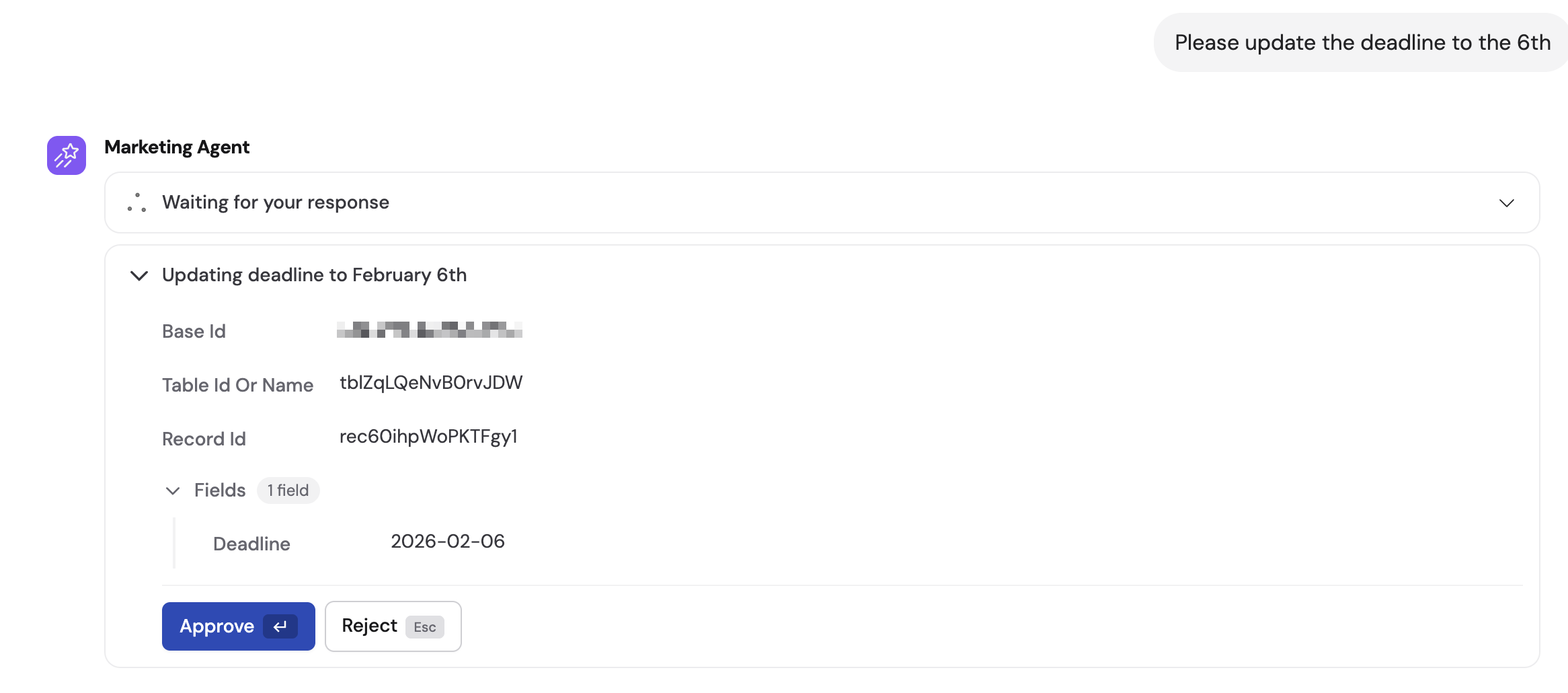
* **Needs Approval** — The Agent asks the user for permission before taking the action
* **Disabled** — The Agent cannot perform the action
You decide the permission level for each tool separately. For example, you might set **Search records** to Always Allow but **Delete records** to Disabled.
Set permissions for each action the Agent can perform:
* **Always Allow** — The Agent performs the action automatically when needed
* **Needs Approval** — The Agent asks the user for permission before taking the action
* **Disabled** — The Agent cannot perform the action
You decide the permission level for each tool separately. For example, you might set **Search records** to Always Allow but **Delete records** to Disabled.
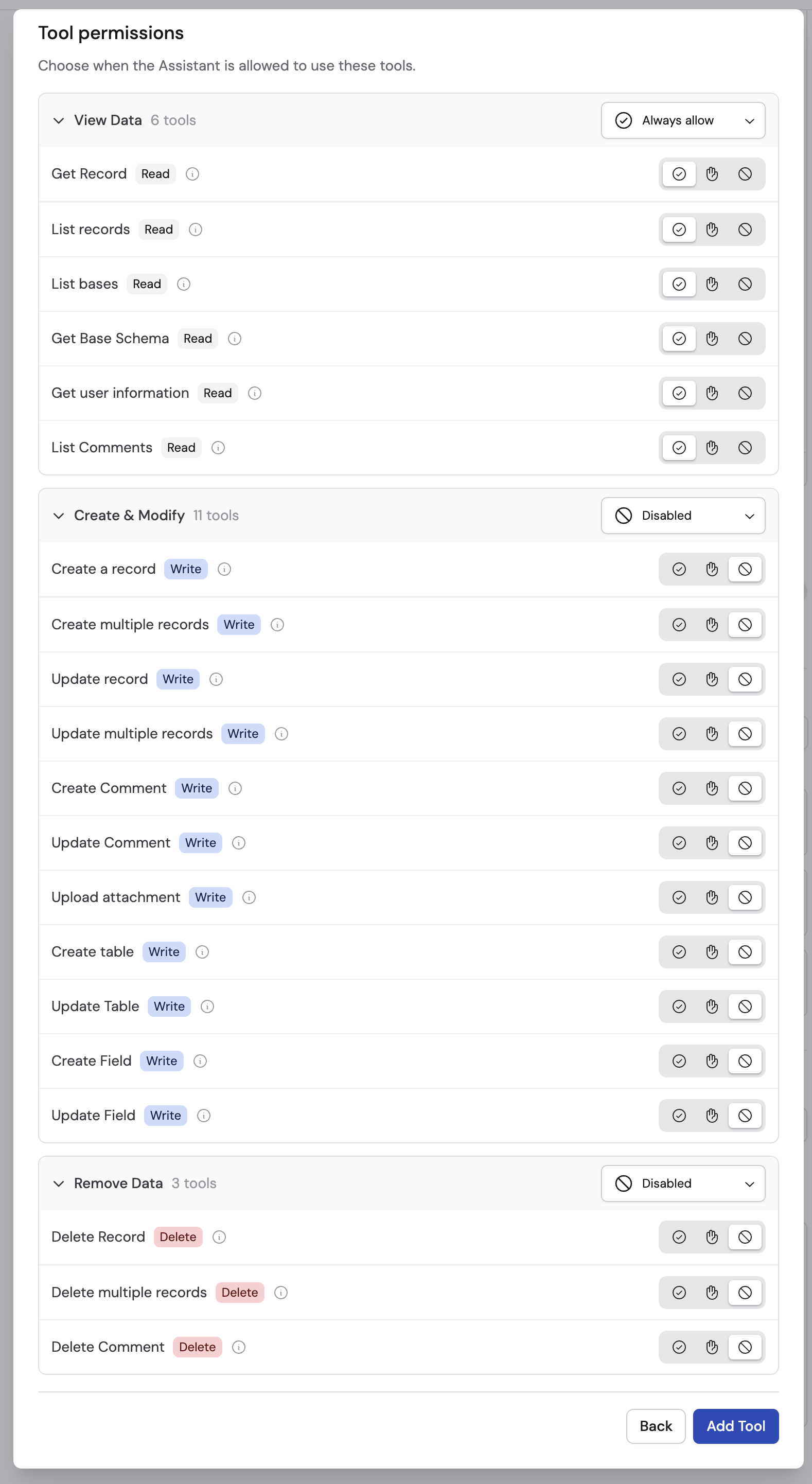 Airtable is a read/write Connector. Review permissions carefully — **Always Allow** lets the Agent create or modify records without asking first.
Click **Add** to enable the Connector for this Agent.
Airtable is a read/write Connector. Review permissions carefully — **Always Allow** lets the Agent create or modify records without asking first.
Click **Add** to enable the Connector for this Agent.
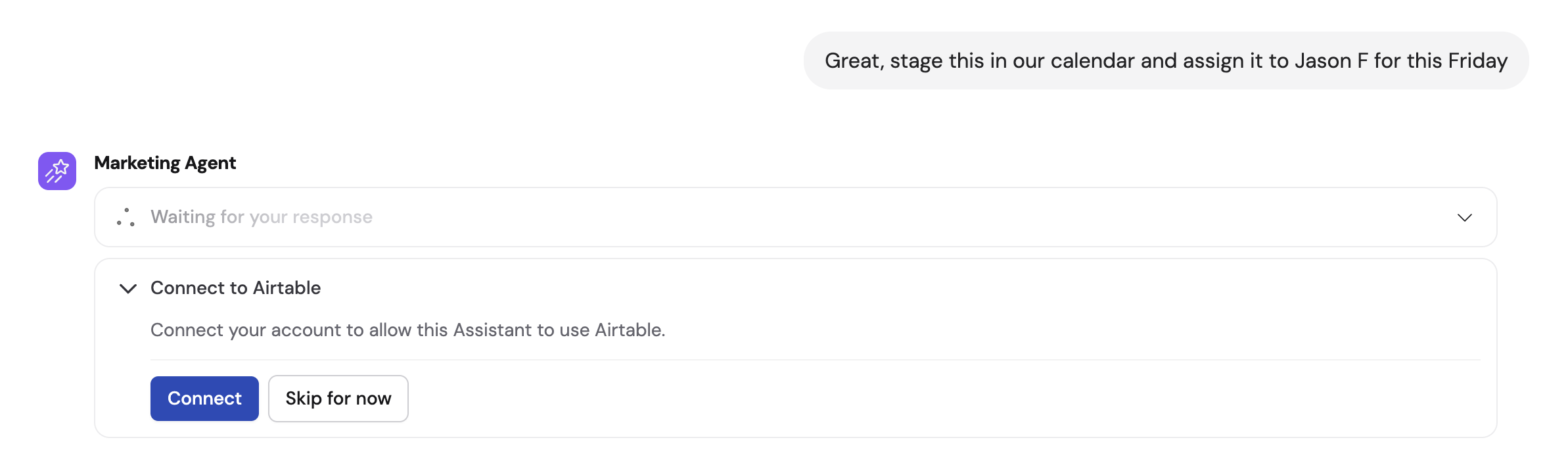
 Navigate to **Chat** and select the Agent with the Airtable Connector enabled.
If you chose **Each user connects their own account**, users are prompted to connect their Airtable account from within the chat the first time they use the Connector.
Navigate to **Chat** and select the Agent with the Airtable Connector enabled.
If you chose **Each user connects their own account**, users are prompted to connect their Airtable account from within the chat the first time they use the Connector.
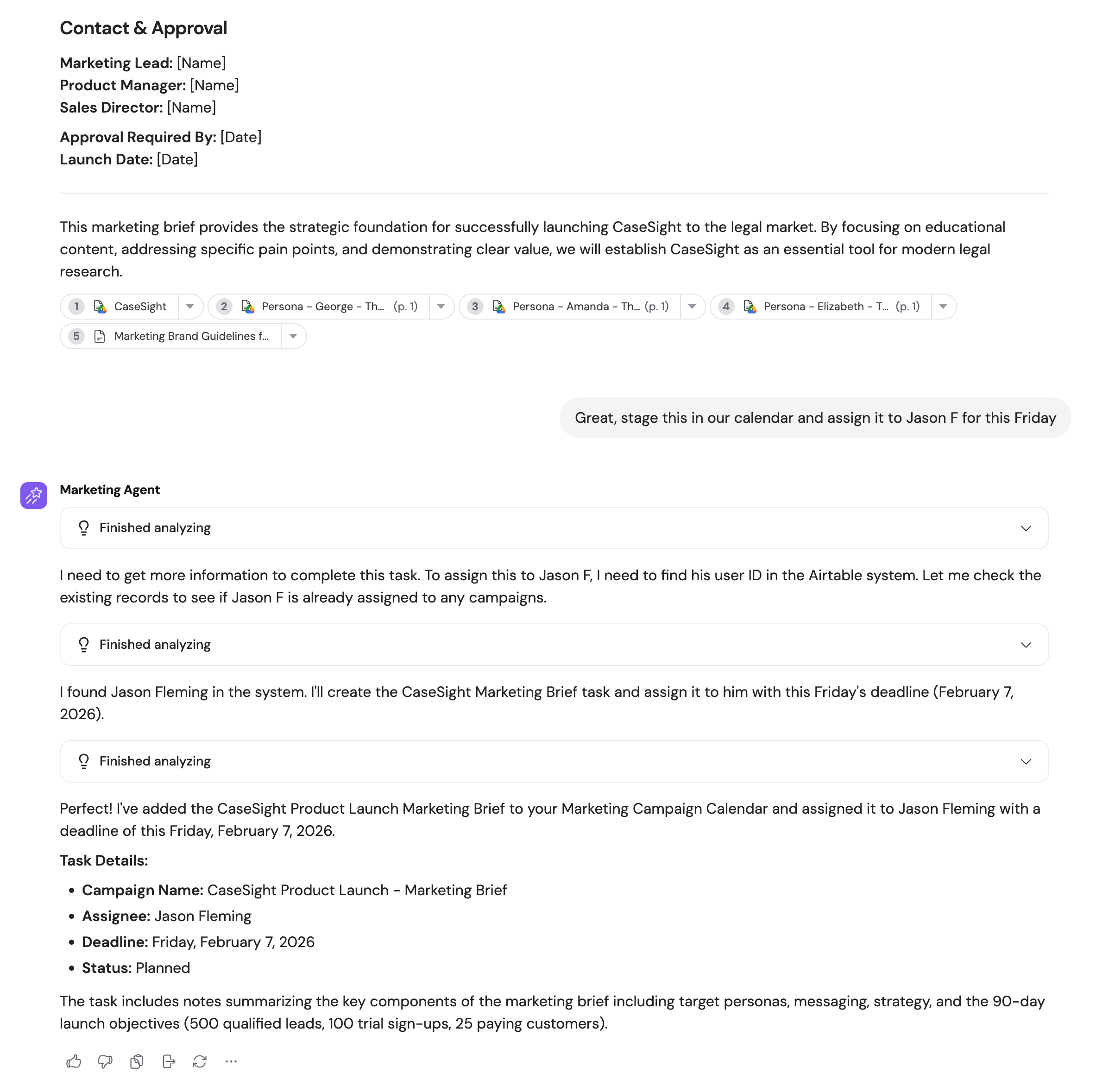
 Once connected, your Agent can access Airtable data to answer questions about records, projects, campaigns, and other information stored in your bases — as well as create and update entries.
 ## Monitor Airtable actions
When an Agent uses the Airtable Connector during a conversation, you can review what happened by expanding the **Analyzed Sources** dropdown and clicking any Airtable step.
## Monitor Airtable actions
When an Agent uses the Airtable Connector during a conversation, you can review what happened by expanding the **Analyzed Sources** dropdown and clicking any Airtable step.
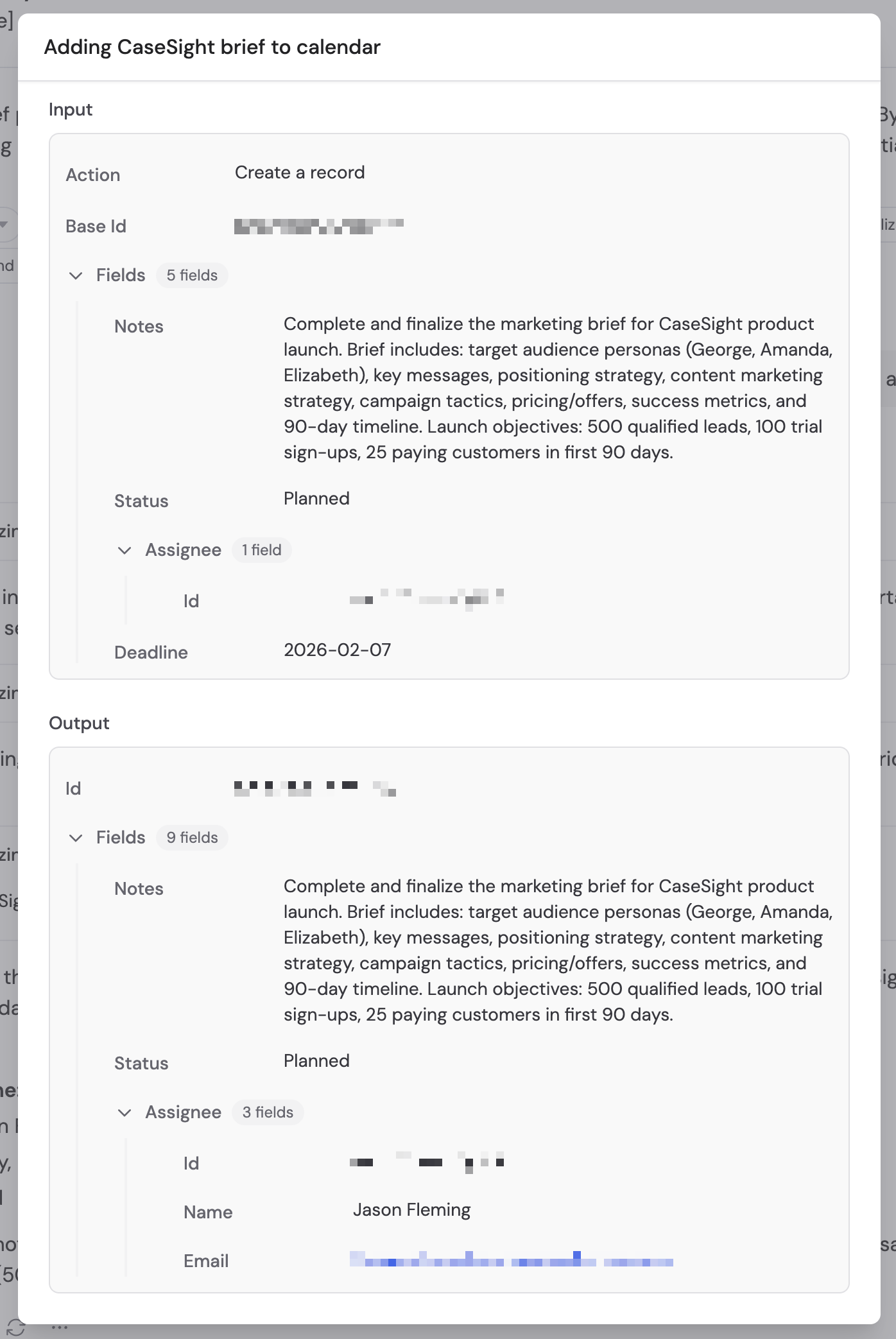
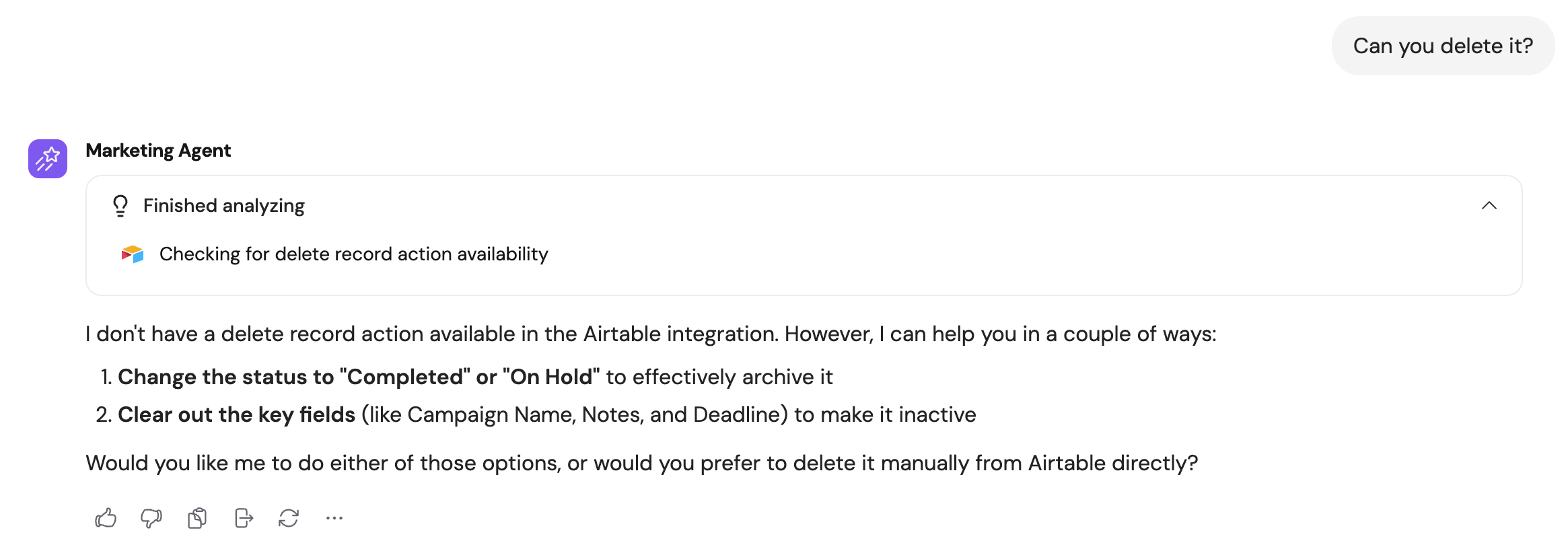 If an action lacks the required permissions, the step shows **No output data**.
 ## Data security
Airtable data is accessed in real time and is not copied or stored in Cassidy. The Agent only queries Airtable when needed to answer a question or complete a task.
The Airtable Connector requests access to read and write records in the bases you authorize. Cassidy does not access bases outside the ones you explicitly grant permission to.
## Next steps
Learn about all available Agent Connectors and how they work.
See every integration available in Cassidy.
## Data security
Airtable data is accessed in real time and is not copied or stored in Cassidy. The Agent only queries Airtable when needed to answer a question or complete a task.
The Airtable Connector requests access to read and write records in the bases you authorize. Cassidy does not access bases outside the ones you explicitly grant permission to.
## Next steps
Learn about all available Agent Connectors and how they work.
See every integration available in Cassidy.