> ## Documentation Index
> Fetch the complete documentation index at: https://docs.cassidyai.com/llms.txt
> Use this file to discover all available pages before exploring further.
# Box for Knowledge Base
> Import Box files and folders into your Knowledge Base for AI-powered search and context.
Import files and folders from Box into your [Knowledge Base](/knowledge-base/overview) so your [Agents](/agents/overview) and [Workflows](/workflows/overview) can search and reference them when generating answers.
## Connect your account
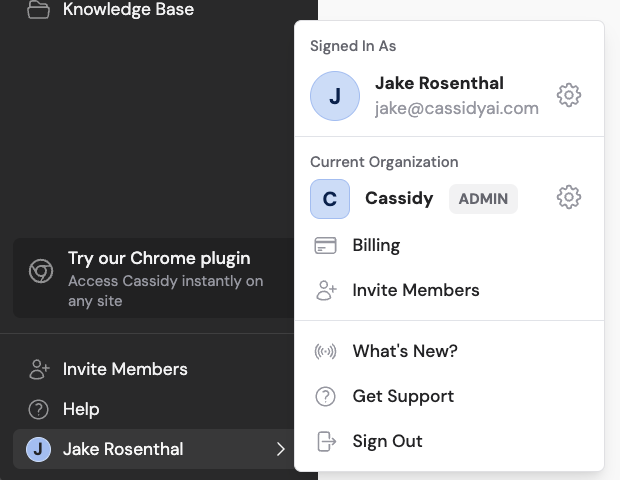
Click your name in the bottom-left of the sidebar, then click the settings icon to open **Settings**. Select **Connected Apps**.
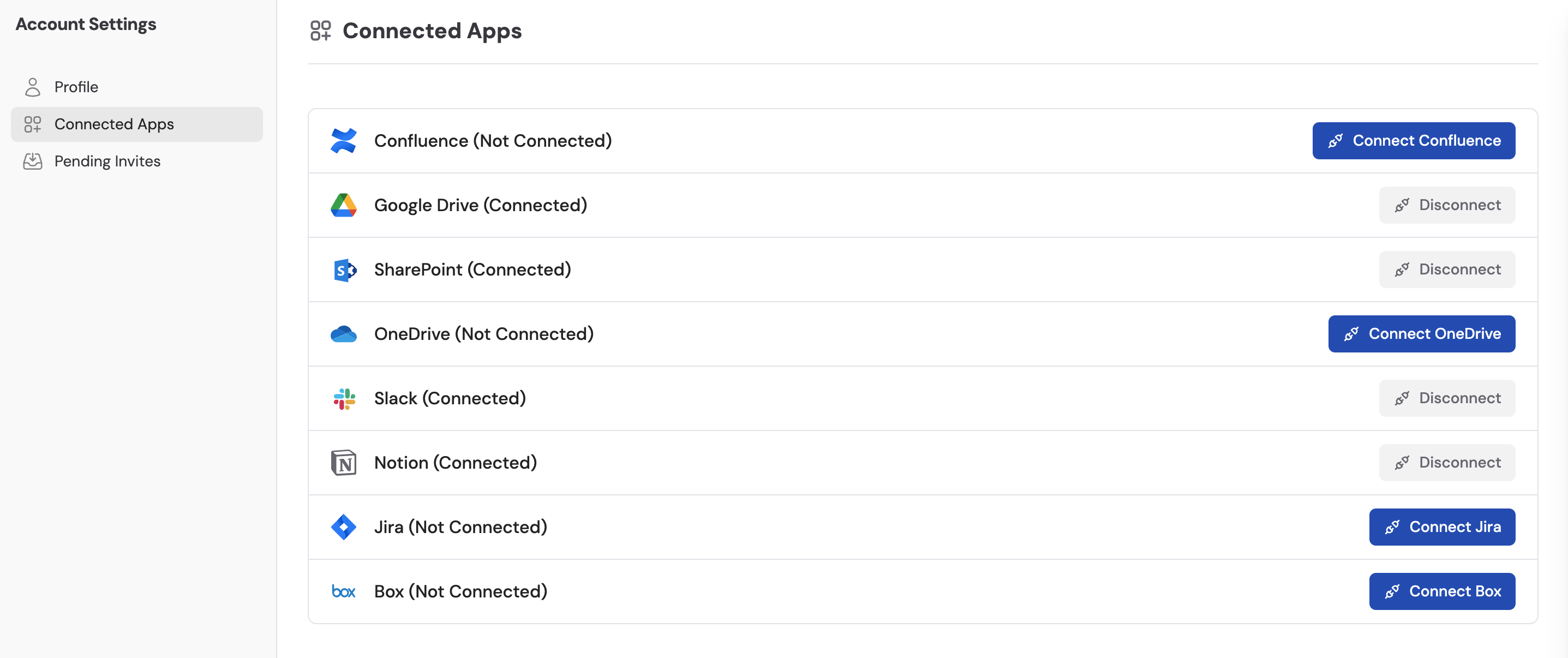
 Locate **Box** in the list and click **Connect Box**.
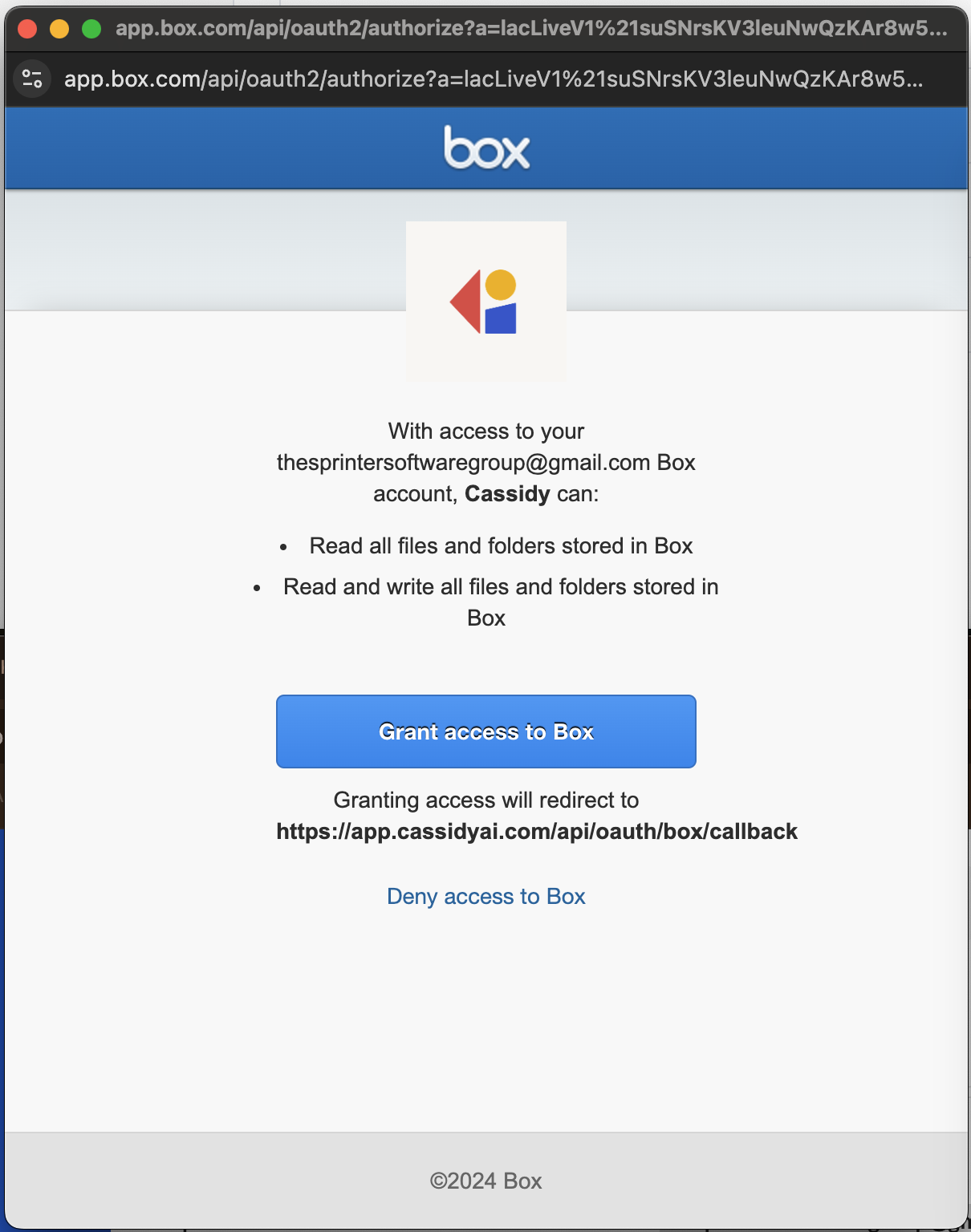
 Sign in to your Box account if prompted, then review the permissions and click **Grant access to Box** to authorize Cassidy.
 Box now shows as **Connected** in your Connected Apps list.
 ## Import Box content
Navigate to your [Knowledge Base](/knowledge-base/overview), click **Sync From Integrations**, and select **Sync from Box**.
## Import Box content
Navigate to your [Knowledge Base](/knowledge-base/overview), click **Sync From Integrations**, and select **Sync from Box**.
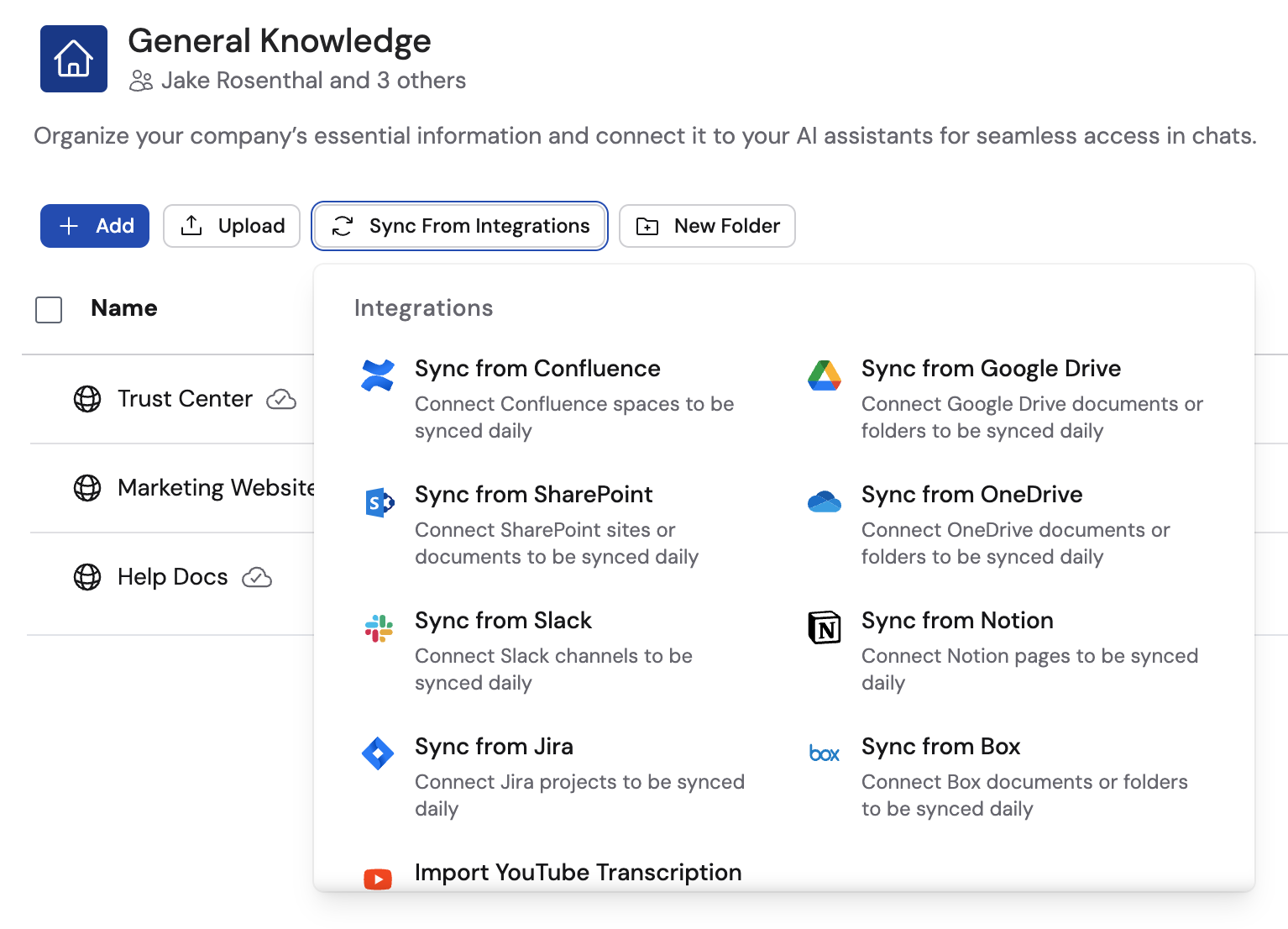 Browse your Box account, select the files or folders you want to import, then click **Import**.
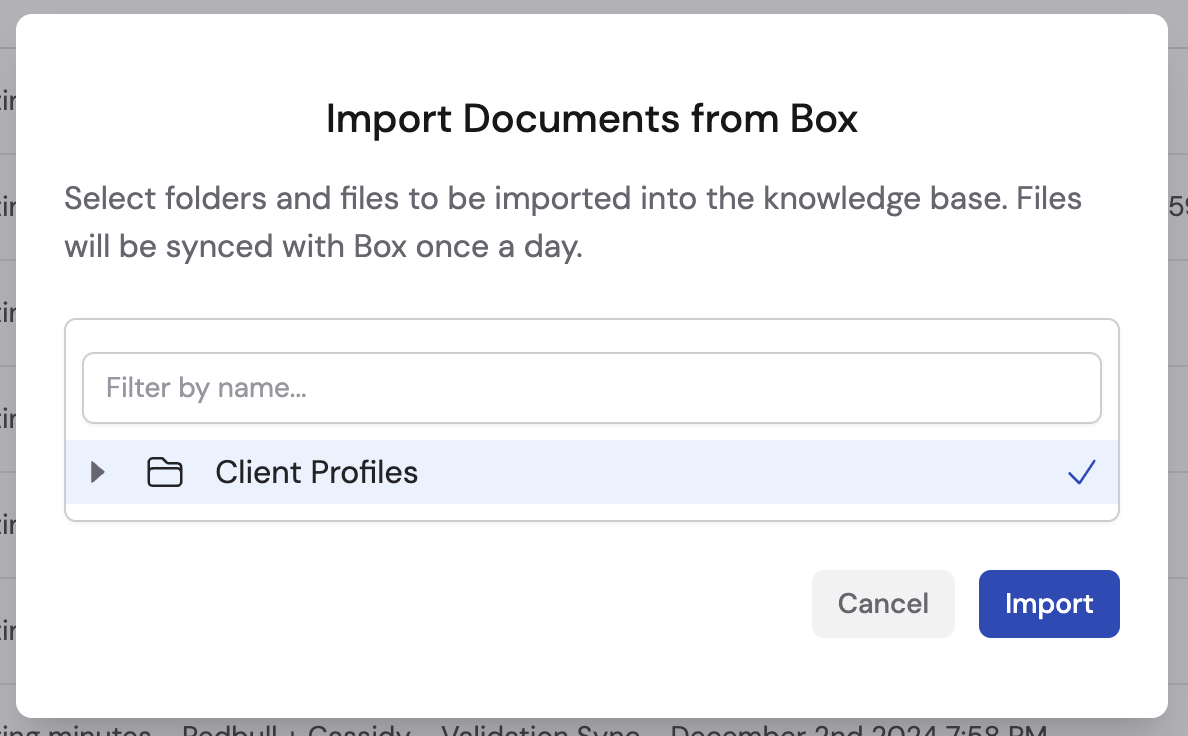 Imported content syncs automatically on a regular schedule. Learn more about [sync schedules and options](/integrations/sync-integrations).
## Next steps
Trigger Workflows from file events and automate file operations.
Learn how to organize and manage your imported content.
Imported content syncs automatically on a regular schedule. Learn more about [sync schedules and options](/integrations/sync-integrations).
## Next steps
Trigger Workflows from file events and automate file operations.
Learn how to organize and manage your imported content.