> ## Documentation Index
> Fetch the complete documentation index at: https://docs.cassidyai.com/llms.txt
> Use this file to discover all available pages before exploring further.

# Coda for Knowledge Base

> Import Coda docs and tables into your Knowledge Base for AI-powered search and context.

Import your Coda documents and tables into the [Knowledge Base](/knowledge-base/overview) so your [Agents](/agents/overview) and [Workflows](/workflows/overview) can search and reference them.

## Connect your account

<Steps>
  <Step title="Open Connected Apps">
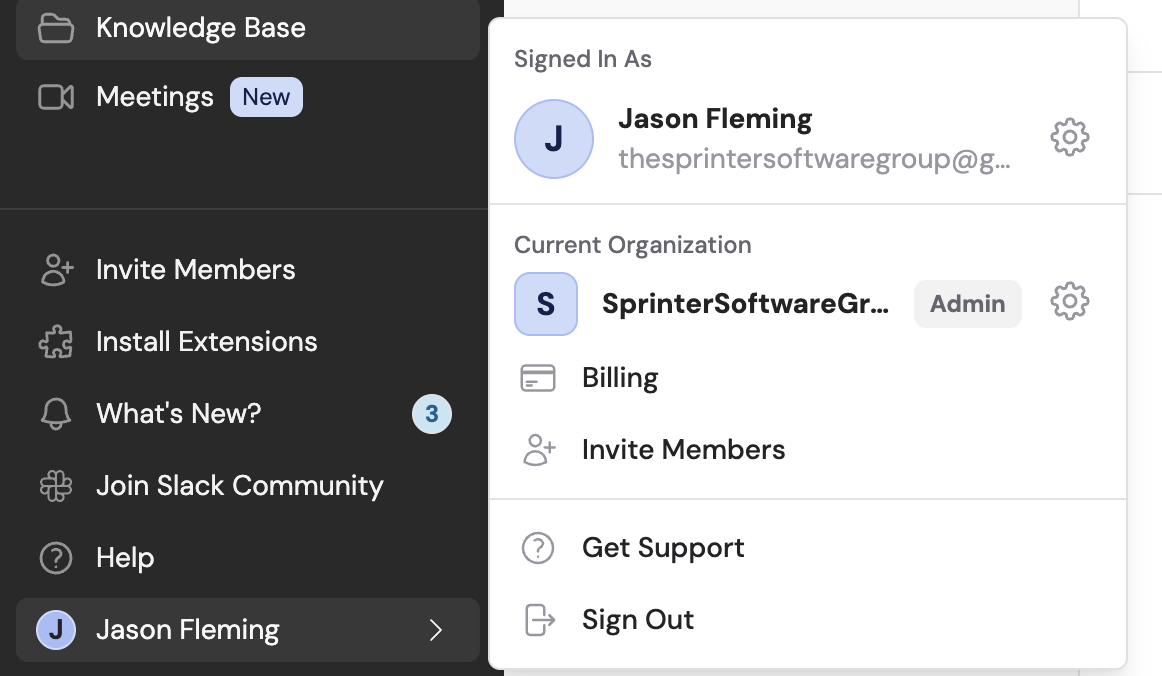
    Click your name in the bottom-left of the sidebar, then click the settings icon to open **Settings**. Select **Connected Apps**.
    <Frame>
      <img src="https://mintcdn.com/cassidy/qKWfjzQ47rz14Mj6/images/integrations/connecting-to-coda-img-0.png?fit=max&auto=format&n=qKWfjzQ47rz14Mj6&q=85&s=3525e71b30ee171737688e78d96e44d2" alt="Cassidy sidebar showing the account settings popup" width="1162" height="676" data-path="images/integrations/connecting-to-coda-img-0.png" />
    </Frame>
  </Step>

  <Step title="Connect Coda">
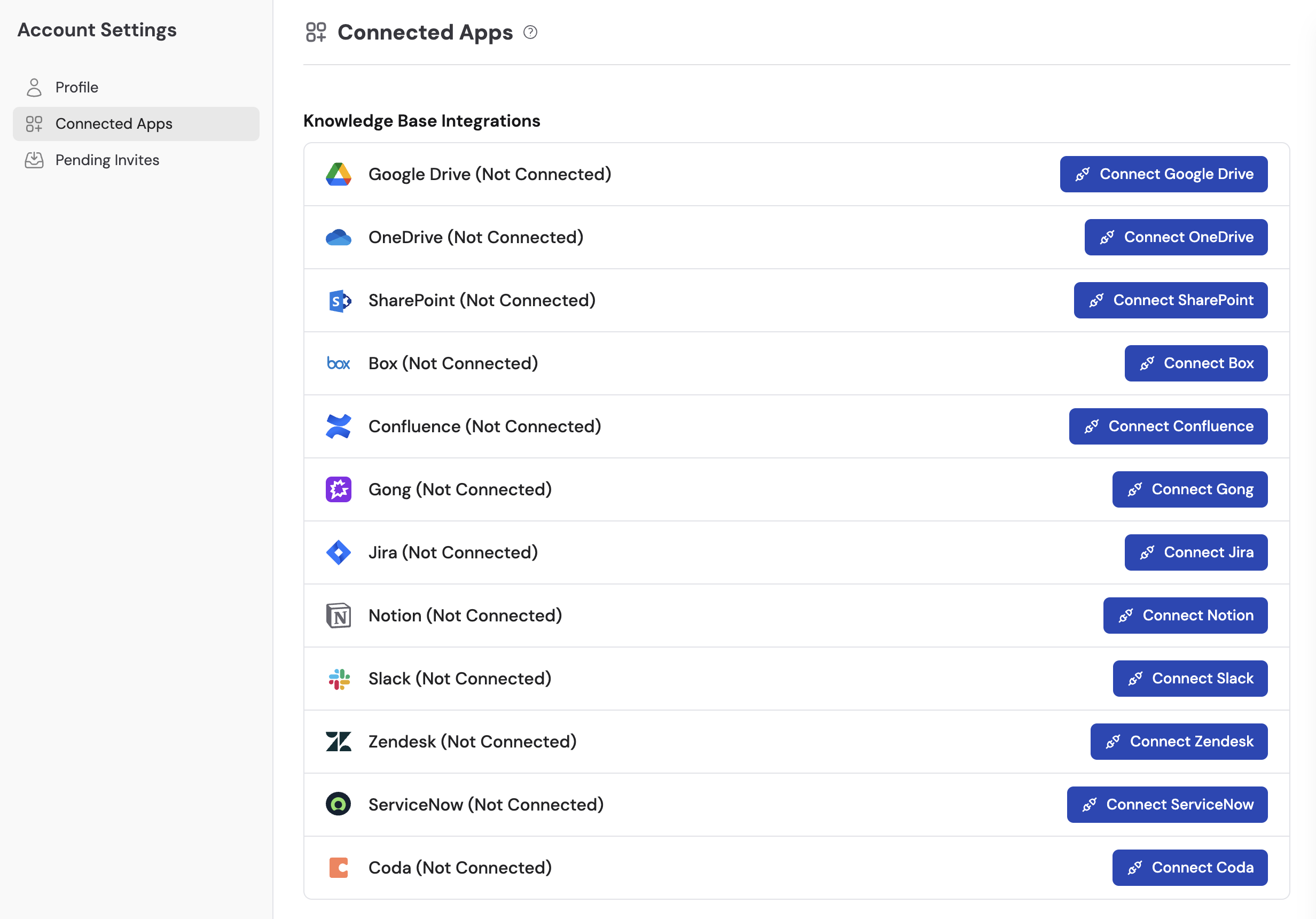
    Locate **Coda** in the list and click **Connect**.
    <Frame>
      <img src="https://mintcdn.com/cassidy/qKWfjzQ47rz14Mj6/images/integrations/connecting-to-coda-img-1.png?fit=max&auto=format&n=qKWfjzQ47rz14Mj6&q=85&s=fabf0d244f55f724a2697578cba25b47" alt="Connected Apps page showing Coda in the integrations list" width="2464" height="1720" data-path="images/integrations/connecting-to-coda-img-1.png" />
    </Frame>
  </Step>

  <Step title="Enter your API token">
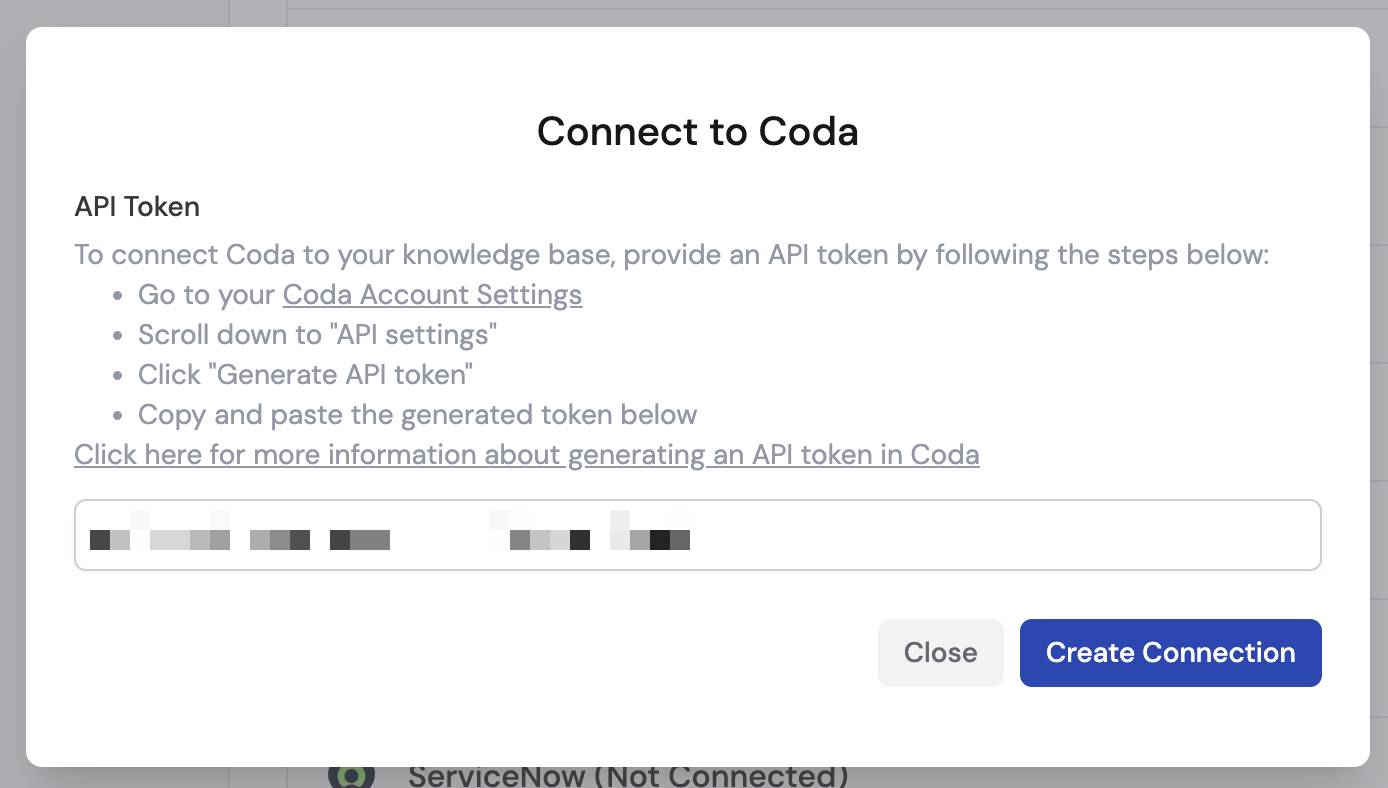
    Paste your Coda **API token** into the token field and click **Create Connection**. You can generate a token from [Coda's API settings](https://coda.io/account#apiSettings) if you don't have one yet.
    <Frame>
      <img src="https://mintcdn.com/cassidy/qKWfjzQ47rz14Mj6/images/integrations/connecting-to-coda-img-2.png?fit=max&auto=format&n=qKWfjzQ47rz14Mj6&q=85&s=d336e6a29b2aeb70eb5d3c9922fe0196" alt="Connect to Coda dialog with API token field and Create Connection button" width="1388" height="788" data-path="images/integrations/connecting-to-coda-img-2.png" />
    </Frame>
  </Step>

  <Step title="Confirm the connection">
    Coda now shows as **Connected** in your Connected Apps list.

    <Frame>
      <img src="https://mintcdn.com/cassidy/qKWfjzQ47rz14Mj6/images/integrations/connecting-to-coda-img-3.png?fit=max&auto=format&n=qKWfjzQ47rz14Mj6&q=85&s=40f58fca8bee6e8b8af33dfcd35a4602" alt="Connected Apps list showing Coda with a Connected status and Disconnect button" width="1872" height="140" data-path="images/integrations/connecting-to-coda-img-3.png" />
    </Frame>
  </Step>
</Steps>

## Import content

<Steps>
  <Step title="Select Coda as the source">
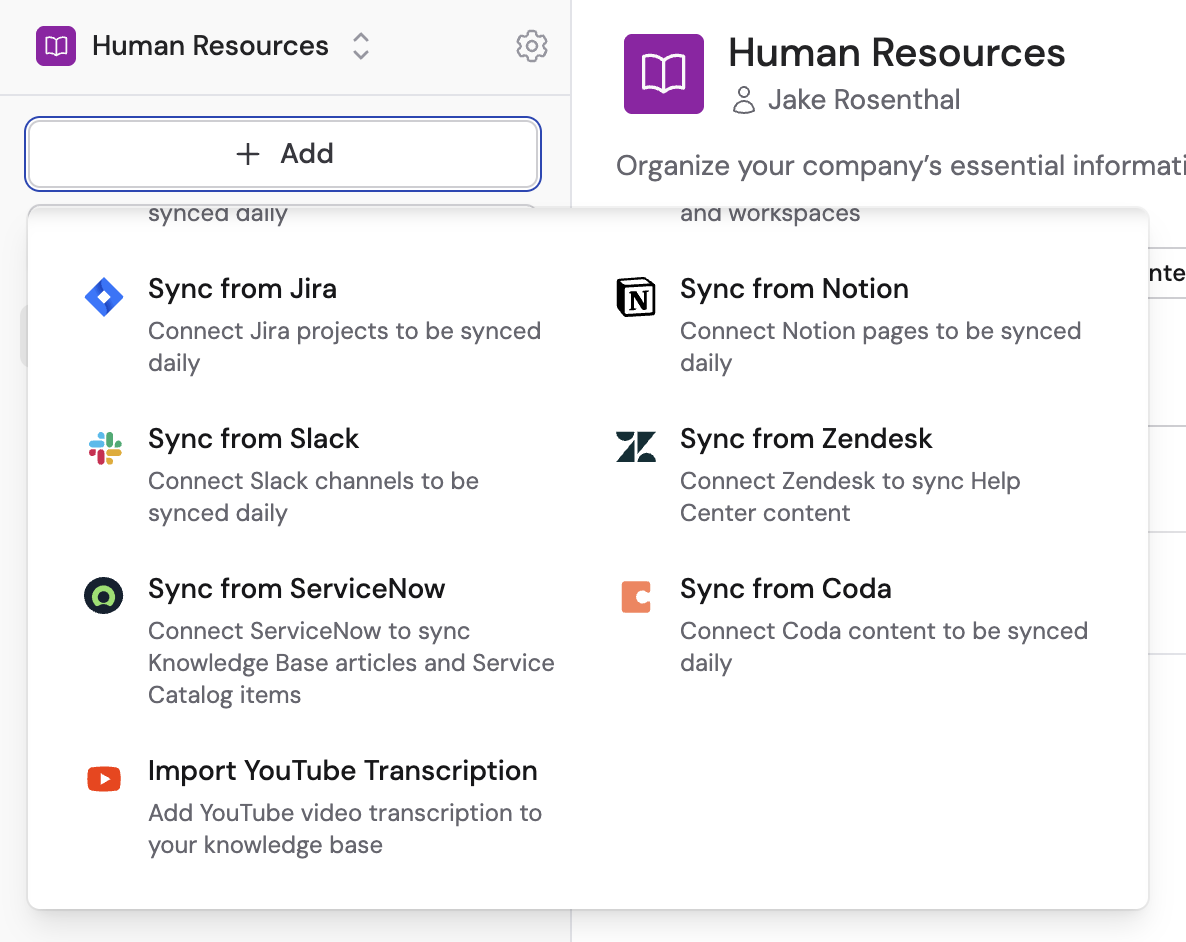
    Navigate to your [Knowledge Base](/knowledge-base/overview), click **Sync From Integrations**, and select **Sync from Coda**.
    <Frame>
      <img src="https://mintcdn.com/cassidy/qKWfjzQ47rz14Mj6/images/integrations/connecting-to-coda-img-4.png?fit=max&auto=format&n=qKWfjzQ47rz14Mj6&q=85&s=99c39750eb08fa15408041e7c2dd1726" alt="Knowledge Base Sync From Integrations dropdown showing Sync from Coda option" width="1186" height="942" data-path="images/integrations/connecting-to-coda-img-4.png" />
    </Frame>
  </Step>

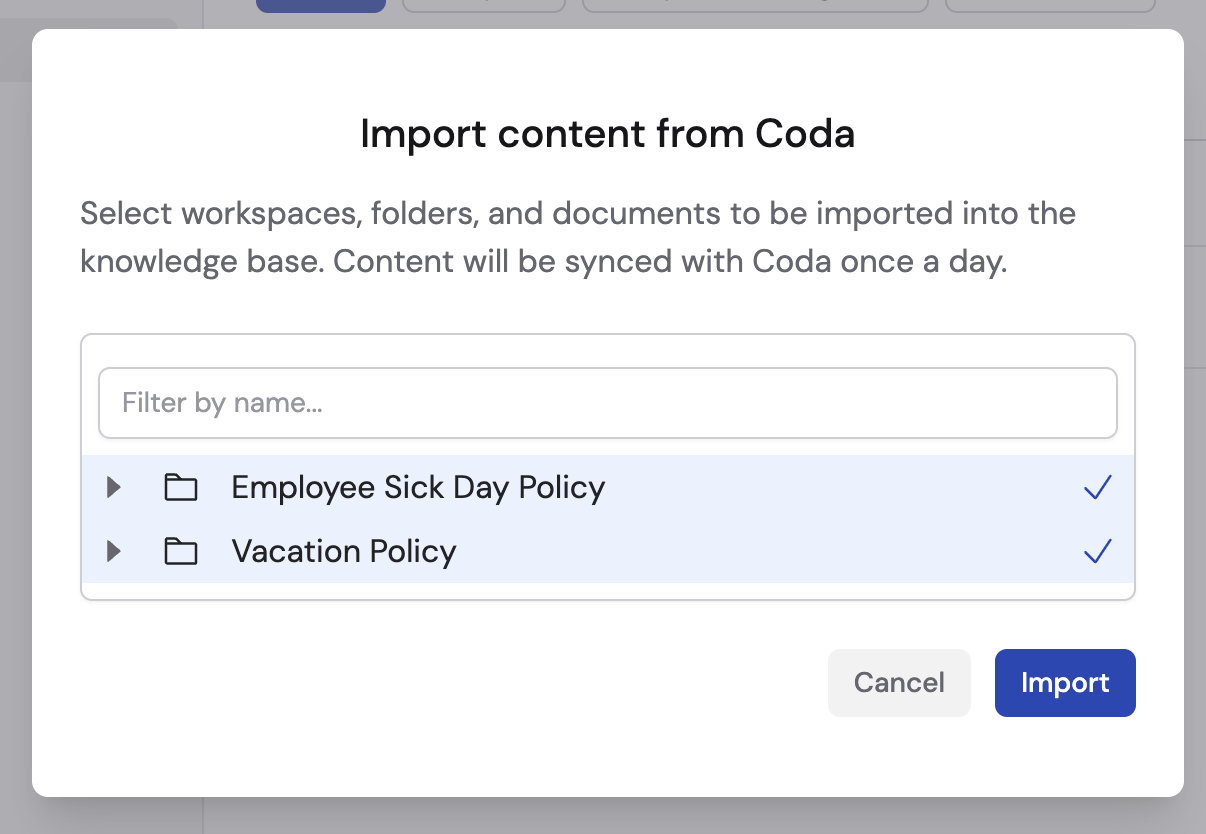
  <Step title="Select documents">
    Browse your Coda workspace, select the documents you want to import, then click **Import**.
    <Frame>
      <img src="https://mintcdn.com/cassidy/qKWfjzQ47rz14Mj6/images/integrations/connecting-to-coda-img-5.png?fit=max&auto=format&n=qKWfjzQ47rz14Mj6&q=85&s=0320e9a8e7648d28b26cbe3e7e461db1" alt="Import content from Coda dialog showing documents with checkboxes" width="1206" height="834" data-path="images/integrations/connecting-to-coda-img-5.png" />
    </Frame>
  </Step>
</Steps>

## Next steps

<CardGroup cols={2}>
  <Card title="Knowledge Base overview" icon="book" href="/knowledge-base/overview">
    Learn how to organize and manage your imported content.
  </Card>

  <Card title="Build your first Agent" icon="robot" href="/agents/overview">
    Create an Agent that uses your Coda documents to answer questions.
  </Card>
</CardGroup>
