> ## Documentation Index
> Fetch the complete documentation index at: https://docs.cassidyai.com/llms.txt
> Use this file to discover all available pages before exploring further.

# Gong for Knowledge Base

> Import Gong call recordings and transcripts into your Knowledge Base for AI-powered search.

Import Gong call recordings and transcripts into your [Knowledge Base](/knowledge-base/overview) so your [Agents](/agents/overview) and [Workflows](/workflows/overview) can reference real sales conversations when generating answers.

## Connect your account

<Steps>
  <Step title="Open connected apps">
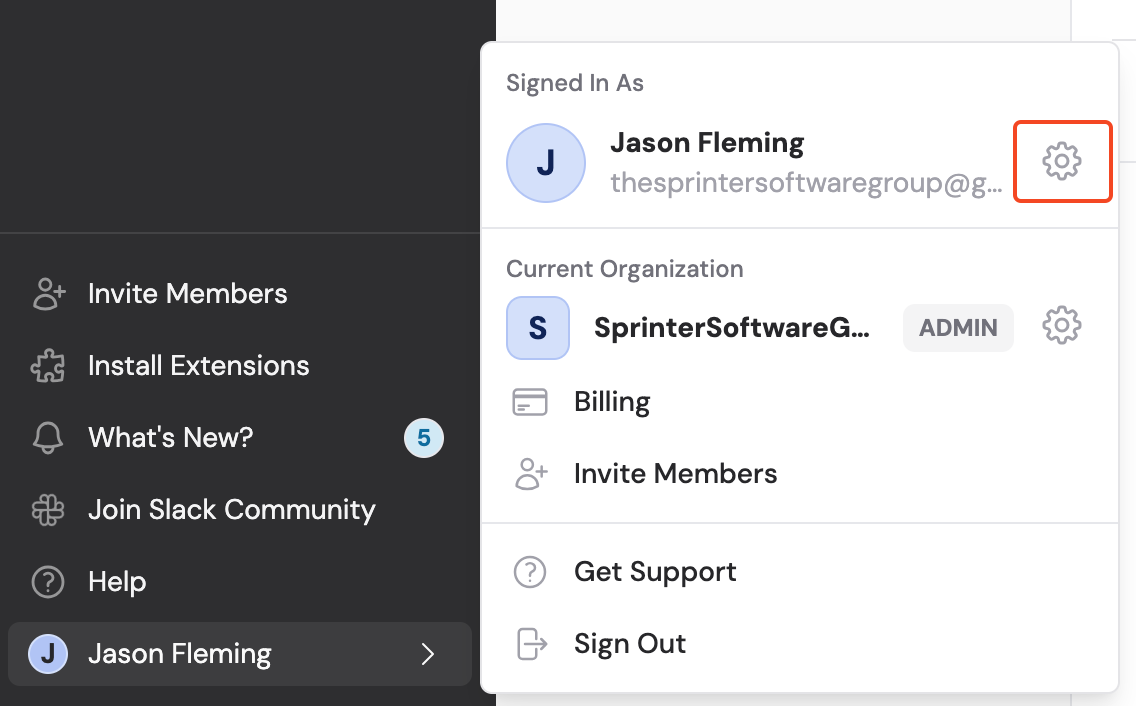
    Click your name in the bottom-left of the sidebar, then click the settings icon to open **Settings**. Select **Connected Apps**.
    <Frame>
      <img src="https://mintcdn.com/cassidy/qKWfjzQ47rz14Mj6/images/integrations/connecting-to-gong-img-0.png?fit=max&auto=format&n=qKWfjzQ47rz14Mj6&q=85&s=f3ef9f9b1d6daac234308f453b1cbaa6" alt="Settings sidebar showing the Connected Apps entry point" width="1136" height="706" data-path="images/integrations/connecting-to-gong-img-0.png" />
    </Frame>
  </Step>

  <Step title="Find Gong">
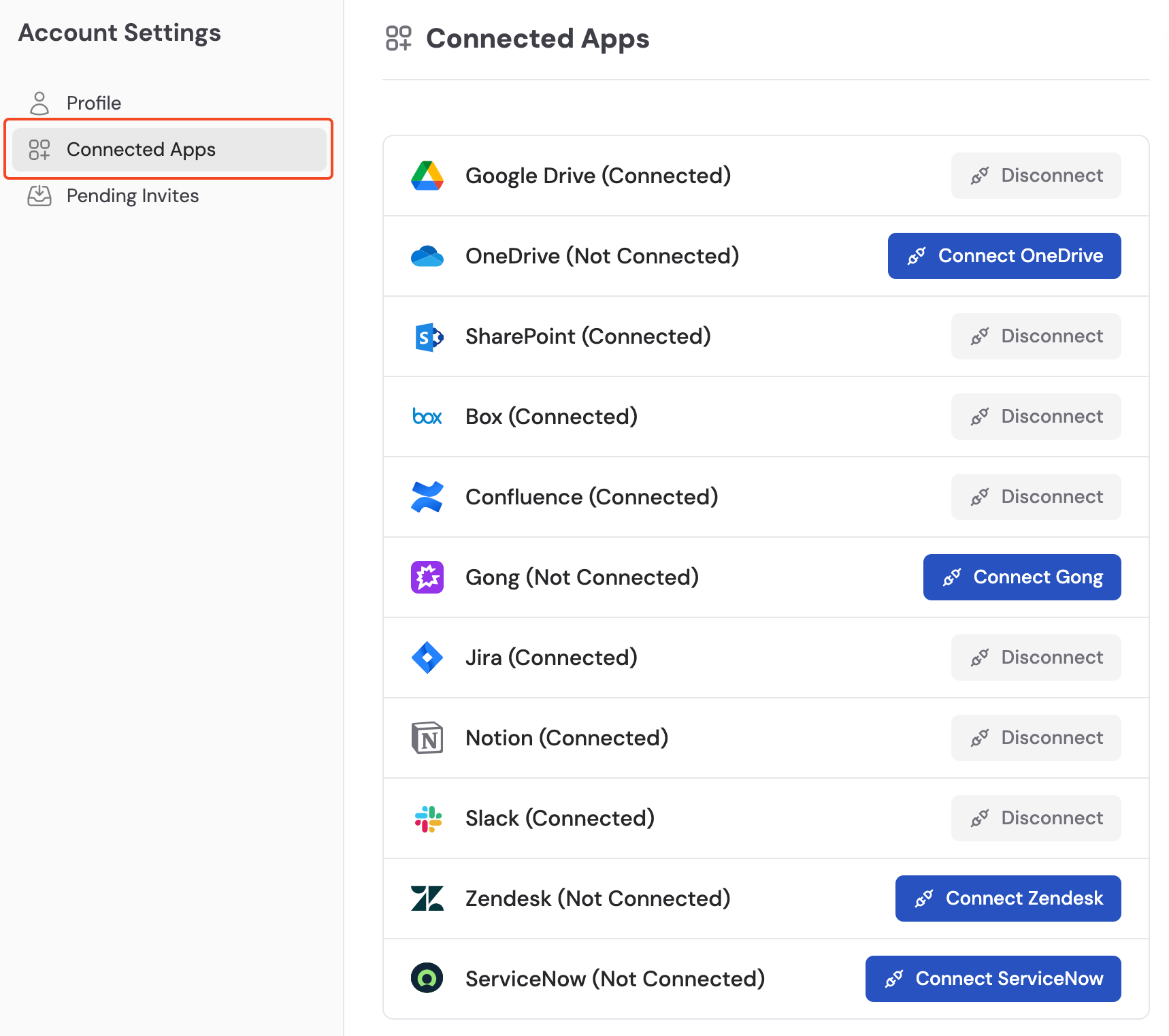
    Locate **Gong** in the list and click **Connect**.
    <Frame>
      <img src="https://mintcdn.com/cassidy/qKWfjzQ47rz14Mj6/images/integrations/connecting-to-gong-img-1.png?fit=max&auto=format&n=qKWfjzQ47rz14Mj6&q=85&s=0ce7c2eef84db9d0600d26b0b5cc4618" alt="Connected Apps page with Gong highlighted" width="1718" height="1522" data-path="images/integrations/connecting-to-gong-img-1.png" />
    </Frame>
  </Step>

  <Step title="Log in to Gong">
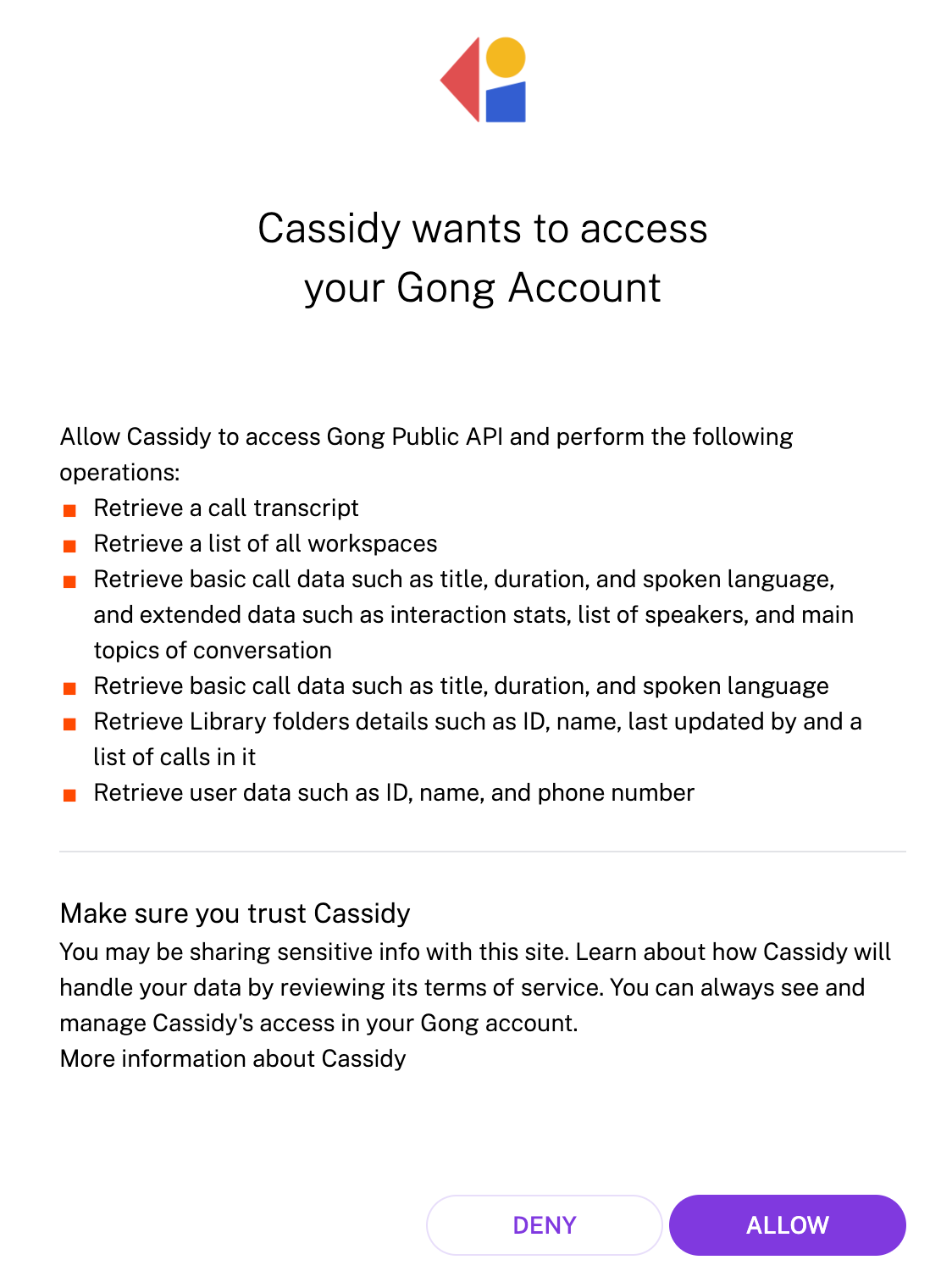
    Sign in to your Gong account in the popup.
    <Frame>
      <img src="https://mintcdn.com/cassidy/qKWfjzQ47rz14Mj6/images/integrations/connecting-to-gong-img-2.png?fit=max&auto=format&n=qKWfjzQ47rz14Mj6&q=85&s=2240eec6438fefef706cccbcb7ed7f24" alt="Gong login screen for authorizing the Cassidy connection" width="1124" height="1500" data-path="images/integrations/connecting-to-gong-img-2.png" />
    </Frame>
  </Step>

  <Step title="Authorize access">
    Review the permissions and click **Allow** to grant access to your Gong data.

    <Frame>
      <img src="https://mintcdn.com/cassidy/qKWfjzQ47rz14Mj6/images/integrations/connecting-to-gong-img-3.png?fit=max&auto=format&n=qKWfjzQ47rz14Mj6&q=85&s=9c3e57b8694c21bf64e071fa8ff9d108" alt="Gong authorization screen showing requested permissions with Allow button" width="1090" height="94" data-path="images/integrations/connecting-to-gong-img-3.png" />
    </Frame>
  </Step>
</Steps>

## Import call recordings

<Steps>
  <Step title="Select Gong as the source">
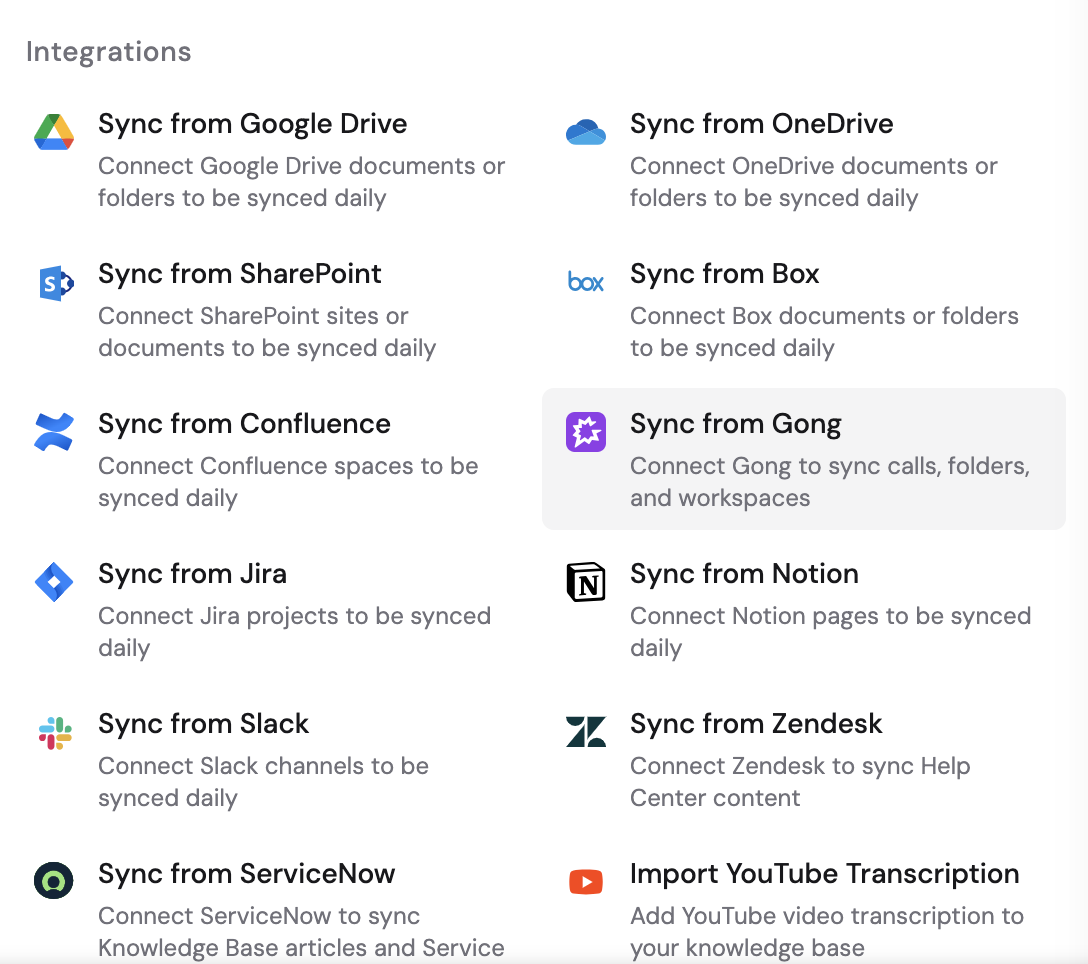
    Navigate to your [Knowledge Base](/knowledge-base/overview), click **Sync From Integrations**, and select **Sync from Gong**.
    <Frame>
      <img src="https://mintcdn.com/cassidy/qKWfjzQ47rz14Mj6/images/integrations/connecting-to-gong-img-4.png?fit=max&auto=format&n=qKWfjzQ47rz14Mj6&q=85&s=6cad694677eb771279879d2afb5cd9a7" alt="Knowledge Base Sync From Integrations dropdown showing Sync from Gong option highlighted" width="1088" height="964" data-path="images/integrations/connecting-to-gong-img-4.png" />
    </Frame>
  </Step>

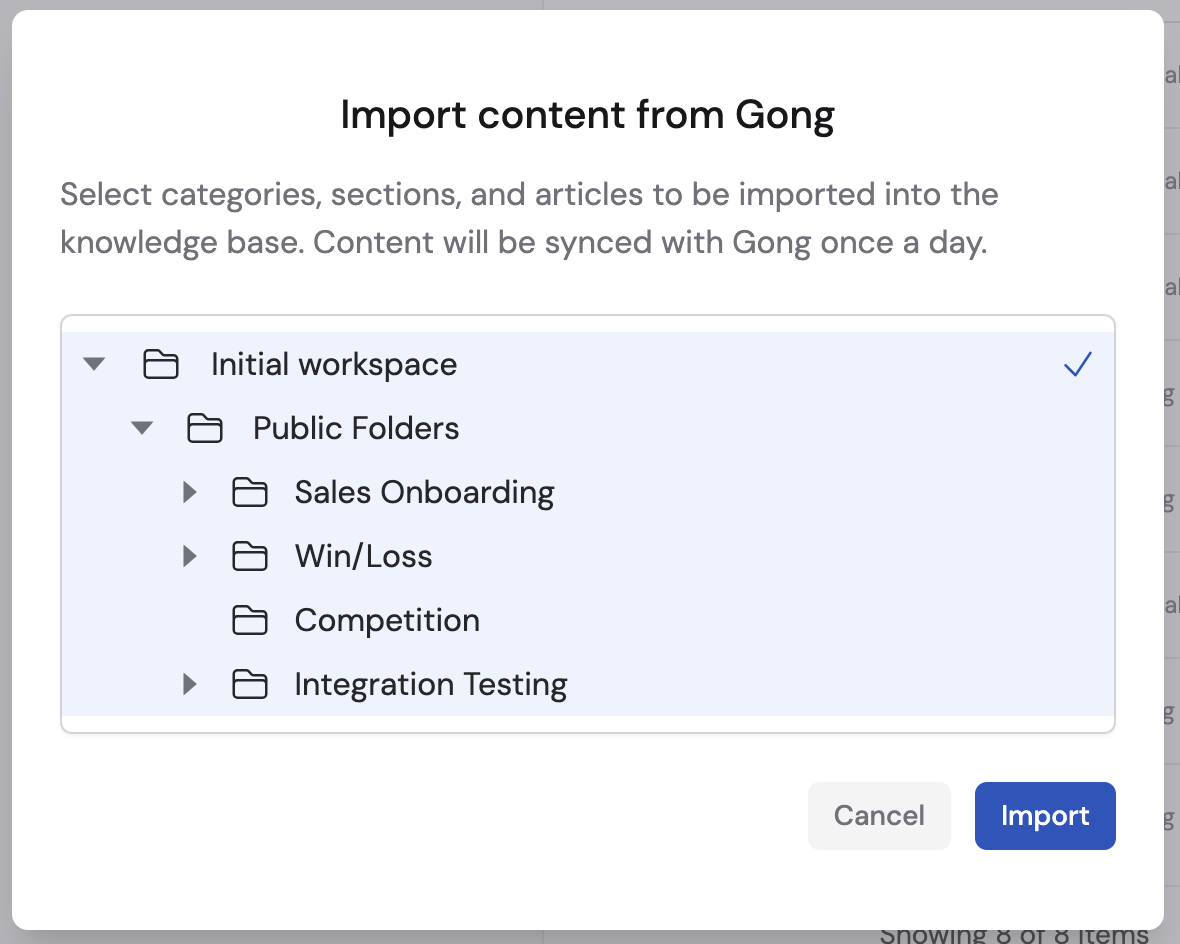
  <Step title="Choose content to import">
    Browse your Gong workspaces and folders, select the calls you want to import, then click **Import**.
    <Frame>
      <img src="https://mintcdn.com/cassidy/qKWfjzQ47rz14Mj6/images/integrations/connecting-to-gong-img-5.png?fit=max&auto=format&n=qKWfjzQ47rz14Mj6&q=85&s=525f2104b4278c7e64ad3d79230d5811" alt="Import content from Gong dialog showing workspaces and folders with checkboxes" width="1180" height="944" data-path="images/integrations/connecting-to-gong-img-5.png" />
    </Frame>
  </Step>
</Steps>

<Note>Gong recordings sync automatically on a regular schedule. Learn more about [sync schedules and options](/integrations/sync-integrations).</Note>

## Next steps

<CardGroup cols={2}>
  <Card title="Trigger Workflows from Gong transcripts" icon="diagram-project" href="/integrations/gong/workflows">
    Automate follow-ups when new call transcripts are ready.
  </Card>

  <Card title="Explore the Knowledge Base" icon="book" href="/knowledge-base/overview">
    Learn how to organize and manage your imported content.
  </Card>
</CardGroup>
