> ## Documentation Index
> Fetch the complete documentation index at: https://docs.cassidyai.com/llms.txt
> Use this file to discover all available pages before exploring further.
# New Gong call transcript trigger
> Start a Workflow when a new Gong call transcript becomes available.
The New Gong Call Transcript trigger automatically runs your [Workflow](/workflows/overview) whenever a call transcript becomes available in Gong. Use it to extract insights, update CRM records, and automate post-call processes without manual intervention.
Create a new [Workflow](/workflows/building) or open an existing one, and add a **Gong New Call Transcript** trigger.
If you haven't already, click **Connect** to link your Gong account to Cassidy.
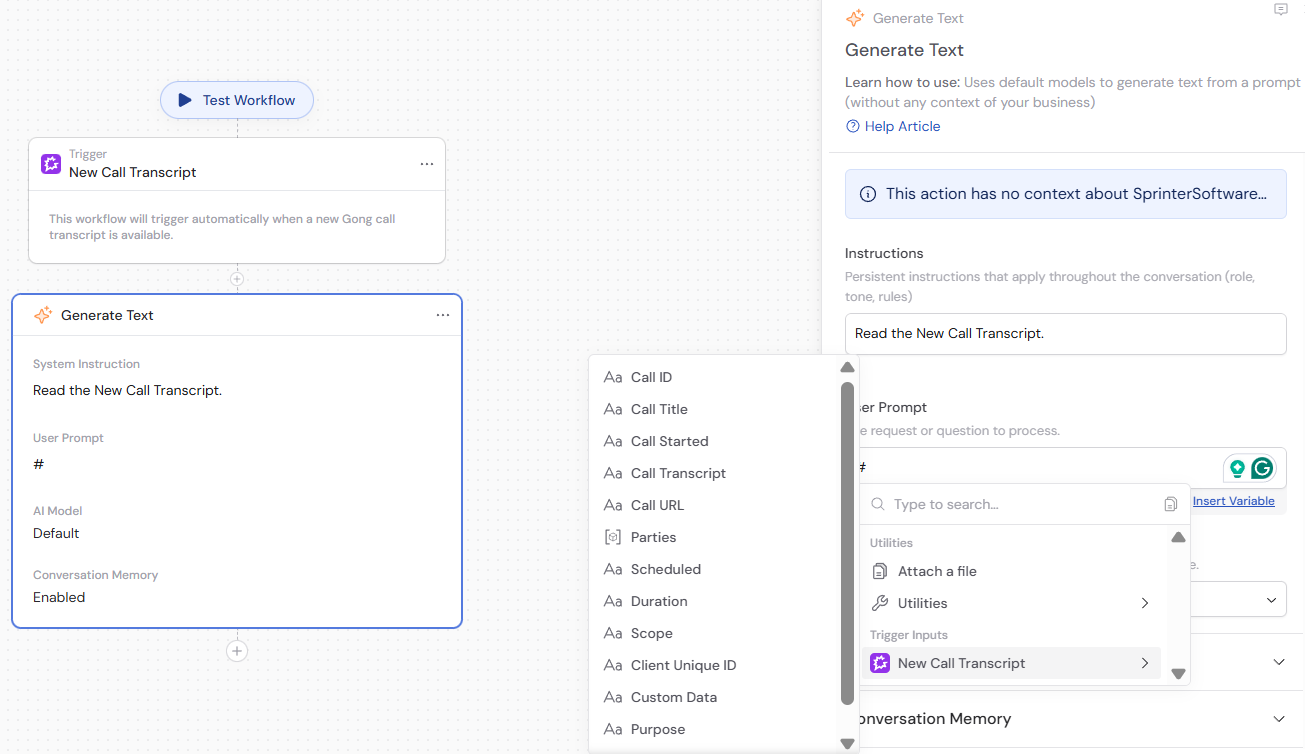
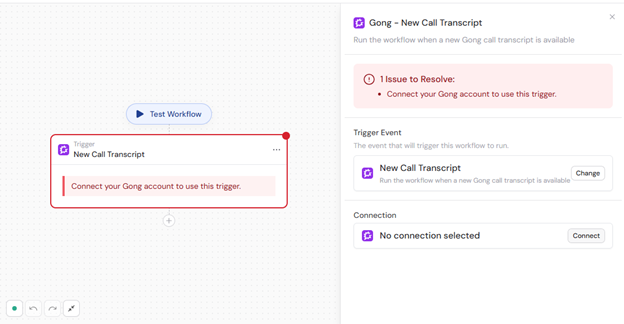 In subsequent Workflow steps, you can reference the following variables from this trigger:
* **Call ID** — unique identifier for the call
* **Call Title** — the title of the call
* **Call Started** — timestamp when the call began
* **Call Transcript** — full text transcript of the call
* **Call URL** — link to the call in Gong
* **Parties** — list of participants in the call
* **Scheduled** — whether the call was scheduled
* **Duration** — length of the call
* **Scope** — the workspace scope in Gong
* **Client Unique ID** — unique identifier for the client
* **Custom Data** — any custom data fields you configured
* **Purpose** — the purpose of the call
* **Meeting URL** — the original meeting URL (e.g. Zoom, Google Meet link)
In subsequent Workflow steps, you can reference the following variables from this trigger:
* **Call ID** — unique identifier for the call
* **Call Title** — the title of the call
* **Call Started** — timestamp when the call began
* **Call Transcript** — full text transcript of the call
* **Call URL** — link to the call in Gong
* **Parties** — list of participants in the call
* **Scheduled** — whether the call was scheduled
* **Duration** — length of the call
* **Scope** — the workspace scope in Gong
* **Client Unique ID** — unique identifier for the client
* **Custom Data** — any custom data fields you configured
* **Purpose** — the purpose of the call
* **Meeting URL** — the original meeting URL (e.g. Zoom, Google Meet link)
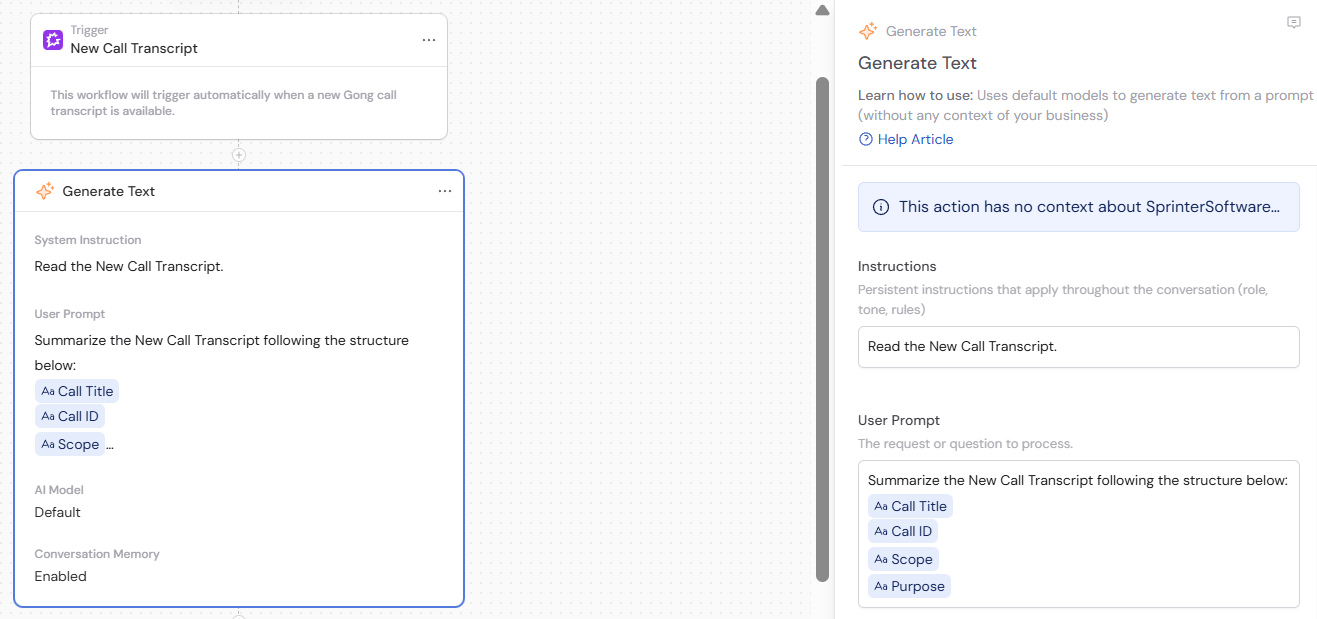 Add actions to your Workflow to process the transcript. Common actions include:
* **Generate Text** — extract action items, commitments, and next steps from the call transcript
* **Update CRM** — update your CRM with call information
* **Send Email** — send a summary to the account team with call highlights and action items
* **Send Slack Message** — send call highlights to a relevant Slack channel
For example, add a [Generate Text](/reference/actions/generate-text) action after the trigger. In the **User Prompt** field, press **#** and choose the New Call Transcript trigger to reference its variables.
Add actions to your Workflow to process the transcript. Common actions include:
* **Generate Text** — extract action items, commitments, and next steps from the call transcript
* **Update CRM** — update your CRM with call information
* **Send Email** — send a summary to the account team with call highlights and action items
* **Send Slack Message** — send call highlights to a relevant Slack channel
For example, add a [Generate Text](/reference/actions/generate-text) action after the trigger. In the **User Prompt** field, press **#** and choose the New Call Transcript trigger to reference its variables.
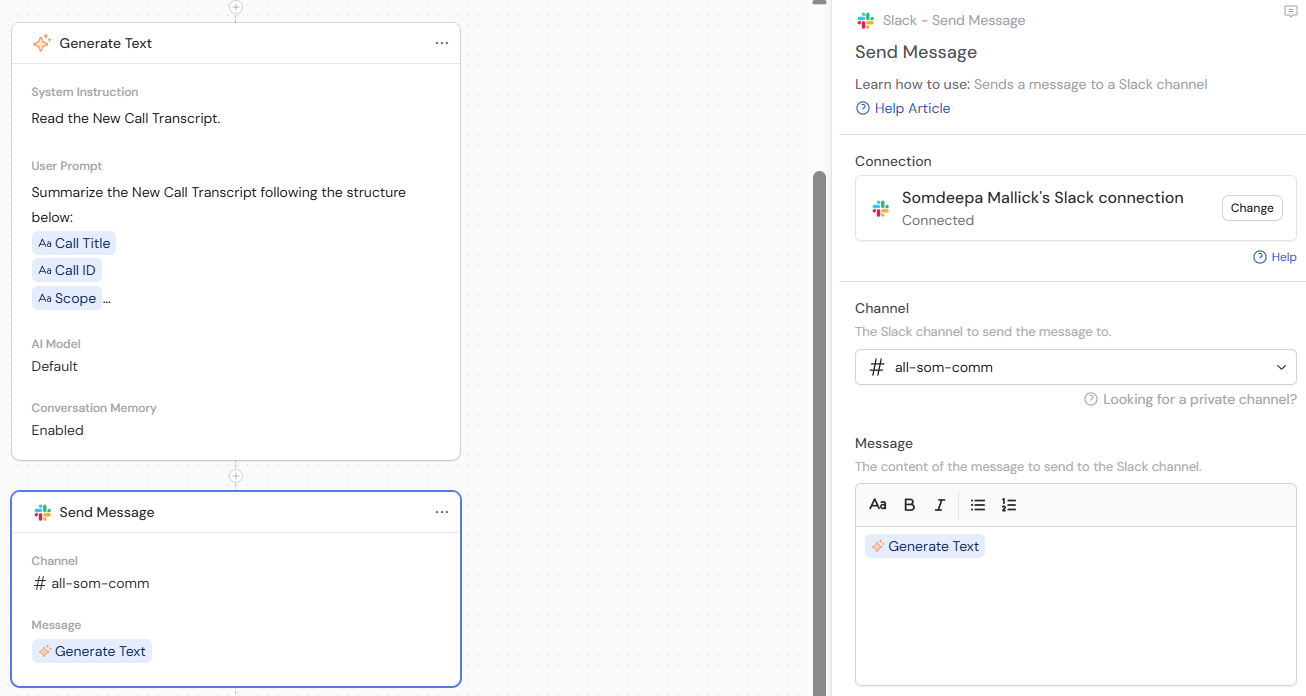
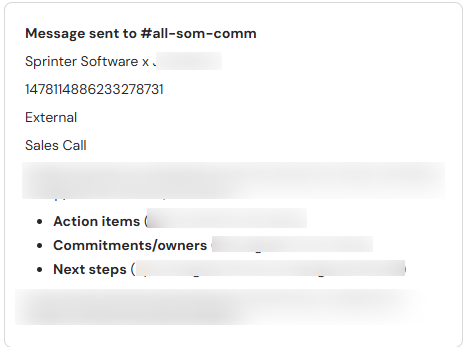
 Follow up with a [Send Slack Message](/integrations/slack/send-slack-message) action that references the output of the Generate Text action and sends it to your chosen Slack channel.
 Click **Publish** to activate your Workflow. New call transcripts will automatically trigger the automation.
 There can be a delay of up to an hour between when a call ends and when the transcript becomes available in Gong. The Workflow fires once the transcript is ready, not when the call ends.
## Related
* [Gong for Workflows](/integrations/gong/workflows)
* [Gong for Knowledge Base](/integrations/gong/knowledge-base)
* [Generate Text action](/reference/actions/generate-text)
There can be a delay of up to an hour between when a call ends and when the transcript becomes available in Gong. The Workflow fires once the transcript is ready, not when the call ends.
## Related
* [Gong for Workflows](/integrations/gong/workflows)
* [Gong for Knowledge Base](/integrations/gong/knowledge-base)
* [Generate Text action](/reference/actions/generate-text)