> ## Documentation Index
> Fetch the complete documentation index at: https://docs.cassidyai.com/llms.txt
> Use this file to discover all available pages before exploring further.
# Draft email with Gmail
> Create a draft email in your Gmail account from a Workflow.
Use the **Draft Email with Gmail** action to create a draft email in your connected Gmail account as part of a [Workflow](/workflows/overview). The draft is saved to your Gmail drafts folder for review before sending.
## Set up the action
While editing a Workflow, click the **+** button between existing blocks. Select **Draft Email with Gmail** from the action list.
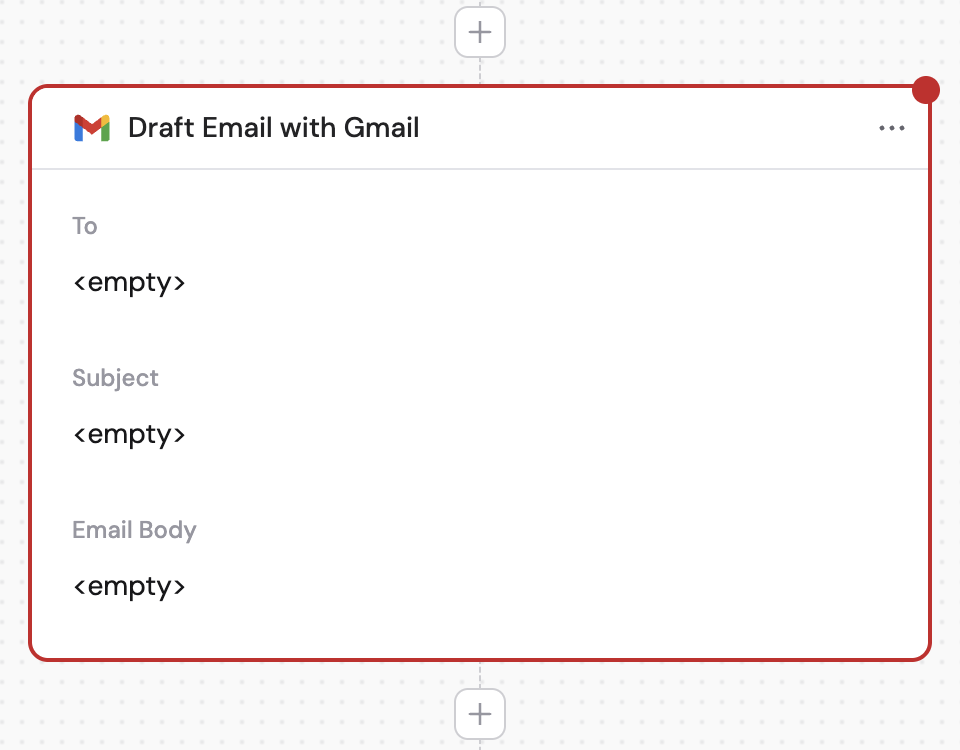 Click the action name to give it a more descriptive label for easier reference as a variable in later steps.
 If you haven't already, connect your Gmail account to Cassidy.
If you're using this action with the **New Email Received in Gmail** trigger, enable **Reply to Trigger Email** to draft a reply to the same email thread that started the Workflow.
If you haven't already, connect your Gmail account to Cassidy.
If you're using this action with the **New Email Received in Gmail** trigger, enable **Reply to Trigger Email** to draft a reply to the same email thread that started the Workflow.
 Enter an email address manually, use a variable from previous steps, or click the list icon to search and select an email from the trigger.
If both **Reply to Trigger Email** and **Reply to Email** are left empty, this creates a new email thread.
Enter an email address manually, use a variable from previous steps, or click the list icon to search and select an email from the trigger.
If both **Reply to Trigger Email** and **Reply to Email** are left empty, this creates a new email thread.
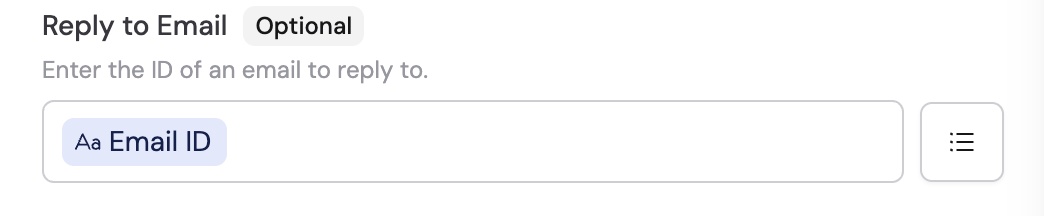
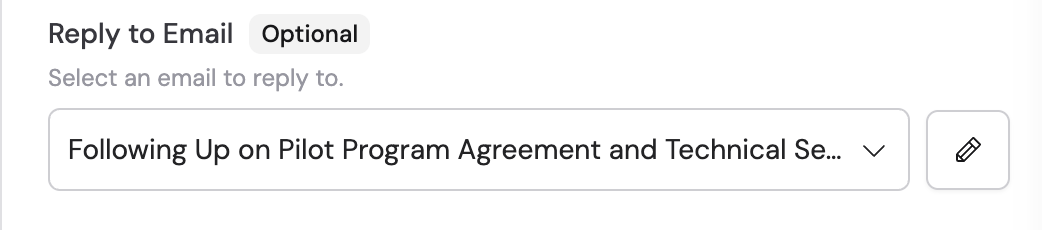 Enable **Reply All** to include all recipients from the **To**, **Cc**, and **Bcc** fields of the original email.
 In the **To** field, enter a single email address or a comma-separated list of recipients.
 In the **Subject** field, enter the subject line. You can reference variables from previous steps or the trigger. This field is required when creating a new email thread.
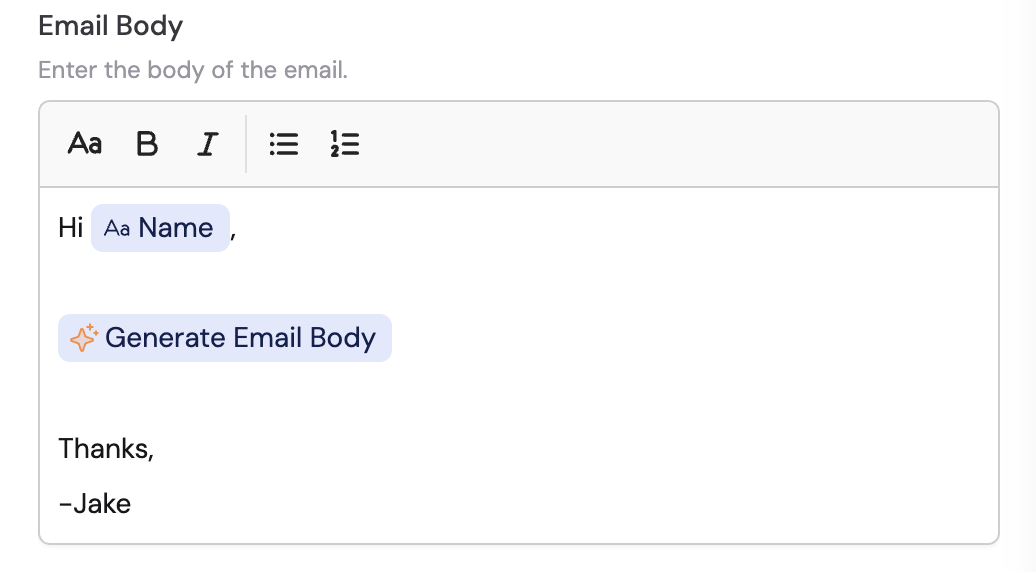
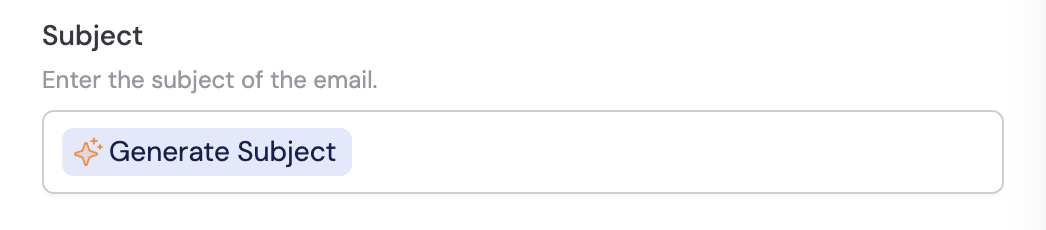 In the **Email Body** field, enter the content of your email. You can reference variables from previous steps to personalize the message.
 Select from available variables to include as attachments.
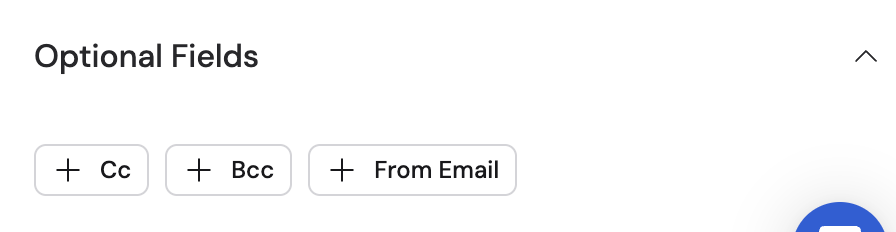
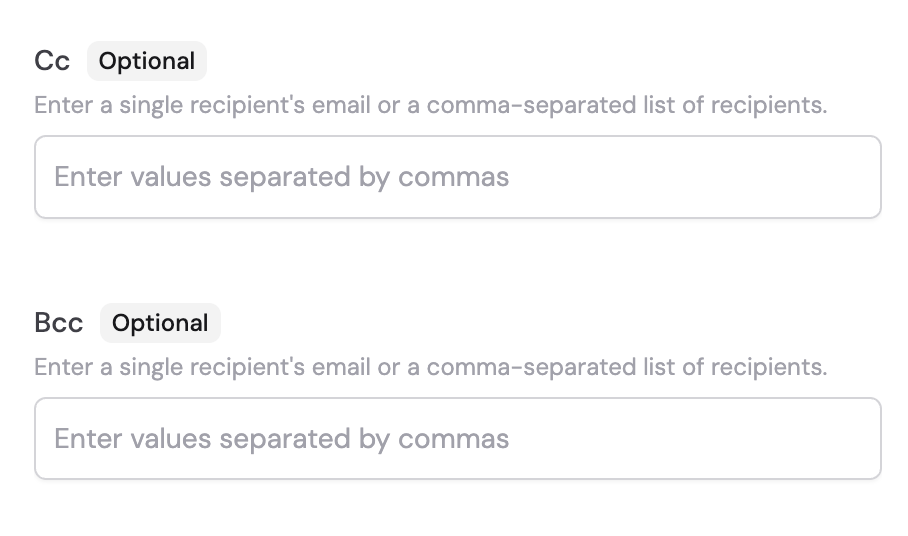
 Click on the options under **Optional Fields** to configure additional settings like **Cc**, **Bcc**, and **From Email**.
 This action creates a draft in your Gmail account — it does not send the email. Use the [Send Email with Gmail](/integrations/google-workspace/gmail/send-email) action to send emails directly.
## Related
Send an email directly from a Workflow.
Trigger a Workflow when a new email is received.
This action creates a draft in your Gmail account — it does not send the email. Use the [Send Email with Gmail](/integrations/google-workspace/gmail/send-email) action to send emails directly.
## Related
Send an email directly from a Workflow.
Trigger a Workflow when a new email is received.