> ## Documentation Index
> Fetch the complete documentation index at: https://docs.cassidyai.com/llms.txt
> Use this file to discover all available pages before exploring further.
# New email received in Gmail trigger
> Run a Workflow automatically when a new email arrives in your Gmail inbox.
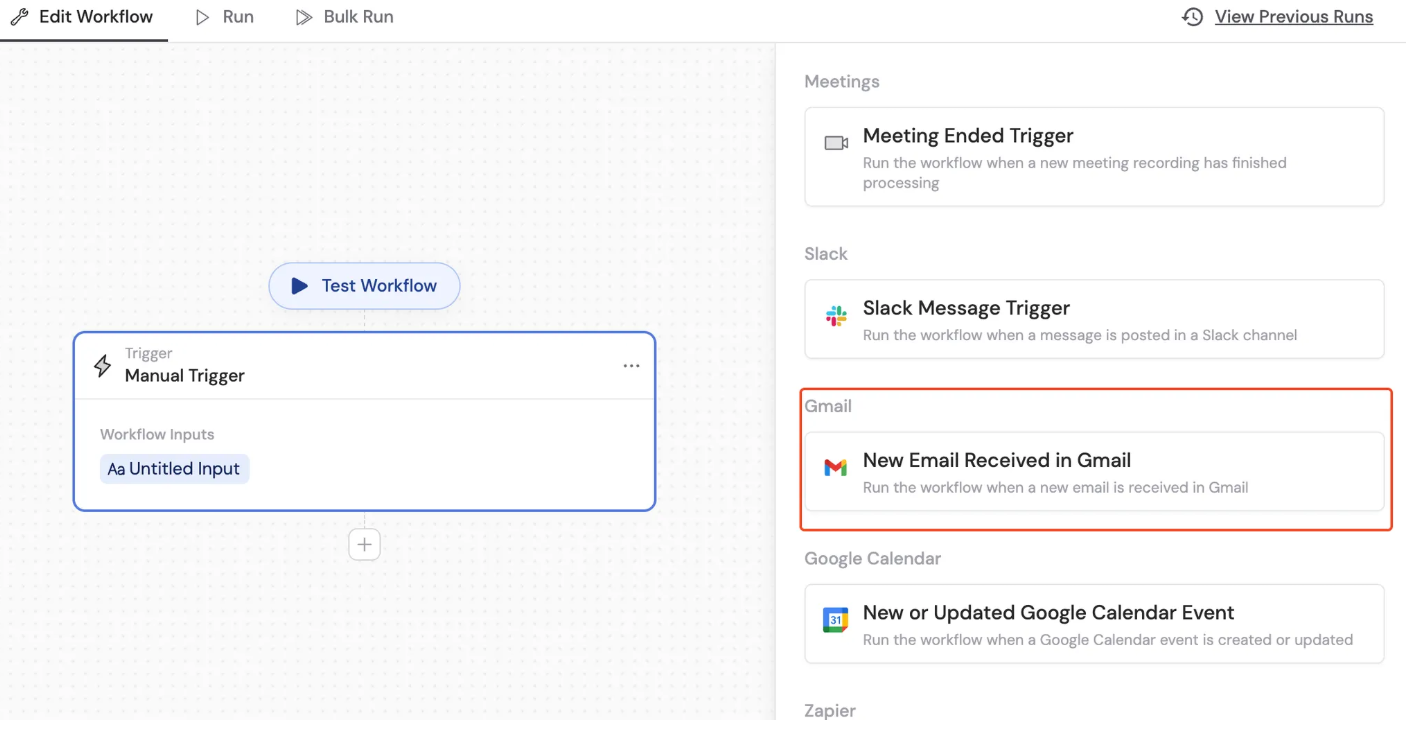
Use the **New Email Received in Gmail** trigger to start a [Workflow](/workflows/overview) whenever a new email is received in your connected Gmail account. This is useful for automating email triage, drafting replies, or routing messages based on sender or content.
## Set up the trigger
Create a new Workflow with the **New Email Received in Gmail** trigger, or change an existing Workflow's trigger type to **New Email Received in Gmail**.
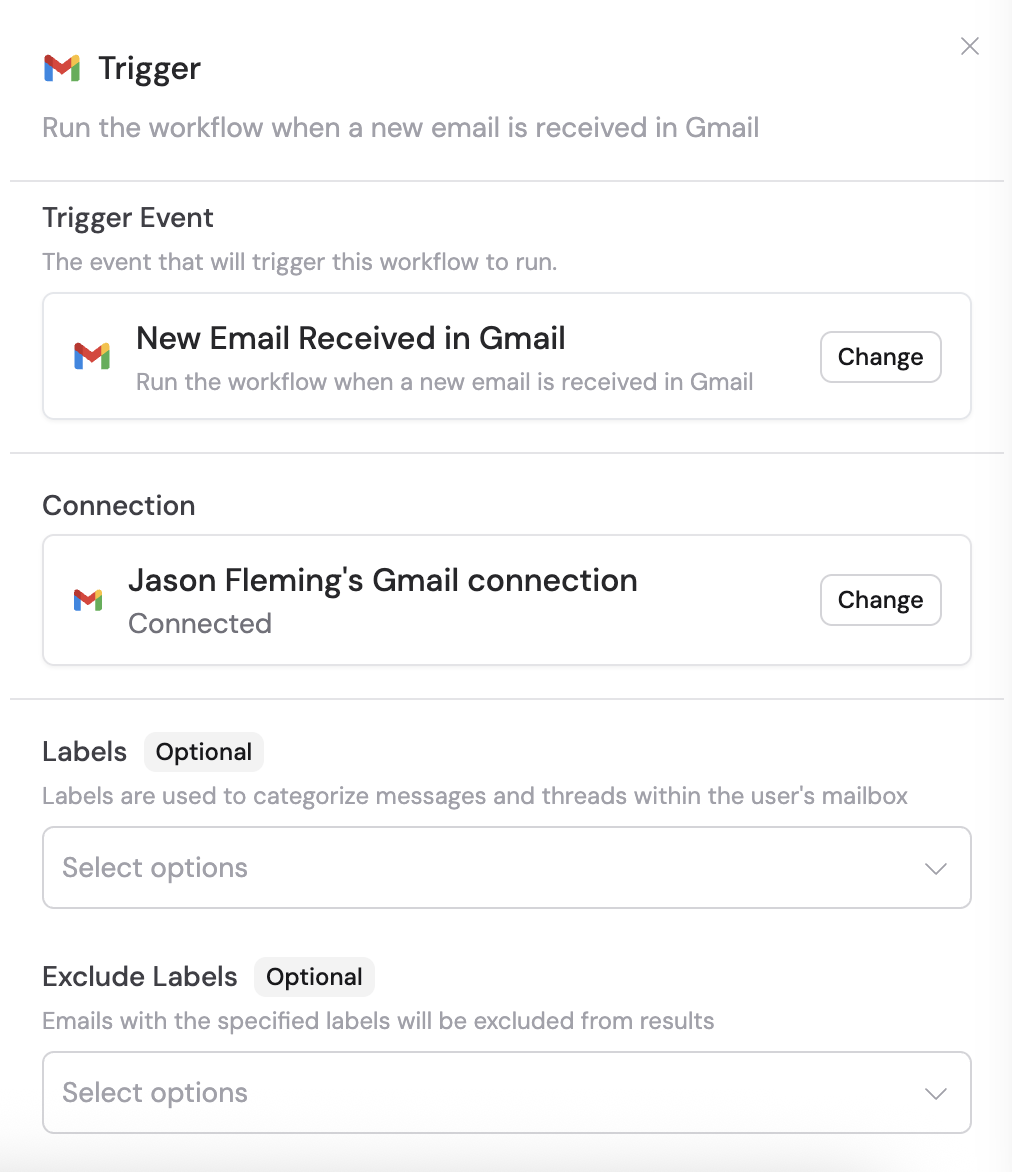
 If you haven't already, connect your Gmail account to Cassidy.
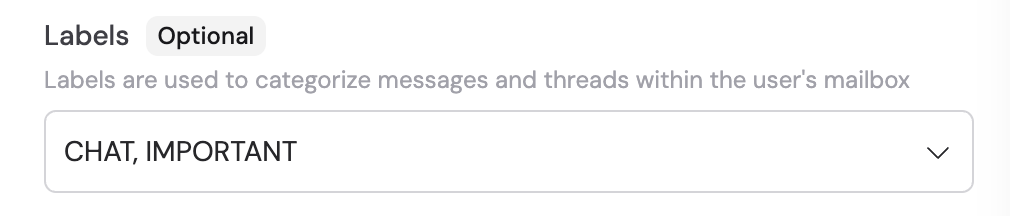
 Filter the trigger to only activate for emails with specific labels such as **Inbox**, **Important**, **Chat**, **Sent**, **Trash**, **Draft**, or **Spam**.
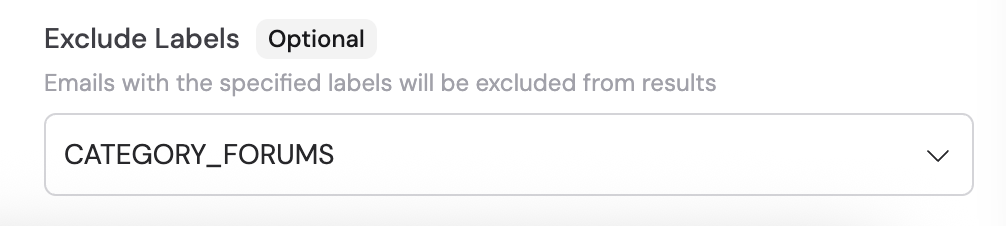
 Select any labels you want to exclude from triggering the Workflow.
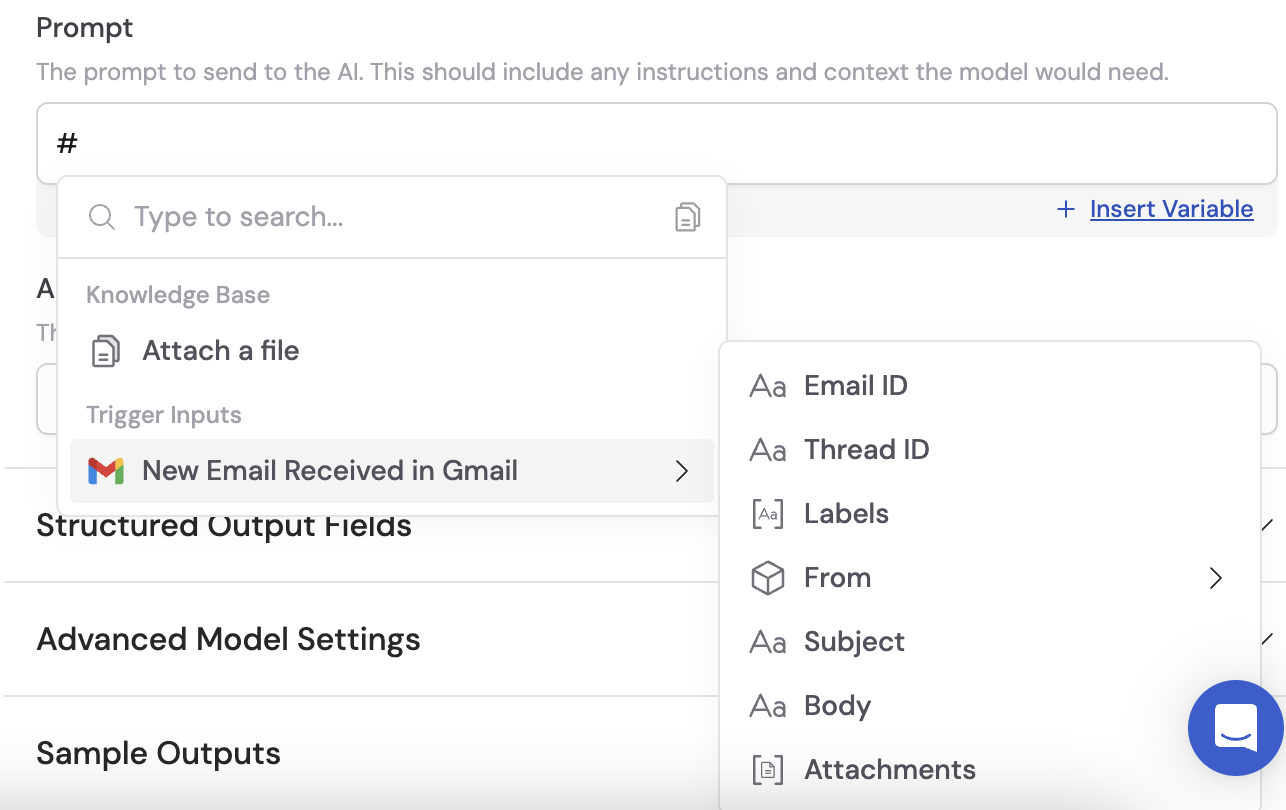
 In subsequent Workflow steps, you can reference the following variables from this trigger:
* **Email ID** — the ID of the new email
* **Thread ID** — the ID of the email thread
* **Labels** — the inbox labels applied to the email
* **From** — the sender's email address
* **Subject** — the subject line
* **Body** — the email body content
* **Attachments** — any files attached to the email
In subsequent Workflow steps, you can reference the following variables from this trigger:
* **Email ID** — the ID of the new email
* **Thread ID** — the ID of the email thread
* **Labels** — the inbox labels applied to the email
* **From** — the sender's email address
* **Subject** — the subject line
* **Body** — the email body content
* **Attachments** — any files attached to the email
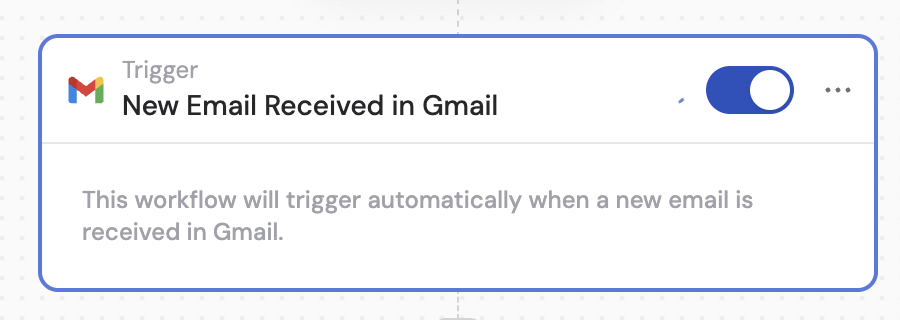
 In the trigger block, click the toggle switch to turn it on.
 This trigger only activates for emails received **after** the trigger is set up. It does not process existing emails.
## Related
Send or reply to an email from a Workflow.
Create a draft email from a Workflow.
Add labels to a Gmail message from a Workflow.
This trigger only activates for emails received **after** the trigger is set up. It does not process existing emails.
## Related
Send or reply to an email from a Workflow.
Create a draft email from a Workflow.
Add labels to a Gmail message from a Workflow.