> ## Documentation Index
> Fetch the complete documentation index at: https://docs.cassidyai.com/llms.txt
> Use this file to discover all available pages before exploring further.

# Send email with Gmail

> Send or reply to an email using your Gmail account from a Workflow.

Use the **Send Email with Gmail** action to send an email from your connected Gmail account as part of a [Workflow](/workflows/overview). You can compose new emails, reply to existing threads, or reply to the email that triggered the Workflow.

## Set up the action

<Steps>
  <Step title="Add the action">
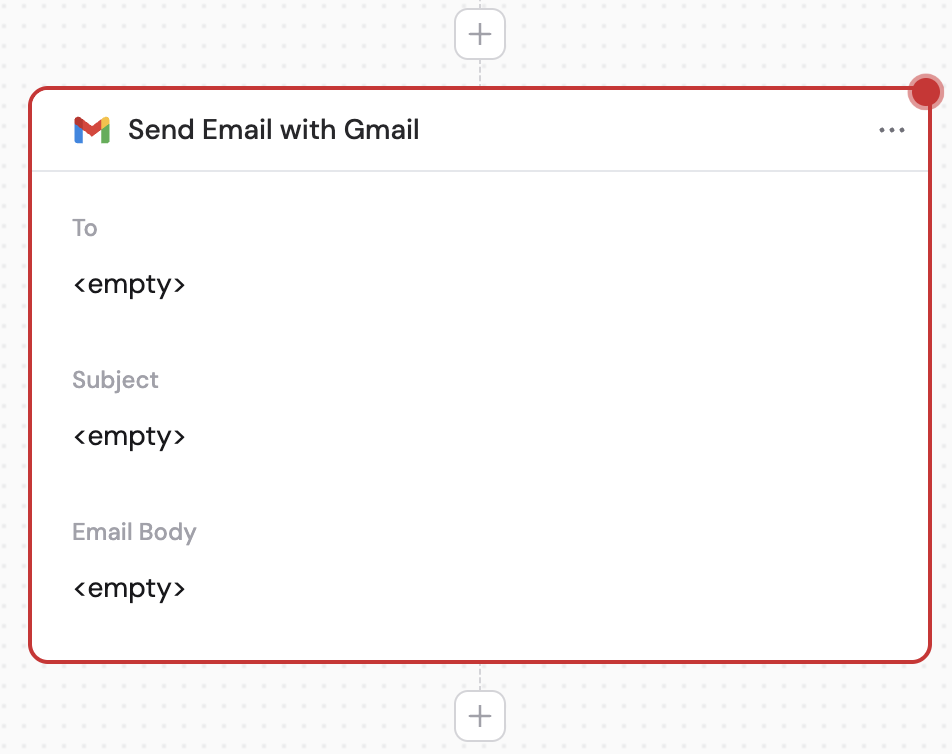
    While editing a Workflow, click the **+** button between existing blocks. Select **Send Email with Gmail** from the action list.
    <Frame>
      <img src="https://mintcdn.com/cassidy/ETDpmcHPDhtRlAWy/images/reference/send-email-with-gmail-img-0.png?fit=max&auto=format&n=ETDpmcHPDhtRlAWy&q=85&s=3ffaa966377f80c2ad1562cd17e62b99" alt="Selecting the Send Email with Gmail action" width="952" height="754" data-path="images/reference/send-email-with-gmail-img-0.png" />
    </Frame>
  </Step>

  <Step title="Rename the action (optional)">
    Click the action name to give it a more descriptive label for easier reference as a variable in later steps.

    <Frame>
      <img src="https://mintcdn.com/cassidy/ETDpmcHPDhtRlAWy/images/reference/send-email-with-gmail-img-1.png?fit=max&auto=format&n=ETDpmcHPDhtRlAWy&q=85&s=4d5d97ce7b90cd3d342857781fbace2d" alt="Renaming the Send Email with Gmail action" width="1014" height="166" data-path="images/reference/send-email-with-gmail-img-1.png" />
    </Frame>
  </Step>

  <Step title="Connect your Gmail account">
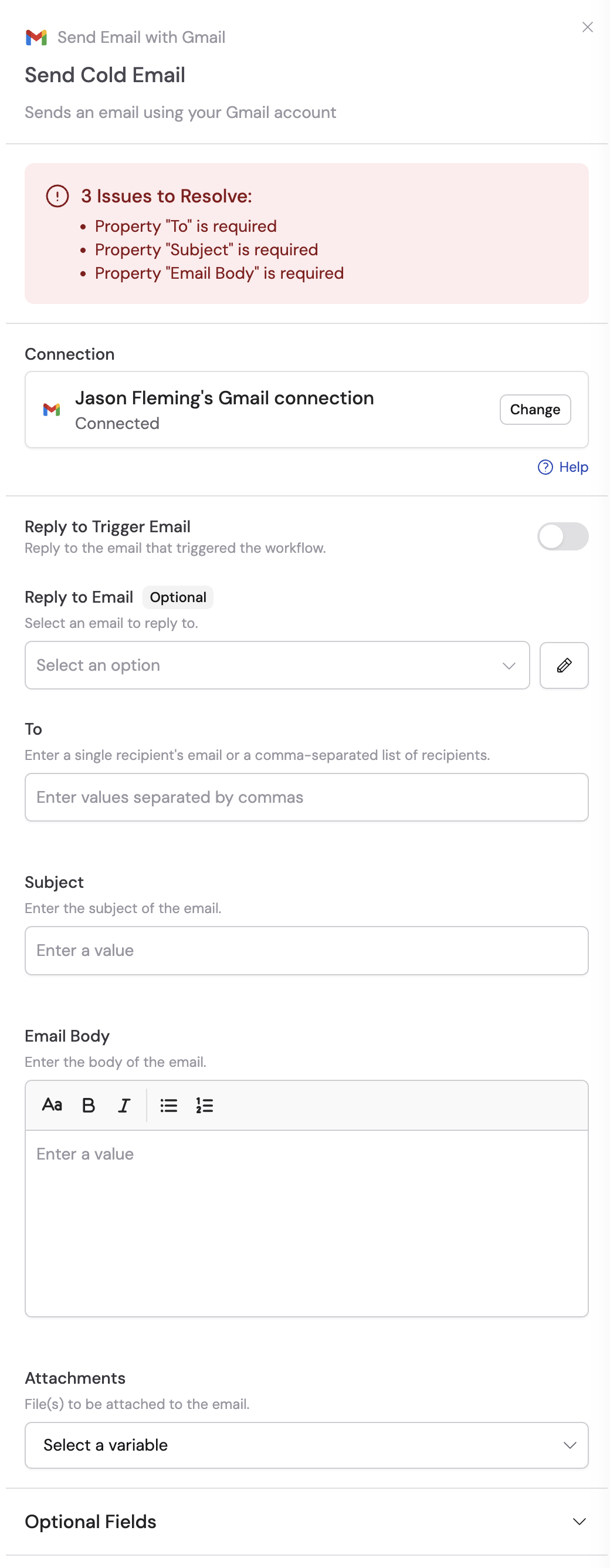
    If you haven't already, connect your Gmail account to Cassidy.
    <Frame>
      <img src="https://mintcdn.com/cassidy/ETDpmcHPDhtRlAWy/images/reference/send-email-with-gmail-img-2.png?fit=max&auto=format&n=ETDpmcHPDhtRlAWy&q=85&s=f956b128055a973cebd115ae066ec5c0" alt="Adding a Gmail connection for the action" width="1040" height="2672" data-path="images/reference/send-email-with-gmail-img-2.png" />
    </Frame>
  </Step>

  <Step title="Toggle on reply to trigger email (optional)">
    If you're using this action with the **New Email Received in Gmail** trigger, enable **Reply to Trigger Email** to reply to the same email thread that started the Workflow.

    <Frame>
      <img src="https://mintcdn.com/cassidy/ETDpmcHPDhtRlAWy/images/reference/send-email-with-gmail-img-3.png?fit=max&auto=format&n=ETDpmcHPDhtRlAWy&q=85&s=eabba8bc0676e4845f8f6860e234fdad" alt="Reply to Trigger Email toggle" width="1028" height="144" data-path="images/reference/send-email-with-gmail-img-3.png" />
    </Frame>
  </Step>

  <Step title="Enter reply to email (optional)">
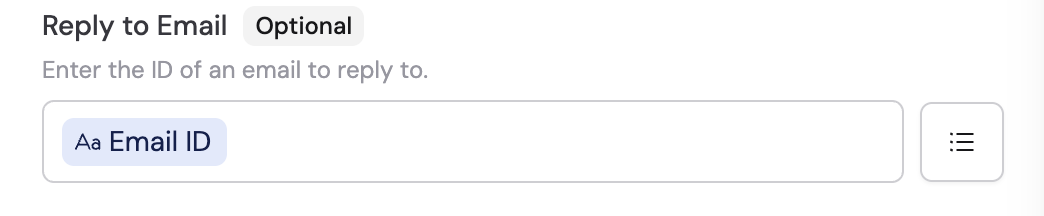
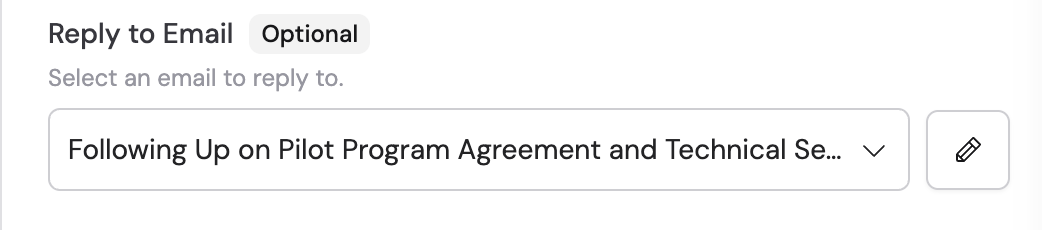
    Enter an email address manually, use a variable from previous steps (such as the sender's email from a trigger), or click the list icon to search and select an email from the trigger.

    <Tip>If both **Reply to Trigger Email** and **Reply to Email** are left empty, this creates a new email thread.</Tip>

    <Frame>
      <img src="https://mintcdn.com/cassidy/ETDpmcHPDhtRlAWy/images/reference/send-email-with-gmail-img-4.png?fit=max&auto=format&n=ETDpmcHPDhtRlAWy&q=85&s=4abb3655e7c5b72d691d3ed34f34e02d" alt="Reply to Email field with variable reference" width="1044" height="216" data-path="images/reference/send-email-with-gmail-img-4.png" />
    </Frame>

    <Frame>
      <img src="https://mintcdn.com/cassidy/ETDpmcHPDhtRlAWy/images/reference/send-email-with-gmail-img-5.png?fit=max&auto=format&n=ETDpmcHPDhtRlAWy&q=85&s=a2936072331ea90390b3e306f66bf108" alt="Searching for an email to reply to" width="1042" height="230" data-path="images/reference/send-email-with-gmail-img-5.png" />
    </Frame>
  </Step>

  <Step title="Toggle on reply all (optional)">
    Enable **Reply All** to send the reply to all recipients in the **To**, **Cc**, and **Bcc** fields of the original email.

    <Frame>
      <img src="https://mintcdn.com/cassidy/ETDpmcHPDhtRlAWy/images/reference/send-email-with-gmail-img-6.png?fit=max&auto=format&n=ETDpmcHPDhtRlAWy&q=85&s=fd5cf77ff06f1af885be1dd04ac22170" alt="Reply All toggle option" width="1046" height="148" data-path="images/reference/send-email-with-gmail-img-6.png" />
    </Frame>
  </Step>

  <Step title="Enter the recipient">
    In the **To** field, enter a single email address or a comma-separated list of recipients.

    <Frame>
      <img src="https://mintcdn.com/cassidy/ETDpmcHPDhtRlAWy/images/reference/send-email-with-gmail-img-7.png?fit=max&auto=format&n=ETDpmcHPDhtRlAWy&q=85&s=236a1a7ae8a279201d238e9fee94aaff" alt="To field for email recipients" width="1044" height="200" data-path="images/reference/send-email-with-gmail-img-7.png" />
    </Frame>
  </Step>

  <Step title="Enter the subject">
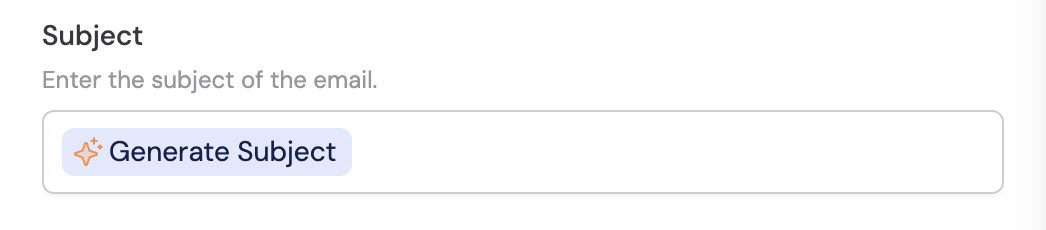
    In the **Subject** field, enter the subject line. You can reference variables from previous steps or the trigger. This field is required when creating a new email thread.
    <Frame>
      <img src="https://mintcdn.com/cassidy/ETDpmcHPDhtRlAWy/images/reference/send-email-with-gmail-img-8.png?fit=max&auto=format&n=ETDpmcHPDhtRlAWy&q=85&s=9da139b77a0afb1cb8c2b2592b42ef75" alt="Subject field with variable reference" width="1046" height="230" data-path="images/reference/send-email-with-gmail-img-8.png" />
    </Frame>
  </Step>

  <Step title="Enter the email body">
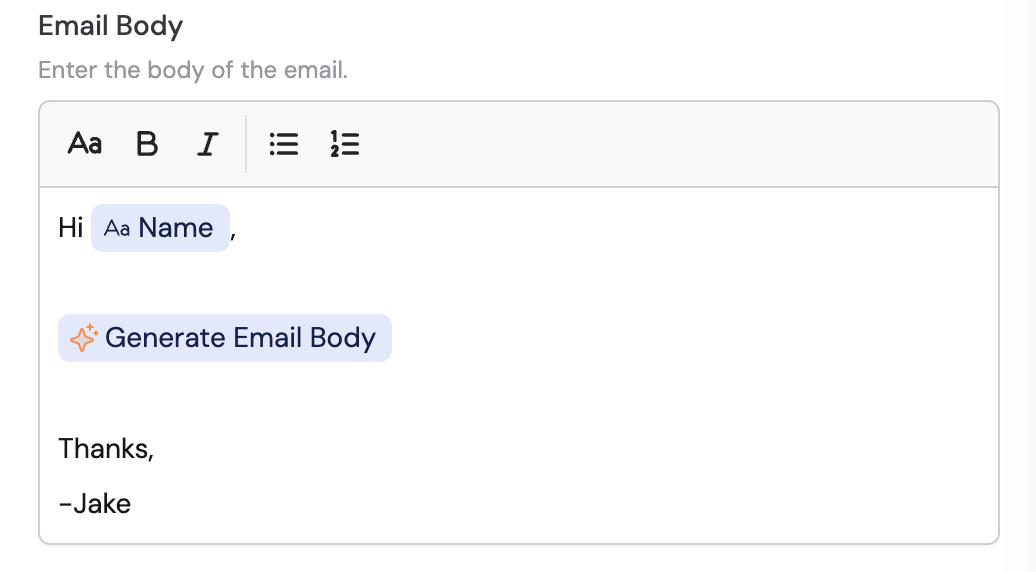
    In the **Email Body** field, enter the content of your email. You can reference variables from previous steps to personalize the message.
    <Frame>
      <img src="https://mintcdn.com/cassidy/ETDpmcHPDhtRlAWy/images/reference/send-email-with-gmail-img-9.png?fit=max&auto=format&n=ETDpmcHPDhtRlAWy&q=85&s=c3a9bdb4461d0b01da3e9418583750a4" alt="Email Body field with variable reference" width="1036" height="572" data-path="images/reference/send-email-with-gmail-img-9.png" />
    </Frame>
  </Step>

  <Step title="Add attachments (optional)">
    Select from available variables to include as attachments, such as outputs from **Export as PDF** or **Export as Microsoft Word Document** actions.

    <Frame>
      <img src="https://mintcdn.com/cassidy/ETDpmcHPDhtRlAWy/images/reference/send-email-with-gmail-img-10.png?fit=max&auto=format&n=ETDpmcHPDhtRlAWy&q=85&s=525da2a78eee8c81a57b3e68c3bcf506" alt="Attachments selector for email" width="1048" height="202" data-path="images/reference/send-email-with-gmail-img-10.png" />
    </Frame>
  </Step>

  <Step title="Configure optional fields">
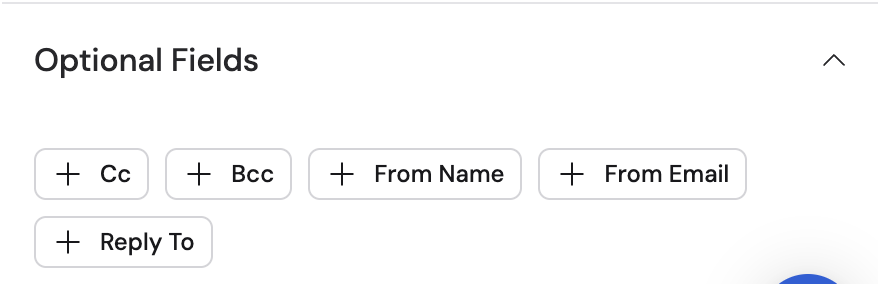
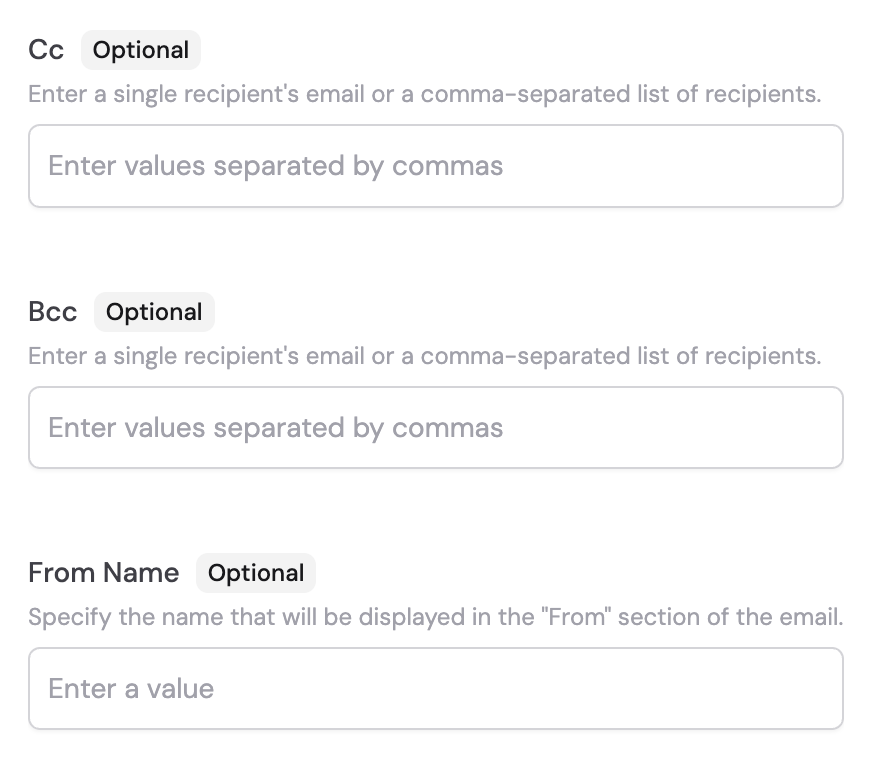
    Click on the options under **Optional Fields** to configure additional settings like **Cc**, **Bcc**, **From Name**, **From Email**, and **Reply To**.
    <Frame>
      <img src="https://mintcdn.com/cassidy/ETDpmcHPDhtRlAWy/images/reference/send-email-with-gmail-img-11.png?fit=max&auto=format&n=ETDpmcHPDhtRlAWy&q=85&s=067f6b39ddd057b280bc77f259c5a772" alt="Optional Fields section showing available options" width="878" height="284" data-path="images/reference/send-email-with-gmail-img-11.png" />
    </Frame>

    <Frame>
      <img src="https://mintcdn.com/cassidy/ETDpmcHPDhtRlAWy/images/reference/send-email-with-gmail-img-12.png?fit=max&auto=format&n=ETDpmcHPDhtRlAWy&q=85&s=0bc7d305f98454e9a2109376d6c965d1" alt="Optional fields expanded with Cc and Bcc" width="880" height="780" data-path="images/reference/send-email-with-gmail-img-12.png" />
    </Frame>
  </Step>
</Steps>

## Related

<CardGroup cols={2}>
  <Card title="Draft email with Gmail" icon="file-pen" href="/integrations/google-workspace/gmail/draft-email">
    Create a draft email instead of sending immediately.
  </Card>

  <Card title="New email trigger" icon="envelope" href="/integrations/google-workspace/gmail/new-email-trigger">
    Trigger a Workflow when a new email is received.
  </Card>
</CardGroup>