> ## Documentation Index
> Fetch the complete documentation index at: https://docs.cassidyai.com/llms.txt
> Use this file to discover all available pages before exploring further.
# Get Google Calendar events
> Retrieve a list of Google Calendar events within a date range from a Workflow.
Retrieve a list of events from your Google Calendar within a [Workflow](/workflows/overview). Use this action for meeting prep, reminders, daily summaries, or any automation that needs to know what's on your calendar.
## Set up the action
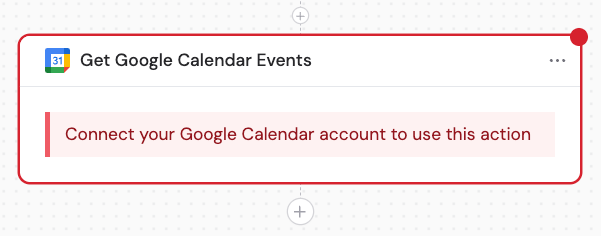
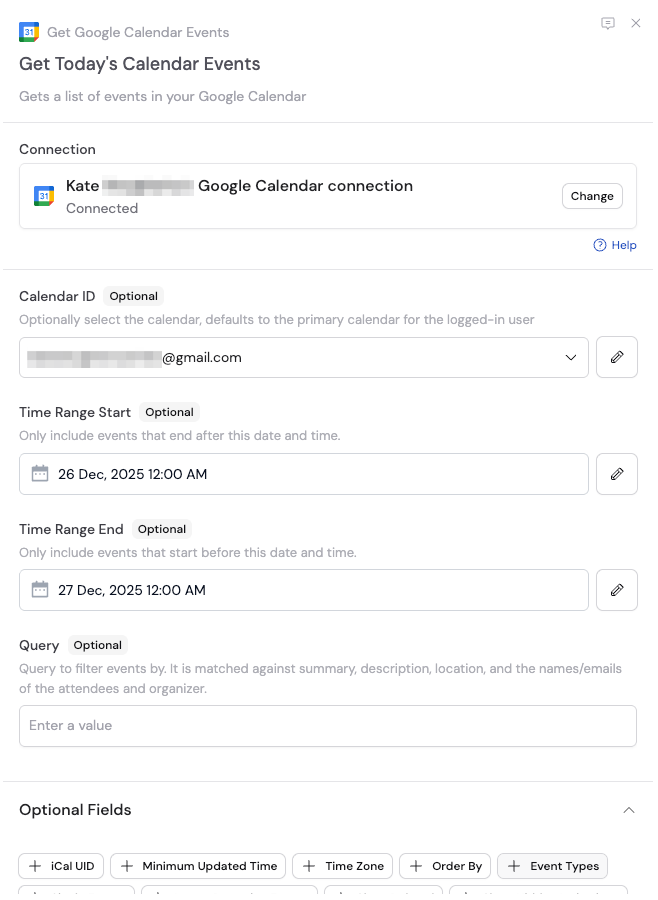
In the [Workflow builder](/workflows/building), click the **+** button between existing blocks. Select **Get Google Calendar Events** from the action list.
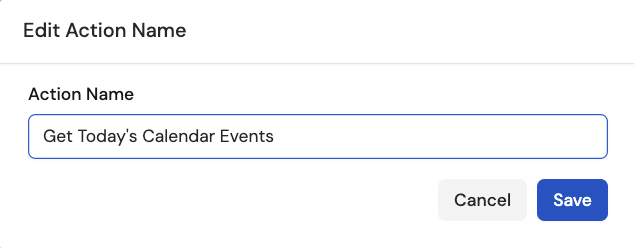
 Click the action name to enter a more descriptive label for easier variable reference later.
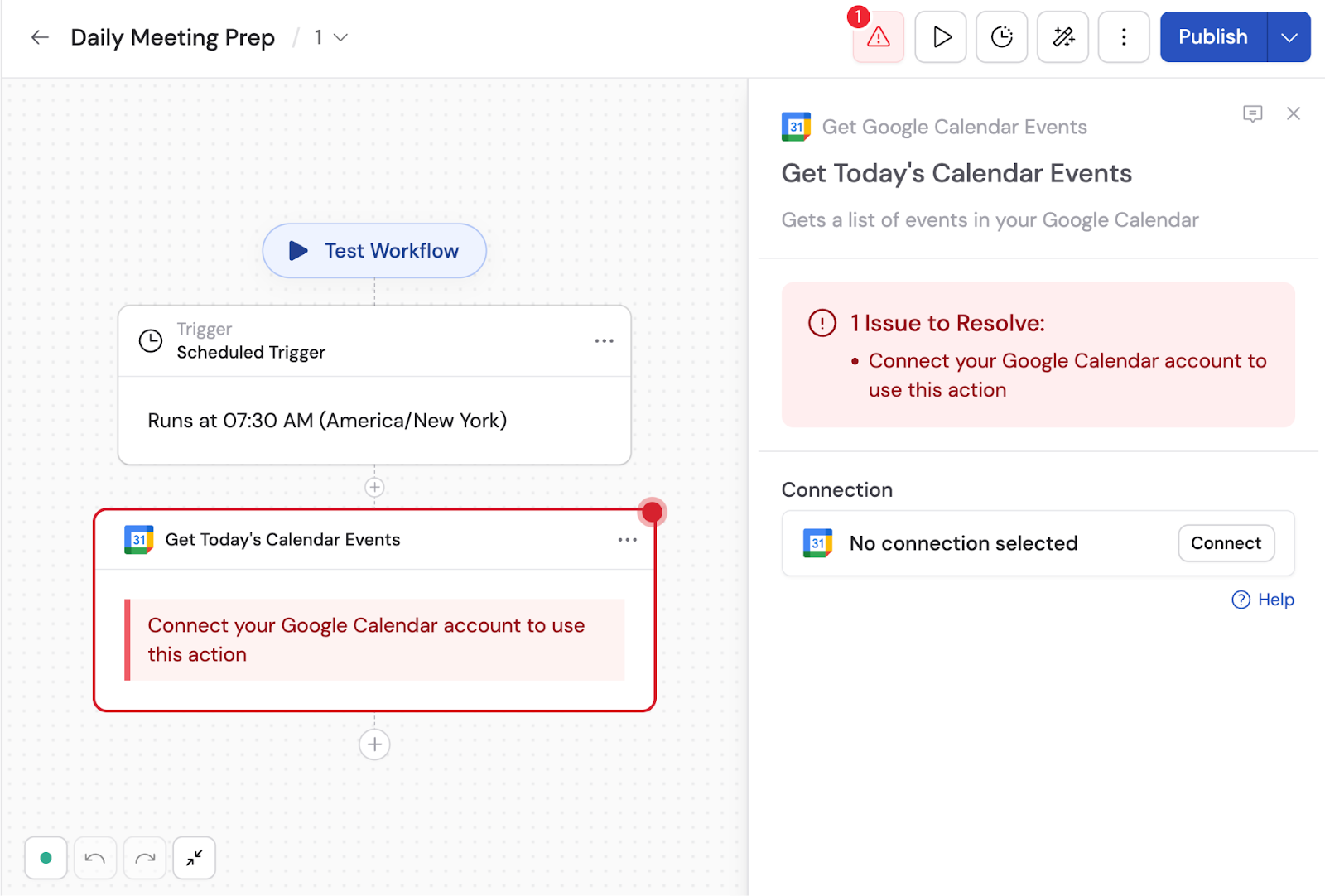
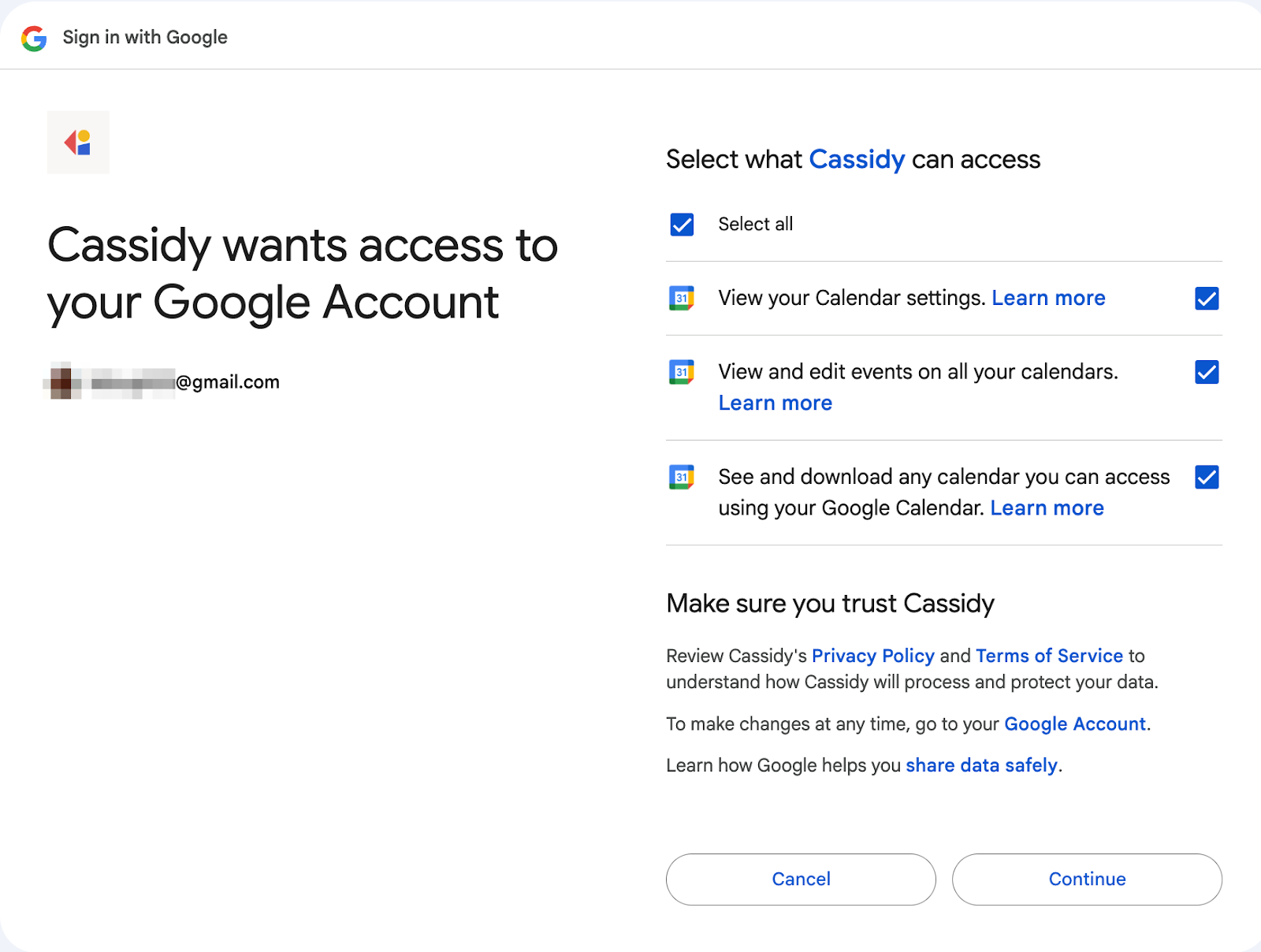
 If you haven't already, connect your Google Calendar account to Cassidy. Click **Connect**, review the terms, and authorize the permissions.
 Under optional fields, select which calendar to retrieve events from. If no calendar is selected, events are retrieved from your primary calendar.
Set **Time Range Start** and **Time Range End** to define the date range for retrieving events.
Enter text in the **Query** field to filter events by keywords. This searches event summaries, descriptions, locations, attendee information, and organizer information.
Under optional settings, you can configure:
* **iCal UID** — include the iCalendar event ID in the response
* **Minimum Updated time** — filter to events modified at or after this timestamp
* **Time Zone** — time zone for the response (default is calendar time zone)
* **Order By** — order of returned events (set Single Events to true to order by start time)
* **Event Types** — filter by Default, Focus Time, Out of Office, or Working Location
* **Single Events** — break recurring series into individual occurrences
* **Ignore Recurring Events** — exclude recurring events
* **Show Deleted** — include cancelled events
* **Show Hidden Invitations** — include hidden invitations
* **Max Attendees** — limit attendees returned per event for performance
Under optional fields, select which calendar to retrieve events from. If no calendar is selected, events are retrieved from your primary calendar.
Set **Time Range Start** and **Time Range End** to define the date range for retrieving events.
Enter text in the **Query** field to filter events by keywords. This searches event summaries, descriptions, locations, attendee information, and organizer information.
Under optional settings, you can configure:
* **iCal UID** — include the iCalendar event ID in the response
* **Minimum Updated time** — filter to events modified at or after this timestamp
* **Time Zone** — time zone for the response (default is calendar time zone)
* **Order By** — order of returned events (set Single Events to true to order by start time)
* **Event Types** — filter by Default, Focus Time, Out of Office, or Working Location
* **Single Events** — break recurring series into individual occurrences
* **Ignore Recurring Events** — exclude recurring events
* **Show Deleted** — include cancelled events
* **Show Hidden Invitations** — include hidden invitations
* **Max Attendees** — limit attendees returned per event for performance
 The action outputs a list of events. Use the variable picker in subsequent steps to reference event data. See the output variables table below for the full list.
Because this action returns a list of events, use a [Loop action](/reference/actions/loop) to process each event individually.
## Output variables
| Variable | Description |
| ------------------------ | ----------------------------------------------------------------- |
| **Event ID** | Unique identifier of the calendar event |
| **iCal UID** | iCalendar event ID in iCalendar format |
| **Recurring Event ID** | ID of a recurring event |
| **Sequence** | Version number that increments with changes |
| **Recurrence** | Repeating schedule (iCalendar RFC 5545 format) |
| **Creator** | Event creator's email, name, and Self status |
| **Organizer** | Event organizer's email, name, and Self status |
| **Created Date** | When the event was created (UTC, ISO 8601) |
| **Updated Date** | When the event was last modified (UTC, ISO 8601) |
| **Start Date** | When the event begins |
| **End Date** | When the event ends |
| **End Time Unspecified** | Whether the event's end time is missing |
| **Original Start Time** | Original start for recurring instance |
| **Status** | Event state: confirmed, tentative, or cancelled |
| **Event Type** | Classification: default, outOfOffice, focusTime, workingLocation |
| **Visibility** | Visibility level: default, public, private, confidential |
| **Transparent** | Whether the event blocks time (opaque = Busy, transparent = Free) |
| **Calendar Event Link** | Link to the calendar event |
| **Meeting Link** | Conference URL (e.g., Google Meet) |
| **Title** | Title or subject of the event |
| **Description** | Event description |
| **Location** | Event location |
| **Attendees Omitted** | Whether attendee list was excluded (too large) |
| **Attendees** | List of people invited to the event |
## Example workflow: Daily meeting prep
Here's how to set up a Workflow that prepares you for the day's meetings:
Set it to run daily at 8am. See [Scheduled trigger](/reference/triggers/scheduled) for details.
Configure it to retrieve today's events.
Loop through each event returned by the Get Google Calendar Events action.
Use the event's title, description, and attendee information to research and prepare a brief summary. See [Generate Text](/reference/actions/generate-text) for details.
Combine all meeting summaries and send them to yourself in Slack. See [Send Slack message](/integrations/slack/send-slack-message) for details.
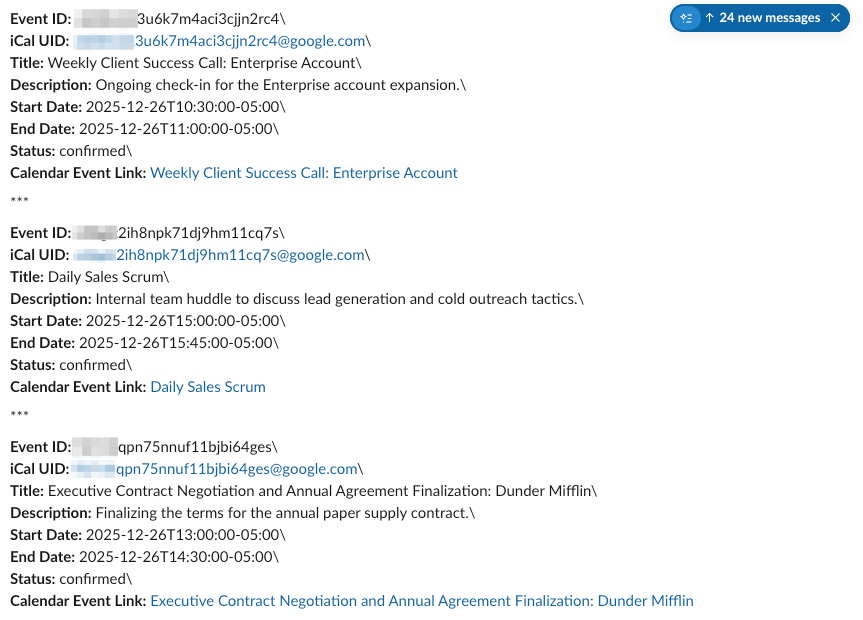
Here's what the results might look like in Slack:
The action outputs a list of events. Use the variable picker in subsequent steps to reference event data. See the output variables table below for the full list.
Because this action returns a list of events, use a [Loop action](/reference/actions/loop) to process each event individually.
## Output variables
| Variable | Description |
| ------------------------ | ----------------------------------------------------------------- |
| **Event ID** | Unique identifier of the calendar event |
| **iCal UID** | iCalendar event ID in iCalendar format |
| **Recurring Event ID** | ID of a recurring event |
| **Sequence** | Version number that increments with changes |
| **Recurrence** | Repeating schedule (iCalendar RFC 5545 format) |
| **Creator** | Event creator's email, name, and Self status |
| **Organizer** | Event organizer's email, name, and Self status |
| **Created Date** | When the event was created (UTC, ISO 8601) |
| **Updated Date** | When the event was last modified (UTC, ISO 8601) |
| **Start Date** | When the event begins |
| **End Date** | When the event ends |
| **End Time Unspecified** | Whether the event's end time is missing |
| **Original Start Time** | Original start for recurring instance |
| **Status** | Event state: confirmed, tentative, or cancelled |
| **Event Type** | Classification: default, outOfOffice, focusTime, workingLocation |
| **Visibility** | Visibility level: default, public, private, confidential |
| **Transparent** | Whether the event blocks time (opaque = Busy, transparent = Free) |
| **Calendar Event Link** | Link to the calendar event |
| **Meeting Link** | Conference URL (e.g., Google Meet) |
| **Title** | Title or subject of the event |
| **Description** | Event description |
| **Location** | Event location |
| **Attendees Omitted** | Whether attendee list was excluded (too large) |
| **Attendees** | List of people invited to the event |
## Example workflow: Daily meeting prep
Here's how to set up a Workflow that prepares you for the day's meetings:
Set it to run daily at 8am. See [Scheduled trigger](/reference/triggers/scheduled) for details.
Configure it to retrieve today's events.
Loop through each event returned by the Get Google Calendar Events action.
Use the event's title, description, and attendee information to research and prepare a brief summary. See [Generate Text](/reference/actions/generate-text) for details.
Combine all meeting summaries and send them to yourself in Slack. See [Send Slack message](/integrations/slack/send-slack-message) for details.
Here's what the results might look like in Slack:
 ## Related
* [New or updated Google Calendar event trigger](/integrations/google-workspace/google-calendar/new-or-updated-event-trigger)
* [Create Google Calendar event](/integrations/google-workspace/google-calendar/create-event)
* [Update Google Calendar event](/integrations/google-workspace/google-calendar/update-event)
* [Get Google Calendar schedule](/integrations/google-workspace/google-calendar/get-schedule)
* [Google Calendar for Workflows](/integrations/google-workspace/google-calendar/workflows)
## Related
* [New or updated Google Calendar event trigger](/integrations/google-workspace/google-calendar/new-or-updated-event-trigger)
* [Create Google Calendar event](/integrations/google-workspace/google-calendar/create-event)
* [Update Google Calendar event](/integrations/google-workspace/google-calendar/update-event)
* [Get Google Calendar schedule](/integrations/google-workspace/google-calendar/get-schedule)
* [Google Calendar for Workflows](/integrations/google-workspace/google-calendar/workflows)