> ## Documentation Index
> Fetch the complete documentation index at: https://docs.cassidyai.com/llms.txt
> Use this file to discover all available pages before exploring further.

# Google Drive for Knowledge Base

> Import Google Drive documents and folders into your Knowledge Base for AI-powered search.

Import Google Drive documents, spreadsheets, slides, and folders into your [Knowledge Base](/knowledge-base/overview) so your [Agents](/agents/overview) and [Workflows](/workflows/overview) can search and reference them when generating answers.

## Connect your account

<Steps>
  <Step title="Open connected apps">
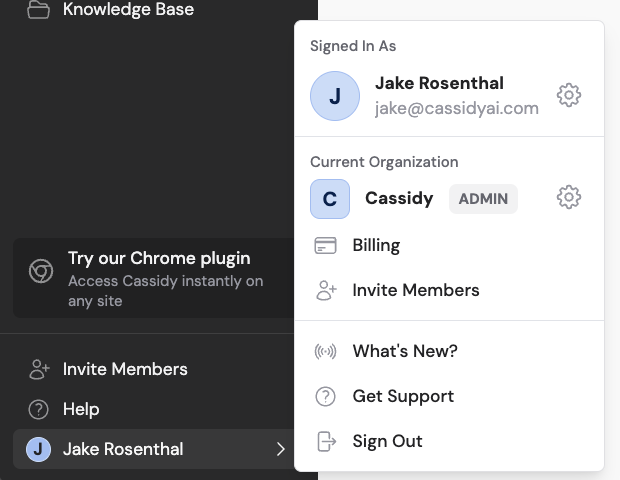
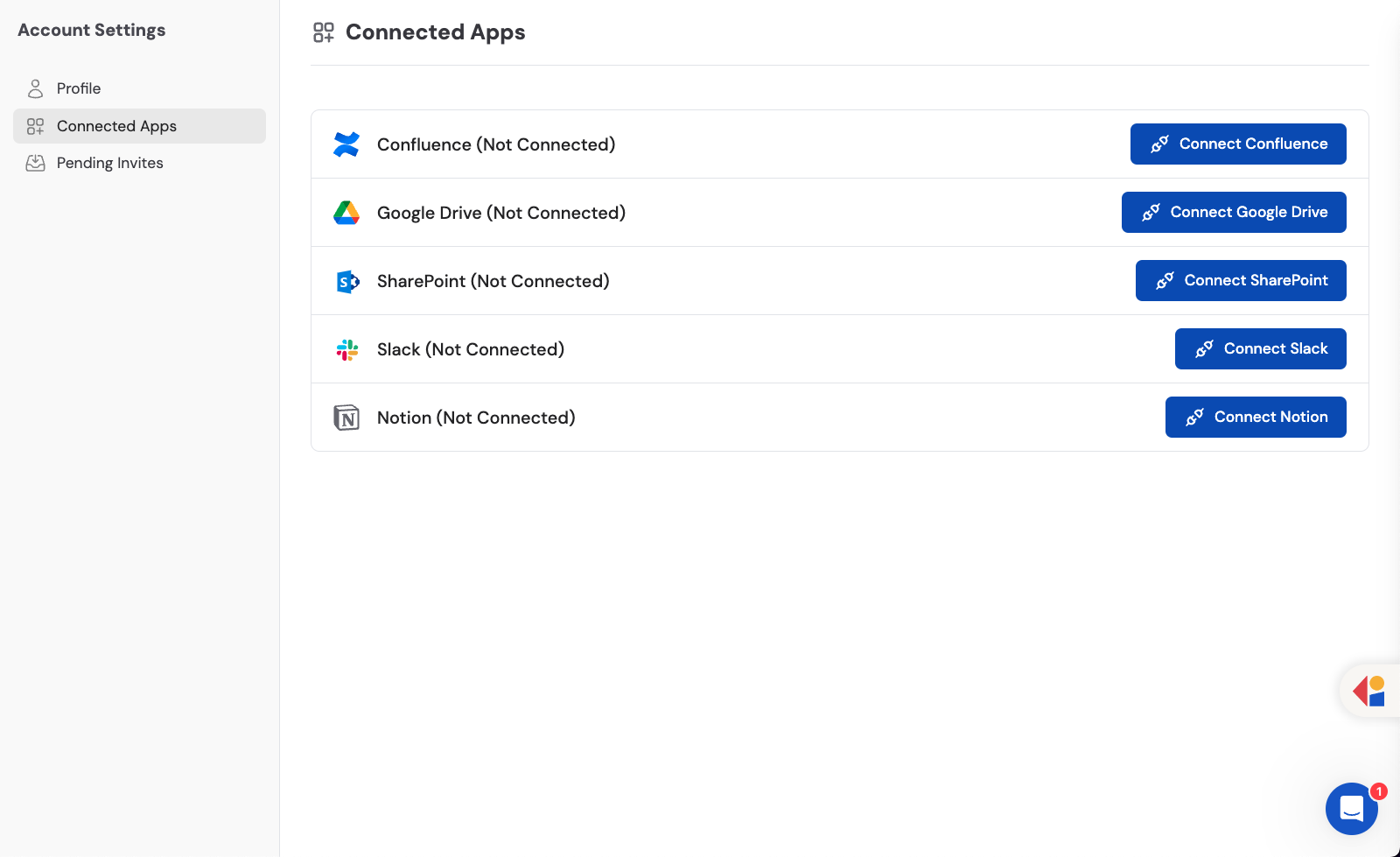
    Click your name in the bottom-left of the sidebar, then click the settings icon to open **Settings**. Select **Connected Apps**.
    <Frame>
      <img src="https://mintcdn.com/cassidy/qKWfjzQ47rz14Mj6/images/integrations/connecting-to-google-drive-img-0.png?fit=max&auto=format&n=qKWfjzQ47rz14Mj6&q=85&s=6867d9acf416a84187967378e136bb94" alt="Settings sidebar showing the account settings entry point" width="620" height="480" data-path="images/integrations/connecting-to-google-drive-img-0.png" />
    </Frame>

    <Frame>
      <img src="https://mintcdn.com/cassidy/qKWfjzQ47rz14Mj6/images/integrations/connecting-to-google-drive-img-1.png?fit=max&auto=format&n=qKWfjzQ47rz14Mj6&q=85&s=fe81d536aa14b59fa9932bcc7f4e3112" alt="Connected Apps page in account settings" width="1600" height="979" data-path="images/integrations/connecting-to-google-drive-img-1.png" />
    </Frame>
  </Step>

  <Step title="Start the Google Drive connection">
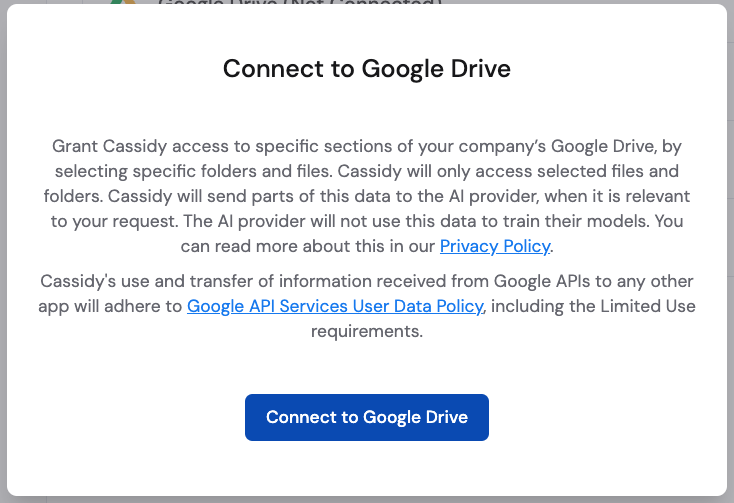
    Find **Google Drive** in the list and click **Connect**.
    <Frame>
      <img src="https://mintcdn.com/cassidy/qKWfjzQ47rz14Mj6/images/integrations/connecting-to-google-drive-img-2.png?fit=max&auto=format&n=qKWfjzQ47rz14Mj6&q=85&s=c9d2d1d9fb5bab81b463859efd3587b3" alt="Google Drive Connect button in the Connected Apps list" width="734" height="503" data-path="images/integrations/connecting-to-google-drive-img-2.png" />
    </Frame>
  </Step>

  <Step title="Log in to Google">
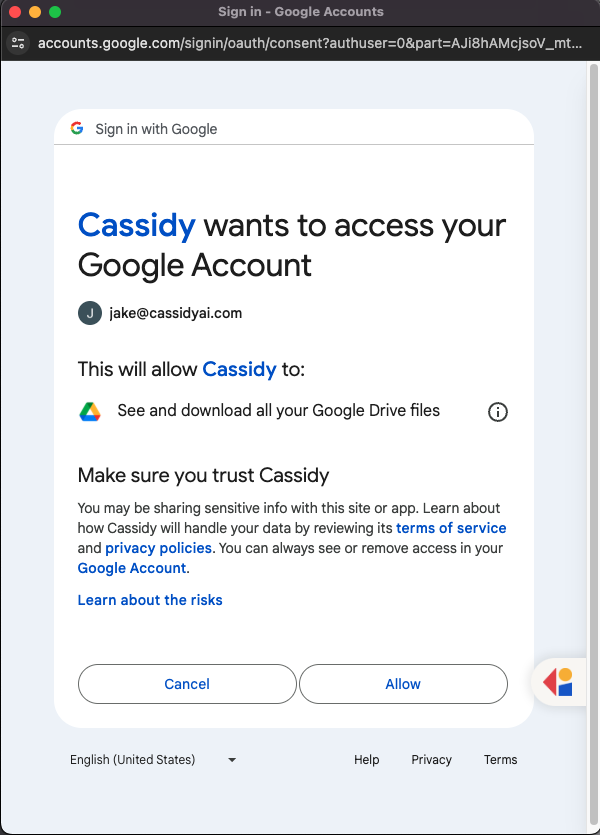
    Sign in to your Google account in the popup window.
    <Frame>
      <img src="https://mintcdn.com/cassidy/qKWfjzQ47rz14Mj6/images/integrations/connecting-to-google-drive-img-3.png?fit=max&auto=format&n=qKWfjzQ47rz14Mj6&q=85&s=7ea4eb8a564f379df969d1bd7ce2dac4" alt="Google account login prompt for Cassidy authorization" width="600" height="835" data-path="images/integrations/connecting-to-google-drive-img-3.png" />
    </Frame>
  </Step>

  <Step title="Accept the access request">
    Review the permissions and click **Accept** to grant access to your Google Drive files and folders.

    <Frame>
      <img src="https://mintcdn.com/cassidy/qKWfjzQ47rz14Mj6/images/integrations/connecting-to-google-drive-img-4.png?fit=max&auto=format&n=qKWfjzQ47rz14Mj6&q=85&s=7f1442a340e3a04dc842258f91154e36" alt="Google Drive connection confirmed in Cassidy settings" width="1222" height="82" data-path="images/integrations/connecting-to-google-drive-img-4.png" />
    </Frame>
  </Step>
</Steps>

## Import content

<Steps>
  <Step title="Add a Google Drive source">
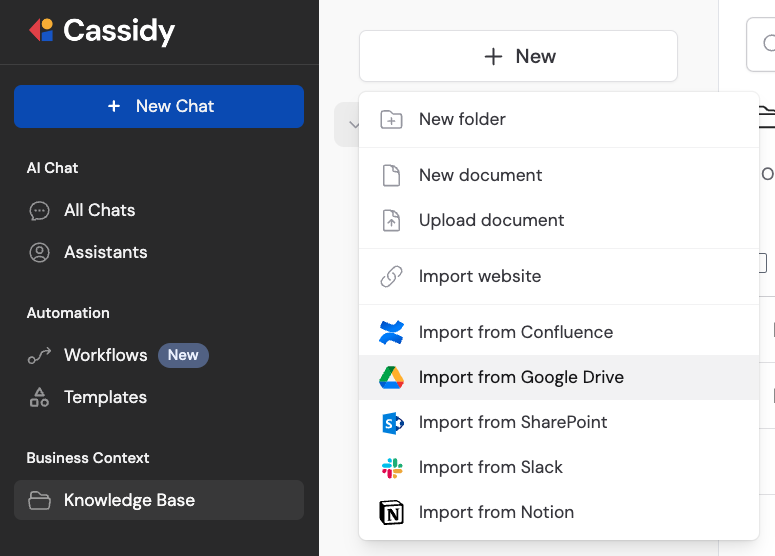
    Navigate to **Knowledge Base** in the sidebar and click **Add**. Select **Google Drive** from the list of available sources.
    <Frame>
      <img src="https://mintcdn.com/cassidy/qKWfjzQ47rz14Mj6/images/integrations/connecting-to-google-drive-img-5.png?fit=max&auto=format&n=qKWfjzQ47rz14Mj6&q=85&s=079211b679edaa4bd9bfd33c58b17383" alt="Knowledge Base import section showing Google Drive as a source" width="775" height="556" data-path="images/integrations/connecting-to-google-drive-img-5.png" />
    </Frame>
  </Step>

  <Step title="Select files and folders">
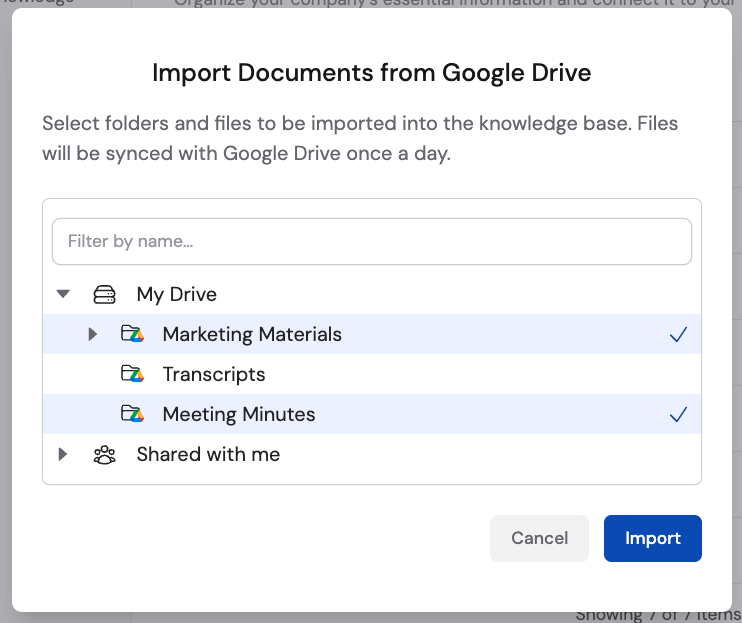
    Browse your Google Drive and select the files or folders you want to import, then click **Import**.
    <Frame>
      <img src="https://mintcdn.com/cassidy/qKWfjzQ47rz14Mj6/images/integrations/connecting-to-google-drive-img-6.png?fit=max&auto=format&n=qKWfjzQ47rz14Mj6&q=85&s=6fd8639fe861772ff4498b3eb9c0dc0e" alt="File and folder selection dialog for Google Drive import" width="742" height="623" data-path="images/integrations/connecting-to-google-drive-img-6.png" />
    </Frame>
  </Step>
</Steps>

<Note>Imported content syncs automatically every 24 hours. Enterprise plans support live sync for near-real-time updates. Learn more about [sync behavior](/integrations/sync-integrations).</Note>

## Next steps

<CardGroup cols={2}>
  <Card title="Use Google Drive in Workflows" icon="diagram-project" href="/integrations/google-workspace/google-drive/workflows">
    Trigger automations from file changes and manage files programmatically.
  </Card>

  <Card title="Explore the Knowledge Base" icon="book" href="/knowledge-base/overview">
    Learn how to organize and manage your imported content.
  </Card>
</CardGroup>
