> ## Documentation Index
> Fetch the complete documentation index at: https://docs.cassidyai.com/llms.txt
> Use this file to discover all available pages before exploring further.
# Google Sheets Agent Connector
> Let Agents read, update, and add to your Google Sheets spreadsheets in real time during conversations.
The Google Sheets Connector lets your [Agents](/agents/overview) work with
spreadsheet data during a conversation — summarize a sheet, look up values,
append rows, or update cells. Data is queried in real time and never imported
or indexed in Cassidy.
The Connector works best when you point it at a specific spreadsheet. Paste a
Google Sheets link into your message — for example, "Summarize this
spreadsheet: \[link]" or "Add a row for the new lead to \[link]".
## Set up the Google Sheets Connector on an Agent
Go to **Agents**, select the Agent you want to configure, and open the
**Setup** tab.
Scroll to the **Connectors** section, click **+ Add Connector**, and select
**Google Sheets**.
Select how users will authenticate:
* **Each user connects their own account** (recommended) — each person
signs in with their own Google credentials, so the Agent only sees
spreadsheets that person can access.
* **Use a shared connection** — everyone uses one Google account. Best when
the team works from shared spreadsheets owned by a service account.
Create a shared connection, complete the Google sign-in, and give the
connection a recognizable name.
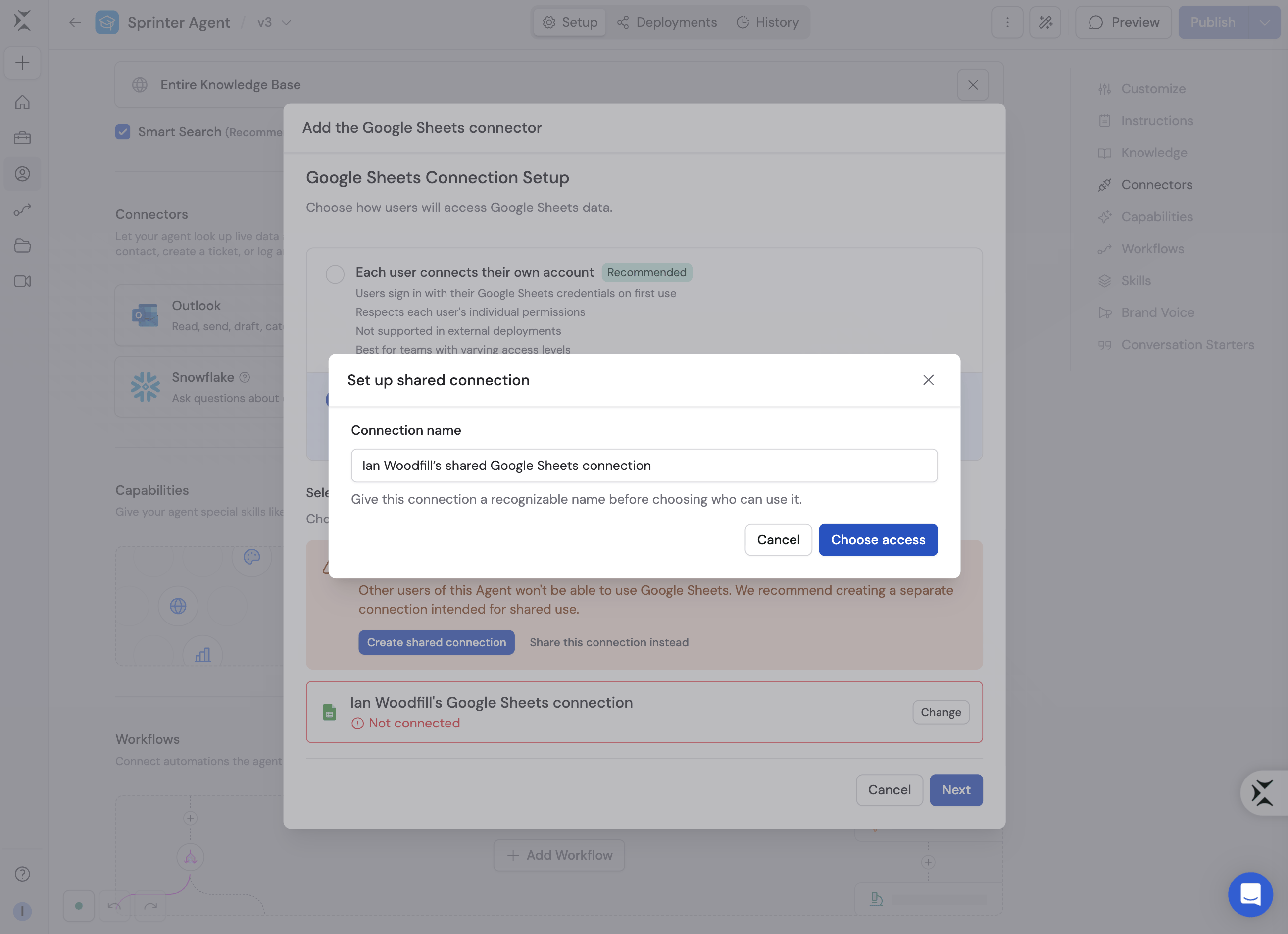 Then choose the people and groups who can use it.
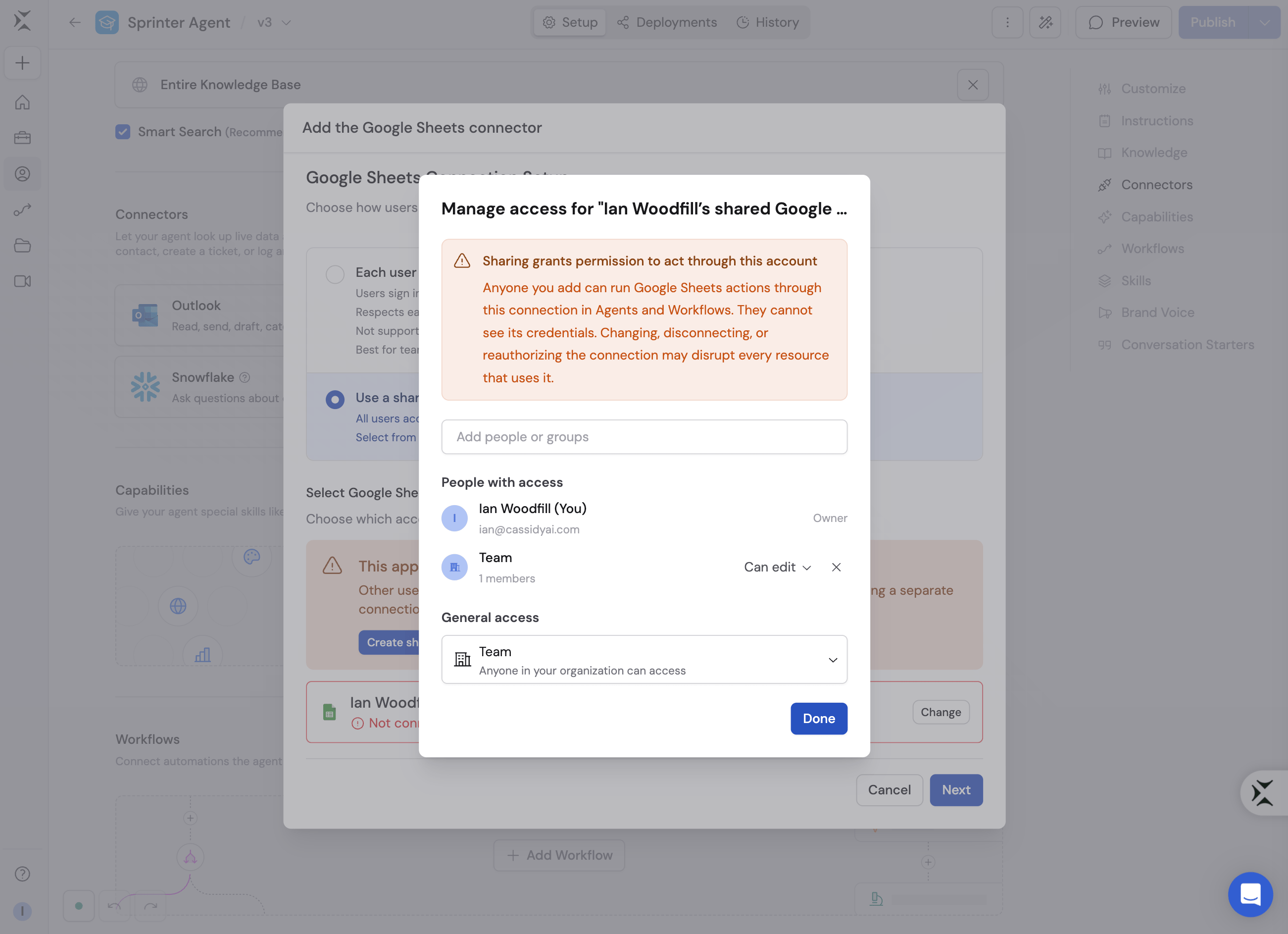 Everyone with access acts through the same Google account. Use a
dedicated service account when possible.
Google Sheets actions are grouped into three categories. Set each category
— or individual actions within it — to **Always allow**, **Ask every
time**, or **Disabled**:
* **View Data** — Search spreadsheets, get spreadsheet info, sheet names,
and cell values. Allowed automatically by default.
* **Create & Modify** — Create spreadsheets, add rows and columns, update
or append values. Disabled by default until you enable it.
* **Remove Data** — Delete sheets or clear cell values. Disabled by default.
Review **Create & Modify** and **Remove Data** carefully — **Always
allow** lets the Agent change spreadsheet data without asking first.
Click **Add connector**, save the Agent, and start a chat. With a per-user
connection, each person is prompted to connect their Google account the
first time the Agent uses Google Sheets.
## Connect Google Sheets for yourself
To use Google Sheets in any chat, not just with this Agent, open **Customize** →
**Connectors**, find **Google Sheets**, and click **Connect**. See [Add a Connector for
yourself](/agents/connectors/overview#add-a-connector-for-yourself).
## What your Agent can do
| Category | Actions |
| ------------------- | ------------------------------------------------------------------------------------------------------------ |
| **View Data** | Search spreadsheets, get spreadsheet info, get sheet names, get spreadsheet values |
| **Create & Modify** | Create a new spreadsheet, create rows and columns, update spreadsheet values, append values to a spreadsheet |
| **Remove Data** | Delete a sheet, delete cell values |
Try prompts like:
* "Summarize this spreadsheet: \[link]"
* "Add a row to \[link] with yesterday's numbers"
* "What changed in the Q3 pipeline sheet this week?"
## Data security
Spreadsheet data is queried in real time and is not imported or indexed in
Cassidy. With per-user connections, the Agent can only access spreadsheets the
signed-in person can access in Google.
## Next steps
Learn how Connectors, approvals, and personal connections work.
Trigger Workflows from spreadsheet changes and manage sheet data
automatically.
Everyone with access acts through the same Google account. Use a
dedicated service account when possible.
Google Sheets actions are grouped into three categories. Set each category
— or individual actions within it — to **Always allow**, **Ask every
time**, or **Disabled**:
* **View Data** — Search spreadsheets, get spreadsheet info, sheet names,
and cell values. Allowed automatically by default.
* **Create & Modify** — Create spreadsheets, add rows and columns, update
or append values. Disabled by default until you enable it.
* **Remove Data** — Delete sheets or clear cell values. Disabled by default.
Review **Create & Modify** and **Remove Data** carefully — **Always
allow** lets the Agent change spreadsheet data without asking first.
Click **Add connector**, save the Agent, and start a chat. With a per-user
connection, each person is prompted to connect their Google account the
first time the Agent uses Google Sheets.
## Connect Google Sheets for yourself
To use Google Sheets in any chat, not just with this Agent, open **Customize** →
**Connectors**, find **Google Sheets**, and click **Connect**. See [Add a Connector for
yourself](/agents/connectors/overview#add-a-connector-for-yourself).
## What your Agent can do
| Category | Actions |
| ------------------- | ------------------------------------------------------------------------------------------------------------ |
| **View Data** | Search spreadsheets, get spreadsheet info, get sheet names, get spreadsheet values |
| **Create & Modify** | Create a new spreadsheet, create rows and columns, update spreadsheet values, append values to a spreadsheet |
| **Remove Data** | Delete a sheet, delete cell values |
Try prompts like:
* "Summarize this spreadsheet: \[link]"
* "Add a row to \[link] with yesterday's numbers"
* "What changed in the Q3 pipeline sheet this week?"
## Data security
Spreadsheet data is queried in real time and is not imported or indexed in
Cassidy. With per-user connections, the Agent can only access spreadsheets the
signed-in person can access in Google.
## Next steps
Learn how Connectors, approvals, and personal connections work.
Trigger Workflows from spreadsheet changes and manage sheet data
automatically.