> ## Documentation Index
> Fetch the complete documentation index at: https://docs.cassidyai.com/llms.txt
> Use this file to discover all available pages before exploring further.
# HubSpot Agent Connector
> Let Agents query and update HubSpot records in real time during conversations.
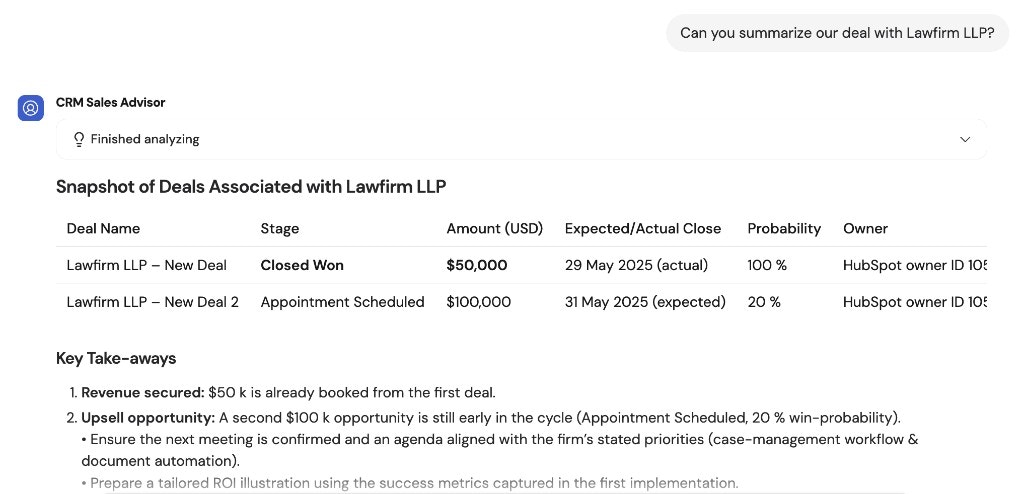
The HubSpot [Connector](/agents/connectors/overview) lets your [Agents](/agents/overview) search and retrieve customer information from HubSpot CRM during conversations. When a user asks about a contact, deal, or company, the Agent queries HubSpot in real time and returns the relevant data. The Connector is designed for searching and retrieving specific information rather than analyzing large datasets.
For best results with Connector queries, use a powerful, reasoning-capable model. Cassidy supports models from OpenAI, Anthropic, and Google — see [Choose the right AI model](/guides/choose-ai-model) for current recommendations.
The HubSpot Connector works best for searching specific information or small batch queries. For complex data analysis queries like "what is our average deal size this year," consider using [Code Execution & File Creation](/agents/advanced/code-execution-file-creation) or exporting data from HubSpot directly.
## Set up the HubSpot Connector
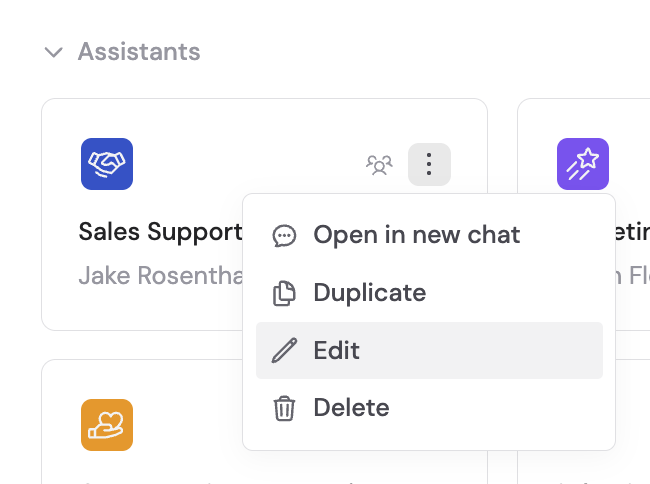
Navigate to **Agents**, find the Agent you want to configure, click **...** and select **Edit**.
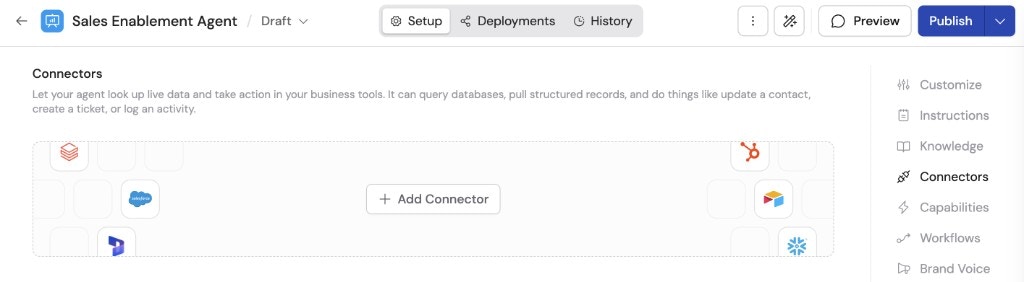
 In the **Setup** tab, scroll to the **Connectors** section.
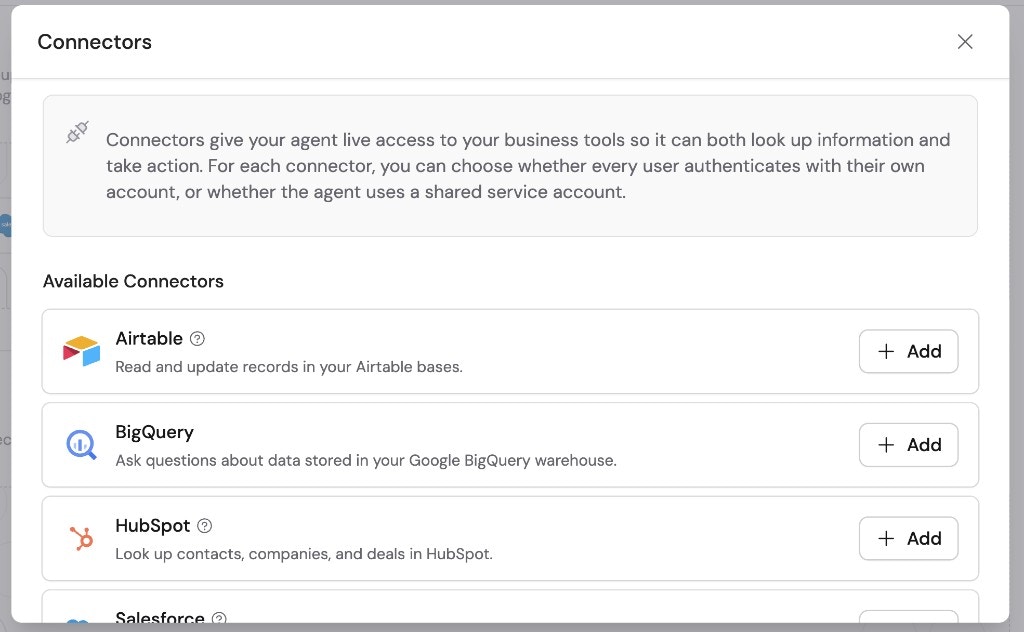
 Click **+ Add Connector** and click **+ Add** on the **HubSpot** option.
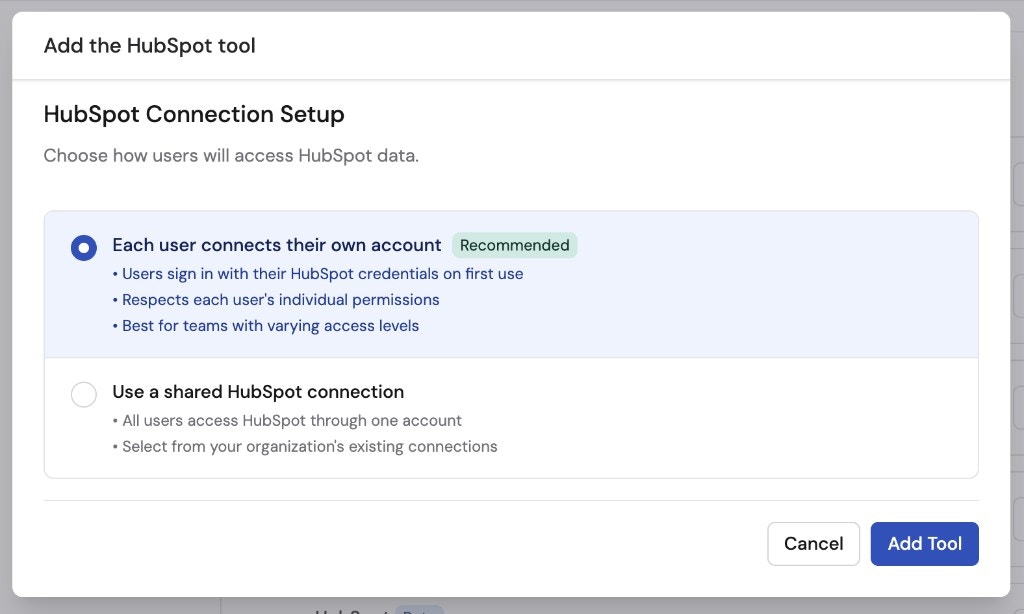
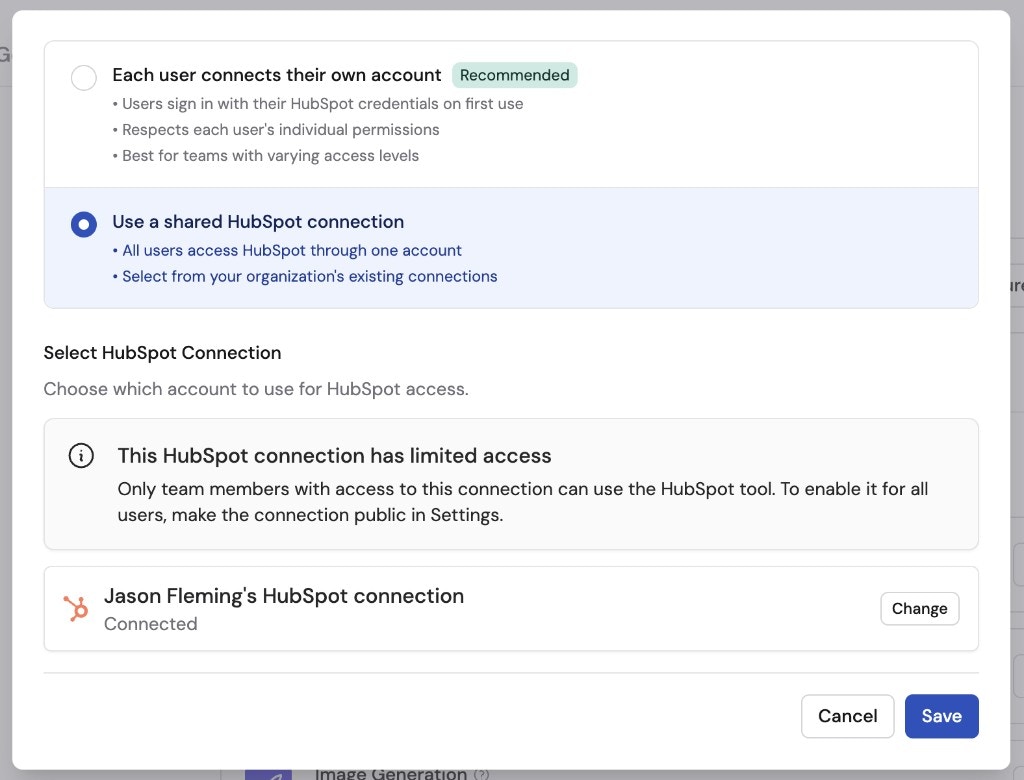
 Select how users will authenticate with HubSpot:
* **Each user connects their own account** (recommended) — Users sign in with their HubSpot credentials on first use. Respects each user's individual permissions. Best for teams with varying access levels.
* **Use a shared HubSpot connection** — All users access HubSpot through one account using your organization's existing connections.
Select how users will authenticate with HubSpot:
* **Each user connects their own account** (recommended) — Users sign in with their HubSpot credentials on first use. Respects each user's individual permissions. Best for teams with varying access levels.
* **Use a shared HubSpot connection** — All users access HubSpot through one account using your organization's existing connections.
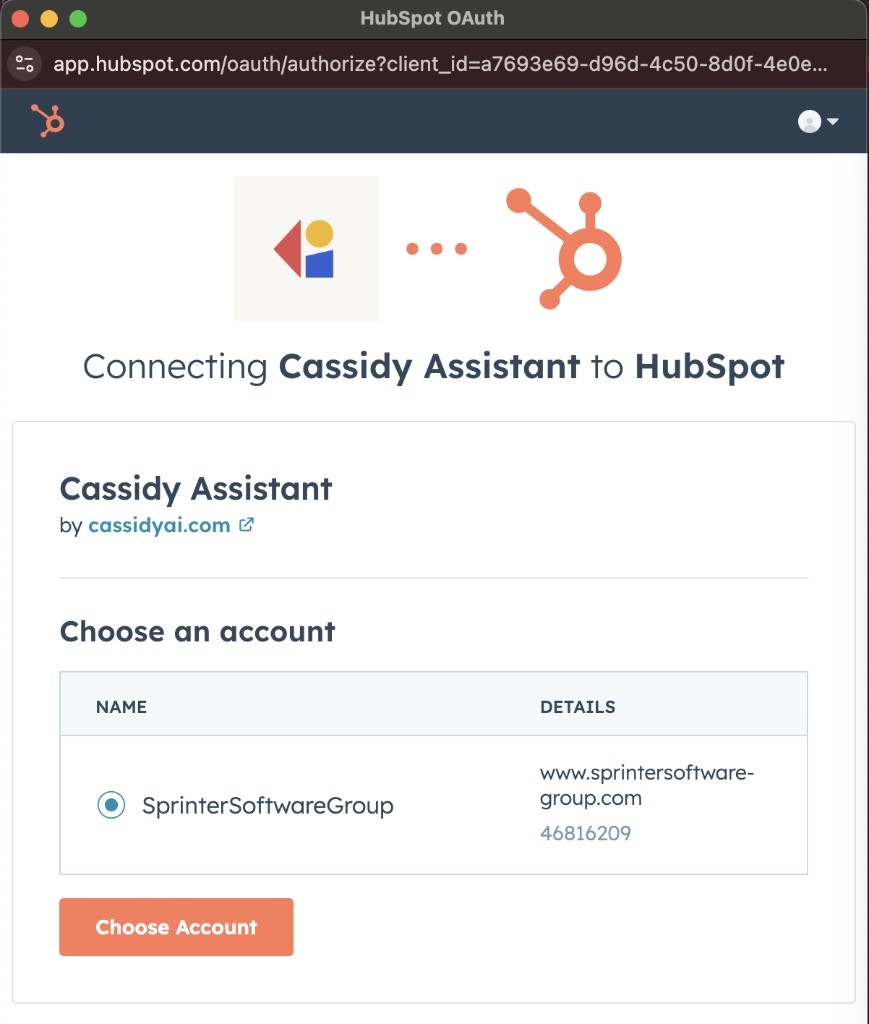
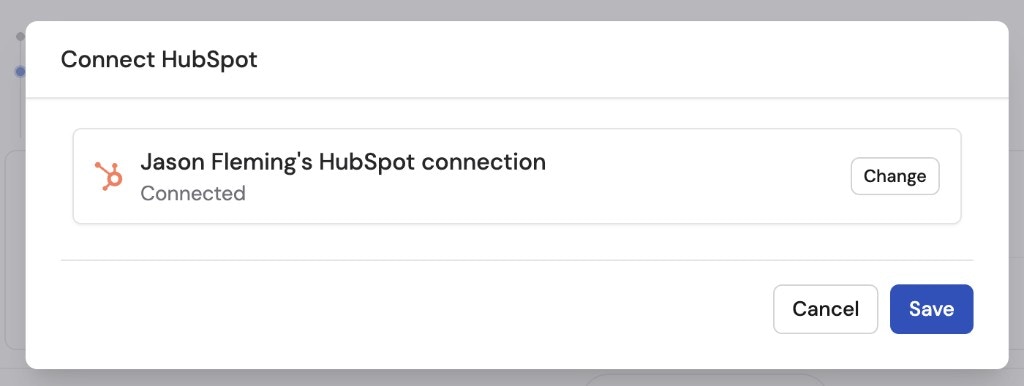
 If you chose **Use a shared HubSpot connection**, click **Connect** to sign in. You'll be redirected to HubSpot to select your account and accept the access request.

 Once connected, click **Save** to complete the setup.
 Navigate to **Chat** and select the Agent with the HubSpot Connector enabled.
If you chose **Each user connects their own account**, users are prompted to connect their HubSpot account from within the chat the first time they use the Connector. Click **Connect** when prompted.
Navigate to **Chat** and select the Agent with the HubSpot Connector enabled.
If you chose **Each user connects their own account**, users are prompted to connect their HubSpot account from within the chat the first time they use the Connector. Click **Connect** when prompted.
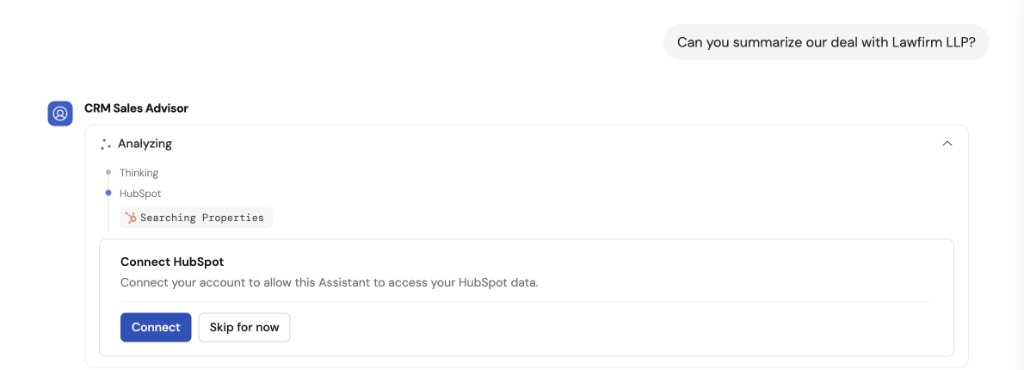
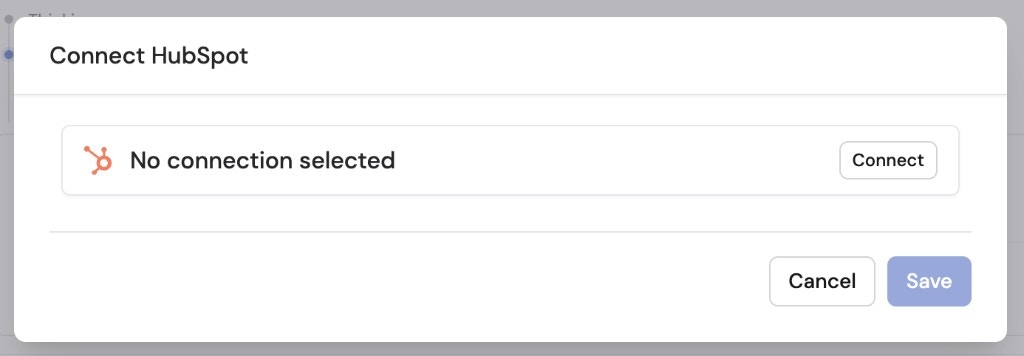 Once connected, click **Save** to finalize the setup.
 Your Agent can now access HubSpot data to answer questions about contacts, deals, companies, and other CRM records directly in the conversation.
 ## Next steps
Trigger Workflows from record changes and push AI-generated results back to your CRM.
Learn about other Connectors available for your Agents.
## Next steps
Trigger Workflows from record changes and push AI-generated results back to your CRM.
Learn about other Connectors available for your Agents.