> ## Documentation Index
> Fetch the complete documentation index at: https://docs.cassidyai.com/llms.txt
> Use this file to discover all available pages before exploring further.
# Create HubSpot association
> Link two HubSpot records together, such as associating a contact with a company.
The Create HubSpot Association action links two records in HubSpot — contacts to companies, deals to contacts, and more. Use it to maintain organized relationships in your CRM by automatically associating related records.
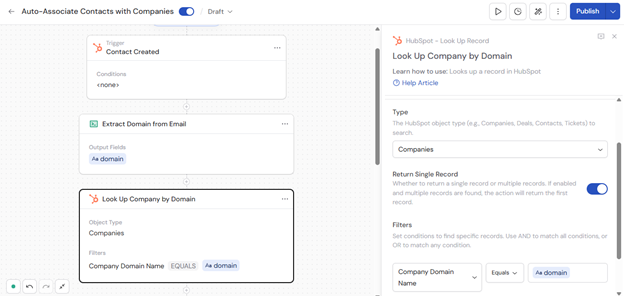
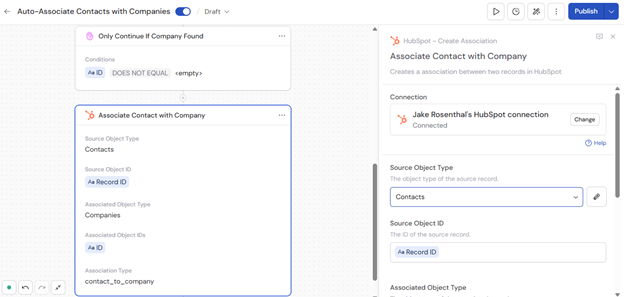
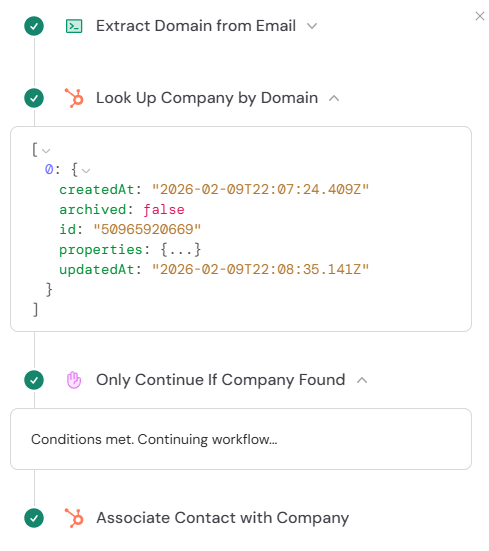
This guide walks through an example Workflow that automatically associates new HubSpot contacts with their company. The Workflow triggers when a contact is created, extracts the domain from the contact's email, looks up a matching company by that domain, and creates an association between them.
In the [Workflow builder](/workflows/building), click the **+** button between existing blocks. Select **Create Association** from the action list.
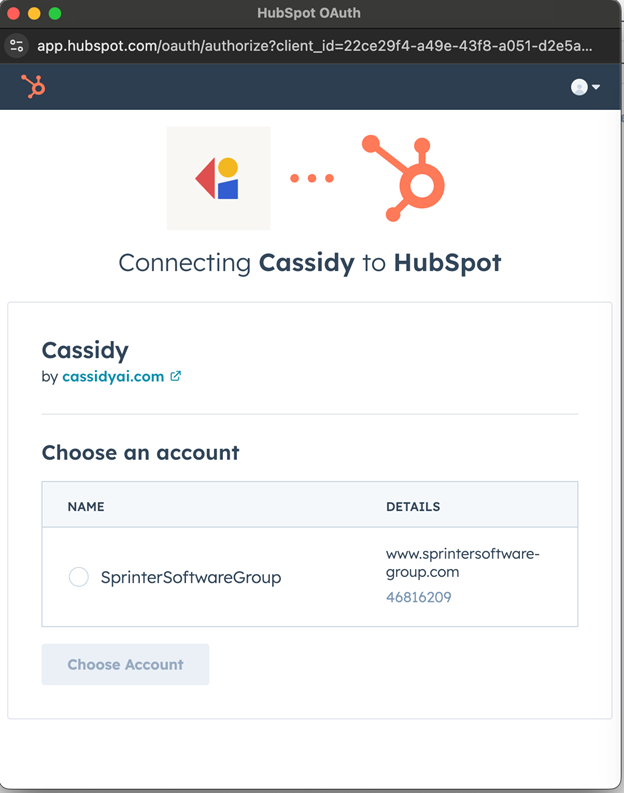
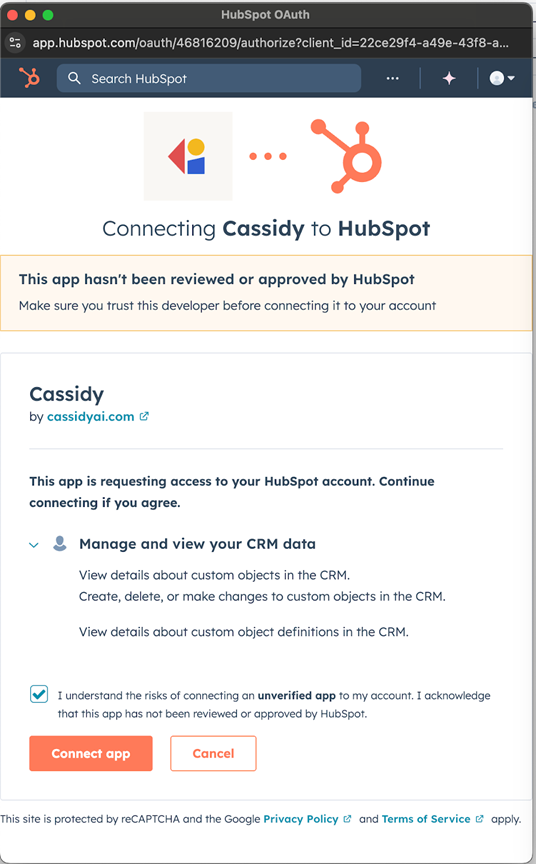
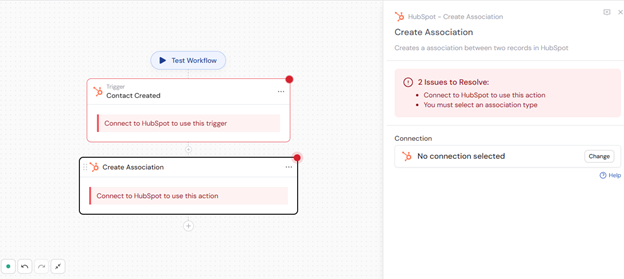 If you haven't already, [connect your HubSpot account](/integrations/hubspot/overview) to Cassidy.
 Enter a more descriptive name to make the action easier to reference as a variable later.
 To use the Create Association action, configure earlier steps in your Workflow to provide the record IDs you want to associate. For example:
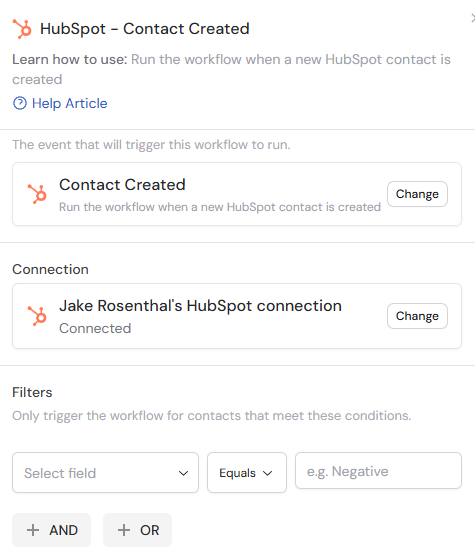
* **Add a trigger** such as **HubSpot Contact Created** to activate the Workflow when a new contact is created. Click **Add Filter** to narrow which contacts trigger the Workflow.
To use the Create Association action, configure earlier steps in your Workflow to provide the record IDs you want to associate. For example:
* **Add a trigger** such as **HubSpot Contact Created** to activate the Workflow when a new contact is created. Click **Add Filter** to narrow which contacts trigger the Workflow.
 * **Add a [Look Up HubSpot Record](/integrations/hubspot/look-up-record) action** to find the record you want to associate with. For example, search for a company by domain name using a variable from the trigger.
 Choose the object type of the source record: **Contacts**, **Companies**, **Deals**, or **Tickets**.
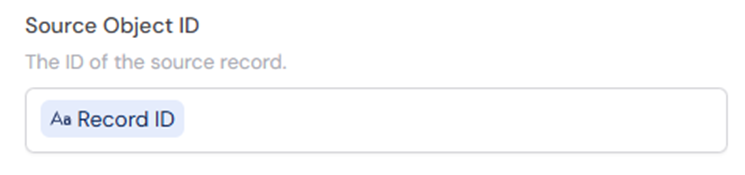
 Provide the ID of the source record. Type the ID directly or press **#** to reference a variable from a previous step or trigger.
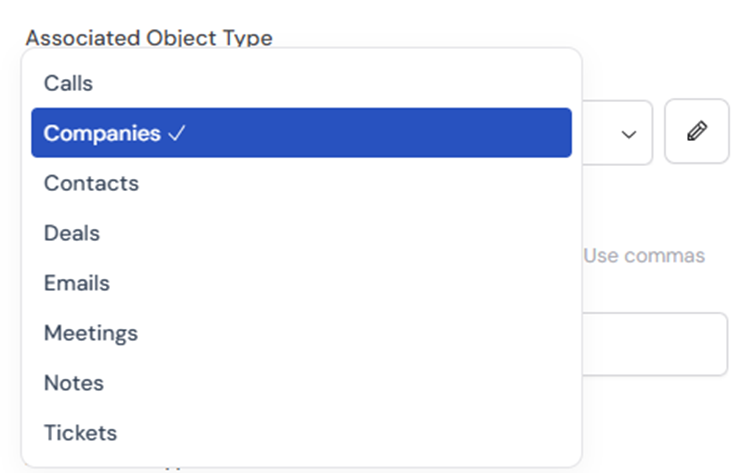
 Choose the object type of the record you want to associate with the source: **Companies**, **Contacts**, **Deals**, or **Tickets**.
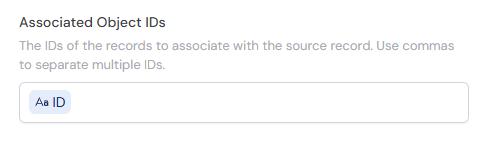
 Provide the IDs of the records to associate with the source record. Type the IDs directly or press **#** to reference a variable. Separate multiple IDs with commas to create multiple associations at once.
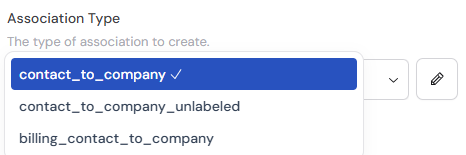
 Choose the type of association to create. Options vary by the selected object types and include values like `contact_to_company`, `contact_to_company_unlabeled`, and `billing_contact_to_company`.
 Run the Workflow to verify the action works correctly. The output confirms that the association was successfully created between the specified HubSpot records.
 ## Related
* [Remove HubSpot Association](/integrations/hubspot/remove-association)
* [Find Associated HubSpot Records](/integrations/hubspot/find-associated-records)
* [Look Up HubSpot Record](/integrations/hubspot/look-up-record)
* [HubSpot for Workflows](/integrations/hubspot/workflows)
## Related
* [Remove HubSpot Association](/integrations/hubspot/remove-association)
* [Find Associated HubSpot Records](/integrations/hubspot/find-associated-records)
* [Look Up HubSpot Record](/integrations/hubspot/look-up-record)
* [HubSpot for Workflows](/integrations/hubspot/workflows)