> ## Documentation Index
> Fetch the complete documentation index at: https://docs.cassidyai.com/llms.txt
> Use this file to discover all available pages before exploring further.
# Find associated HubSpot records
> Retrieve records associated with a source record in HubSpot.
The Find Associated HubSpot Records action retrieves records associated with a source record in HubSpot. Use it to access related contacts, deals, companies, or tickets within your Workflows — for example, finding all open deals linked to a specific contact.
This guide walks through an example Workflow that finds active deals associated with a meeting participant. The Workflow triggers when a meeting ends, looks up the contact by email, retrieves associated deals, and generates a follow-up summary.
In the [Workflow builder](/workflows/building), click the **+** button between existing blocks. Select **Find Associated Records** from the action list.
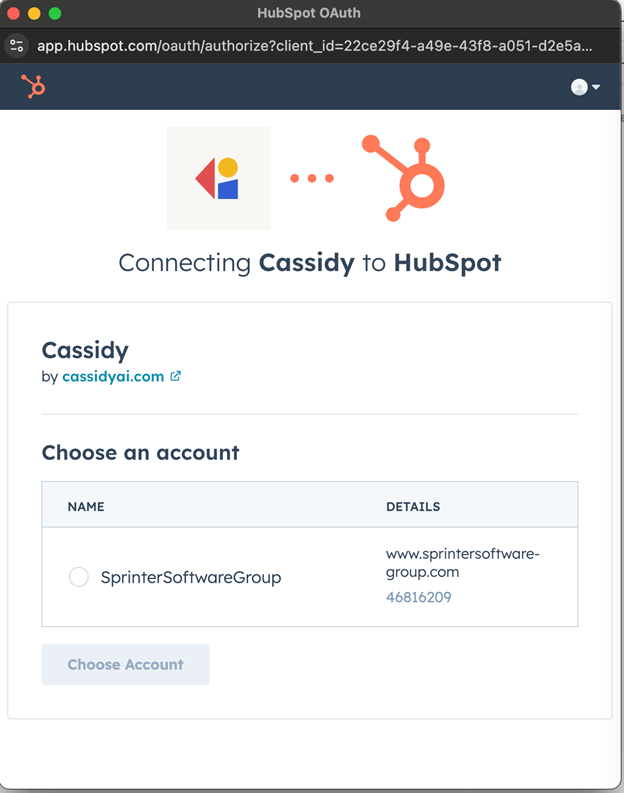
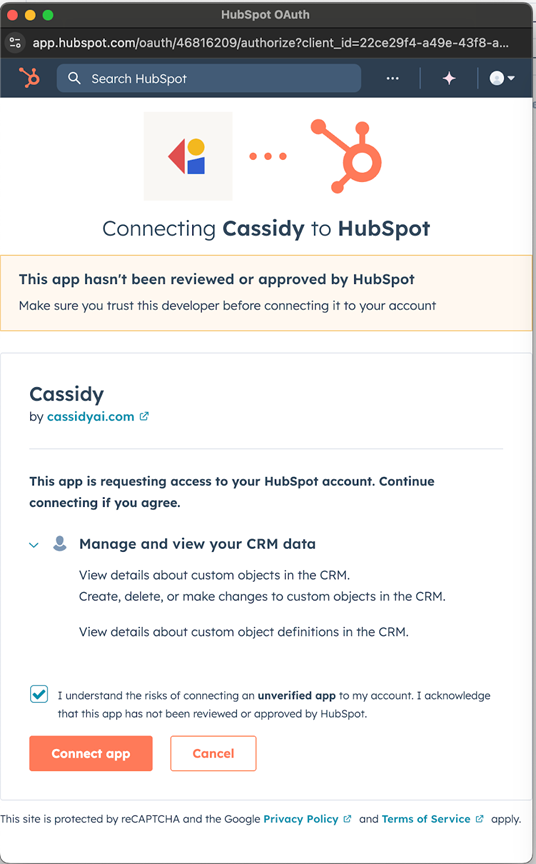
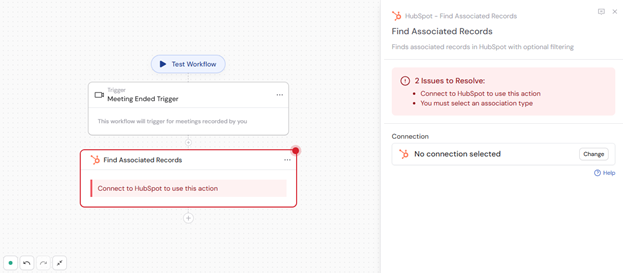 If you haven't already, [connect your HubSpot account](/integrations/hubspot/overview) to Cassidy.
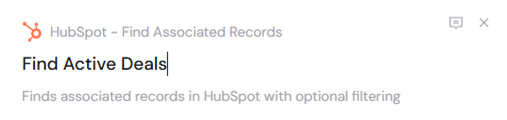
 Enter a more descriptive name to make the action easier to reference as a variable later.
 Before configuring the Find Associated Records action, add the necessary preceding actions. For example:
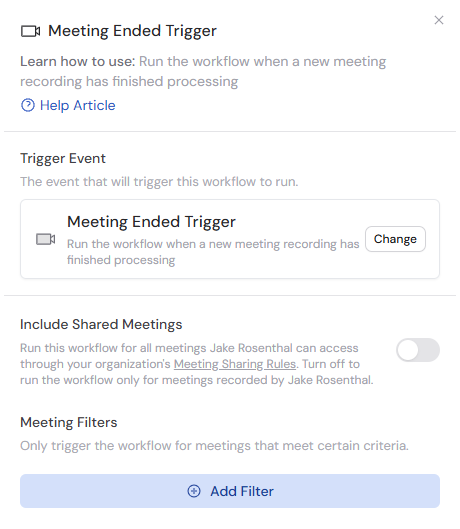
* **Add a trigger** such as a **Meeting Ended** trigger.
Before configuring the Find Associated Records action, add the necessary preceding actions. For example:
* **Add a trigger** such as a **Meeting Ended** trigger.
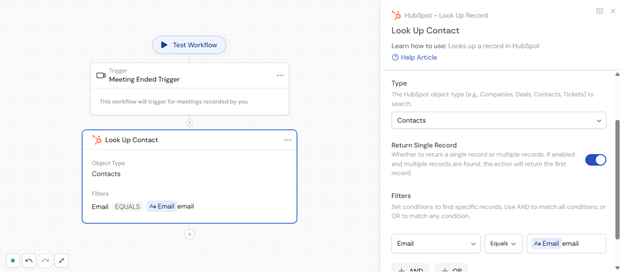
 * **Add a [Look Up HubSpot Record](/integrations/hubspot/look-up-record) action** to find the contact by email from the trigger.
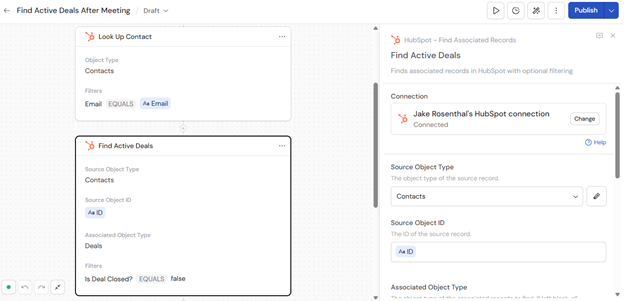
 Choose the HubSpot object type of the source record: **Contacts**, **Companies**, **Deals**, or **Tickets**.
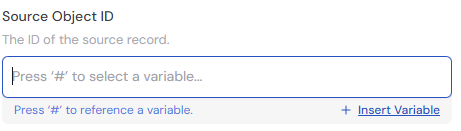
 Provide the ID of the source record. Type the ID directly or press **#** to reference a variable from a previous step or trigger.
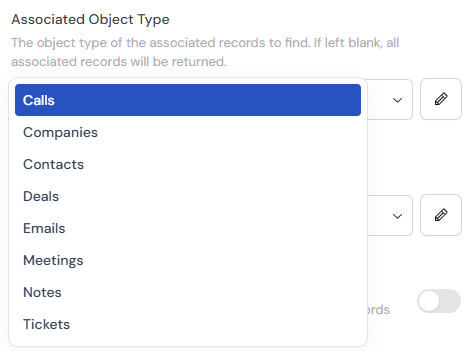
 Choose the type of associated records to find: **Deals**, **Contacts**, **Companies**, or **Tickets**. If left blank, all associated records are returned.
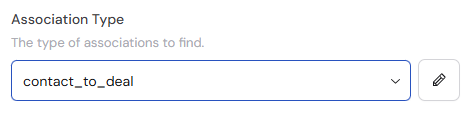
 Specify the type of association to filter by, such as `contact_to_deal` or `deal_to_company`. This narrows down the specific relationship between records.
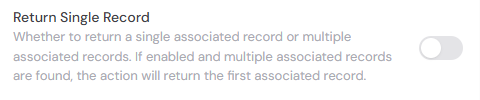
 Enable **Return Single Record** if you only want one associated record returned. When multiple records match, the action returns the first one.
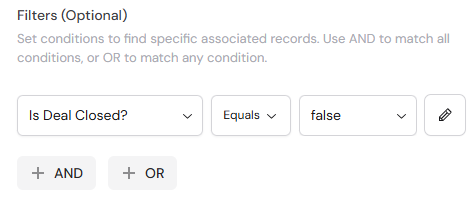
 Click **Add Condition** to filter associated records by specific criteria. Select a field, choose an operation (equals, contains, etc.), and enter the value. You can add multiple conditions using **AND** or **OR** operators.
 After retrieving associated records, you can add a [Generate Text](/reference/actions/generate-text) action to create summaries or follow-up content using the record data.
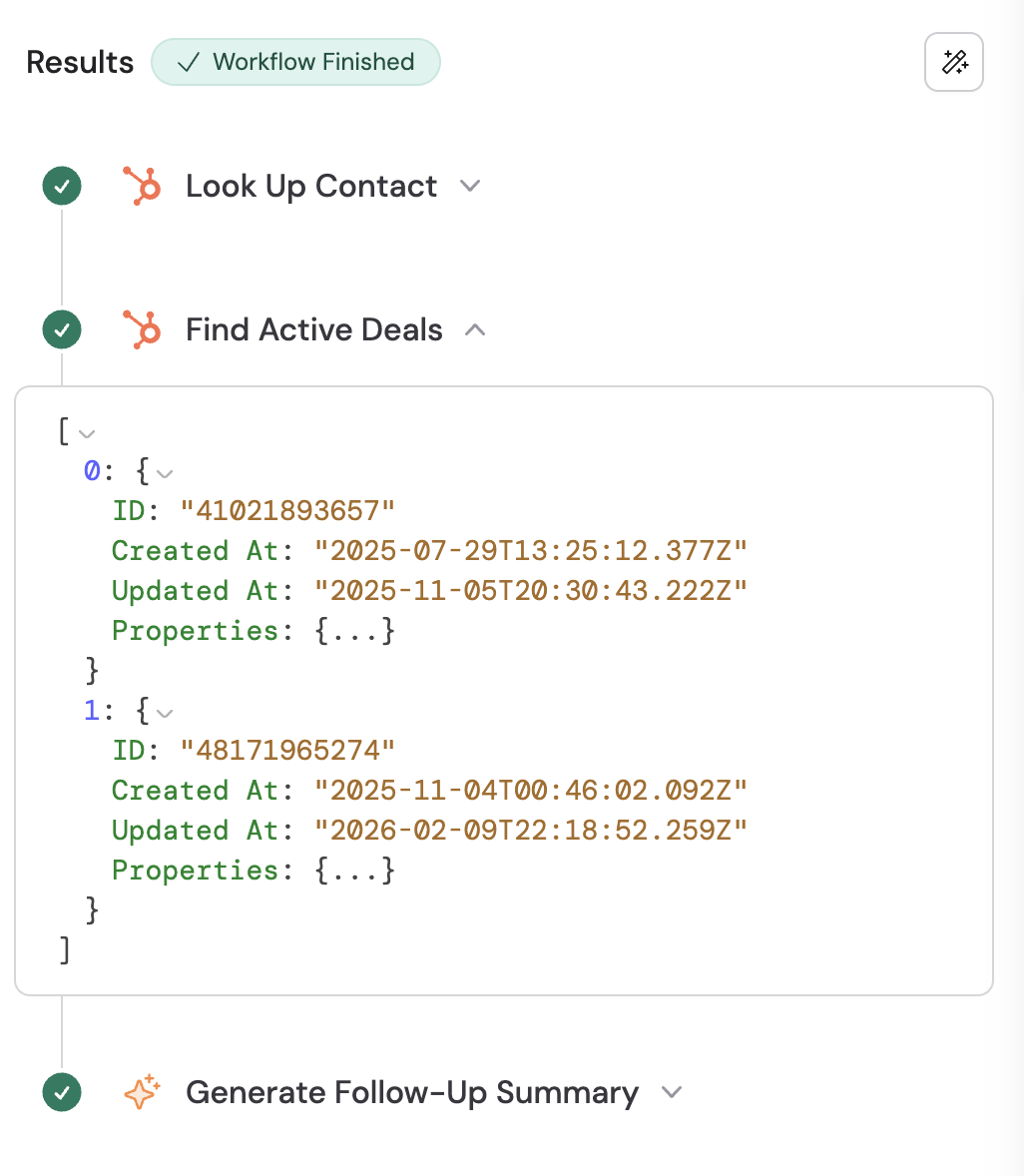
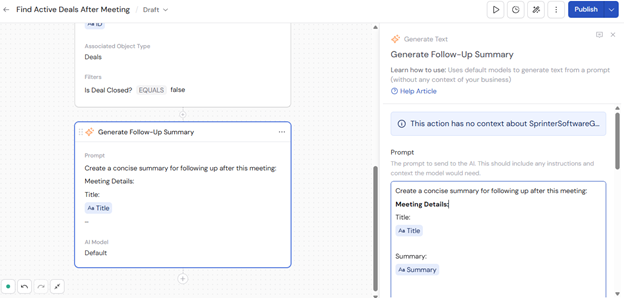 The action returns the associated record(s) with their properties, which you can reference in subsequent Workflow steps.
 ## Related
* [Create HubSpot Association](/integrations/hubspot/create-association)
* [Remove HubSpot Association](/integrations/hubspot/remove-association)
* [Look Up HubSpot Record](/integrations/hubspot/look-up-record)
* [HubSpot for Workflows](/integrations/hubspot/workflows)
## Related
* [Create HubSpot Association](/integrations/hubspot/create-association)
* [Remove HubSpot Association](/integrations/hubspot/remove-association)
* [Look Up HubSpot Record](/integrations/hubspot/look-up-record)
* [HubSpot for Workflows](/integrations/hubspot/workflows)