> ## Documentation Index
> Fetch the complete documentation index at: https://docs.cassidyai.com/llms.txt
> Use this file to discover all available pages before exploring further.
# Find or create HubSpot record
> Find an existing HubSpot record or create a new one if no match is found.
The Find or Create HubSpot Record action searches for a record in HubSpot and creates one if it doesn't exist. Use it to ensure records are always present — for example, automatically creating a company record when processing a new lead if one doesn't already exist.
In the [Workflow builder](/workflows/building), click the **+** button between existing blocks. Select **Find or Create HubSpot Record** from the action list.
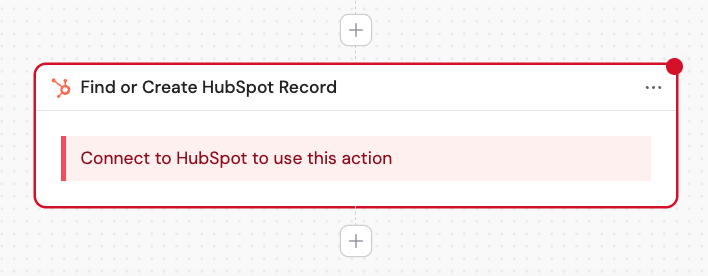
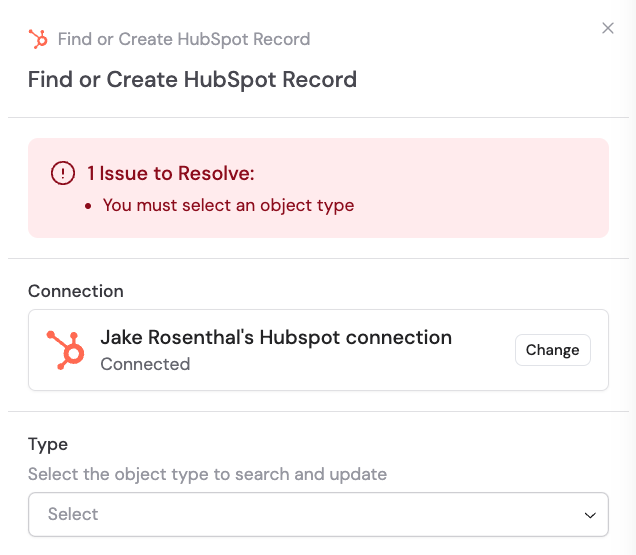
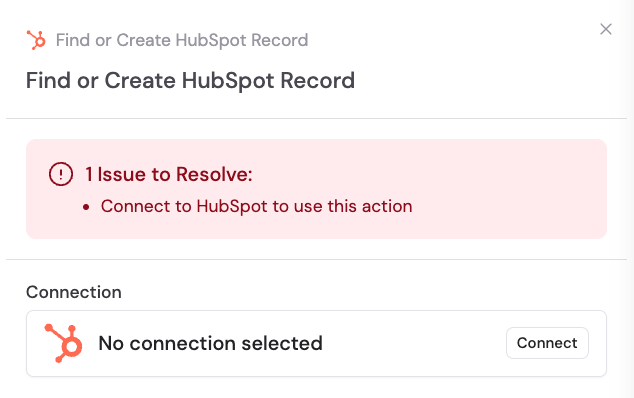 If you haven't already, connect your HubSpot account to Cassidy. This allows Cassidy to access your HubSpot records and create new ones when needed.
 Enter a more descriptive name to make the action easier to reference as a variable later.
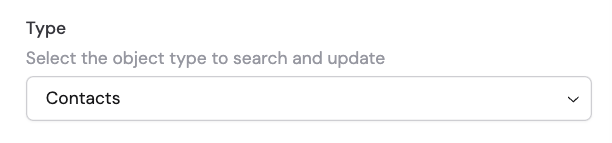
 Choose the HubSpot object type you want to search for or create: **Companies**, **Contacts**, **Deals**, or **Tickets**.
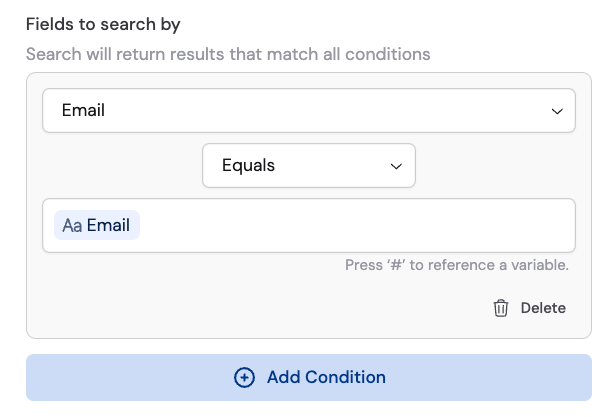
 Under **Fields to search by**, click **Add Condition** to locate matching records. Select the field to search on, choose an operation (equals, contains, etc.), and enter the value to match. You can add multiple conditions combined with an AND operator. Use variables from the trigger or previous steps to match dynamically.
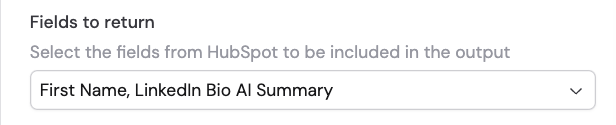
 Under **Fields to return**, click **+ Add Field** and select the HubSpot fields whose values you want to use in subsequent Workflow steps. These fields are returned whether the record was found or newly created. Click the trash icon to remove a selected field.
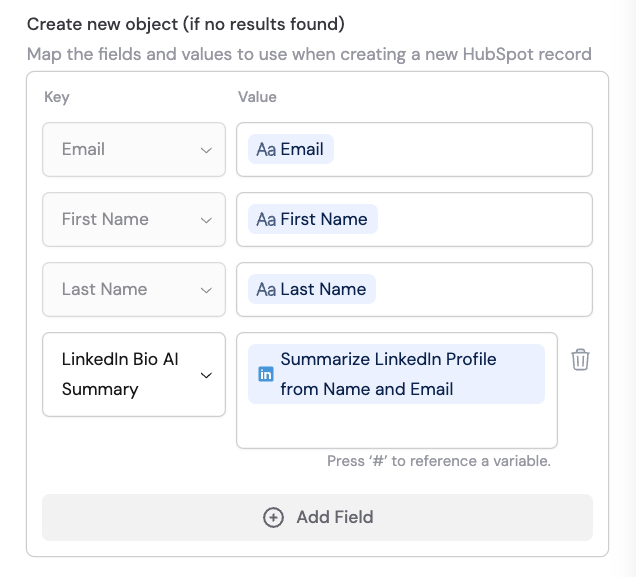
 Under **Create new object (if no results found)**, map the fields and values to use when creating a new record. Required fields are pre-populated. Click **+ Add Field** to add optional fields, and click the trash icon to remove non-required fields.
 ## Sample output
When a matching record is found:
## Sample output
When a matching record is found:
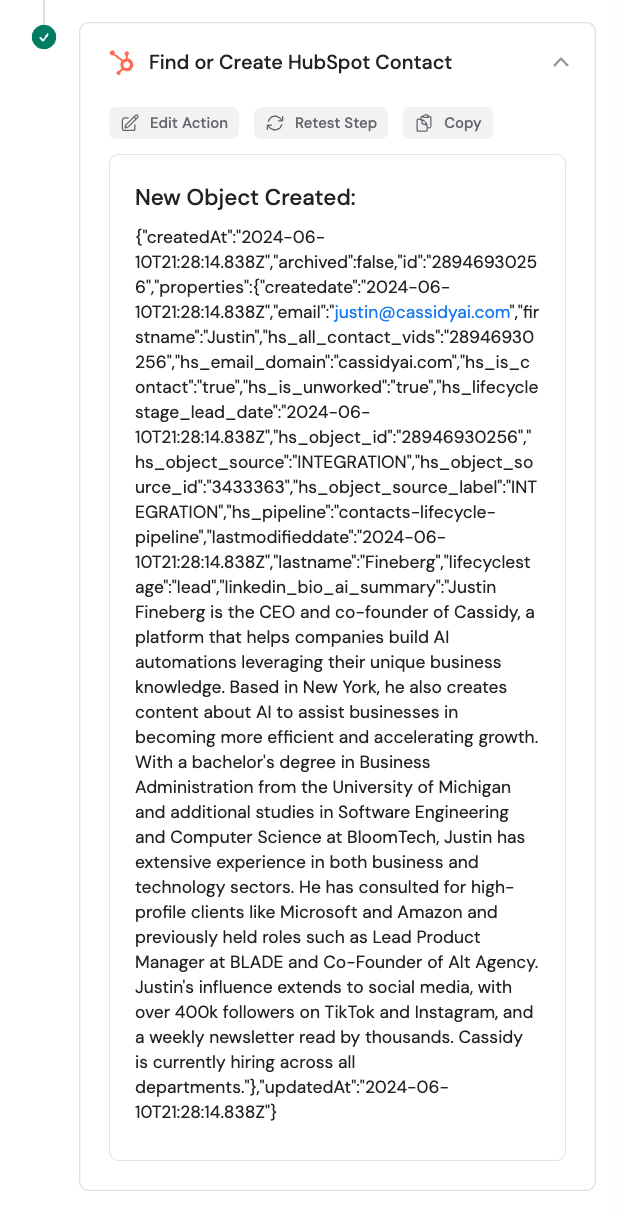
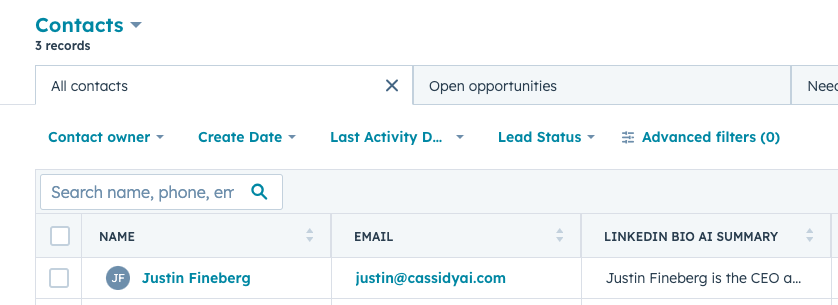
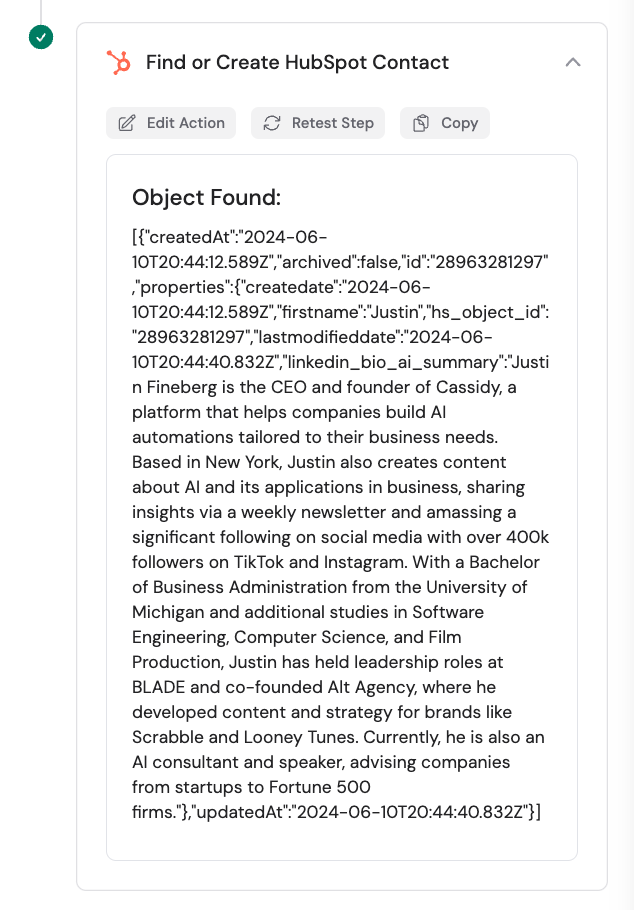 When no match is found and a new record is created:
 ## Related
* [Look Up HubSpot Record](/integrations/hubspot/look-up-record)
* [Update HubSpot Record](/integrations/hubspot/update-record)
* [Create HubSpot Association](/integrations/hubspot/create-association)
* [HubSpot for Workflows](/integrations/hubspot/workflows)
## Related
* [Look Up HubSpot Record](/integrations/hubspot/look-up-record)
* [Update HubSpot Record](/integrations/hubspot/update-record)
* [Create HubSpot Association](/integrations/hubspot/create-association)
* [HubSpot for Workflows](/integrations/hubspot/workflows)