> ## Documentation Index
> Fetch the complete documentation index at: https://docs.cassidyai.com/llms.txt
> Use this file to discover all available pages before exploring further.
# HubSpot record updated trigger
> Start a Workflow automatically when a HubSpot record is updated.
The HubSpot Record Updated trigger starts your [Workflow](/workflows/overview) whenever a HubSpot record is updated. Use it to react to deal stage changes, contact property updates, or ticket status transitions.
This trigger works for various HubSpot record types, including companies, contacts, deals, and tickets. The setup process is the same for all record types — this guide uses an updated company record as an example.
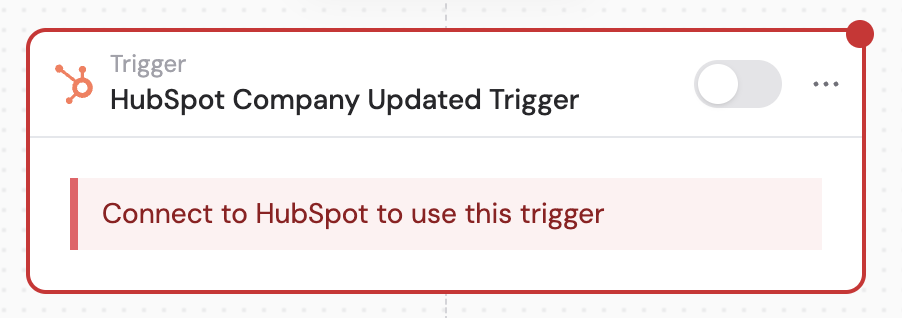
Create a new [Workflow](/workflows/overview) with a HubSpot Record Updated trigger, or change an existing Workflow's trigger type. For example, select **HubSpot Company Updated** to trigger on company updates.
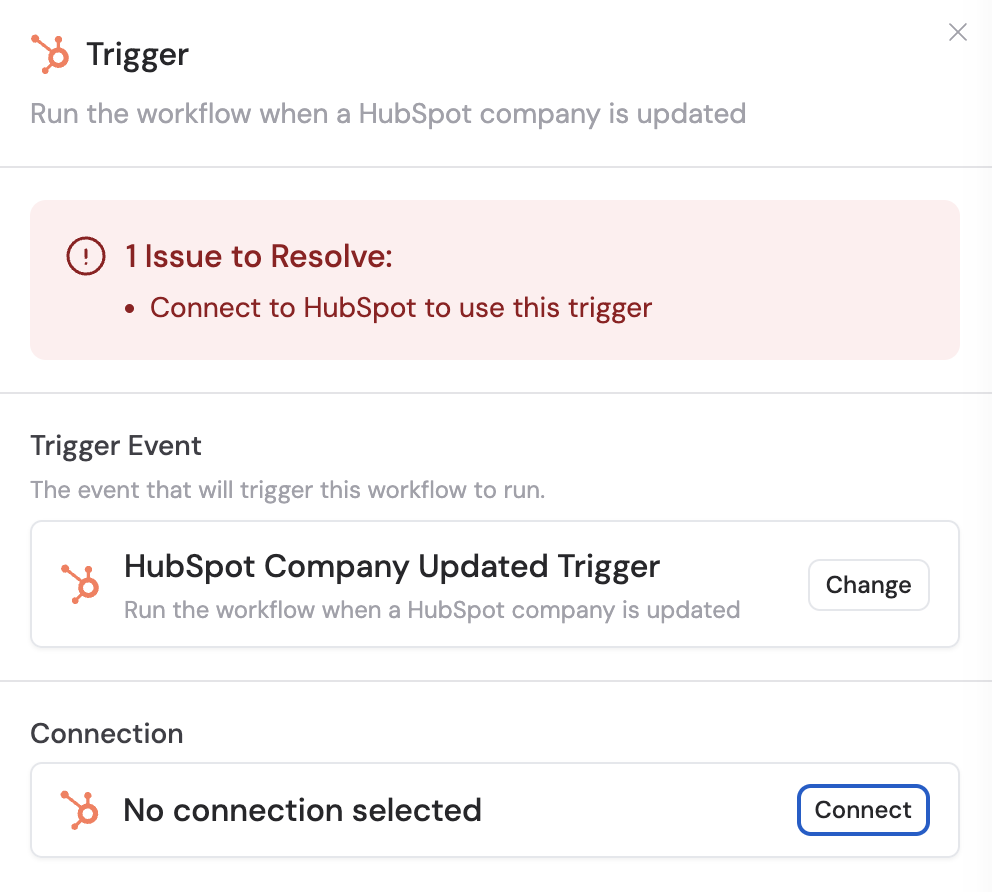
 If you haven't already, connect your HubSpot account to Cassidy. This allows Cassidy to access your HubSpot records and trigger Workflows based on record updates.
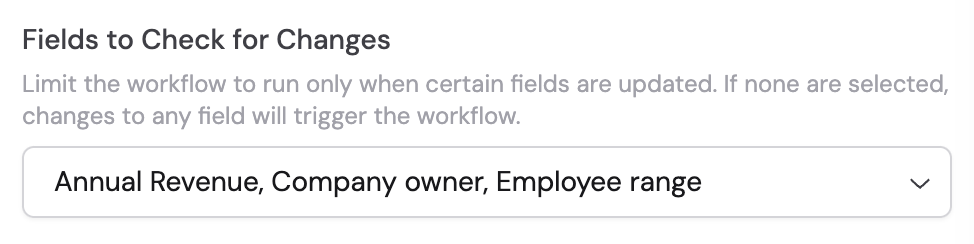
 Specify which HubSpot fields the trigger should monitor. When any of these fields are updated, the trigger activates and starts the Workflow. If no field is specified, changes to any field on the record will trigger the Workflow.
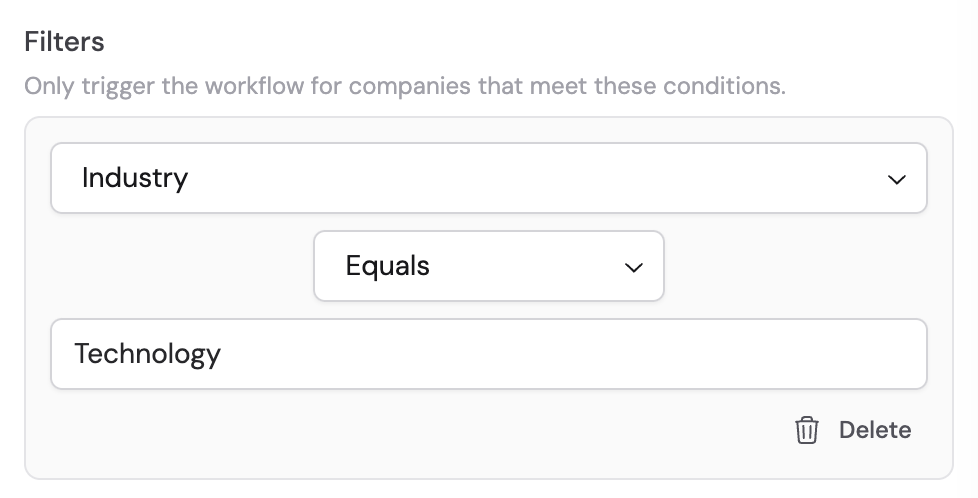
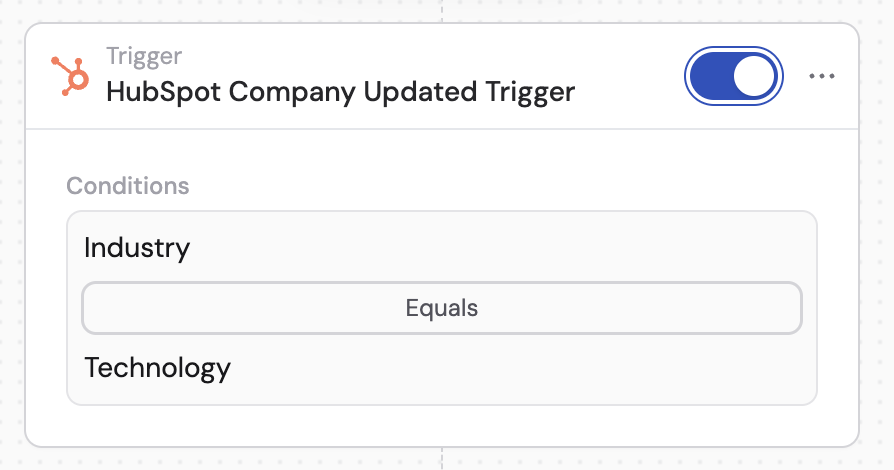
 Click **Add Filter** to trigger the Workflow only for specific records. Set conditions based on the record's properties — for example, trigger only when a company's industry is set to "Technology."
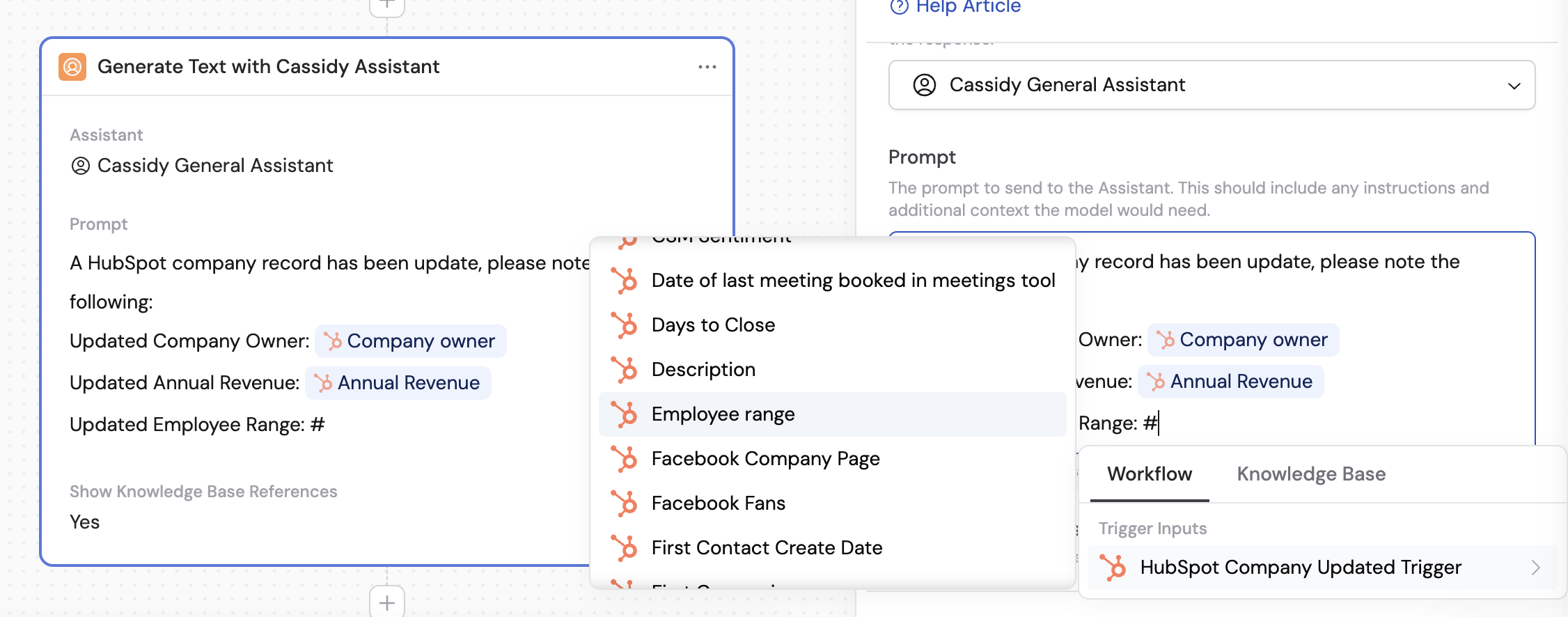
 In subsequent actions, use the variable picker to insert data from the trigger. Available variables:
* **Record ID** — unique identifier for the updated record
* **Record Type** — the HubSpot object type (Company, Contact, Deal, or Ticket)
* **Record fields** — all field values from the updated record (name, email, deal stage, etc.)
In subsequent actions, use the variable picker to insert data from the trigger. Available variables:
* **Record ID** — unique identifier for the updated record
* **Record Type** — the HubSpot object type (Company, Contact, Deal, or Ticket)
* **Record fields** — all field values from the updated record (name, email, deal stage, etc.)
 In the trigger block, click the toggle switch to turn it on. Your Workflow will now run whenever a matching record is updated in HubSpot.
 ## Related
* [HubSpot Record Created trigger](/integrations/hubspot/record-created-trigger)
* [Update HubSpot Record action](/integrations/hubspot/update-record)
* [Look Up HubSpot Record action](/integrations/hubspot/look-up-record)
* [HubSpot for Workflows](/integrations/hubspot/workflows)
## Related
* [HubSpot Record Created trigger](/integrations/hubspot/record-created-trigger)
* [Update HubSpot Record action](/integrations/hubspot/update-record)
* [Look Up HubSpot Record action](/integrations/hubspot/look-up-record)
* [HubSpot for Workflows](/integrations/hubspot/workflows)