> ## Documentation Index
> Fetch the complete documentation index at: https://docs.cassidyai.com/llms.txt
> Use this file to discover all available pages before exploring further.
# Outlook Calendar Agent Connector
> Connect your Agent to Outlook Calendar so it can check availability, schedule meetings, and respond to invites during conversations.
The Outlook Calendar [Connector](/agents/connectors/overview) gives your [Agents](/agents/overview) real-time access to Outlook Calendar. Agents can review your schedule, check other people's availability, find meeting times, and, if you allow it, create, update, accept, decline, or cancel events directly from a conversation.
The Outlook Calendar Connector is separate from the [Outlook Email Connector](/integrations/microsoft-365/outlook-email/agent-connector), which works with email. Add both to an Agent when it needs email and calendar access.
For best results with complex Connector queries, use a powerful,
reasoning-capable model. Cassidy supports models from OpenAI, Anthropic, and
Google. See [Choose the right AI model](/guides/choose-ai-model) for
recommendations.
## Set up the Outlook Calendar Connector
Go to **Agents** and select the Agent you want to configure.
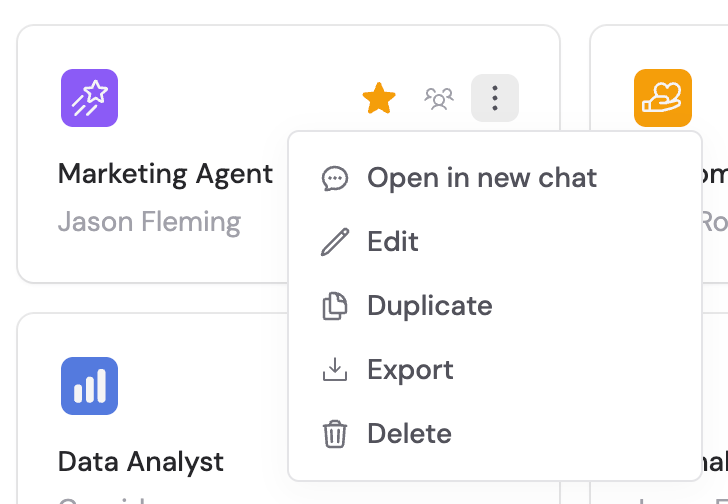 Click the **Setup** tab and scroll to the **Connectors** section.
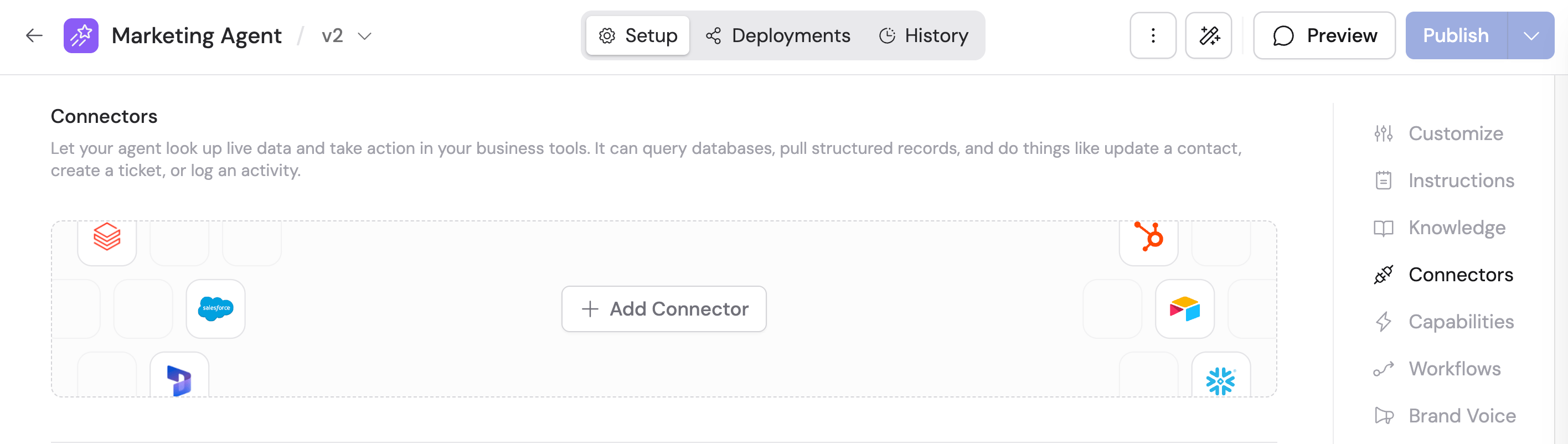 Click **+ Add Connector**, then select **Outlook Calendar**.
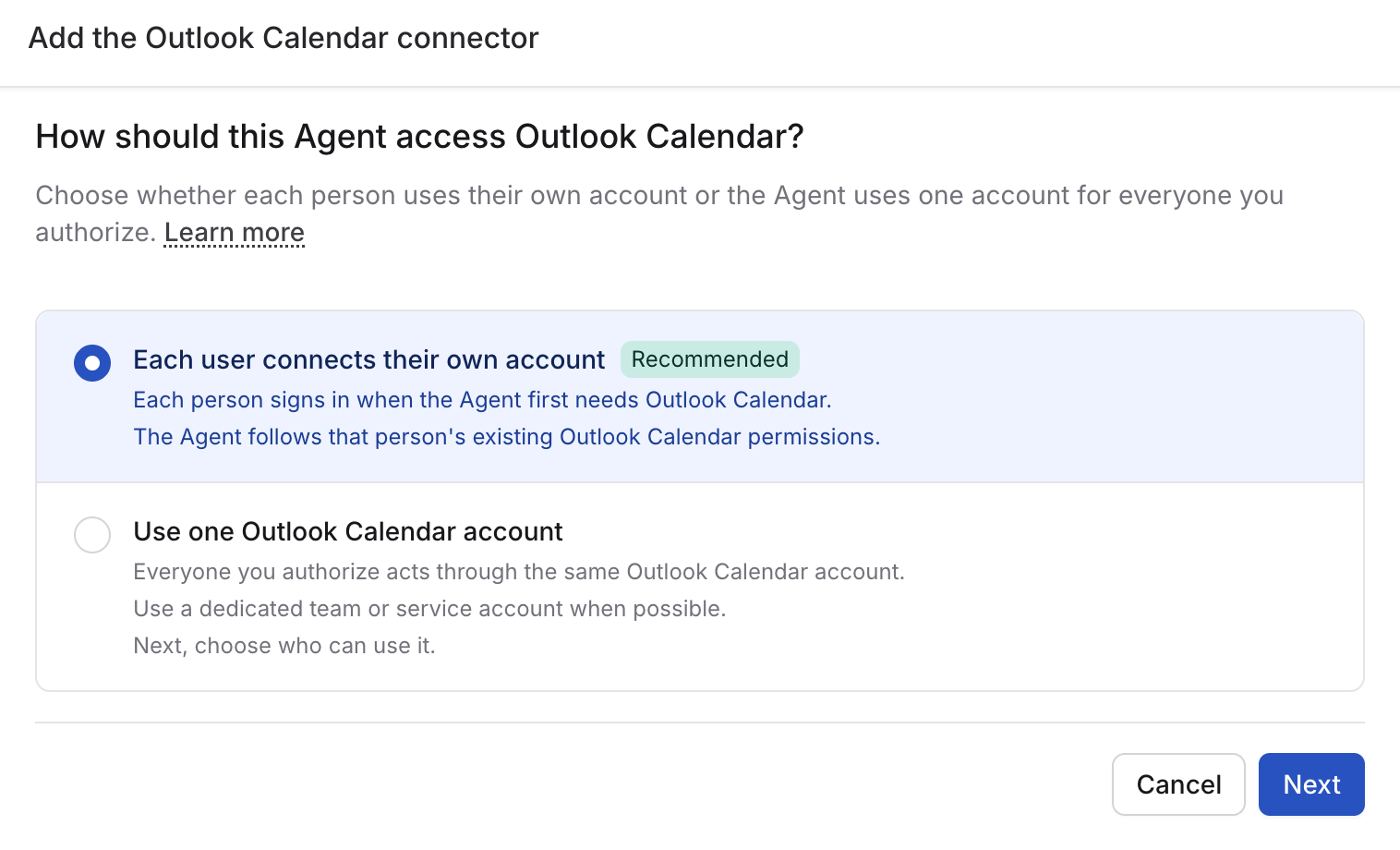
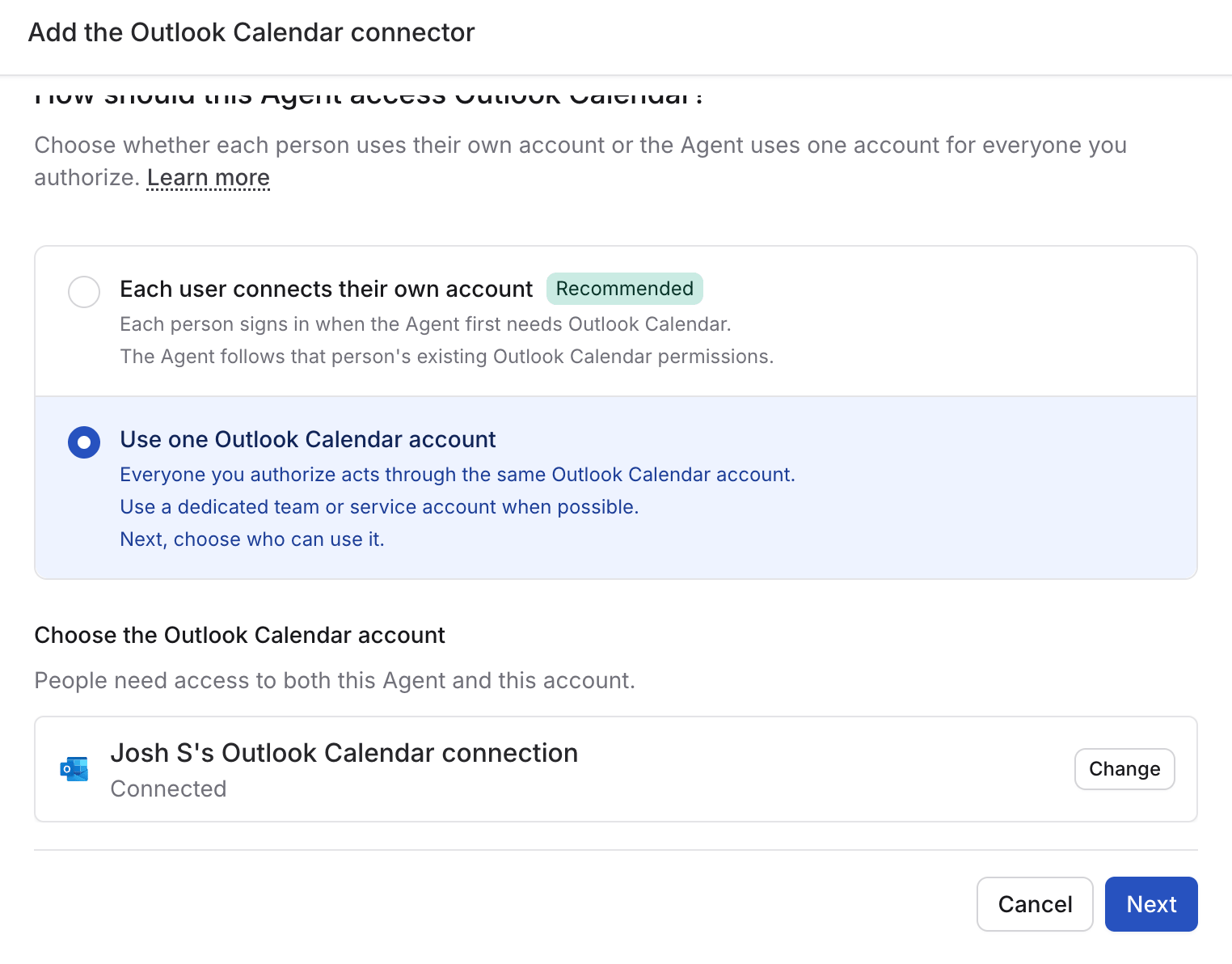
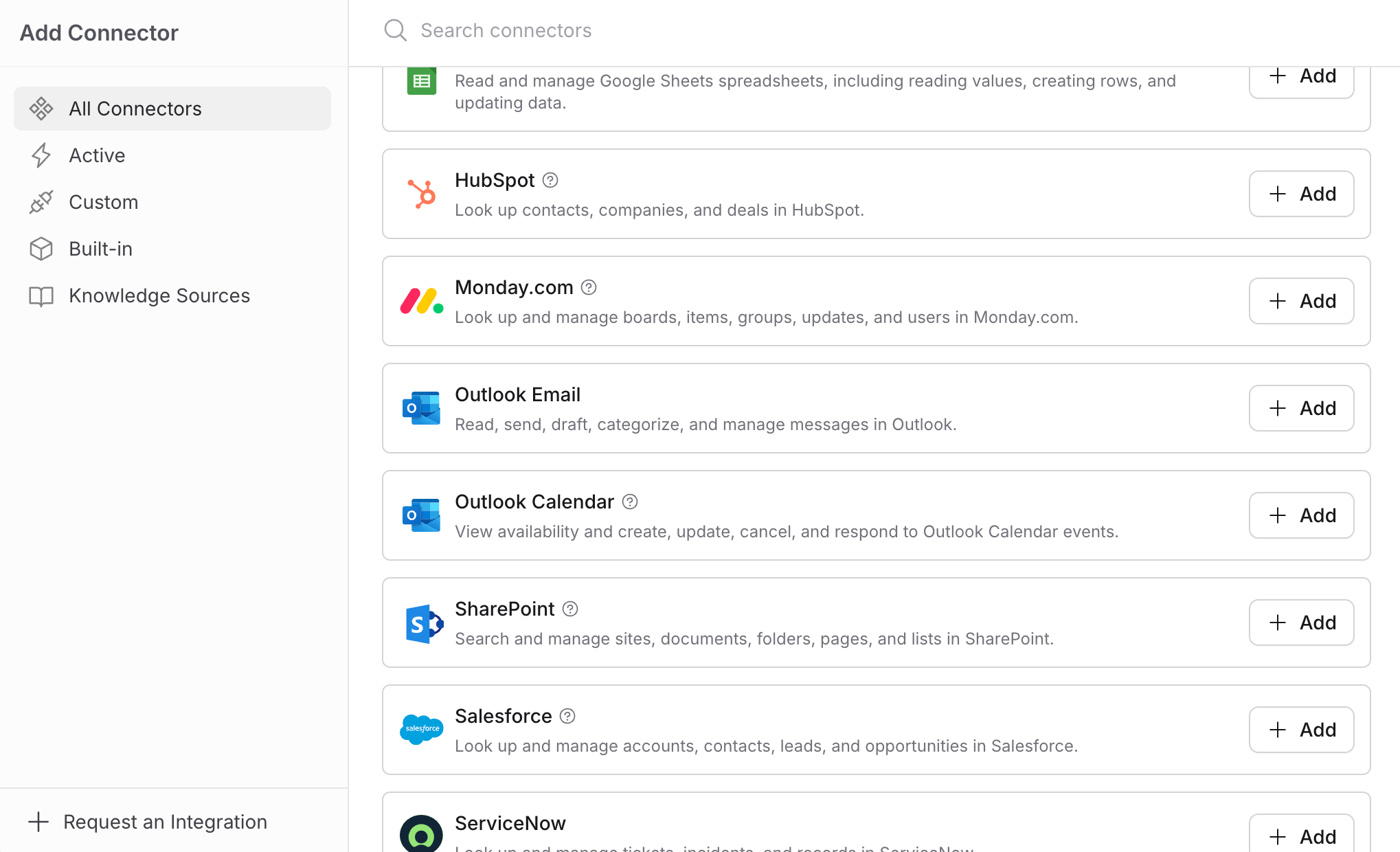 Select how users will authenticate:
* **Each user connects their own account** (recommended) — each person signs in with their own Microsoft account the first time they use the Connector. The Agent follows that person's existing calendar permissions.
* **Use one Outlook Calendar account** — all users access Outlook Calendar through one shared account. Use a dedicated team or resource account when possible.
Select how users will authenticate:
* **Each user connects their own account** (recommended) — each person signs in with their own Microsoft account the first time they use the Connector. The Agent follows that person's existing calendar permissions.
* **Use one Outlook Calendar account** — all users access Outlook Calendar through one shared account. Use a dedicated team or resource account when possible.
 If you choose **Use one Outlook Calendar account**, select an existing connection or
click **Create shared connection**. After signing in with Microsoft, give
the connection a recognizable name and choose who can use it.
If you choose **Use one Outlook Calendar account**, select an existing connection or
click **Create shared connection**. After signing in with Microsoft, give
the connection a recognizable name and choose who can use it.
 Set permissions for each action the Agent can perform:
* **Always allow** — the Agent performs the action automatically when needed
* **Ask every time** — the Agent asks the user before taking the action
* **Disabled** — the Agent cannot perform the action
Outlook Calendar actions are organized into categories:
* **View Calendar** — List Calendars, Get Calendar View, List Events, Get Event, Get Free/Busy Schedule, Find Meeting Times, Get Time Zone & Working Hours, and List Contacts. Default: **Always allow**.
* **Create & Update Events** — Create Event and Update Event. Default: **Disabled**.
* **Respond to Invites** — Accept Invite and Decline Invite. Default: **Disabled**.
* **Cancel / Delete Events** — Cancel Meeting and Delete Event. Default: **Disabled**.
You can set one permission for a category or configure its actions
individually. For example, you might leave **View Calendar** as **Always
allow** while setting **Create & Update Events** to **Ask every time**.
Creating, updating, responding to, and cancelling events can send notifications to other people. Setting these categories to **Always allow** lets the Agent invite attendees, reply to organizers, or cancel meetings without asking first.
Click **Add connector**.
Open **Chat** and select the Agent with the Outlook Calendar Connector enabled.
If you chose **Each user connects their own account**, each user is prompted to sign in with Microsoft on first use. After the connection is complete, the Agent can answer questions about upcoming meetings, find open time, and, if enabled, schedule or update events.
## Connect Outlook Calendar for yourself
To use Outlook Calendar in any chat, not just with this Agent, open **Customize** →
**Connectors**, find **Outlook Calendar**, and click **Connect**. See [Add a Connector for
yourself](/agents/connectors/overview#add-a-connector-for-yourself).
## What the Agent can do
Depending on the permissions you enable, your Agent can:
* Summarize meetings for a day, week, or any date range
* Look up event details, attendees, and online meeting links
* Check free/busy availability for colleagues and meeting rooms
* Suggest meeting times that work for every attendee
* Create events with attendees, locations, recurrence, and Microsoft Teams links
* Update the time, attendees, or details of existing events
* Accept, tentatively accept, or decline meeting invites
* Cancel meetings you organize or remove events from your calendar
## Monitor Outlook Calendar actions
When an Agent uses the Outlook Calendar Connector, expand the action in the response to see its input, result, and approval status.
If an action lacks the required permissions, the step shows **No output data**.
## Data security
* **Real-time access** — Outlook Calendar data is accessed only when the Agent needs it during a conversation and is not copied or stored in Cassidy.
* **Permission controls** — You decide which categories are always allowed, require approval, or are disabled.
* **Per-user accountability** — Individual connections preserve each user's own Microsoft access and make actions easier to attribute.
Outlook Calendar uses the same Microsoft sign-in as the Outlook Email
Connector, so the Microsoft consent screen lists both mail and calendar
permissions. The Outlook Calendar Connector only exposes the calendar actions
listed above. If your organization requires admin approval for Microsoft apps,
an administrator who has approved the Outlook Email Connector has also
approved Outlook Calendar.
## Next steps
Trigger Workflows from new or updated events and create calendar events
automatically.
Learn how Agent Connectors work across Cassidy.
This documentation is built and hosted on [Mintlify](https://mintlify.com), a developer documentation platform.
Set permissions for each action the Agent can perform:
* **Always allow** — the Agent performs the action automatically when needed
* **Ask every time** — the Agent asks the user before taking the action
* **Disabled** — the Agent cannot perform the action
Outlook Calendar actions are organized into categories:
* **View Calendar** — List Calendars, Get Calendar View, List Events, Get Event, Get Free/Busy Schedule, Find Meeting Times, Get Time Zone & Working Hours, and List Contacts. Default: **Always allow**.
* **Create & Update Events** — Create Event and Update Event. Default: **Disabled**.
* **Respond to Invites** — Accept Invite and Decline Invite. Default: **Disabled**.
* **Cancel / Delete Events** — Cancel Meeting and Delete Event. Default: **Disabled**.
You can set one permission for a category or configure its actions
individually. For example, you might leave **View Calendar** as **Always
allow** while setting **Create & Update Events** to **Ask every time**.
Creating, updating, responding to, and cancelling events can send notifications to other people. Setting these categories to **Always allow** lets the Agent invite attendees, reply to organizers, or cancel meetings without asking first.
Click **Add connector**.
Open **Chat** and select the Agent with the Outlook Calendar Connector enabled.
If you chose **Each user connects their own account**, each user is prompted to sign in with Microsoft on first use. After the connection is complete, the Agent can answer questions about upcoming meetings, find open time, and, if enabled, schedule or update events.
## Connect Outlook Calendar for yourself
To use Outlook Calendar in any chat, not just with this Agent, open **Customize** →
**Connectors**, find **Outlook Calendar**, and click **Connect**. See [Add a Connector for
yourself](/agents/connectors/overview#add-a-connector-for-yourself).
## What the Agent can do
Depending on the permissions you enable, your Agent can:
* Summarize meetings for a day, week, or any date range
* Look up event details, attendees, and online meeting links
* Check free/busy availability for colleagues and meeting rooms
* Suggest meeting times that work for every attendee
* Create events with attendees, locations, recurrence, and Microsoft Teams links
* Update the time, attendees, or details of existing events
* Accept, tentatively accept, or decline meeting invites
* Cancel meetings you organize or remove events from your calendar
## Monitor Outlook Calendar actions
When an Agent uses the Outlook Calendar Connector, expand the action in the response to see its input, result, and approval status.
If an action lacks the required permissions, the step shows **No output data**.
## Data security
* **Real-time access** — Outlook Calendar data is accessed only when the Agent needs it during a conversation and is not copied or stored in Cassidy.
* **Permission controls** — You decide which categories are always allowed, require approval, or are disabled.
* **Per-user accountability** — Individual connections preserve each user's own Microsoft access and make actions easier to attribute.
Outlook Calendar uses the same Microsoft sign-in as the Outlook Email
Connector, so the Microsoft consent screen lists both mail and calendar
permissions. The Outlook Calendar Connector only exposes the calendar actions
listed above. If your organization requires admin approval for Microsoft apps,
an administrator who has approved the Outlook Email Connector has also
approved Outlook Calendar.
## Next steps
Trigger Workflows from new or updated events and create calendar events
automatically.
Learn how Agent Connectors work across Cassidy.
This documentation is built and hosted on [Mintlify](https://mintlify.com), a developer documentation platform.