> ## Documentation Index
> Fetch the complete documentation index at: https://docs.cassidyai.com/llms.txt
> Use this file to discover all available pages before exploring further.

# Add label to Outlook message

> Add an Outlook category label to a message from a Workflow.

Use the **Add Label to Microsoft Outlook Message** action to apply a category label to an Outlook message from within a [Workflow](/workflows/overview). This helps you automatically organize and categorize incoming emails.

## Set up the action

<Steps>
  <Step title="Add the action">
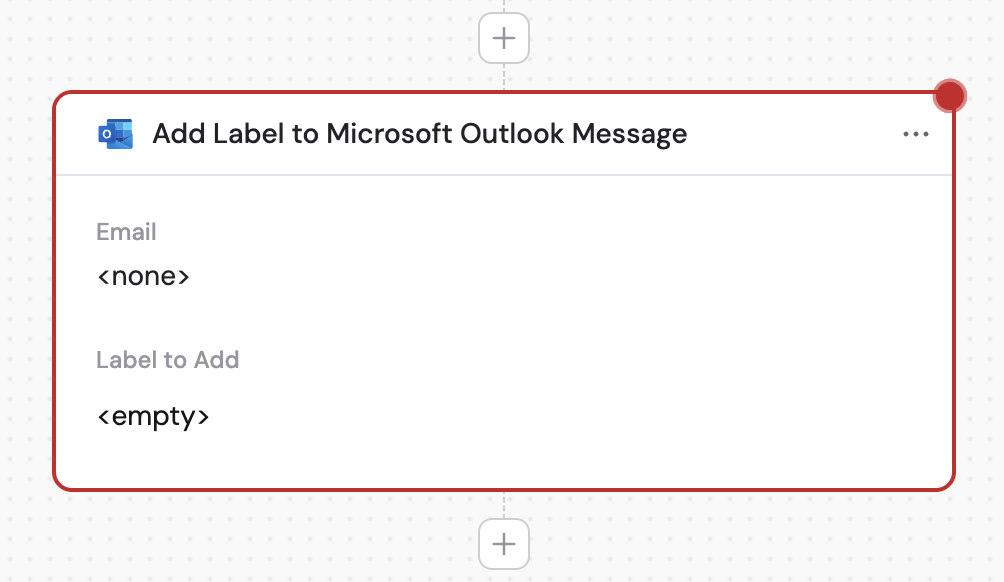
    While editing a Workflow, click the **+** button between existing blocks. Select **Add Label to Microsoft Outlook Message** from the action list.
    <Frame>
      <img src="https://mintcdn.com/cassidy/Z6P2Z1FAlUR83Sw5/images/reference/add-label-to-microsoft-outlook-message-img-0.png?fit=max&auto=format&n=Z6P2Z1FAlUR83Sw5&q=85&s=27c26bf3d61a279da5a9ff22247956f5" alt="Selecting the Add Label to Microsoft Outlook Message action" width="1004" height="582" data-path="images/reference/add-label-to-microsoft-outlook-message-img-0.png" />
    </Frame>
  </Step>

  <Step title="Rename the action (optional)">
    Click the action name to give it a more descriptive label for easier reference.

    <Frame>
      <img src="https://mintcdn.com/cassidy/Z6P2Z1FAlUR83Sw5/images/reference/add-label-to-microsoft-outlook-message-img-1.png?fit=max&auto=format&n=Z6P2Z1FAlUR83Sw5&q=85&s=ceff19605397c08efd6c35f532e48c03" alt="Renaming the Add Label to Microsoft Outlook Message action" width="1008" height="158" data-path="images/reference/add-label-to-microsoft-outlook-message-img-1.png" />
    </Frame>
  </Step>

  <Step title="Connect your Outlook account">
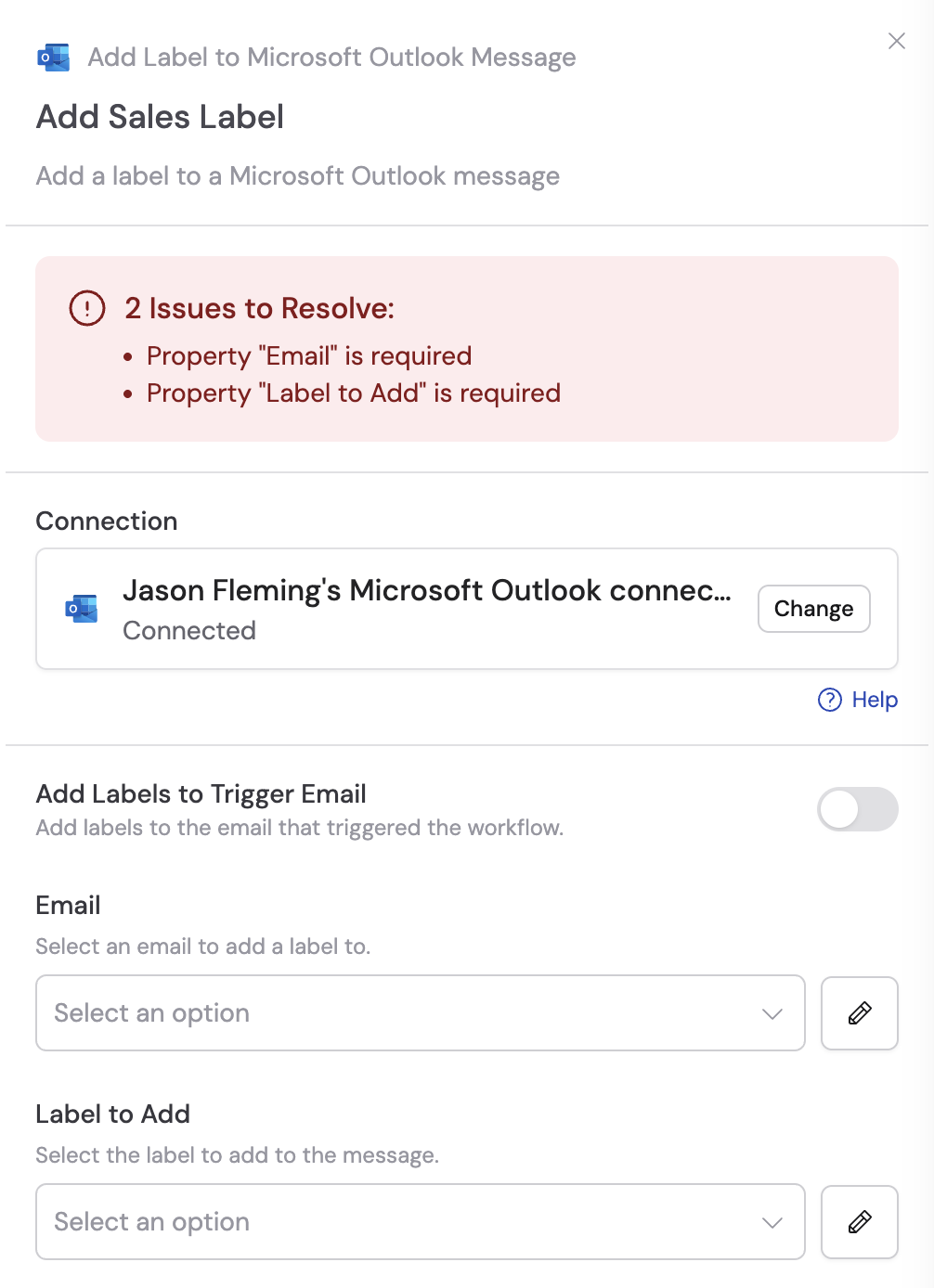
    If you haven't already, connect your Microsoft Outlook account to Cassidy.
    <Frame>
      <img src="https://mintcdn.com/cassidy/Z6P2Z1FAlUR83Sw5/images/reference/add-label-to-microsoft-outlook-message-img-2.png?fit=max&auto=format&n=Z6P2Z1FAlUR83Sw5&q=85&s=7c29a5db02e1c95c331c390534492ad0" alt="Adding a Microsoft Outlook connection for the action" width="1006" height="1388" data-path="images/reference/add-label-to-microsoft-outlook-message-img-2.png" />
    </Frame>
  </Step>

  <Step title="Toggle on add label to trigger email (optional)">
    If you're using this action with the **New Email Received in Microsoft Outlook** trigger, enable **Add Label to Trigger Email** to automatically apply labels to the email that started the Workflow.

    <Frame>
      <img src="https://mintcdn.com/cassidy/Z6P2Z1FAlUR83Sw5/images/reference/add-label-to-microsoft-outlook-message-img-3.png?fit=max&auto=format&n=Z6P2Z1FAlUR83Sw5&q=85&s=167b101a2dc418dfd46efc39b178a548" alt="Add Label to Trigger Email toggle" width="1006" height="130" data-path="images/reference/add-label-to-microsoft-outlook-message-img-3.png" />
    </Frame>
  </Step>

  <Step title="Enter the email (optional)">
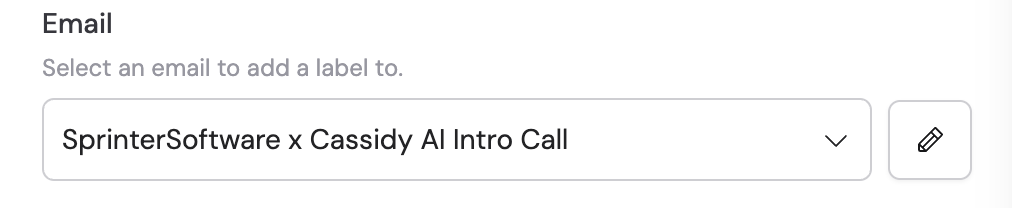
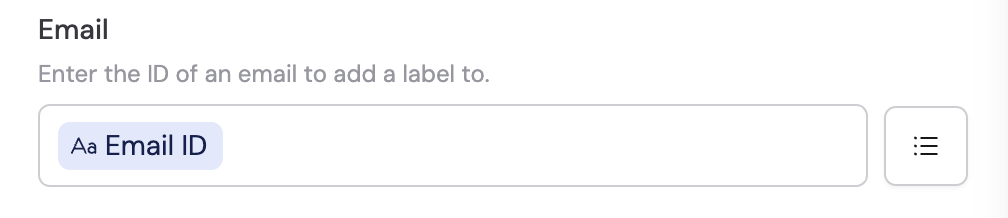
    Enter an email ID manually, use a variable from previous steps (such as the message ID from a trigger), or click the list icon to search and select an email from the trigger.

    <Tip>If **Add Label to Trigger Email** is enabled, this field can be left empty.</Tip>

    <Frame>
      <img src="https://mintcdn.com/cassidy/Z6P2Z1FAlUR83Sw5/images/reference/add-label-to-microsoft-outlook-message-img-4.png?fit=max&auto=format&n=Z6P2Z1FAlUR83Sw5&q=85&s=45e3ce7b476b0a3704366a56bd2837d9" alt="Email field with variable reference" width="1012" height="208" data-path="images/reference/add-label-to-microsoft-outlook-message-img-4.png" />
    </Frame>

    <Frame>
      <img src="https://mintcdn.com/cassidy/Z6P2Z1FAlUR83Sw5/images/reference/add-label-to-microsoft-outlook-message-img-5.png?fit=max&auto=format&n=Z6P2Z1FAlUR83Sw5&q=85&s=b4db55527711c8b9c1e8cf4a1d14f4b6" alt="Searching for an email to label" width="1008" height="218" data-path="images/reference/add-label-to-microsoft-outlook-message-img-5.png" />
    </Frame>
  </Step>

  <Step title="Enter labels to add">
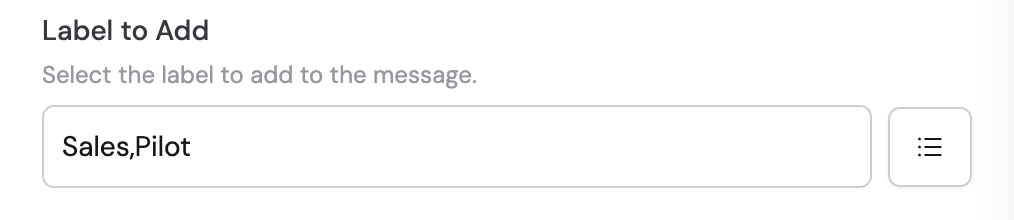
    Search for and select existing Microsoft Outlook labels, or click the pencil icon to manually enter label names. You can add multiple labels to organize your emails effectively.
    <Frame>
      <img src="https://mintcdn.com/cassidy/Z6P2Z1FAlUR83Sw5/images/reference/add-label-to-microsoft-outlook-message-img-6.png?fit=max&auto=format&n=Z6P2Z1FAlUR83Sw5&q=85&s=30b5fa8438120b243f66a8974e9c050b" alt="Searching for Outlook labels to add" width="1014" height="220" data-path="images/reference/add-label-to-microsoft-outlook-message-img-6.png" />
    </Frame>
  </Step>
</Steps>

## Related

<CardGroup cols={2}>
  <Card title="New email trigger" icon="envelope" href="/integrations/microsoft-365/outlook/new-email-trigger">
    Trigger a Workflow when a new email is received.
  </Card>

  <Card title="Send email with Outlook" icon="paper-plane" href="/integrations/microsoft-365/outlook/send-email">
    Send an email from a Workflow.
  </Card>

  <Card title="Reply to email with Outlook" icon="reply" href="/integrations/microsoft-365/outlook/reply-to-email">
    Reply to an existing email thread from a Workflow.
  </Card>

  <Card title="Outlook for Workflows" icon="envelope" href="/integrations/microsoft-365/outlook/workflows">
    See all Outlook Workflow triggers and actions.
  </Card>
</CardGroup>