> ## Documentation Index
> Fetch the complete documentation index at: https://docs.cassidyai.com/llms.txt
> Use this file to discover all available pages before exploring further.
# Get Outlook calendar events
> Retrieve a list of Outlook Calendar events from a Workflow.
Retrieve a list of events from your Outlook Calendar inside a [Workflow](/workflows/overview). Use this action to pull upcoming meetings, create reminders, or generate a daily schedule summary.
In the [Workflow builder](/workflows/building), click the **+** button between existing blocks. Select **Get Microsoft Outlook Calendar Events** from the action list.
If you haven't already, connect your Microsoft Outlook account to Cassidy by clicking **Connect** and following the on-screen instructions.
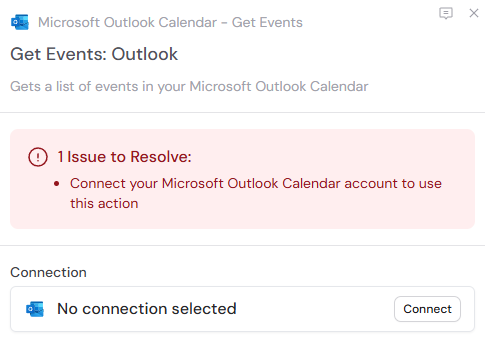 Click the action name to enter a more descriptive label, making it easier to reference later.
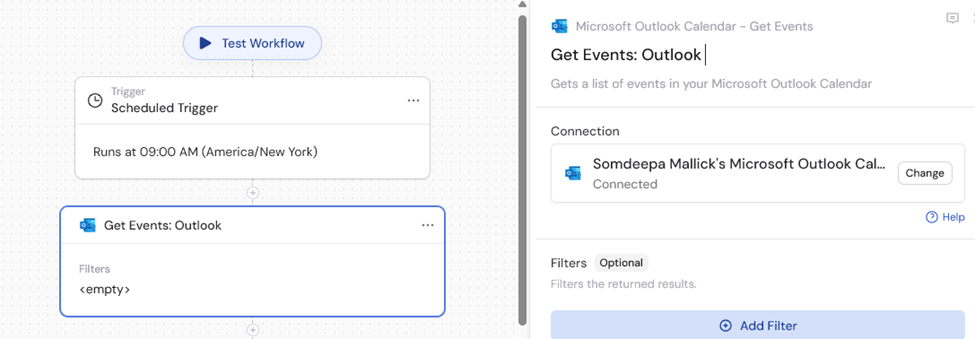 Use **Filters** to narrow which events are returned. You can filter by:
* **Start time** — specify when events should begin
* **End time** — specify when events should end
* **Subject** — filter events by title or subject keywords
* **Created date** — filter by when the event was created
* **Last modified** — filter by when the event was last updated
Use **Filters** to narrow which events are returned. You can filter by:
* **Start time** — specify when events should begin
* **End time** — specify when events should end
* **Subject** — filter events by title or subject keywords
* **Created date** — filter by when the event was created
* **Last modified** — filter by when the event was last updated
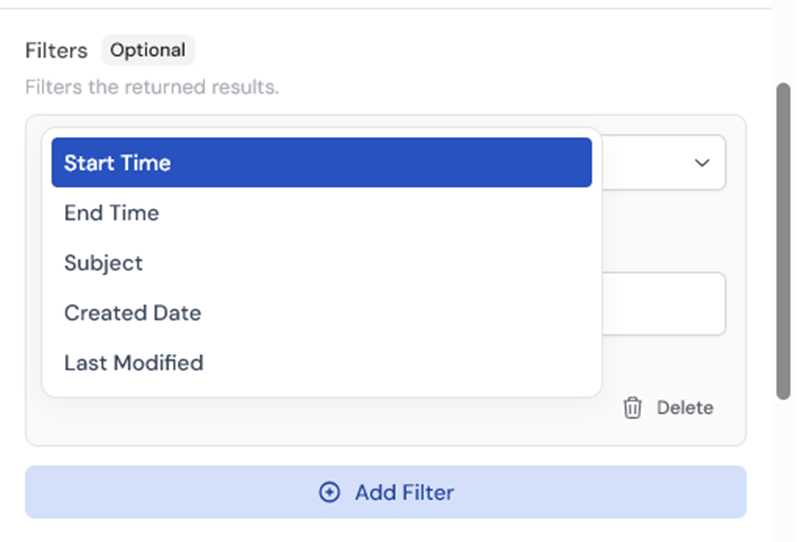 For each row, choose an operator (for example, "Equals" or "Contains"), then enter a value or press **#** to reference a variable. Click **Delete** to remove a filter.
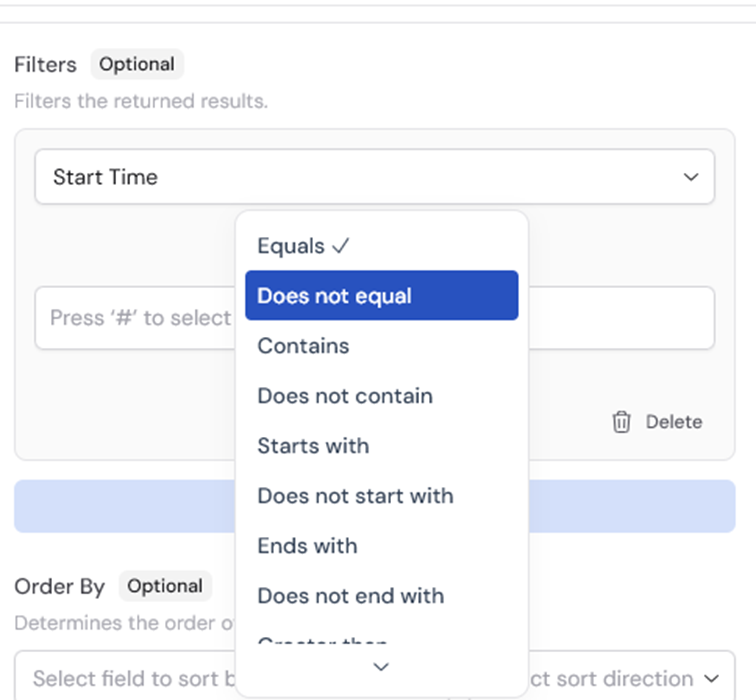 Time-based fields are typically handled in UTC, so keep your time format consistent when filtering.
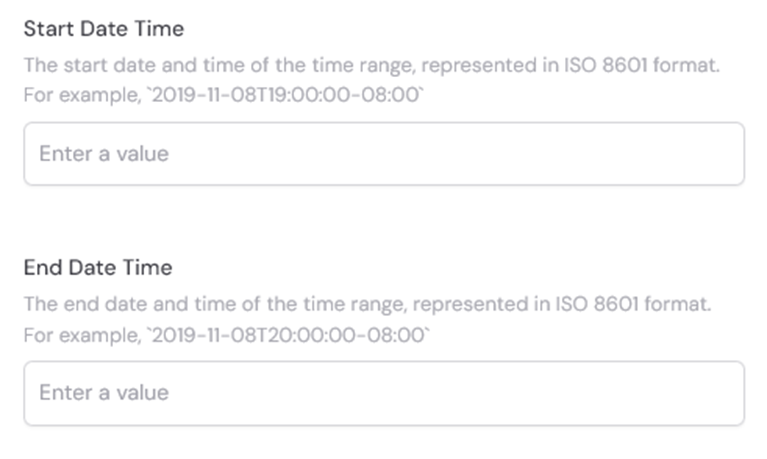 Determine the order of results by selecting a field to sort by and choosing the sort direction (ascending or descending).
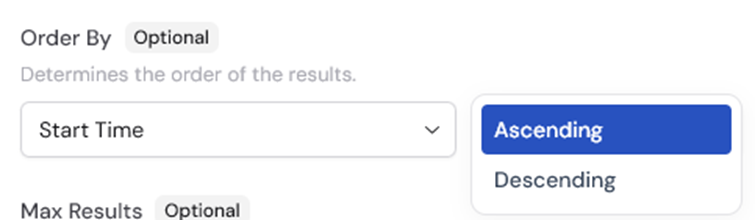 Specify the maximum number of results to return. This helps manage performance and limits the output to a specific number of events.
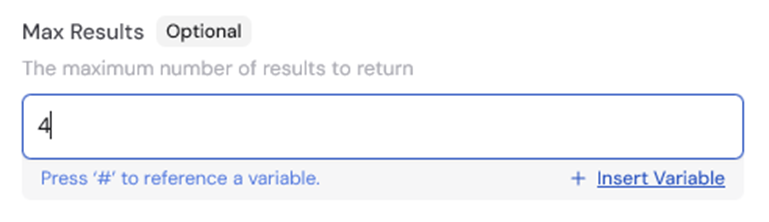 Choose whether to include recurring events in the results. When enabled, the action returns both one-time and recurring calendar events.
 After running the Workflow once, use the action outputs in later steps by pressing **#** and selecting fields from the event list. Available variables:
* **Event ID** — unique identifier of the calendar event
* **Title** — title or subject of the calendar event
* **Description** — description or body content of the calendar event
* **Created Date** — when the calendar event was created
* **Updated Date** — when the calendar event was last modified
* **Calendar Event Link** — direct link to view the event in Outlook
* **Start Date** — start date and time of the event
* **End Date** — end date and time of the event
* **Time Zone** — time zone for the event
* **Is All Day** — whether the event is an all-day event
* **Is Online Meeting** — whether the event includes an online meeting
* **Join URL** — meeting link if it's an online meeting
* **Location** — physical location of the event
* **Organizer** — details about who organized the event (name and email)
* **Attendees** — list of people invited to the event
After running the Workflow once, use the action outputs in later steps by pressing **#** and selecting fields from the event list. Available variables:
* **Event ID** — unique identifier of the calendar event
* **Title** — title or subject of the calendar event
* **Description** — description or body content of the calendar event
* **Created Date** — when the calendar event was created
* **Updated Date** — when the calendar event was last modified
* **Calendar Event Link** — direct link to view the event in Outlook
* **Start Date** — start date and time of the event
* **End Date** — end date and time of the event
* **Time Zone** — time zone for the event
* **Is All Day** — whether the event is an all-day event
* **Is Online Meeting** — whether the event includes an online meeting
* **Join URL** — meeting link if it's an online meeting
* **Location** — physical location of the event
* **Organizer** — details about who organized the event (name and email)
* **Attendees** — list of people invited to the event
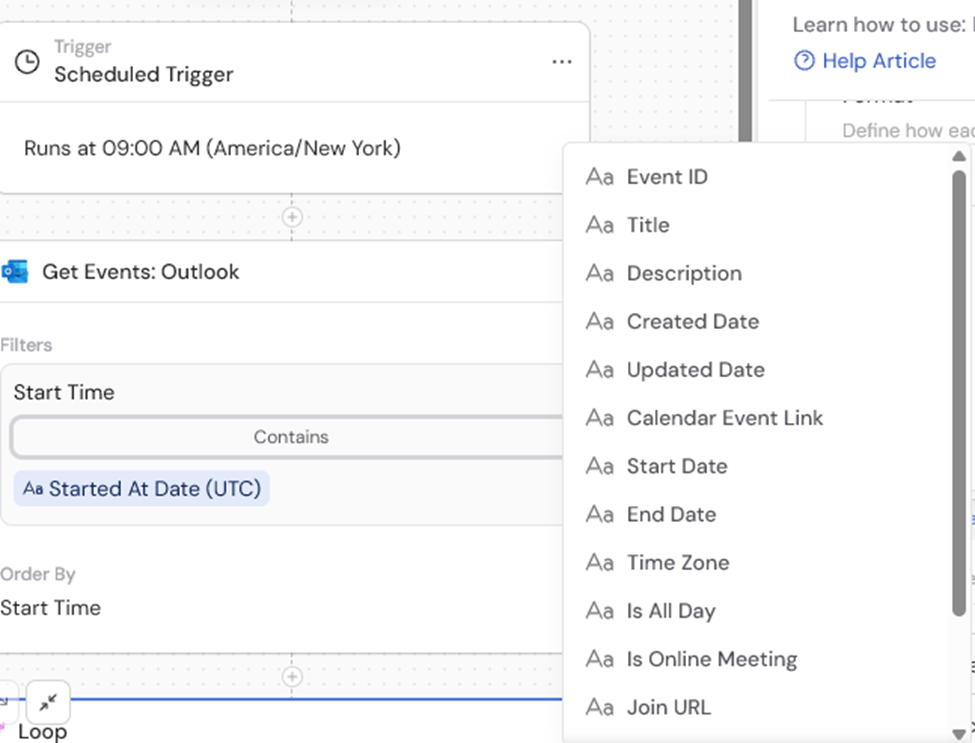 Because this action returns a list, add a **Loop** after it when you want to run follow-up steps once per event. Learn more about [using Loops](/workflows/building).
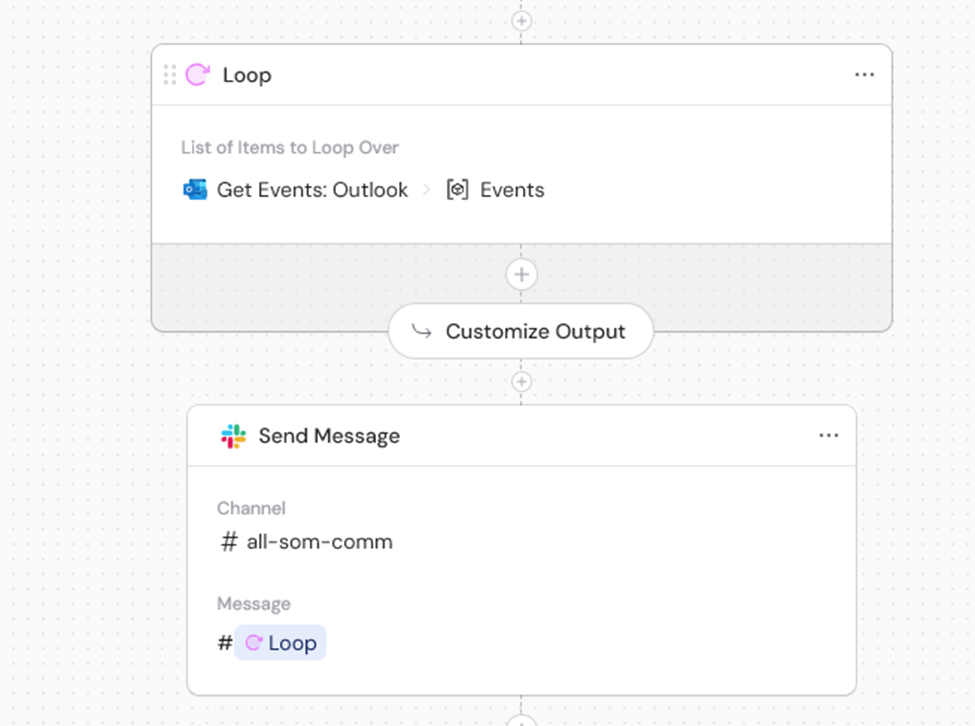 ## Example: daily meetings summary
Set up a Workflow that checks your daily meetings and sends you a summary each morning.
Set it to run daily at 9 AM to automatically check your meetings each morning.
Configure filters to retrieve today's events by setting appropriate start and end time filters.
Loop through each event returned by the Get Calendar Events action.
Use the event's title, description, start time, and attendee information to create a brief summary for each meeting.
Combine all the meeting summaries and send them to yourself in Slack to review your day's schedule.
## Example: daily meetings summary
Set up a Workflow that checks your daily meetings and sends you a summary each morning.
Set it to run daily at 9 AM to automatically check your meetings each morning.
Configure filters to retrieve today's events by setting appropriate start and end time filters.
Loop through each event returned by the Get Calendar Events action.
Use the event's title, description, start time, and attendee information to create a brief summary for each meeting.
Combine all the meeting summaries and send them to yourself in Slack to review your day's schedule.
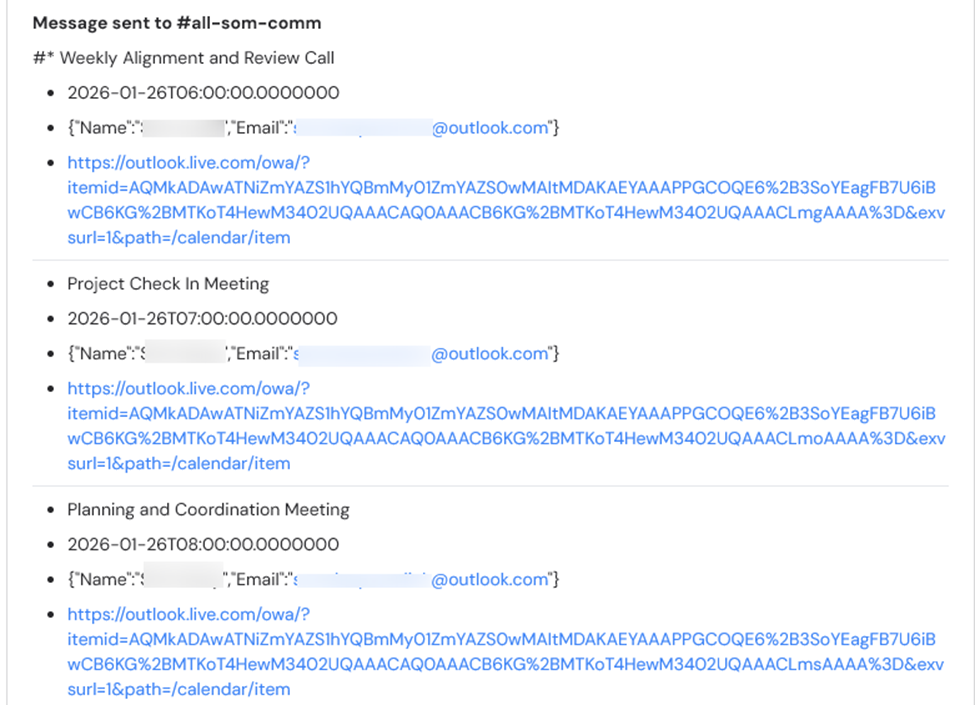 ## Output variables
| Variable | Description |
| ----------------------- | ------------------------------------------------------ |
| **Event ID** | Unique identifier of the calendar event |
| **Title** | Title or subject of the calendar event |
| **Description** | Description or body content of the calendar event |
| **Created Date** | When the calendar event was created |
| **Updated Date** | When the calendar event was last modified |
| **Calendar Event Link** | Direct link to view the event in Outlook |
| **Start Date** | Start date and time of the event |
| **End Date** | End date and time of the event |
| **Time Zone** | Time zone for the event |
| **Is All Day** | Whether the event is an all-day event |
| **Is Online Meeting** | Whether the event includes an online meeting |
| **Join URL** | Meeting link if it's an online meeting |
| **Location** | Physical location of the event |
| **Organizer** | Details about who organized the event (name and email) |
| **Attendees** | List of people invited to the event |
## Related
* [New calendar event trigger](/integrations/microsoft-365/outlook/new-calendar-event-trigger)
* [Updated calendar event trigger](/integrations/microsoft-365/outlook/updated-calendar-event-trigger)
* [Create calendar event](/integrations/microsoft-365/outlook/create-calendar-event)
* [Outlook Calendar for Workflows](/integrations/microsoft-365/outlook/calendar-workflows)
## Output variables
| Variable | Description |
| ----------------------- | ------------------------------------------------------ |
| **Event ID** | Unique identifier of the calendar event |
| **Title** | Title or subject of the calendar event |
| **Description** | Description or body content of the calendar event |
| **Created Date** | When the calendar event was created |
| **Updated Date** | When the calendar event was last modified |
| **Calendar Event Link** | Direct link to view the event in Outlook |
| **Start Date** | Start date and time of the event |
| **End Date** | End date and time of the event |
| **Time Zone** | Time zone for the event |
| **Is All Day** | Whether the event is an all-day event |
| **Is Online Meeting** | Whether the event includes an online meeting |
| **Join URL** | Meeting link if it's an online meeting |
| **Location** | Physical location of the event |
| **Organizer** | Details about who organized the event (name and email) |
| **Attendees** | List of people invited to the event |
## Related
* [New calendar event trigger](/integrations/microsoft-365/outlook/new-calendar-event-trigger)
* [Updated calendar event trigger](/integrations/microsoft-365/outlook/updated-calendar-event-trigger)
* [Create calendar event](/integrations/microsoft-365/outlook/create-calendar-event)
* [Outlook Calendar for Workflows](/integrations/microsoft-365/outlook/calendar-workflows)