> ## Documentation Index
> Fetch the complete documentation index at: https://docs.cassidyai.com/llms.txt
> Use this file to discover all available pages before exploring further.
# New email received in Outlook trigger
> Start a Workflow when a new email arrives in your Outlook inbox.
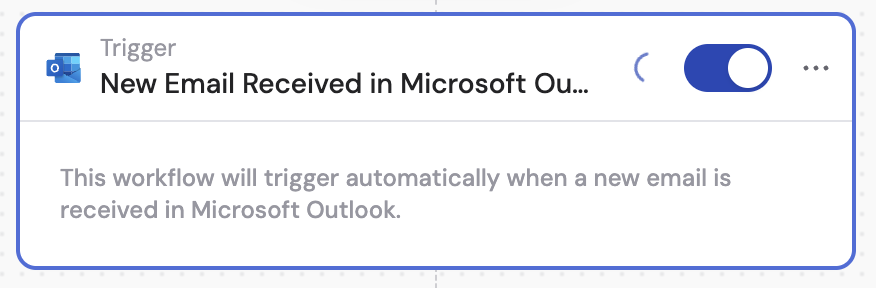
Use the **New Email Received in Microsoft Outlook** trigger to start a [Workflow](/workflows/overview) whenever a new email arrives in your connected Outlook account. This is useful for automating email triage, drafting replies, or routing messages based on sender or content.
## Set up the trigger
Create a new Workflow with the **New Email Received in Microsoft Outlook** trigger, or change an existing Workflow's trigger type to **New Email Received in Microsoft Outlook**.
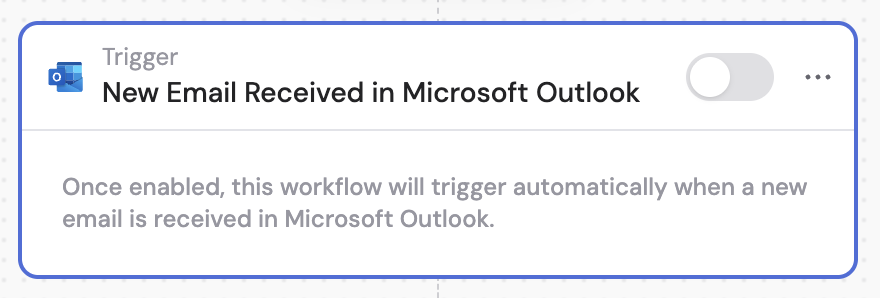 If you haven't already, connect your Microsoft Outlook account to Cassidy.
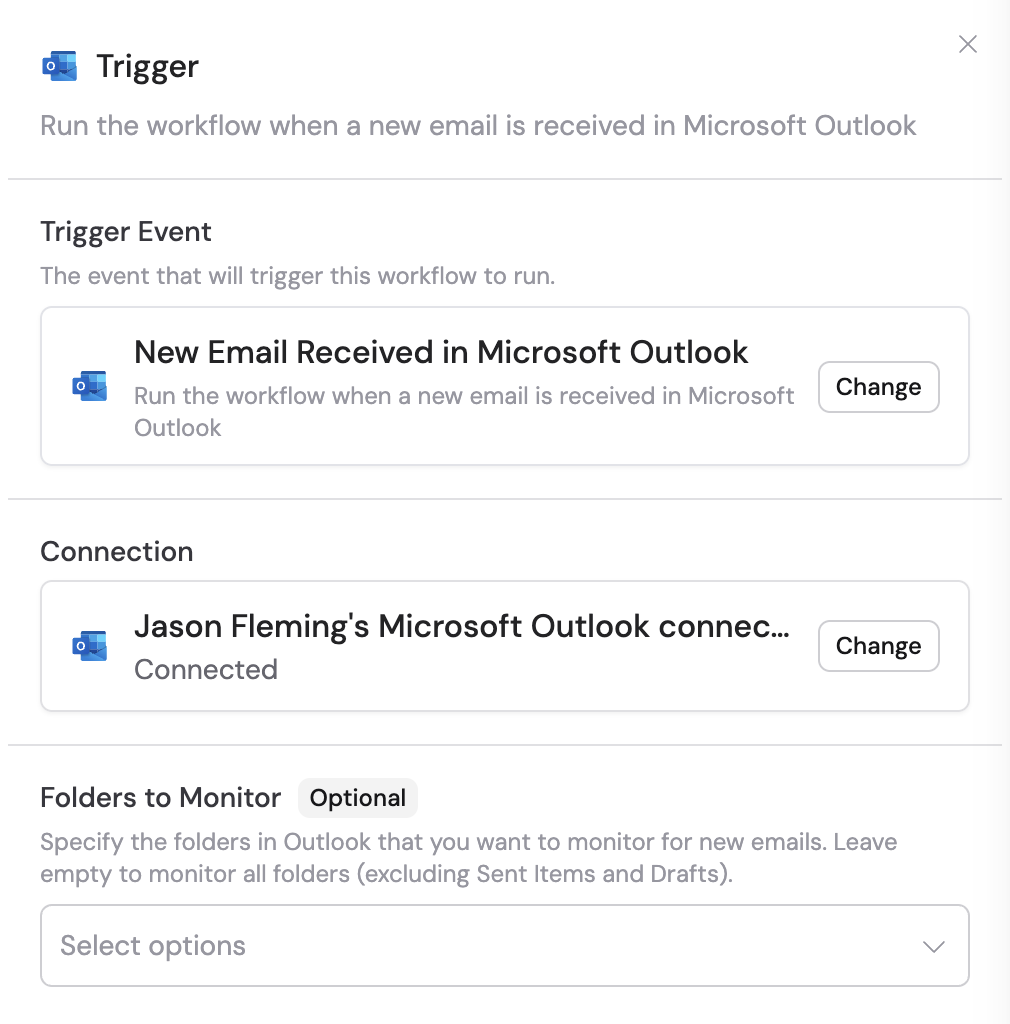 Specify the folders in Outlook you want to monitor for new emails. Leave empty to monitor all folders (excluding Sent Items and Drafts).
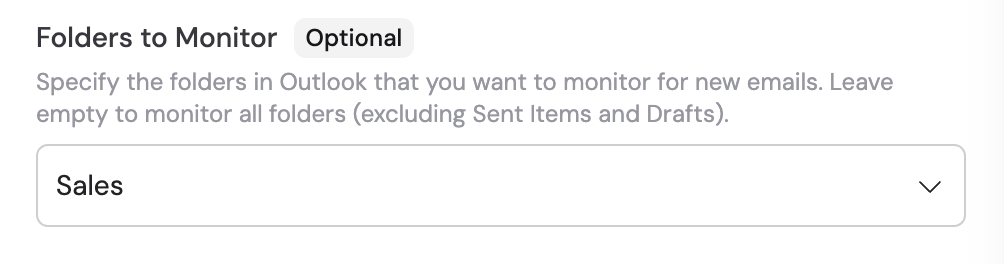 In subsequent Workflow steps, you can reference the following variables from this trigger:
* **Email ID** — the unique identifier of the email message
* **Parent Folder ID** — the identifier of the folder containing the email
* **Conversation ID** — the identifier for the email conversation thread
* **Conversation Index** — the position of the email within the conversation
* **Web Link** — the web URL to view the email in Outlook
* **Sent Date** — the date and time the email was sent
* **Received Date** — the date and time the email was received
* **Labels** — any labels or categories applied to the email
* **From (includes Name and Email)** — the sender's name and email address
* **Recipients** — the recipient email addresses
* **CC Recipients** — the carbon copy recipient names and email addresses
* **BCC Recipients** — the blind carbon copy recipient names and email addresses
* **Reply To** — the reply-to email address
* **Subject** — the subject line of the email
* **Body** — the content of the email
* **Attachments** — any files attached to the email
In subsequent Workflow steps, you can reference the following variables from this trigger:
* **Email ID** — the unique identifier of the email message
* **Parent Folder ID** — the identifier of the folder containing the email
* **Conversation ID** — the identifier for the email conversation thread
* **Conversation Index** — the position of the email within the conversation
* **Web Link** — the web URL to view the email in Outlook
* **Sent Date** — the date and time the email was sent
* **Received Date** — the date and time the email was received
* **Labels** — any labels or categories applied to the email
* **From (includes Name and Email)** — the sender's name and email address
* **Recipients** — the recipient email addresses
* **CC Recipients** — the carbon copy recipient names and email addresses
* **BCC Recipients** — the blind carbon copy recipient names and email addresses
* **Reply To** — the reply-to email address
* **Subject** — the subject line of the email
* **Body** — the content of the email
* **Attachments** — any files attached to the email
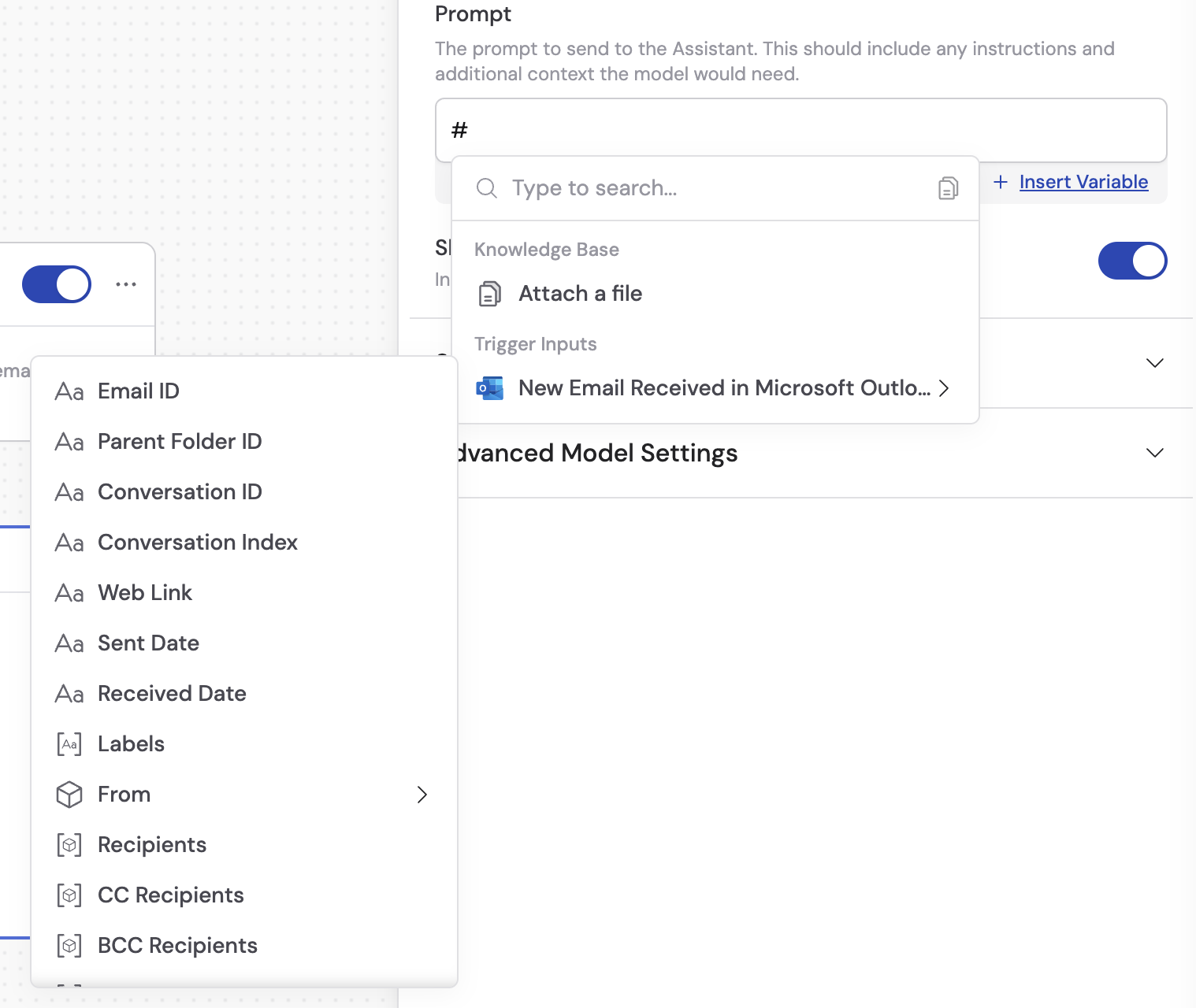 In the trigger block, click the toggle switch to turn it on.
 This trigger only activates for emails received **after** the trigger is set up. It does not process existing emails.
## Related
Send an email from a Workflow.
Reply to an email thread from a Workflow.
Create a draft email from a Workflow.
Add a category label to a message from a Workflow.
See all Outlook Workflow triggers and actions.
This trigger only activates for emails received **after** the trigger is set up. It does not process existing emails.
## Related
Send an email from a Workflow.
Reply to an email thread from a Workflow.
Create a draft email from a Workflow.
Add a category label to a message from a Workflow.
See all Outlook Workflow triggers and actions.