> ## Documentation Index
> Fetch the complete documentation index at: https://docs.cassidyai.com/llms.txt
> Use this file to discover all available pages before exploring further.
# SharePoint Agent Connector
> Connect Agents to SharePoint to find sites and documents, read pages and lists, upload files, update list items, and create sharing links.
The SharePoint Connector lets your [Agents](/agents/overview) work with current
content in SharePoint. Agents can find documents, read site pages and lists,
upload files, organize folders, update list items, and create sharing links
with the action permissions you choose.
The Connector accesses SharePoint live during a conversation. To import and
index selected content for ongoing AI-powered search, use [SharePoint for the
Knowledge Base](/integrations/microsoft-365/sharepoint/knowledge-base).
For complex searches and multi-step SharePoint tasks, use a powerful,
reasoning-capable model. See [Choose the right AI
model](/guides/choose-ai-model) for current recommendations.
## Set up the SharePoint Connector
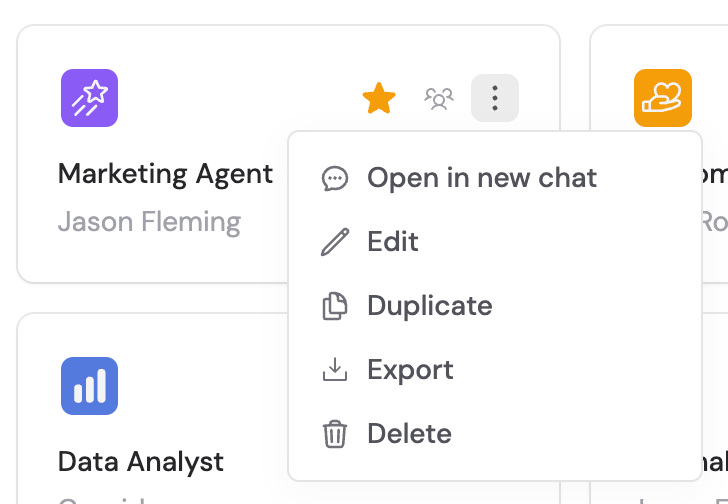
Go to **Agents** and select the Agent you want to configure.
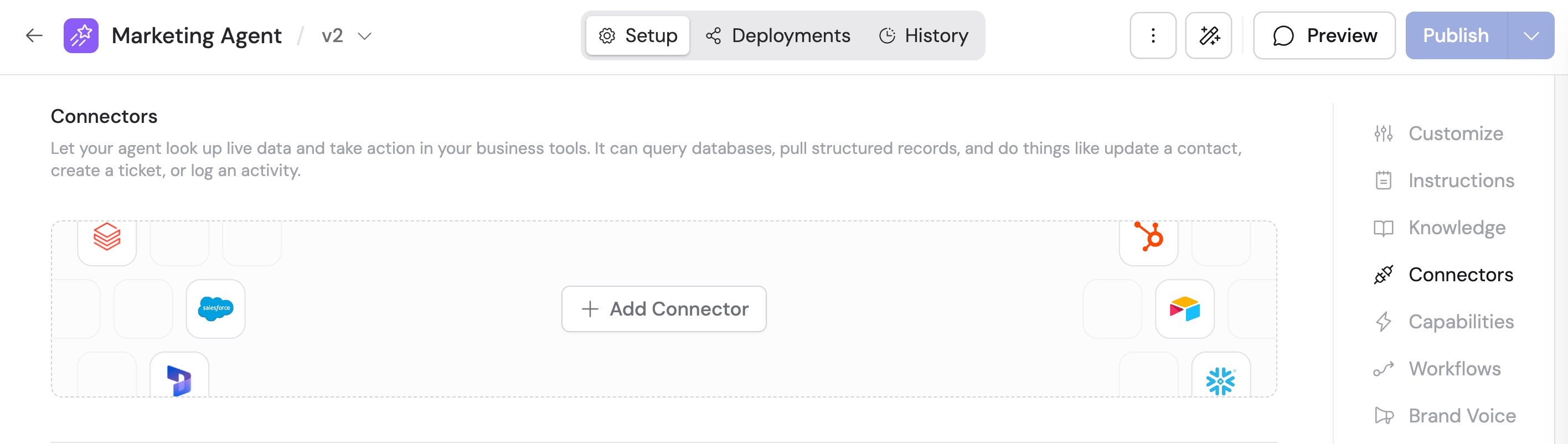
 Click the **Setup** tab and scroll to the **Connectors** section.
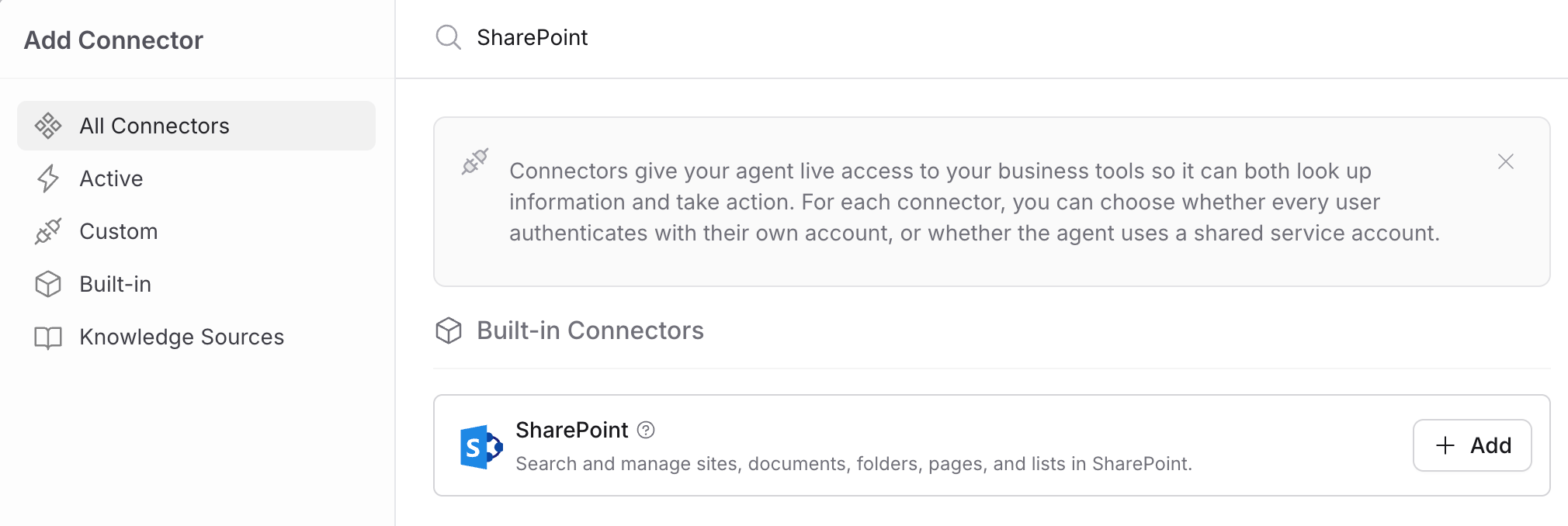
 Click **+ Add Connector**, search for **SharePoint**, and click **+ Add**.
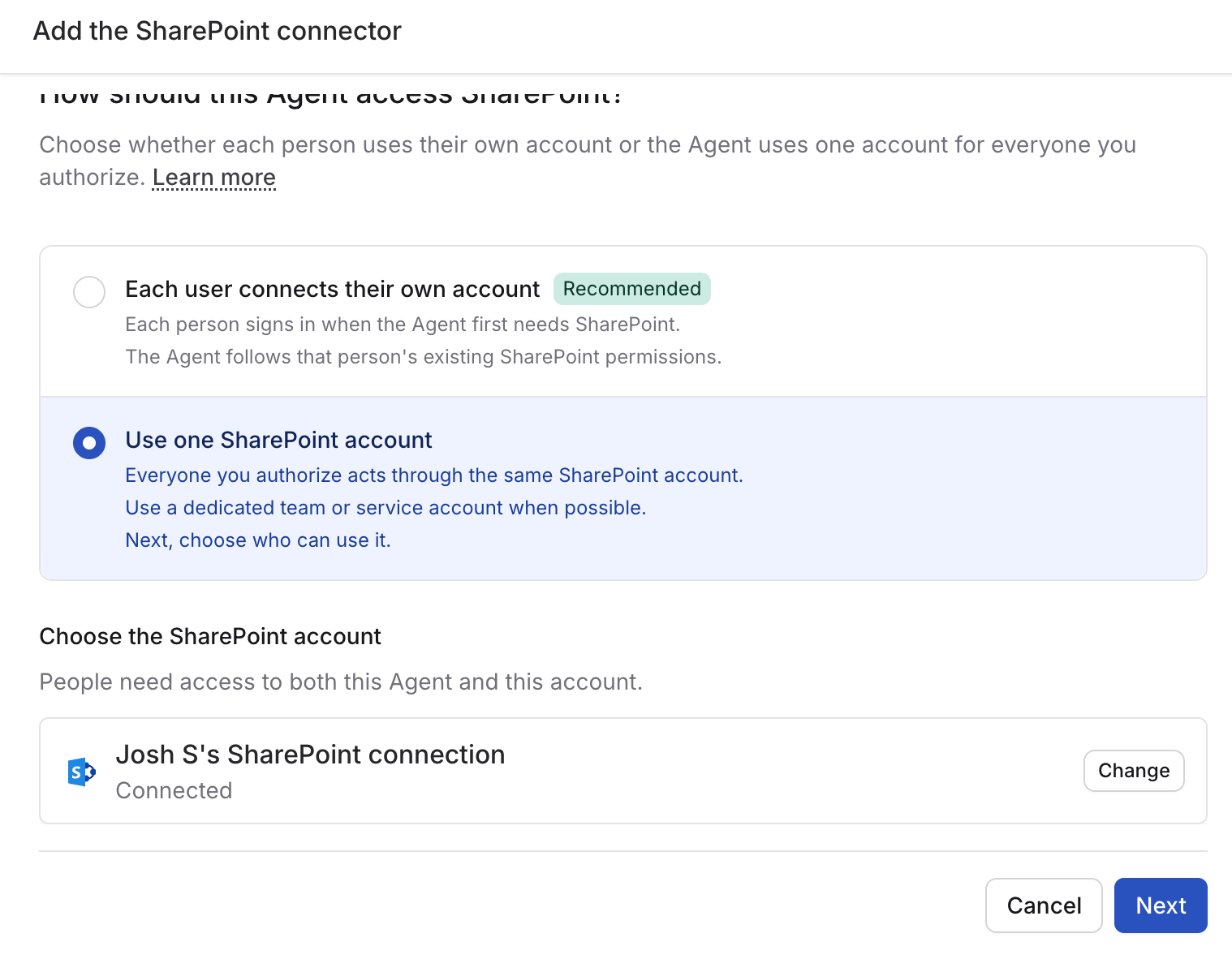
 Select how people will authenticate:
* **Each user connects their own account** (recommended) — each person signs
in with their own Microsoft account and keeps their existing SharePoint
access.
* **Use one SharePoint account** — everyone you authorize uses the same
Microsoft account.
Select how people will authenticate:
* **Each user connects their own account** (recommended) — each person signs
in with their own Microsoft account and keeps their existing SharePoint
access.
* **Use one SharePoint account** — everyone you authorize uses the same
Microsoft account.
 If you choose **Use one SharePoint account**, select an existing connection
under **Choose the SharePoint account**, or connect a new account by signing
in to Microsoft and approving access to SharePoint. Then choose the people
and groups who can use it.
If you choose **Use one SharePoint account**, select an existing connection
under **Choose the SharePoint account**, or connect a new account by signing
in to Microsoft and approving access to SharePoint. Then choose the people
and groups who can use it.
 Everyone with access acts through the same Microsoft account. Use a
dedicated service account with only the SharePoint access the Agent
needs.
Choose whether each group of actions is always allowed, requires approval,
or is disabled.
* **Browse & Read Documents** and **Read Lists** are always allowed by
default.
* **Manage Documents**, **Manage List Items**, **Share Documents**, and
**Delete / Archive** are disabled by default.
Review write and sharing actions carefully. Creating a sharing link can
grant other people view or edit access to a document.
Click **Add** to enable the Connector for this Agent.
Open **Chat** and select the Agent with the SharePoint Connector. People
using their own accounts are prompted to connect SharePoint the first time
the Agent needs it.
Try prompts such as:
* “Find the latest onboarding documents in SharePoint.”
* “Summarize the open requests in the Facilities list.”
* “Upload this generated report to the Quarterly Reviews folder.”
## Connect SharePoint for yourself
To use SharePoint in any chat, open **Customize** → **Connectors**, find
**SharePoint**, and click **Connect**. See [Add a Connector for
yourself](/agents/connectors/overview#add-a-connector-for-yourself).
## What the Agent can do
* Discover accessible sites and document libraries.
* Search for documents and browse files and folders.
* Read files and modern SharePoint site pages.
* Discover lists, inspect columns, and retrieve list items.
* Upload files, create folders, and create or update list items when enabled.
* Create document sharing links when enabled.
The initial Connector does not expose delete or archive actions.
## Monitor SharePoint actions
When an Agent uses the SharePoint Connector, expand the action in the response
to review its input, result, and approval status.
## Data security
The Connector uses the permissions of the connected Microsoft account.
SharePoint continues to enforce that account's access to sites, libraries,
documents, and lists. Cassidy also applies the Connector action permissions
configured for the Agent or organization.
## Next steps
Learn how Agent Connectors, account connections, and action permissions
work.
Import selected SharePoint content for AI-powered search.
Automate repeatable SharePoint file and list tasks.
Everyone with access acts through the same Microsoft account. Use a
dedicated service account with only the SharePoint access the Agent
needs.
Choose whether each group of actions is always allowed, requires approval,
or is disabled.
* **Browse & Read Documents** and **Read Lists** are always allowed by
default.
* **Manage Documents**, **Manage List Items**, **Share Documents**, and
**Delete / Archive** are disabled by default.
Review write and sharing actions carefully. Creating a sharing link can
grant other people view or edit access to a document.
Click **Add** to enable the Connector for this Agent.
Open **Chat** and select the Agent with the SharePoint Connector. People
using their own accounts are prompted to connect SharePoint the first time
the Agent needs it.
Try prompts such as:
* “Find the latest onboarding documents in SharePoint.”
* “Summarize the open requests in the Facilities list.”
* “Upload this generated report to the Quarterly Reviews folder.”
## Connect SharePoint for yourself
To use SharePoint in any chat, open **Customize** → **Connectors**, find
**SharePoint**, and click **Connect**. See [Add a Connector for
yourself](/agents/connectors/overview#add-a-connector-for-yourself).
## What the Agent can do
* Discover accessible sites and document libraries.
* Search for documents and browse files and folders.
* Read files and modern SharePoint site pages.
* Discover lists, inspect columns, and retrieve list items.
* Upload files, create folders, and create or update list items when enabled.
* Create document sharing links when enabled.
The initial Connector does not expose delete or archive actions.
## Monitor SharePoint actions
When an Agent uses the SharePoint Connector, expand the action in the response
to review its input, result, and approval status.
## Data security
The Connector uses the permissions of the connected Microsoft account.
SharePoint continues to enforce that account's access to sites, libraries,
documents, and lists. Cassidy also applies the Connector action permissions
configured for the Agent or organization.
## Next steps
Learn how Agent Connectors, account connections, and action permissions
work.
Import selected SharePoint content for AI-powered search.
Automate repeatable SharePoint file and list tasks.