> ## Documentation Index
> Fetch the complete documentation index at: https://docs.cassidyai.com/llms.txt
> Use this file to discover all available pages before exploring further.
# SharePoint for Knowledge Base
> Import SharePoint documents, sites, and pages into your Knowledge Base for AI-powered search.
Import your SharePoint content into the [Knowledge Base](/knowledge-base/overview) so your [Agents](/agents/overview) and [Workflows](/workflows/overview) can search and reference it.
## Connect your account
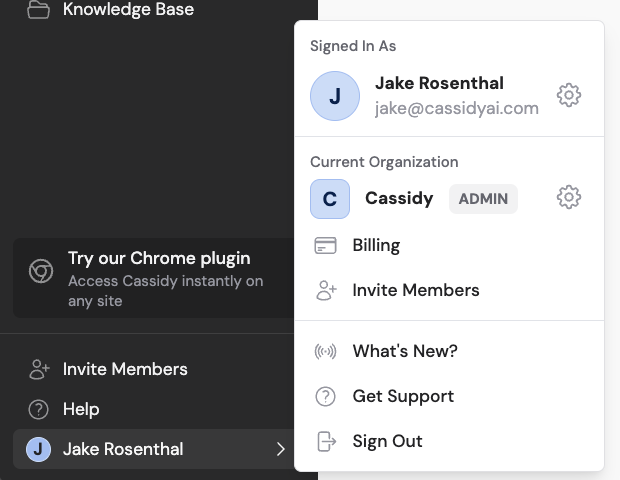
Click your name in the bottom-left of the sidebar, then click the settings icon to open **Settings**. Select **Connected Apps**.
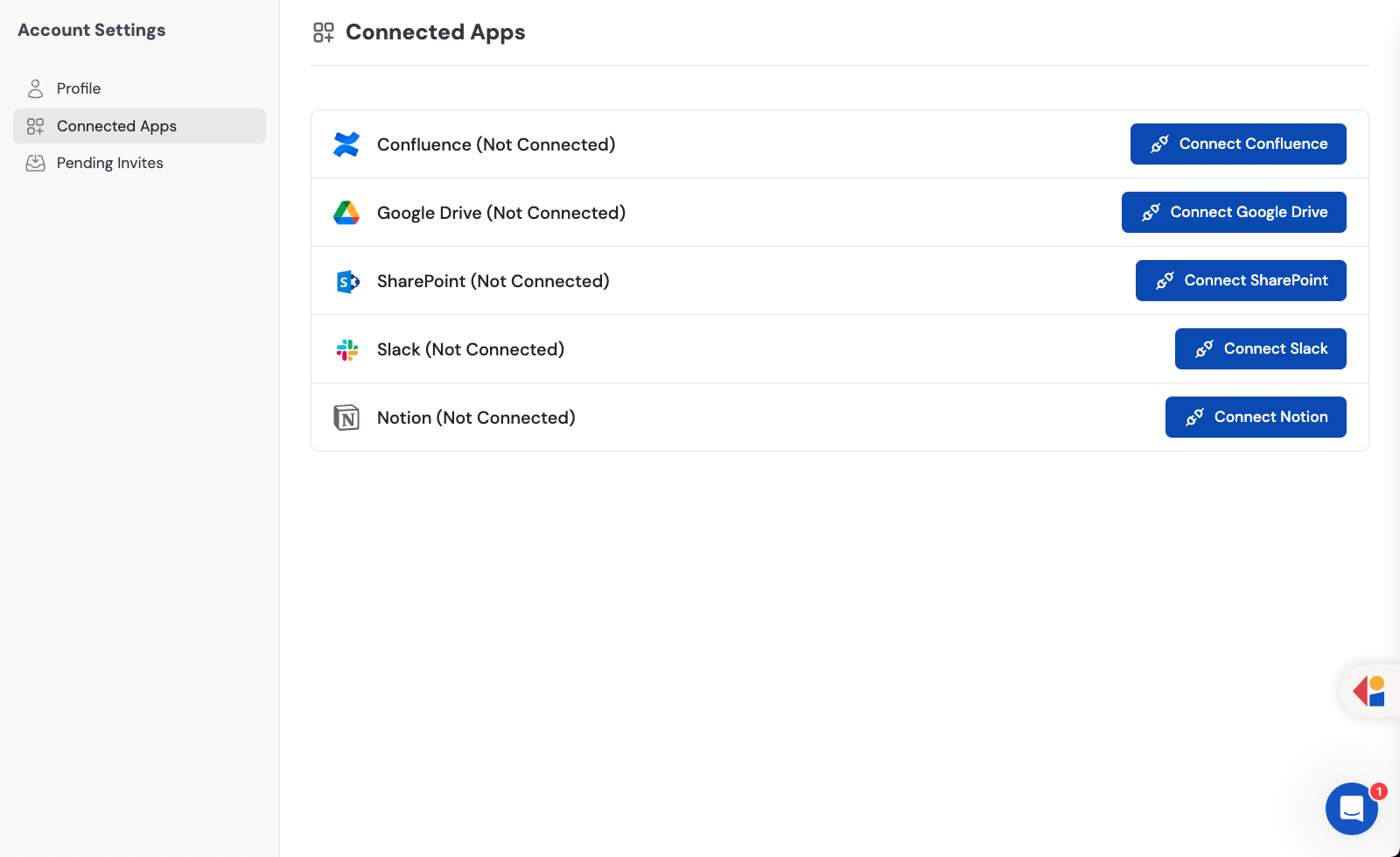 Find **Microsoft SharePoint** in the list and click **Connect**.
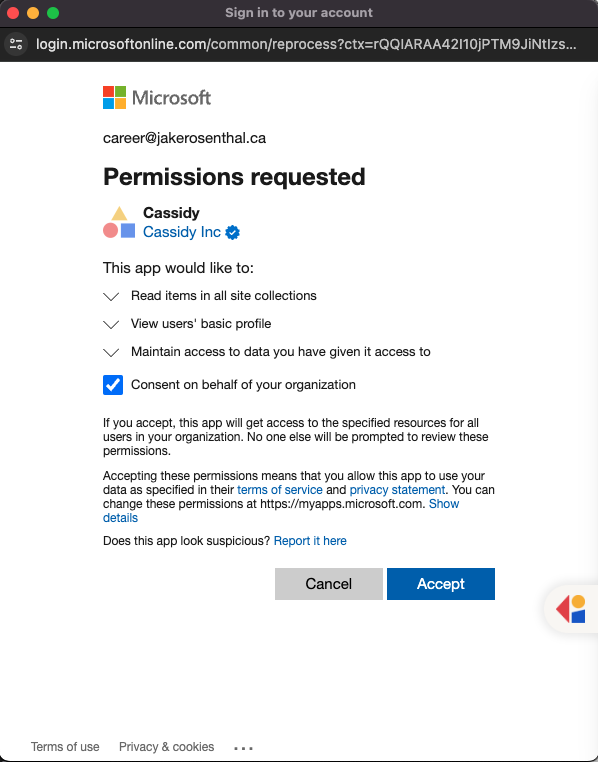 Sign in to your Microsoft account in the popup window.
 Review the permissions and click **Accept** to grant Cassidy access to your SharePoint sites and documents.
 ## Import SharePoint content
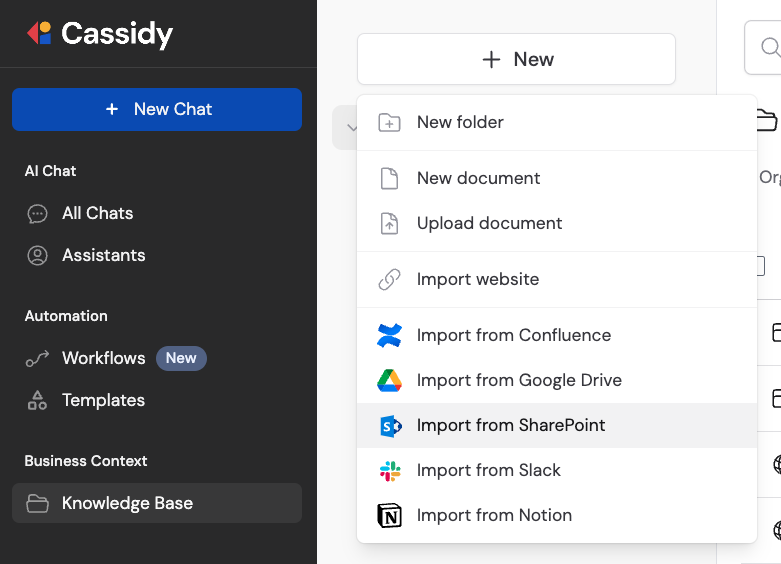
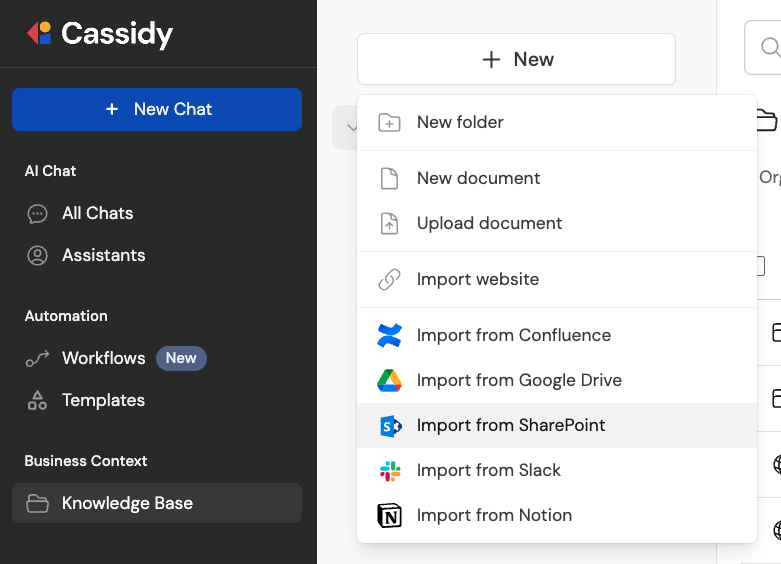
Go to your [Knowledge Base](/knowledge-base/overview) and click **+ New**. Select **Import from SharePoint**.
## Import SharePoint content
Go to your [Knowledge Base](/knowledge-base/overview) and click **+ New**. Select **Import from SharePoint**.
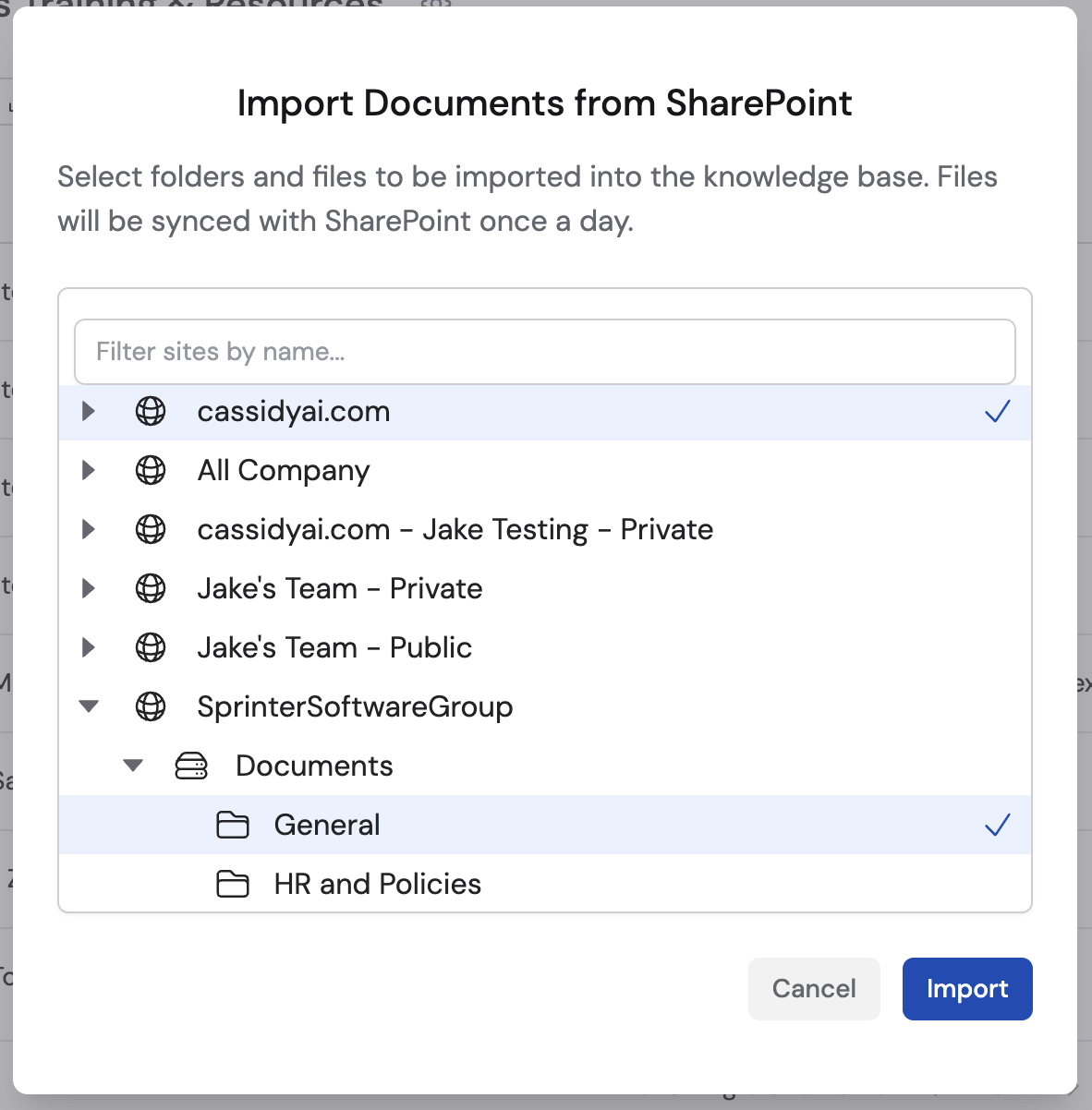
 Browse your SharePoint sites and select the documents, pages, or lists you want to import, then click **Import**.
 Imported content syncs automatically every 24 hours. Enterprise plans support live sync for near-real-time updates. Learn more about [sync behavior](/integrations/sync-integrations).
## What you can import
* **Sites** — Import content from entire SharePoint sites
* **Documents** — Import individual files and folders stored in SharePoint document libraries
* **Pages** — Import SharePoint site pages and their content
* **Lists** — Import structured data from SharePoint lists
## Next steps
Learn how to manage and structure your imported content.
Automate file management with SharePoint triggers and actions.
Imported content syncs automatically every 24 hours. Enterprise plans support live sync for near-real-time updates. Learn more about [sync behavior](/integrations/sync-integrations).
## What you can import
* **Sites** — Import content from entire SharePoint sites
* **Documents** — Import individual files and folders stored in SharePoint document libraries
* **Pages** — Import SharePoint site pages and their content
* **Lists** — Import structured data from SharePoint lists
## Next steps
Learn how to manage and structure your imported content.
Automate file management with SharePoint triggers and actions.