> ## Documentation Index
> Fetch the complete documentation index at: https://docs.cassidyai.com/llms.txt
> Use this file to discover all available pages before exploring further.
# New Teams channel message trigger
> Run a Workflow automatically when a message is posted in a Microsoft Teams channel.
Use the **New Teams Channel Message** trigger to start a [Workflow](/workflows/overview) whenever a new message is posted in a specific Microsoft Teams channel. This is useful for monitoring channels for requests, routing messages, or automating responses.
## Set up the trigger
Create a new Workflow with the **New Teams Channel Message** trigger, or change an existing Workflow's trigger type to **New Teams Channel Message**.
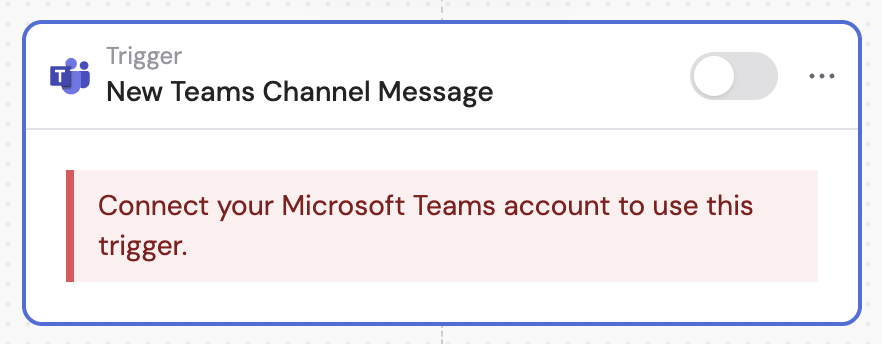 If you haven't already, connect your Microsoft Teams account to Cassidy.
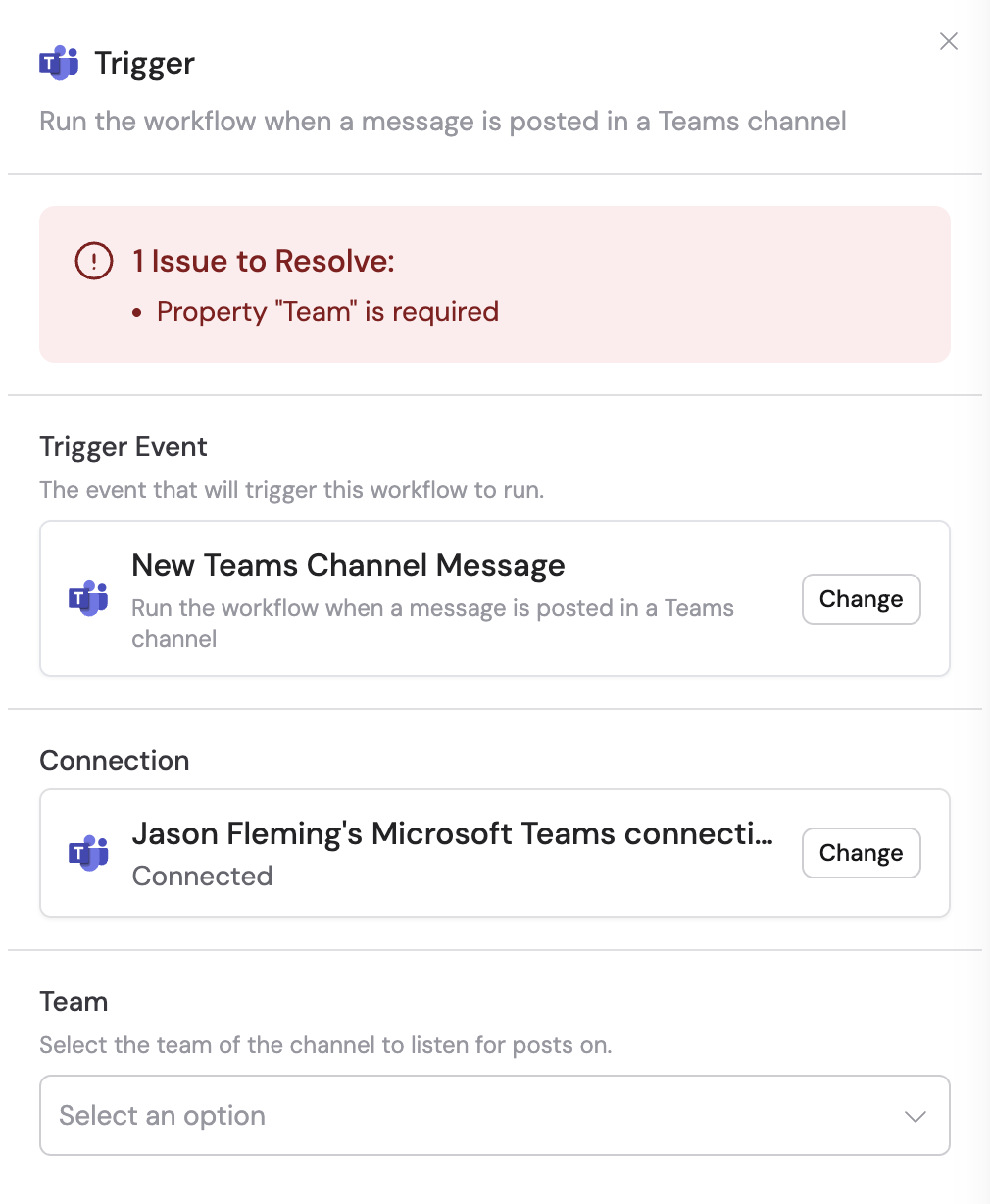 The Microsoft Teams connection requires admin approval. Either have an admin check the **Consent on behalf of your organization** checkbox during the connection process, or follow the [admin consent workflow process](https://learn.microsoft.com/en-us/entra/identity/enterprise-apps/configure-admin-consent-workflow) outlined in Microsoft's documentation.
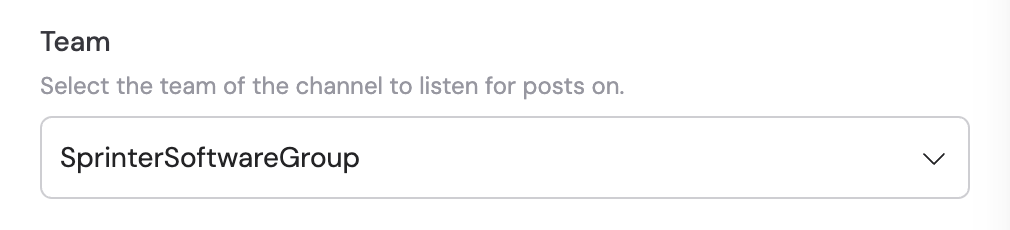
Choose the specific team that contains the channel you want to monitor.
The Microsoft Teams connection requires admin approval. Either have an admin check the **Consent on behalf of your organization** checkbox during the connection process, or follow the [admin consent workflow process](https://learn.microsoft.com/en-us/entra/identity/enterprise-apps/configure-admin-consent-workflow) outlined in Microsoft's documentation.
Choose the specific team that contains the channel you want to monitor.
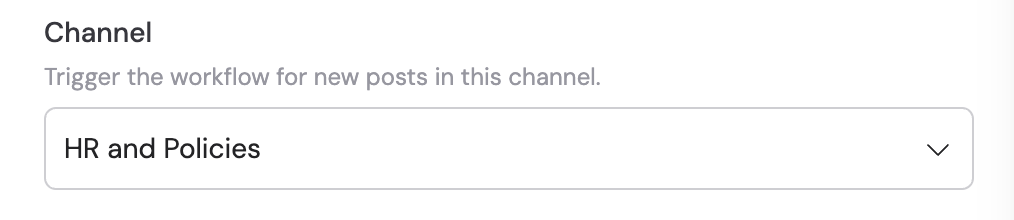
 Choose the specific channel within the selected team. The Workflow will trigger when new messages are posted in this channel.
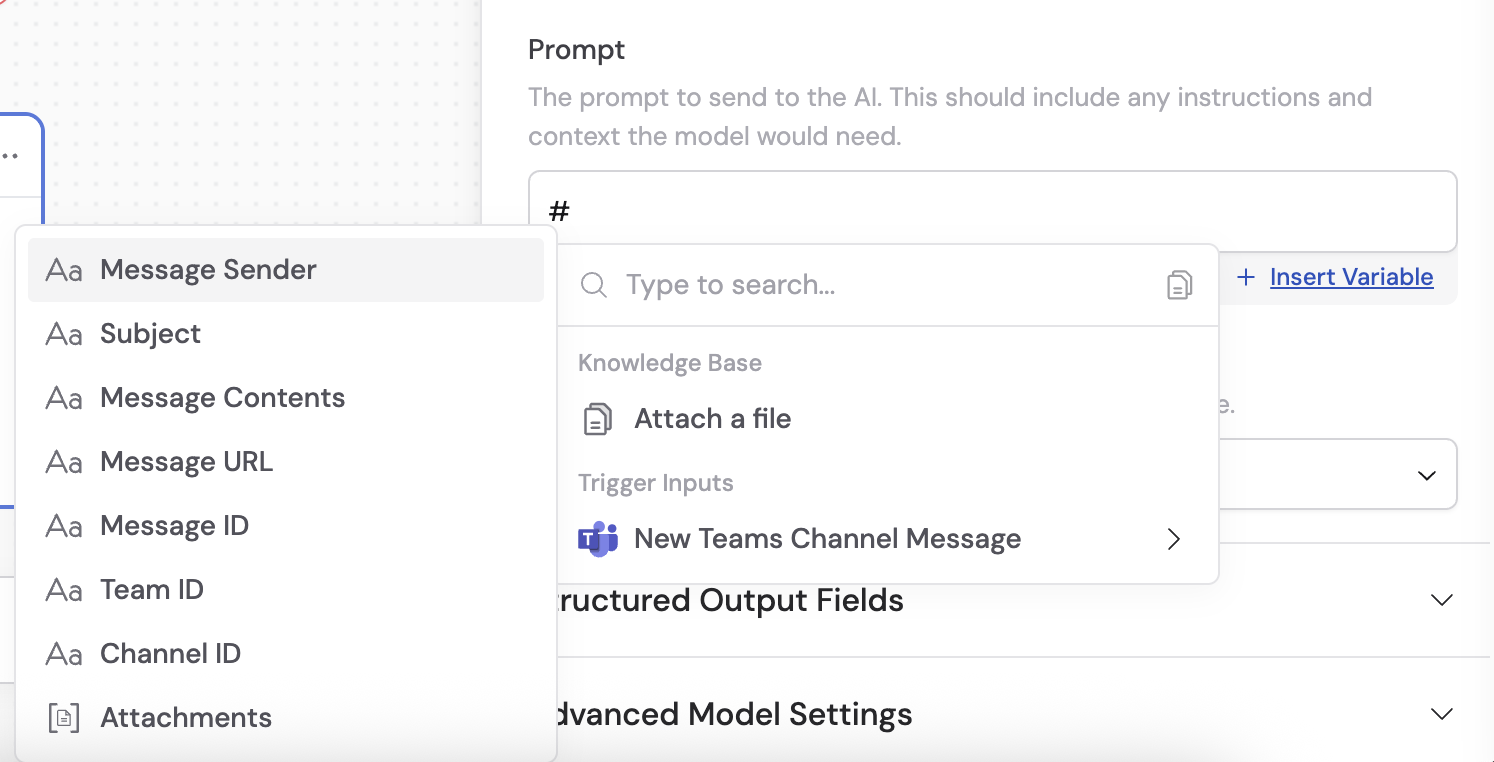
 In subsequent Workflow steps, you can reference the following variables:
* **Message Sender** — the person who sent the message
* **Subject** — the subject of the message
* **Message Contents** — the text content of the message
* **Message URL** — the URL of the message
* **Message ID** — the unique identifier of the message
* **Team ID** — the unique identifier of the team
* **Channel ID** — the unique identifier of the channel
* **Attachments** — any attachments on the message
In subsequent Workflow steps, you can reference the following variables:
* **Message Sender** — the person who sent the message
* **Subject** — the subject of the message
* **Message Contents** — the text content of the message
* **Message URL** — the URL of the message
* **Message ID** — the unique identifier of the message
* **Team ID** — the unique identifier of the team
* **Channel ID** — the unique identifier of the channel
* **Attachments** — any attachments on the message
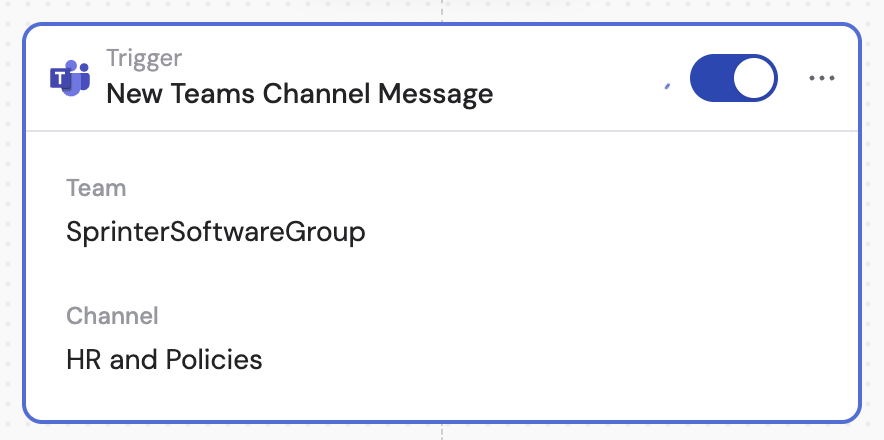
 In the trigger block, click the toggle switch to turn it on.
 ## Related
Send a message to a Teams channel from a Workflow.
Trigger a Workflow from a Teams chat message.
## Related
Send a message to a Teams channel from a Workflow.
Trigger a Workflow from a Teams chat message.