> ## Documentation Index
> Fetch the complete documentation index at: https://docs.cassidyai.com/llms.txt
> Use this file to discover all available pages before exploring further.
# New Teams chat message trigger
> Run a Workflow automatically when a message is posted in a Microsoft Teams chat.
Use the **New Teams Chat Message** trigger to start a [Workflow](/workflows/overview) whenever a new message is posted in a specific Microsoft Teams chat. This works with both individual and group chats.
## Set up the trigger
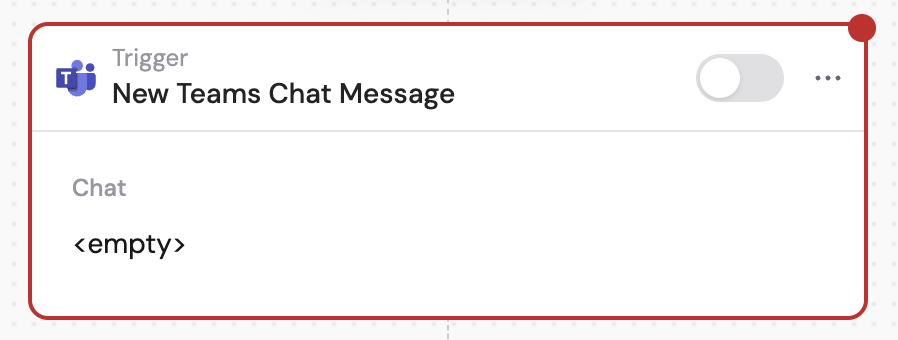
Create a new Workflow with the **New Teams Chat Message** trigger, or change an existing Workflow's trigger type to **New Teams Chat Message**.
 If you haven't already, connect your Microsoft Teams account to Cassidy.
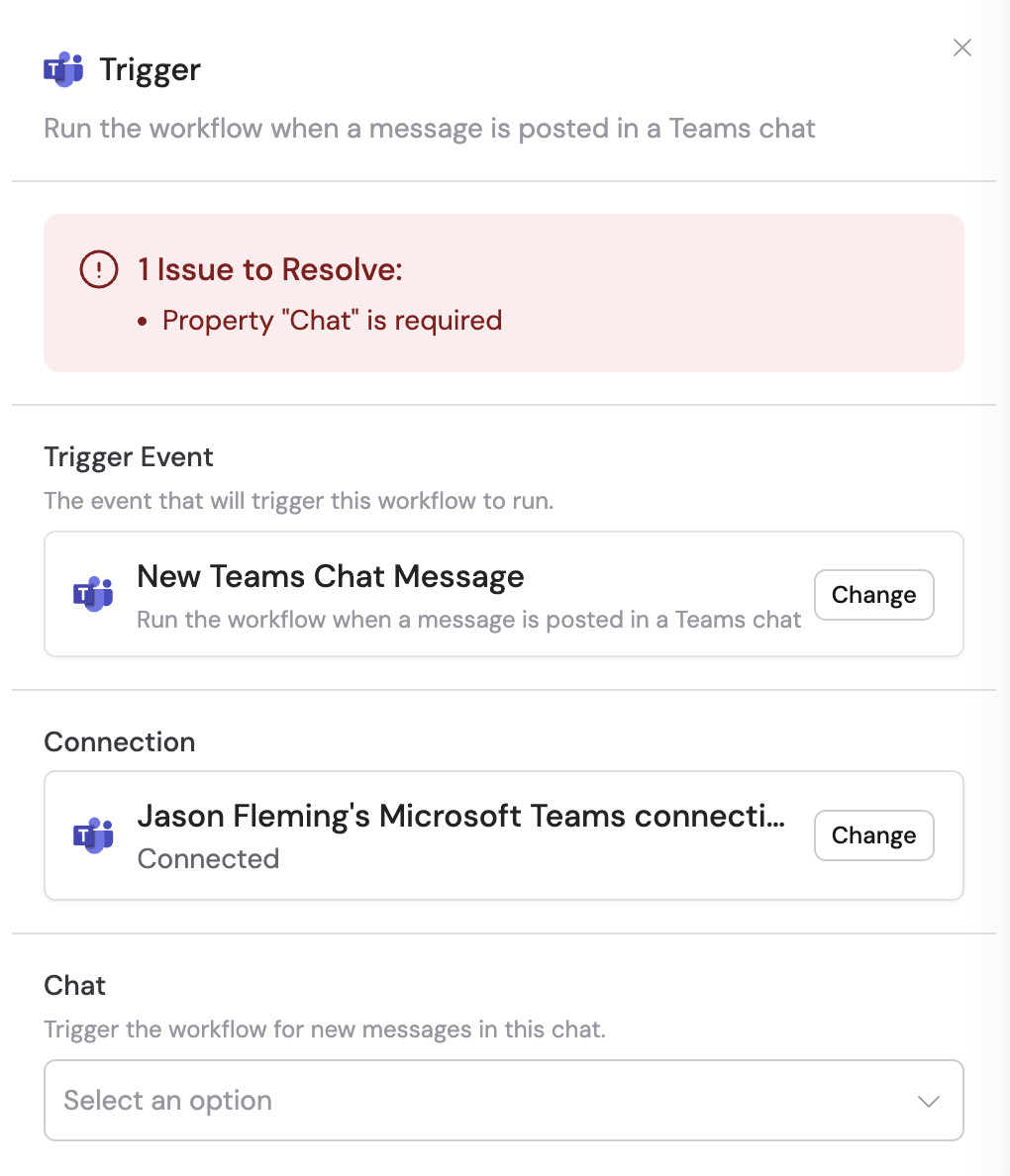 The Microsoft Teams connection requires admin approval. Either have an admin check the **Consent on behalf of your organization** checkbox during the connection process, or follow the [admin consent workflow process](https://learn.microsoft.com/en-us/entra/identity/enterprise-apps/configure-admin-consent-workflow) outlined in Microsoft's documentation.
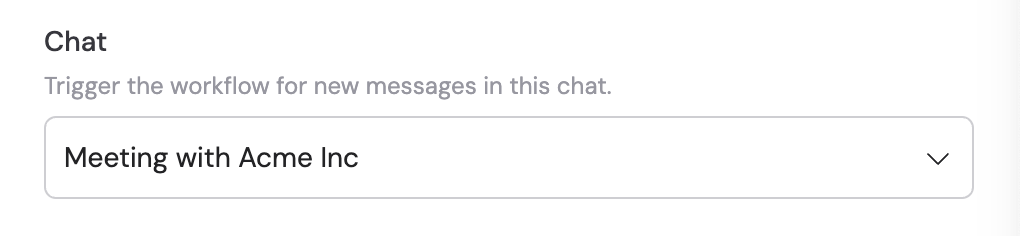
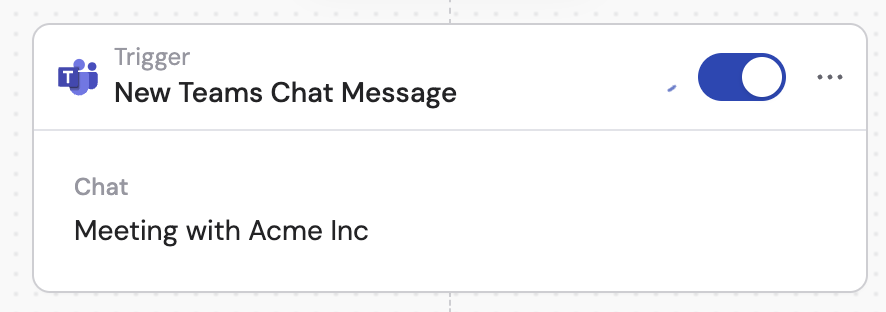
Choose the specific Teams chat you want to monitor. This can be an individual or group chat. You can also click the pencil icon to input a chat ID directly.
The Microsoft Teams connection requires admin approval. Either have an admin check the **Consent on behalf of your organization** checkbox during the connection process, or follow the [admin consent workflow process](https://learn.microsoft.com/en-us/entra/identity/enterprise-apps/configure-admin-consent-workflow) outlined in Microsoft's documentation.
Choose the specific Teams chat you want to monitor. This can be an individual or group chat. You can also click the pencil icon to input a chat ID directly.
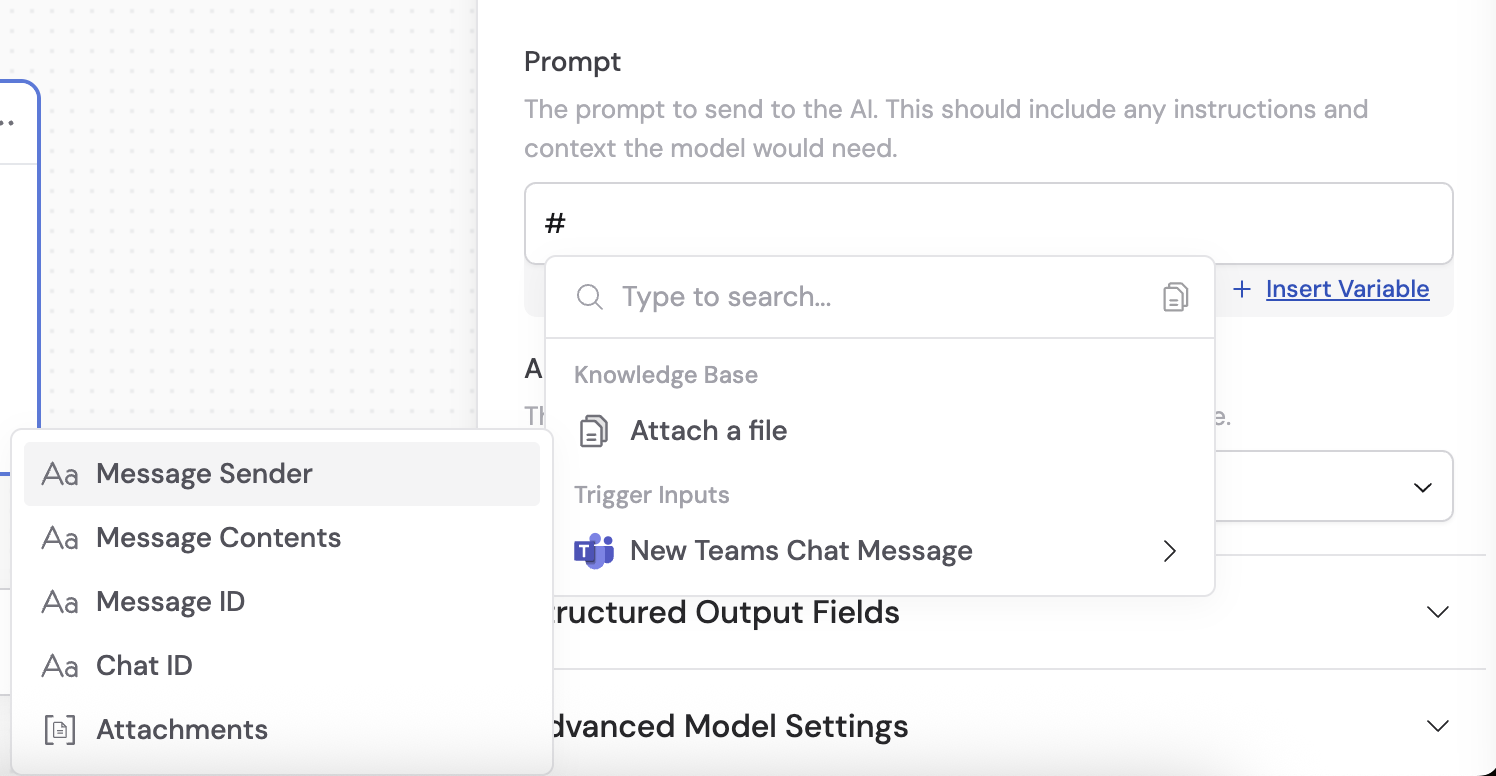
 In subsequent Workflow steps, you can reference the following variables:
* **Message Sender** — the person who sent the message
* **Message Contents** — the text content of the message
* **Message ID** — the unique identifier of the message
* **Chat ID** — the unique identifier of the chat
* **Attachments** — any attachments on the message
In subsequent Workflow steps, you can reference the following variables:
* **Message Sender** — the person who sent the message
* **Message Contents** — the text content of the message
* **Message ID** — the unique identifier of the message
* **Chat ID** — the unique identifier of the chat
* **Attachments** — any attachments on the message
 In the trigger block, click the toggle switch to turn it on.
 ## Related
Send a message to a Teams chat from a Workflow.
Trigger a Workflow from a Teams channel message.
## Related
Send a message to a Teams chat from a Workflow.
Trigger a Workflow from a Teams channel message.