> ## Documentation Index
> Fetch the complete documentation index at: https://docs.cassidyai.com/llms.txt
> Use this file to discover all available pages before exploring further.
# Send message to Teams chat
> Send a message to a Microsoft Teams chat from a Workflow.
Use the **Send Message to Teams Chat** action to send a message to a Microsoft Teams chat as part of a [Workflow](/workflows/overview). You can also reply to the chat that triggered the Workflow.
## Set up the action
While editing a Workflow, click the **+** button between existing blocks. Select **Send Message to Teams Chat** from the action list.
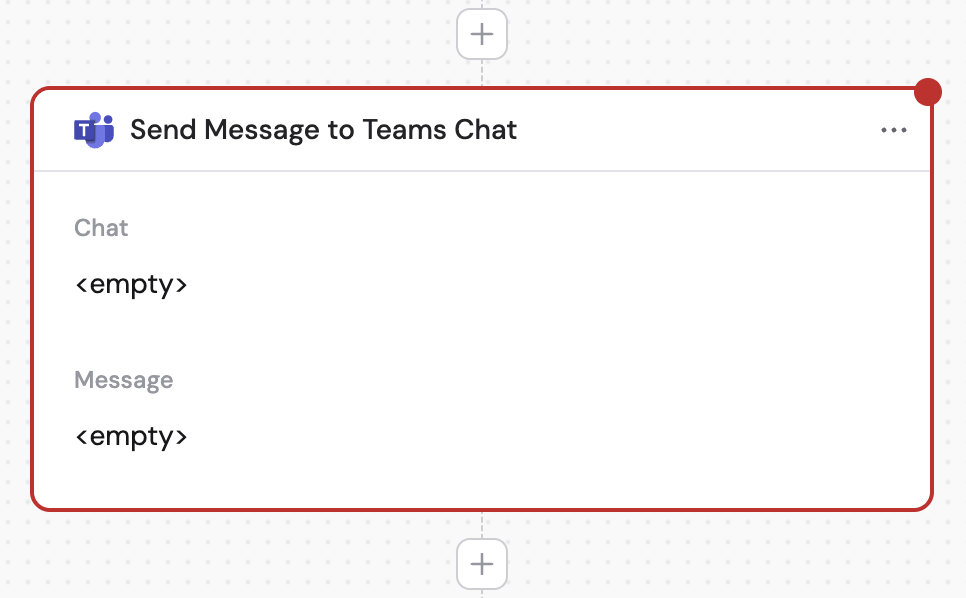 Click the action name to give it a more descriptive label.
 If you haven't already, connect your Microsoft Teams account to Cassidy.
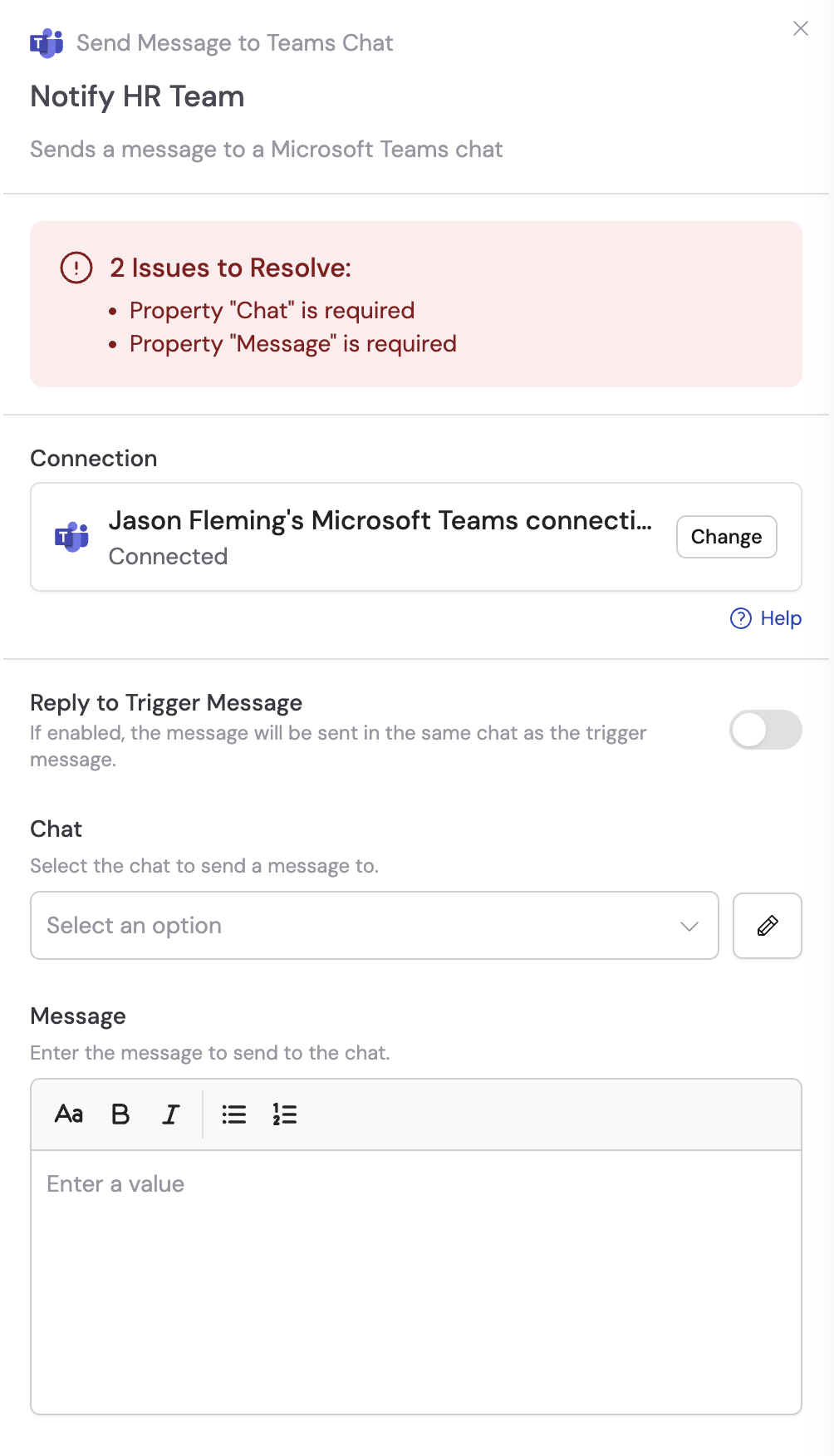 The Microsoft Teams connection requires admin approval. See [Microsoft's admin consent workflow documentation](https://learn.microsoft.com/en-us/entra/identity/enterprise-apps/configure-admin-consent-workflow) for details.
If you're using this action with the **New Teams Chat Message** trigger, enable **Reply to Trigger Message** to reply to the same chat that started the Workflow. When enabled, you only need to fill out the **Message** field.
The Microsoft Teams connection requires admin approval. See [Microsoft's admin consent workflow documentation](https://learn.microsoft.com/en-us/entra/identity/enterprise-apps/configure-admin-consent-workflow) for details.
If you're using this action with the **New Teams Chat Message** trigger, enable **Reply to Trigger Message** to reply to the same chat that started the Workflow. When enabled, you only need to fill out the **Message** field.
 Select the chat to send a message to. You can also click the pencil icon to enter the chat ID directly.
This field is only required if **Reply to Trigger Message** is not toggled on.
Select the chat to send a message to. You can also click the pencil icon to enter the chat ID directly.
This field is only required if **Reply to Trigger Message** is not toggled on.
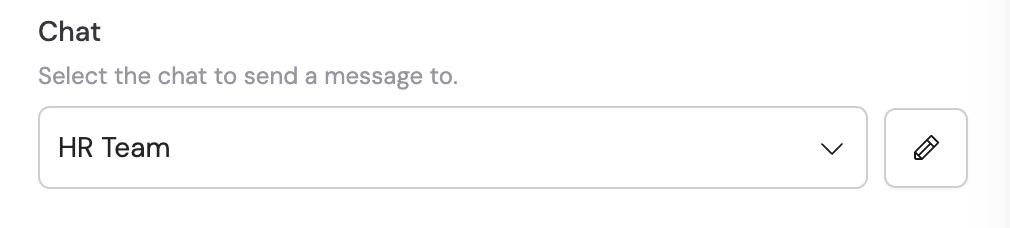
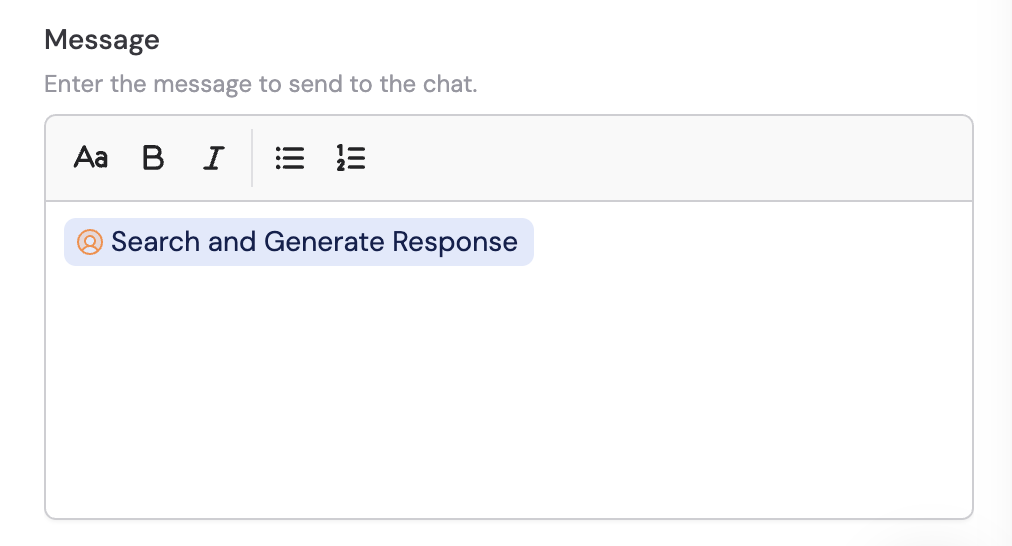
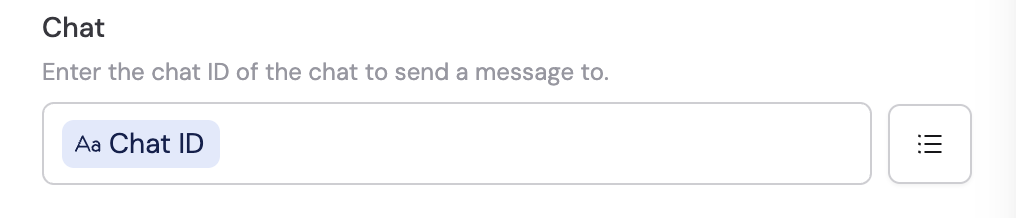 Enter the message to send to the chat. You can type directly or reference a variable from a previous step or the trigger.
 ## Related
Trigger a Workflow from a chat message.
Send a message to a Teams channel from a Workflow.
## Related
Trigger a Workflow from a chat message.
Send a message to a Teams channel from a Workflow.