> ## Documentation Index
> Fetch the complete documentation index at: https://docs.cassidyai.com/llms.txt
> Use this file to discover all available pages before exploring further.
# Monday.com Agent Connector
> Connect your Agent to Monday.com to read boards, manage items, post updates, and take action in real time.
The Monday.com [Connector](/agents/connectors/overview) gives your [Agents](/agents/overview) live access to your Monday.com account. Agents can look up boards, items, groups, updates, and users, then create or update work when needed. Monday.com data is accessed in real time and is not copied or stored in Cassidy.
For best results with Connector queries, use a powerful, reasoning-capable model. Cassidy supports models from OpenAI, Anthropic, and Google. See [Choose the right AI model](/guides/choose-ai-model) for current recommendations.
## Set up the Monday.com Connector
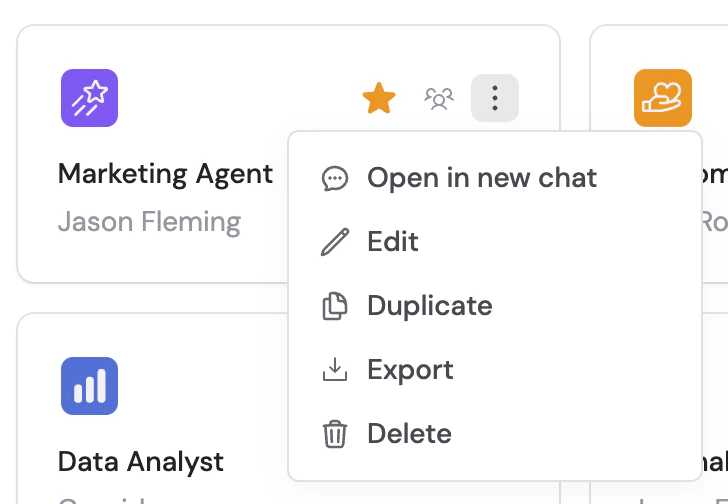
Navigate to **Agents**, find the Agent you want to configure, click **...**, and select **Edit**.
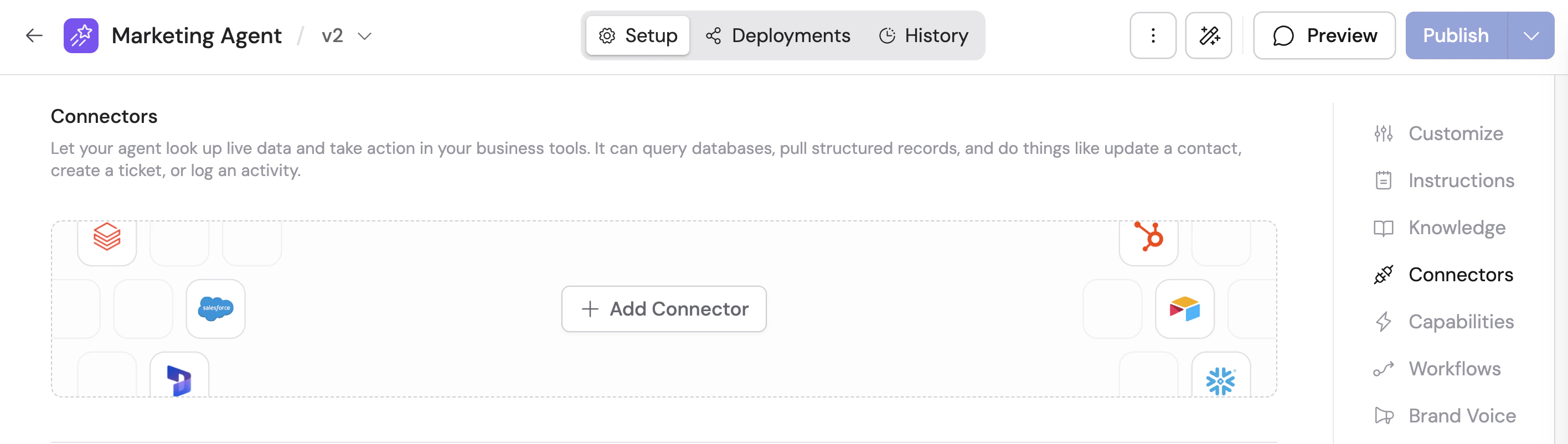
 In the Agent editor, go to the **Setup** tab and scroll to **Connectors**.
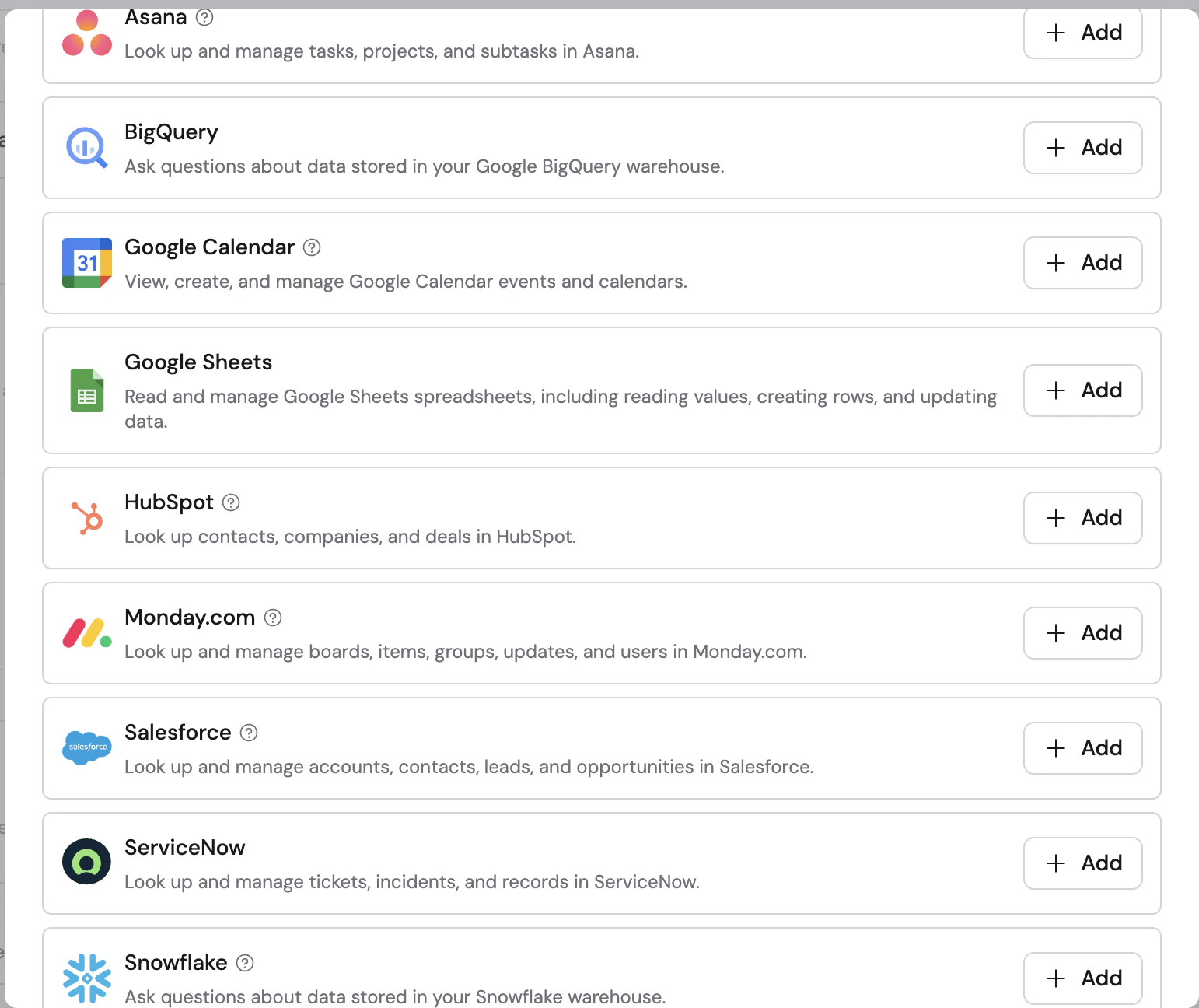
 Click **+ Add Connector**, then click **+ Add** on **Monday.com**.
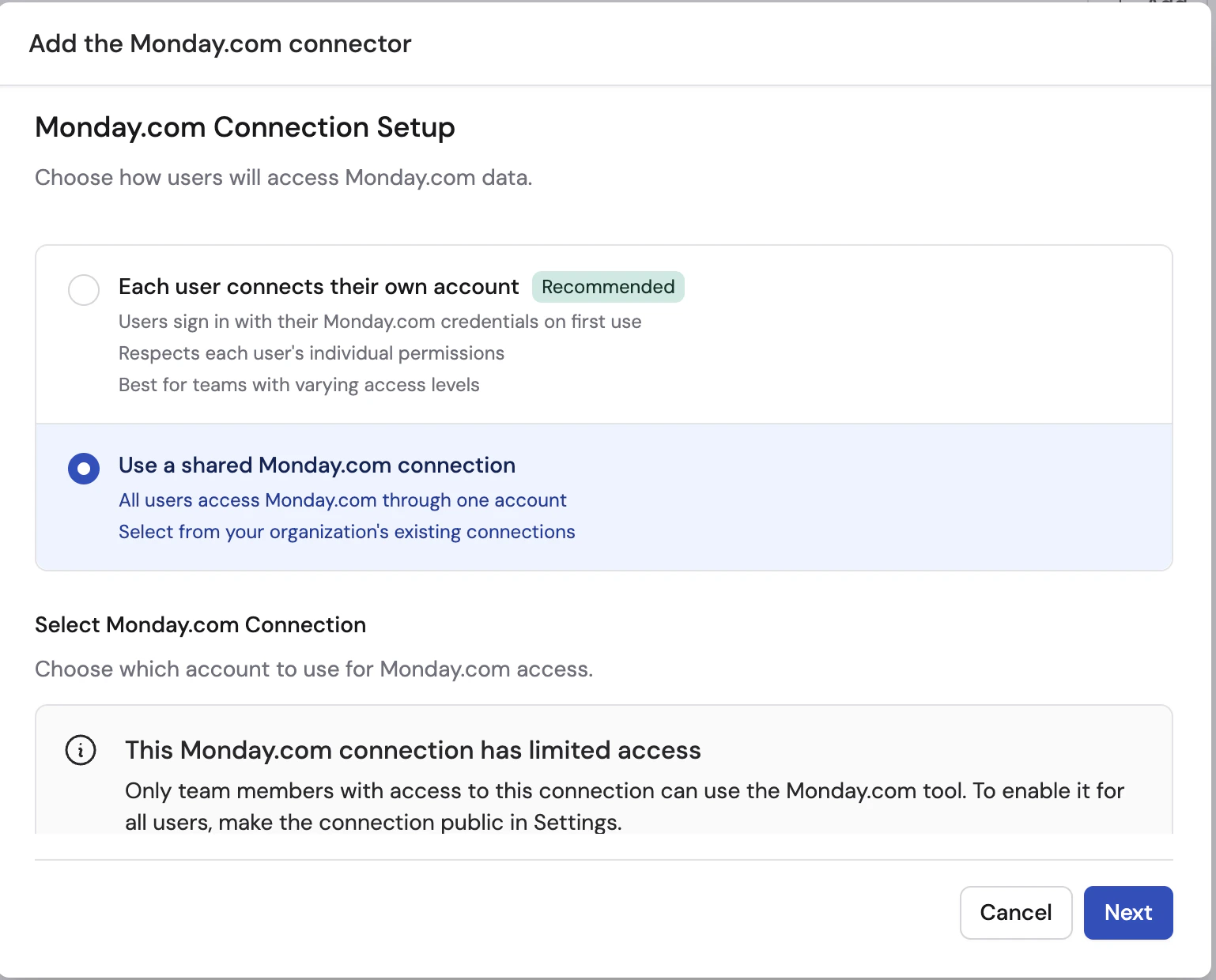
 Select how users will authenticate with Monday.com:
* **Each user connects their own account** (recommended) — each user signs in on first use, and the Connector respects that user's Monday.com permissions
* **Use a shared Monday.com connection** — all users access Monday.com through one shared connection
Select how users will authenticate with Monday.com:
* **Each user connects their own account** (recommended) — each user signs in on first use, and the Connector respects that user's Monday.com permissions
* **Use a shared Monday.com connection** — all users access Monday.com through one shared connection
 Monday.com requires you to install the Cassidy app before the connection can be authorized. When you click **Connect**, Cassidy may first show an install prompt instead of taking you straight to authorization.
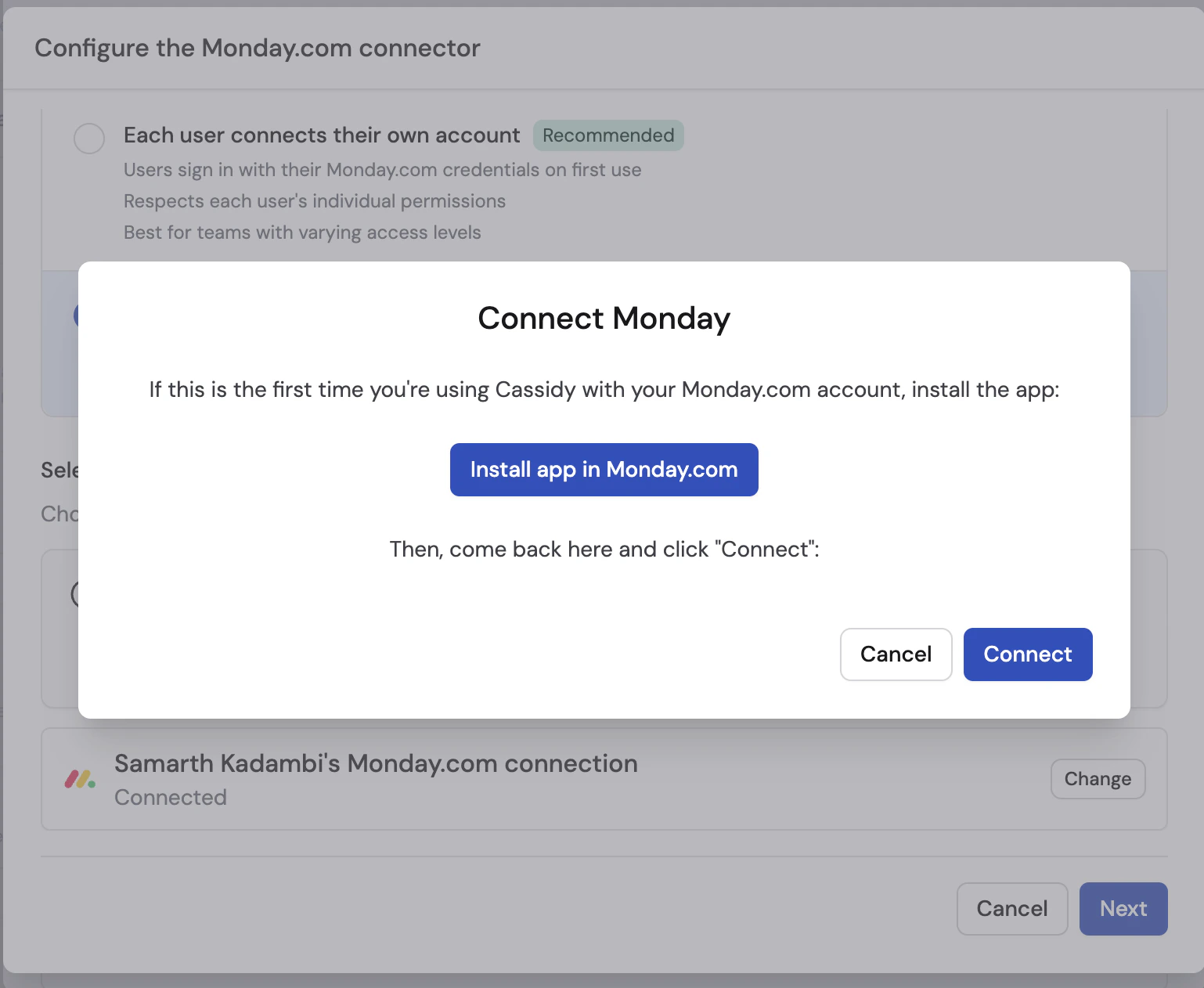 Click **Install app in Monday.com**. On the Monday.com page, choose whether to install the app for **All Workspaces** or only **Specific Workspaces**, then complete the install.
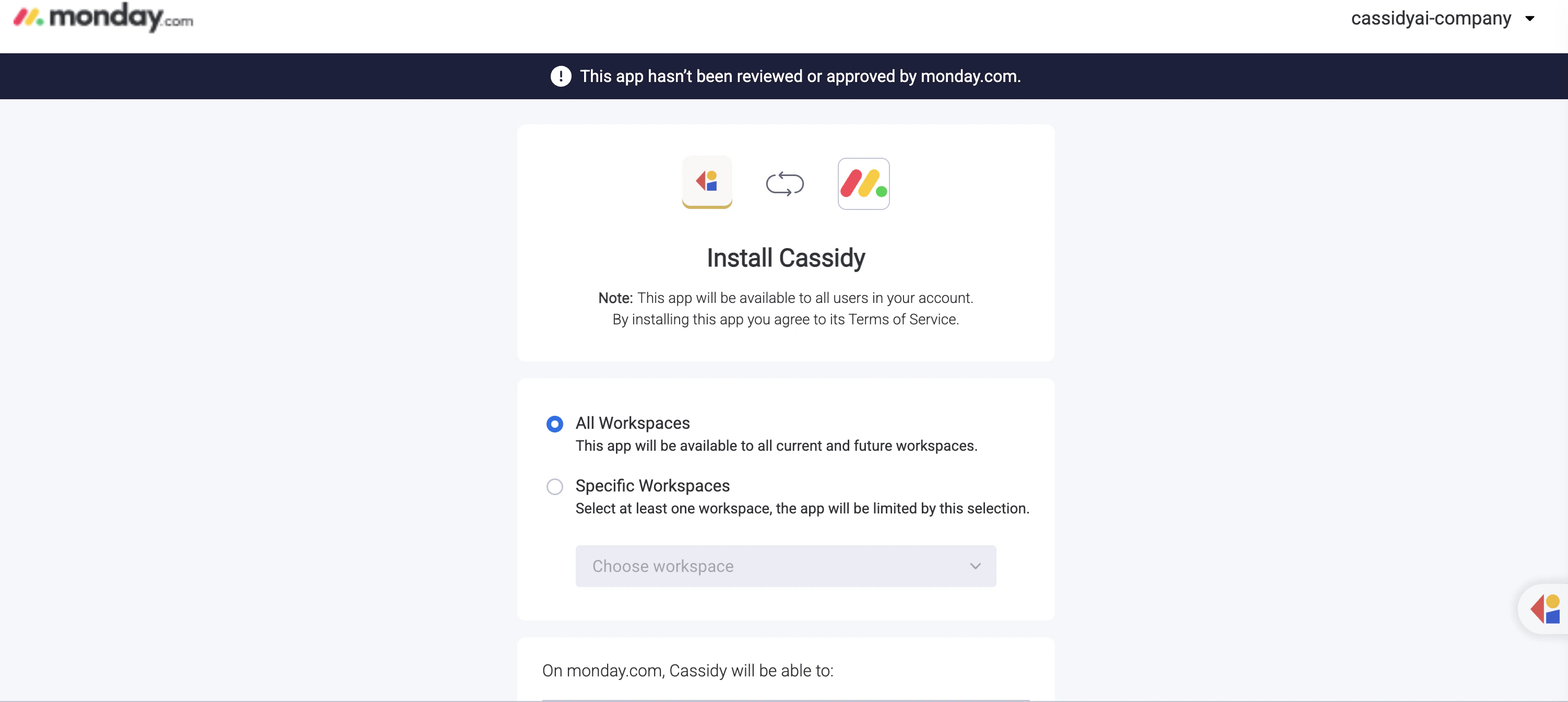 If Monday.com shows a banner saying the app has not been reviewed or approved by monday.com, that is expected during this setup flow.
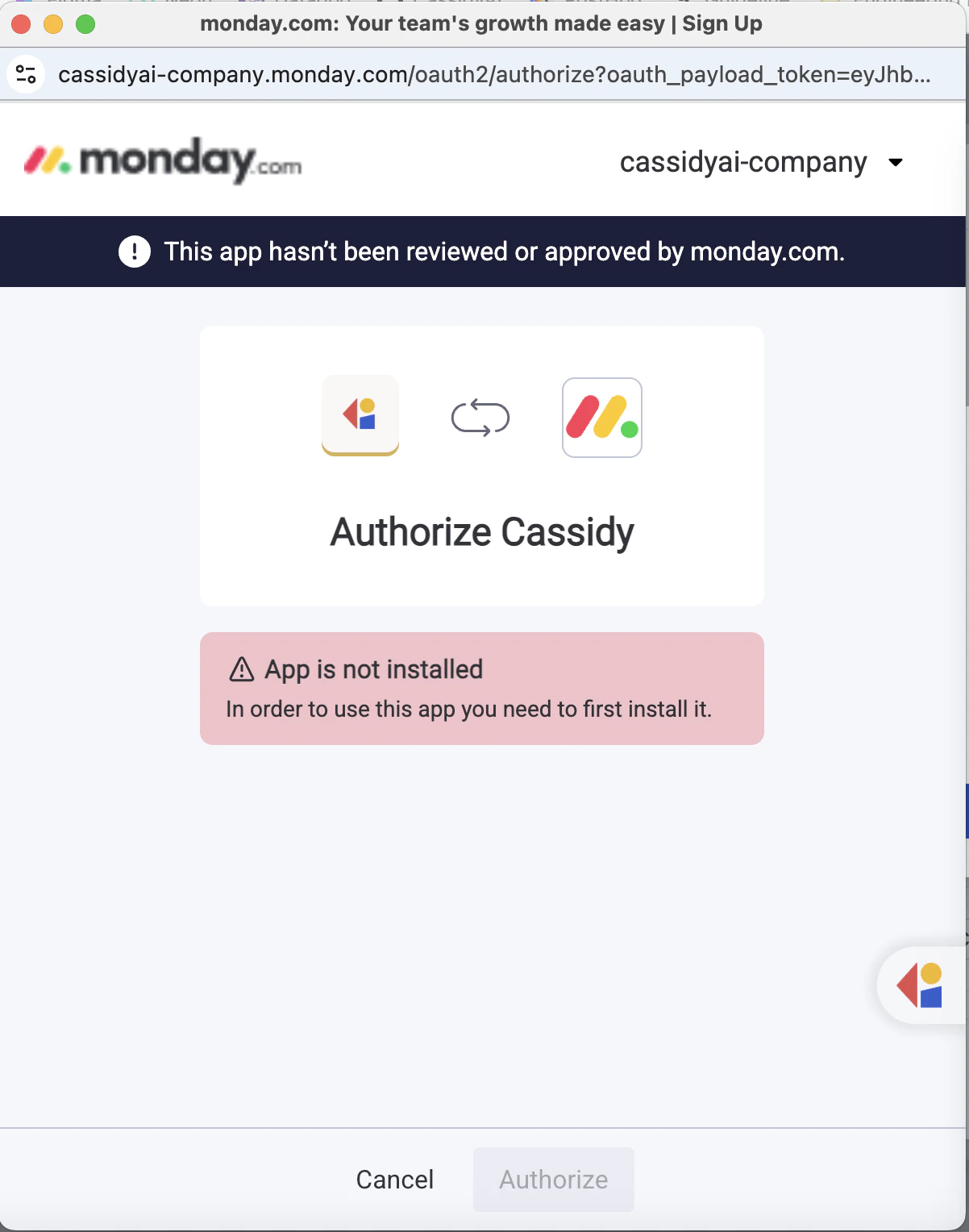
After installing the app, return to Cassidy and click **Connect** again. If you try to authorize before the app is installed, Monday.com shows an **App is not installed** message and blocks the authorization.
If Monday.com shows a banner saying the app has not been reviewed or approved by monday.com, that is expected during this setup flow.
After installing the app, return to Cassidy and click **Connect** again. If you try to authorize before the app is installed, Monday.com shows an **App is not installed** message and blocks the authorization.
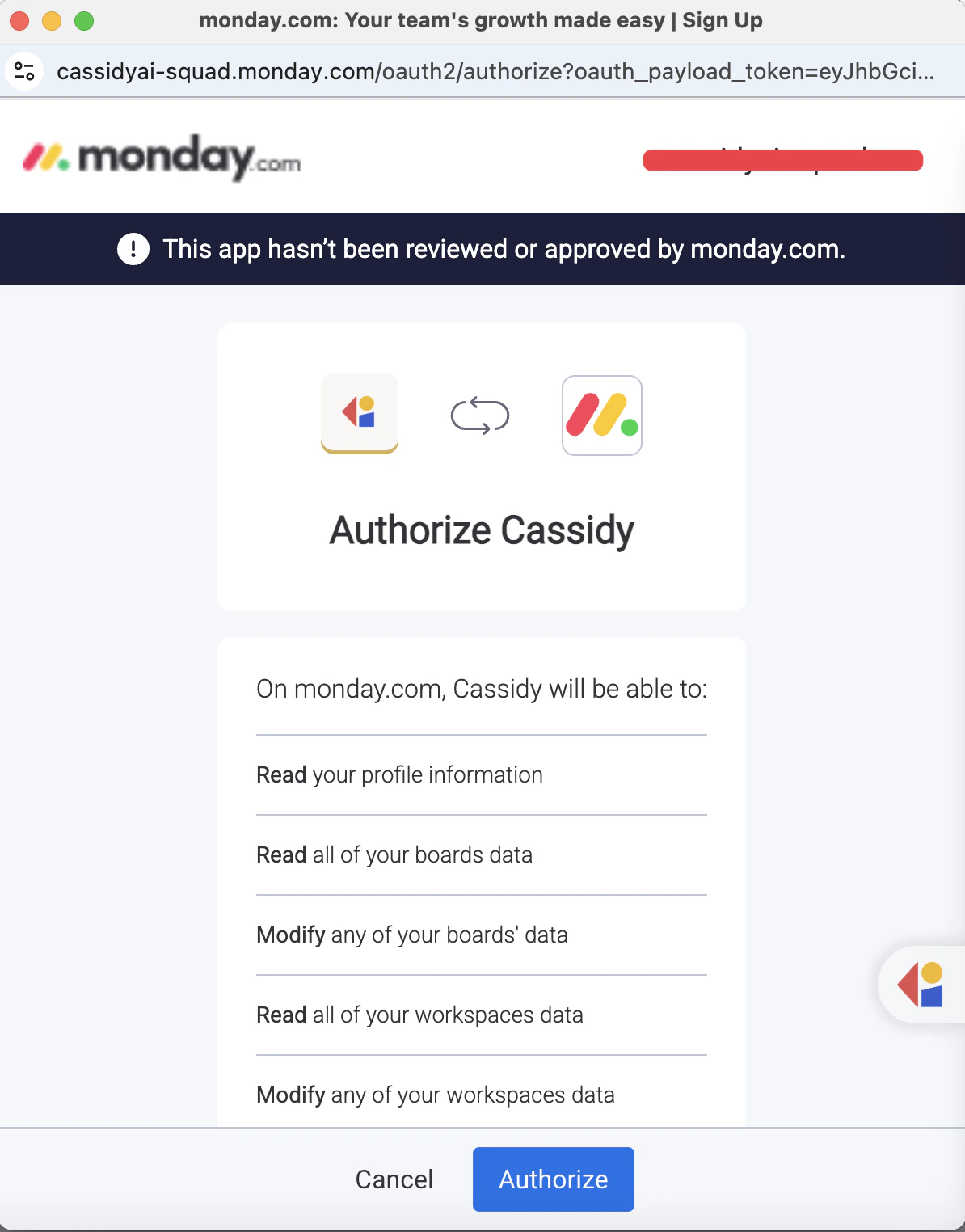
 Once the app is installed, the authorization page lets you review the requested permissions and click **Authorize**.
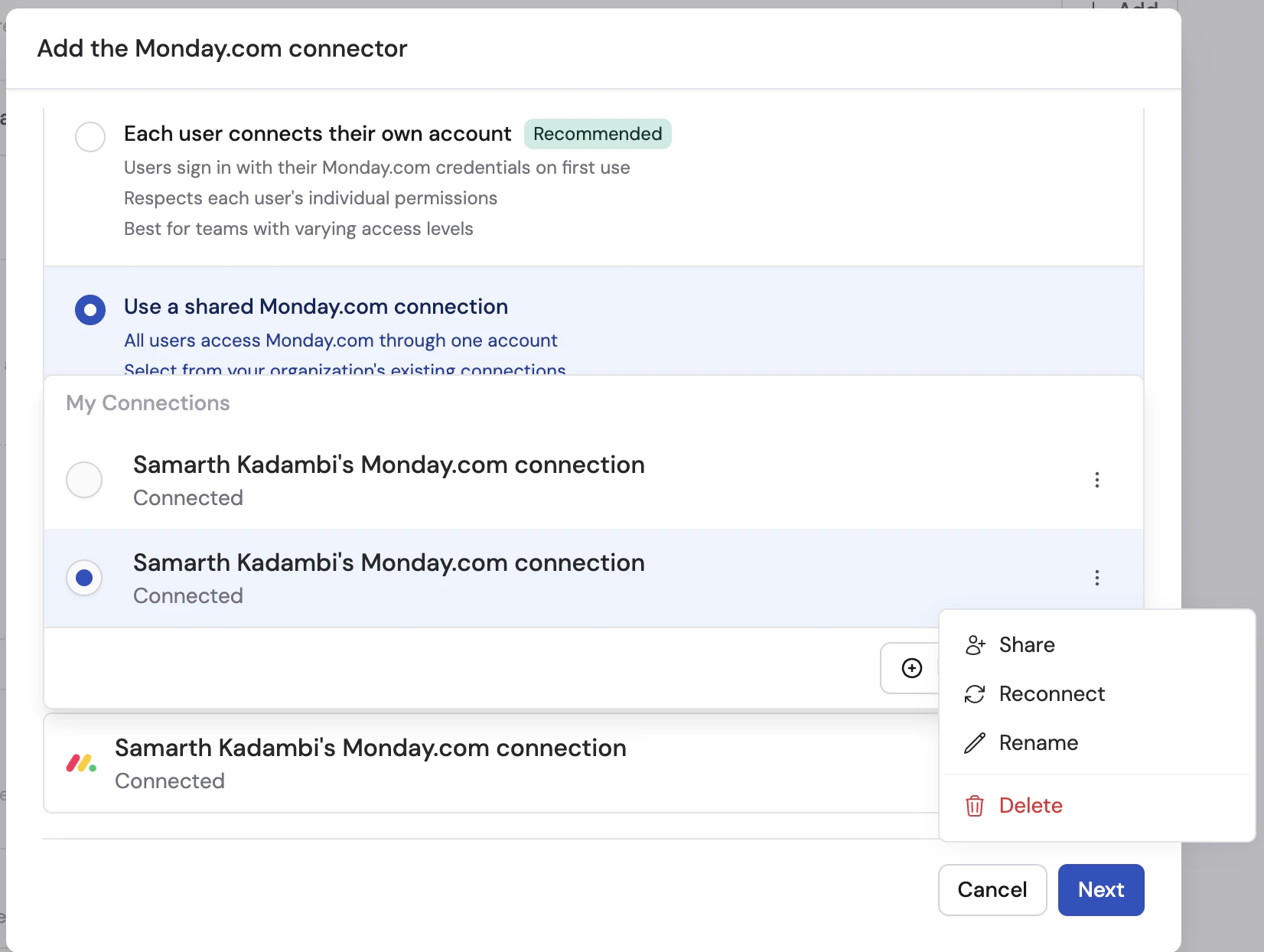
 If you are using a shared connection, select the Monday.com connection you want to use. You can also open the **...** menu to share, reconnect, rename, or delete a saved connection.
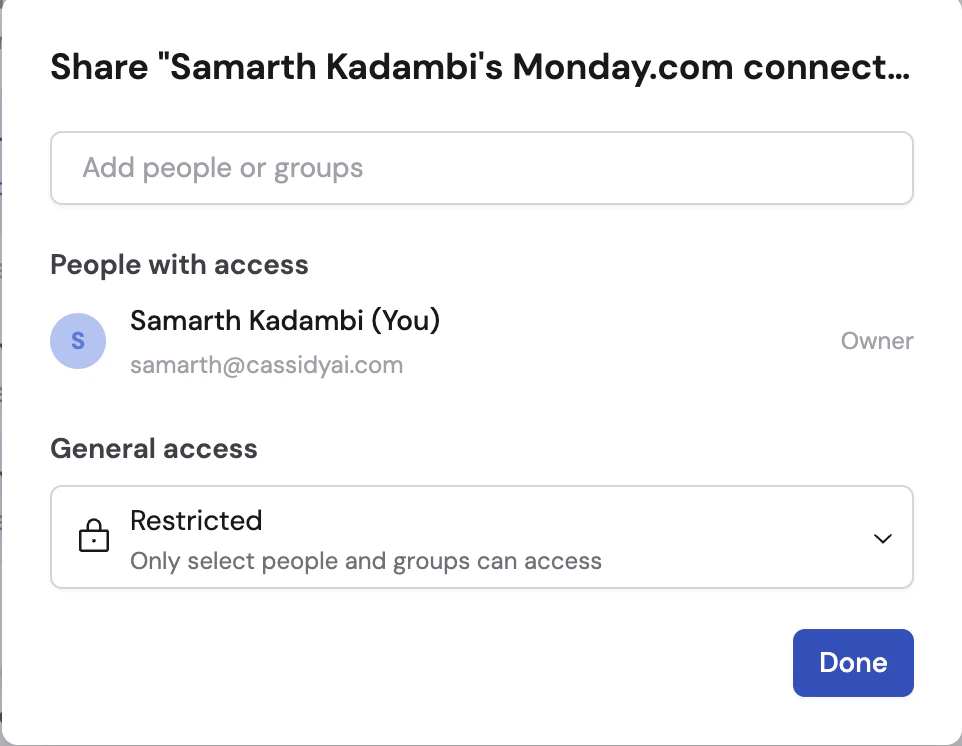
 To let more people use the shared connection, click **Share** and add specific people or groups, or change **General access** from **Restricted** to a broader setting.
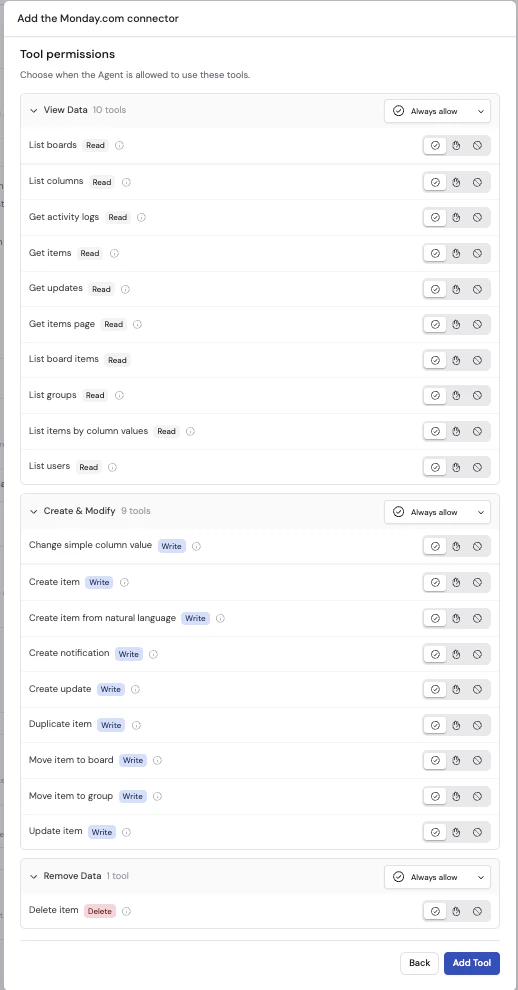
 Set the permission level for each Monday.com action:
* **Always allow** — the Agent can run the action automatically
* **Needs approval** — the Agent asks before running the action
* **Disabled** — the Agent cannot run the action
Monday.com tools are grouped into three categories:
* **View Data** — read-only actions like listing boards, items, groups, users, and updates. Defaults to **Always allow**.
* **Create & Modify** — actions like creating items, posting updates, moving items, and changing column values. Defaults to **Disabled**.
* **Remove Data** — destructive actions like deleting an item. Defaults to **Disabled**.
Set the permission level for each Monday.com action:
* **Always allow** — the Agent can run the action automatically
* **Needs approval** — the Agent asks before running the action
* **Disabled** — the Agent cannot run the action
Monday.com tools are grouped into three categories:
* **View Data** — read-only actions like listing boards, items, groups, users, and updates. Defaults to **Always allow**.
* **Create & Modify** — actions like creating items, posting updates, moving items, and changing column values. Defaults to **Disabled**.
* **Remove Data** — destructive actions like deleting an item. Defaults to **Disabled**.
 Review write and delete permissions carefully. **Always allow** lets the Agent make changes in Monday.com without asking first.
Click **Add Tool** to finish setup.
If you chose **Each user connects their own account**, users will be prompted to connect Monday.com the first time they use the Connector in chat. If they have not installed the Cassidy app in Monday.com yet, they may need to complete the same install and authorize flow during their first connection.
## What the Agent can do
Once connected, your Agent can help with Monday.com tasks including:
* Listing boards, groups, users, items, and updates
* Looking up items by column values
* Reading board activity logs
* Creating new items and updates
* Updating simple column values
* Moving or duplicating items
* Deleting items if you enable remove permissions
## Data security
* **Permission-based access** — the Agent can only do what the connected Monday.com account is allowed to do
* **Configurable approvals** — you decide which actions run automatically, require approval, or stay disabled
* **No copied data** — Monday.com data is queried in real time and is not stored in Cassidy
## Next steps
Learn how Agent Connectors work and when to use them.
See all apps you can connect to Cassidy.
Review write and delete permissions carefully. **Always allow** lets the Agent make changes in Monday.com without asking first.
Click **Add Tool** to finish setup.
If you chose **Each user connects their own account**, users will be prompted to connect Monday.com the first time they use the Connector in chat. If they have not installed the Cassidy app in Monday.com yet, they may need to complete the same install and authorize flow during their first connection.
## What the Agent can do
Once connected, your Agent can help with Monday.com tasks including:
* Listing boards, groups, users, items, and updates
* Looking up items by column values
* Reading board activity logs
* Creating new items and updates
* Updating simple column values
* Moving or duplicating items
* Deleting items if you enable remove permissions
## Data security
* **Permission-based access** — the Agent can only do what the connected Monday.com account is allowed to do
* **Configurable approvals** — you decide which actions run automatically, require approval, or stay disabled
* **No copied data** — Monday.com data is queried in real time and is not stored in Cassidy
## Next steps
Learn how Agent Connectors work and when to use them.
See all apps you can connect to Cassidy.