> ## Documentation Index
> Fetch the complete documentation index at: https://docs.cassidyai.com/llms.txt
> Use this file to discover all available pages before exploring further.
# Notion for Knowledge Base
> Import Notion pages and databases into your Knowledge Base for AI-powered search and context.
Import your Notion pages and databases into the [Knowledge Base](/knowledge-base/overview) so your [Agents](/agents/overview) and [Workflows](/workflows/overview) can search and reference them.
## Connect your account
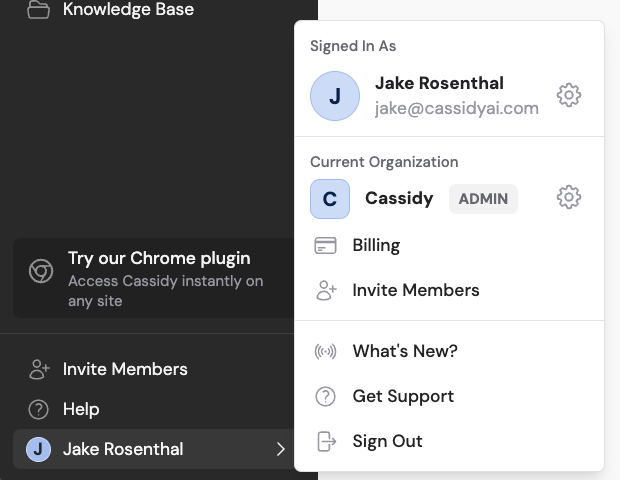
Click your name in the bottom-left of the sidebar, then click the settings icon to open **Settings**. Select **Connected Apps**.
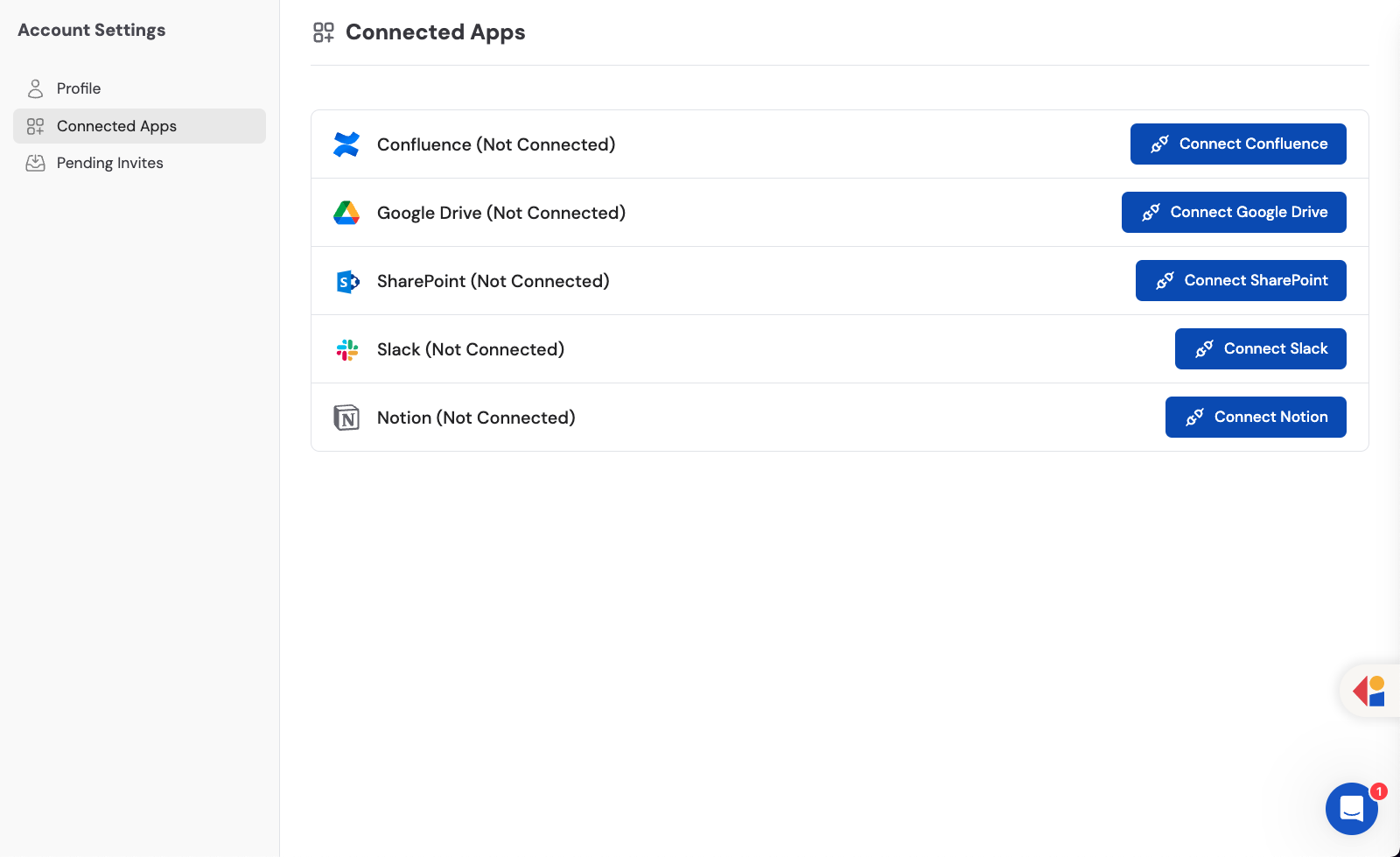 Find **Notion** in the list and click **Connect**.
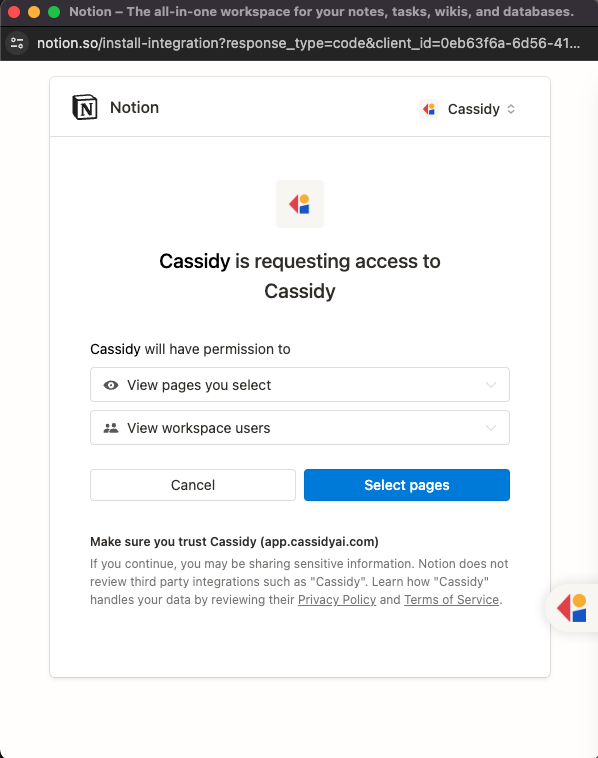 Sign in to your Notion account in the popup window.
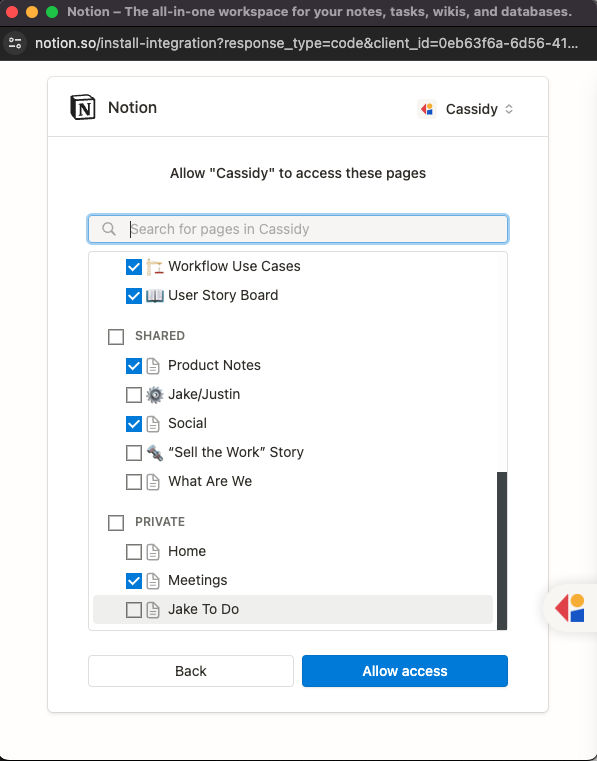 Review the permissions, select the pages you want to share with Cassidy, and click **Allow access**.
 ## Import content
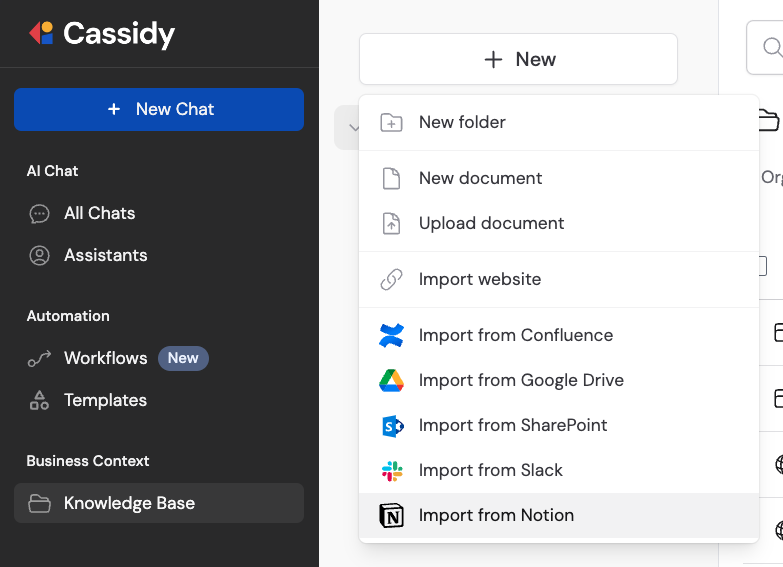
Go to your [Knowledge Base](/knowledge-base/overview) and click **Add**. Select **Notion** from the list of sources.
## Import content
Go to your [Knowledge Base](/knowledge-base/overview) and click **Add**. Select **Notion** from the list of sources.
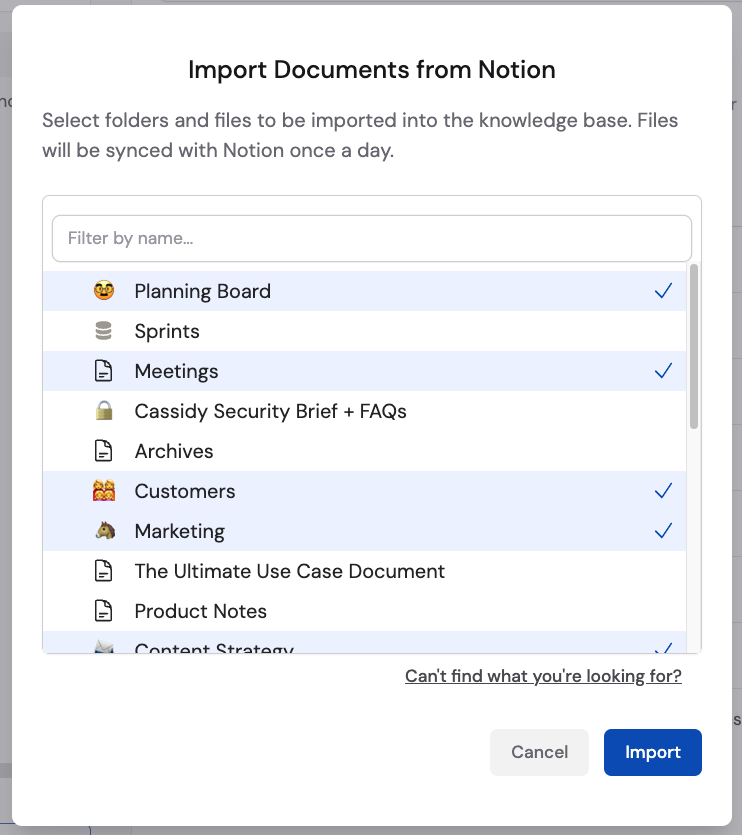
 Browse your Notion workspace and select the pages or databases you want to import, then click **Import**.
 If your Notion pages aren't appearing during import, you may need to share them with the Cassidy integration. See the troubleshooting section below for details.
## Troubleshooting
Notion requires you to explicitly share pages with the CassidyAI connection. By default, the connection only has access to pages you've granted it permission to view.
To share pages with Cassidy:
Open Notion and go to **Settings & members** from the left sidebar.
Click **My connections** in the left panel to see your active integrations.
Find **CassidyAI** in the list and click **Access selected pages**.
Select the checkbox next to each page or database you want Cassidy to access. You can also share entire parent pages to include all their sub-pages.
Go back to Cassidy, open your [Knowledge Base](/knowledge-base/overview), click **Add**, select **Notion**, and the newly shared pages should appear in the list.
Notion can take a few minutes to propagate sharing changes. Wait 2–3 minutes and try importing again.
If the pages still don't appear after waiting:
1. Go to **Settings** > **Connected Apps** in Cassidy
2. Find **Notion** and click **Disconnect**
3. Click **Connect** to reconnect your Notion workspace
4. Return to the Knowledge Base and try importing again
Reconnecting refreshes the page list and picks up any sharing changes that didn't propagate.
Still stuck? Contact support at [support@cassidyai.com](mailto:support@cassidyai.com).
## Next steps
Learn how to organize and manage your imported content.
See everything you can do with Notion in Cassidy.
If your Notion pages aren't appearing during import, you may need to share them with the Cassidy integration. See the troubleshooting section below for details.
## Troubleshooting
Notion requires you to explicitly share pages with the CassidyAI connection. By default, the connection only has access to pages you've granted it permission to view.
To share pages with Cassidy:
Open Notion and go to **Settings & members** from the left sidebar.
Click **My connections** in the left panel to see your active integrations.
Find **CassidyAI** in the list and click **Access selected pages**.
Select the checkbox next to each page or database you want Cassidy to access. You can also share entire parent pages to include all their sub-pages.
Go back to Cassidy, open your [Knowledge Base](/knowledge-base/overview), click **Add**, select **Notion**, and the newly shared pages should appear in the list.
Notion can take a few minutes to propagate sharing changes. Wait 2–3 minutes and try importing again.
If the pages still don't appear after waiting:
1. Go to **Settings** > **Connected Apps** in Cassidy
2. Find **Notion** and click **Disconnect**
3. Click **Connect** to reconnect your Notion workspace
4. Return to the Knowledge Base and try importing again
Reconnecting refreshes the page list and picks up any sharing changes that didn't propagate.
Still stuck? Contact support at [support@cassidyai.com](mailto:support@cassidyai.com).
## Next steps
Learn how to organize and manage your imported content.
See everything you can do with Notion in Cassidy.