> ## Documentation Index
> Fetch the complete documentation index at: https://docs.cassidyai.com/llms.txt
> Use this file to discover all available pages before exploring further.
# Overview of integrations
> Learn about Cassidy's four integration types — Knowledge Base, Agent Connectors, Workflows, and Deploy.
Cassidy connects to the tools your team already uses so your [Agents](/agents/overview) and [Workflows](/workflows/overview) can work with real company data. You can import documents into your [Knowledge Base](/knowledge-base/overview), give Agents live access to external systems through [Connectors](/agents/connectors/overview), trigger multi-step automations from events in connected apps, and deploy Agents directly into the platforms your team already works in.
 ## Four types of integrations
Cassidy offers four types of integrations, each designed for a different purpose. Many apps support more than one type, so you can use the same tool across your [Knowledge Base](/knowledge-base/overview), [Agents](/agents/overview), [Workflows](/workflows/overview), and deployed channels.
### Knowledge Base integrations
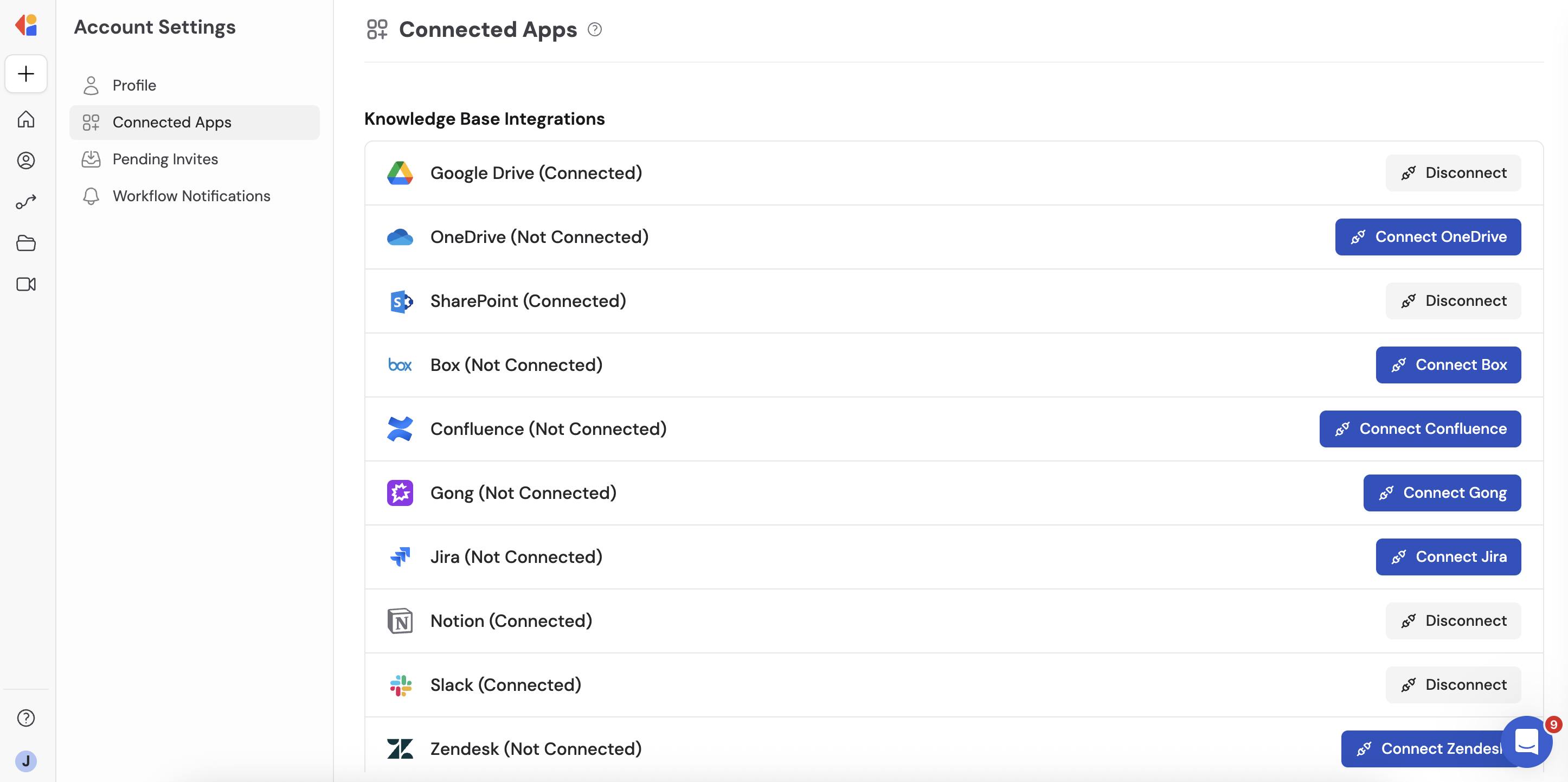
Knowledge Base integrations sync documents, files, and content from external tools into your [Knowledge Base](/knowledge-base/overview). Once imported, this content is indexed for AI-powered semantic search — your Agents and Workflows can reference it to produce accurate, cited answers grounded in your company's own data.
**Examples:** Import [Google Drive](/integrations/google-workspace/google-drive/overview) folders, [Confluence](/integrations/confluence/overview) pages, [Notion](/integrations/notion/overview) databases, or [Slack](/integrations/slack/overview) channel history.
### Agent Connectors
[Connectors](/agents/connectors/overview) let your Agents query and update data in external tools in real time during a conversation. Unlike Knowledge Base integrations, Connectors don't copy or store data in Cassidy — they access it live, so results are always current.
**Examples:** Look up a contact in [HubSpot](/integrations/hubspot/overview), update a [Salesforce](/integrations/salesforce/overview) opportunity, or query a Snowflake data warehouse.
### Workflow integrations
Workflow integrations connect your [Workflows](/workflows/overview) to external apps through triggers and actions. A trigger starts the Workflow when something happens in a connected tool, and actions let the Workflow read from, write to, or interact with those tools as part of a multi-step automation.
**Examples:** Trigger a Workflow when a [Zendesk](/integrations/zendesk/overview) ticket is created, send a [Slack](/integrations/slack/overview) message as an action step, or update a Google Sheet with results.
### Deploy integrations
Deploy integrations let you surface your [Agents](/agents/overview) directly inside the communication platforms your team already uses. Once deployed, team members can chat with an Agent without leaving their daily tools — through channel mentions, direct messages, email, or embedded chat widgets.
**Examples:** Deploy an Agent to [Slack](/integrations/slack/deploy-agent) channels and DMs, add an Agent to [Microsoft Teams](/agents/deploy/microsoft-teams), deploy an Agent [via email](/agents/deploy/email), or [embed](/agents/deploy/embed) an Agent on your website.
## How to connect your apps
You manage all integrations from **Settings** → **Integrations**. Cassidy supports two connection methods depending on the app:
* **OAuth** — For apps like [Google Drive](/integrations/google-workspace/google-drive/overview), [Slack](/integrations/slack/overview), [HubSpot](/integrations/hubspot/overview), and [Salesforce](/integrations/salesforce/overview), you authorize access through a secure OAuth flow. Click **Connect**, sign in to the app, and grant Cassidy the required permissions.
* **API keys or tokens** — Some apps require you to provide an API key or access token. You'll find these in the app's developer or admin settings, then paste them into Cassidy's integration configuration.
Most integrations use OAuth for a simple, one-click connection. API keys are
typically only needed for data warehouse and developer-oriented integrations.
## Supported integrations
Browse the full list of supported apps in the sidebar. Each integration page details the available connection types and setup instructions.
## Next steps
Import documents and content from connected apps for AI-powered search.
Give your Agents live, real-time access to external business tools.
Create multi-step automations powered by your integrations.
Put your Agent in Slack, Teams, Google Chat, email, or embed it on your website.
Use webhooks and Zapier to connect tools without a native integration.
## Four types of integrations
Cassidy offers four types of integrations, each designed for a different purpose. Many apps support more than one type, so you can use the same tool across your [Knowledge Base](/knowledge-base/overview), [Agents](/agents/overview), [Workflows](/workflows/overview), and deployed channels.
### Knowledge Base integrations
Knowledge Base integrations sync documents, files, and content from external tools into your [Knowledge Base](/knowledge-base/overview). Once imported, this content is indexed for AI-powered semantic search — your Agents and Workflows can reference it to produce accurate, cited answers grounded in your company's own data.
**Examples:** Import [Google Drive](/integrations/google-workspace/google-drive/overview) folders, [Confluence](/integrations/confluence/overview) pages, [Notion](/integrations/notion/overview) databases, or [Slack](/integrations/slack/overview) channel history.
### Agent Connectors
[Connectors](/agents/connectors/overview) let your Agents query and update data in external tools in real time during a conversation. Unlike Knowledge Base integrations, Connectors don't copy or store data in Cassidy — they access it live, so results are always current.
**Examples:** Look up a contact in [HubSpot](/integrations/hubspot/overview), update a [Salesforce](/integrations/salesforce/overview) opportunity, or query a Snowflake data warehouse.
### Workflow integrations
Workflow integrations connect your [Workflows](/workflows/overview) to external apps through triggers and actions. A trigger starts the Workflow when something happens in a connected tool, and actions let the Workflow read from, write to, or interact with those tools as part of a multi-step automation.
**Examples:** Trigger a Workflow when a [Zendesk](/integrations/zendesk/overview) ticket is created, send a [Slack](/integrations/slack/overview) message as an action step, or update a Google Sheet with results.
### Deploy integrations
Deploy integrations let you surface your [Agents](/agents/overview) directly inside the communication platforms your team already uses. Once deployed, team members can chat with an Agent without leaving their daily tools — through channel mentions, direct messages, email, or embedded chat widgets.
**Examples:** Deploy an Agent to [Slack](/integrations/slack/deploy-agent) channels and DMs, add an Agent to [Microsoft Teams](/agents/deploy/microsoft-teams), deploy an Agent [via email](/agents/deploy/email), or [embed](/agents/deploy/embed) an Agent on your website.
## How to connect your apps
You manage all integrations from **Settings** → **Integrations**. Cassidy supports two connection methods depending on the app:
* **OAuth** — For apps like [Google Drive](/integrations/google-workspace/google-drive/overview), [Slack](/integrations/slack/overview), [HubSpot](/integrations/hubspot/overview), and [Salesforce](/integrations/salesforce/overview), you authorize access through a secure OAuth flow. Click **Connect**, sign in to the app, and grant Cassidy the required permissions.
* **API keys or tokens** — Some apps require you to provide an API key or access token. You'll find these in the app's developer or admin settings, then paste them into Cassidy's integration configuration.
Most integrations use OAuth for a simple, one-click connection. API keys are
typically only needed for data warehouse and developer-oriented integrations.
## Supported integrations
Browse the full list of supported apps in the sidebar. Each integration page details the available connection types and setup instructions.
## Next steps
Import documents and content from connected apps for AI-powered search.
Give your Agents live, real-time access to external business tools.
Create multi-step automations powered by your integrations.
Put your Agent in Slack, Teams, Google Chat, email, or embed it on your website.
Use webhooks and Zapier to connect tools without a native integration.