> ## Documentation Index
> Fetch the complete documentation index at: https://docs.cassidyai.com/llms.txt
> Use this file to discover all available pages before exploring further.
# Upload file to Salesforce record
> Attach a file from your Workflow to a Salesforce record, such as a contract, report, or call recording, so it appears in the record's Files.
The Upload File to Record action attaches a file to an existing Salesforce record. Use it to save a generated proposal on an Opportunity, attach a signed contract to an Account, or store a call transcript on a Contact.
The file appears in the **Files** section of the record in Salesforce.
**Prerequisites**: A [Workflow](/workflows/overview) with an earlier step that produces a file, and a connected Salesforce account whose user can access the record and create files.
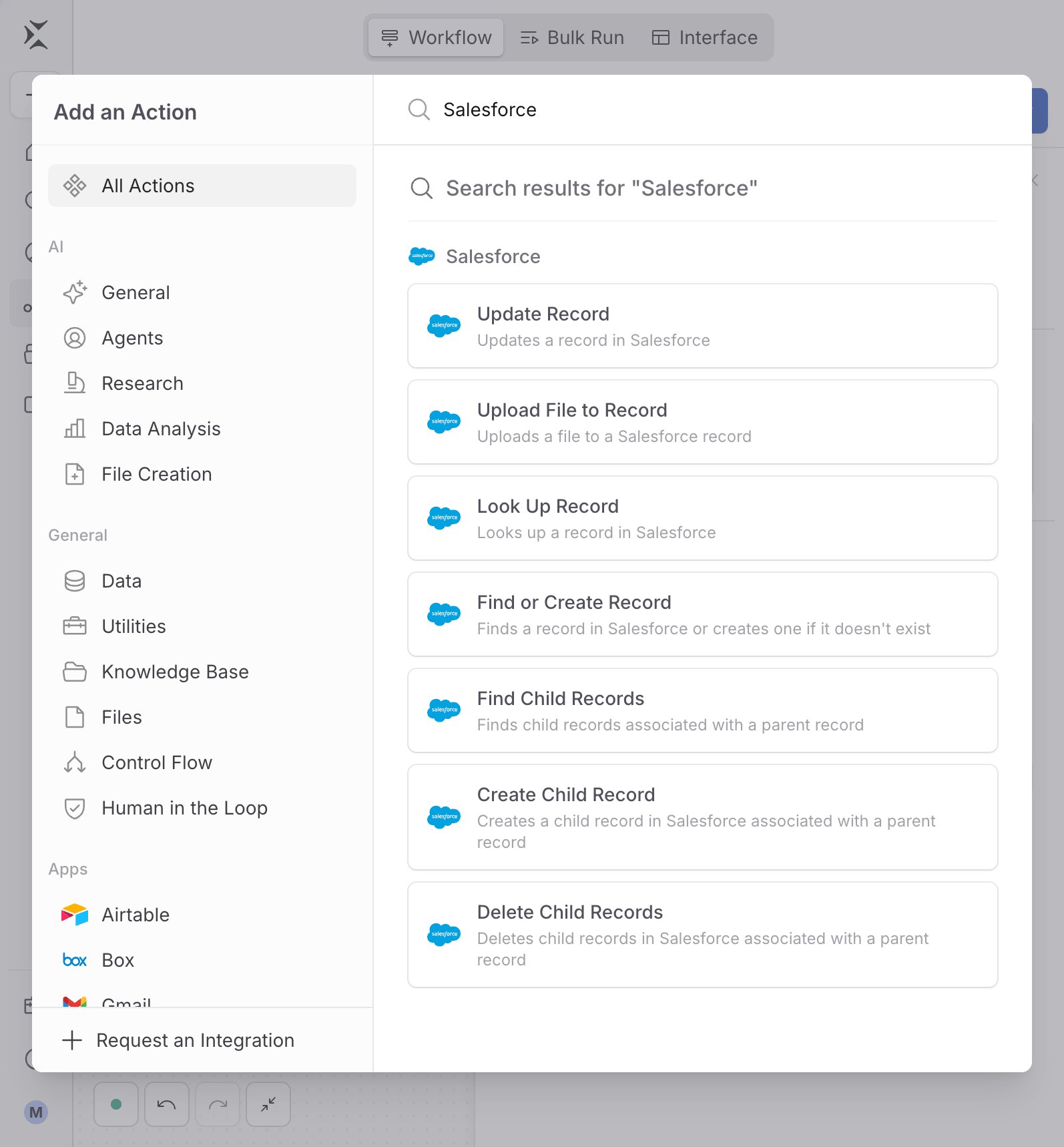
While editing a Workflow, click the **+** button between existing steps. Select **Upload File to Record** from the Salesforce actions to add it to your Workflow.
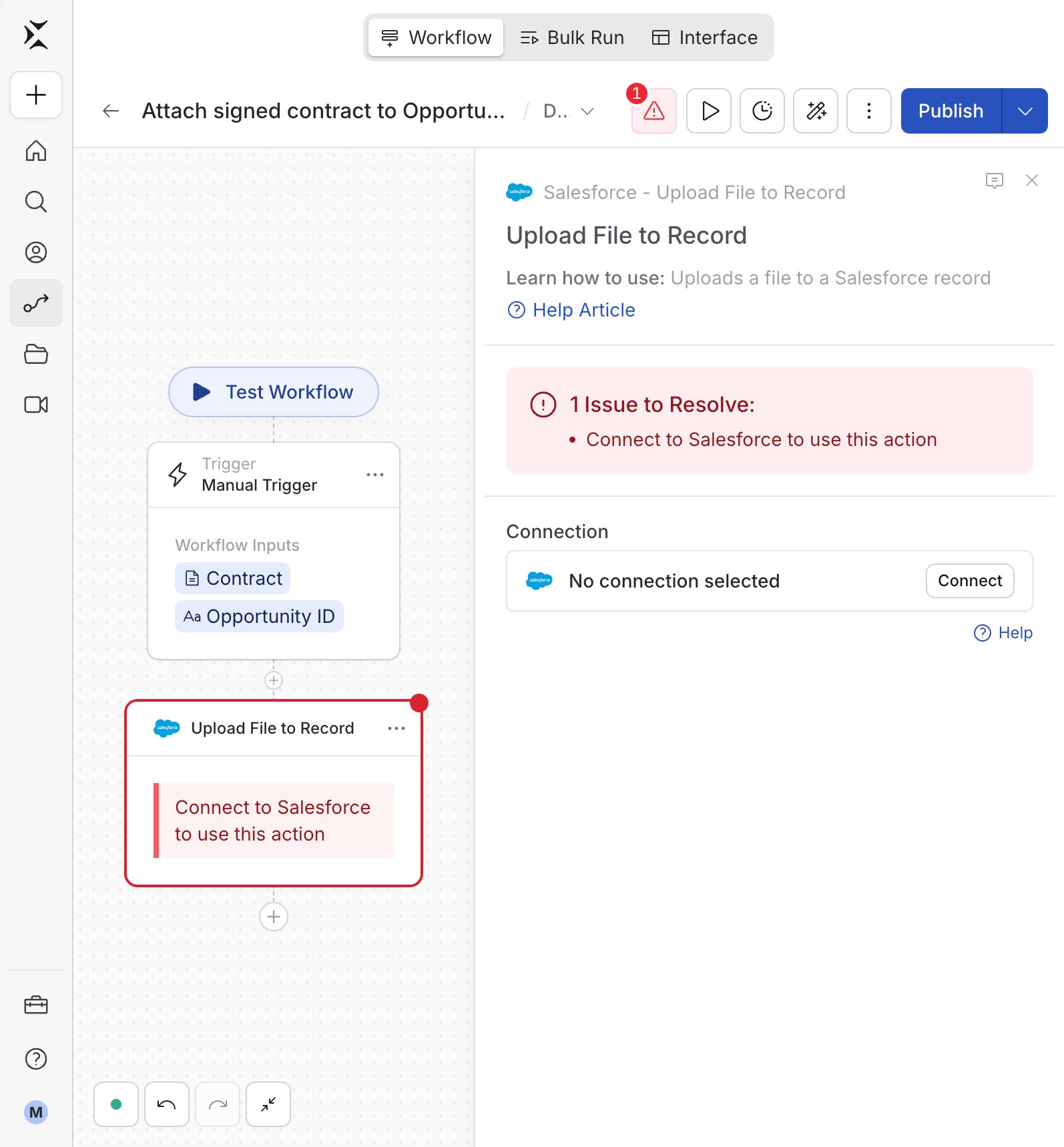
 If you haven't already, connect your Salesforce account to Cassidy. See [Connect Salesforce](/integrations/salesforce/overview) for details.
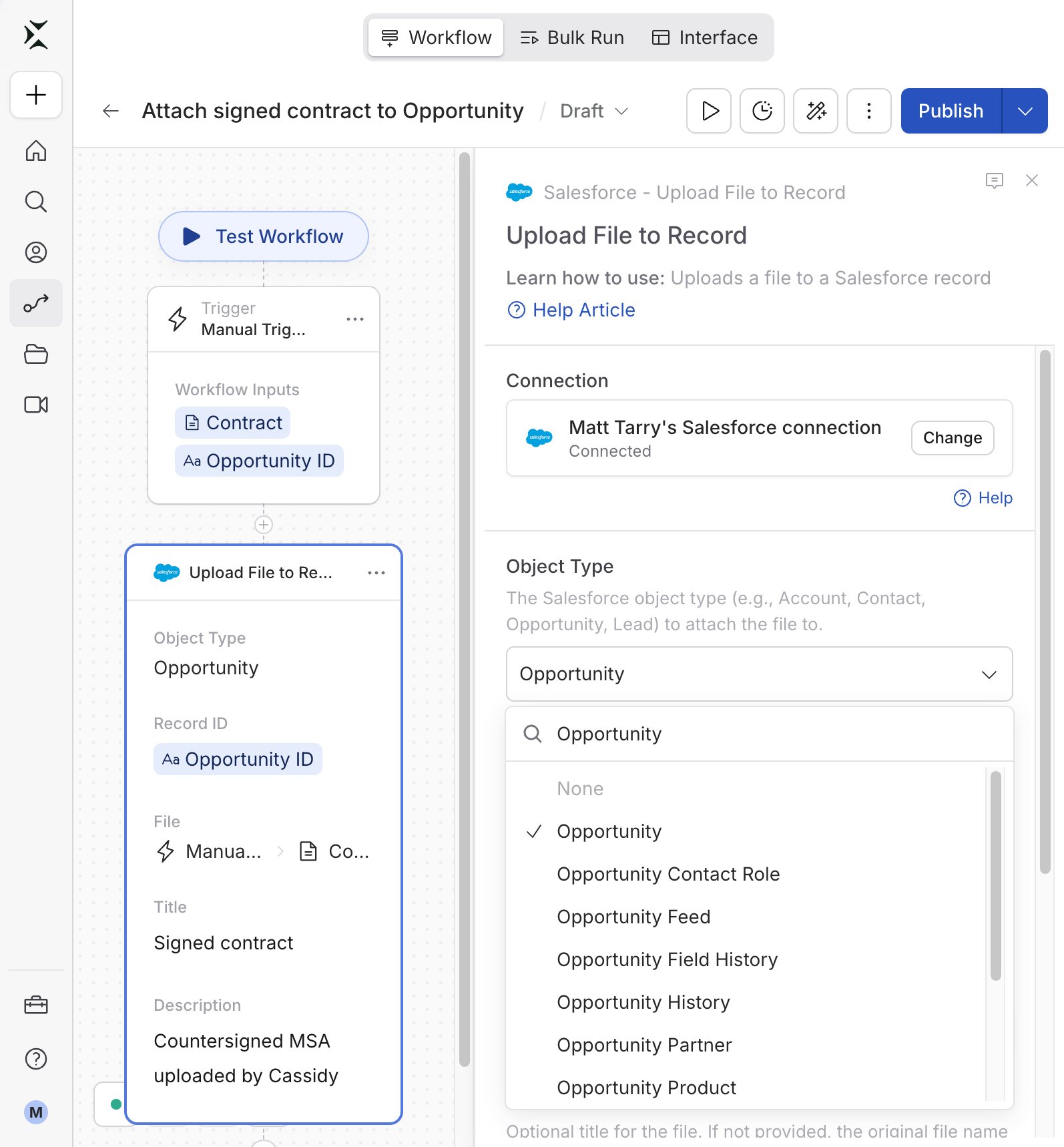
 Use the **Object Type** dropdown to choose the kind of record you're attaching the file to, such as **Account**, **Contact**, **Opportunity**, **Lead**, **Case**, or a custom object.
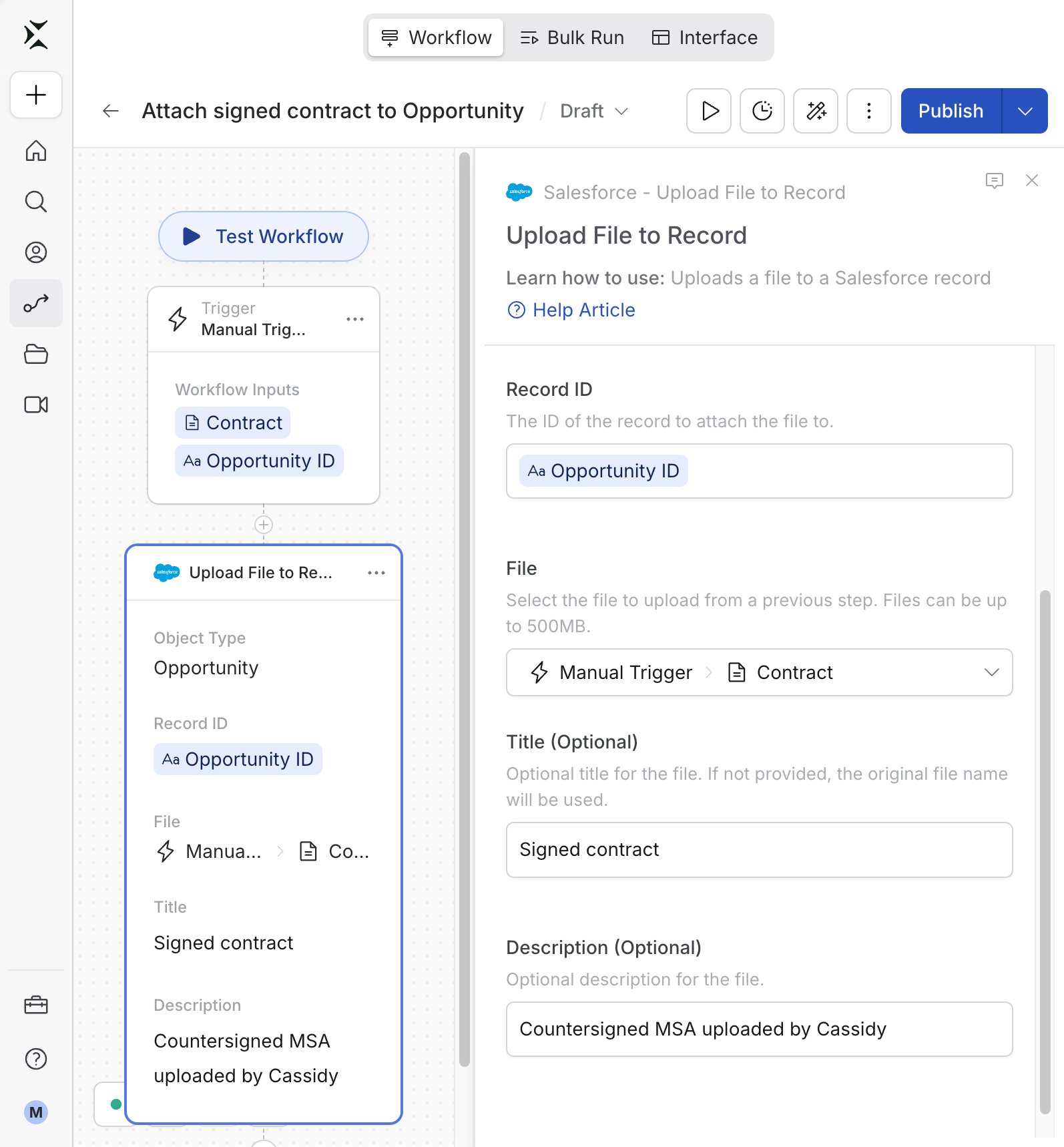
 In **Record ID**, enter the ID of the record to attach the file to. Salesforce record IDs are 15 or 18 characters long.
Use a variable from your trigger or an earlier step. For example, add a [Look Up Salesforce Record](/integrations/salesforce/look-up-record) action first, and reference its record ID here.
In **Record ID**, enter the ID of the record to attach the file to. Salesforce record IDs are 15 or 18 characters long.
Use a variable from your trigger or an earlier step. For example, add a [Look Up Salesforce Record](/integrations/salesforce/look-up-record) action first, and reference its record ID here.
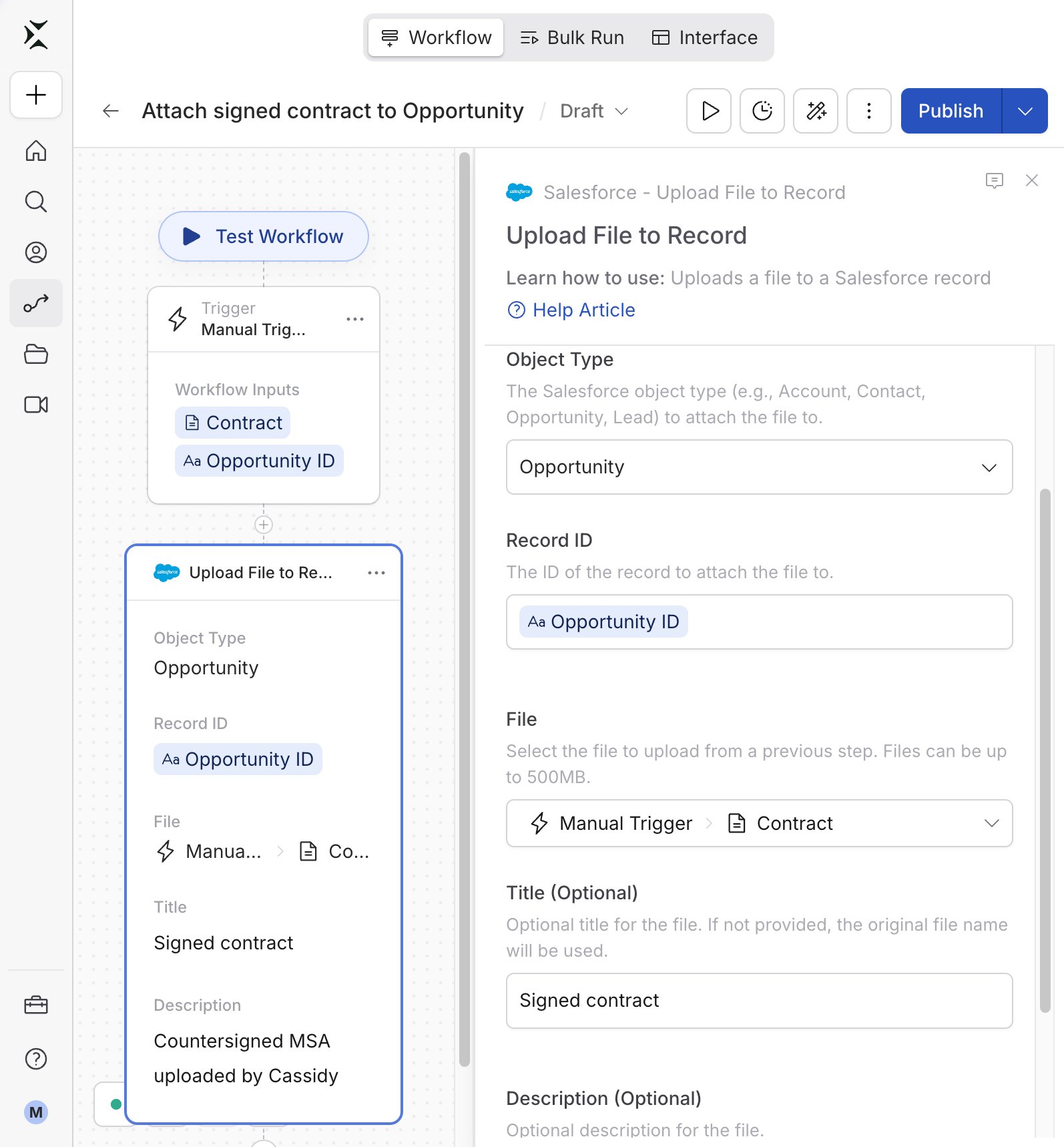 In **File**, choose the file variable to upload from a previous step. Files can be up to 500MB.
This action uploads one file per run. If a variable contains several files, use a loop to upload each one.
In **File**, choose the file variable to upload from a previous step. Files can be up to 500MB.
This action uploads one file per run. If a variable contains several files, use a loop to upload each one.
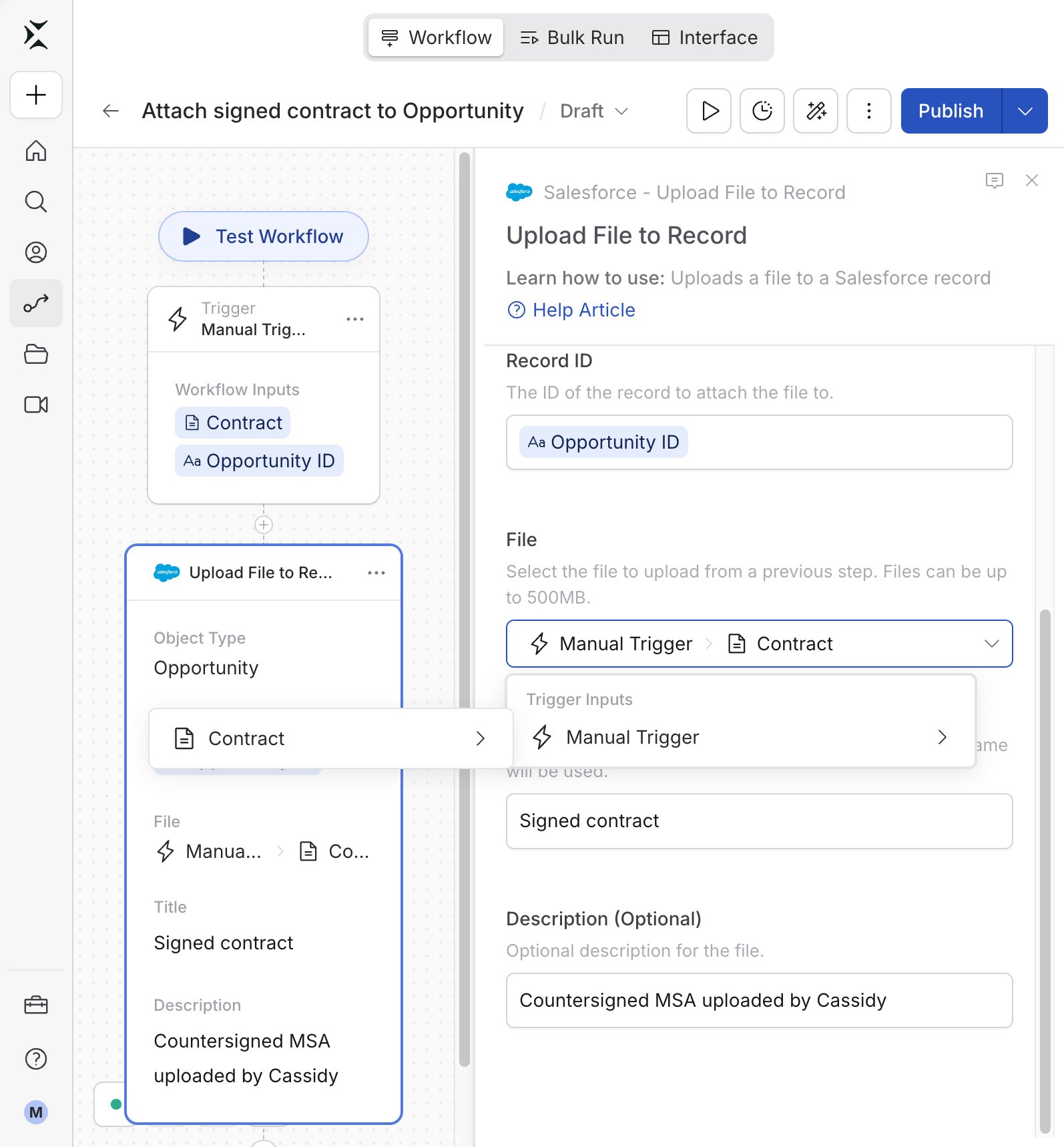 In **Title (Optional)**, enter the name the file should have in Salesforce. If you leave it empty, Cassidy uses the original file name. A title can be up to 255 characters.
In **Description (Optional)**, add a note that appears with the file in Salesforce.
In **Title (Optional)**, enter the name the file should have in Salesforce. If you leave it empty, Cassidy uses the original file name. A title can be up to 255 characters.
In **Description (Optional)**, add a note that appears with the file in Salesforce.
 ## Output variables
Later steps in your Workflow can use these values.
| Variable | Description |
| - | - |
| **Content Version ID** | The ID of the file version created in Salesforce. |
| **Content Document ID** | The ID of the file in Salesforce. |
| **Record ID** | The ID of the record the file was attached to. |
| **File Name** | The name the file was saved with: your title if you set one, otherwise the original name. |
## Troubleshooting
**Why this happens**: The Salesforce user connected to Cassidy may not have access to the record, may not be allowed to create files, or the record ID may not match the selected object type.
**Fix**: Check that the record ID is correct and that **Object Type** matches the record. Then confirm the connected Salesforce user can open the record and add files to it in Salesforce.
**Why this happens**: Files over 500MB can't be uploaded.
**Fix**: Use a smaller file or split it into several files, then upload each with a loop.
**Why this happens**: The **Files** section may not be on the record's page layout, or your Salesforce user may not have permission to see the file.
**Fix**: Open the record in Salesforce and check the **Files** related list. Ask your Salesforce admin to add it to the page layout if it's missing.
## Related
* [Look Up Salesforce Record](/integrations/salesforce/look-up-record)
* [Update Salesforce Record](/integrations/salesforce/update-record)
* [Find or Create Salesforce Record](/integrations/salesforce/find-or-create-record)
* [Salesforce for Workflows](/integrations/salesforce/workflows)
This documentation is built and hosted on [Mintlify](https://mintlify.com), a developer documentation platform.
## Output variables
Later steps in your Workflow can use these values.
| Variable | Description |
| - | - |
| **Content Version ID** | The ID of the file version created in Salesforce. |
| **Content Document ID** | The ID of the file in Salesforce. |
| **Record ID** | The ID of the record the file was attached to. |
| **File Name** | The name the file was saved with: your title if you set one, otherwise the original name. |
## Troubleshooting
**Why this happens**: The Salesforce user connected to Cassidy may not have access to the record, may not be allowed to create files, or the record ID may not match the selected object type.
**Fix**: Check that the record ID is correct and that **Object Type** matches the record. Then confirm the connected Salesforce user can open the record and add files to it in Salesforce.
**Why this happens**: Files over 500MB can't be uploaded.
**Fix**: Use a smaller file or split it into several files, then upload each with a loop.
**Why this happens**: The **Files** section may not be on the record's page layout, or your Salesforce user may not have permission to see the file.
**Fix**: Open the record in Salesforce and check the **Files** related list. Ask your Salesforce admin to add it to the page layout if it's missing.
## Related
* [Look Up Salesforce Record](/integrations/salesforce/look-up-record)
* [Update Salesforce Record](/integrations/salesforce/update-record)
* [Find or Create Salesforce Record](/integrations/salesforce/find-or-create-record)
* [Salesforce for Workflows](/integrations/salesforce/workflows)
This documentation is built and hosted on [Mintlify](https://mintlify.com), a developer documentation platform.