> ## Documentation Index
> Fetch the complete documentation index at: https://docs.cassidyai.com/llms.txt
> Use this file to discover all available pages before exploring further.
# ServiceNow for Knowledge Base
> Import ServiceNow knowledge articles and catalog items into your Knowledge Base.
Import your ServiceNow knowledge base articles and service catalog items into the [Knowledge Base](/knowledge-base/overview) so your [Agents](/agents/overview) and [Workflows](/workflows/overview) can search and reference them.
## Connect your account
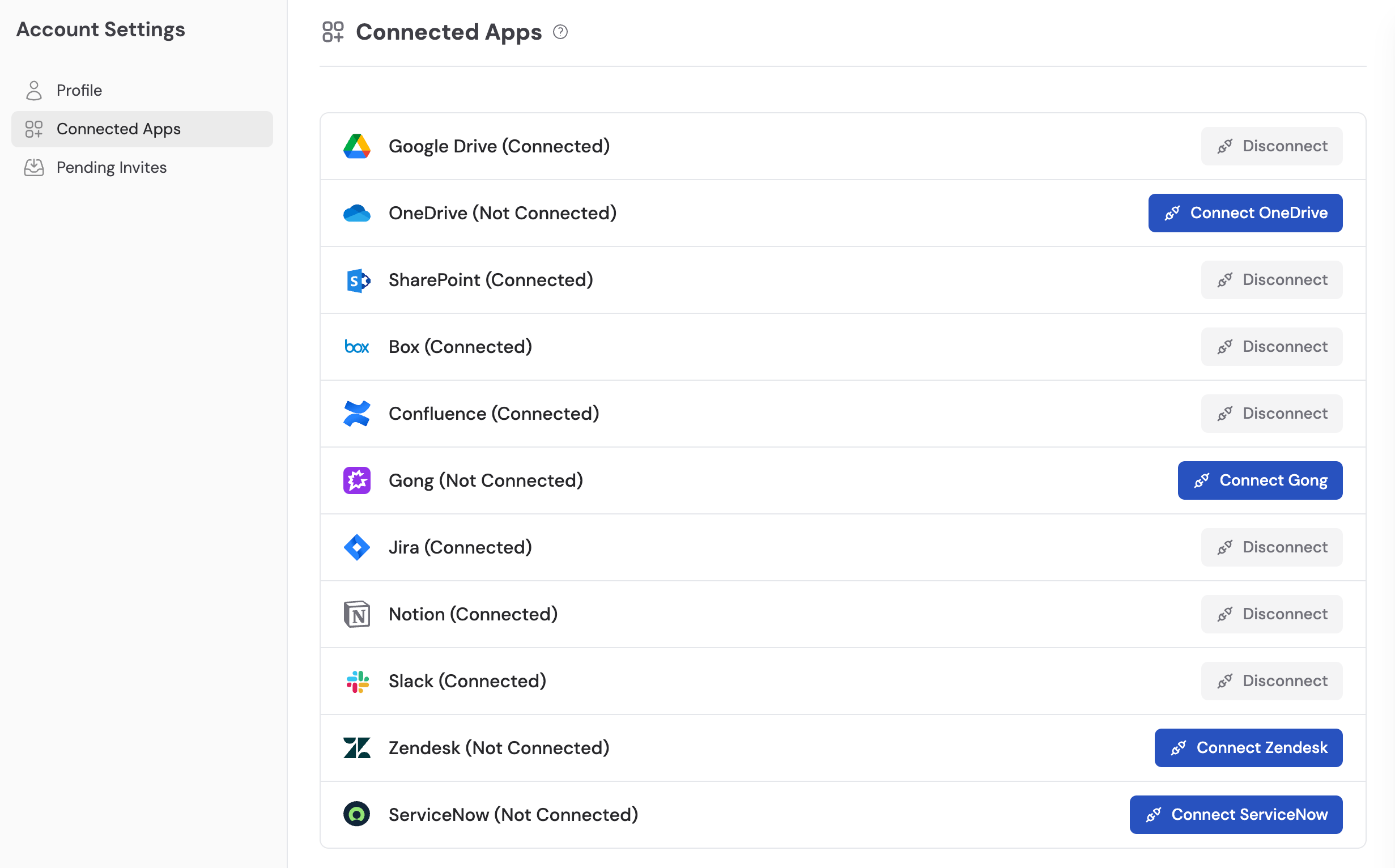
Open **Account Settings**, select **Integrations**, then find
**ServiceNow**.
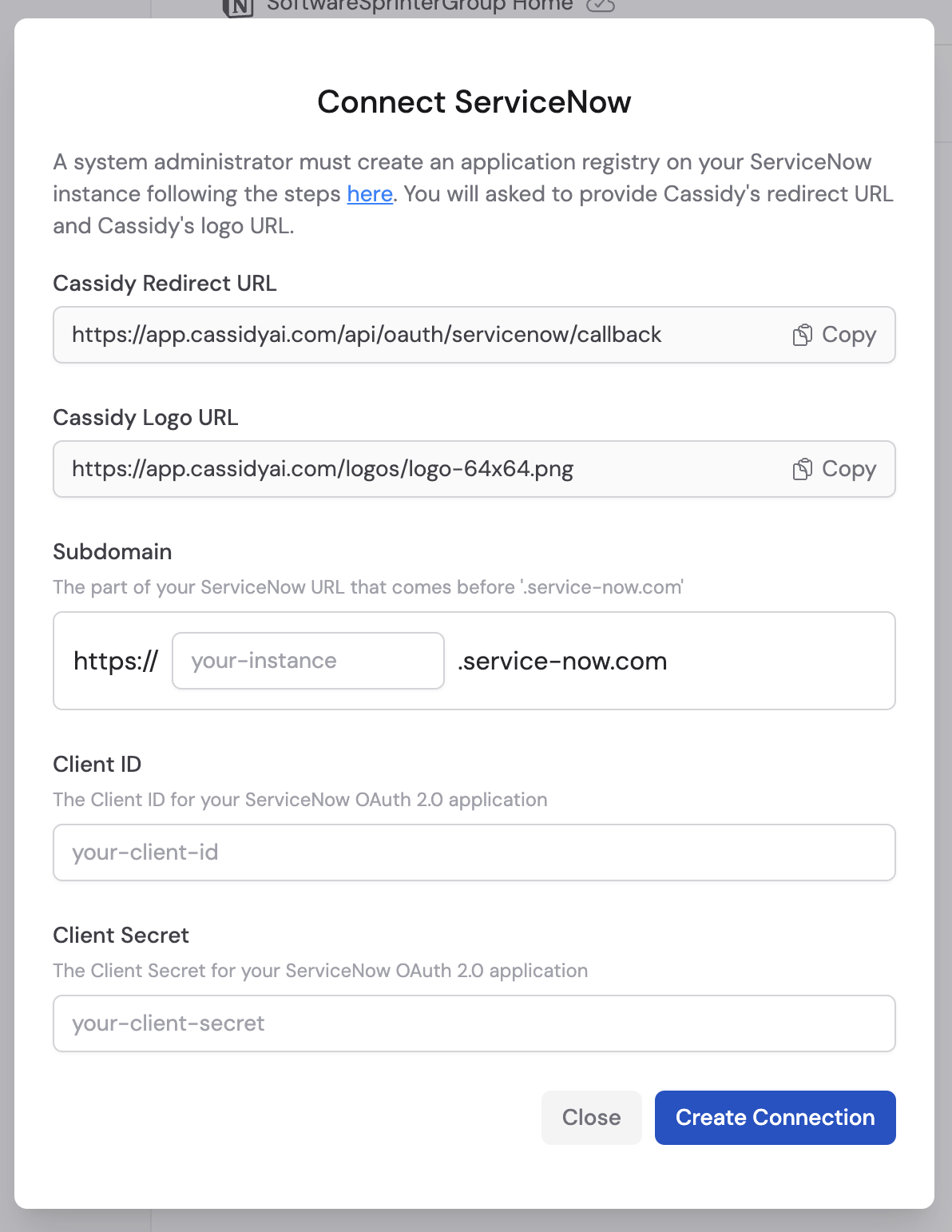
Type your ServiceNow **subdomain** (the part before `.service-now.com` in your instance URL).
 Enter the **Client ID** from your ServiceNow application registry. If you haven't set up an application registry yet, follow [ServiceNow's OAuth setup documentation](https://docs.servicenow.com/bundle/washingtondc-platform-security/page/administer/security/task/t_SettingUpOAuth.html) to create one.
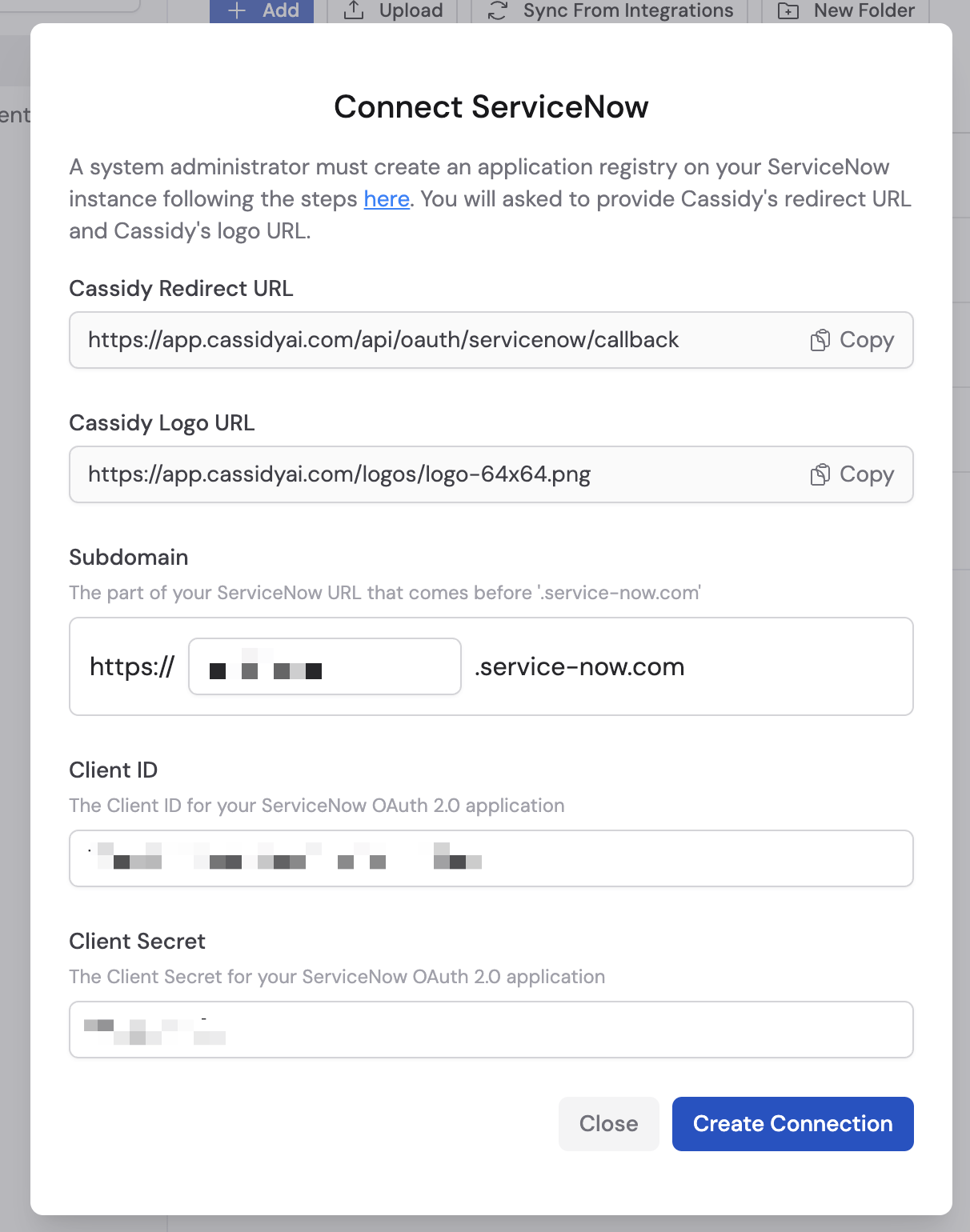 Enter the **Client Secret** from the same application registry entry.
 Click **Create Connection** to save your credentials.
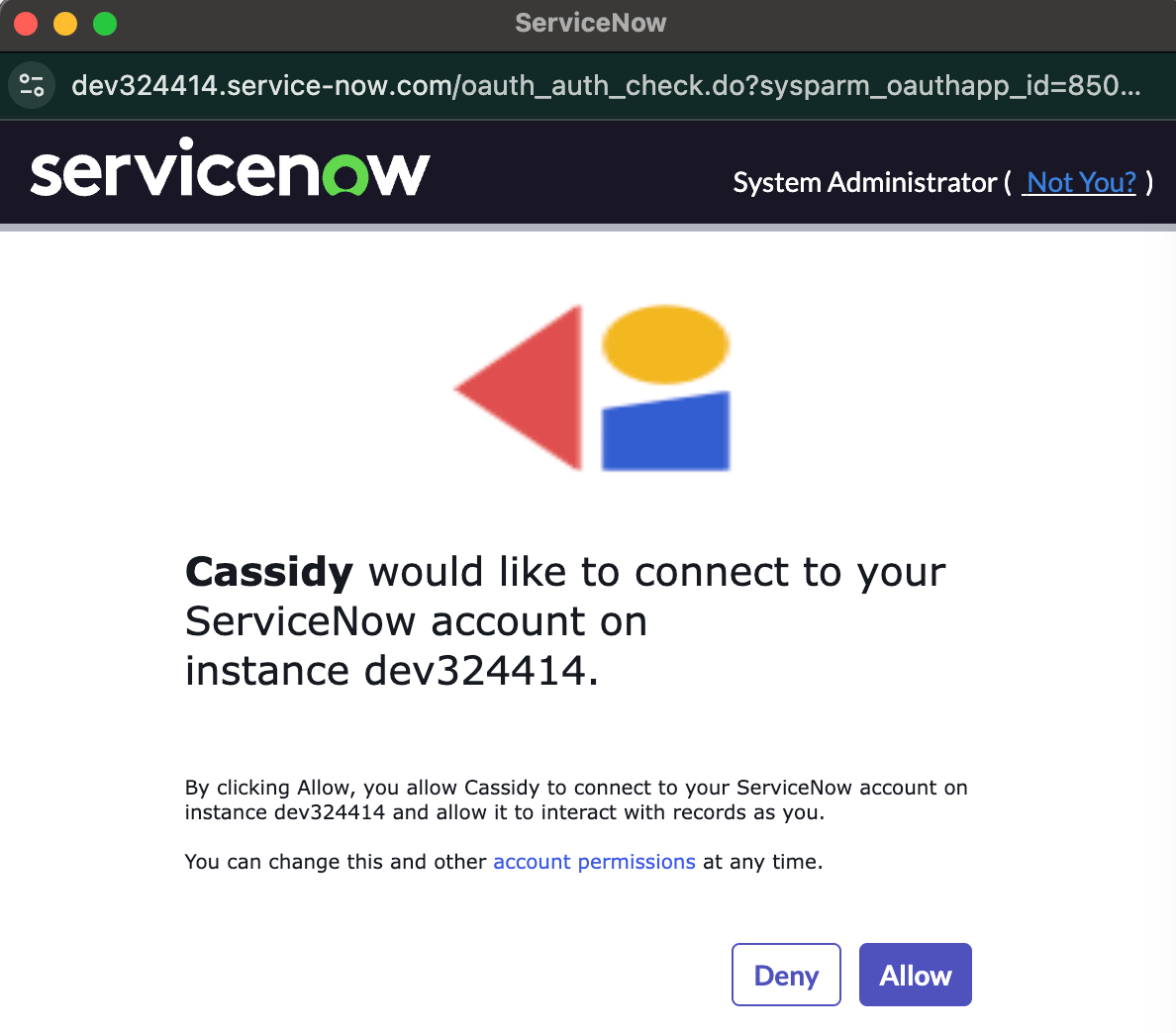
 Click **Allow** to authorize Cassidy to access your ServiceNow instance.
 ## Import content
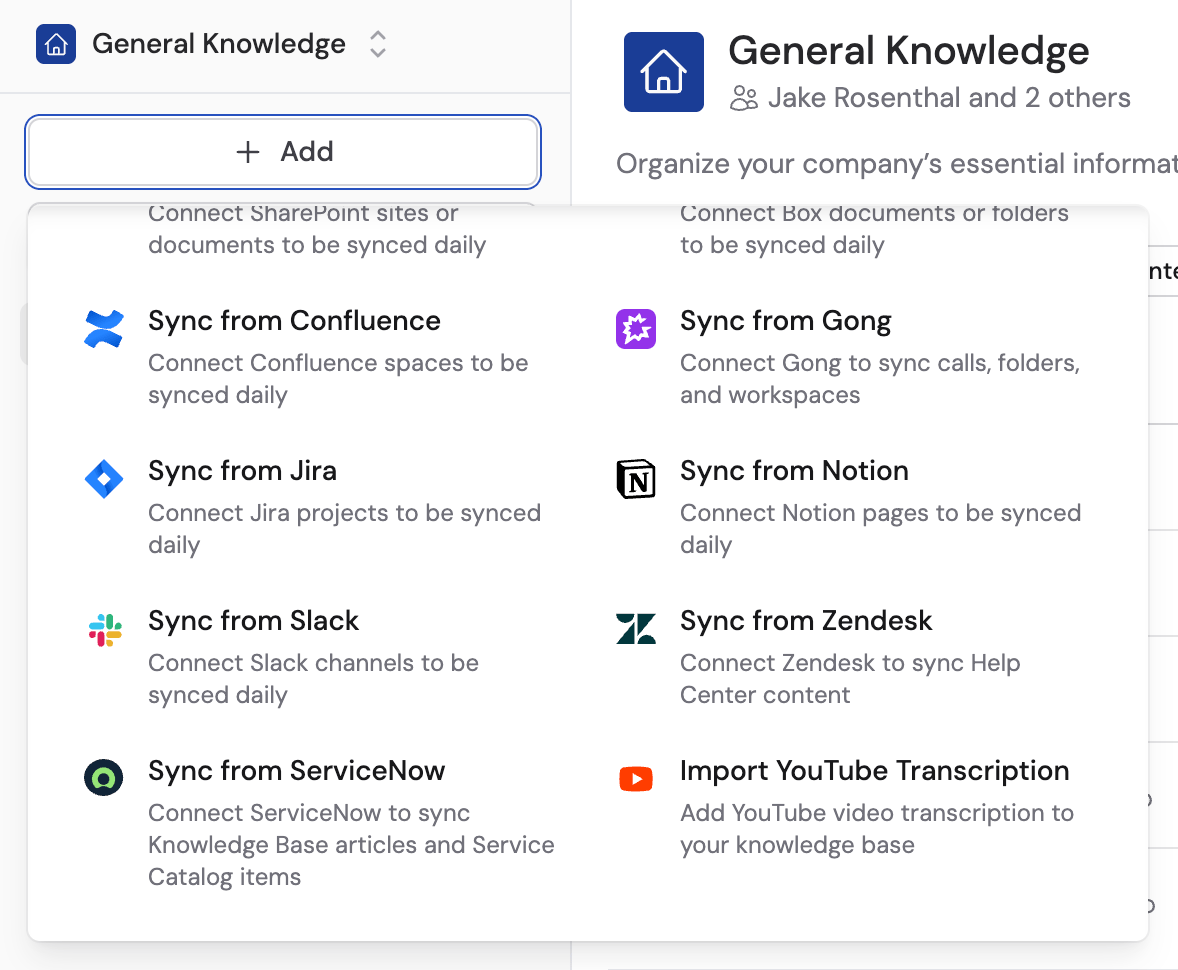
Go to your [Knowledge Base](/knowledge-base/overview) and click **Add**. Select **ServiceNow** from the list of sources.
## Import content
Go to your [Knowledge Base](/knowledge-base/overview) and click **Add**. Select **ServiceNow** from the list of sources.
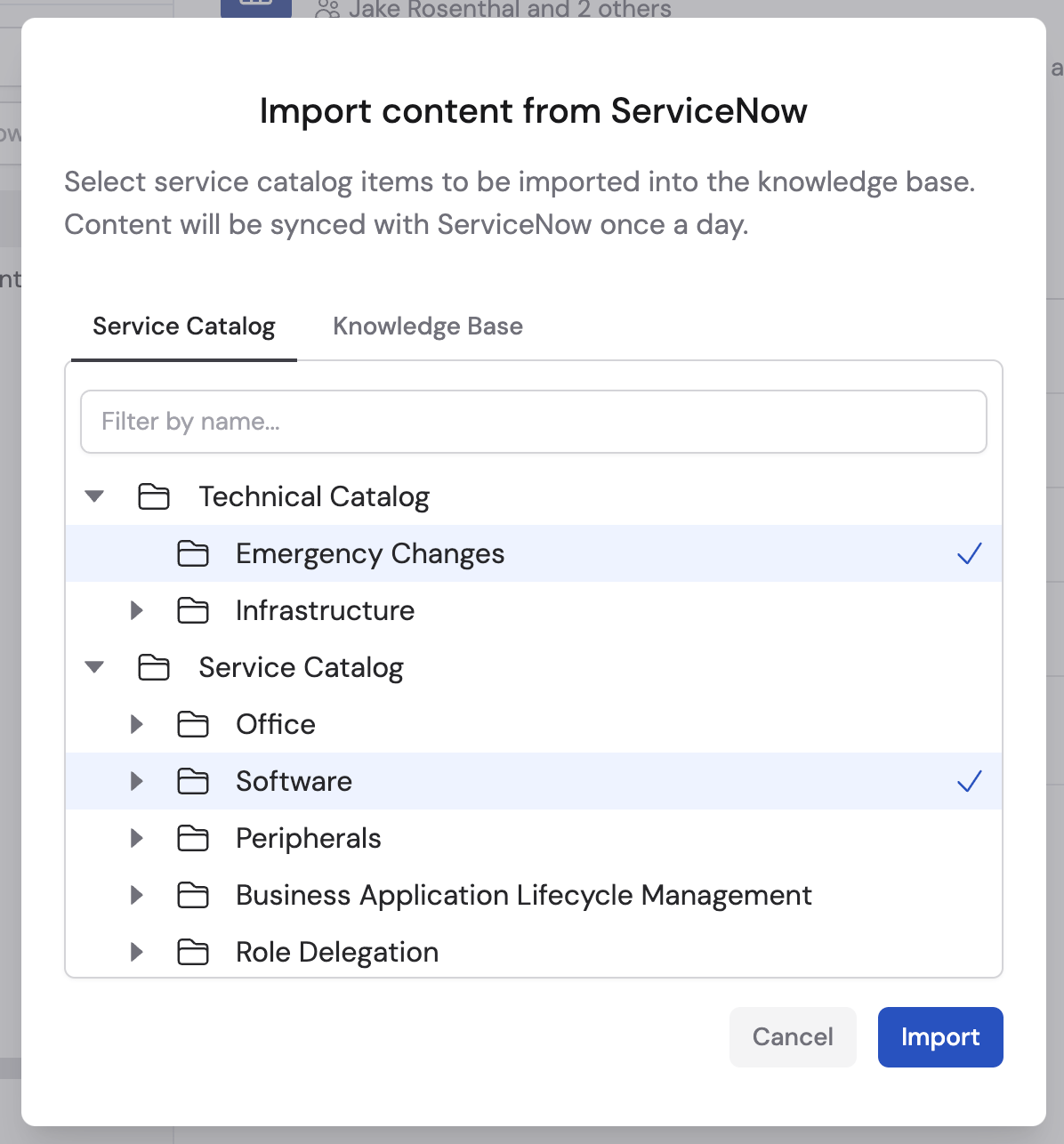 Browse your ServiceNow instance, select the knowledge base articles or service catalog items you want to import, then click **Import**.
 ## Next steps
Learn how to organize and manage your imported content.
See how Agents can query ServiceNow records in real time.
## Next steps
Learn how to organize and manage your imported content.
See how Agents can query ServiceNow records in real time.