> ## Documentation Index
> Fetch the complete documentation index at: https://docs.cassidyai.com/llms.txt
> Use this file to discover all available pages before exploring further.
# Run Zapier action
> Send data from a Cassidy Workflow to any Zapier-connected app.
The Run Zapier Action sends data from your Cassidy [Workflow](/workflows/overview) to any Zapier-connected app. Use it to create documents, send notifications, update records, or perform any action available through Zapier's 5,000+ integrations.
For more information on connecting Zapier, see the [Zapier integration overview](/integrations/zapier/overview).
In the [Workflow builder](/workflows/building), click the **+** button between existing blocks and select **Run Zapier Action** from the action list.
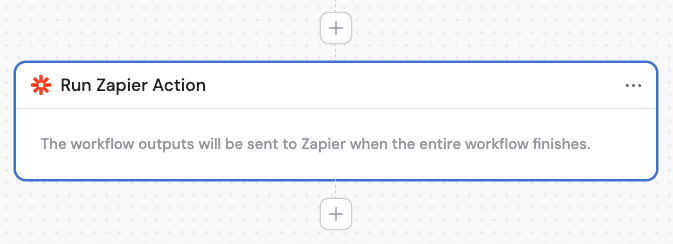
 Enter a descriptive name to make the action easier to reference as a variable in later steps.
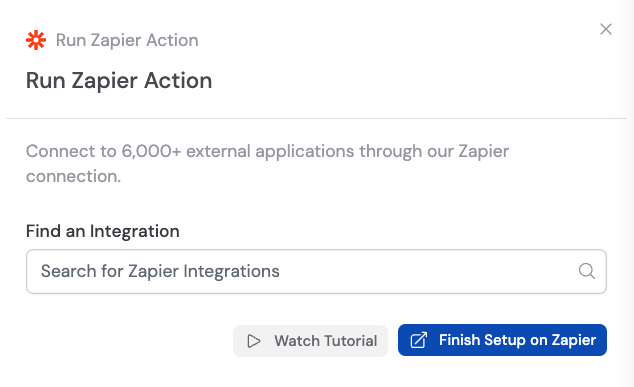
 In the Run Zapier Action block, click **Finish Setup on Zapier**. This redirects you to Zapier where you can configure the destination app.
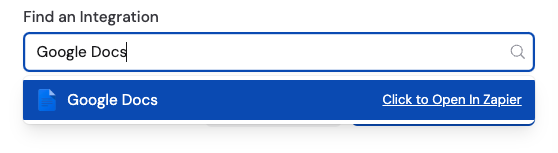
 You can also search for a specific integration app and select **Click to Open in Zapier** to create the Zap automatically.
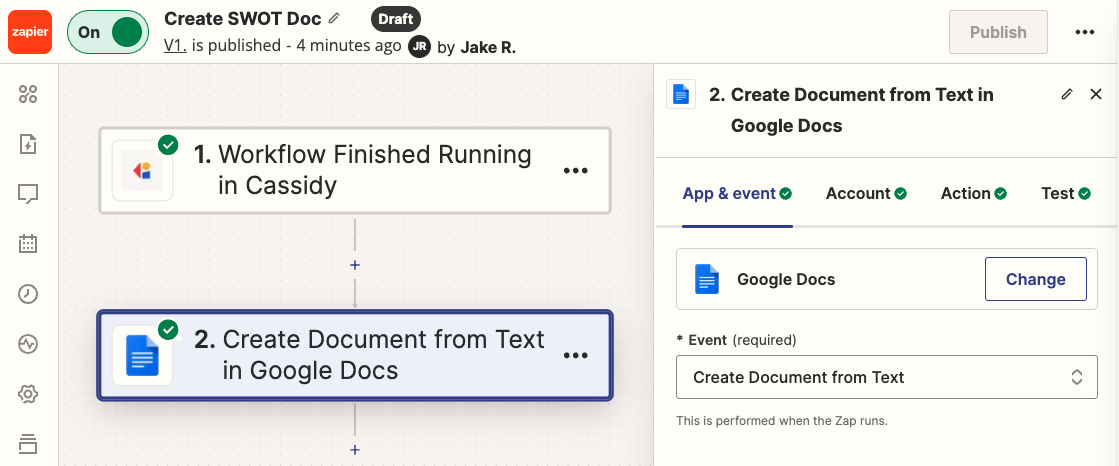
 In Zapier, create a new Zap. Choose **Cassidy** as the trigger event and **Workflow Finished Running** as the event for your Zap.
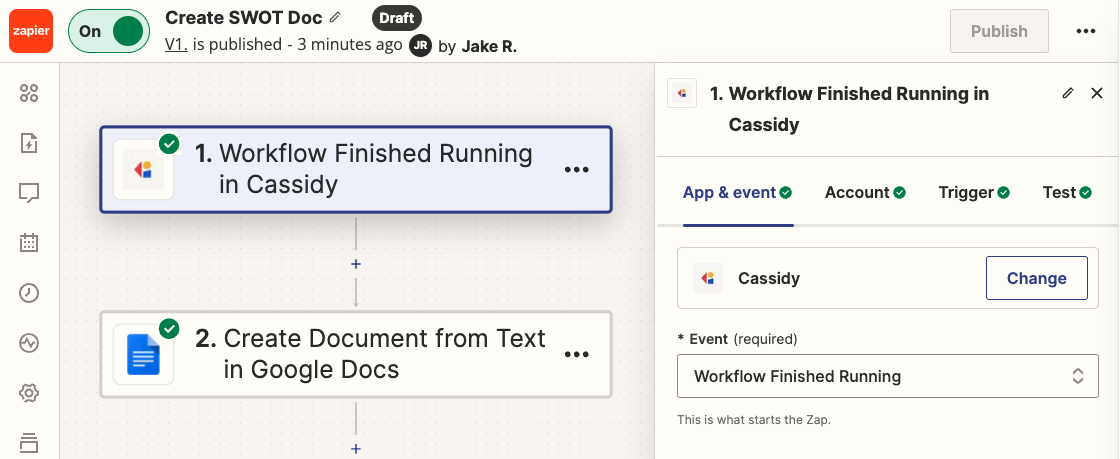 In the Zap editor, add an action step that uses the outputs from your Cassidy Workflow. For example, **Create Document from Text** with Google Docs.
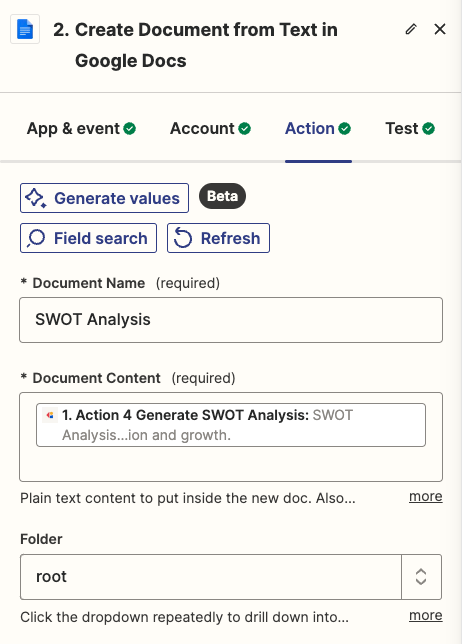
 Map the input fields of your chosen Zapier action to the corresponding outputs from your Cassidy Workflow. For example, map a text output from a Generate Text action to the **Document Content** field.
 Click **Publish** to save and activate your Zap. Make sure it's turned on so it runs when your Cassidy Workflow finishes.
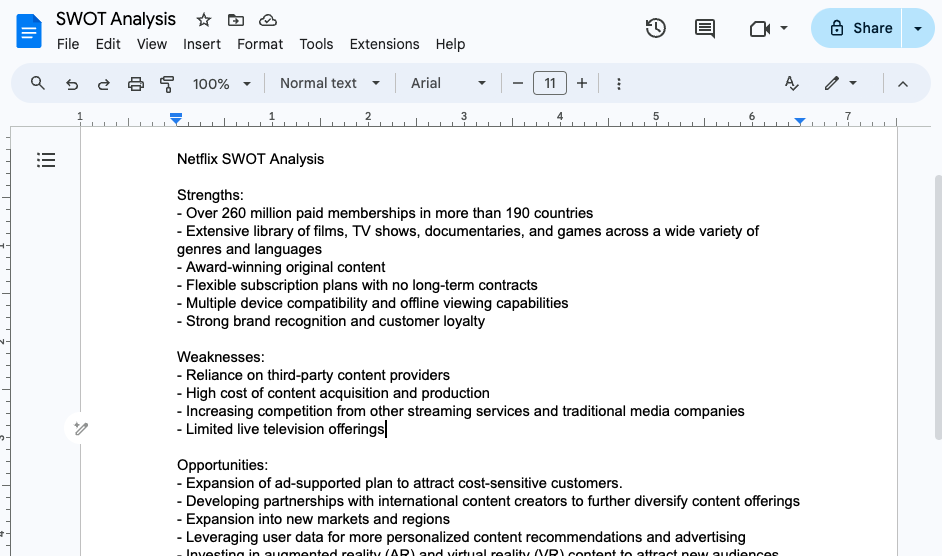
Here's a sample of the type of output you can expect:
Click **Publish** to save and activate your Zap. Make sure it's turned on so it runs when your Cassidy Workflow finishes.
Here's a sample of the type of output you can expect:
 ## Related
* [Zapier trigger](/integrations/zapier/zapier-trigger)
* [Zapier for Workflows](/integrations/zapier/workflows)
* [Connect non-native apps](/integrations/connect-non-native-apps)
## Related
* [Zapier trigger](/integrations/zapier/zapier-trigger)
* [Zapier for Workflows](/integrations/zapier/workflows)
* [Connect non-native apps](/integrations/connect-non-native-apps)