> ## Documentation Index
> Fetch the complete documentation index at: https://docs.cassidyai.com/llms.txt
> Use this file to discover all available pages before exploring further.

# Add comment to Zendesk ticket

> Add a comment to a Zendesk ticket as part of a Workflow.

Use the **Add Comment to Zendesk Ticket** action to post a comment on a Zendesk ticket from within a [Workflow](/workflows/overview). You can add internal notes or public replies, making it easy to automate responses or leave context for your support team.

## Set up the action

<Steps>
  <Step title="Add the action">
    While editing a Workflow, click the **+** button between existing blocks. Select **Add Comment to Zendesk Ticket** from the action list.
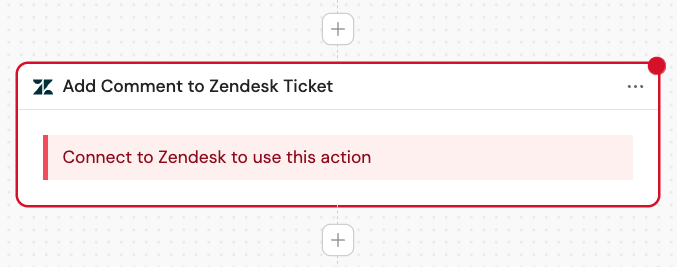
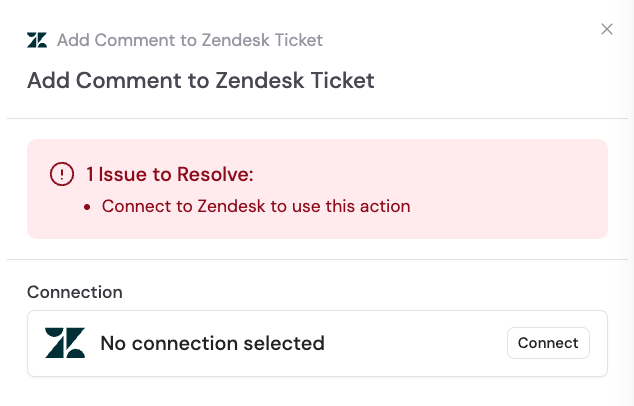
    <Frame>
      <img src="https://mintcdn.com/cassidy/Z6P2Z1FAlUR83Sw5/images/reference/add-comment-to-zendesk-ticket-img-0.png?fit=max&auto=format&n=Z6P2Z1FAlUR83Sw5&q=85&s=a8fdab26ff0cbc9abd65c4bf15370035" alt="Selecting the Add Comment to Zendesk Ticket action" width="677" height="267" data-path="images/reference/add-comment-to-zendesk-ticket-img-0.png" />
    </Frame>

    <Frame>
      <img src="https://mintcdn.com/cassidy/Z6P2Z1FAlUR83Sw5/images/reference/add-comment-to-zendesk-ticket-img-1.png?fit=max&auto=format&n=Z6P2Z1FAlUR83Sw5&q=85&s=ed4403b91d5c29f48ce8d6eec32b7023" alt="Add Comment to Zendesk Ticket action in the Workflow builder" width="634" height="406" data-path="images/reference/add-comment-to-zendesk-ticket-img-1.png" />
    </Frame>
  </Step>

  <Step title="Connect your Zendesk account">
    If you haven't already, connect your Zendesk account to Cassidy.
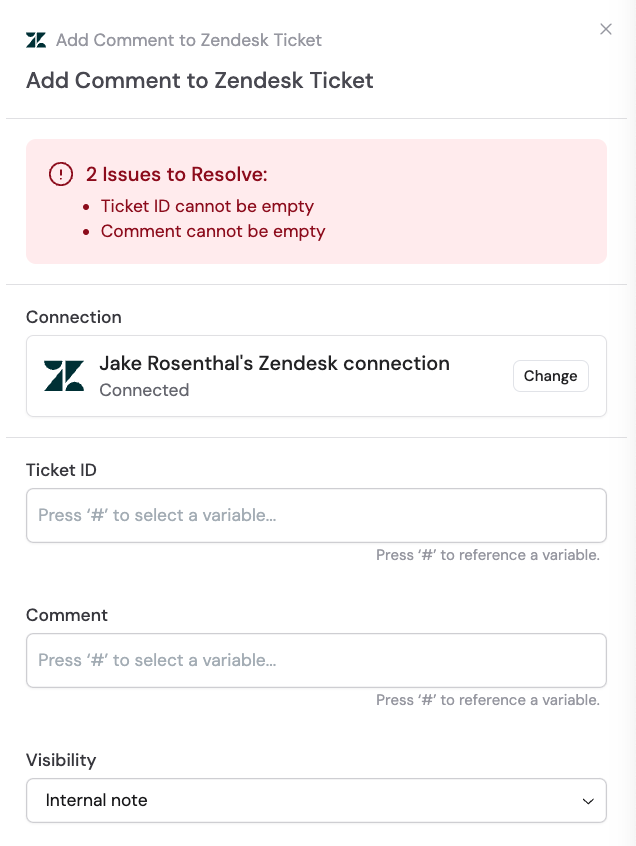
    <Frame>
      <img src="https://mintcdn.com/cassidy/Z6P2Z1FAlUR83Sw5/images/reference/add-comment-to-zendesk-ticket-img-2.png?fit=max&auto=format&n=Z6P2Z1FAlUR83Sw5&q=85&s=7a17a712224812f7c6fb5393f7a604d4" alt="Adding a Zendesk connection for the action" width="636" height="846" data-path="images/reference/add-comment-to-zendesk-ticket-img-2.png" />
    </Frame>
  </Step>

  <Step title="Rename the action (optional)">
    Click the action name to give it a more descriptive label, making it easier to reference as a variable in later steps.

    <Frame>
      <img src="https://mintcdn.com/cassidy/Z6P2Z1FAlUR83Sw5/images/reference/add-comment-to-zendesk-ticket-img-3.png?fit=max&auto=format&n=Z6P2Z1FAlUR83Sw5&q=85&s=bc9be7c0ec5dd02ec9e2d3efc74e6d11" alt="Renaming the Add Comment to Zendesk Ticket action" width="634" height="129" data-path="images/reference/add-comment-to-zendesk-ticket-img-3.png" />
    </Frame>
  </Step>

  <Step title="Enter the ticket ID">
    Provide the ID of the Zendesk ticket you want to comment on. You can type a ticket ID directly or reference a variable from a previous step or the trigger.
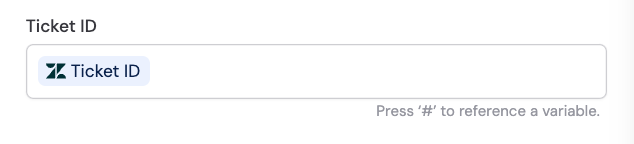
    <Frame>
      <img src="https://mintcdn.com/cassidy/Z6P2Z1FAlUR83Sw5/images/reference/add-comment-to-zendesk-ticket-img-4.png?fit=max&auto=format&n=Z6P2Z1FAlUR83Sw5&q=85&s=ae8db5bc59382cef2c66a4bb7f7bd665" alt="Entering the Ticket ID field with a variable reference" width="634" height="144" data-path="images/reference/add-comment-to-zendesk-ticket-img-4.png" />
    </Frame>
  </Step>

  <Step title="Enter the comment">
    Type the comment you want to add to the ticket, or reference a variable containing the comment text from a previous step.

    <Frame>
      <img src="https://mintcdn.com/cassidy/Z6P2Z1FAlUR83Sw5/images/reference/add-comment-to-zendesk-ticket-img-5.png?fit=max&auto=format&n=Z6P2Z1FAlUR83Sw5&q=85&s=1def58f3310a480895bc1472fa3c9ab8" alt="Entering the Comment field" width="637" height="126" data-path="images/reference/add-comment-to-zendesk-ticket-img-5.png" />
    </Frame>
  </Step>

  <Step title="Select visibility">
    Choose the visibility for the comment:

    * **Internal note** — visible only to agents and admins
    * **Public reply** — visible to the ticket requester

    <Frame>
      <img src="https://mintcdn.com/cassidy/Z6P2Z1FAlUR83Sw5/images/reference/add-comment-to-zendesk-ticket-img-6.png?fit=max&auto=format&n=Z6P2Z1FAlUR83Sw5&q=85&s=776dfe4dbc6014fbb57a8422dddef917" alt="Selecting comment visibility options" width="635" height="112" data-path="images/reference/add-comment-to-zendesk-ticket-img-6.png" />
    </Frame>
  </Step>
</Steps>

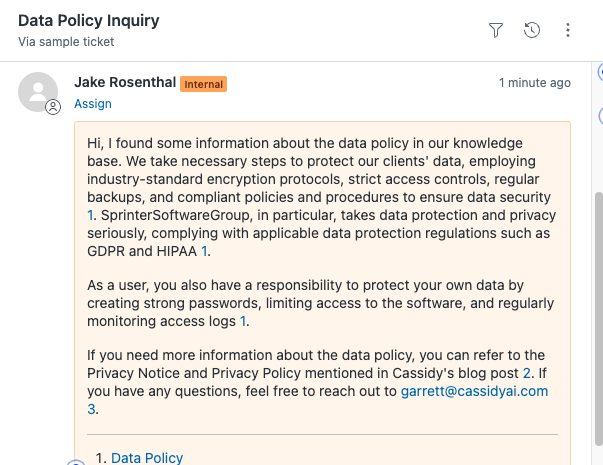
Here's a sample of the type of output you can expect:
<Frame>
  <img src="https://mintcdn.com/cassidy/Z6P2Z1FAlUR83Sw5/images/reference/add-comment-to-zendesk-ticket-img-7.png?fit=max&auto=format&n=Z6P2Z1FAlUR83Sw5&q=85&s=cc5bde666a67c31360330883b7e0bdd5" alt="Sample output of the Add Comment to Zendesk Ticket action" width="603" height="465" data-path="images/reference/add-comment-to-zendesk-ticket-img-7.png" />
</Frame>

## Related

<CardGroup cols={2}>
  <Card title="New ticket trigger" icon="ticket" href="/integrations/zendesk/new-ticket-trigger">
    Trigger a Workflow when a new ticket is created.
  </Card>

  <Card title="Updated ticket trigger" icon="rotate" href="/integrations/zendesk/updated-ticket-trigger">
    Trigger a Workflow when a ticket is updated.
  </Card>
</CardGroup>
