> ## Documentation Index
> Fetch the complete documentation index at: https://docs.cassidyai.com/llms.txt
> Use this file to discover all available pages before exploring further.
# Set up your Knowledge Base
> Upload documents and folders, import websites, and connect integrations to build your Knowledge Base.
Add your company's documents, websites, and integration data to the [Knowledge Base](/knowledge-base/overview) so [Agents](/agents/overview) and [Workflows](/workflows/overview) can reference your business knowledge.
## Adding content
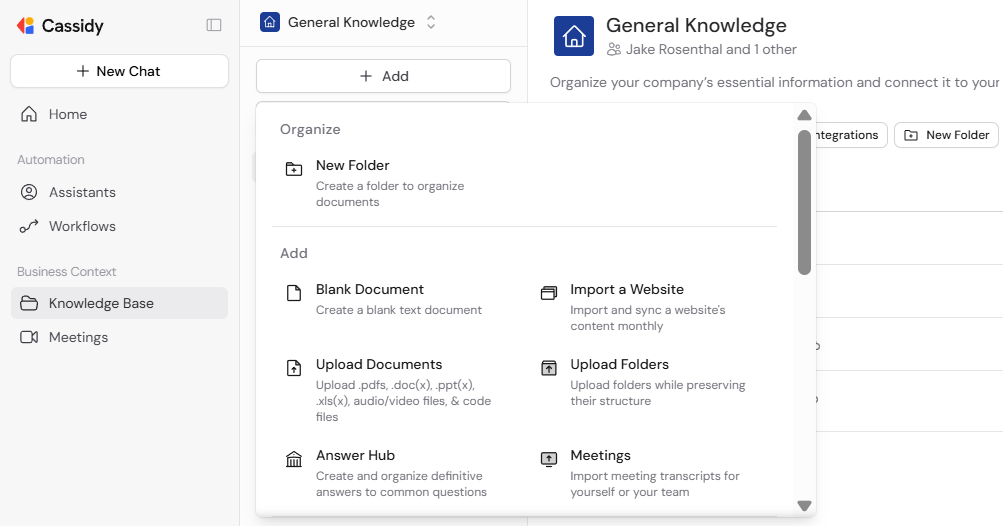
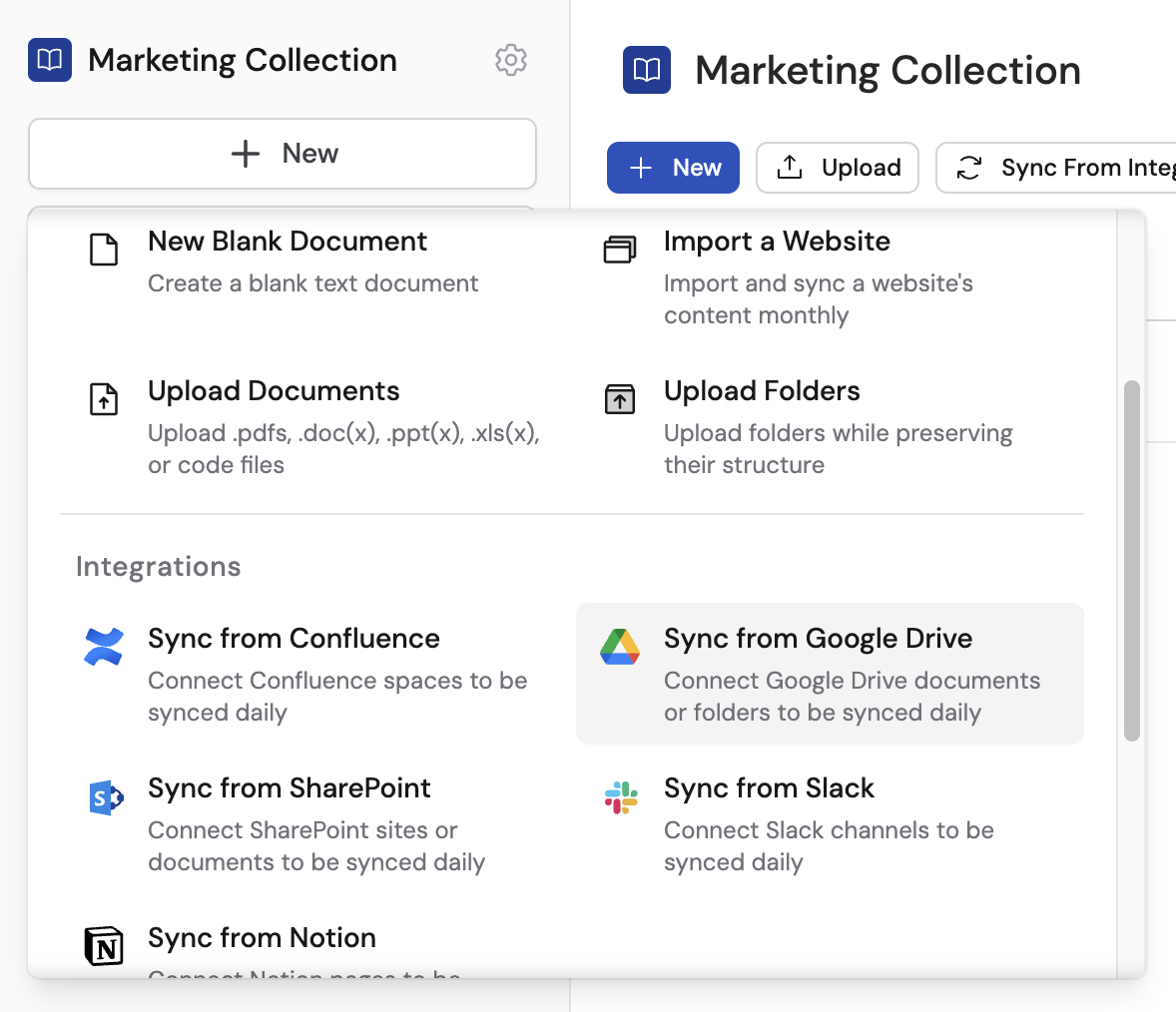
All content is added from the **+ Add** menu inside a collection or folder. To get started:
1. Open **Knowledge Base** in the sidebar
2. Select the [collection or folder](/knowledge-base/permissions-and-structure) where you want to add content
3. Click **+ Add** to see all available options
 ## Upload documents
Select **Upload Documents** from the **+ Add** menu, then choose files from your computer. Supported types include PDF, CSV, Excel (.xls, .xlsx), Word (.doc, .docx), PowerPoint (.pptx), text (.txt), audio and video files (automatically transcribed), and source code files (.py, .html, .js, etc.).
## Upload documents
Select **Upload Documents** from the **+ Add** menu, then choose files from your computer. Supported types include PDF, CSV, Excel (.xls, .xlsx), Word (.doc, .docx), PowerPoint (.pptx), text (.txt), audio and video files (automatically transcribed), and source code files (.py, .html, .js, etc.).
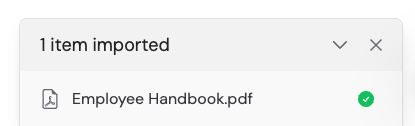 Once processing finishes, click the document to view its contents.
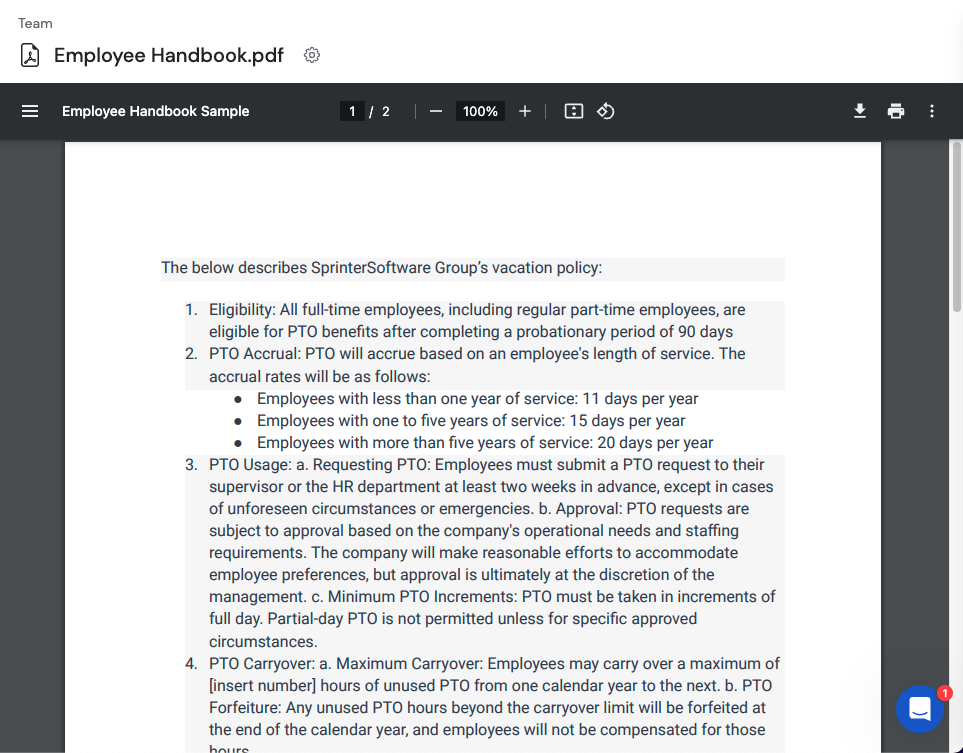 You can also drag and drop files directly into the Knowledge Base.
## Create a blank document
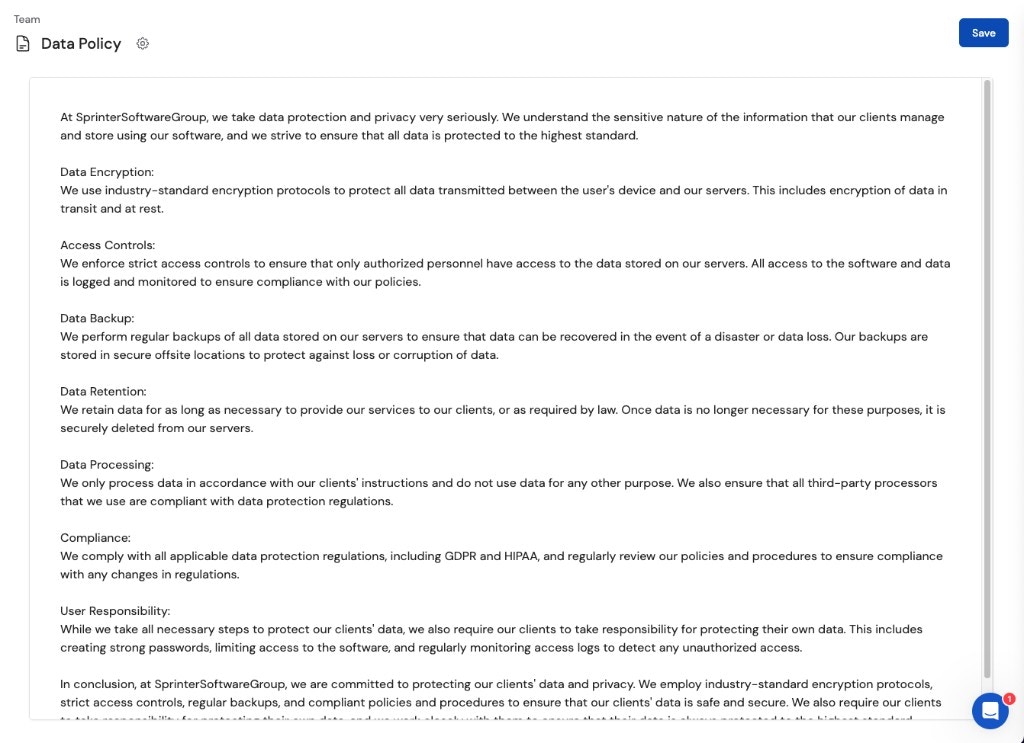
Select **Blank Document** from the **+ Add** menu. Enter the document content in the text editor and click **Save**.
You can also drag and drop files directly into the Knowledge Base.
## Create a blank document
Select **Blank Document** from the **+ Add** menu. Enter the document content in the text editor and click **Save**.
 ## Upload folders
Select **Upload Folders** from the **+ Add** menu, then choose a folder from your computer. Cassidy preserves the folder structure and all sub-folders. All supported file types within the folder are imported.
## Upload folders
Select **Upload Folders** from the **+ Add** menu, then choose a folder from your computer. Cassidy preserves the folder structure and all sub-folders. All supported file types within the folder are imported.
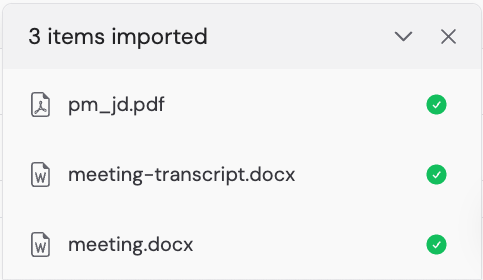 Avoid uploading very large folders, as this may slow down your browser. Keep the upload tab open until all files finish processing.
## Import a website
Select **Import a Website** from the **+ Add** menu.
Avoid uploading very large folders, as this may slow down your browser. Keep the upload tab open until all files finish processing.
## Import a website
Select **Import a Website** from the **+ Add** menu.
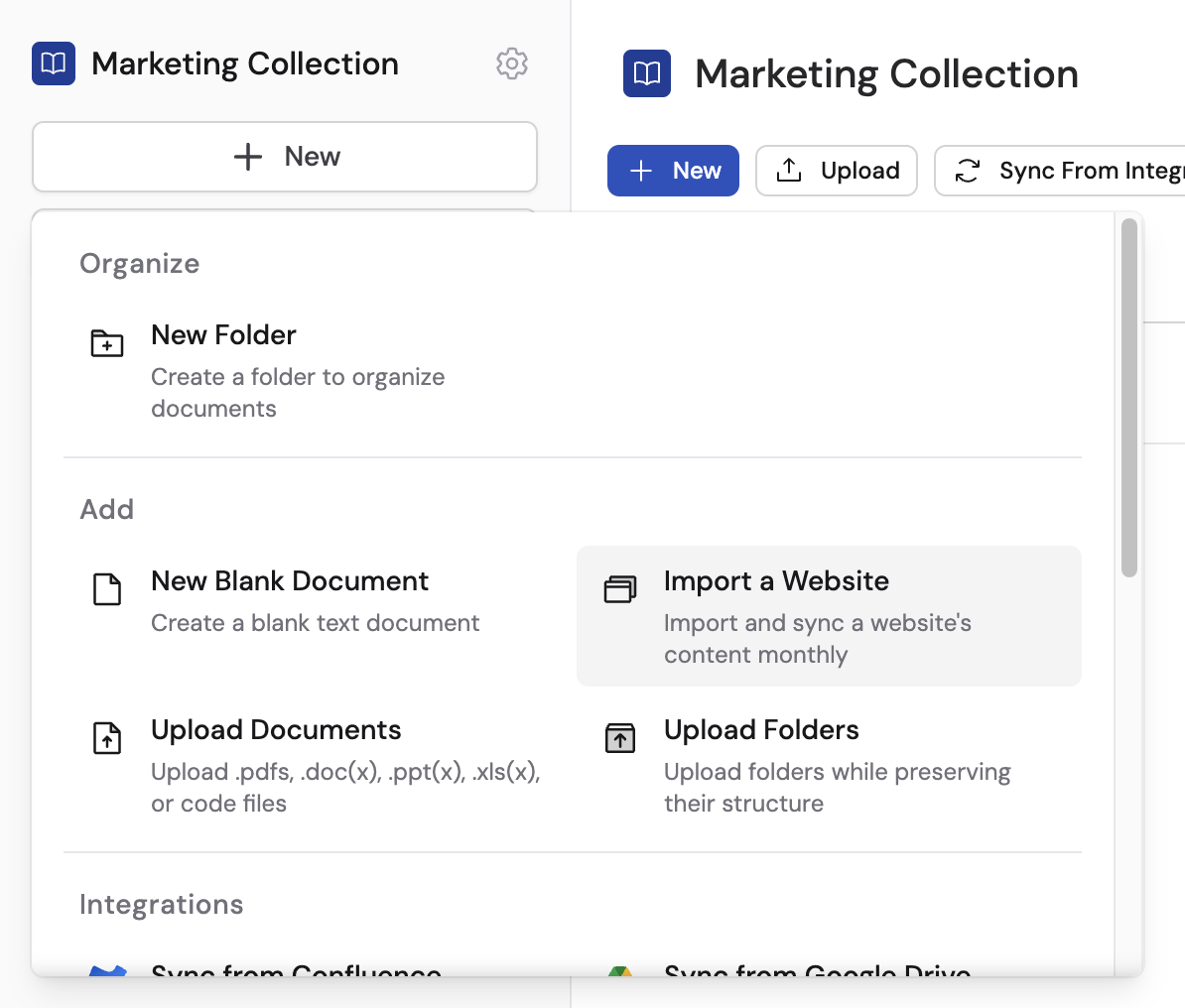 Enter the website URL in **Starting URL**, then choose a **Crawl Mode**:
* **Domain** — Crawls all pages within the domain (recommended for most users)
* **Subdomain** — Crawls all pages within the subdomain
* **Page** — Imports only the specific URL
* **Custom (Advanced)** — Uses glob patterns to target specific URL paths
Set the **Max Pages to Import** limit and choose a **Sync Frequency** (weekly for Enterprise, monthly, or disabled).
Enter the website URL in **Starting URL**, then choose a **Crawl Mode**:
* **Domain** — Crawls all pages within the domain (recommended for most users)
* **Subdomain** — Crawls all pages within the subdomain
* **Page** — Imports only the specific URL
* **Custom (Advanced)** — Uses glob patterns to target specific URL paths
Set the **Max Pages to Import** limit and choose a **Sync Frequency** (weekly for Enterprise, monthly, or disabled).
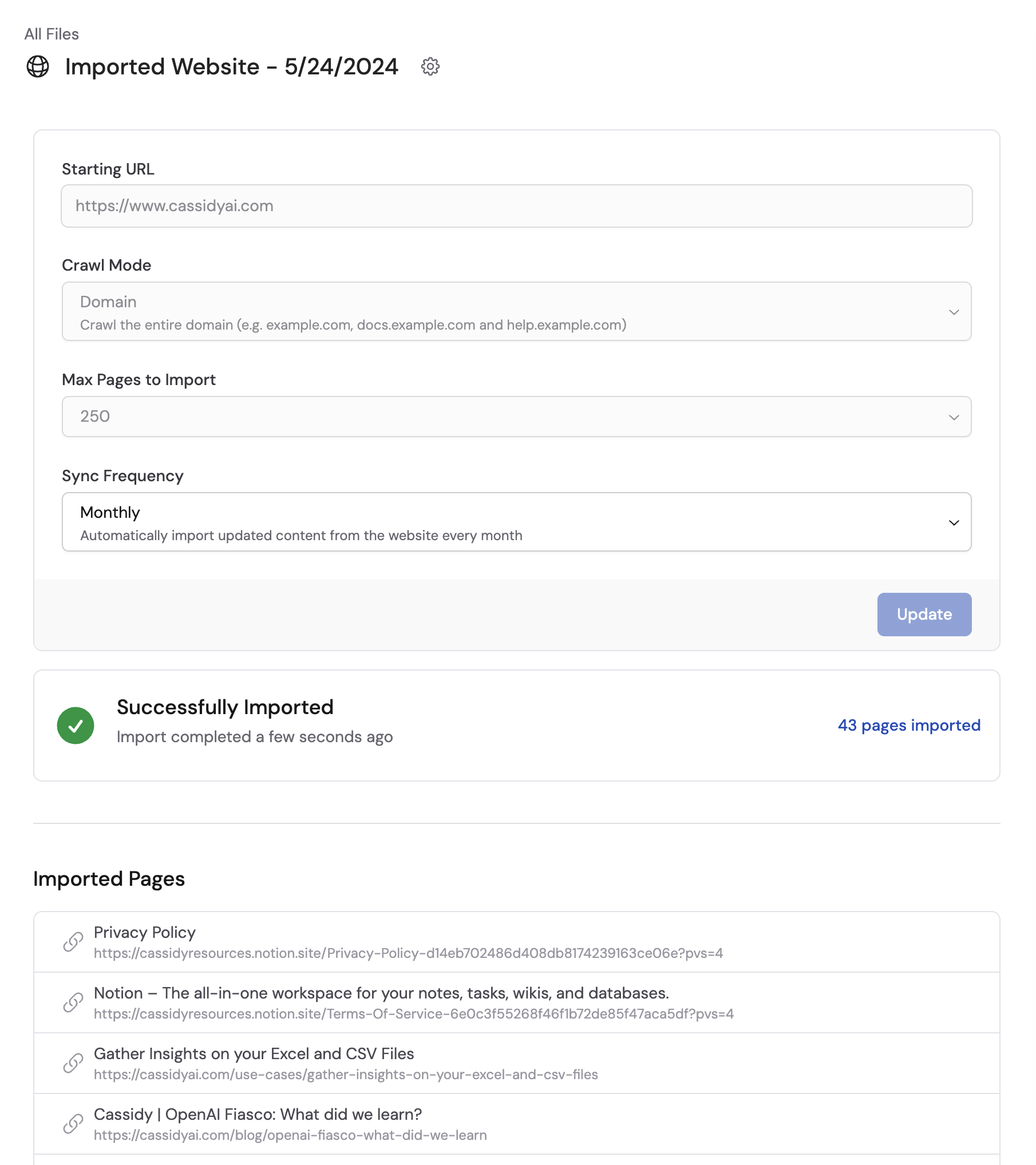
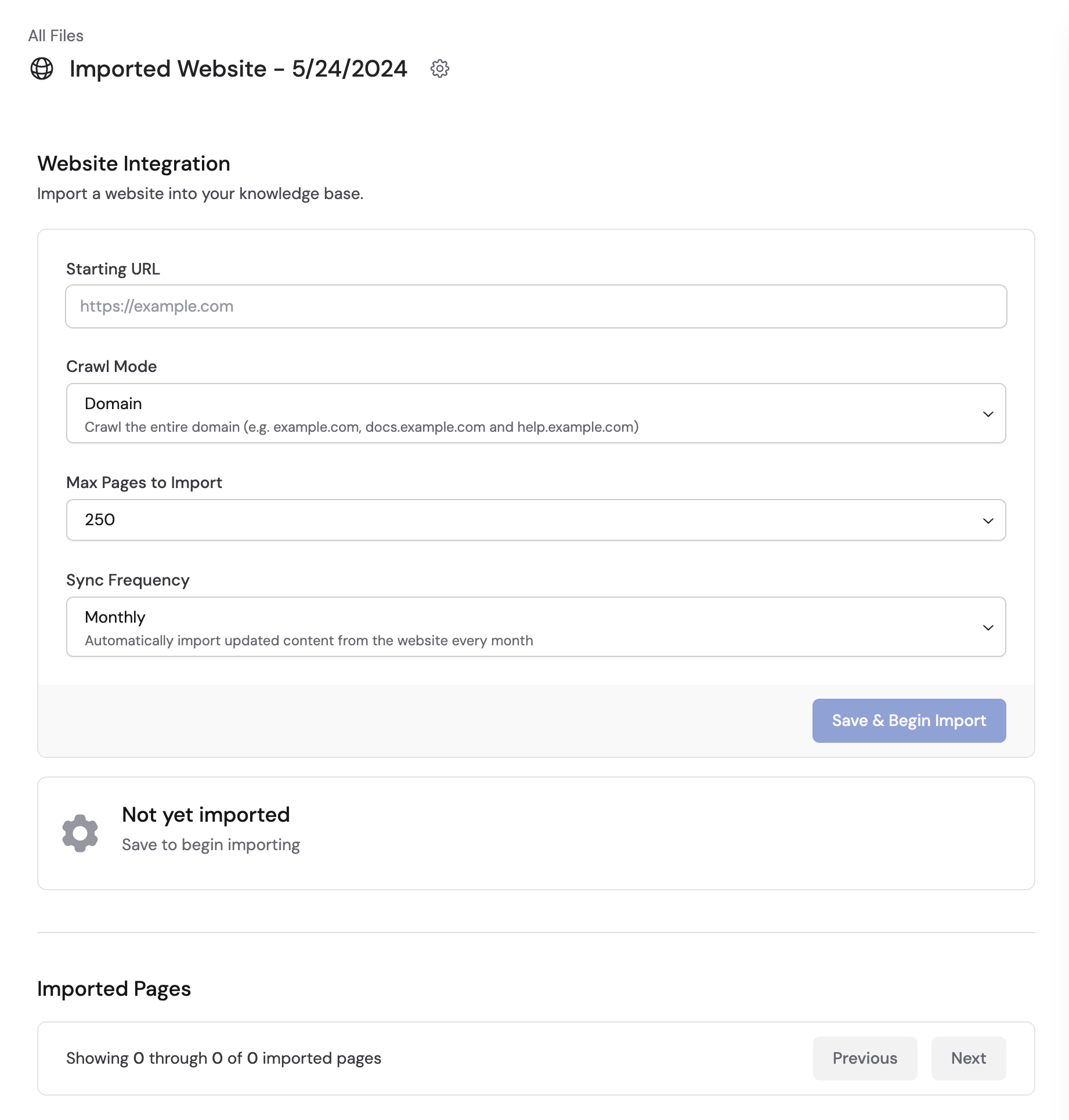 Click **Save & Begin Import**. Cassidy crawls and imports the pages, showing a confirmation when complete.
 When using **Custom (Advanced)** crawl mode, you can target specific URL paths with glob patterns:
* `*` matches any characters except `/`
* `**` matches any characters including `/`
**Examples:**
* `https://example.com/docs/**` — Matches all nested paths under `/docs/` (e.g., `/docs/getting-started`, `/docs/advanced/options`)
* `https://example.com/docs/*` — Matches only direct children of `/docs/` (e.g., `/docs/intro` but not `/docs/intro/chapter-1`)
## Import from integrations
Cassidy integrates with [Google Drive](/integrations/google-workspace/google-drive/knowledge-base), [SharePoint](/integrations/microsoft-365/sharepoint/knowledge-base), [Notion](/integrations/notion/knowledge-base), [Confluence](/integrations/confluence/knowledge-base), [Slack](/integrations/slack/knowledge-base), and more. Content imported from integrations syncs automatically so your Knowledge Base stays up to date.
Click **+ Add** and choose the integration (e.g., **Sync from Google Drive**).
When using **Custom (Advanced)** crawl mode, you can target specific URL paths with glob patterns:
* `*` matches any characters except `/`
* `**` matches any characters including `/`
**Examples:**
* `https://example.com/docs/**` — Matches all nested paths under `/docs/` (e.g., `/docs/getting-started`, `/docs/advanced/options`)
* `https://example.com/docs/*` — Matches only direct children of `/docs/` (e.g., `/docs/intro` but not `/docs/intro/chapter-1`)
## Import from integrations
Cassidy integrates with [Google Drive](/integrations/google-workspace/google-drive/knowledge-base), [SharePoint](/integrations/microsoft-365/sharepoint/knowledge-base), [Notion](/integrations/notion/knowledge-base), [Confluence](/integrations/confluence/knowledge-base), [Slack](/integrations/slack/knowledge-base), and more. Content imported from integrations syncs automatically so your Knowledge Base stays up to date.
Click **+ Add** and choose the integration (e.g., **Sync from Google Drive**).
 If prompted, connect your account and authorize Cassidy to access the integration.
Select the files or folders to import.
If prompted, connect your account and authorize Cassidy to access the integration.
Select the files or folders to import.
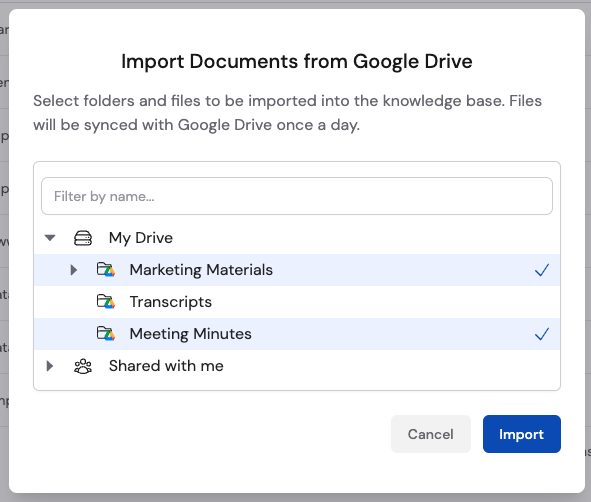 Click **Import** to add the selected content to your Knowledge Base.
Integration sources sync automatically every 24 hours. [Enterprise plans](/integrations/sync-integrations) support more frequent syncing. Learn more about [sync schedules and options](/integrations/sync-integrations).
Browse the [full list of supported integrations](/integrations/overview) in the Integrations tab for Knowledge Base sources like Google Drive, SharePoint, Notion, Confluence, Slack, and more.
## Create an Answer Hub
Answer Hubs are curated sets of questions and answers that deliver exact responses instead of summarized search results — ideal for FAQs, product questions, or any scenario where precision matters. Select **Answer Hub** from the **+ Add** menu to create one.
For the full walkthrough, see [Answer Hubs](/knowledge-base/answer-hubs).
## Import meetings
To let an [Agent](/agents/overview) answer questions across your meeting library in [Chat](/guides/chatting-with-an-agent), the typical approach is the [Meetings Connector](/agents/connectors/meetings) — no import step. Import meeting transcripts into the Knowledge Base when you want them **in the same folders and collections** as files and other sources. For a comparison of Connector vs single-meeting chat vs import, see [Chat with your meetings](/meetings/knowledge-base). Select **Meetings** from the **+ Add** menu to get started.
For the full walkthrough, see [Import meetings to your Knowledge Base](/meetings/knowledge-base#import-meetings-to-your-knowledge-base).
## Next steps
Set up collections and folders and control who can access what.
Browse integrations and connect your apps.
Confirm your content is indexed correctly.
Give your Agent access to your company knowledge.
Click **Import** to add the selected content to your Knowledge Base.
Integration sources sync automatically every 24 hours. [Enterprise plans](/integrations/sync-integrations) support more frequent syncing. Learn more about [sync schedules and options](/integrations/sync-integrations).
Browse the [full list of supported integrations](/integrations/overview) in the Integrations tab for Knowledge Base sources like Google Drive, SharePoint, Notion, Confluence, Slack, and more.
## Create an Answer Hub
Answer Hubs are curated sets of questions and answers that deliver exact responses instead of summarized search results — ideal for FAQs, product questions, or any scenario where precision matters. Select **Answer Hub** from the **+ Add** menu to create one.
For the full walkthrough, see [Answer Hubs](/knowledge-base/answer-hubs).
## Import meetings
To let an [Agent](/agents/overview) answer questions across your meeting library in [Chat](/guides/chatting-with-an-agent), the typical approach is the [Meetings Connector](/agents/connectors/meetings) — no import step. Import meeting transcripts into the Knowledge Base when you want them **in the same folders and collections** as files and other sources. For a comparison of Connector vs single-meeting chat vs import, see [Chat with your meetings](/meetings/knowledge-base). Select **Meetings** from the **+ Add** menu to get started.
For the full walkthrough, see [Import meetings to your Knowledge Base](/meetings/knowledge-base#import-meetings-to-your-knowledge-base).
## Next steps
Set up collections and folders and control who can access what.
Browse integrations and connect your apps.
Confirm your content is indexed correctly.
Give your Agent access to your company knowledge.