> ## Documentation Index
> Fetch the complete documentation index at: https://docs.cassidyai.com/llms.txt
> Use this file to discover all available pages before exploring further.
# Customize meeting summaries
> Add organization-specific instructions to how Cassidy generates AI summaries for your recorded meetings, and preview the results before saving.
Cassidy automatically generates an AI summary for every recorded meeting. Custom meeting summaries let organization admins add their own instructions on top of Cassidy's defaults, so summaries better reflect how your organization likes to capture meeting notes -- for example, always flagging risks, using specific section headers, or highlighting a particular type of decision.
Configuring custom meeting summary instructions requires the **Customize
Meeting Summaries** admin privilege. Org Admins have this privilege by
default. To grant it to other team members without full Admin access, add it
to a [custom role](/settings/roles-and-groups). Accessing the **Meeting
Settings** page itself also requires the **Manage Organization Settings**
privilege.
## Turn on custom instructions
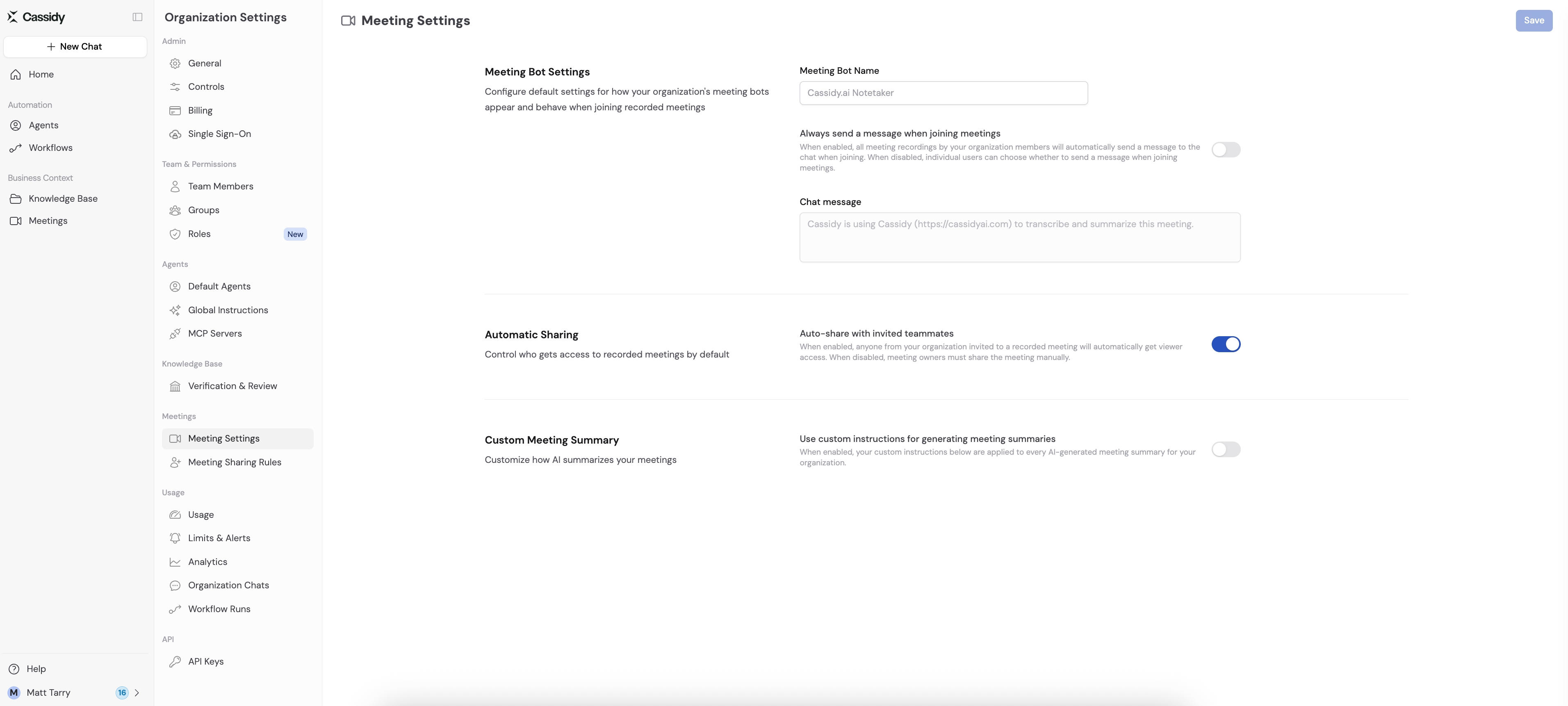
Go to **Organization Settings > Meetings > Meeting Settings**.
Scroll to **Custom Meeting Summary** and toggle on **Use custom
instructions for generating meeting summaries**.
 Enter your instructions in the **Custom instructions** field.
Some examples of effective custom instructions:
* "Always include a section summarizing next steps and their owners."
* "Flag any mention of pricing, discounts, or contract terms in a dedicated 'Commercial Terms' section."
* "Write in a formal tone and avoid first-person language."
Click **Preview summary** to see how your instructions affect a real
meeting before saving. See [Preview a summary](#preview-a-summary-before-saving)
below.
Enter your instructions in the **Custom instructions** field.
Some examples of effective custom instructions:
* "Always include a section summarizing next steps and their owners."
* "Flag any mention of pricing, discounts, or contract terms in a dedicated 'Commercial Terms' section."
* "Write in a formal tone and avoid first-person language."
Click **Preview summary** to see how your instructions affect a real
meeting before saving. See [Preview a summary](#preview-a-summary-before-saving)
below.
 Click **Save**. Your instructions will be applied to every meeting
summary generated for your organization from this point forward.
## Preview a summary before saving
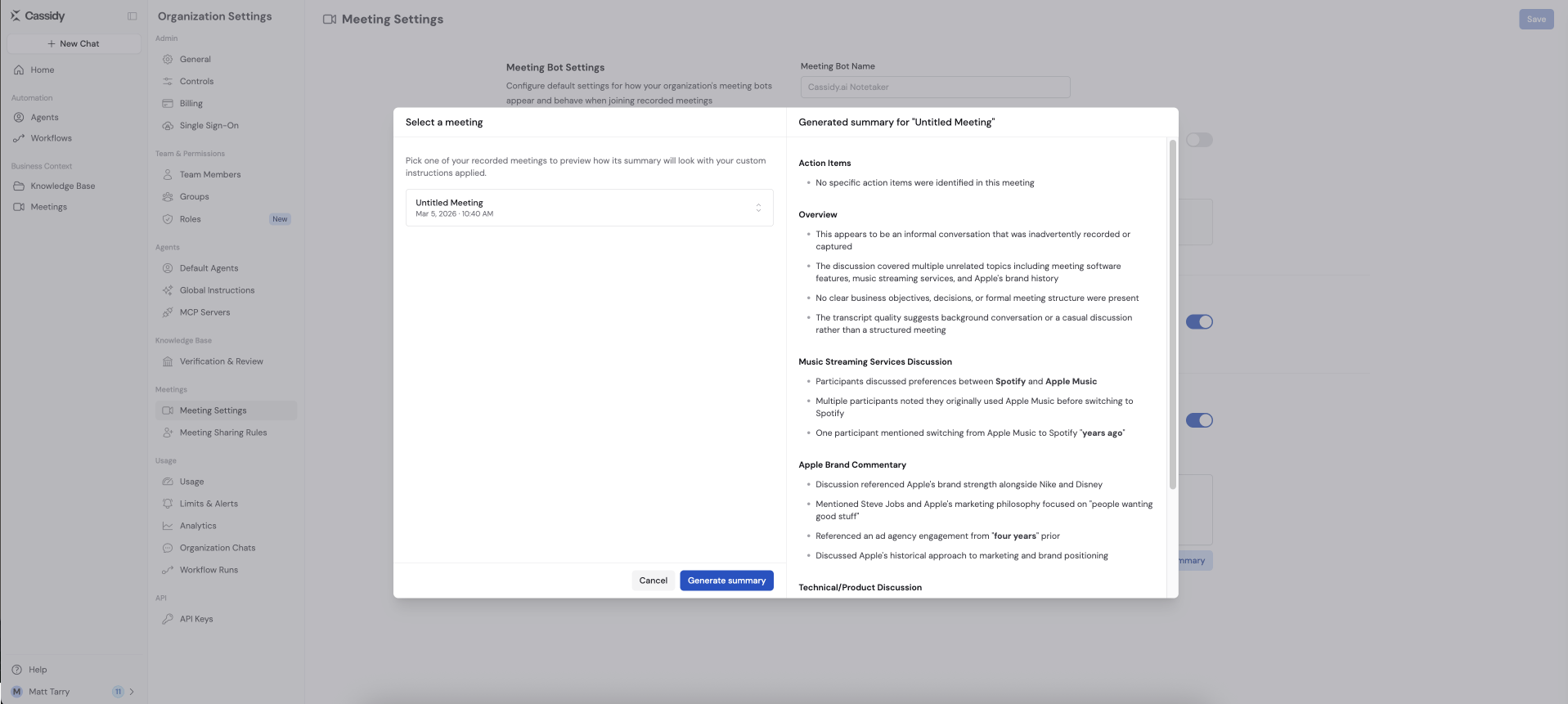
The **Preview summary** button opens a two-panel dialog so you can test your instructions against a real meeting before rolling them out to your whole organization.
* **Left panel** -- Search for and select any recorded meeting you have access to. Only meetings with a completed transcript can generate a preview.
* **Right panel** -- Shows the generated summary once you click **Generate summary**.
Previewing a summary doesn't save anything to the meeting or to your
organization's settings -- it's a one-off test using whatever instructions are
currently typed in the **Custom instructions** field, even if you haven't
clicked **Save** yet.
## How custom instructions are applied
* Instructions only affect summaries generated **after** you save them. Existing meeting summaries aren't regenerated retroactively.
* Instructions apply to every meeting recorded across your organization, not just meetings you host.
* If you turn off **Use custom instructions for generating meeting summaries**, Cassidy falls back to its default summarization behavior for all future meetings.
* Anyone with the **Customize Meeting Summaries** privilege will see a note at the bottom of a meeting's summary when it was generated using your organization's custom instructions, along with a link back to this settings page.
## Next steps
Learn the basics of recording, sharing, and searching meetings in Cassidy.
Grant the Customize Meeting Summaries privilege to a custom role.
Click **Save**. Your instructions will be applied to every meeting
summary generated for your organization from this point forward.
## Preview a summary before saving
The **Preview summary** button opens a two-panel dialog so you can test your instructions against a real meeting before rolling them out to your whole organization.
* **Left panel** -- Search for and select any recorded meeting you have access to. Only meetings with a completed transcript can generate a preview.
* **Right panel** -- Shows the generated summary once you click **Generate summary**.
Previewing a summary doesn't save anything to the meeting or to your
organization's settings -- it's a one-off test using whatever instructions are
currently typed in the **Custom instructions** field, even if you haven't
clicked **Save** yet.
## How custom instructions are applied
* Instructions only affect summaries generated **after** you save them. Existing meeting summaries aren't regenerated retroactively.
* Instructions apply to every meeting recorded across your organization, not just meetings you host.
* If you turn off **Use custom instructions for generating meeting summaries**, Cassidy falls back to its default summarization behavior for all future meetings.
* Anyone with the **Customize Meeting Summaries** privilege will see a note at the bottom of a meeting's summary when it was generated using your organization's custom instructions, along with a link back to this settings page.
## Next steps
Learn the basics of recording, sharing, and searching meetings in Cassidy.
Grant the Customize Meeting Summaries privilege to a custom role.