> ## Documentation Index
> Fetch the complete documentation index at: https://docs.cassidyai.com/llms.txt
> Use this file to discover all available pages before exploring further.
# Create and share meeting clips
> Clip key moments from meeting recordings, share them with teammates, and chat with the clip's transcript.
Meeting clips let you save specific segments of a recording — a key decision, a customer quote, or an action item — as standalone shareable moments. Clips include their own transcript, comment thread, and sharing controls, and you can open any clip directly in Chat to ask questions about it.
## Create a clip
Clips are created from the **Transcript** tab of any recorded meeting.
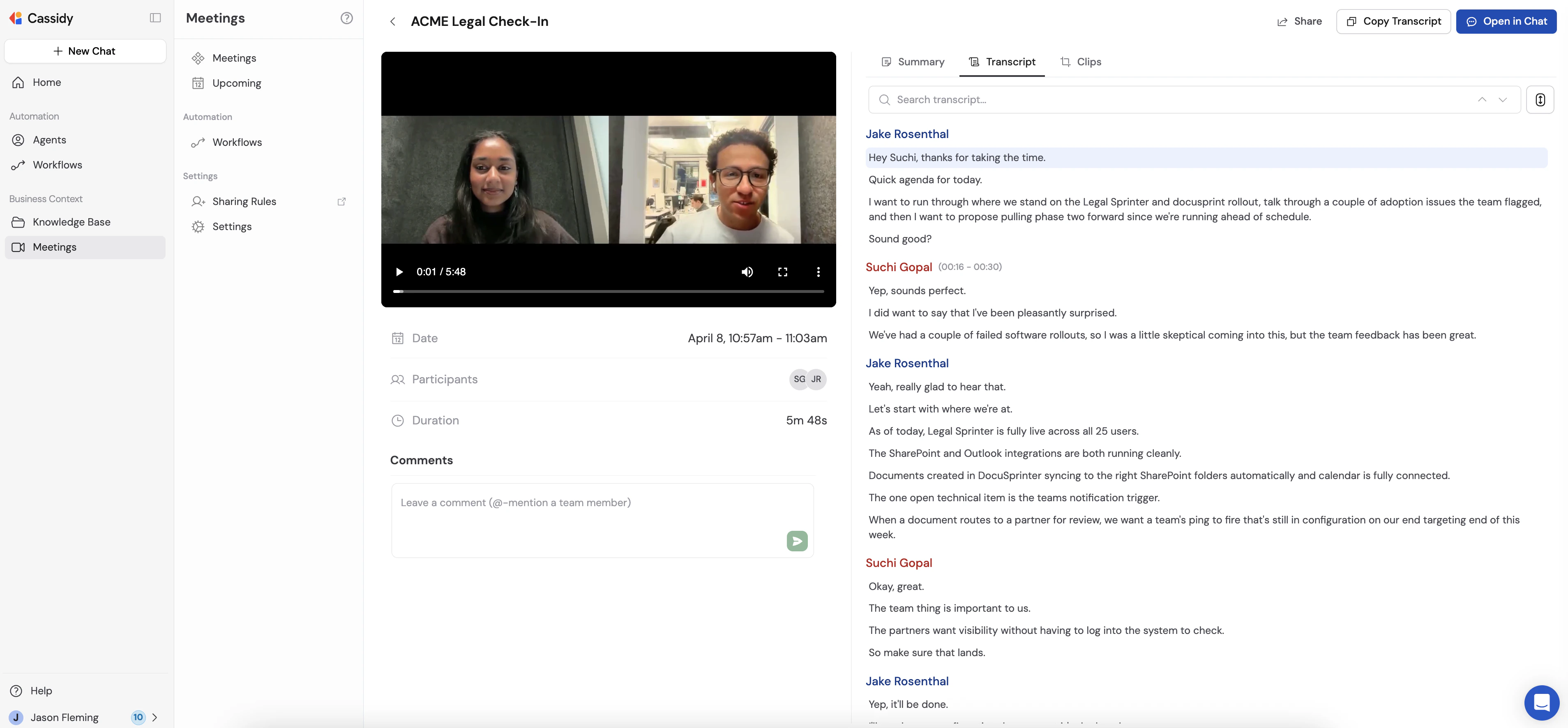
Navigate to **Meetings** in the left sidebar, click the meeting, and select the **Transcript** tab.
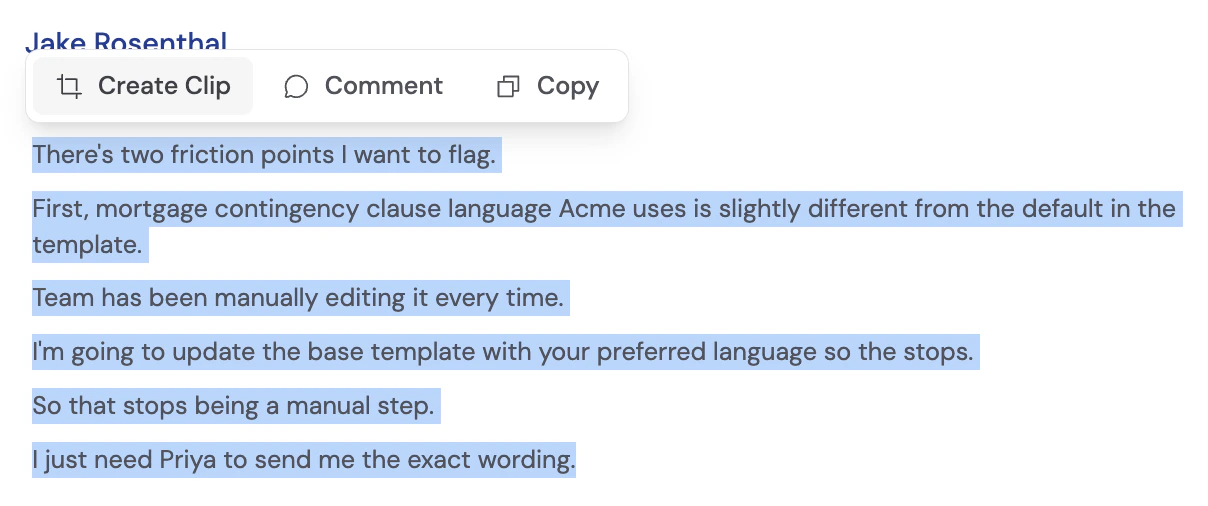
 Click and drag to highlight the portion of the transcript you want to save. A popover appears above your selection with **Create Clip**, **Comment**, and **Copy** options.
 The **Create Clip** button is disabled until the meeting recording has finished processing. If the button is greyed out, wait a moment and try again.
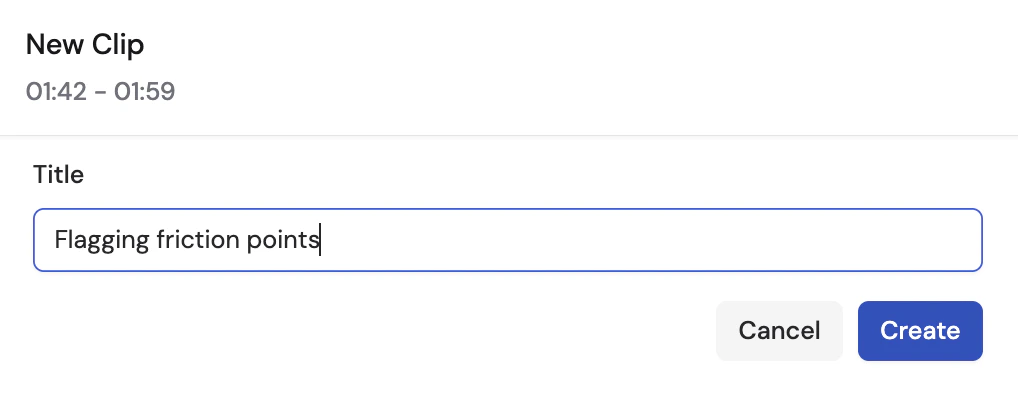
Click **Create Clip**. Enter a title for the clip and click **Create**.
The **Create Clip** button is disabled until the meeting recording has finished processing. If the button is greyed out, wait a moment and try again.
Click **Create Clip**. Enter a title for the clip and click **Create**.
 The clip is saved and immediately available in the **Clips** tab of the meeting.
## View and manage clips
All clips for a meeting are listed in the **Clips** tab on the meeting detail page.
The clip is saved and immediately available in the **Clips** tab of the meeting.
## View and manage clips
All clips for a meeting are listed in the **Clips** tab on the meeting detail page.
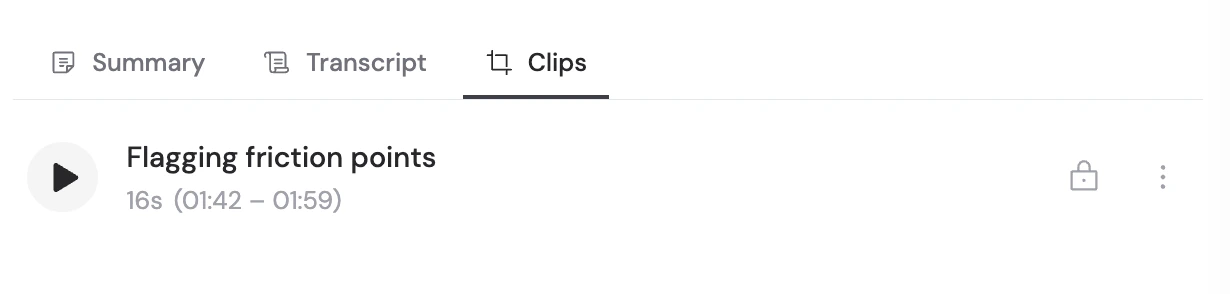 Each row shows the clip name, duration, timestamp range, and sharing status. Click any clip — or click the play button — to open the clip viewer.
### Clip viewer
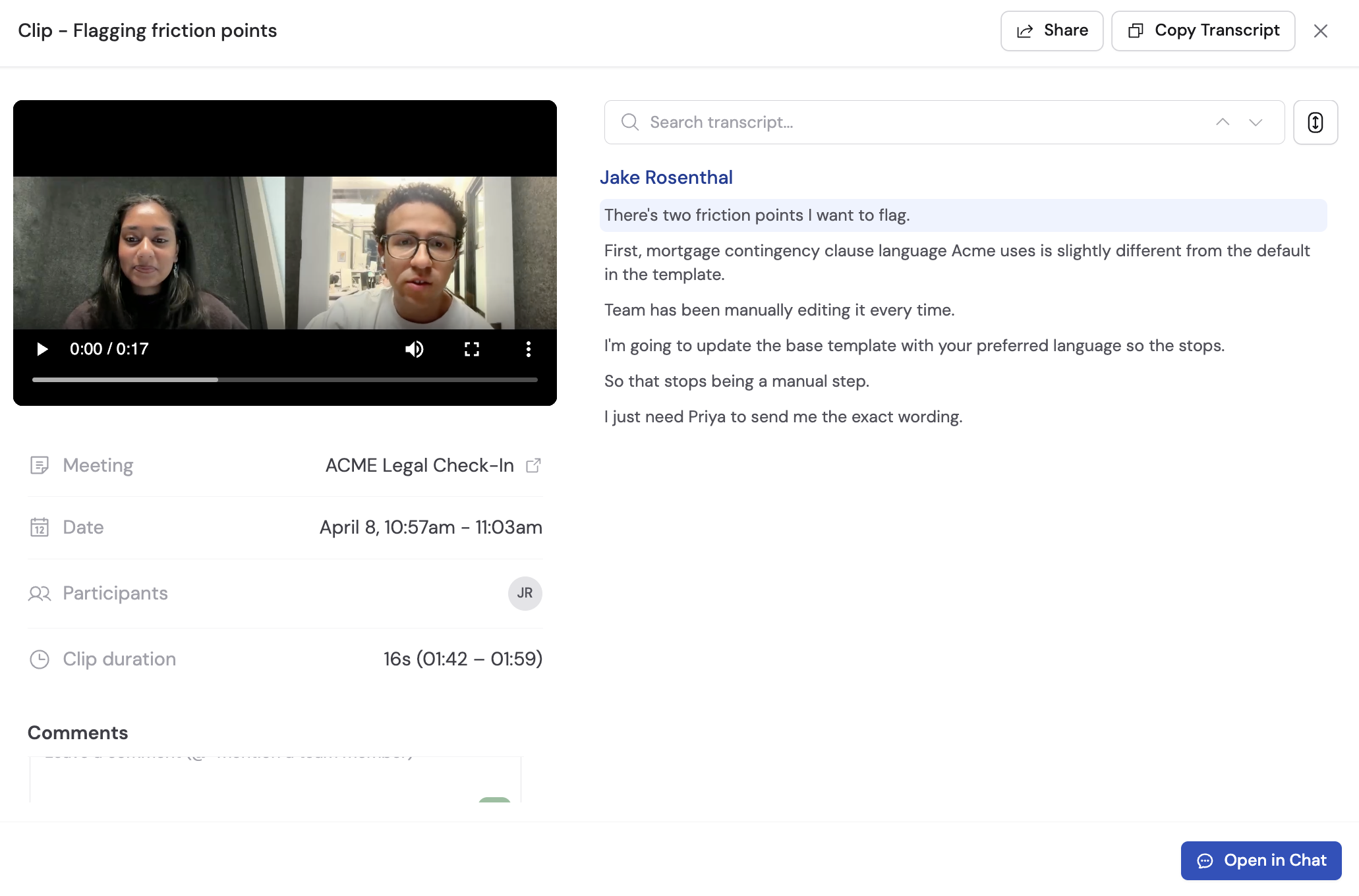
The clip viewer shows the clipped video alongside the clip's transcript. You can:
* **Play the video** and click any transcript line to jump to that moment in the clip
* **Copy the transcript** using the **Copy Transcript** button
* **Leave comments** anchored to specific transcript moments (see [Comments on clips](/meetings/comments#comments-on-clips))
* **Share** the clip with teammates or generate a public link
* **Open in Chat** to send the clip's transcript directly to a Cassidy agent for questions and analysis
Each row shows the clip name, duration, timestamp range, and sharing status. Click any clip — or click the play button — to open the clip viewer.
### Clip viewer
The clip viewer shows the clipped video alongside the clip's transcript. You can:
* **Play the video** and click any transcript line to jump to that moment in the clip
* **Copy the transcript** using the **Copy Transcript** button
* **Leave comments** anchored to specific transcript moments (see [Comments on clips](/meetings/comments#comments-on-clips))
* **Share** the clip with teammates or generate a public link
* **Open in Chat** to send the clip's transcript directly to a Cassidy agent for questions and analysis
 ### Rename or delete a clip
Click the **...** menu on any clip row to access rename and delete options.
* **Rename** — Change the clip title
* **Delete** — Permanently remove the clip. This action requires confirmation and cannot be undone.
## Share a clip
Clips have their own sharing settings, independent from the parent meeting.
Go to the **Clips** tab and click the clip you want to share.
Click **Share** in the top right of the clip viewer.
Choose who can access the clip:
* **Restricted** — Only specific people or groups you add
* **Team** — Anyone in your organization
* **Public** — Anyone with the link, no Cassidy account required
### Rename or delete a clip
Click the **...** menu on any clip row to access rename and delete options.
* **Rename** — Change the clip title
* **Delete** — Permanently remove the clip. This action requires confirmation and cannot be undone.
## Share a clip
Clips have their own sharing settings, independent from the parent meeting.
Go to the **Clips** tab and click the clip you want to share.
Click **Share** in the top right of the clip viewer.
Choose who can access the clip:
* **Restricted** — Only specific people or groups you add
* **Team** — Anyone in your organization
* **Public** — Anyone with the link, no Cassidy account required
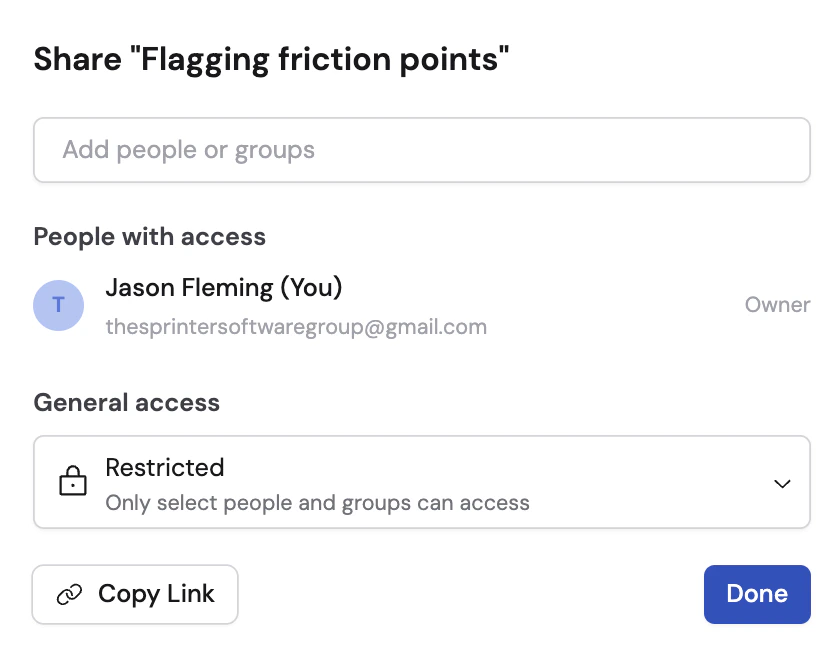 If you chose **Restricted**, search for teammates by name or email and set their permission level to **Can view** or **Can edit**.
Click **Copy link** to copy the clip URL to share.
Public clips open in a standalone viewer that shows the video, transcript, and clip metadata — no Cassidy account needed to view them.
You need **Can edit** permission on a clip to change its sharing settings.
## Open a clip in Chat
Click **Open in Chat** at the bottom of the clip viewer to start a new conversation with the clip's transcript pre-loaded. You can ask an agent to summarize the clip, extract action items, draft a follow-up, or answer any question based on what was said.
## Next steps
Leave notes anchored to transcript moments on clips and full meetings.
Control access with sharing rules and permission levels.
Ask questions across your full meeting library using the Meetings Connector.
Connect your calendar and start recording.
If you chose **Restricted**, search for teammates by name or email and set their permission level to **Can view** or **Can edit**.
Click **Copy link** to copy the clip URL to share.
Public clips open in a standalone viewer that shows the video, transcript, and clip metadata — no Cassidy account needed to view them.
You need **Can edit** permission on a clip to change its sharing settings.
## Open a clip in Chat
Click **Open in Chat** at the bottom of the clip viewer to start a new conversation with the clip's transcript pre-loaded. You can ask an agent to summarize the clip, extract action items, draft a follow-up, or answer any question based on what was said.
## Next steps
Leave notes anchored to transcript moments on clips and full meetings.
Control access with sharing rules and permission levels.
Ask questions across your full meeting library using the Meetings Connector.
Connect your calendar and start recording.