> ## Documentation Index
> Fetch the complete documentation index at: https://docs.cassidyai.com/llms.txt
> Use this file to discover all available pages before exploring further.
# Comment on meetings
> Leave comments on meeting recordings, anchor notes to specific transcript moments, mention teammates, and reply in threads.
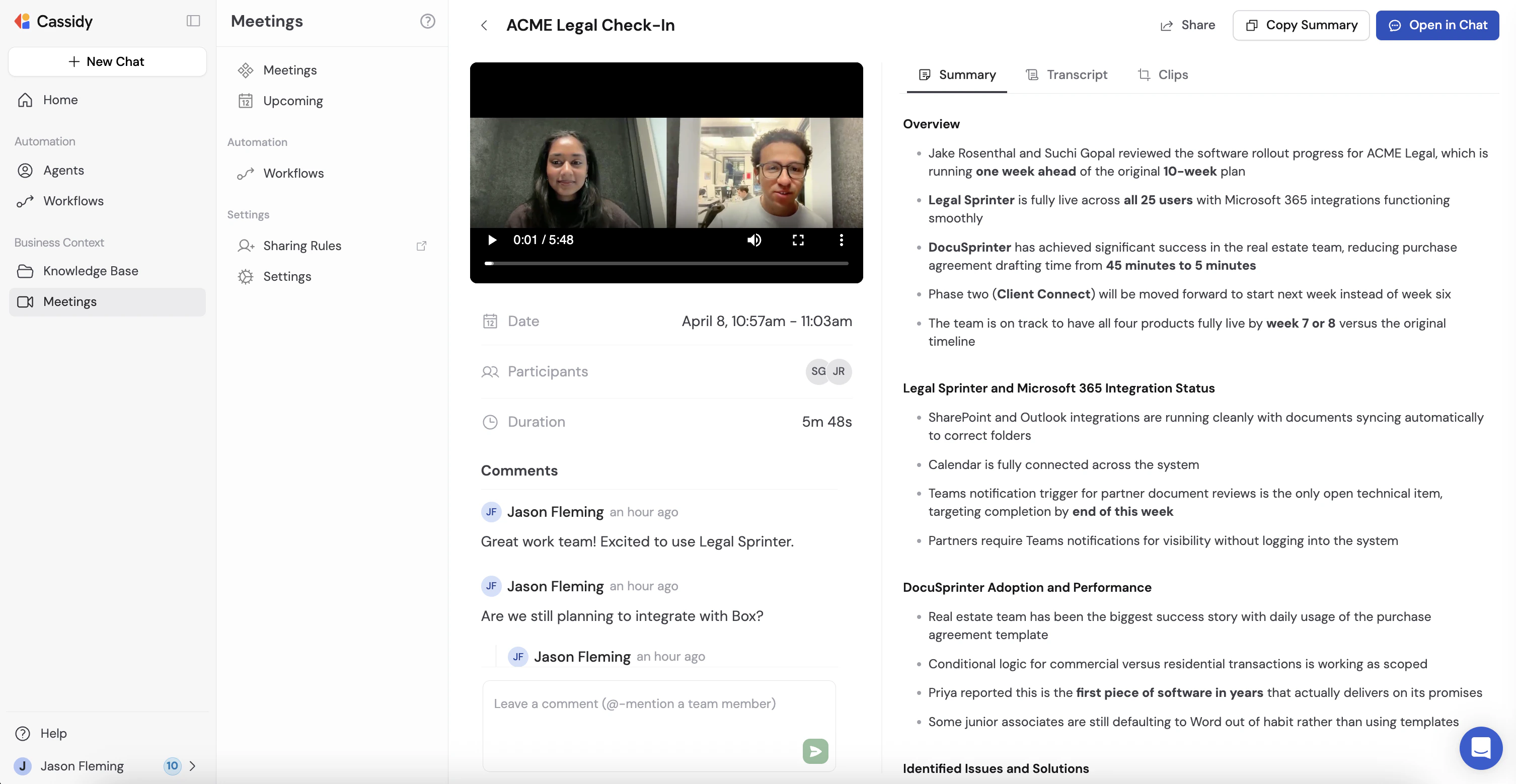
Meeting comments let your team annotate recordings directly — highlight a moment in the transcript, ask a question, flag an action item, or loop in a teammate with an @-mention. Comments appear in a panel on the meeting detail page alongside the transcript and summary.
## Leave a comment
Navigate to **Meetings** in the left sidebar and click the meeting you want to comment on.
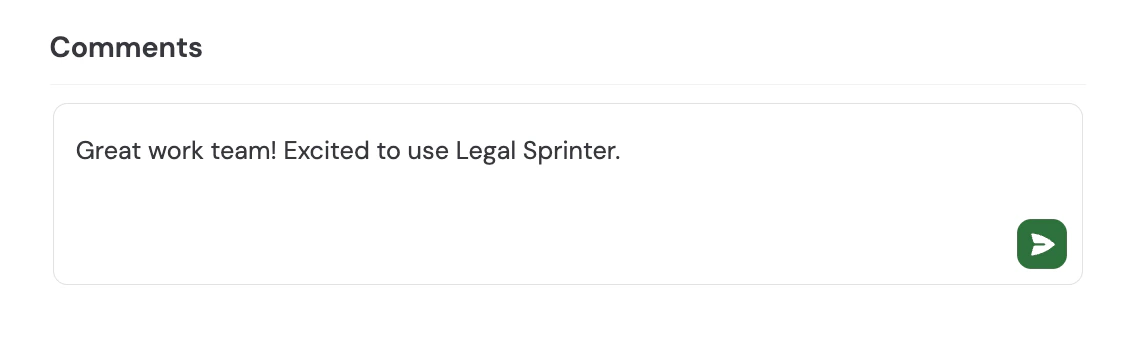
 Click the comment input at the bottom of the panel and type your message. Press **Enter** or click the send button to post it.
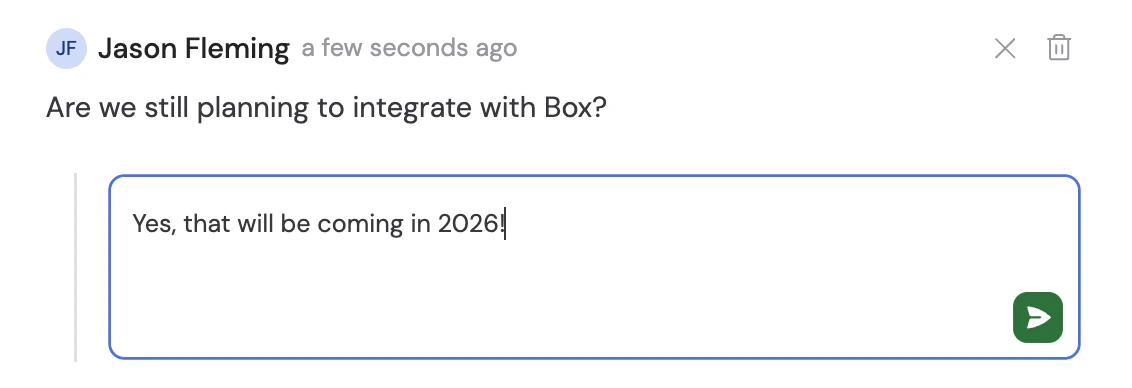
 Hover over any comment to reveal action buttons in the top right. Click the **Reply** button (arrow icon) to open a reply input directly below that comment, then press **Enter** to post your reply. Click the **X** to dismiss without posting.
 Press **Shift + Enter** to add a line break inside a comment without
submitting it.
## Anchor a comment to a transcript moment
You can link a comment to a specific section of the transcript so teammates can jump directly to that part of the recording.
Click the **Transcript** tab in the main panel to see the full conversation with speaker labels.
Click and drag to highlight the transcript text you want to comment on. A **Comment** button appears above your selection.
Press **Shift + Enter** to add a line break inside a comment without
submitting it.
## Anchor a comment to a transcript moment
You can link a comment to a specific section of the transcript so teammates can jump directly to that part of the recording.
Click the **Transcript** tab in the main panel to see the full conversation with speaker labels.
Click and drag to highlight the transcript text you want to comment on. A **Comment** button appears above your selection.
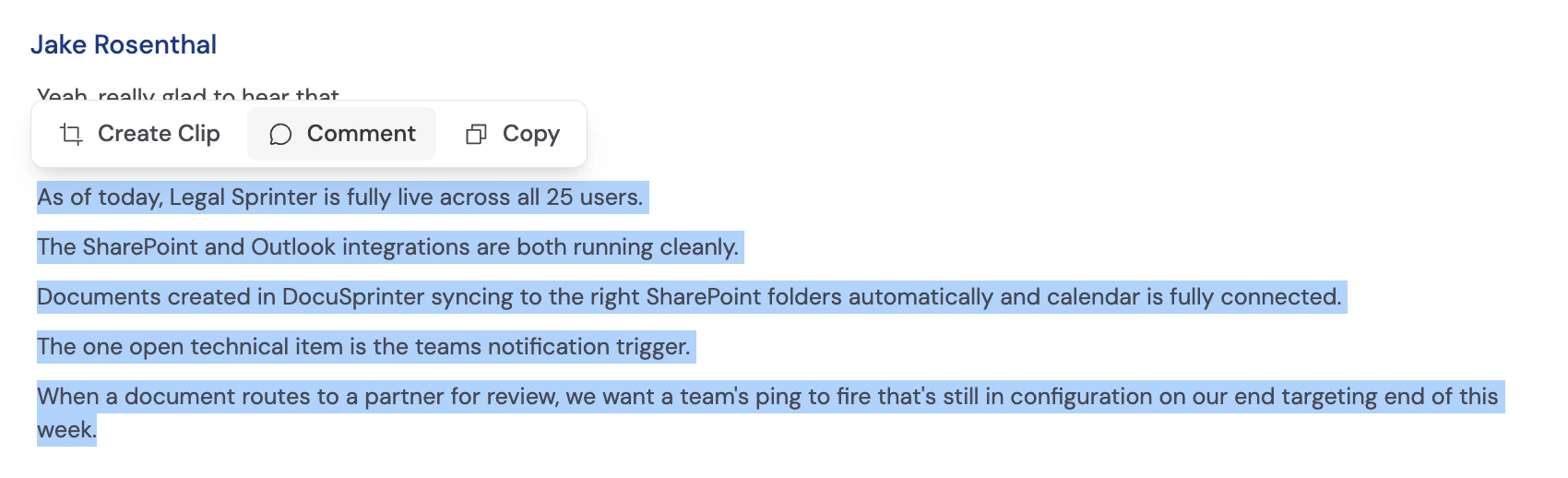 Click **Comment**. The selected transcript range appears as a tag in the comment input. Type your message and press **Enter** to post it.
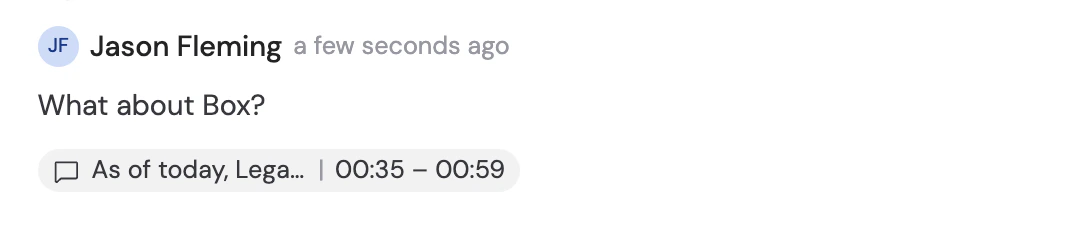
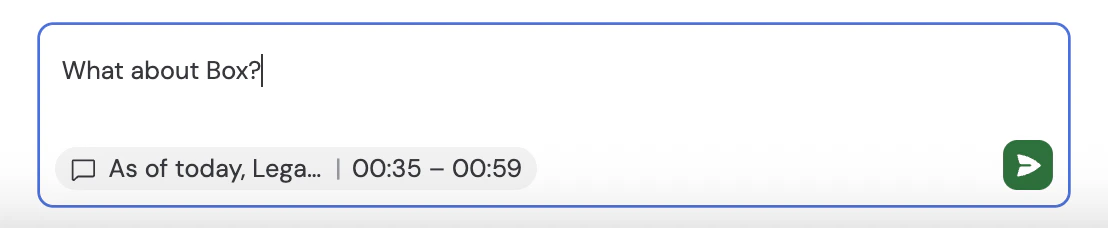 When a comment is anchored to a transcript range, it shows a transcript snippet tag below the comment text. Clicking the tag jumps the video and transcript to that moment in the recording.
 ## Mention a teammate
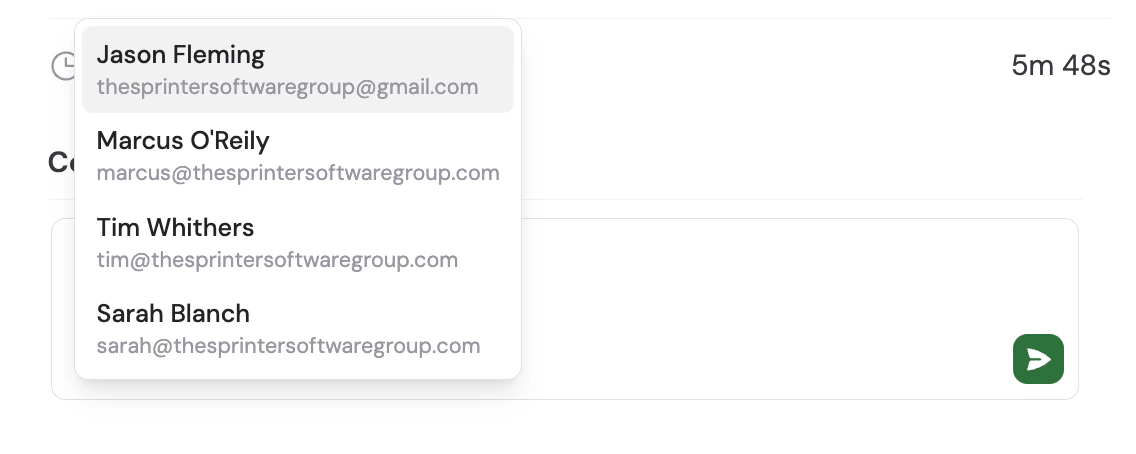
Type **@** in the comment input to mention a team member. Cassidy autocompletes from your organization's users as you type.
## Mention a teammate
Type **@** in the comment input to mention a team member. Cassidy autocompletes from your organization's users as you type.
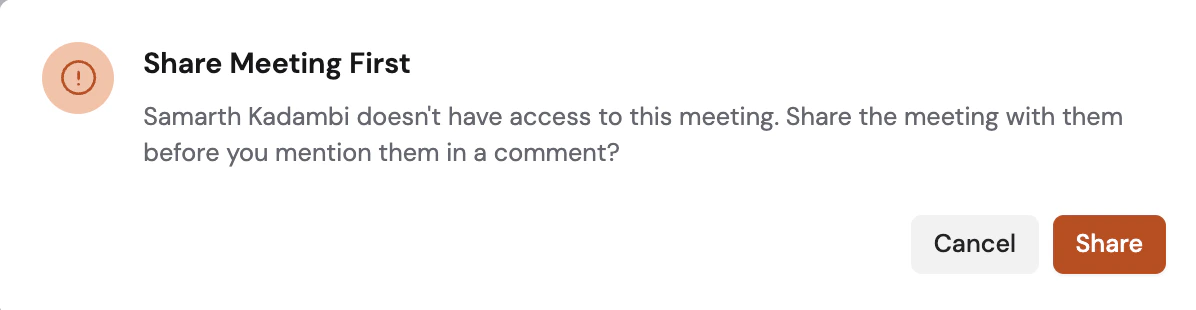
 If the person you're mentioning doesn't have access to the meeting, Cassidy prompts you to share the meeting with them before inserting the mention. You can choose to share or cancel.
 You need edit permission on the meeting to share it with someone directly from
a mention. If you don't have edit permission, the mention is cancelled and
you'll see a message letting you know.
Mentioned users receive an email notification linking directly to the comment. See [Email notifications](#email-notifications) below.
## Delete a comment
You can only delete your own comments.
Hover over the comment and click the **Delete** button (trash icon) in the top right. A confirmation dialog appears before the comment is removed.
You need edit permission on the meeting to share it with someone directly from
a mention. If you don't have edit permission, the mention is cancelled and
you'll see a message letting you know.
Mentioned users receive an email notification linking directly to the comment. See [Email notifications](#email-notifications) below.
## Delete a comment
You can only delete your own comments.
Hover over the comment and click the **Delete** button (trash icon) in the top right. A confirmation dialog appears before the comment is removed.
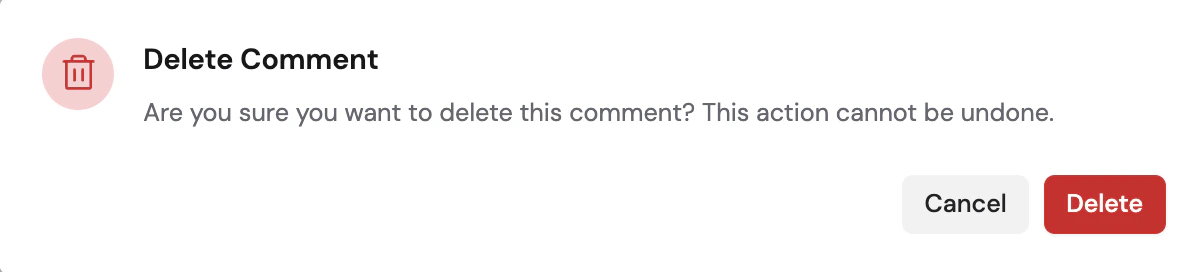 If a comment has active replies, deleting it shows **This comment was deleted** as a placeholder so the thread context is preserved. The placeholder disappears once all replies are also deleted.
## Email notifications
Cassidy sends email notifications to keep the conversation moving without requiring everyone to watch the page.
**Who gets notified:** Anyone who has posted a comment or been @-mentioned in the thread. The person who just posted is never notified of their own comment.
**What triggers a notification:** Any new comment or reply in a meeting thread where you've participated or been mentioned. @-mentions are highlighted in the email so it's clear when you're being called out directly.
**What the email contains:** The comment text, the meeting title, and a direct link that opens the meeting on the **Transcript** tab with the relevant comment highlighted.
### Manage notification preferences
To opt out of comment email notifications:
1. Click your avatar in the bottom left and select **Account Settings**.
2. Go to **Notifications**.
3. Toggle off **Meeting comment emails**.
If a comment has active replies, deleting it shows **This comment was deleted** as a placeholder so the thread context is preserved. The placeholder disappears once all replies are also deleted.
## Email notifications
Cassidy sends email notifications to keep the conversation moving without requiring everyone to watch the page.
**Who gets notified:** Anyone who has posted a comment or been @-mentioned in the thread. The person who just posted is never notified of their own comment.
**What triggers a notification:** Any new comment or reply in a meeting thread where you've participated or been mentioned. @-mentions are highlighted in the email so it's clear when you're being called out directly.
**What the email contains:** The comment text, the meeting title, and a direct link that opens the meeting on the **Transcript** tab with the relevant comment highlighted.
### Manage notification preferences
To opt out of comment email notifications:
1. Click your avatar in the bottom left and select **Account Settings**.
2. Go to **Notifications**.
3. Toggle off **Meeting comment emails**.
 ## Comments on clips
Comments work the same way on [meeting clips](/meetings/clips). Open a clip from the meeting detail page and use the **Comments** panel to leave notes anchored to the clip's transcript.
Clips have their own separate comment thread from the parent meeting. Notifications for clip comments follow the same rules as meeting comments.
## Next steps
Connect your calendar and start recording.
Control who can view and edit your meetings before mentioning teammates.
Trigger Workflows automatically when a meeting ends.
Ask questions across your full meeting library using the Meetings Connector.
## Comments on clips
Comments work the same way on [meeting clips](/meetings/clips). Open a clip from the meeting detail page and use the **Comments** panel to leave notes anchored to the clip's transcript.
Clips have their own separate comment thread from the parent meeting. Notifications for clip comments follow the same rules as meeting comments.
## Next steps
Connect your calendar and start recording.
Control who can view and edit your meetings before mentioning teammates.
Trigger Workflows automatically when a meeting ends.
Ask questions across your full meeting library using the Meetings Connector.