> ## Documentation Index
> Fetch the complete documentation index at: https://docs.cassidyai.com/llms.txt
> Use this file to discover all available pages before exploring further.
# Manage meeting sharing and permissions
> Control who can access meeting recordings, share individual meetings, and set up automated sharing rules.
Cassidy gives you flexible control over who can access your meeting recordings and transcripts. Meetings are automatically shared with teammates who were invited to the calendar event, and you can also share individual meetings with specific people, set organization-wide access, or create automated sharing rules that grant access based on meeting criteria.
## Share an individual meeting
By default, recorded meetings are shared with teammates in your organization who were invited to the meeting. Invited teammates get **Can view** access so they can review the recording, transcript, and summary.
Organization admins can disable this default from **Organization Settings** → **Meeting Settings** by turning off **Auto-share with invited teammates** under **Automatic Sharing**.
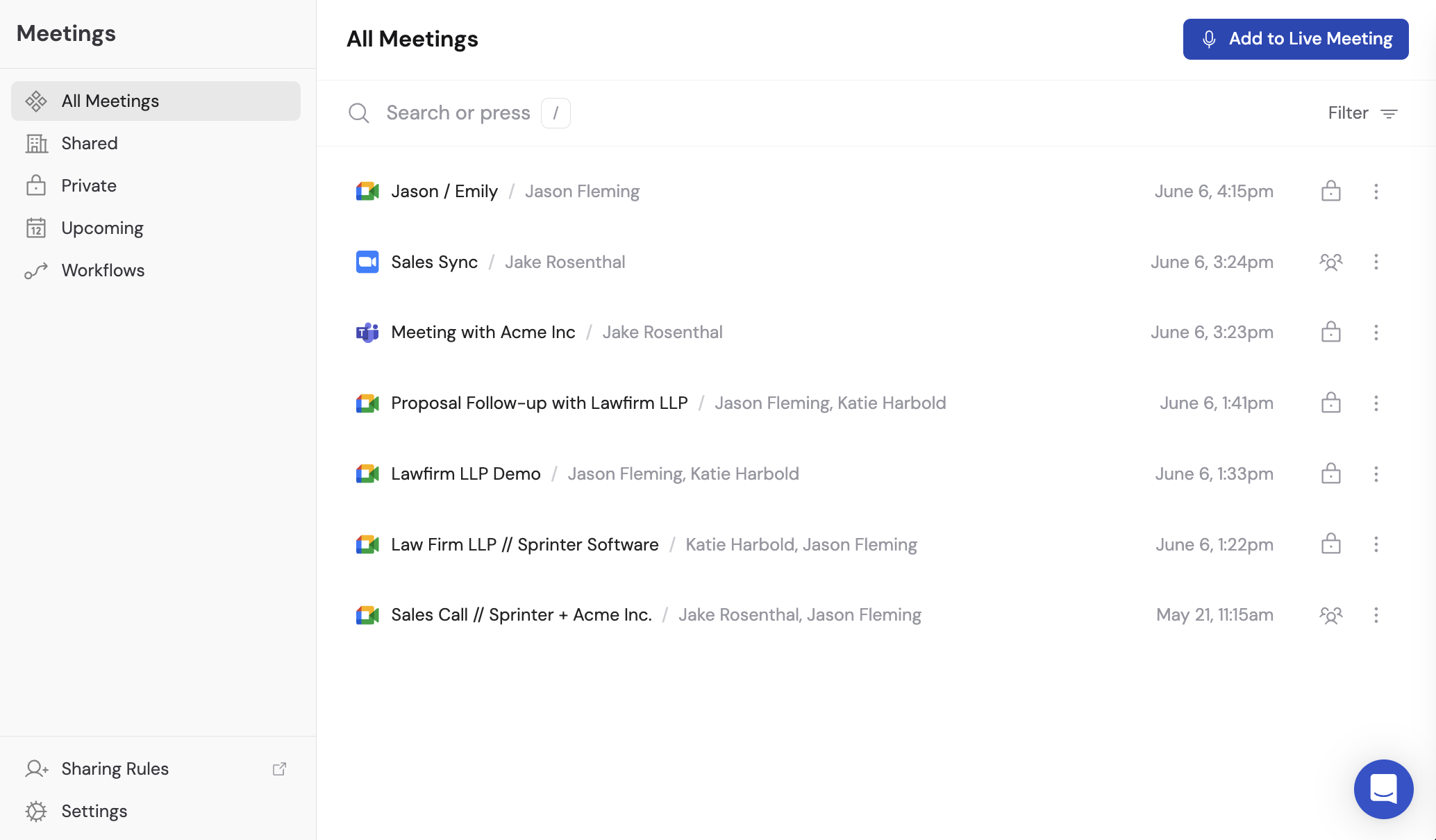
Navigate to **Meetings** in the left sidebar and click the meeting you want to share.
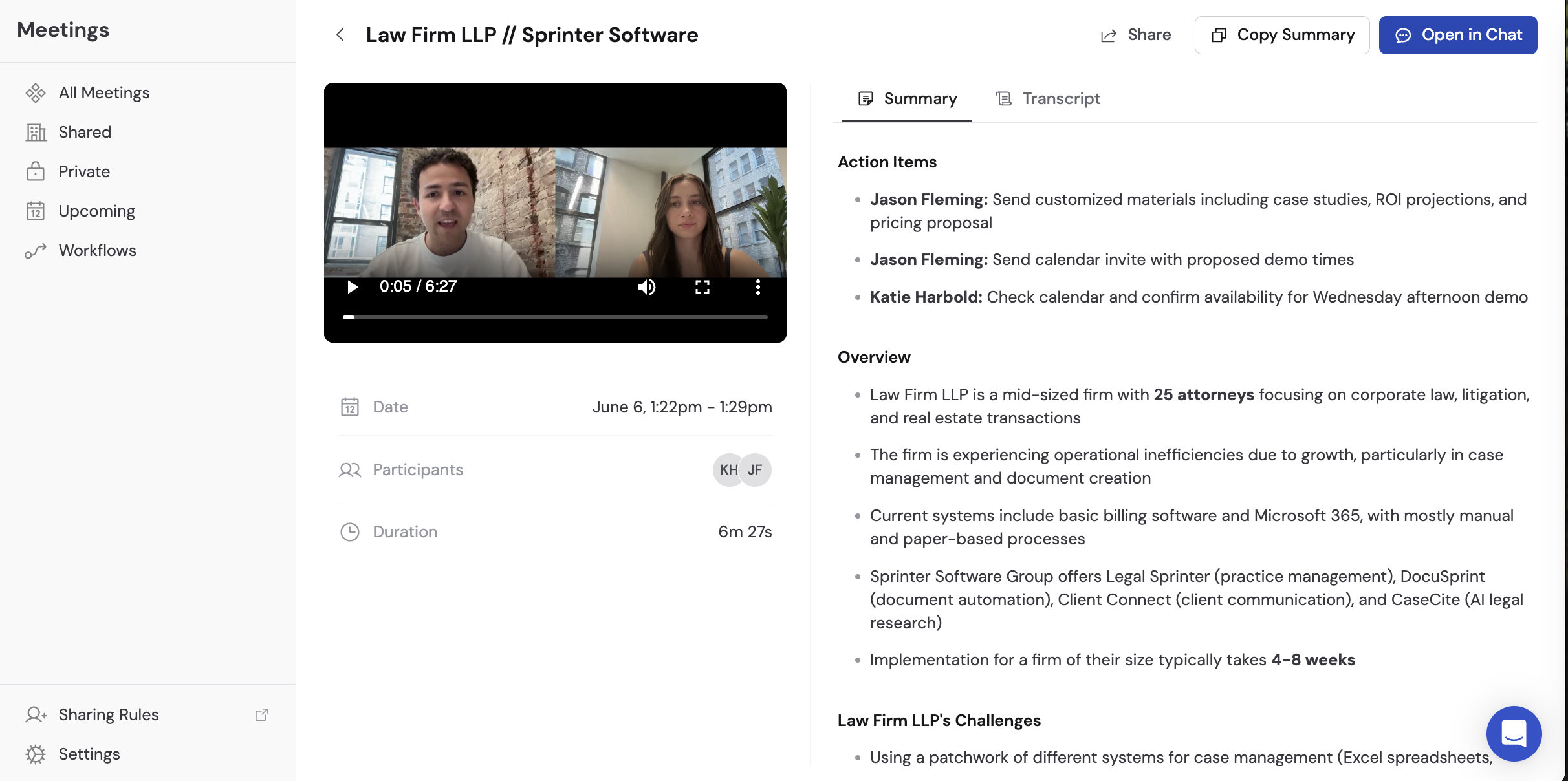
 Click **Share** in the top right corner of the meeting detail page.
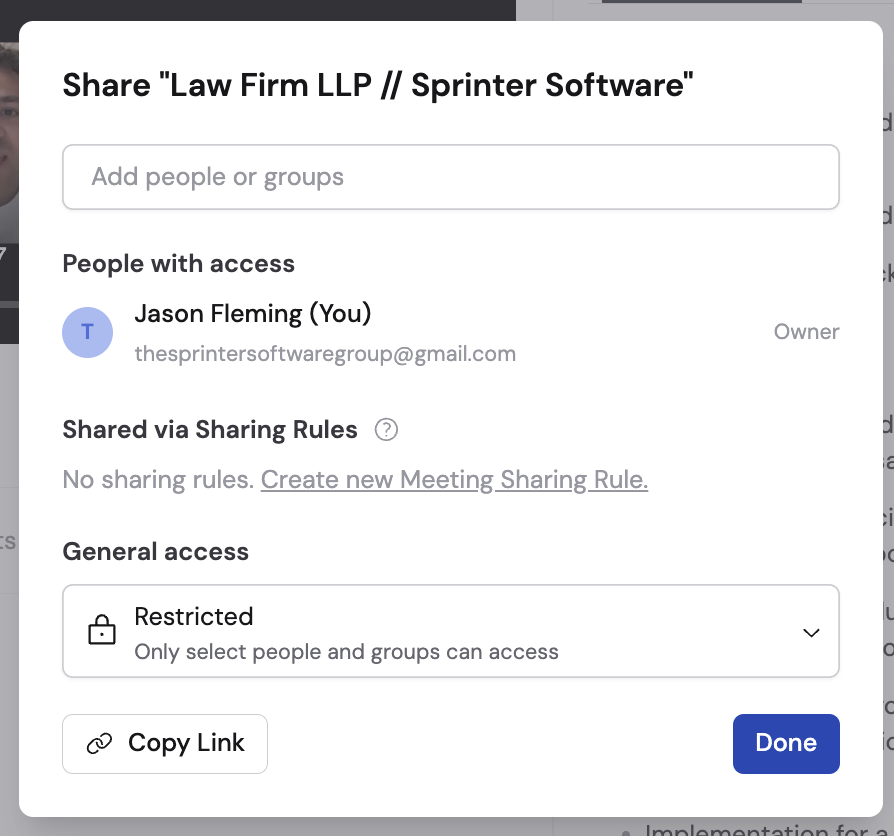 Choose the appropriate access level:
* **Restricted** -- Only people and groups you explicitly add can access the meeting
* **Team** -- Anyone in your organization can access the meeting
* **Public** -- Anyone on the internet with the link can view the meeting
Choose the appropriate access level:
* **Restricted** -- Only people and groups you explicitly add can access the meeting
* **Team** -- Anyone in your organization can access the meeting
* **Public** -- Anyone on the internet with the link can view the meeting
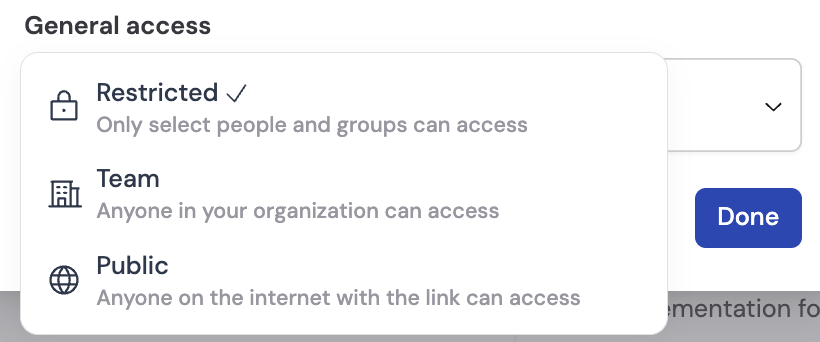 If you selected **Restricted**, start typing names or email addresses to add specific people. For each person or group, set their permission level:
* **Can view** -- Read-only access to the recording, transcript, and summary
* **Can edit** -- Full access to modify meeting details and sharing settings
If you selected **Restricted**, start typing names or email addresses to add specific people. For each person or group, set their permission level:
* **Can view** -- Read-only access to the recording, transcript, and summary
* **Can edit** -- Full access to modify meeting details and sharing settings
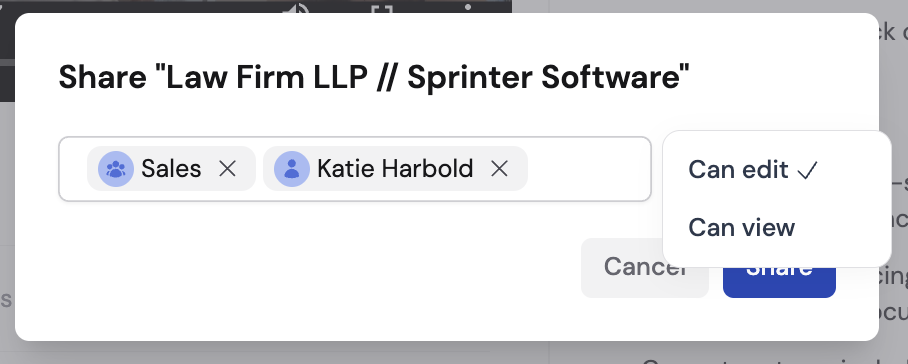 You can add groups to share with entire teams at once. See [Assign roles and groups](/settings/roles-and-groups) to learn how to create and manage groups.
Click **Create new Meeting Sharing Rule** to set up automated sharing based on meeting criteria. See [Create sharing rules](#create-sharing-rules) below for the full walkthrough.
You can add groups to share with entire teams at once. See [Assign roles and groups](/settings/roles-and-groups) to learn how to create and manage groups.
Click **Create new Meeting Sharing Rule** to set up automated sharing based on meeting criteria. See [Create sharing rules](#create-sharing-rules) below for the full walkthrough.
 When a sharing rule applies to a meeting, it appears under **Shared via Sharing Rules** on the meeting's share dialog so you can see how access was granted.
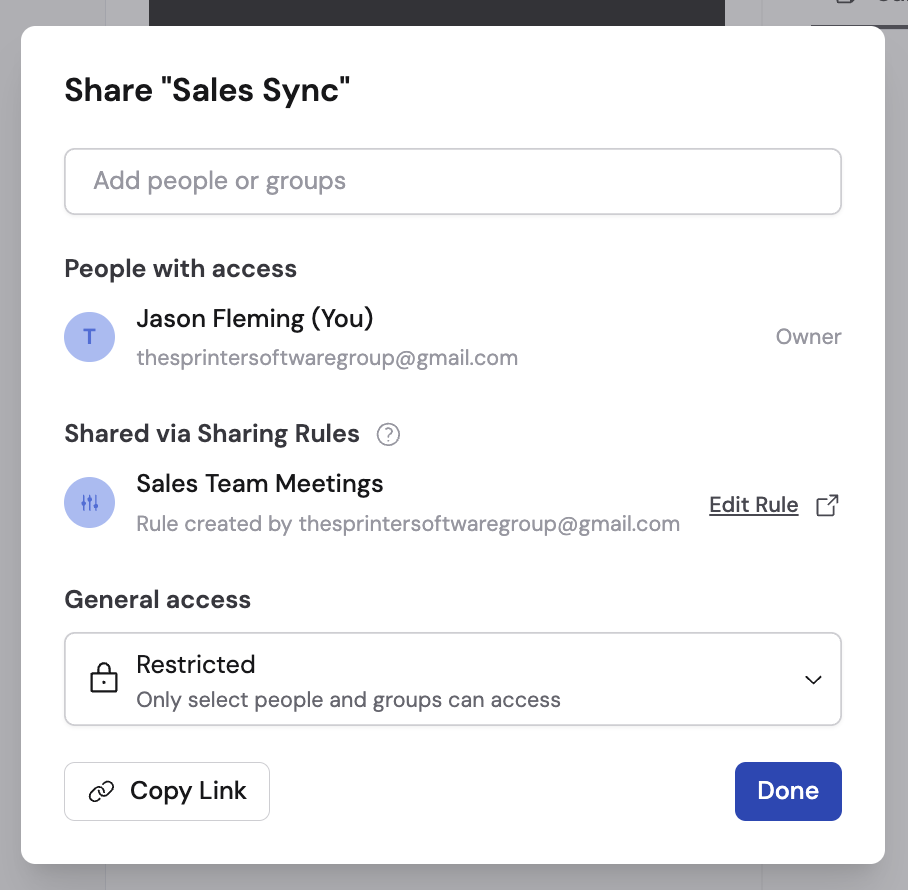 Click **Copy link** to share the meeting URL with anyone who has access, then click **Done**.
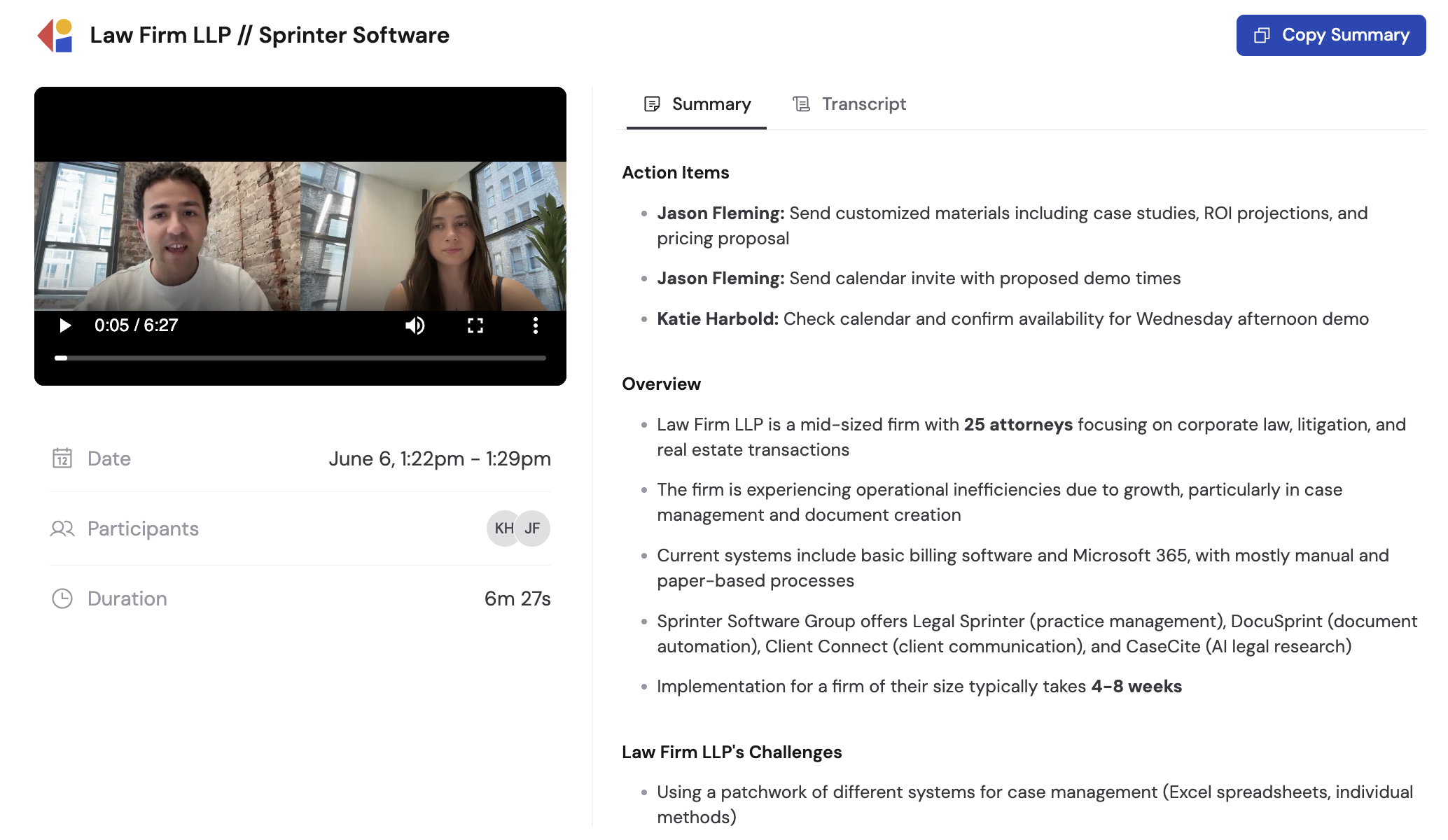 Public links open in a dedicated viewer that displays the video, details, summary, and transcript so anyone can review the meeting without a Cassidy account.
## Create sharing rules
Sharing rules automatically grant access to meetings that match specific criteria. Instead of sharing each meeting manually, you can set up rules so the right people always have access to the meetings they need.
From the **Meetings** page, click **Sharing rules**. You can also navigate to **Organization Settings** and click the **Meeting Sharing** tab.
Public links open in a dedicated viewer that displays the video, details, summary, and transcript so anyone can review the meeting without a Cassidy account.
## Create sharing rules
Sharing rules automatically grant access to meetings that match specific criteria. Instead of sharing each meeting manually, you can set up rules so the right people always have access to the meetings they need.
From the **Meetings** page, click **Sharing rules**. You can also navigate to **Organization Settings** and click the **Meeting Sharing** tab.
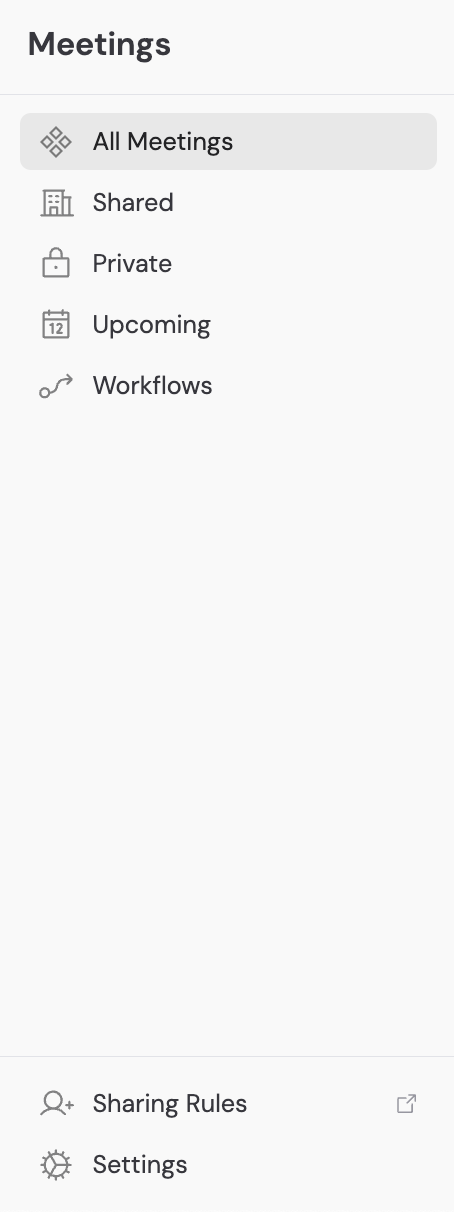 Click **Add Rule** to start creating an automated sharing rule.
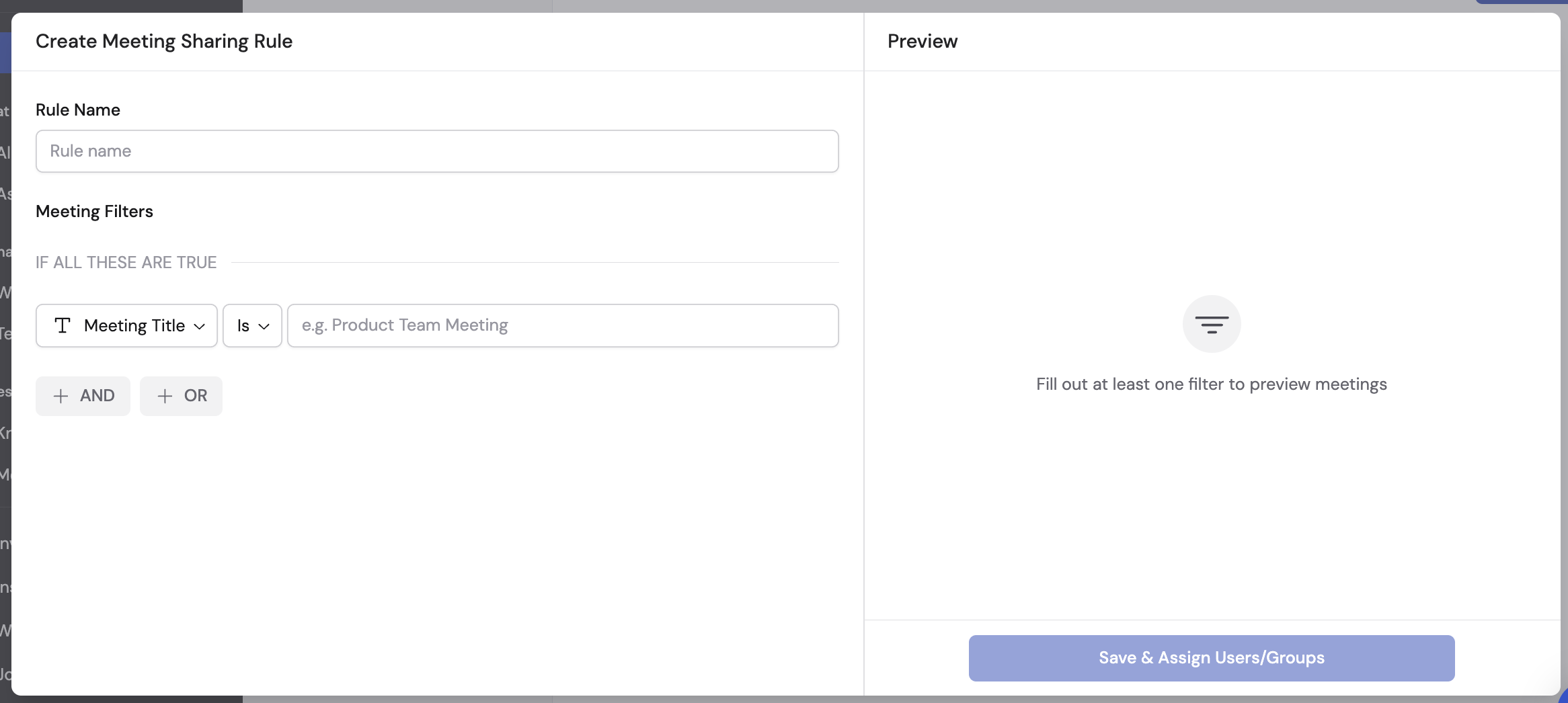 Enter a descriptive name for the rule (e.g., "Share sales calls with Sales team" or "Share all-hands with everyone").
Set filters to specify which meetings this rule applies to. You can create AND/OR conditions based on:
* **Meeting title** -- Match meetings by name or keyword
* **Meeting owner** -- Match by who recorded the meeting
* **Meeting owner group** -- Match by the recorder's group membership
* **Organizer email** -- Match by calendar event organizer
* **Participant names** -- Match by who attended
* **Invitee emails** -- Match by who was invited
Click **Preview** to see which past meetings would match your filter criteria.
Enter a descriptive name for the rule (e.g., "Share sales calls with Sales team" or "Share all-hands with everyone").
Set filters to specify which meetings this rule applies to. You can create AND/OR conditions based on:
* **Meeting title** -- Match meetings by name or keyword
* **Meeting owner** -- Match by who recorded the meeting
* **Meeting owner group** -- Match by the recorder's group membership
* **Organizer email** -- Match by calendar event organizer
* **Participant names** -- Match by who attended
* **Invitee emails** -- Match by who was invited
Click **Preview** to see which past meetings would match your filter criteria.
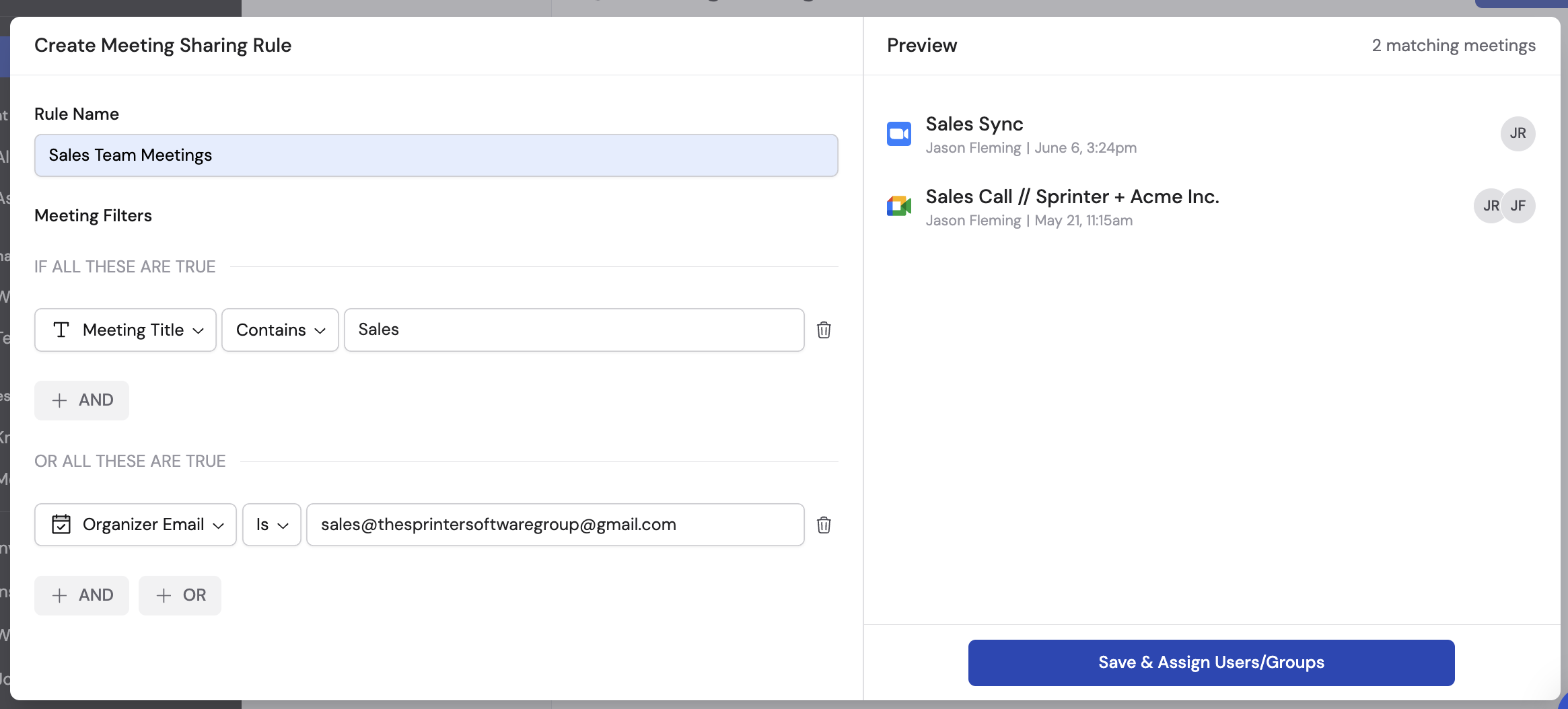 Review the matching meetings, then click **Save & Assign Users/Groups**.
 Choose the people or groups who should automatically receive access to meetings matching this rule, then click **Share**.
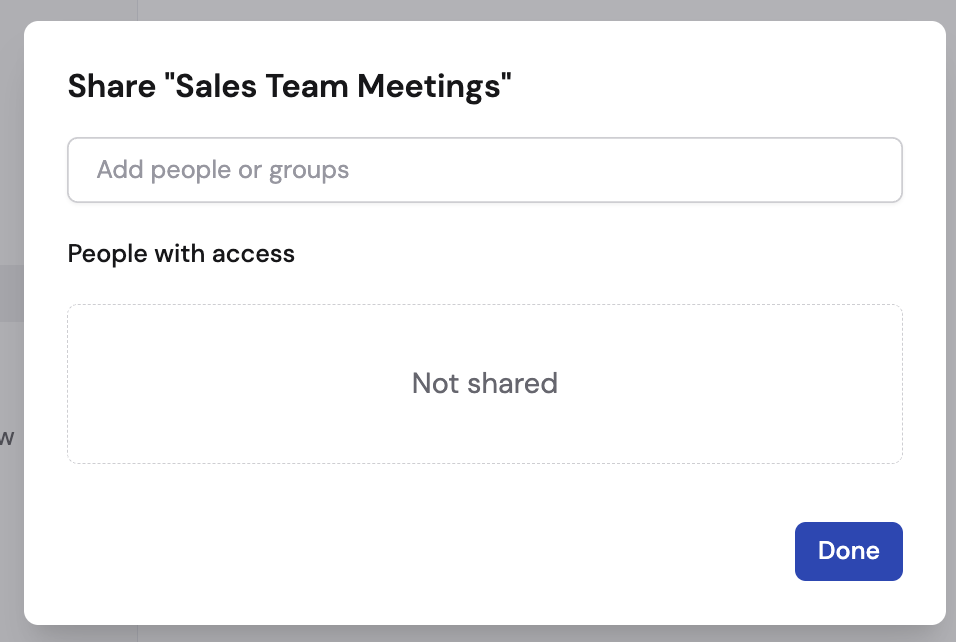
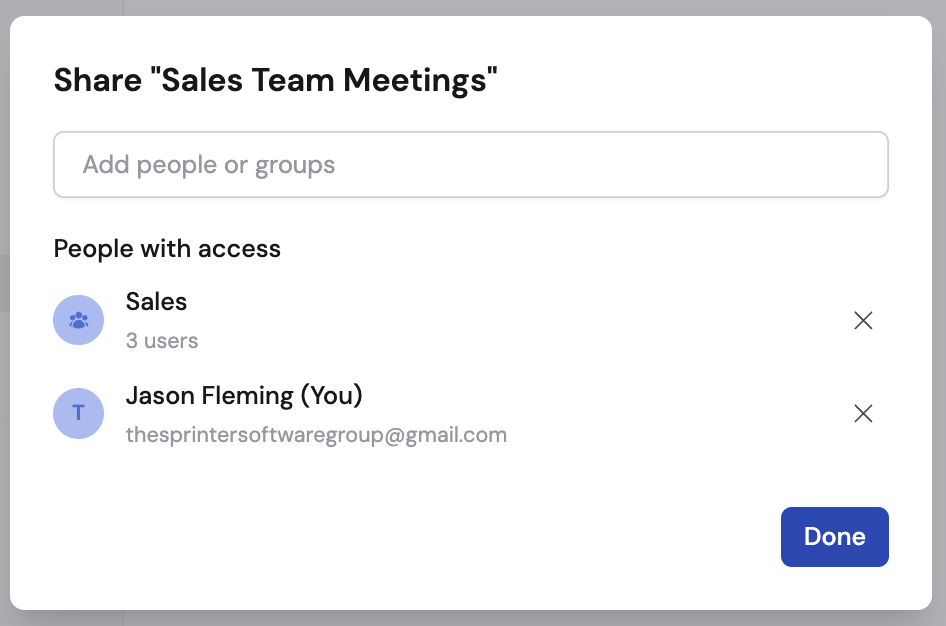
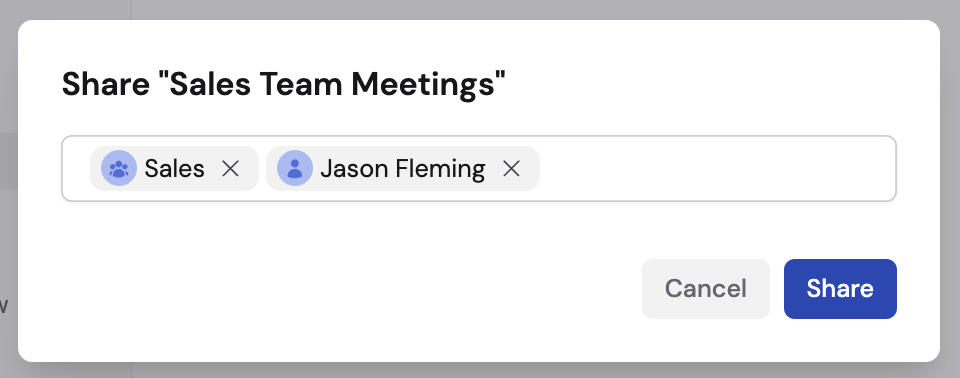 Click **Done** to activate the rule. Going forward, any meeting matching the rule's filters is automatically shared with the selected people and groups.
 ## Manage existing rules
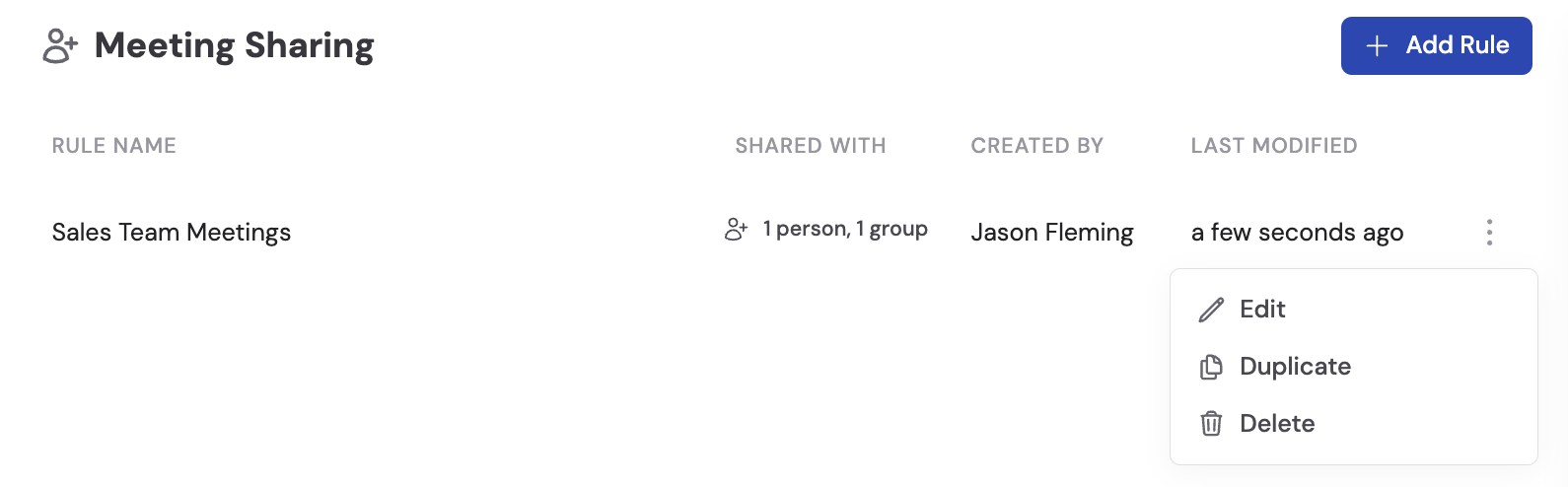
From the sharing rules page, you can manage your rules:
* **Edit** -- Update filter conditions or change who has access
* **Duplicate** -- Create a copy to use as a starting point for a similar rule
* **Delete** -- Remove the rule (existing access granted by the rule is not revoked)
Click the **...** menu on any rule to see these options.
## Manage existing rules
From the sharing rules page, you can manage your rules:
* **Edit** -- Update filter conditions or change who has access
* **Duplicate** -- Create a copy to use as a starting point for a similar rule
* **Delete** -- Remove the rule (existing access granted by the rule is not revoked)
Click the **...** menu on any rule to see these options.
 ## Access levels at a glance
| Level | Who can access | Use case |
| -------------- | ------------------------------------- | ------------------------------------------- |
| **Private** | Only you (the recorder) | Sensitive one-on-ones, personal notes |
| **Restricted** | Specific people and groups you choose | Team-specific meetings, client calls |
| **Team** | Anyone in your organization | All-hands, company announcements |
| **Public** | Anyone with the link | External stakeholders, public presentations |
## Next steps
Connect your calendar and start recording.
Trigger actions automatically when meetings end.
Give Agents access to your meeting library for cross-meeting search.
Add the Meetings Connector to an Agent and control what each user can see.
Create groups to use with meeting sharing rules.
## Access levels at a glance
| Level | Who can access | Use case |
| -------------- | ------------------------------------- | ------------------------------------------- |
| **Private** | Only you (the recorder) | Sensitive one-on-ones, personal notes |
| **Restricted** | Specific people and groups you choose | Team-specific meetings, client calls |
| **Team** | Anyone in your organization | All-hands, company announcements |
| **Public** | Anyone with the link | External stakeholders, public presentations |
## Next steps
Connect your calendar and start recording.
Trigger actions automatically when meetings end.
Give Agents access to your meeting library for cross-meeting search.
Add the Meetings Connector to an Agent and control what each user can see.
Create groups to use with meeting sharing rules.