> ## Documentation Index
> Fetch the complete documentation index at: https://docs.cassidyai.com/llms.txt
> Use this file to discover all available pages before exploring further.
# Automate with meeting Workflows
> Trigger Workflows when a meeting ends to generate follow-ups, update your CRM, and summarize key decisions.
Meeting [Workflows](/workflows/overview) let you automate tasks every time a meeting ends. Cassidy can generate follow-up emails, post summaries to Slack, update your CRM with action items, or run any other multi-step automation -- all triggered automatically from your recorded meetings.
## Create a meeting Workflow
You can create meeting Workflows from the Meetings page or from the main Workflows page.
Navigate to **Meetings** in the left sidebar, then click the **Workflows** tab.
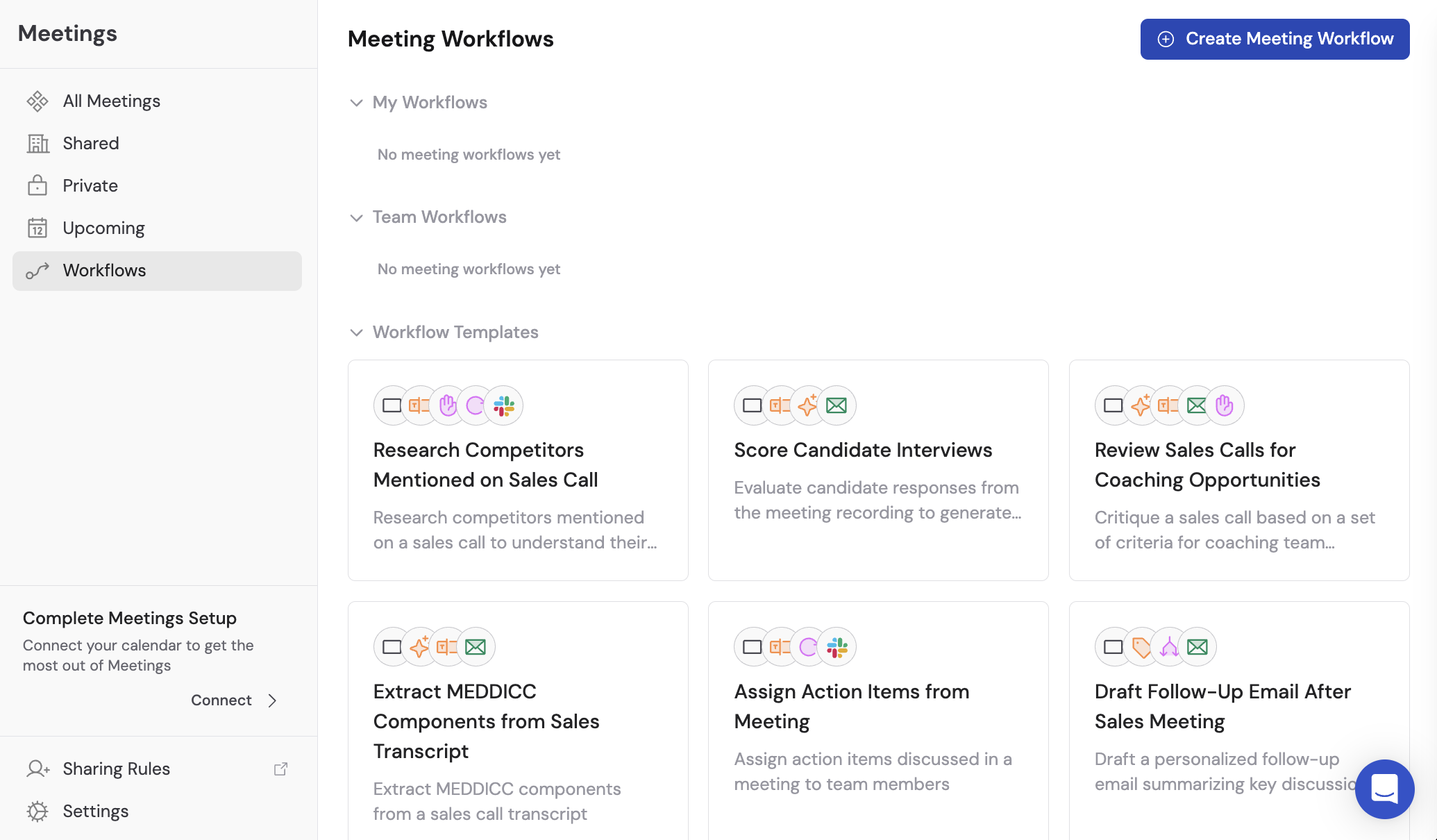 Click **Create Meeting Workflow** in the top right to start with a blank Workflow that already has the Meeting Ended trigger configured. Or select one of the pre-built templates for common use cases like meeting summaries, follow-up emails, or CRM updates.
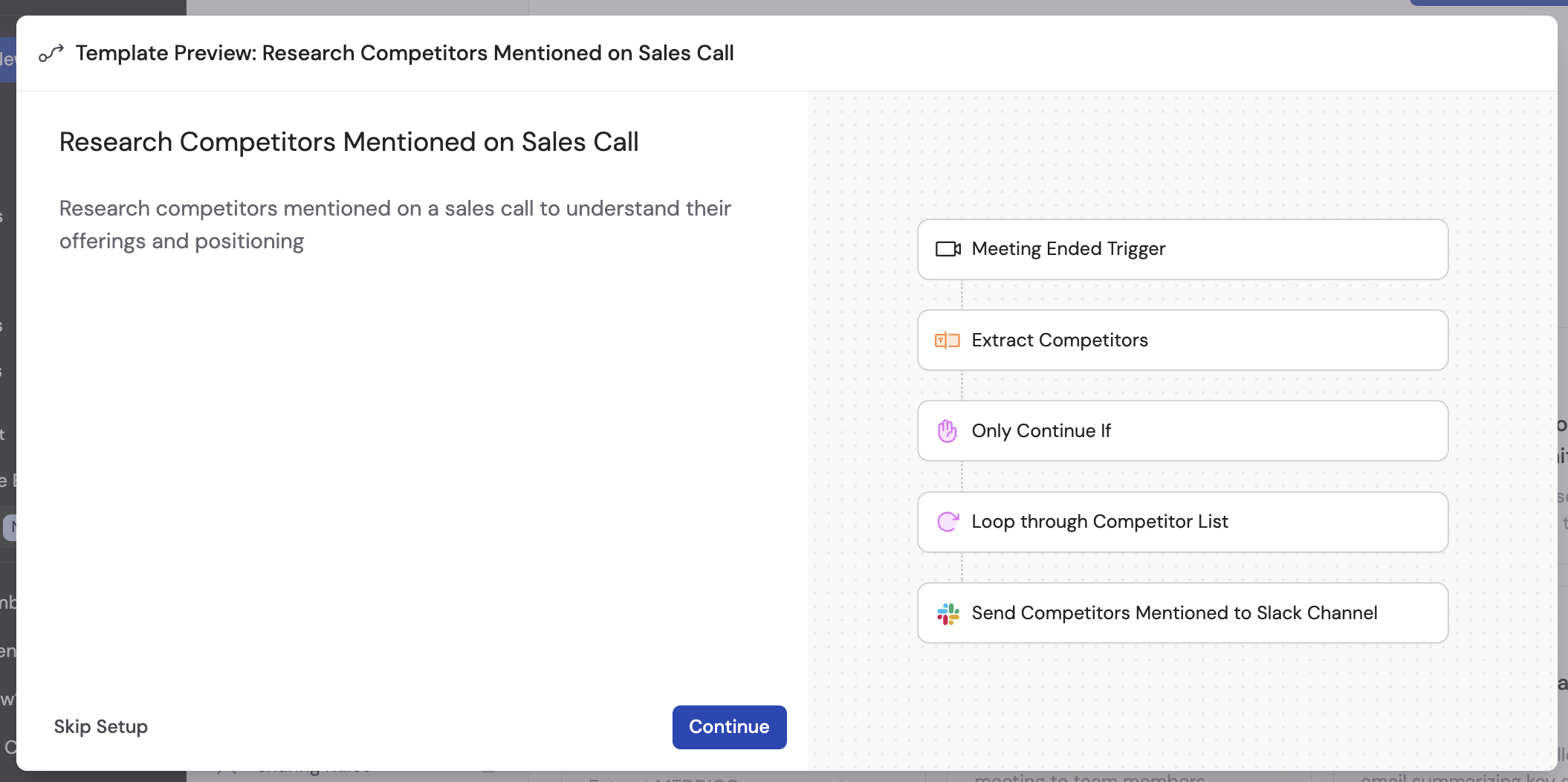
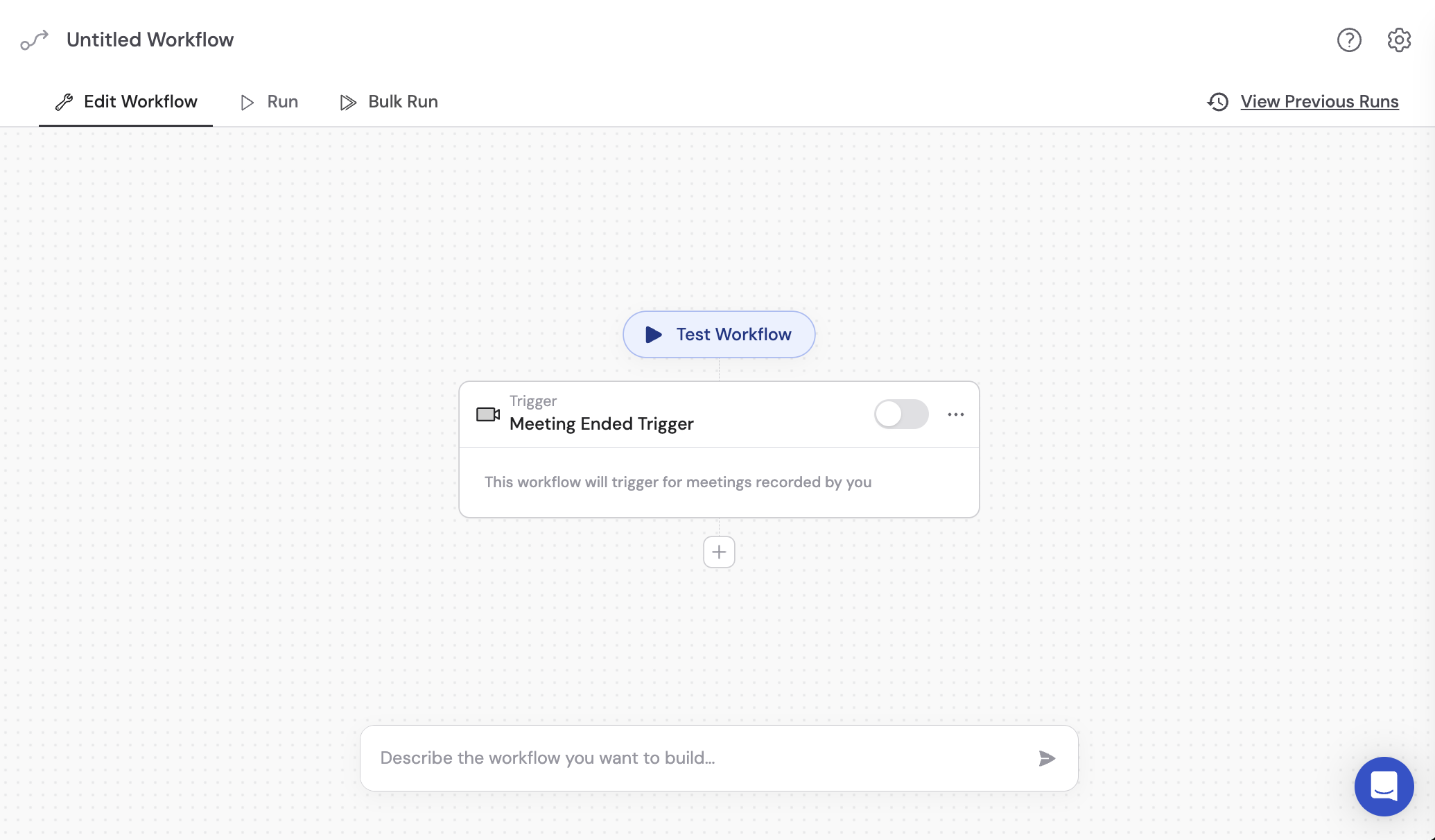 If you chose a template, follow the guided setup to customize it. If you started from scratch, add [actions](/workflows/building) to define what happens after a meeting ends.
 Navigate to **Workflows** in the left sidebar and click **Create Workflow**.
In the Workflow builder, click the trigger block and select **Meeting Ended** from the trigger options.
Navigate to **Workflows** in the left sidebar and click **Create Workflow**.
In the Workflow builder, click the trigger block and select **Meeting Ended** from the trigger options.
 Add actions to define what happens when a meeting ends. You can reference any of the [meeting variables](#meeting-variables) in your actions.
## Configure the Meeting Ended trigger
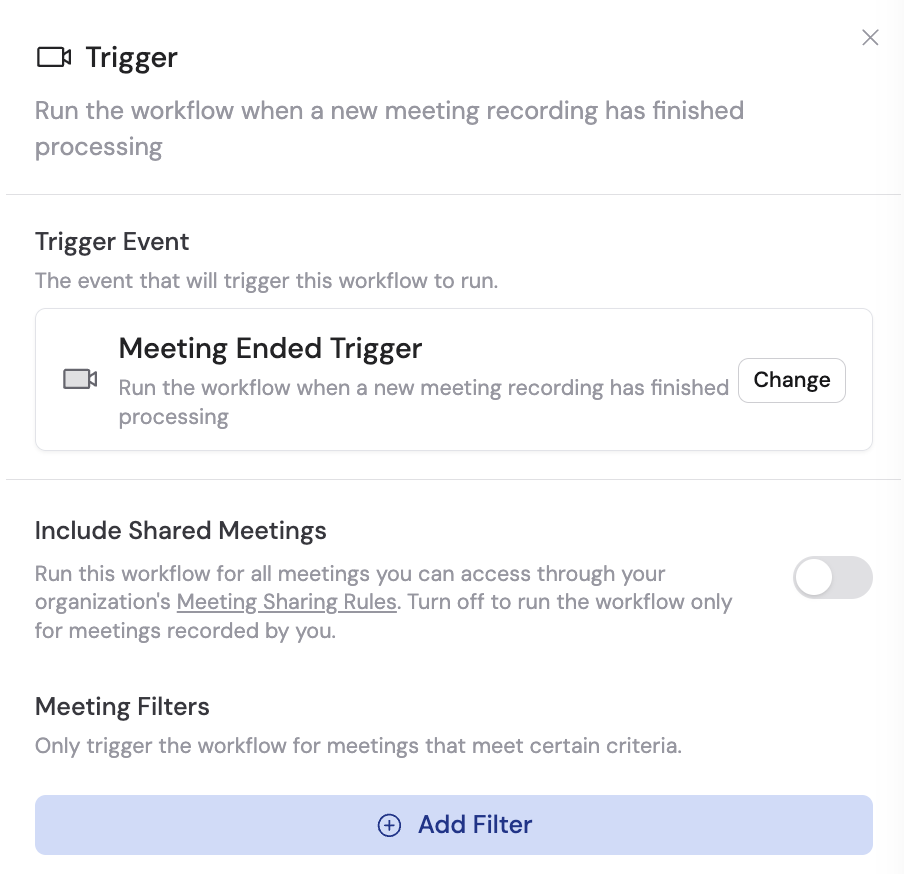
The Meeting Ended trigger fires automatically when a recorded meeting finishes. You can configure it to control which meetings run the Workflow.
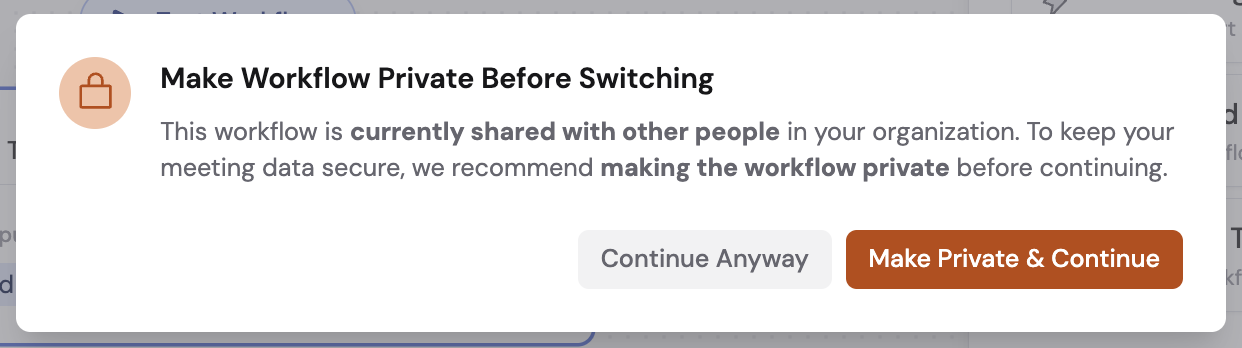
When you add a Meeting Ended trigger, Cassidy asks whether to keep the Workflow shared or make it private. A shared Workflow means other team members could see meeting information from meetings they don't have access to. Click **Make Private & Continue** if that's a concern.
Add actions to define what happens when a meeting ends. You can reference any of the [meeting variables](#meeting-variables) in your actions.
## Configure the Meeting Ended trigger
The Meeting Ended trigger fires automatically when a recorded meeting finishes. You can configure it to control which meetings run the Workflow.
When you add a Meeting Ended trigger, Cassidy asks whether to keep the Workflow shared or make it private. A shared Workflow means other team members could see meeting information from meetings they don't have access to. Click **Make Private & Continue** if that's a concern.
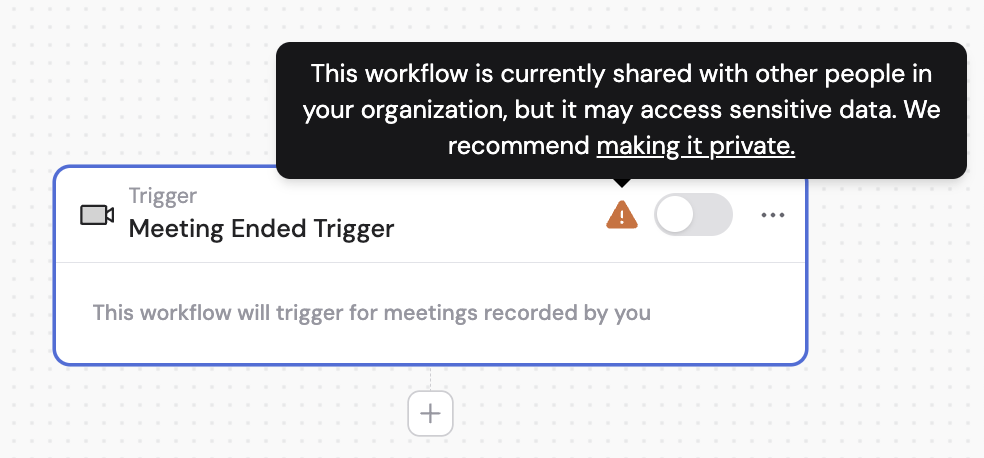
 If you keep the Workflow shared, a warning indicator appears on the trigger block. You can make it private at any time.
 Toggle **Include Shared Meetings** to run this Workflow for all meetings you can access through your organization's [sharing rules](/meetings/sharing-and-permissions). Turn this off to run the Workflow only for meetings you recorded yourself.
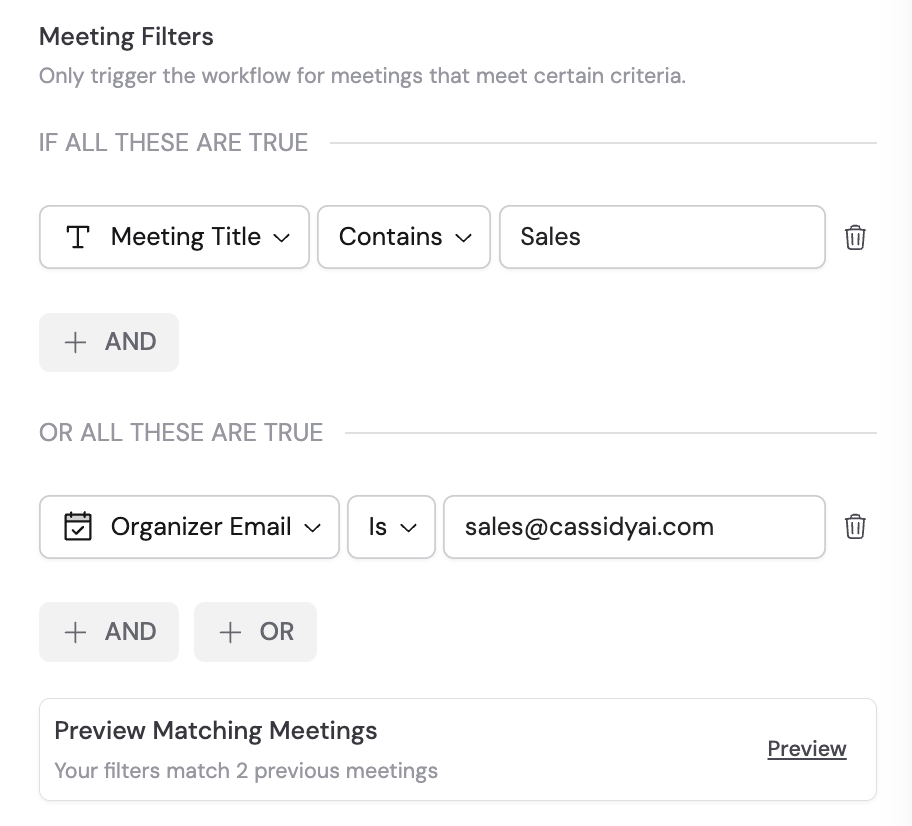
 Click **+ Add Filter** to restrict which meetings trigger the Workflow. You can create AND/OR conditions based on:
* Meeting title
* Meeting owner
* Meeting owner group
* Organizer email
* Participant names
* Invitee emails
Click **Preview** to see which past meetings match your filter criteria.
Click **+ Add Filter** to restrict which meetings trigger the Workflow. You can create AND/OR conditions based on:
* Meeting title
* Meeting owner
* Meeting owner group
* Organizer email
* Participant names
* Invitee emails
Click **Preview** to see which past meetings match your filter criteria.
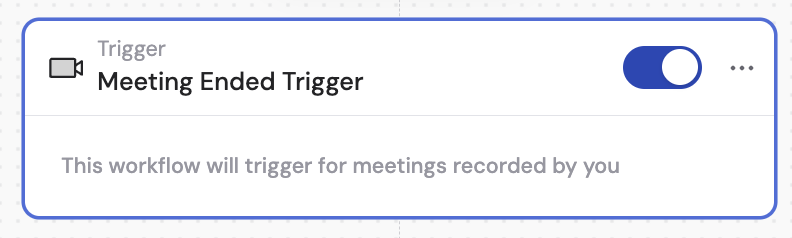
 Toggle the trigger on in the Meeting Ended trigger block.
 ## Meeting variables
The Meeting Ended trigger provides these variables that you can reference in any action within your Workflow:
| Variable | Description |
| ------------------------ | ---------------------------------------------------------------- |
| **Title** | The meeting title from your calendar |
| **Summary** | AI-generated summary of the meeting |
| **Transcript** | Full transcript with speaker labels |
| **Recording Started At** | When the recording began |
| **Recording Ended At** | When the recording ended |
| **Internal URL** | Link to the meeting within Cassidy |
| **Organizer** | Name and email of the meeting organizer |
| **Participants** | List of participants with name, email, and host status |
| **Invitees** | List of invited attendees with name, email, and organizer status |
## Meeting variables
The Meeting Ended trigger provides these variables that you can reference in any action within your Workflow:
| Variable | Description |
| ------------------------ | ---------------------------------------------------------------- |
| **Title** | The meeting title from your calendar |
| **Summary** | AI-generated summary of the meeting |
| **Transcript** | Full transcript with speaker labels |
| **Recording Started At** | When the recording began |
| **Recording Ended At** | When the recording ended |
| **Internal URL** | Link to the meeting within Cassidy |
| **Organizer** | Name and email of the meeting organizer |
| **Participants** | List of participants with name, email, and host status |
| **Invitees** | List of invited attendees with name, email, and organizer status |
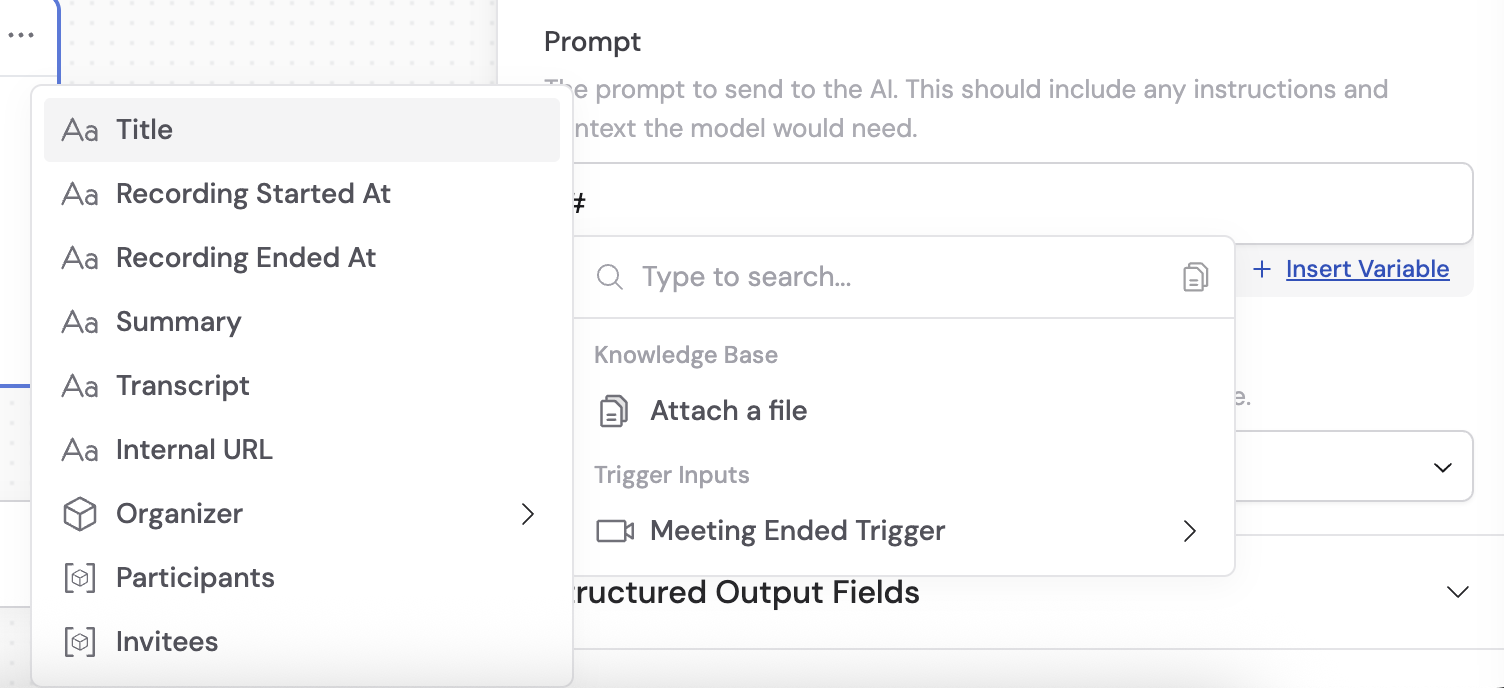 Reference these variables in your Workflow actions using the variable picker. For example, you can pass the **Transcript** into a "Generate Text" action to create a custom summary, or use **Participants** to send personalized follow-ups to each attendee.
## Manage meeting Workflows
You can access your meeting Workflows in two places:
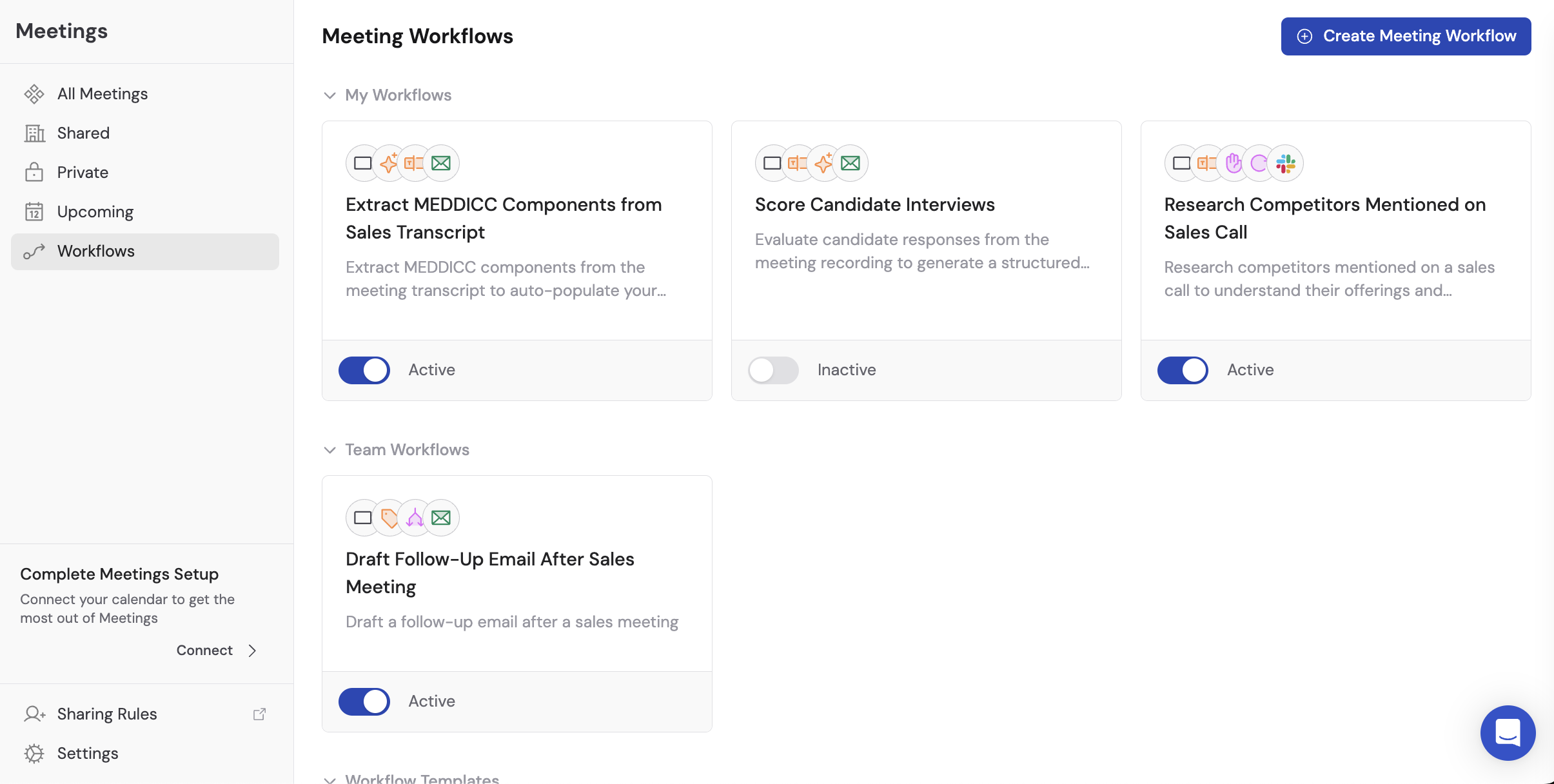
* **Meetings page** -- Click the **Workflows** tab to see **My Workflows** (Workflows you created) and **Team Workflows** (Workflows shared by your team).
* **Workflows page** -- All your Workflows, including meeting-triggered ones, appear in the main Workflows list.
From either location, click a Workflow card to edit it, or use the toggle to turn it on and off.
Reference these variables in your Workflow actions using the variable picker. For example, you can pass the **Transcript** into a "Generate Text" action to create a custom summary, or use **Participants** to send personalized follow-ups to each attendee.
## Manage meeting Workflows
You can access your meeting Workflows in two places:
* **Meetings page** -- Click the **Workflows** tab to see **My Workflows** (Workflows you created) and **Team Workflows** (Workflows shared by your team).
* **Workflows page** -- All your Workflows, including meeting-triggered ones, appear in the main Workflows list.
From either location, click a Workflow card to edit it, or use the toggle to turn it on and off.
 ## Common meeting Workflow ideas
Extract action items and send a personalized recap email to each participant after every call.
Pull key details from sales calls and automatically log them in HubSpot or Salesforce.
Post a meeting summary with action items to a Slack channel so the whole team stays informed.
Generate standardized meeting minutes with owners and due dates, then store them in your Knowledge Base.
## Next steps
Learn the full Workflow builder, including actions, variables, and paths.
Give Agents access to your meeting library for cross-meeting search.
Meetings Connector, single-meeting chat, or Knowledge Base import.
Set up sharing rules to automatically grant access to the right people.
Connect your calendar and start recording.
## Common meeting Workflow ideas
Extract action items and send a personalized recap email to each participant after every call.
Pull key details from sales calls and automatically log them in HubSpot or Salesforce.
Post a meeting summary with action items to a Slack channel so the whole team stays informed.
Generate standardized meeting minutes with owners and due dates, then store them in your Knowledge Base.
## Next steps
Learn the full Workflow builder, including actions, variables, and paths.
Give Agents access to your meeting library for cross-meeting search.
Meetings Connector, single-meeting chat, or Knowledge Base import.
Set up sharing rules to automatically grant access to the right people.
Connect your calendar and start recording.