> ## Documentation Index
> Fetch the complete documentation index at: https://docs.cassidyai.com/llms.txt
> Use this file to discover all available pages before exploring further.
# Categorize text
> Classify text into categories you define using AI.
Classify text into predefined categories using AI. Use this to route support tickets, tag content by topic, or sort any text into groups you define.
In the Workflow builder, click **+** between blocks and select **Categorize Text** from the action library.
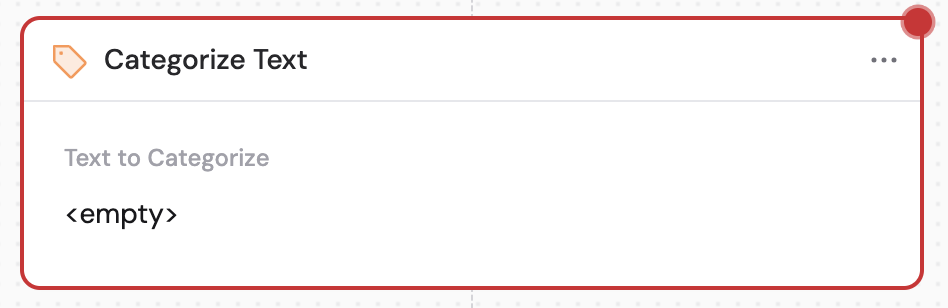
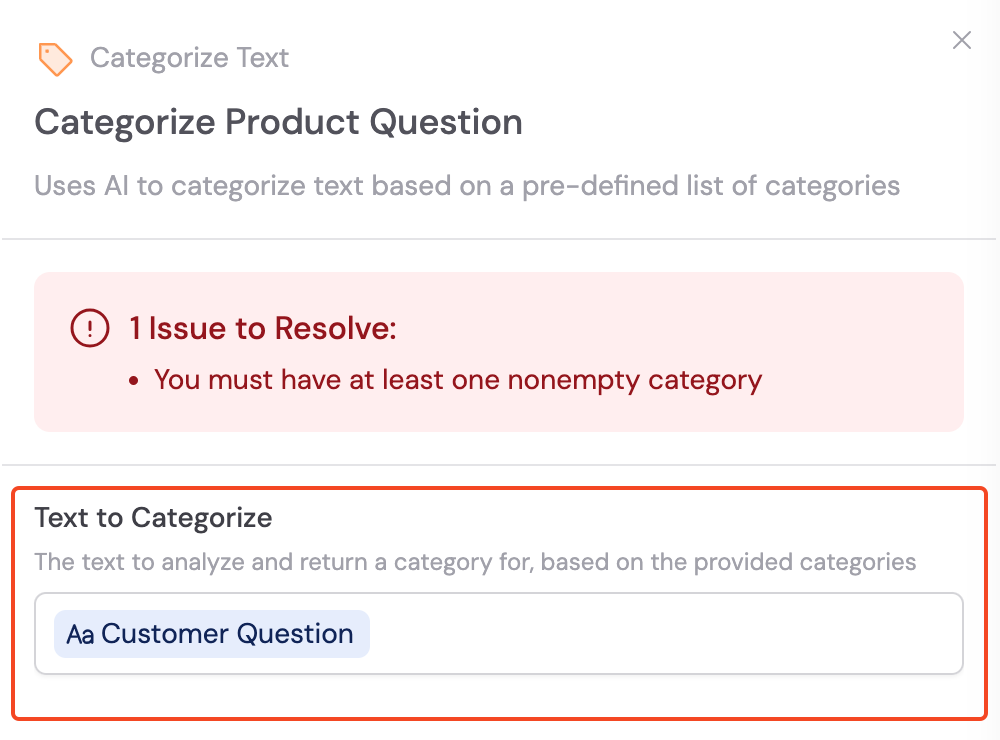
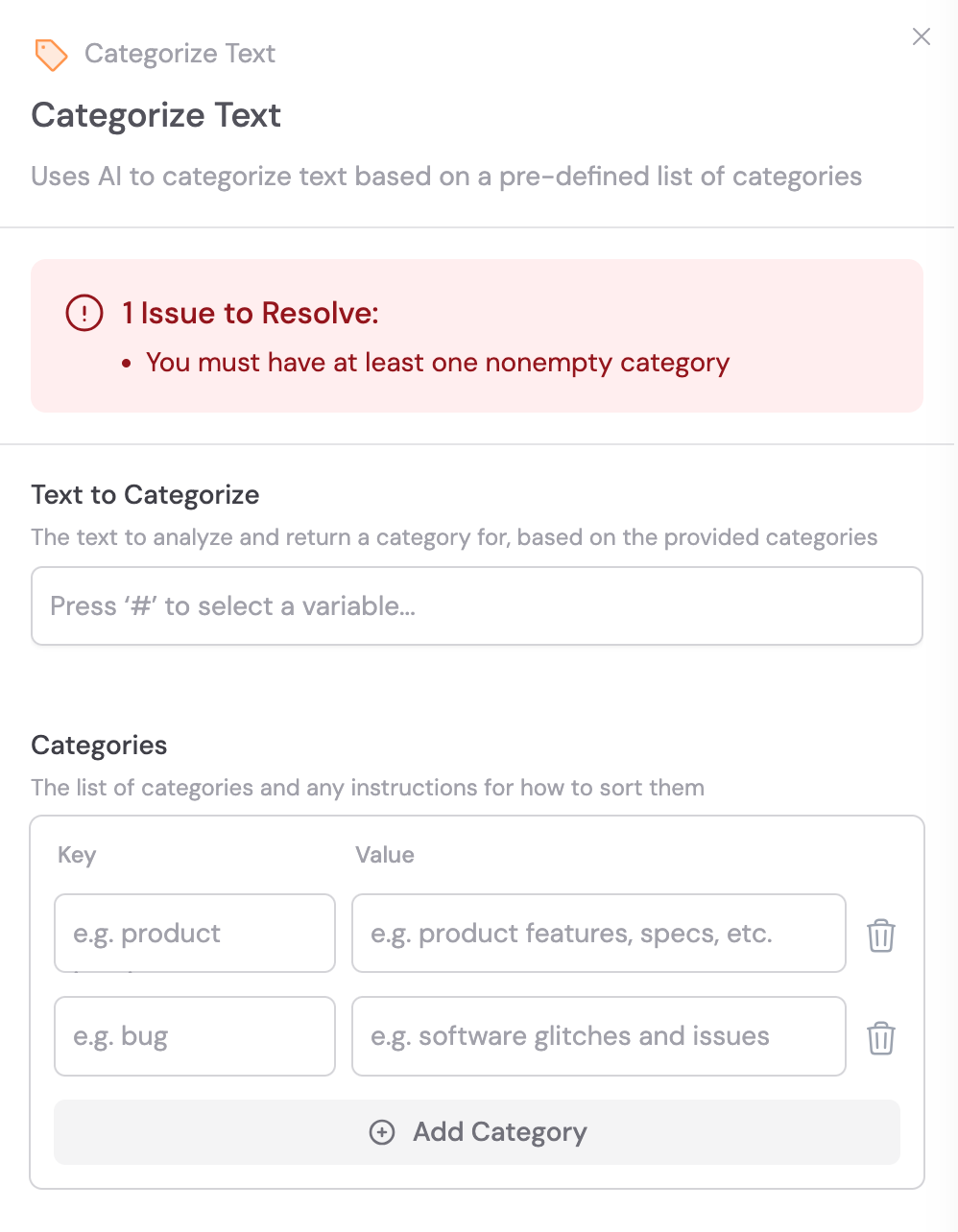 In the **Text to Categorize** field, enter or reference the content to classify. Use **#** to [reference variables](/guides/prompt-engineering#workflow-prompts) from previous steps or the trigger.
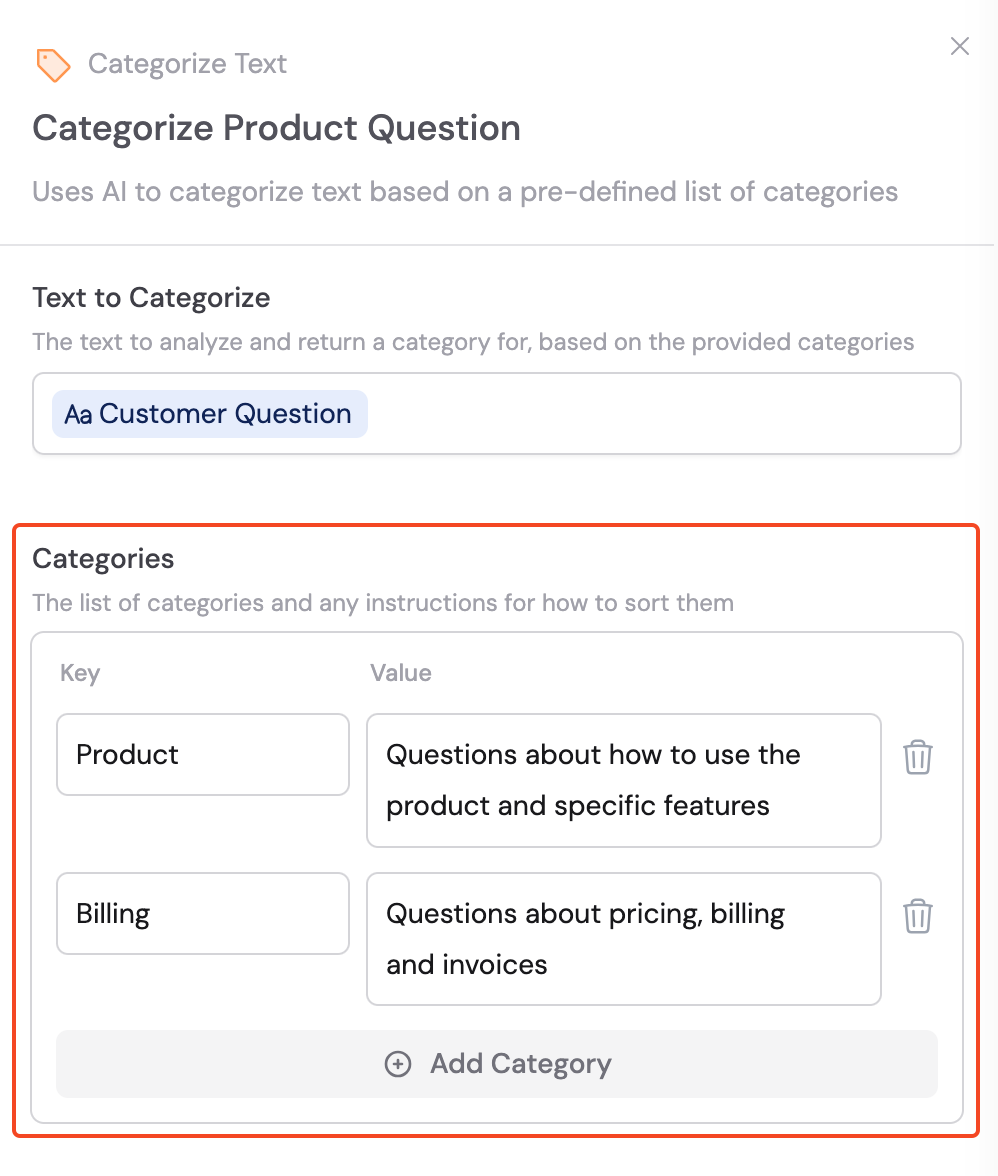
 Under the **Categories** section, add a **Key** and **Value** pair for each category. The **Key** is a unique identifier for the category, and the **Value** provides instructions that tell the AI when to assign that category.
 Combine Categorize Text with [Paths](/reference/actions/paths) to route your Workflow differently based on the assigned category.
## Related
* [Paths](/reference/actions/paths)
* [Only Continue If](/reference/actions/only-continue-if)
* [Analyze Sentiment](/reference/actions/analyze-sentiment)
Combine Categorize Text with [Paths](/reference/actions/paths) to route your Workflow differently based on the assigned category.
## Related
* [Paths](/reference/actions/paths)
* [Only Continue If](/reference/actions/only-continue-if)
* [Analyze Sentiment](/reference/actions/analyze-sentiment)